

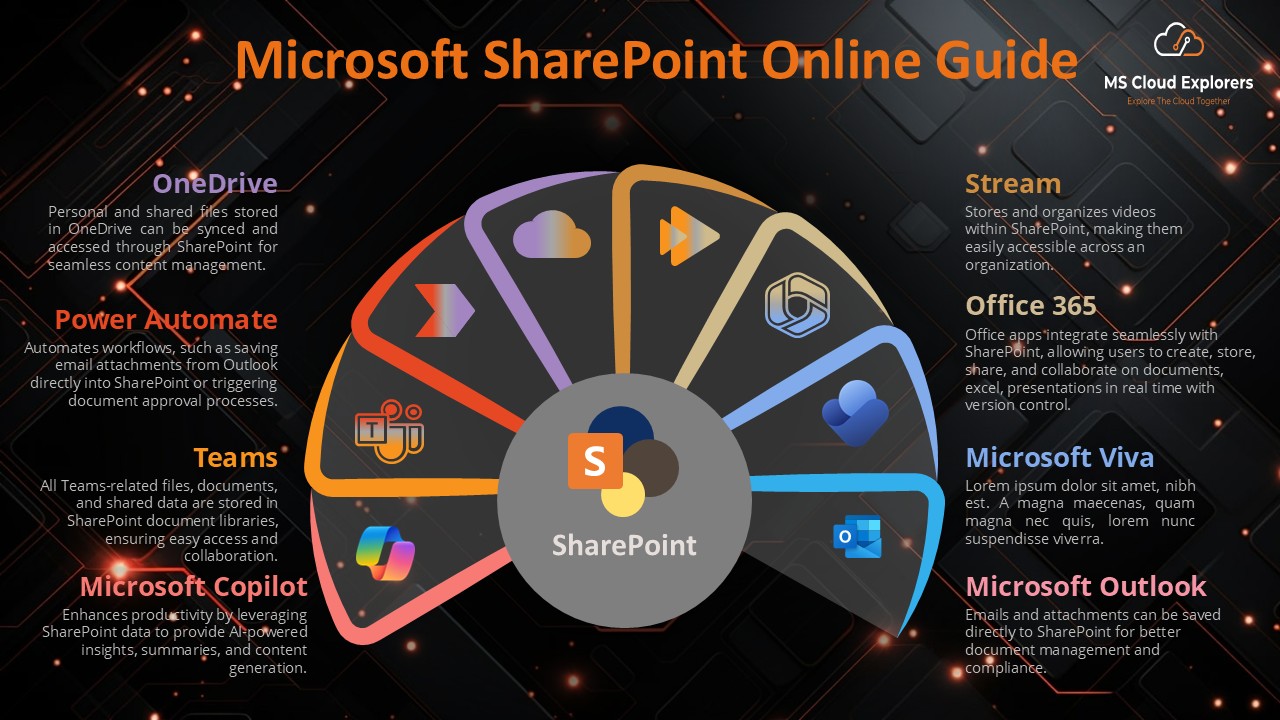
Microsoft SharePoint Online is more than just cloud storage — in real projects, it becomes a modern replacement for traditional file servers.
In my experience, after moving shared folders from on-premises file servers to SharePoint Online, teams were able to access their files securely from anywhere, without using a VPN. This made a huge difference for remote and hybrid employees.
One of the biggest advantages is real-time collaboration. Multiple people can work on the same Word or Excel file at the same time, and SharePoint automatically keeps version history, so it’s easy to restore a previous version if something goes wrong.
I’m especially a fan of how permissions can be controlled in a simple and granular way. You can decide exactly who can view, edit, or manage specific folders and documents, which is much easier to maintain than traditional file servers.
In this blog, I have walked through the features of SharePoint Online, explained how they work, and shared how you can start using SharePoint effectively.
Key Features of Microsoft SharePoint Online
Document Management
One of the best things about SharePoint Online is its document management system. It allows teams to store, organize, and access documents securely in the cloud. It also keeps track of document versions and allows users to collaborate on files in real time.
Team Collaboration
With SharePoint Online, employees can work together, share files, and communicate more efficiently. Features like document libraries, team sites, and discussion boards make it easy to collaborate on projects.
Cloud Integration
Since SharePoint Online is part of Microsoft 365, it integrates with tools like Teams, OneDrive, and Outlook, making it easy to share documents across these apps. Everything stays in the cloud, so you can access your files from anywhere, anytime.
Benefits of Using Microsoft SharePoint Online for Businesses
Improved Collaboration – SharePoint Online helps teams work together more effectively. With features like shared document libraries, discussion boards, and project sites, employees can collaborate on tasks and projects without confusion.
Integrated with Microsoft 365 Suite – Microsoft SharePoint Online is part of Microsoft 365. When you purchase any Microsoft 365 plan, it is automatically included in the subscription and is tightly integrated with Office apps, Teams, and other Microsoft services.
Security and Control – Keeping data secure is essential for businesses. SharePoint Online helps manage security by allowing businesses to control who can access documents and files. It offers features like encryption and advanced security controls to protect sensitive information.
Better Communication – SharePoint Online makes communication easier. It lets teams share important updates, hold discussions, and access shared resources—all in one place. Regardless of your location, you can stay updated.
Getting Started with Microsoft SharePoint Online
Setting Up SharePoint
Setting up SharePoint Online is easy. Microsoft provides step-by-step instructions to help you get started quickly. You can create a SharePoint site for your business, set permissions, and start uploading documents and files. You can Check out my other blog Create SharePoint Sits and Manage Permissions.
Choosing the Right Plan
Microsoft offers different SharePoint Online plans, such as Plan 1 and Plan 2. However, my recommendation is to purchase the full Microsoft 365 suite instead. With Microsoft 365, you get 1 TB of storage plus 10 GB per mailbox, along with access to all collaboration and productivity tools.
Please Note that Microsoft has also announced the retirement of the standalone SharePoint plans. Which means you will have only option to purchase the complete Microosft 365 Subscription. If you’re not sure which plan is right for your organization, or if you need professional support for planning and migration, please feel free to reach out. I’ll be happy to help you choose the right plan and assist with your migration.
Microsoft SharePoint Online Site Structure
Creating SharePoint Sites
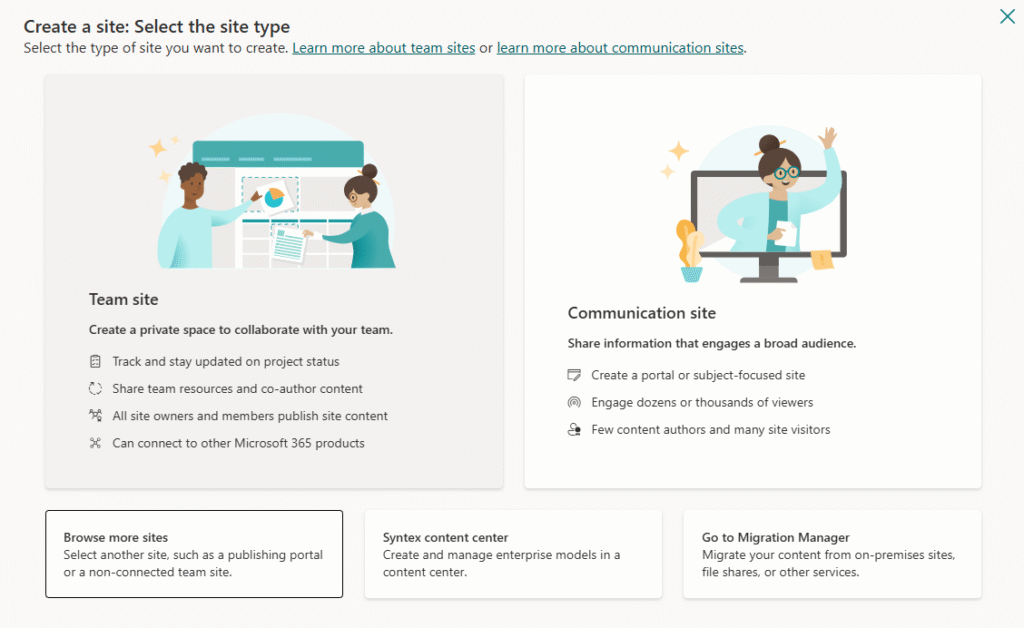
A SharePoint Online site serves as a central hub for your team. Depending on your requirements, you can design a variety of sites. For example, you might create a “Team Site” for internal projects or a “Communication Site” for sharing company news.
Types of Sites
-
Team Sites: Ideal for team collaboration and document sharing.
-
Communication Sites: Best for sharing information across the company.
-
Hub Sites: Used to link multiple sites together for a centralized view.
Managing Documents and Lists in SharePoint Online
Document Libraries
Document libraries in SharePoint Online are where you store and organize files. You can upload documents, tag them with metadata, and control access. It’s also easy to track document versions and restore previous versions if needed.
Lists
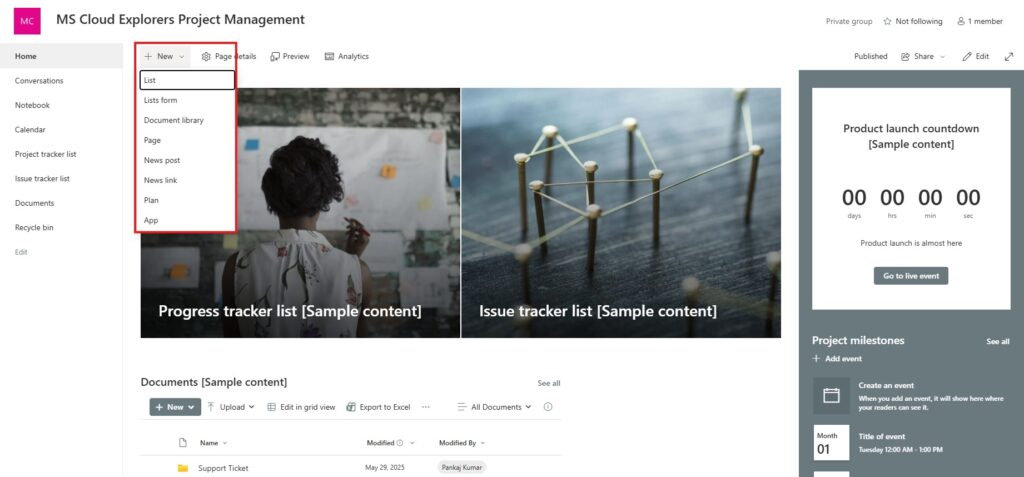
You can also create lists in SharePoint Online to track information like tasks, contacts, or inventory. Lists can be customized to suit your business’s needs and are a great way to manage projects or resources.
Customizing Microsoft SharePoint Online
Personalizing Your Site
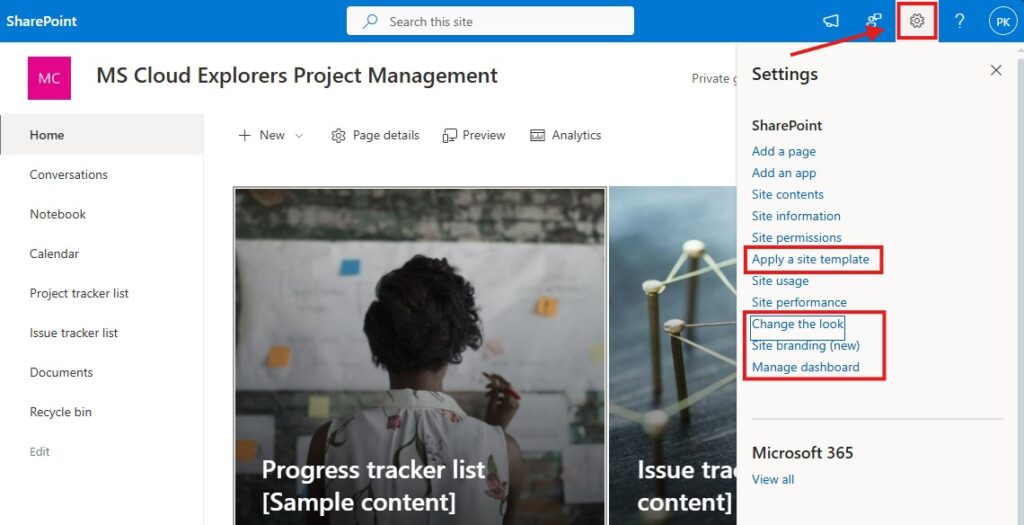
SharePoint Online allows you to customize the look of your site, from adding your company logo to changing the layout. You can also personalize the user experience, so employees see the most relevant content when they log in.
Customizing Navigation
To help employees find what they need, SharePoint Online lets you organize content and customize navigation. Clear and easy-to-use menus make it simple for users to navigate the site and access important documents.
Security and Permissions in SharePoint Online
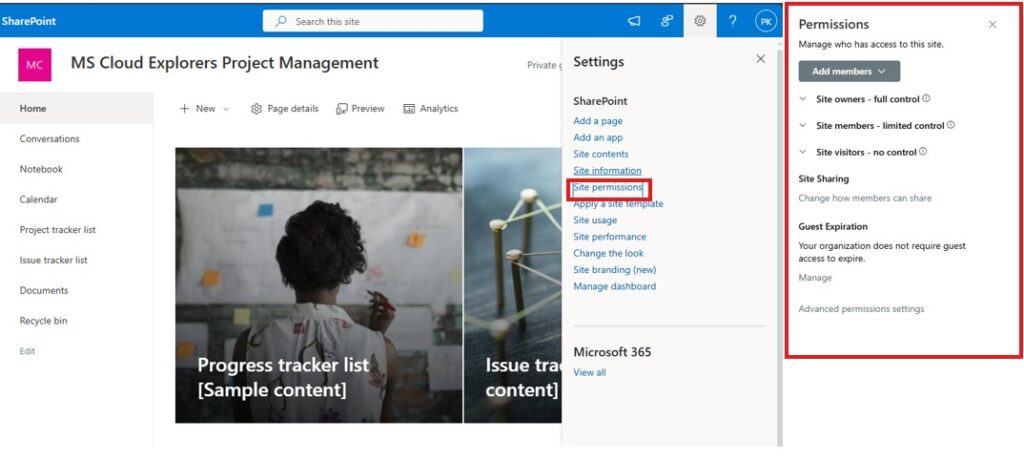
Managing Permissions
With SharePoint Online, you can control who has access to your documents and data. You can set permissions for individual users or groups and even restrict access to specific documents. This ensures that sensitive information stays protected.
External Sharing
Sometimes, you may need to share documents with people outside your organization. SharePoint Online allows you to securely share files with external partners or clients while maintaining control over who can access them.
Workflows and Automation in SharePoint Online
Creating Workflows
SharePoint Online helps automate business processes with workflows. For example, you can create workflows for document approval, task assignments, or notifications. This minimizes the possibility of mistakes and saves time.
Using Power Automate
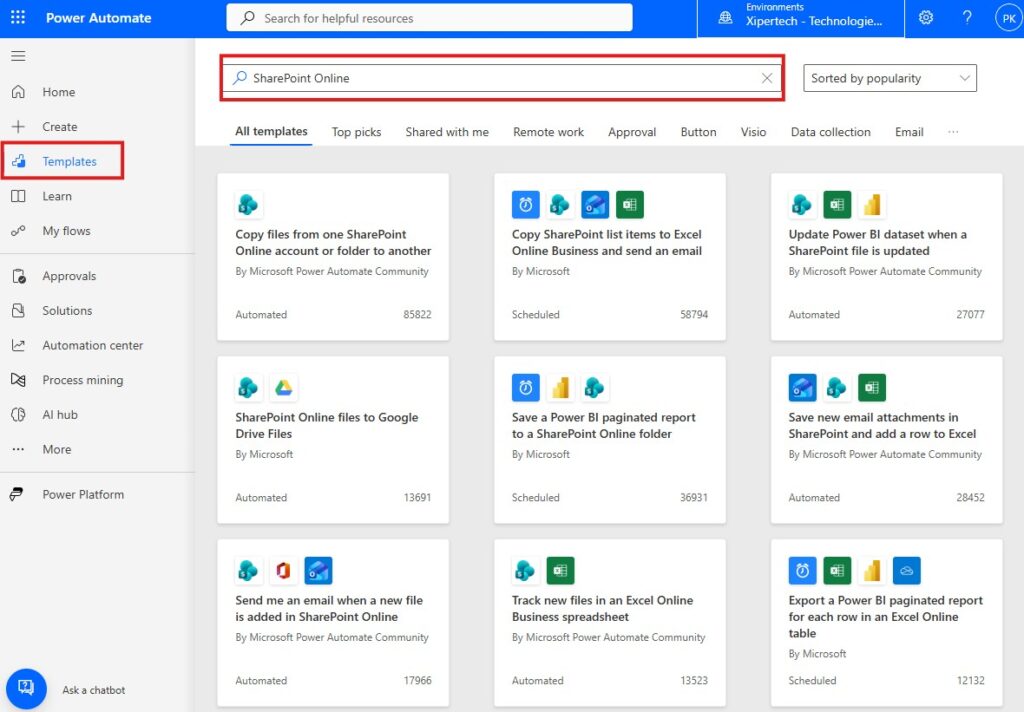
With Power Automate (formerly Flow), you can connect SharePoint Online with other Microsoft apps to automate tasks and improve efficiency. You can set up automated actions, like sending notifications or updating records, without needing to do everything manually. The good thing is you can use pre-build templates and customize according your needs.
Optimizing Search and Navigation in SharePoint Online
Improving Search
The search feature in SharePoint Online is powerful. You can search for documents, sites, and other content quickly. By setting up search filters and tags, you can make it even easier for users to find what they need.
Customizing Navigation
Good navigation is key to using SharePoint Online effectively. Organize your sites, libraries, and lists so users can easily find the resources they need without having to search through a cluttered interface.
SharePoint Online for Mobile and Remote Work
Accessing SharePoint on Mobile
SharePoint Online is accessible on mobile devices, making it easy for employees to access documents, collaborate, and stay informed while on the go. The SharePoint mobile app ensures that remote workers can still stay connected.
Best Practices for Remote Teams
For remote teams, SharePoint Online is essential. It provides a central place for collaboration and communication, helping teams stay organized no matter where they’re working from.
Maintaining SharePoint Online
Regular Maintenance
To keep SharePoint Online running smoothly, regular maintenance is important. This includes monitoring user activity, updating permissions, and cleaning up old files. Regular checks ensure your system stays secure and efficient.
Troubleshooting Common Issues
Sometimes, users may experience issues with SharePoint Online, such as syncing problems or access errors. Fortunately, Microsoft provides a comprehensive support guide to help resolve these issues quickly.
Best Practices for Using SharePoint Online
Training Your Team
To get the most out of SharePoint Online, it’s important to train your team. Providing resources and training sessions will ensure that employees understand how to use the platform effectively.
Encouraging Usage Across the Organization
Encourage your employees to use SharePoint Online for document management and collaboration. The more they use it, the more efficient and organized your organization will become.
Conclusion
SharePoint Online is a powerful tool for businesses that need a secure, collaborative, and efficient way to manage documents, share information, and stay connected. By integrating SharePoint Online with Microsoft 365 and following the best practices outlined in this guide, your organization can improve productivity, enhance collaboration, and maintain control over your data.
FAQs
- What is SharePoint Online?
SharePoint Online is a cloud-based platform that helps businesses manage documents, collaborate on projects, and securely share information. - How does SharePoint Online improve collaboration?
It enables real-time document editing, file sharing, and communication across teams, improving productivity. - Is SharePoint Online secure?
Yes, SharePoint Online offers advanced security features like encryption, permissions control, and compliance tools to protect your data. - Can I use SharePoint Online on mobile?
Yes, SharePoint Online has a mobile app that allows users to access documents and collaborate while on the go. - Can SharePoint Online be integrated with other Microsoft apps?
Yes, SharePoint Online works seamlessly with Microsoft Teams, OneDrive, and other Microsoft 365 tools for enhanced collaboration.
Explore More from MS Cloud Explorers
- A Practical Guide to Successful Microsoft 365 Subscription Adoption
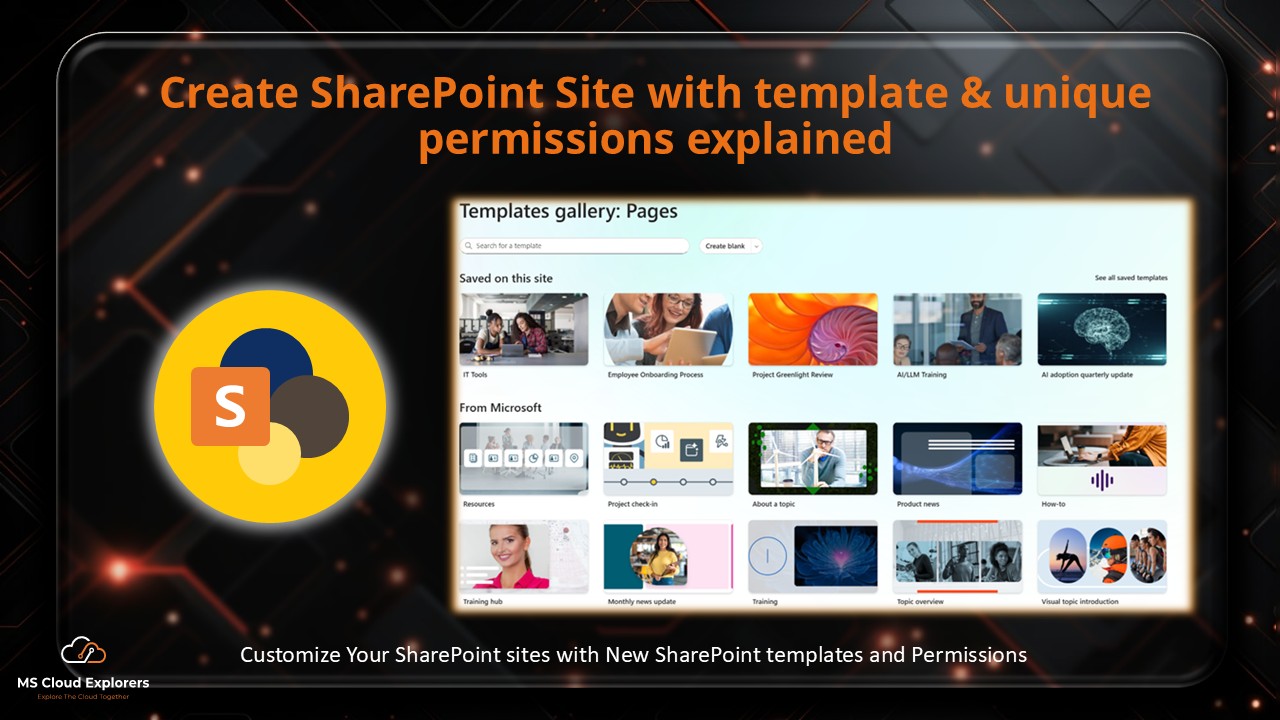
- Create SharePoint Online Sites from Templates and Manage Permissions
- Manage and Create Data Retention for Microsoft SharePoint Online
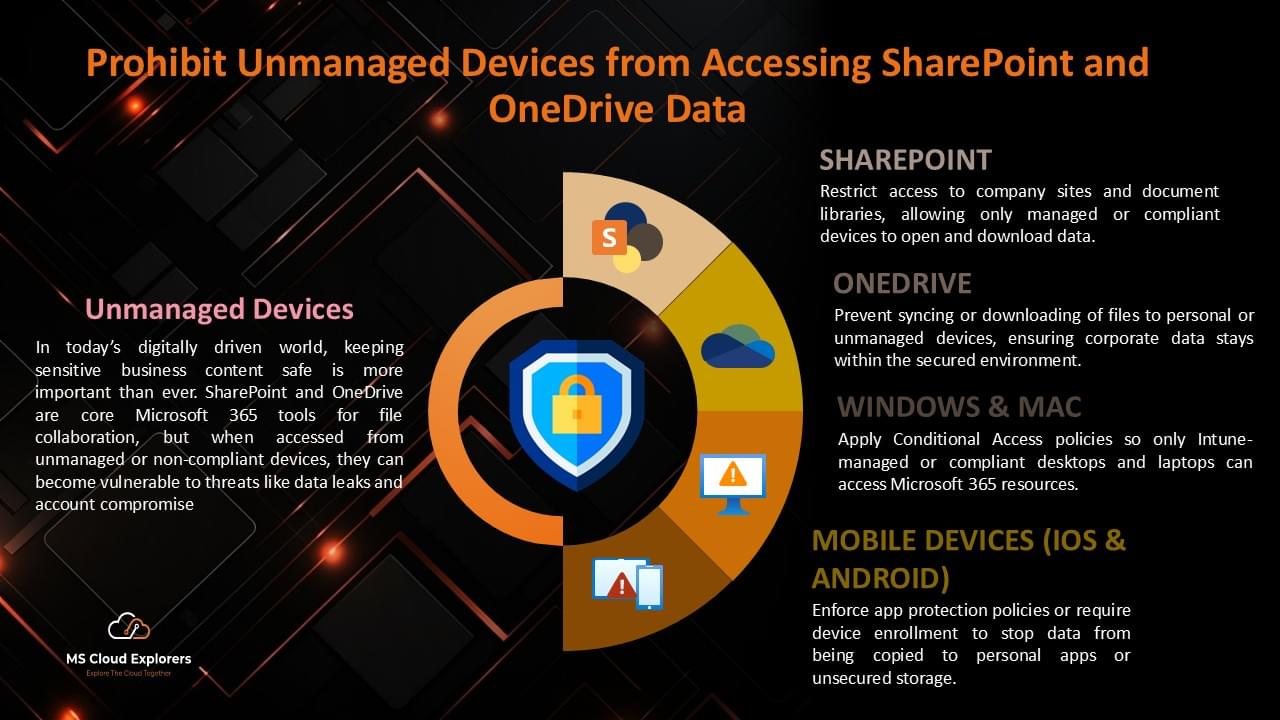
- Block SharePoint/OneDrive Access on Unmanaged Devices
- Manage Your Microsoft SharePoint Online with the PowerShell
Enjoyed the article?
We’d love to hear your thoughts—share your comments below!
For more insights, guides, and updates from the Microsoft ecosystem, be sure to subscribe to our newsletter and follow us on LinkedIn. Stay connected and never miss out on the latest tips and news!
2 comments on “Explore Microsoft SharePoint Online: A Comprehensive Guide for Businesses 2026”