


Microsoft has introduced a new OneDrive experience that allows users to sync their personal OneDrive account on work devices.
With the latest update to the OneDrive Sync Client on Windows, the system can automatically detect if a user has a personal Microsoft account (like Outlook.com or Hotmail). If detected, users will see a prompt asking whether they want to sync their personal files along with their work files.
This feature is enabled by default — but IT admins can Block Personal OneDrive Sync using Group Policy or Microsoft Intune.
Let’s break it down in simple terms.
Why Did Microsoft Introduce This Update?
Microsoft understands that many users work in hybrid environments and often use the same laptop for both personal and work tasks.
This update aims to:
- Save time by reducing account switching
- Improve user experience
- Support flexible and hybrid work setups
- Make file access more convenient
While this may be helpful for users, many IT teams may prefer to Block Personal OneDrive Sync to avoid security risks.
What Changed? (Before vs After Update)
🔄 Before the Update
- Users had to manually add their personal OneDrive account.
- No automatic prompts appeared.
- IT had better control over synced accounts.
🚀 After the Update
- OneDrive automatically detects personal Microsoft accounts.
- Users receive a pop-up asking to sync personal files.
- Feature is enabled by default.
- Raises potential concerns about mixing corporate and personal data.
What Users Will See
If a personal Microsoft account is detected, users may see this message:
“We noticed you have a personal Microsoft account. Do you want to sync your personal OneDrive files?”
If they click Yes, a new folder will appear:
- OneDrive – Personal
- Work files remain under OneDrive – Company Name
The folders stay separate, but they exist on the same device.
Why Organizations May Want to Block Personal OneDrive Sync
Even though Microsoft keeps work and personal accounts separate, many organizations prefer stricter control.
Here’s why IT teams may choose to block it:
- Prevent accidental data leaks
- Reduce compliance risks
- Avoid mixing business and personal data
- Minimize support tickets
- Maintain stricter endpoint control
For regulated industries like healthcare, finance, and government, it is strongly recommended to Block Personal OneDrive Sync.
How IT Admins Can Manage This Feature
You can disable this feature using Group Policy or Microsoft Intune.
By default, this prompt is enabled. But IT teams can control it using:
Group Policy:
-
Open Group Policy Editor:
-
Navigate to:
User Configuration > Administrative Template > OneDrive
-
-
Configure Policies:
-
Enable Prevent users from syncing personal OneDrive accounts to set
Enabled.
-
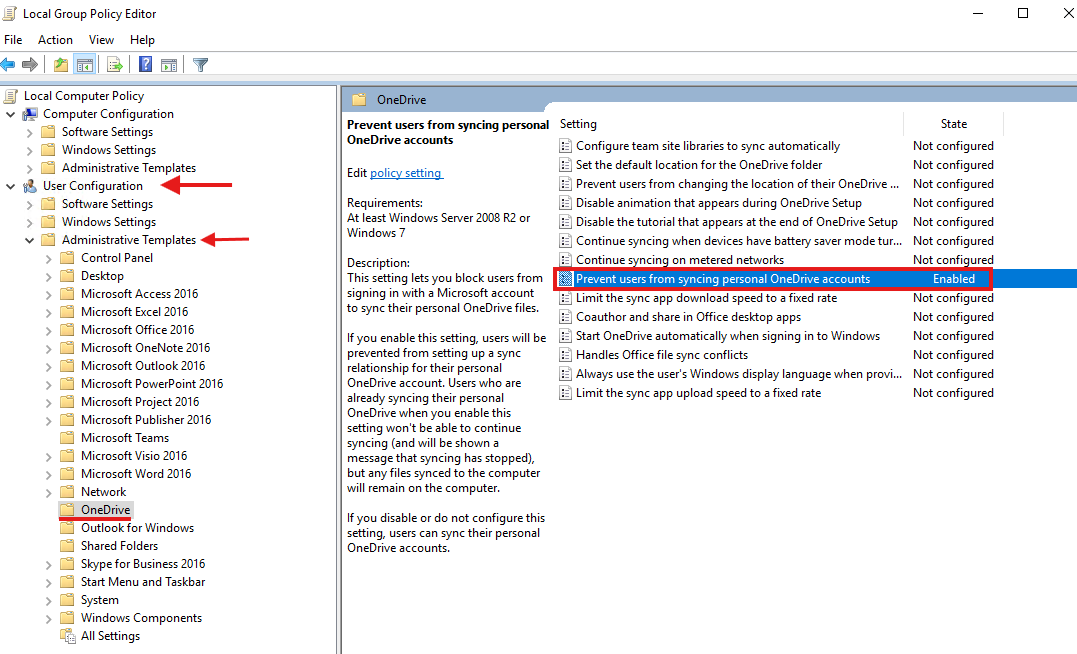
If you don’t see the OneDrive option in the Group Policy Editor, check out the blog written by Ali Tajran on how to add ADMX and ADML files.
Microsoft Intune (Endpoint Manager):
-
Sign in to Microsoft Intune Admin Center:
-
Create a Configuration Profile:
-
Profile Settings:
-
Platform: Windows 10 and later
-
Profile type: Settings catalog
-
-
-
Add Settings:
-
Search for OneDrive in the settings picker.
-
Add Prevent users from syncing personal OneDrive accounts.
-
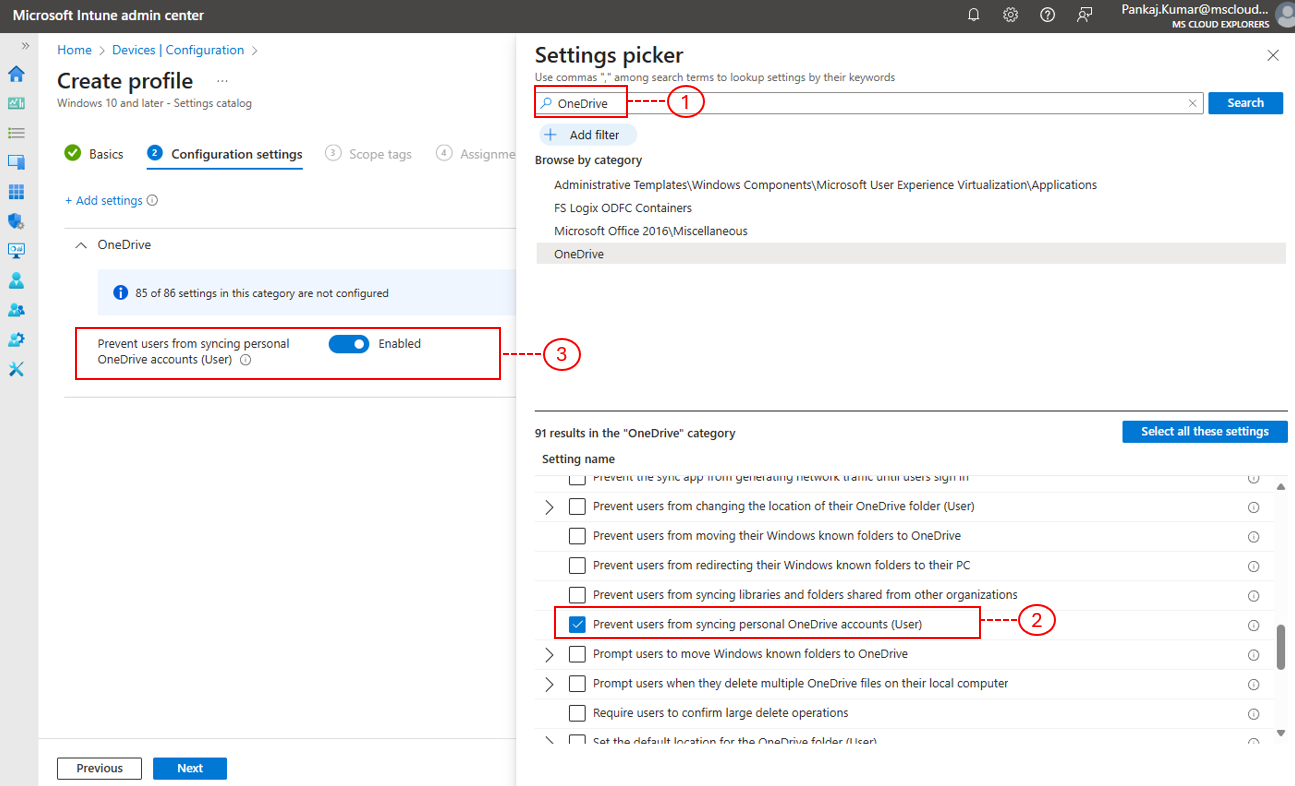
-
Assign and Deploy:
-
Assign the profile to the desired user or device groups and deploy.
-
This gives IT full control over who can or can’t use this feature. To configure this setting through Intune, ensure the device is properly enrolled and managed by Microsoft Intune.
Block OneDrive for Business Sync for Other Organizations
In many cases, users work with multiple companies or have more than one OneDrive for Business account on the same device. This can create a risk of accidental data leakage — especially on devices owned and managed by your organization.
To prevent this, you can configure a policy that allows OneDrive syncing only for specific organizations. This ensures that users can sync files from your company tenant but cannot add or sync OneDrive accounts from other companies.
This is a strong security measure for organizations that want tighter control over corporate data.
Why This Is Important
- Prevent accidental data sharing between tenants
- Reduce risk of data leakage
- Maintain compliance and security standards
- Keep corporate devices restricted to your organization only
If someone works with multiple organizations, they can still access other tenants via browser if allowed — but OneDrive sync on the device will be restricted to approved organizations only.
For a detailed step-by-step guide on how to configure this policy using Group Policy or Microsoft Intune, check out the blog where it is explained clearly along with implementation steps.
Best Practices Before You Enable or Block It
If you plan to allow personal sync:
- Inform users before rollout
- Provide clear usage guidelines
- Monitor syncing activity
- Define data usage policies
If you plan to block it:
- Test on a pilot group
- Deploy gradually
- Communicate clearly to users
- Avoid changes during business-critical hours
Is This Update Safe?
Yes, technically work and personal files are stored separately.
However, from a security and compliance perspective, many organizations prefer to Block Personal OneDrive Sync to reduce risks.
The decision depends on your company’s security posture.
Who Should Allow It?
Good fit for:
- Small businesses
- Startups
- Flexible work environments
- BYOD-friendly organizations
Not ideal for:
- Healthcare organizations
- Financial institutions
- Government agencies
- Highly regulated industries
What’s Next for OneDrive?
This is part of Microsoft’s larger goal to unify personal and work experiences. Expect more updates that help users stay productive and connected, without the need to juggle accounts.
Final Thoughts
Microsoft’s new OneDrive update improves flexibility for users who manage both personal and work files on the same device.
However, from an IT and security standpoint, many organizations may choose to Block Personal OneDrive Sync to protect corporate data and maintain compliance.
The good news is that Microsoft gives administrators full control through built-in policies.
As always, the right choice depends on your organization’s security requirements and device management strategy.
FAQs
- Can users choose not to sync their personal OneDrive?
Yes, they can simply click “No” when prompted. - Does this affect OneDrive for Business?
No, your business files stay completely separate and secure. - Can I stop this from showing up on company devices?
Yes, use Group Policy or Intune to disable the prompt. - Is this available on macOS?
No, this update is currently for Windows devices only. - What if my personal OneDrive is full?
You’ll receive a notification from Microsoft, and syncing will pause until you free up space or upgrade your storage.
Explore More from MS Cloud Explorers
- Ultimate Guide to SharePoint: Create a Sites with Templates and Manage Permissions
- Prohibit Unmanaged Devices from Accessing SharePoint and OneDrive Data
- Exploring SharePoint Online: A Comprehensive Guide for Businesses
- Step-by-Step guide of Microsoft Intune Implementation from Scratch
Enjoyed the article?
We’d love to hear your thoughts—share your comments below!
For more insights, guides, and updates from the Microsoft ecosystem, be sure to subscribe to our newsletter and follow us on LinkedIn. Stay connected and never miss out on the latest tips and news!
It’s awesome to go to see this web site and reading the views of all mates
about this post, while I am also eager of getting knowledge.