

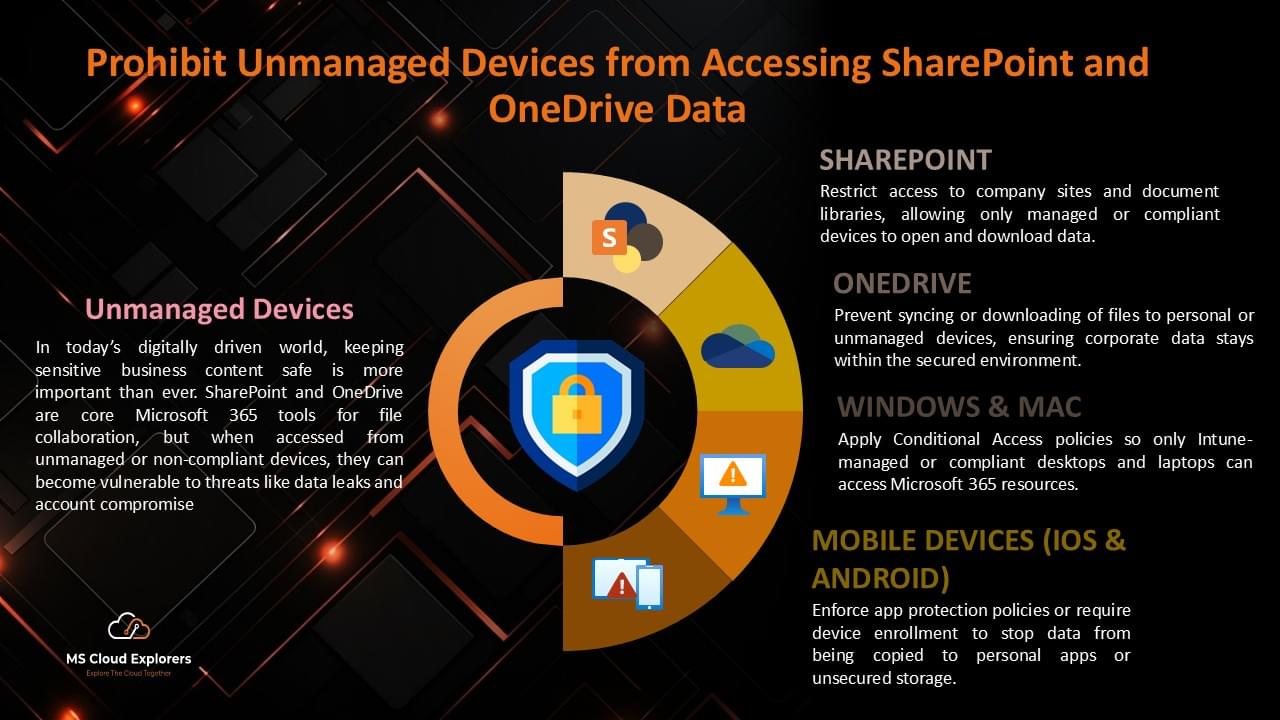
In today’s hybrid workplace, employees access company data from offices, homes, and public networks. While this flexibility improves productivity, it also raises security risks. A SharePoint Conditional Access Policy is a powerful way to ensure that only trusted, compliant devices can access your organization’s SharePoint and OneDrive data. It works by evaluating sign-in conditions—such as device compliance, location, and user identity—before granting access.
Simply put, it acts as a smart security gate: if the device meets your organization’s requirements, access is allowed. If not, access is blocked or limited. This approach is critical for preventing data leaks, ransomware attacks, and unauthorized downloads.
Real-World Scenario: Why It Matters
Imagine an employee logs into SharePoint from a personal laptop that doesn’t have antivirus software or disk encryption enabled. If that device gets infected with malware, sensitive company files could be compromised.
By implementing a SharePoint Conditional Access Policy using Microsoft Entra ID, the organization ensures that only devices compliant with Microsoft Intune policies or properly joined to Azure AD can access files. Any unmanaged device is automatically blocked or given limited access.
This simple security layer significantly reduces cyber risk.
What Is a SharePoint Conditional Access Policy?
A SharePoint Conditional Access Policy is a security rule configured in Microsoft Entra ID (formerly Azure AD). It controls access to:
- Microsoft SharePoint Online
- Microsoft OneDrive for Business
Based on conditions like:
- Device compliance status
- Azure AD join or Hybrid join status
- Location and sign-in risk
- User or group membership
If the device is not compliant or not properly joined, access is denied. To use these Policies, Make sure Your Company Devices Enrolled in Microsoft Intune.
How to Create a SharePoint Conditional Access Policy (Step-by-Step)
Microsoft Azure AD Conditional Access (CA) policies allow administrators to block unmanaged devices effectively. Follow these steps to implement a CA policy that restricts unauthorized access:
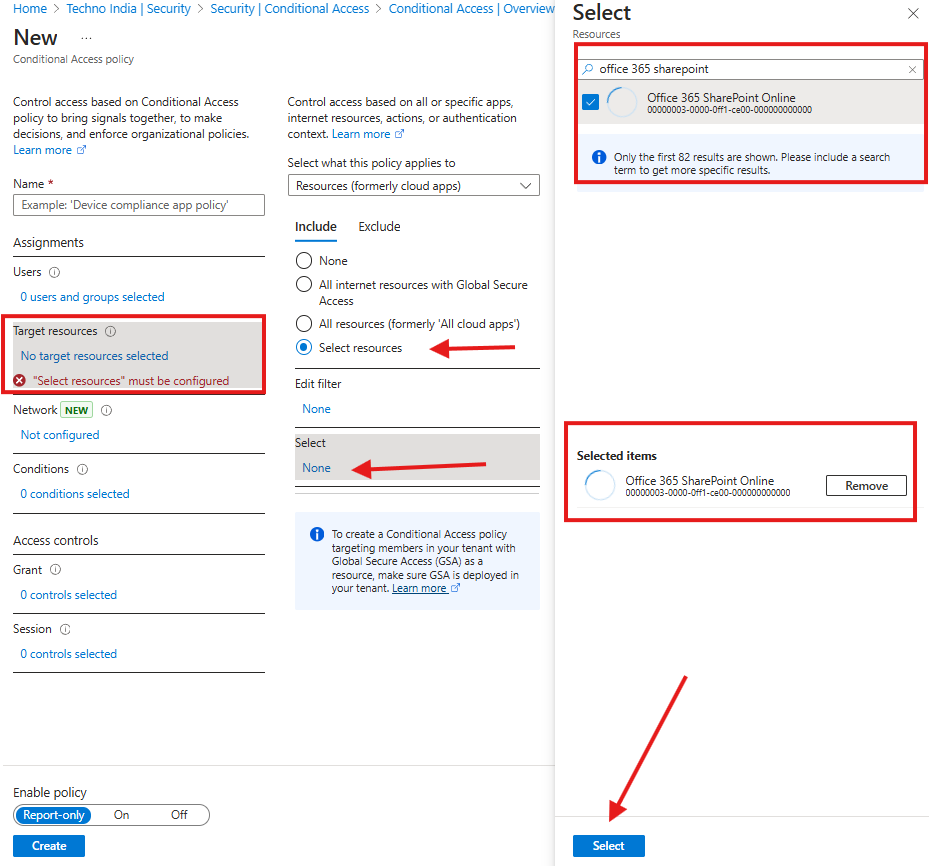
Step 1: Create a Conditional Access Policy from Microsoft Entra ID (for Granular control)
- Access the Azure AD Admin Center and navigate to the Conditional Access policy section.
- Click on ‘New Policy’ to create a new access control policy.
- Assign a policy name that reflects its purpose.
- Under ‘Users or workload identities’, select the appropriate users or groups.
- Navigate to ‘Cloud apps or actions’, select ‘Include’, then search and choose ‘Office 365 SharePoint Online’.
Step 2: Set Up Conditional Access Conditions
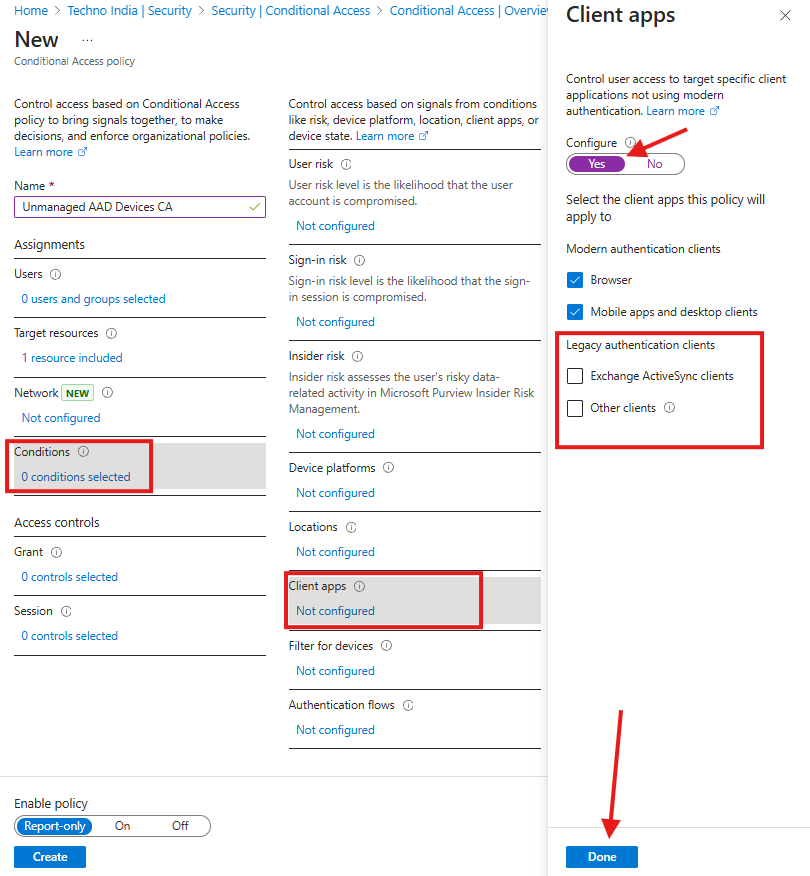
- Click ‘Conditions’ and choose ‘Client apps’.
- Enable the configure toggle, then uncheck ‘Legacy authentication clients’ and ‘browser’ options under modern authentication clients.
- Click ‘Done’ to save changes.
Step 3: Grant Access Controls
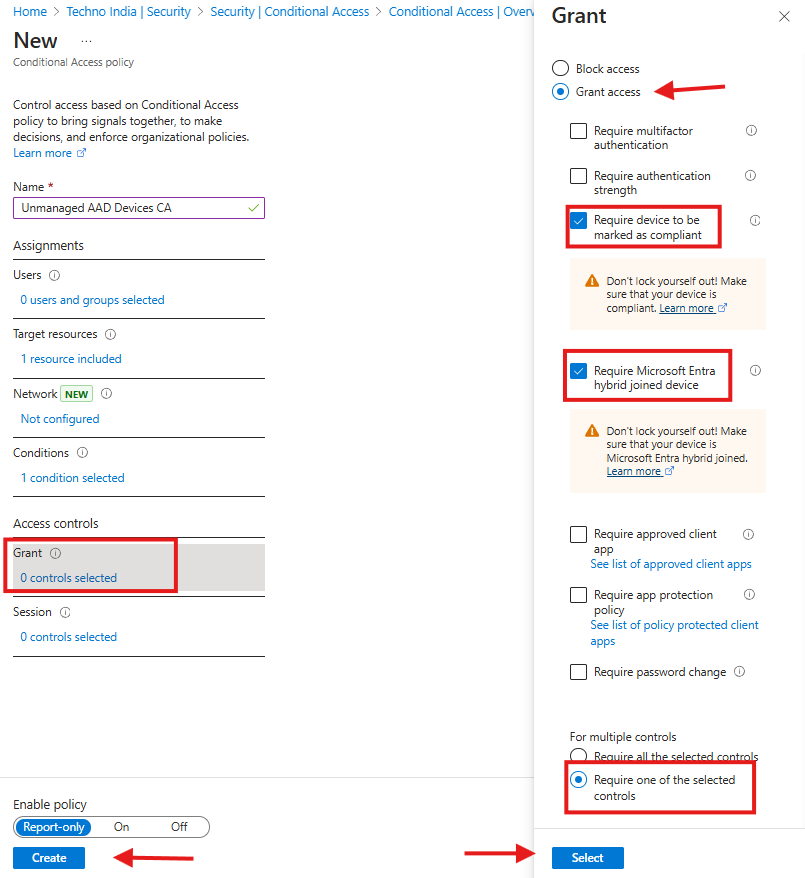
- Under ‘Grant’ access control, select ‘Grant access’ and check the following options:
- Require device to be marked as compliant (Intune Managed Device)
OR - Require Hybrid Azure AD-joined device
- Require device to be marked as compliant (Intune Managed Device)
- Choose ‘Require one of the selected controls’ for multiple control enforcement.
- Click ‘Select’, enable the policy, and click ‘Create’.
Once the policy is enabled, unmanaged devices will no longer be able to access SharePoint and OneDrive. To Understand Microsoft Entra ID Conditional Access Policies in Details.
Alternative Method (Recommend and Easy Method)
If you don’t have Entra ID Premium P1/P2, you can still apply restrictions through the SharePoint Admin Center.
Go to:
SharePoint Admin Portal → Left Side Policies → Access Control → Unmanaged Devices
Choose one option:
- Block access
- Allow limited, web-only access
When you enable these option, You should see additional Conditional Policies in the Microsoft Entra ID Portal.
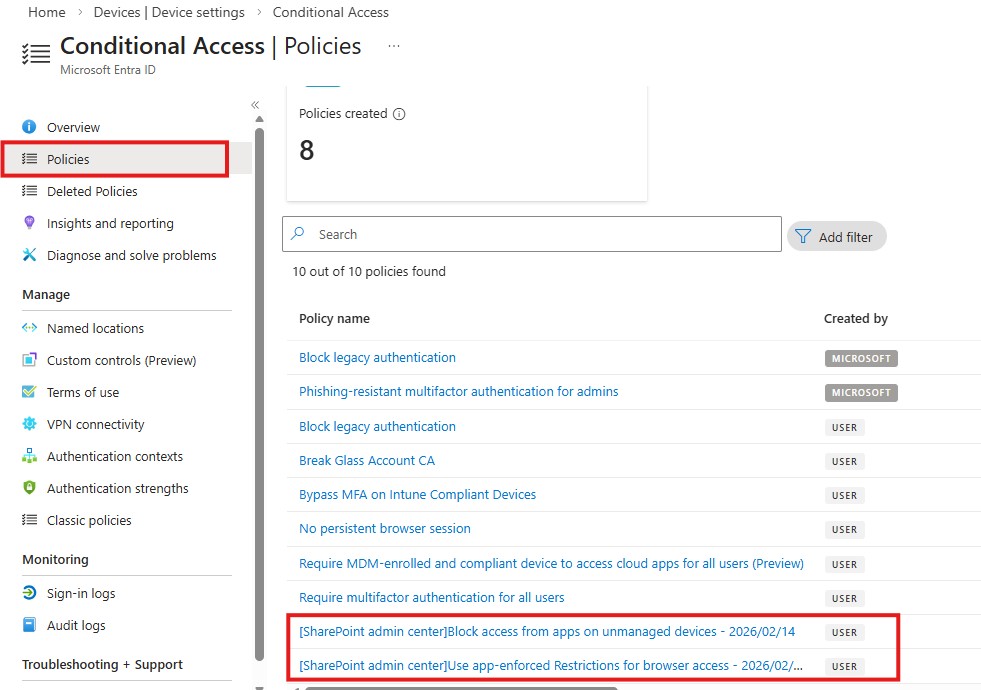
This method provides basic protection without full Conditional Access capabilities.
Prevent Users from Registering Personal Devices
To stop users from registering personal devices:
- Go to Microsoft Entra Admin Portal → Devices → Device Settings
- Set “Users may register their devices” to None or limit to specific roles
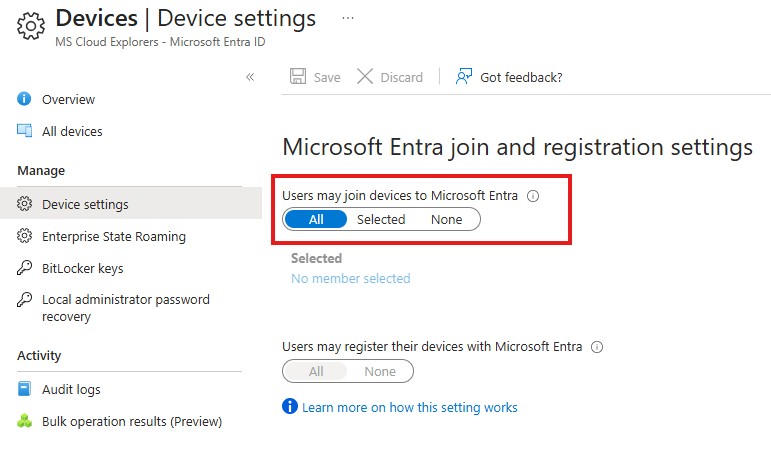
This ensures only IT-approved devices connect to your tenant.
Domain-Based Sync Restriction (Without P1/P2 License)
Another option is restricting OneDrive sync to domain-joined devices.
Steps:
- Retrieve your Active Directory Domain GUID
- Go to SharePoint Admin Center → Settings → OneDrive Sync
- Enable the checkbox “Allow syncing only on computers joined to specific domains”
- Enter the domain GUID
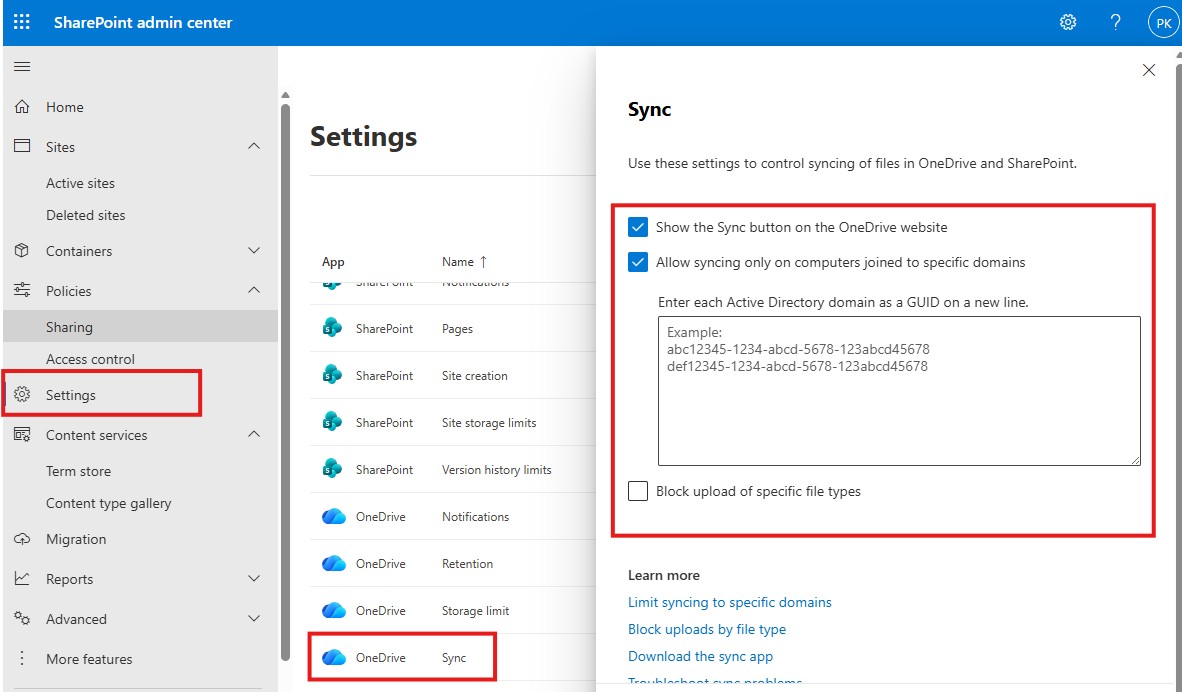
Note: This applies only to traditional Active Directory devices, not Azure AD-only joined devices.
Important Considerations Before Enabling the Policy
Before enforcing a SharePoint Conditional Access Policy, consider:
- Exclude break-glass (emergency) admin accounts
- Test with a pilot group first
- Be aware that Microsoft Teams file sharing depends on SharePoint and OneDrive
- Force sign-out sessions if immediate enforcement is required
Proper testing avoids accidental lockouts and service disruptions.
Benefits of a SharePoint Conditional Access Policy
Implementing a SharePoint Conditional Access Policy helps you:
- Enforce secure, compliant device access
- Prevent unauthorized downloads
- Reduce ransomware exposure
- Protect confidential business data
- Maintain regulatory compliance
It’s one of the most effective security controls for Microsoft 365 environments.
FAQs
- Why is a SharePoint Conditional Access Policy important?
It ensures only secure and managed devices can access business-critical files, reducing the risk of data breaches. - Do I need a premium license?
Yes. Conditional Access requires Microsoft Entra ID Premium P1 or P2. Without it, you can use limited controls in the SharePoint Admin Center. - Will this impact Microsoft Teams?
Yes. Since Teams stores files in SharePoint and OneDrive, blocking unmanaged devices may limit file access within Teams. - What happens to active sessions?
Existing sessions remain active until expired or manually revoked.
Final Thoughts
In 2026, cyber threats continue to evolve, especially in hybrid work environments. A properly configured SharePoint Conditional Access Policy is not just a best practice—it’s a necessity. By combining device compliance, identity protection, and smart access rules, organizations can confidently protect SharePoint and OneDrive data from unmanaged devices.
Start small, test carefully, and gradually enforce the policy across your organization to build a secure and resilient Microsoft 365 environment
Explore More from MS Cloud Explorers
- How to Block Personal OneDrive Sync on Work Devices: Protect Organization’s Data
- Microsoft 365 Data Protection: The Ultimate Guide to Secure Your Cloud Data
- Explore Microsoft SharePoint Online: A Comprehensive Guide for Businesses
- Ultimate Guide to SharePoint: Create a Stunning Sites and Manage Permissions
Enjoyed the article?
We’d love to hear your thoughts—share your comments below!
For more insights, guides, and updates from the Microsoft ecosystem, be sure to subscribe to our newsletter and follow us on LinkedIn. Stay connected and never miss out on the latest tips and news!
4 comments on “SharePoint Conditional Access Policy (2026 Guide): Block Unmanaged Devices Access Right Way”