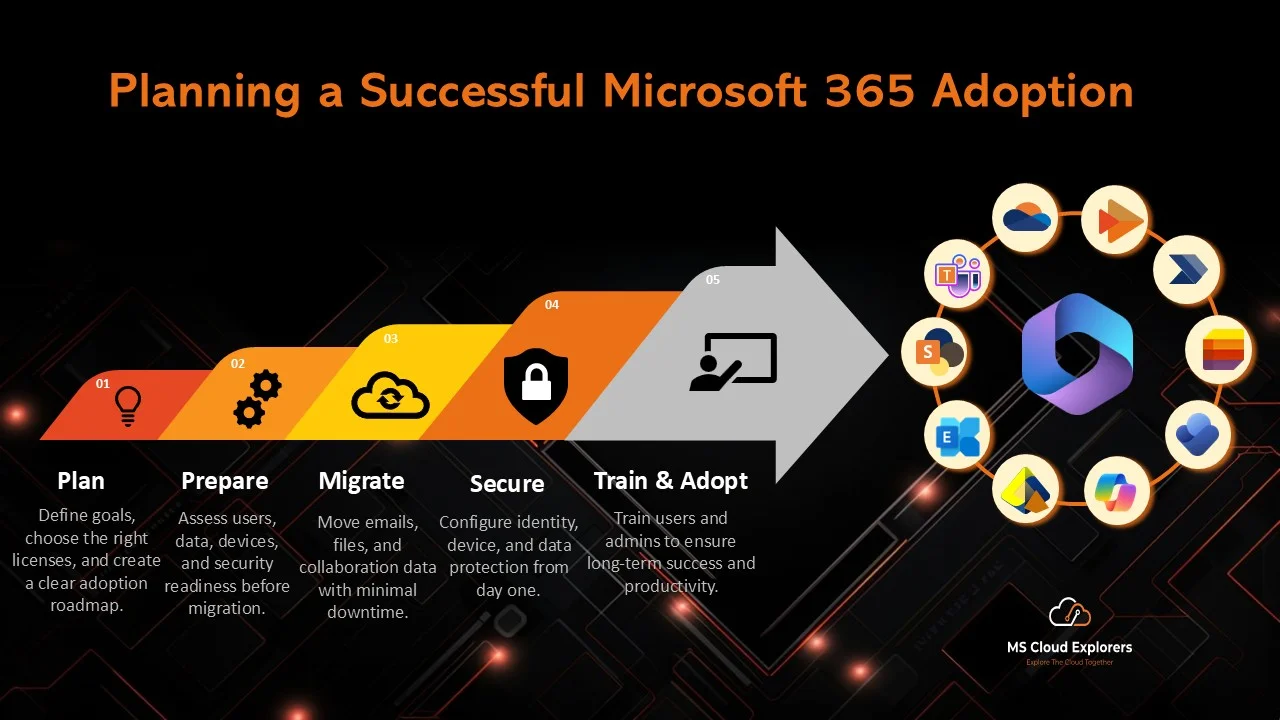
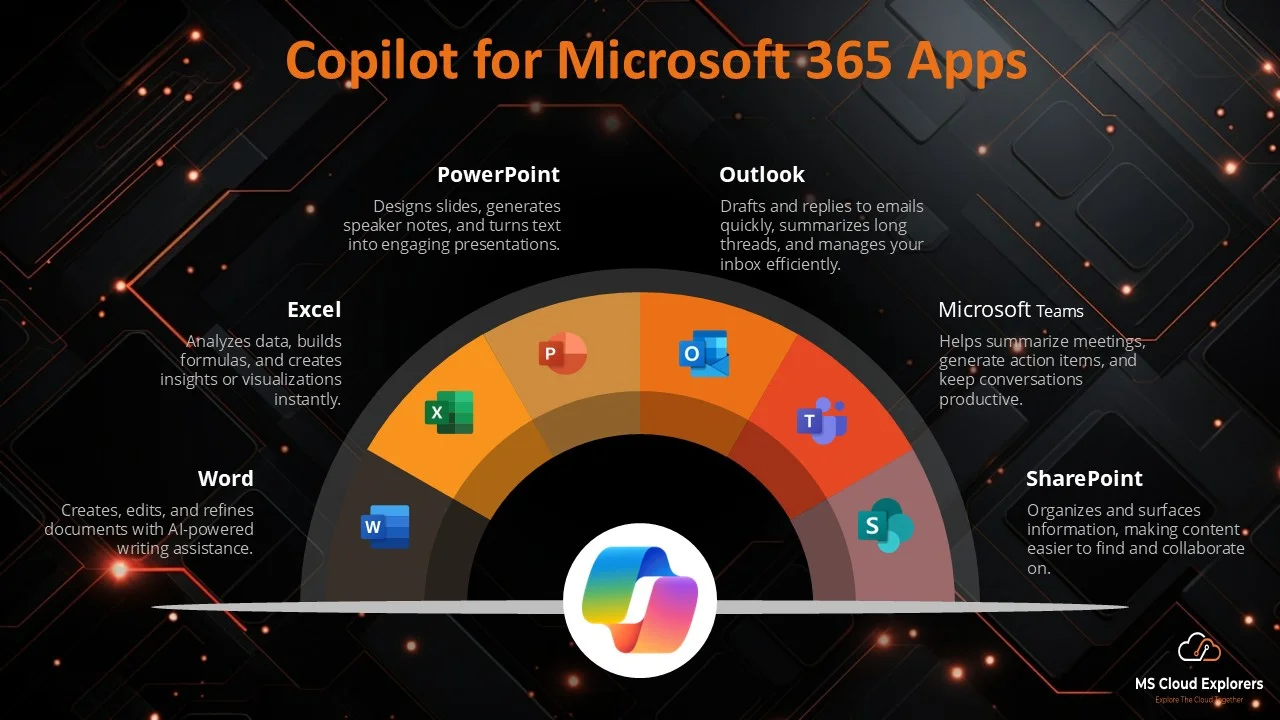
In today’s digital workplace, organizations are leveraging powerful AI tools to boost productivity and streamline operations. One such tool that has gained popularity is Microsoft 365 Copilot, an intelligent assistant designed to help you create content faster, analyze data with ease, and get more done with less effort.
At first, we weren’t sure whether Microsoft 365 Copilot would be the right fit for our organization since it didn’t offer trial licenses. So, we decided to test it with just a few users. Their feedback was overwhelmingly positive — they loved how Copilot helped with creating documents, automating Excel formulas, and even drafting complete Standard Operating Procedures (SOPs) in Word. Based on this success, we made the decision to roll out Copilot across the entire organization.
Today, after full deployment, our users are extremely happy with the integration and the way Copilot enhances their productivity. The best part? It’s seamlessly integrated into Microsoft Office apps, making it incredibly easy to use for everyday tasks like writing emails, generating presentations, and managing data — all with just a few simple prompts.
This guide will walk you through how Microsoft 365 Copilot works, best practices for using it, and how it can benefit your organization in making daily tasks more efficient and effective.
What Is Microsoft 365 Copilot?
Microsoft 365 Copilot is an AI tool that integrated with Microsoft 365 apps
It uses advanced artificial intelligence to:
- Generate text based on your requests
- Summarize long content
- Analyze data and create insights
- Suggest design ideas and visuals
- Help with emails and meetings
Copilot understands the context of your work by reading your documents, messages, and spreadsheets (securely based on your permissions) and gives intelligent suggestions that save time.
How Microsoft 365 Copilot Works
Microsoft 365 Copilot combines:
- AI language models
- Context from your Microsoft 365 content
- User prompts and instructions
When you type a prompt, Copilot analyzes your data (like documents, chats, emails) and creates helpful responses. It doesn’t complete change your work but it enhances it. You can edit, review, or refine what Copilot creates.
Why Your Organization Should Use Microsoft 365 Copilot
Here are key benefits of using Copilot:
✅ Save time on routine tasks
Create drafts, summaries, reports, and emails faster.
✅ Make smarter decisions
Get quick insights from data in Excel without complex formulas.
✅ Improve consistency
Copilot helps standardize language and formatting.
✅ Boost creativity
Generate ideas for presentations, pitches, and projects.
Best Practices for Using Microsoft 365 Copilot
To get the most from Copilot, follow these tips:
1. Use Clear and Simple Prompts
Be specific when asking Copilot to generate or summarize content. For example:
- “Summarize this meeting in 5 bullet points”
- “Create a project overview draft”
Clear instructions give better results.
2. Review All Outputs
Copilot creates drafts — always check for accuracy, style, and relevance before sharing.
3. Stay Updated
Microsoft regularly improves Copilot with new features — check updates often to use the latest capabilities.
4. Use Across Microsoft 365 Apps
Get the most value by using Copilot in:
- Word: Write and refine content
- Excel: Analyze data and generate charts
- PowerPoint: Create slide decks quickly
- Outlook: Draft and summarize emails
- Teams: Summarize chats or meetings
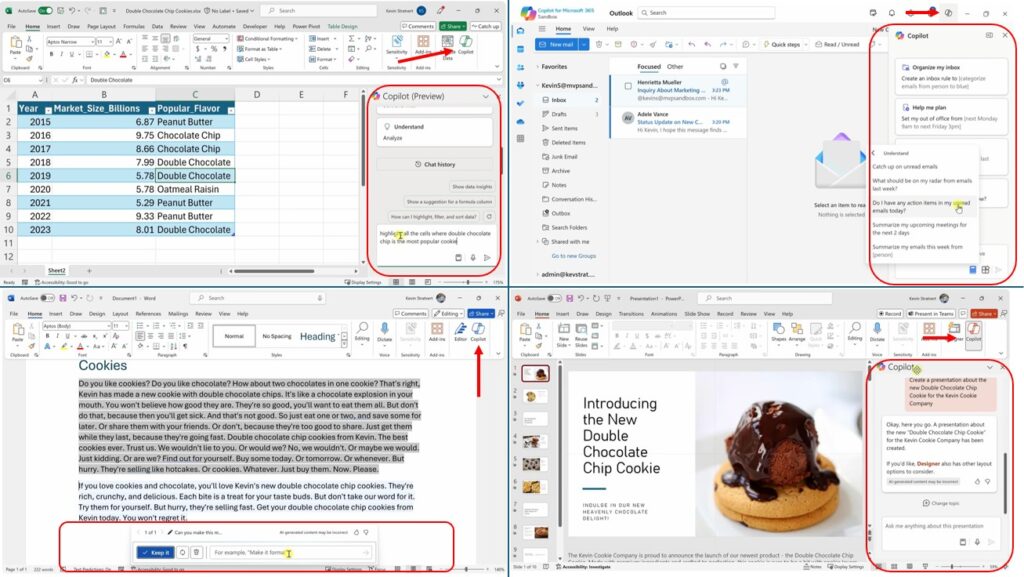
Here are some sample images showing how to check whether you have a Copilot license and confirm that it’s ready to use.
How to Implement Microsoft 365 Copilot (Step by Step)
If you’re planning to roll out Copilot in your organization, follow this approach:
- Assess Needs – Identify everyday tasks and pain points where Copilot can add value.
- Plan Deployment – Decide which teams and apps will use Copilot first.
- Prepare Data & Security – Ensure your Microsoft 365 data is organized and secure — Copilot works best with clean data.
- Train Users – Provide walkthroughs and training so users understand how to use Copilot effectively. Check out the learning tutorial Provided by Microsoft
- Monitor and Improve – Collect feedback and adjust how Copilot is used to maximize productivity.
Assign Licenses in Microsoft 365 Admin Center
You can either purchase a Copilot license directly from Microsoft, or you can reach out to a CSP. Once licenses are purchased, follow these steps:
- Sign in to the Microsoft 365 Admin Center
👉 https://admin.cloud.microsoft/ - Go to Users > Active Users
- Select the user(s) you want
- You can assign Copilot to pilot users first
- Later expand to more users
- Click Licenses and Apps
- Enable the Microsoft 365 Copilot license
- Toggle Copilot on for selected users
- Assign any other required services
- Save changes
Please note that it may take up to 24 hours for the license to fully propagate across Microsoft 365 services. Once Microsoft 365 Copilot licenses are assigned and apps are refreshed, Copilot becomes available across key apps. In Word, it offers a sidebar for content creation; in Excel, it helps with formulas and insights; in PowerPoint, it assists with slide creation. In Outlook, it summarizes emails and suggests actions, and in Teams, it generates meeting summaries and insights. After users sign back in, these features will be active.
FAQs
What is Microsoft 365 Copilot?
Microsoft 365 Copilot is an AI assistant embedded in Microsoft 365 apps that helps generate text, summarize content, analyze data, and speed up tasks.
Which Microsoft 365 apps support Copilot?
Copilot works in multiple Microsoft apps:
- Word
- Excel
- PowerPoint
- Outlook
- Teams
Each app uses Copilot in ways that enhance your workflow.
Does Microsoft 365 Copilot require a separate license?
Yes. Microsoft 365 Copilot currently requires a dedicated Copilot license in addition to the standard Microsoft 365 subscriptions. Check Microsoft documentation or your Microsoft representative for the latest licensing information.
Can Copilot be customized?
Yes. Organizations can configure Copilot’s settings, permissions, and access controls to fit their needs.
Final Thoughts
Microsoft 365 Copilot is a powerful tool that can transform how teams work by automating routine tasks and providing smart insights. With clear planning and good training, Copilot can help your organization save time, improve quality, and boost productivity.
Start small, explore Copilot’s capabilities, and let AI take your daily workflows to the next level.
Explore More from MS Cloud Explorers
- A Practical Guide to Successful Microsoft 365 Adoption
- Microsoft 365 Applications Explained: A Complete Guide for IT Admins and Businesses
- Step-by-Step Guide to Create Microsoft 365 Accounts and Groups
- A Beginner’s Guide to Exchange Online: Everything You Need to Know
Enjoyed the article?
We’d love to hear your thoughts—share your comments below!
For more insights, guides, and updates from the Microsoft ecosystem, be sure to subscribe to our newsletter and follow us on LinkedIn. Stay connected and never miss out on the latest tips and news!