

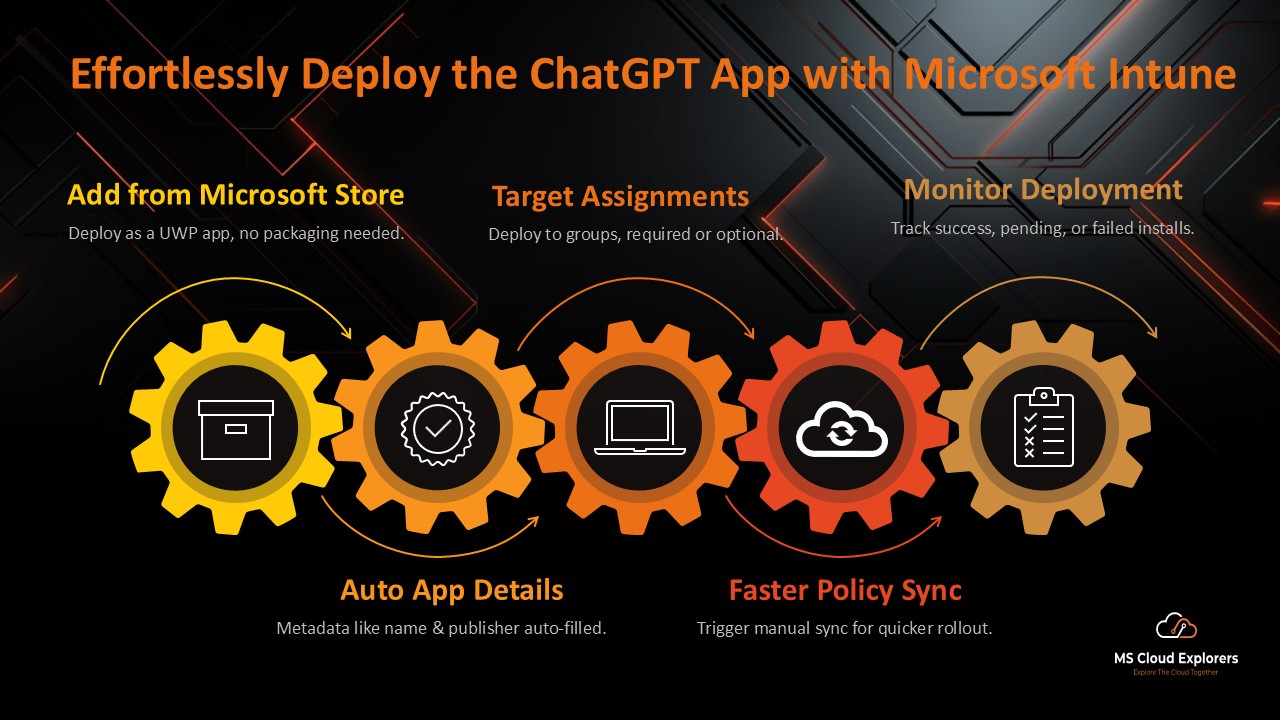
Deploying applications to corporate devices doesn’t have to be complex—especially when you’re using Microsoft Intune to manage apps available from the Microsoft Store. In real enterprise environments, IT administrators regularly rely on Intune to centrally deploy business-critical applications to users and devices with minimal effort and no manual installation. In this guide, I’m using the ChatGPT app as a practical example to demonstrate how easy it is to deploy Microsoft Store apps to corporate Windows devices using Intune. The same process can be applied to deploy any other Microsoft Store application across your organization by simply following the same steps.
What Is the ChatGPT App?
ChatGPT, developed by OpenAI, is an AI-powered assistant designed to understand natural language and provide detailed responses. While it’s accessible through browsers, the newly launched Windows app offers added convenience, such as eliminating the need to log in repeatedly.
Why Deploy the ChatGPT App Using Intune?
- Centralized Management: Intune lets administrators deploy the app to multiple users with ease.
- Time-Saving: Intune automates the app installation process, reducing manual effort.
- Scalability: Whether it’s ten devices or a thousand, Intune handles deployments efficiently.
- Availability: Check if the app is available in your region’s Microsoft Store.
Step-by-Step Guide to Deploy ChatGPT Using Intune
1. Prepare Your Intune Environment
Before deployment, ensure the following:
- You have a Microsoft Intune subscription.
- User groups are configured in Intune.
- Device should be enrolled in Intune
2. Add the ChatGPT App to Intune
Step 1: Log In to the Intune Admin Center
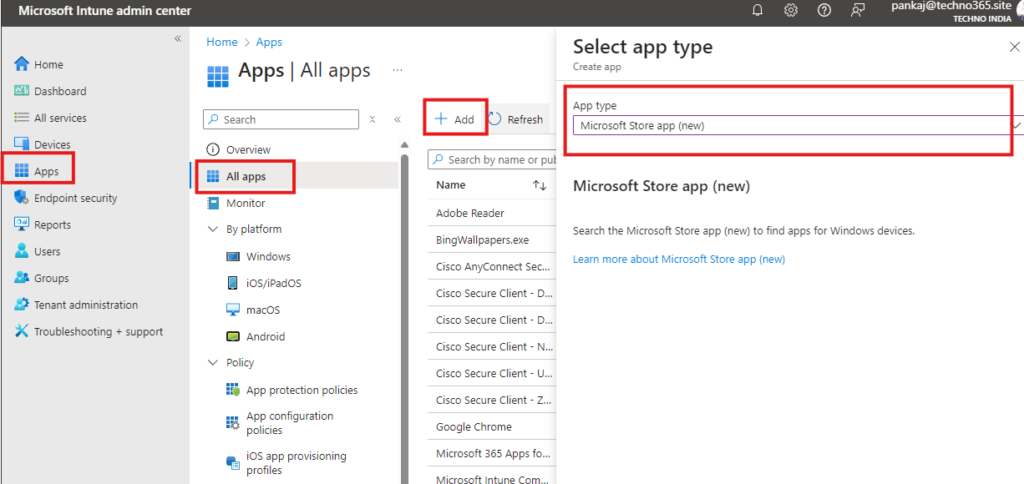
- Navigate to Apps > All apps > Add.
Step 2: Select App Type
- In the drop-down menu for App type, choose Microsoft Store app (new).
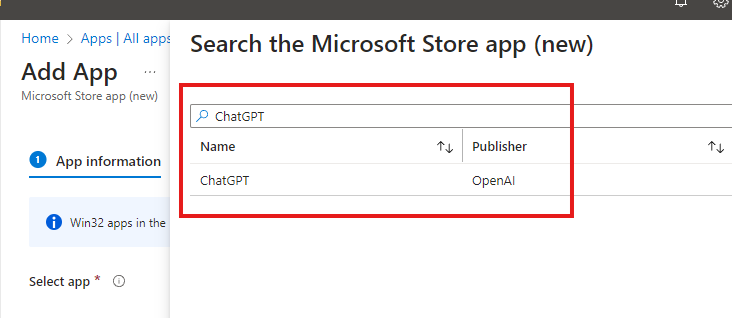
Step 3: Search for ChatGPT
- Enter “ChatGPT” in the search box and select the ChatGPT UWP app by OpenAI. In your case might be different App.
If your app is not available in the Microsoft Store, then you need to package the apps and this process will completely different for MSI and EXE apps.
Confirm its availability in your region.
3. Configure App Information
Intune pre-populates most of the app details from the Microsoft Store. You can optionally add:
- A custom logo for branding. You can Download from the Google or Most cases it automatically added.
- Additional descriptions for users in the Company Portal app.
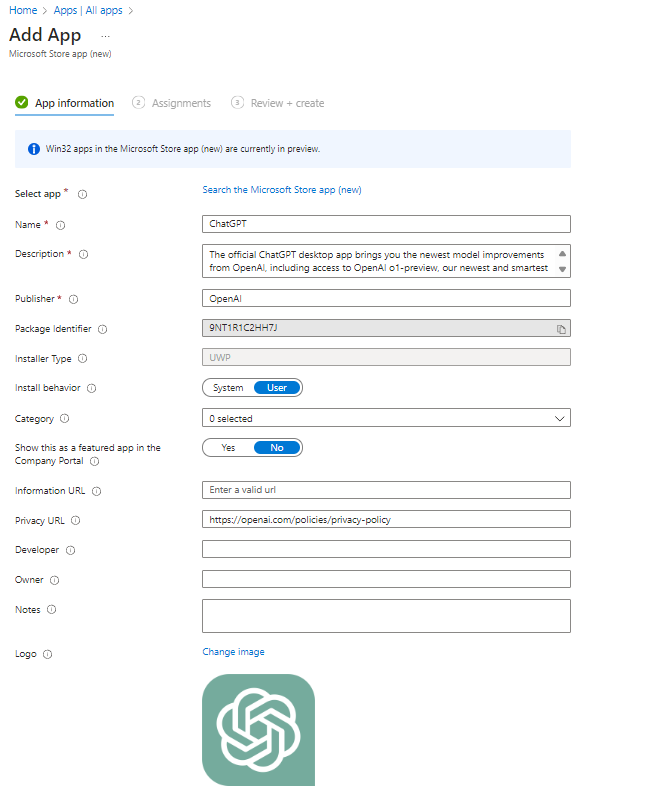
Click Next once you’ve verified the information.
4. Assign the App to User Groups
Step 1: Choose User Groups
- Assign the app to specific user groups based on your organization’s needs.
If you are in testing phase you can assign the app test device group
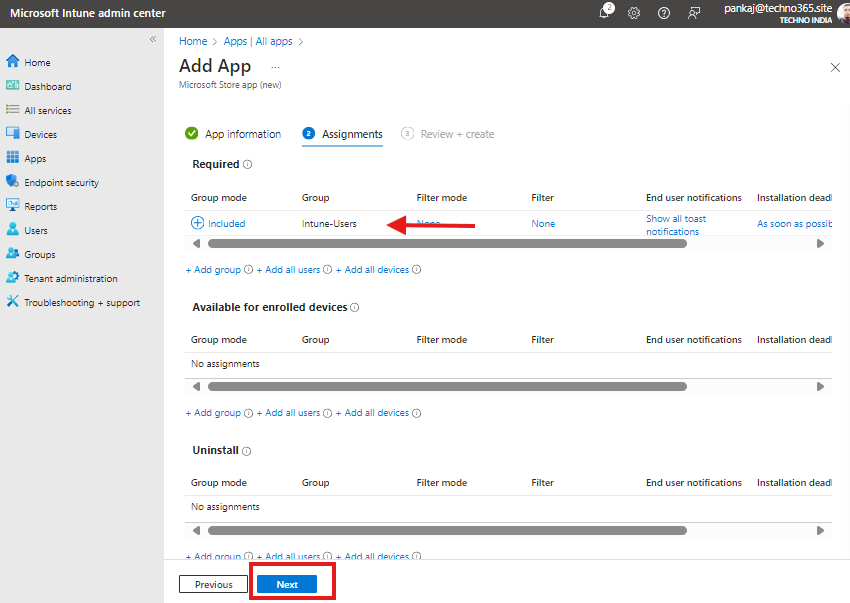
Step 2: Finalize Assignments Review and finalize the app assignment settings.
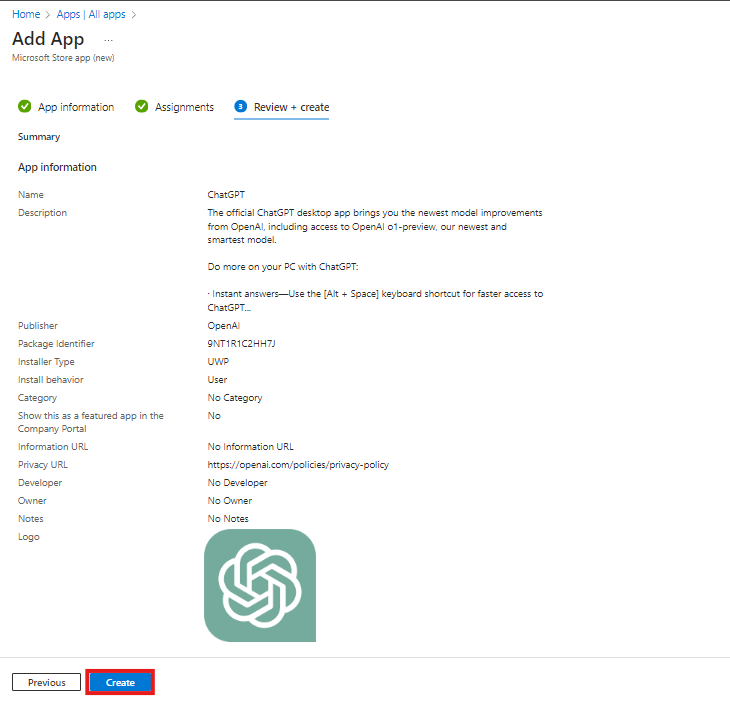
5. Create the Deployment Policy
Click Create to complete the setup. A confirmation message will indicate that the ChatGPT app has been successfully added for deployment.
6. Monitor the Deployment Process
Step 1: Check Deployment Status
- Navigate to the app’s Overview section in Intune to monitor:
- Successful installations.
- Pending installations.
- Failed attempts.
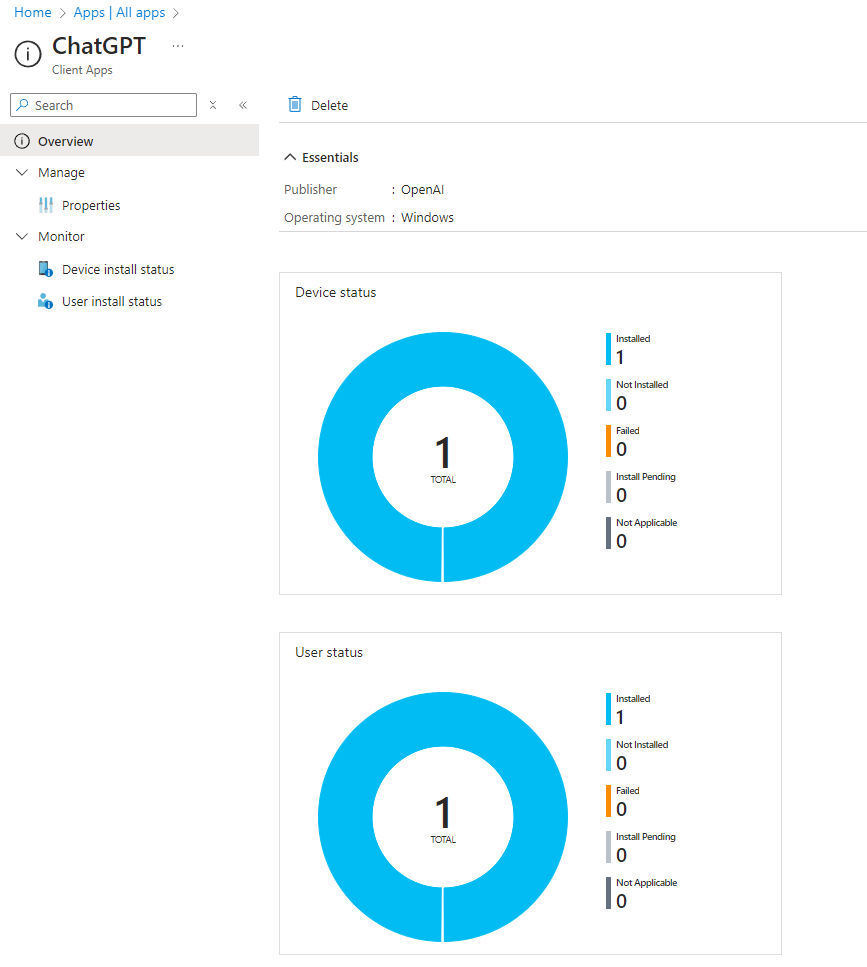
Step 2: Sync Policies
- Run a manual sync to expedite policy retrieval on endpoints.
7. Verify Installation on Endpoints
For Windows 11 Devices:
- Open the Start Menu and type “ChatGPT.”
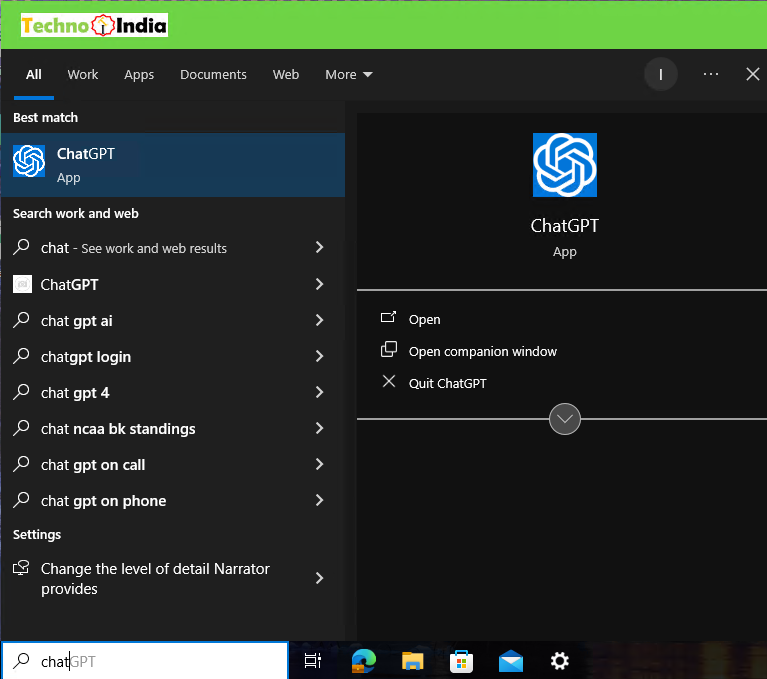
2. Select and launch the app.
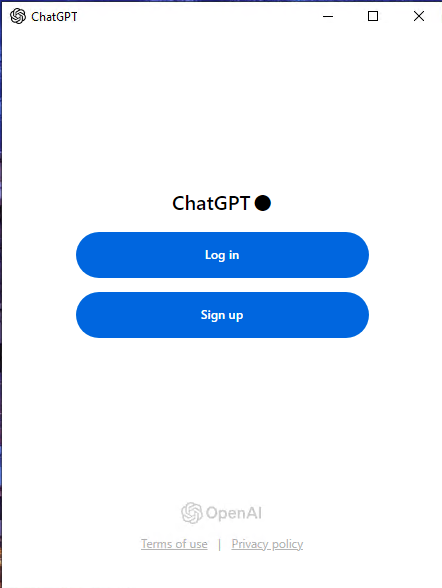
For IT Administrators:
- Check Apps > Apps & Features > Apps list to confirm installation.
If you have Enterprise version of the App you can integrate with Microsoft Entra ID for Single Sign-in on (SSO).
Common Issues and Troubleshooting
- App Not Available: Ensure the ChatGPT app is listed in your Microsoft Store region.
- Failed Installations: Check device compliance and connectivity.
- Delayed Deployment: Run a policy sync or review Intune logs for errors.
Best Practices for App Deployment
- Test Before Deployment: Always test the app on a small group of devices before rolling it out organization-wide.
- Enable Notifications: Keep users informed about the new app installation.
- Monitor Usage: Use Intune analytics to assess app performance and adoption.
FAQs
1: What types of applications can be deployed using Microsoft Intune?
Microsoft Intune can deploy Microsoft Store apps, Win32 apps, LOB apps, Microsoft 365 apps, and web apps to corporate devices.
2: Can Microsoft Intune deploy Microsoft Store apps?
Yes, Intune supports deploying Microsoft Store apps to managed Windows devices using the new Microsoft Store integration.
3: Do users need local admin rights to install Intune apps?
No, apps deployed through Intune install automatically without requiring local administrator privileges.
4: Can apps be installed automatically during device enrollment?
Yes, Intune can automatically install required apps during enrollment using Windows Autopilot.
5: How does Intune manage apps after deployment?
Intune monitors app status, manages updates, and enforces security and compliance policies.
Conclusion
Deploying the ChatGPT app with Intune is a straightforward process that saves time and enhances productivity. With centralized management and robust monitoring tools, Intune makes app distribution seamless for any organization. By following this guide, you can deploy the other apps also those are available in Microsoft Store. For Win32 and Line of Business app you need to package the apps. You can check out the link for easy and pre-deployed apps template.
3 comments on “Effortlessly Deploy the ChatGPT App with Microsoft Intune”