

As more organizations move toward Zero Trust and standard-user device configurations, Endpoint Privilege Management has become one of the most practical ways to improve security without slowing users down.
In many environments, users still receive permanent local administrator rights simply because they occasionally need to install software, update drivers, or run tools that require elevation. The problem is that this convenience comes with real security risk. If a user account is compromised and that device already has admin rights available, attackers gain a much easier path to install malicious software, disable protections, or make system-level changes.
That’s where Microsoft Intune Endpoint Privilege Management comes in.
Endpoint Privilege Management (EPM) enables organizations to keep users as standard users while allowing approved administrative tasks to run with elevated privileges when required. This supports the principle of least privilege and a Zero Trust security model by providing controlled, task-based elevation without granting permanent local administrator rights.
In this guide, I’ve explained what Endpoint Privilege Management is, why it matters, how it works in Intune, how to configure it, and the best practices I recommend if you want to deploy it successfully in production.
Why Endpoint Privilege Management Matters
Many organizations still solve admin-related user requests in one of two ways:
- give users permanent local admin rights, or
- ask the helpdesk to perform every admin-required task manually.
Neither approach scales well.
Permanent admin rights increase the attack surface and weaken the principle of least privilege. On the other hand, routing every software installation or driver update through IT creates delays, more tickets, and frustration for users. Microsoft describes Endpoint Privilege Management as a way to let users remain standard users by default while still completing approved tasks that require elevation, such as installing applications, updating device drivers, or running Windows diagnostics.
This makes Intune Endpoint Privilege Management especially valuable for organizations that want to:
- reduce local administrator usage
- improve audit visibility
- align with Zero Trust
- maintain user productivity
- avoid unnecessary service desk overhead.
What Is Endpoint Privilege Management?
Endpoint Privilege Management is a Microsoft Intune capability that allows approved applications, scripts, and tasks to run with elevated privileges without giving the user permanent administrator rights. Microsoft documents it as part of the Endpoint Privilege Management feature set in Intune, designed to support a broader standard-user model with just-in-time elevation for selected tasks.
To say it short, it helps you in solving this common IT issue:
“How do I let users complete certain admin tasks without making them local admins all the time?”
With Microsoft Intune Endpoint Privilege Management, the elevated action can be controlled by policy, scoped to specific files, and logged for audit and reporting. Microsoft also notes that EPM uses an agent on the device and, for most elevation types, performs elevation by using a virtual account rather than the user’s own account, which helps isolate the elevated process from the signed-in user context.
What is Microsoft Intune?
Microsoft Intune is Microsoft’s cloud-based endpoint management platform used to manage devices, apps, compliance, and security policies across an organization. In the context of Endpoint Privilege Management, Intune acts as the control plane where administrators configure elevation settings, define elevation rules, assign policies, and review reports or approval requests. Your current draft already positions Intune as the management foundation for policy-based control and centralized administration, which is the right direction.
Because Endpoint Privilege Management is fully integrated into Intune, you do not need to bolt on a separate privilege tool just to control app elevation for Windows endpoints. That native integration is one of the biggest strengths of the solution.
Want to learn more? Browse our other articles on Microsoft Intune.
Endpoint Privilege Management vs PIM vs Privileged Access
Many admins confuse Endpoint Privilege Management, Privileged Identity Management (PIM), and broader privileged access concepts, but they solve different problems.
Endpoint Privilege Management vs PIM
- Endpoint Privilege Management controls elevation on the device for apps, files, and scripts that require admin rights.
- Privileged Identity Management (PIM) controls eligible role activation and admin access for identities and privileged roles in Microsoft Entra ID. Your current article correctly introduces this distinction at a high level.
Endpoint Privilege Management vs privileged access
“Privileged access” is a broader security concept. It can refer to privileged identities, admin accounts, privileged tasks, or privileged sessions across systems. Endpoint Privilege Management is much more specific: it focuses on device-level privilege elevation for endpoints, especially Windows endpoints managed by Intune.
Quick Comparison
|
Feature |
Endpoint Privilege Management |
Privileged Identity Management |
|
Main focus |
Device and app elevation |
Identity and role elevation |
|
Scope |
Windows endpoint tasks |
Directory roles and admin access |
|
Typical use case |
Install an approved app without local admin rights |
Activate an eligible admin role temporarily |
|
Managed in |
Intune |
Microsoft Entra ID |
If your goal is to control who can run an installer or script with elevation on a device, the right feature is Endpoint Privilege Management, not PIM.
Why Organizations Should Use Endpoint Privilege Management
The biggest security benefit of Endpoint Privilege Management is that it helps organizations move away from always-on admin rights.
Microsoft highlights several advantages of EPM, including keeping users as standard users by default, providing policy-based control for elevation, enabling just-in-time elevation, and capturing audit and reporting data for privileged actions.
Here are the practical benefits in plain language:
1. Reduced attack surface
If users no longer have permanent local admin rights, attackers have fewer opportunities to exploit elevated access after compromising an account. This aligns with Microsoft’s least-privilege and Zero Trust guidance for EPM.
2. Better user productivity
Users can perform approved tasks without waiting for IT every time. That is especially helpful for software installation, driver updates, diagnostics, and department-specific tools. Microsoft explicitly identifies these as common admin-required tasks supported by EPM scenarios.
3. Stronger audit and compliance visibility
Each elevation event can be reported and reviewed, giving security and compliance teams better visibility into who elevated what, when, and why. Microsoft lists audit logging and reporting as one of the core EPM capabilities.
4. Better fit for Zero Trust
Zero Trust is built on the idea that users should only get the access they need, for the time they need it, under controlled conditions. Endpoint Privilege Management supports that model by replacing broad local admin access with granular, policy-driven elevation.
Real-World Use Case for Endpoint Privilege Management
A common scenario I see is developers, engineers, or power users asking for permanent local administrator rights because they need to install or update tools regularly.
Without Endpoint Privilege Management, many organizations either approve permanent admin access or create repeated helpdesk overhead for the same user tasks. With Microsoft Intune Endpoint Privilege Management, you can instead create elevation rules for approved apps and allow those apps to run with elevation only when necessary. Microsoft documents that EPM can identify specific files and scripts and apply the elevation action associated with the rule.
That gives the user a smoother experience without turning the entire device into a high-risk endpoint.
How Endpoint Privilege Management Works
Endpoint Privilege Management works through two main policy types in Intune:
- Elevation settings policy
- Elevation rules policy
Elevation settings policy
The Elevation Settings policy enables Endpoint Privilege Management (EPM) on managed devices and controls how elevation requests are handled. It also determines what EPM-related data is reported back to Intune for monitoring and auditing. When EPM is enabled, the required client components are installed on the device, and the Microsoft EPM Agent Service processes elevation requests and policy enforcement.
Elevation rules policy
The Elevation Rules policy defines which applications, installers, and scripts can run with elevated privileges. Rules can be configured for supported file types such as .exe, .msi, and .ps1 files. Administrators can identify approved files using criteria such as file name, file hash, digital certificate, or publisher information, providing granular control over elevation permissions.
Support approval workflow
The Support Approval workflow provides a controlled method for granting temporary administrative access. Users can submit an elevation request along with a business justification, and an Intune administrator can review the request before approving or denying it. This approach helps organizations maintain security while allowing users to complete legitimate administrative tasks when required.
Prerequisites for Deploying Endpoint Privilege Management
Before you configure Endpoint Privilege Management in Intune, make sure your environment meets the prerequisites.
Licensing
To use Microsoft Endpoint Privilege Management (EPM), organizations must have Microsoft Intune Plan 1 as the base license, along with either the EPM add-on license or a subscription that includes EPM through the Microsoft Intune Suite.
Supported Operating Systems
Endpoint Privilege Management supports specific versions of Windows 10 and Windows 11 that meet Microsoft’s minimum build requirements. It is supported only on 64-bit operating systems, including Arm64 devices.
Device requirements
Your devices should be:
- Intune enrolled
- Microsoft Entra joined or hybrid joined
- running a supported Windows version suitable for EPM policy application
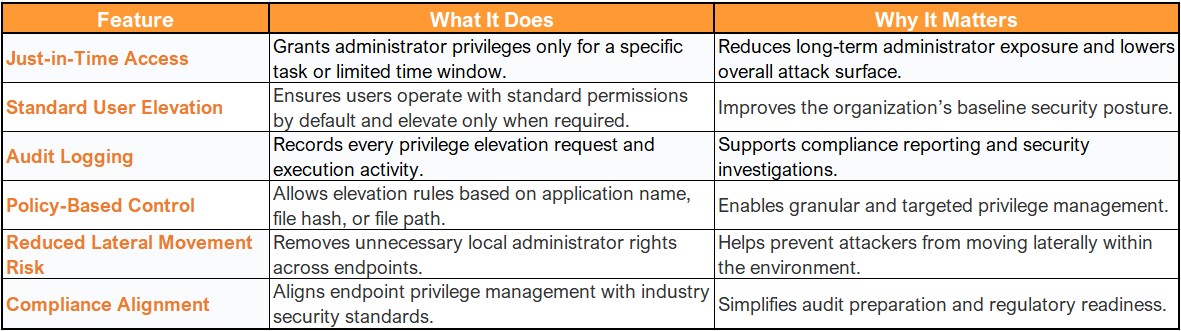
Core Features of EPM in Microsoft Intune
How to Configure Endpoint Privilege Management in Intune
- Login to the Intune Admin Portal
- Sign in with Intune Administrator access.
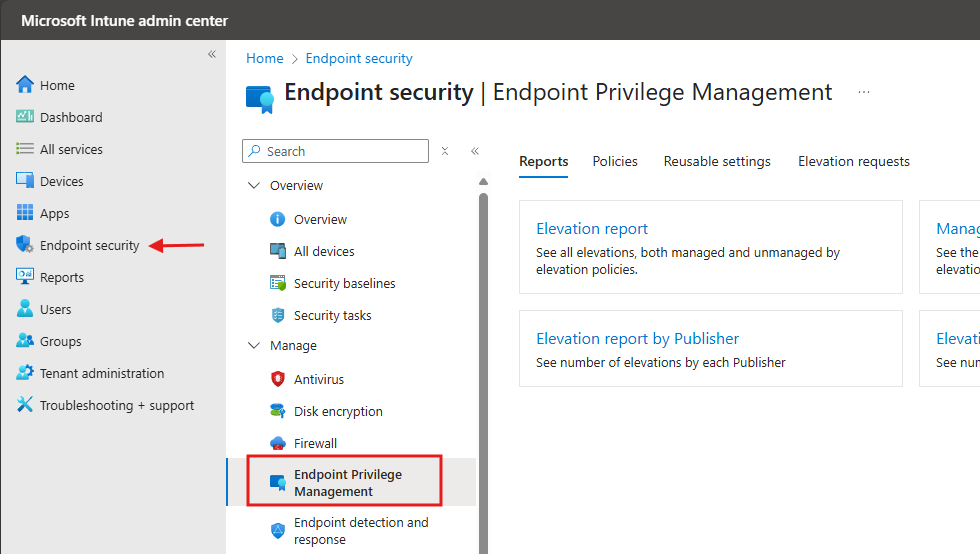
- Navigate to Endpoint Security
- Go to Endpoint Security > Endpoint Privilege Management.
- Go to the Policies Tab
- Click on the Policies tab at the top and select Create Policy.
- Create a New Elevation Policy
- Platform: Windows
- Profile Type: Elevation Settings Policy
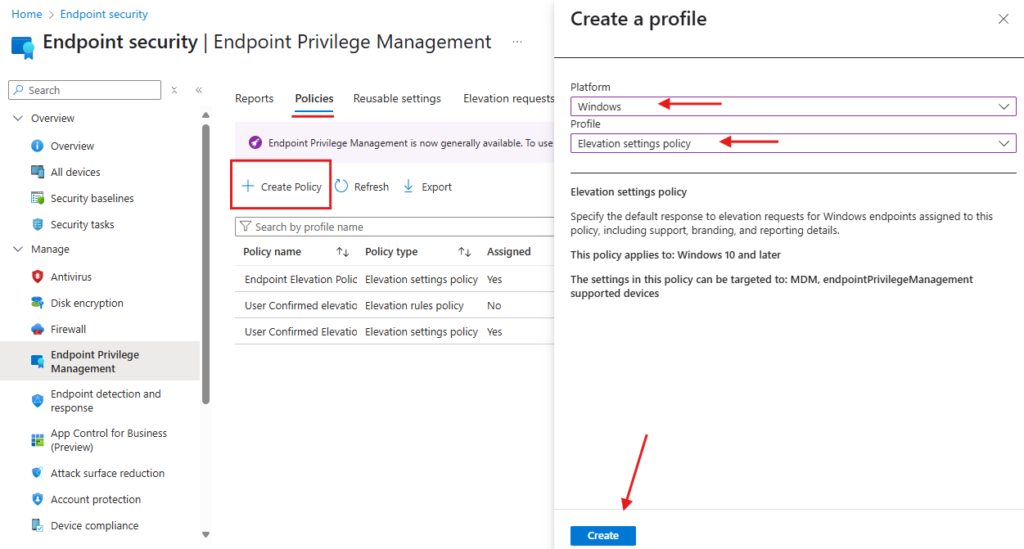
- Enter a Policy Name and Description, then click Next.
- Configure Settings
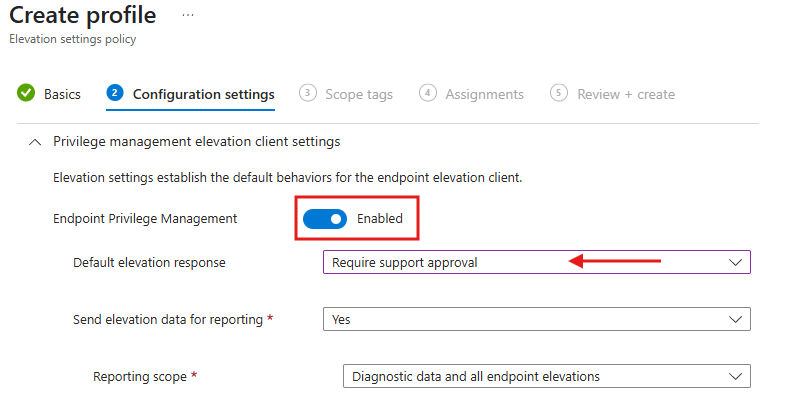
- In the Configuration Settings, enable Endpoint Privilege Management.
- Set the Default elevation response to Require support approval (as shown below).
- Assign Devices > Go to the Assignments tab.
- Assign the policy to all Intune-enrolled devices.
- Review and Create > Review the policy configuration and click Create.
End-User Experience: Elevating Privileges
The way you set up the policy will determine how a user feels when they need to run a file with elevated rights.
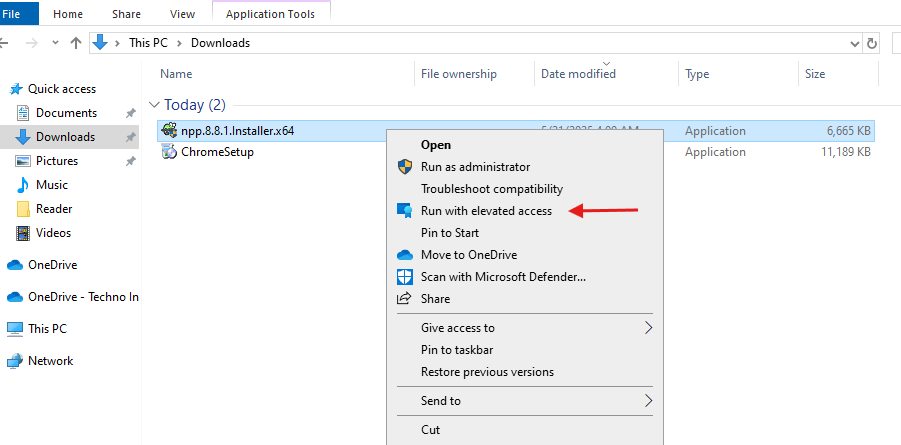
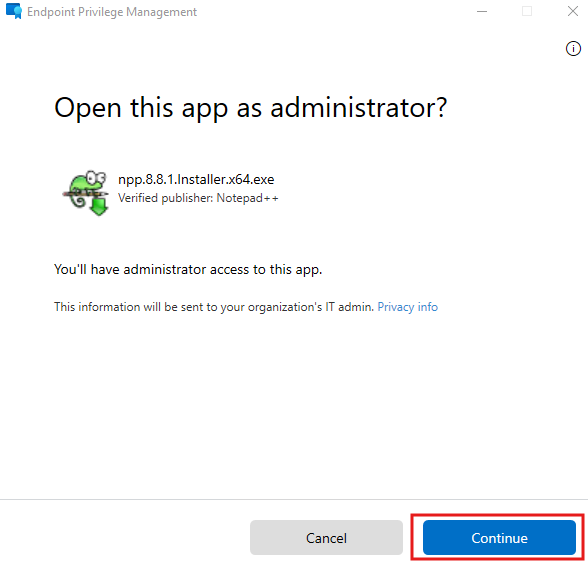
In support-approved scenarios, the user can right-click the file and select Run with elevated access, provide a business reason, and submit the request. Microsoft explains that the request is then sent to Intune for review, and when the request is approved, the user is notified and can proceed with the elevated action.
- The end user downloads software or an application from the internet.
- Right-click the downloaded app and select Run with elevated access.
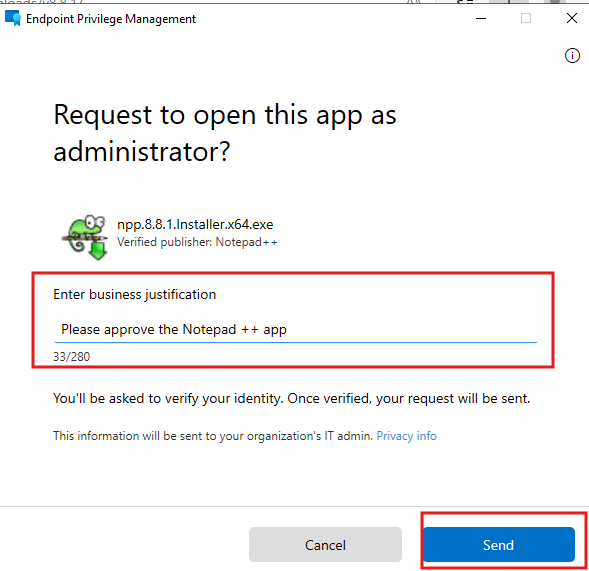
- A request window will appear where the user must provide a justification for the installation.
- Enter the justification and click Send.
Admin Approval Process
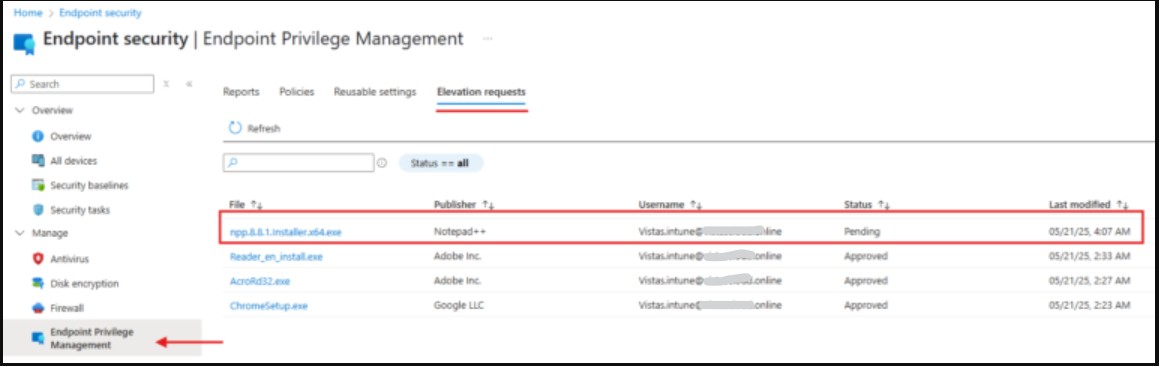
For support-approved elevations, Intune administrators review the pending request in the Intune admin center and either approve or deny it. Microsoft notes that admins need the specific permissions required to view and manage Endpoint Privilege Management elevation requests, and that requests include useful context such as the user, device, file name, and business justification.
- The Intune Administrator reviews the request by navigating to:
Endpoint Privilege Management > Elevation Requests.
- Open the request, select Approve or Deny, provide a reason, and click Yes.
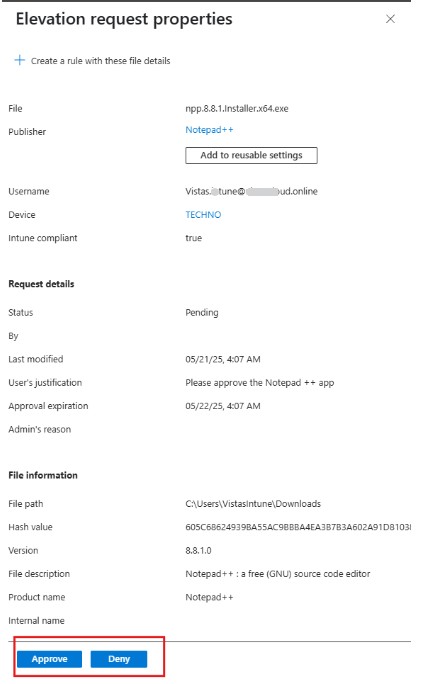
Once approved, inform the user that they can now install the app using Run with elevated access. This allows the user to install the application without needing to manually enter admin credentials.
Creating and Managing Elevation Rules
Rule Templates and Conditions
Set conditions like:
- App name
- Publisher
- File hash
- Path-based rules
Best Practices for Rule Creation
- Start with audit mode to see how users interact
- Avoid wildcard paths
- Target specific groups or departments
Best Practices for Endpoint Privilege Management
These are my favorite recommendations if you want Endpoint Privilege Management to enhance security rather than merely serve as another admin shortcut.
Start with a pilot group – Roll out EPM to a small group first. This helps you understand request patterns, rule exceptions, and support volume before expanding further. Microsoft’s planning guidance encourages a thoughtful deployment strategy with training and monitoring.
Use support approval by default where possible – Microsoft recommends Require support approval or Deny all requests as safer defaults for unmanaged files. That is one of the most important settings decisions in the whole design.
Avoid overly broad certificate or path rules – Microsoft warns that certificate-based rules can unintentionally allow multiple applications if a vendor signs many apps with the same certificate. That means broad trust rules should be designed carefully.
Target specific use cases – Do not try to solve every elevation scenario at once. Start with high-value use cases such as approved software installs, diagnostics tools, or department-specific engineering applications.
Review elevation reports regularly – EPM becomes much more valuable when you monitor who is requesting elevation, which files are being elevated, and where your organization may still be relying too heavily on privileged actions.
Pros and Cons of Endpoint Privilege Management
Pros
- Native integration with Intune and the Microsoft security ecosystem.
- Supports least privilege and Zero Trust goals.
- Gives users a controlled way to complete admin-required tasks.
- Provides audit and reporting visibility for privileged activity.
Cons
- Requires additional licensing beyond base Intune subscriptions.
- Limited to supported Windows platforms for EPM scenarios.
- Poorly designed rules can weaken security if they are too broad.
Security and Compliance Impact
- Fully aligns with Zero Trust principles
- Provides clear, exportable logs for audits
- Best practice: Configure the Elevation Response by Default Will Need Support Approval
Troubleshooting Tips
If Endpoint Privilege Management is not behaving as expected, check the basics first.
Policy not applying
Make sure:
- the device is Intune enrolled
- device must be hybrid joined or Entra joined
- the OS is a supported version
- the policy is assignments
No elevation available for a file
Confirm that the file is covered by an elevation rule, or that your default elevation behavior allows support-approved or user-initiated elevation where appropriate. Microsoft notes out that EPM returns to its built-in default behavior, which is to reject requests, if there is no rule and nothing is set.
Request cannot be approved
Check that the reviewing admin has the required permissions to manage EPM elevation requests. Microsoft’s support approval documentation calls this out explicitly
Recommended Rollout Strategy
-
For most organizations, I would recommend this approach:
- validate licensing and supported device readiness
- deploy the Elevation settings policy to a pilot group
- start with a support-approved model for unmanaged scenarios
- build a small set of rules for trusted apps
- monitor requests and reports
- expand gradually based on real usage patterns
This rollout model aligns well with Microsoft’s planning guidance around stakeholder management, user training, and balancing flexibility with security
FAQs
Q: Is EPM included with Intune by default?
A: No, it requires the Intune Suite or an EPM add-on license.
Q: Can users elevate their own permissions?
A: Yes, based on your configured policy — either auto-approved or requiring IT approval.
Q: Does EPM work on macOS or Linux?
A: No, only Windows 10/11 Enterprise and Education editions are supported.
Q: How do I monitor elevated actions?
A: Use audit logs and reports in the Intune Admin Center.
Final Thoughts
Endpoint Privilege Management is one of the most effective ways to reduce local administrator exposure without creating unnecessary friction for users.
Instead of choosing between security and productivity, organizations can use Microsoft Intune Endpoint Privilege Management to allow approved tasks to run with elevation in a controlled, auditable, and policy-driven way. Microsoft’s documentation makes it clear that EPM is built to support standard-user environments, just-in-time elevation, and Zero Trust-style least privilege across Windows endpoints.
If your organization is still relying on permanent local admin rights for convenience, Endpoint Privilege Management in Intune is worth evaluating seriously. A careful pilot, well-designed rules, and a support-approved workflow can materially improve both security posture and user experience.
Related Links:
- Microsoft Intune Beginner Guide 2026: Everything you need to know
- Configure and Implementations of Microsoft Intune Policies
- Windows Autopilot Deployment: A Step-by-Step Guide 2026
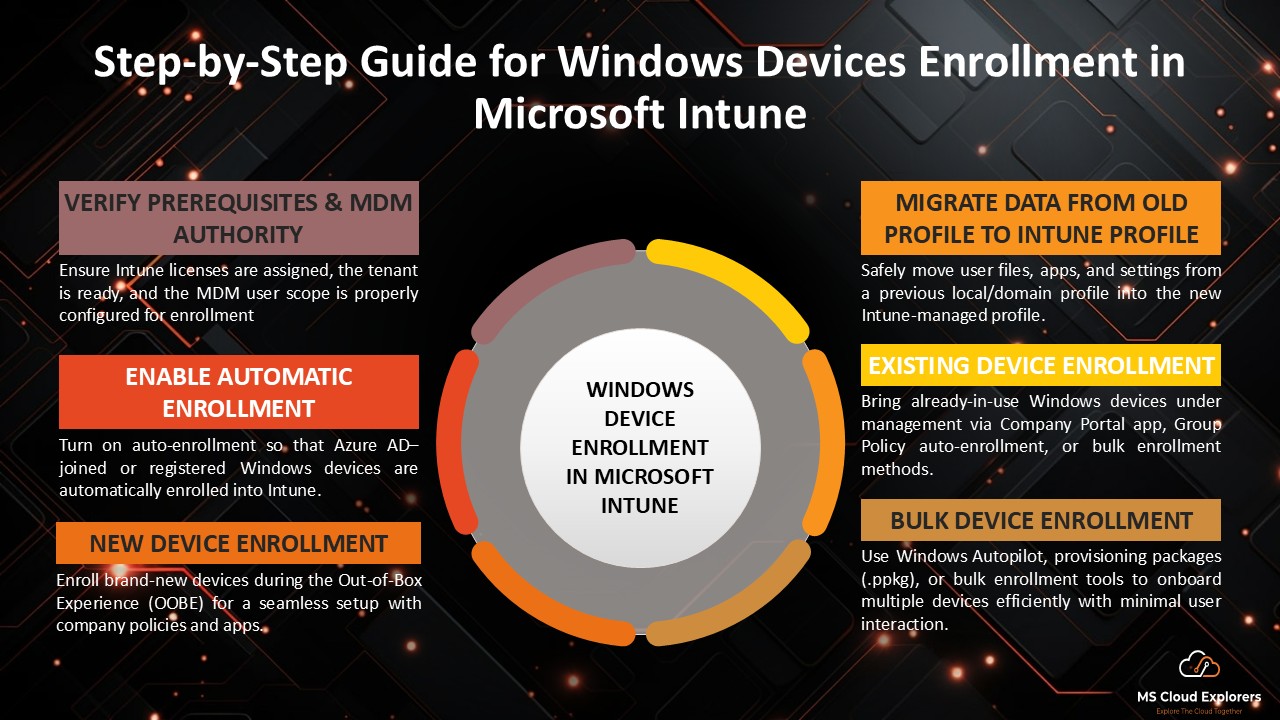
- Step-by-Step Guide for Windows Devices Enrollment in Microsoft Intune
- How Multi Admin Approval Helps Prevent Large-Scale Device Wipes in Microsoft Intune 2026
- How to Deploy Microsoft 365 Apps with Intune: Complete Enterprise Guide
- How to Configure Your First App Protection Policy in Microsoft Intune: A Complete Guide (2026)
- Enabling LAPS with Intune and Removing Local Admin Access from Intune Enrolled Devices: A Step-by-Step Guide
Enjoyed the article?
We’d love to hear your thoughts—share your comments below!
For more insights, guides, and updates from the Microsoft ecosystem, be sure to subscribe to our newsletter and follow us on LinkedIn. Stay connected and never miss out on the latest tips and news!
This was super helpful—thank you! We’ve just started rolling out EPM in our environment and I was trying to wrap my head around how the elevation requests actually work. Your explanation made it so much clearer. I’m hoping Microsoft adds more flexibility around approvals in the future, but for now, this is definitely a big step up from giving users full admin rights. Great stuff!
Really appreciate the kind words! Totally agree—EPM is still evolving, and more control over approvals would definitely be a welcome addition. Glad the post helped clarify things! Let us know how your rollout goes or if you run into anything interesting—we’re always keen to learn from real-world experiences. 🙌
This is a great overview! I’ve been curious about how Endpoint Privilege Management works in Intune — this post cleared up a lot.
Thanks for the kind words! We’re glad it helped clarify things. Let us know if you want us to cover any specific Intune features in future posts.
Very nice blog post. I definitely love this website. Keep it up!
I’m truly grateful!