In today’s fast-paced digital world, ensuring that your enterprise applications are secure is crucial. Microsoft Intune provides a powerful toolset for app protection, helping organizations safeguard corporate data on both company-owned and personal devices. This guide will walk you through how to configure your first app protection policy in Microsoft Intune, ensuring that your apps remain secure while maintaining user productivity.
What is App Protection in Microsoft Intune?
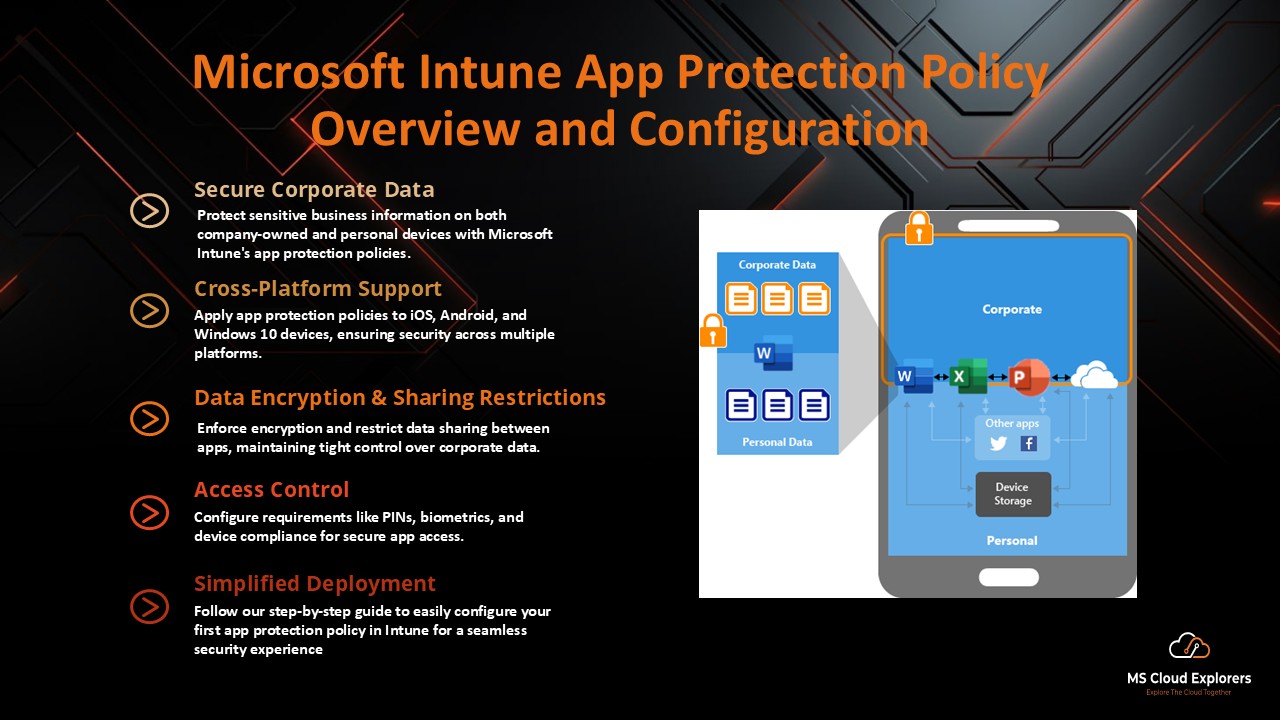
App protection policies are a set of rules that help secure company data within apps. These policies allow administrators to enforce specific security settings, such as data encryption, secure authentication, and data sharing restrictions, ensuring sensitive information remains protected. Microsoft Intune’s app protection policies are designed to safeguard corporate data on personal devices, especially in a bring-your-own-device (BYOD) environment.
Prerequisites for Configuring App Protection Policies in Microsoft Intune
Before you begin configuring app protection policies, there are a few prerequisites you need to meet:
- Microsoft Intune Subscription: Make sure your organization has a valid Microsoft Intune subscription.
- Admin Rights: You must have an Intune administrator role or sufficient permissions to configure policies.
- App Deployment: Make sure the apps you want to protect are already deployed or are in the process of being deployed via Intune.
- Compatible Devices: Ensure the devices are compatible with the app protection policy settings you plan to configure. These policies typically apply to iOS, Android, and Windows 10 devices.
Step-by-Step Guide to Configuring Your First App Protection Policy
Step 1: Access Microsoft Endpoint Manager
The first step to configuring app protection policies is logging into Microsoft Endpoint Manager:
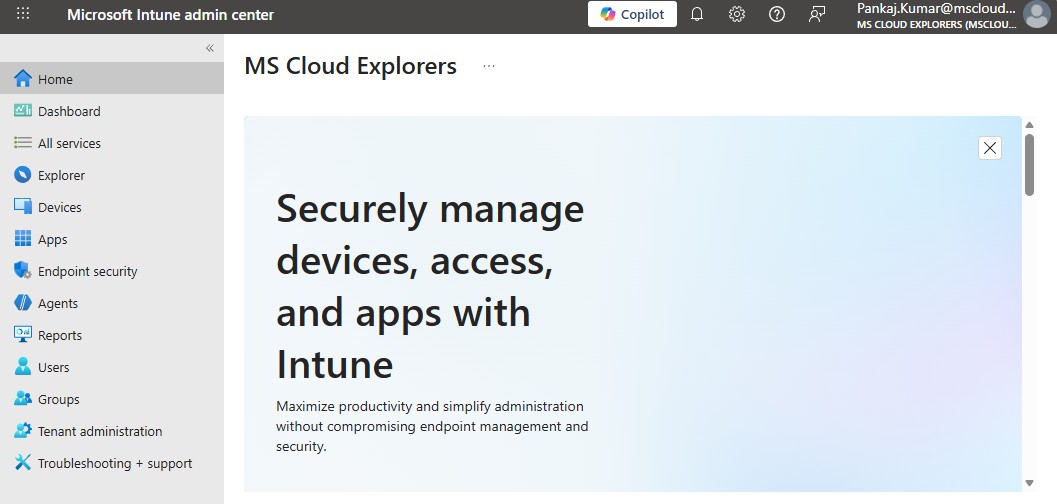
- Open the Microsoft Endpoint Manager admin center.
- Sign in with your administrator account credentials.
Step 2: Navigate to App Protection Policies
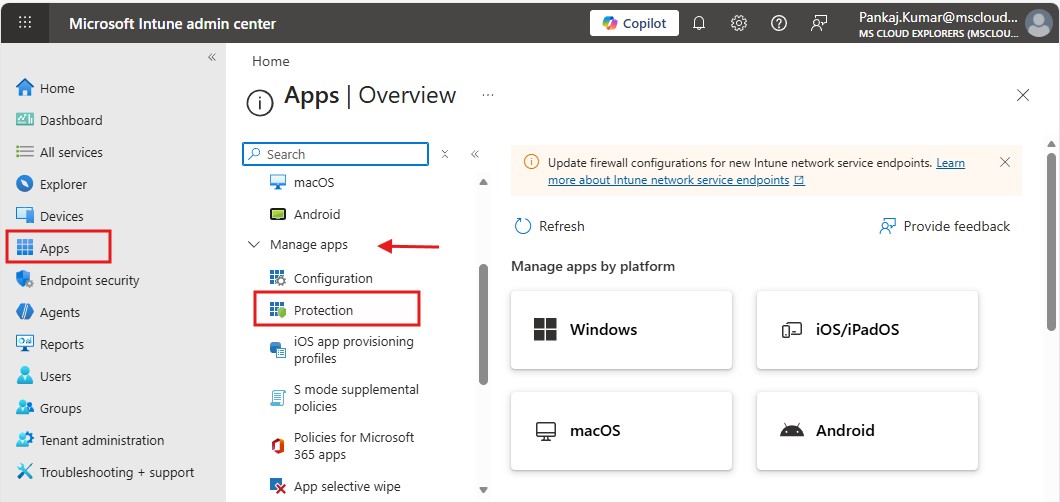
Once logged in, follow these steps to navigate to the app protection policy section:
- In the left-hand menu, go to Apps.
- Under Apps, click on App protection policies.
Step 3: Choose the Platform for Your Policy
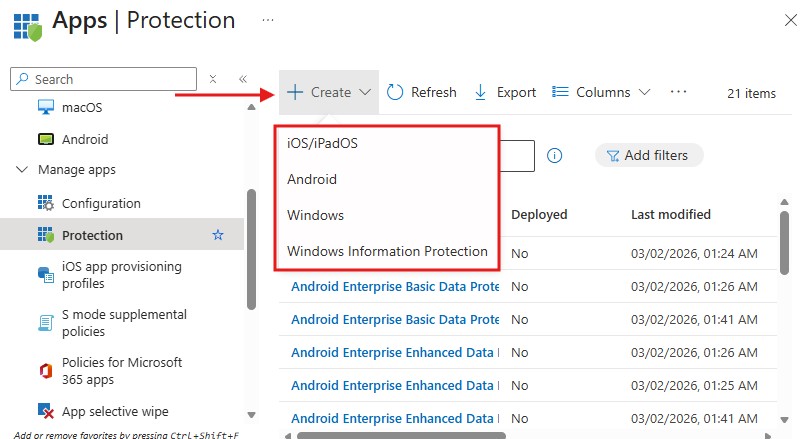
App protection policies are platform-specific, so the first decision you need to make is which platform you want to configure the policy for. Microsoft Intune supports app protection policies for iOS, Android, and Windows 10 devices. Here’s how to select your platform:
- Click on Create Policy.
- Choose the platform (iOS, Android, or Windows 10) that you want the policy to apply to.
Step 4: Configure Basic Settings
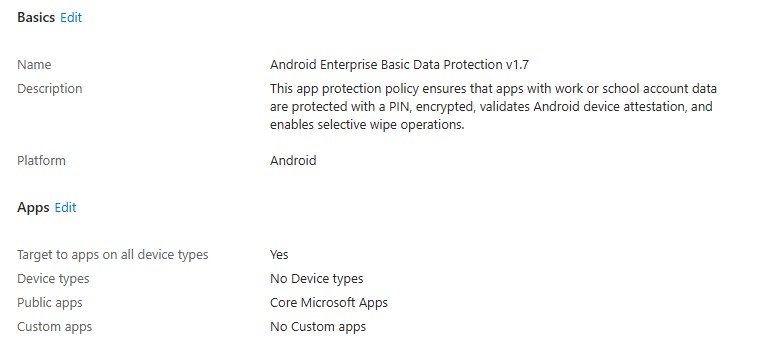
Once you’ve selected the platform, you’ll need to configure the basic settings for your policy:
- Policy Name: Give your policy a descriptive name so it’s easy to identify.
- Description: Write a brief description of what the policy is for (e.g., “Protect corporate data on employee personal devices”).
- Targeted Apps: Choose the apps that will be covered by this policy. For instance, you may select Microsoft Outlook, Word, or other corporate apps.
- Assign the Policy to Users or Groups: Select the users or groups that the policy will apply to. This ensures that the right employees or departments are covered by your app protection settings.
Step 5: Configure Data Protection Settings
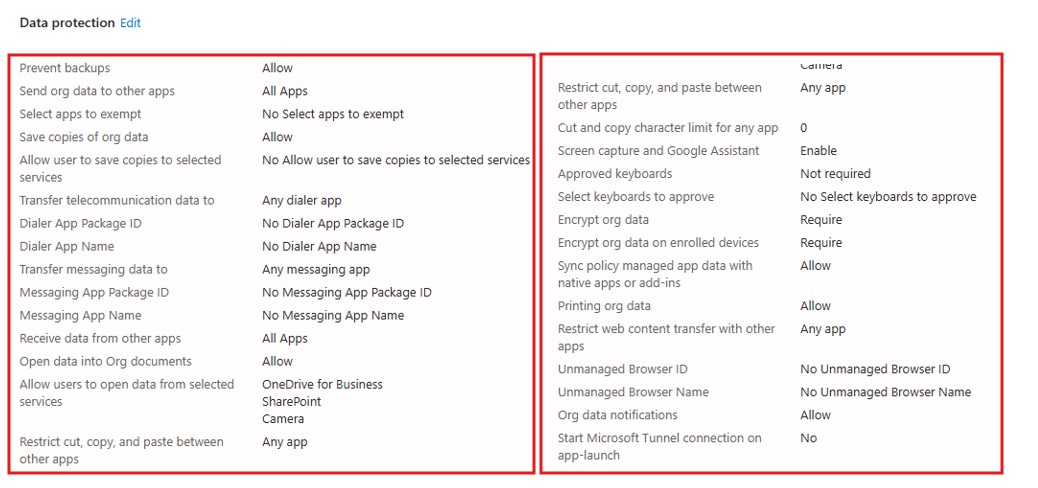
Data protection is at the heart of app protection policies. Here are the essential settings you can configure:
- Require a PIN or Biometrics: Enforce the use of a PIN or biometric authentication (fingerprint/face recognition) to access the protected app.
- Encrypt Data: Ensure that all app data is encrypted on the device, both at rest and in transit, to prevent unauthorized access.
- Restrict Data Sharing: Control whether users can share corporate data between apps. You can prevent sharing between managed apps and unmanaged apps or restrict sharing only to other managed apps.
- Copy/Paste Restrictions: Prevent users from copying and pasting corporate data into personal apps, further protecting sensitive information.
Step 6: Configure Access Requirements
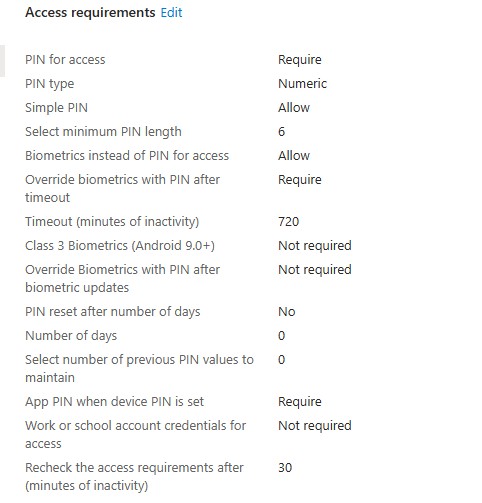
You can add an extra layer of security by requiring certain conditions for access:
- Minimum OS Version: Set a minimum operating system version for the apps to function. This ensures that older, unsupported versions of an OS cannot access corporate data.
- Device Compliance: Integrate app protection policies with device compliance policies. This ensures that the app is only accessible on compliant devices that meet your organization’s security standards.
- Location-based Access Control: You can restrict access to apps based on the user’s geographic location. For example, deny access from countries where you don’t operate.
Step 7: Assign Conditional Access Settings
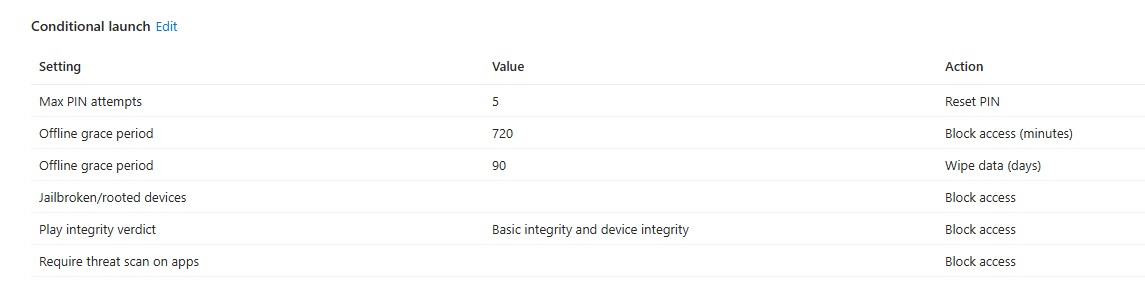
Conditional access policies allow you to enforce additional security controls, depending on the user’s context. Here’s how you can leverage this feature:
- Set Session Controls: Control the length of user sessions, and enforce re-authentication at regular intervals.
- Block Jailbroken or Rooted Devices: Prevent users from accessing corporate data on devices that have been jailbroken (iOS) or rooted (Android), which may pose security risks.
- Monitor Access Logs: Enable logging to track who is accessing the protected apps and any violations of the set policies.
Step 8: Review and Create the Policy
Once you’ve configured the necessary settings, review your policy to ensure everything is in place:
- Verify all settings and configurations.
- Click Create to deploy the app protection policy.
If you are new to Microsoft Intune and want to deploy and test policies using prebuilt policy templates, templates 2, you can download ready-made policies from public GitHub repositories and use the Intune Deployment Tool to import and deploy them with just a few clicks—without manual configuration. You can then customize the policies based on your organization’s requirements.
Testing and Monitoring Your App Protection Policy
Step 1: Test the Policy
After deploying the policy, it’s essential to test it to ensure that it works as expected. Use a test device and sign in with a test user account that belongs to the targeted user group. Verify that the policy is applied correctly, ensuring that the apps behave according to your set rules.
Step 2: Monitor Policy Impact
Once the policy is deployed and tested, monitor the impact using Intune’s reporting and analytics features:
- Navigate to the Monitor section in the Endpoint Manager admin center.
- Track the effectiveness of the policy and look for any issues related to app protection or user access.
Best Practices for Configuring App Protection Policies
- Minimize Permissions: Always follow the principle of least privilege by granting users only the necessary access to apps and data.
- Integrate with MDM Policies: If you’re using Microsoft Intune for Mobile Device Management (MDM), ensure that your app protection policies align with device management policies for a unified security strategy.
- User Education: Educate your users on the importance of app protection policies and secure app usage to ensure compliance.
Conclusion
Configuring app protection policies in Microsoft Intune is an essential step in ensuring that your corporate apps and data remain secure. By following the steps outlined in this guide, you can effectively protect sensitive business information on both corporate and personal devices. With the right settings in place, you can maintain a seamless user experience while meeting your organization’s security requirements.
FAQs
- What is an App Protection Policy in Microsoft Intune?
An App Protection Policy is a set of rules that help secure corporate data within apps. It controls access to corporate data and prevents unauthorized actions, such as data sharing and copying, while maintaining app functionality. - Which platforms can app protection policies be applied to?
App protection policies can be applied to iOS, Android, and Windows 10 devices within Microsoft Intune, providing cross-platform security for your apps and data. - Can I apply app protection policies to personal devices (BYOD)?
Yes, app protection policies can be applied to both company-owned and personal devices (BYOD), ensuring corporate data remains secure even on personal devices. - How do I enforce multi-factor authentication with app protection policies?
You can enforce multi-factor authentication (MFA) by configuring it as part of your app protection policies, ensuring that users must authenticate using more than just their password before accessing corporate apps. - Can I restrict access to apps based on location?
Yes, app protection policies in Microsoft Intune allow you to enforce location-based access controls, blocking or allowing app access depending on the geographic location of the user.
Related Links:-
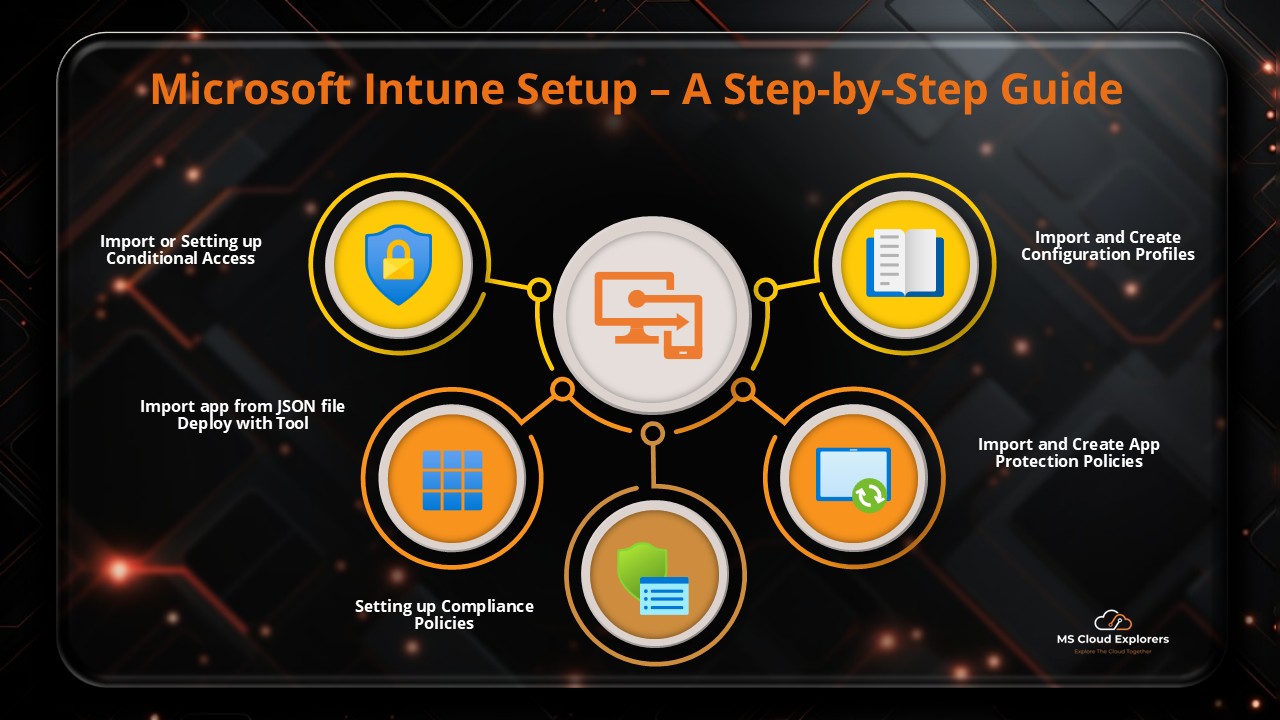
- A Step-by-Step Guide to Complete the Microsoft Intune Setup
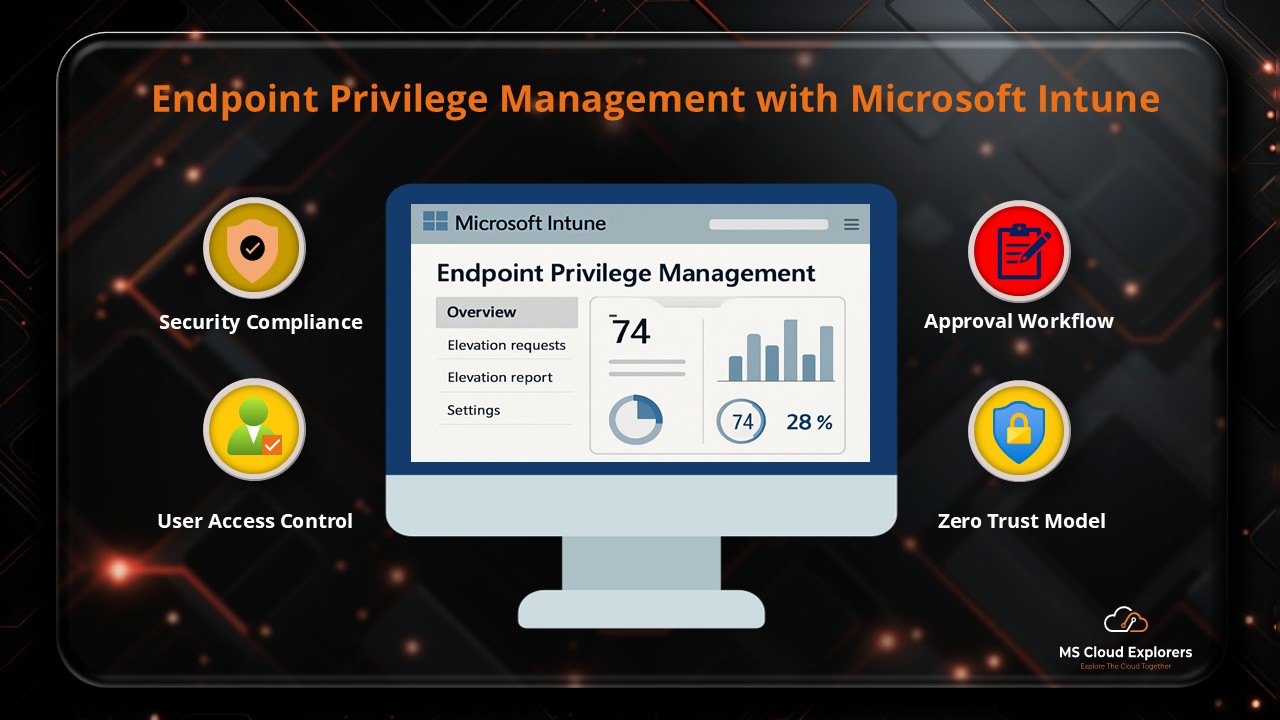
- Mastering Endpoint Privilege Management (EPM) in Intune
- Windows Device Enrollment in Microsoft Intune (2026)
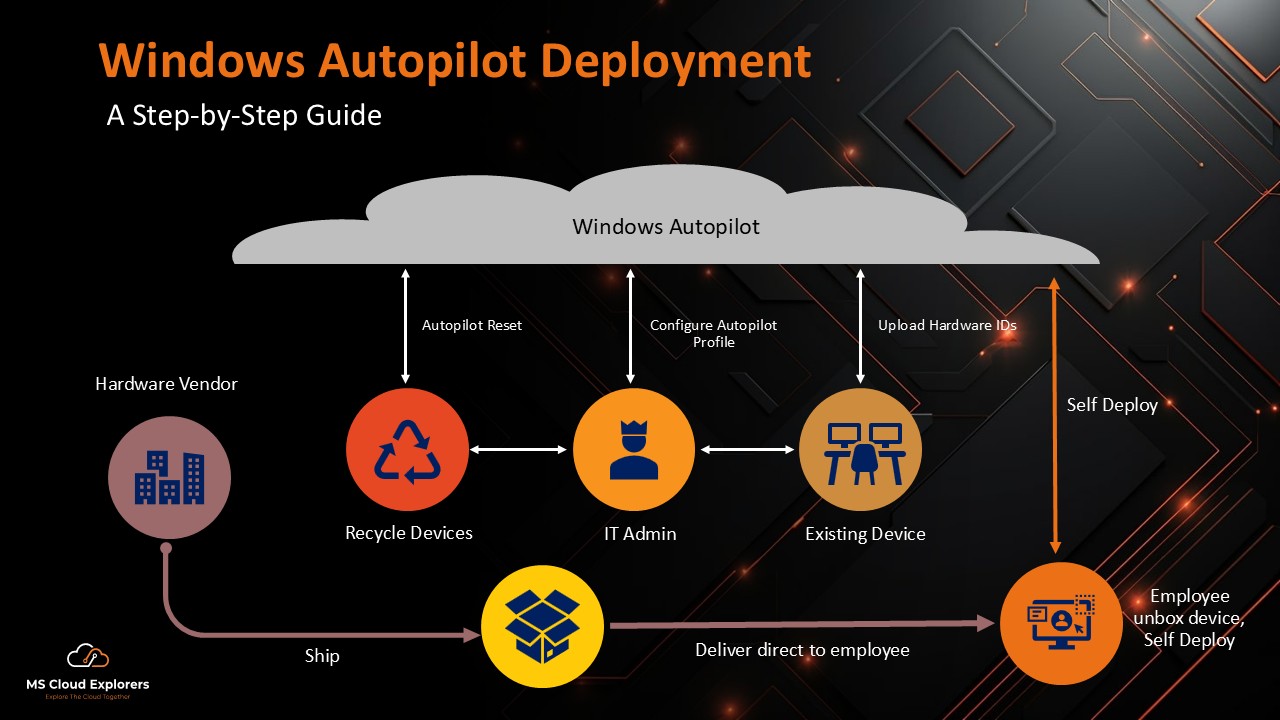
- Windows Autopilot Deployment Guide (2026)
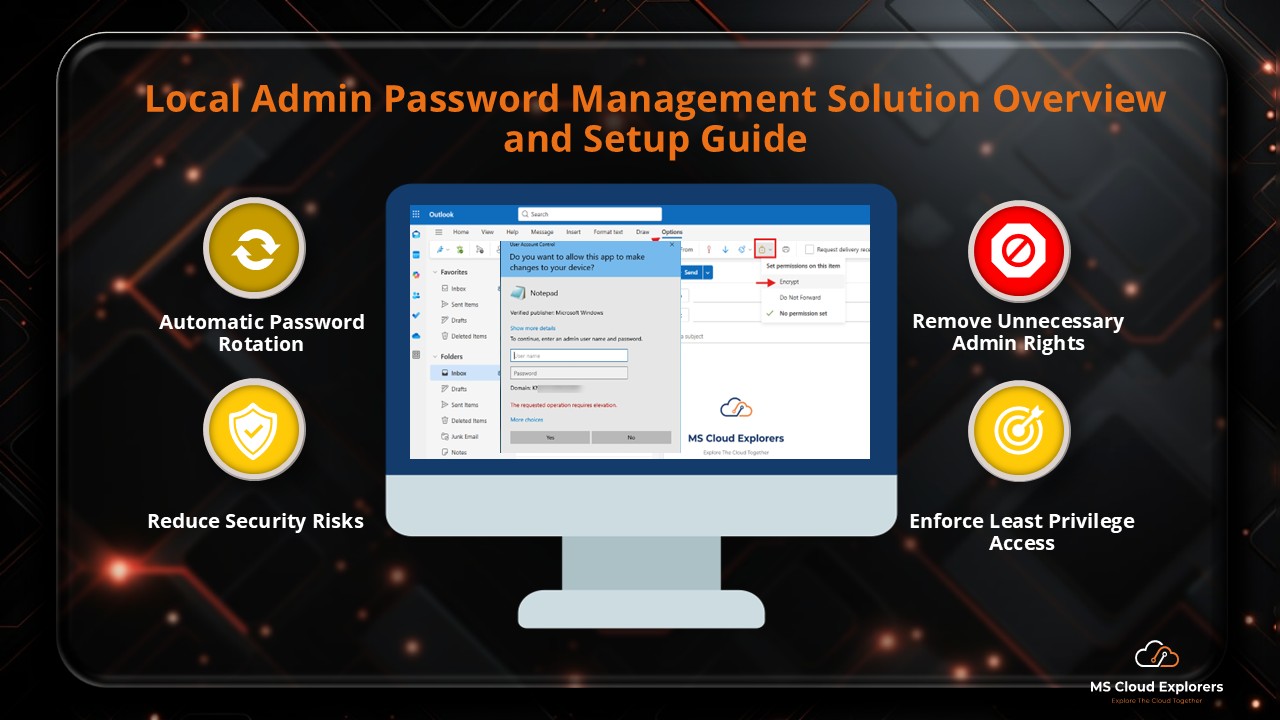
- Configure and Manage Local Admin Password Management with Entra ID and Intune (LAPS)
Enjoyed the article?
We’d love to hear your thoughts—share your comments below!
For more insights, guides, and updates from the Microsoft ecosystem, be sure to subscribe to our newsletter and follow us on LinkedIn. Stay connected and never miss out on the latest tips and news!