

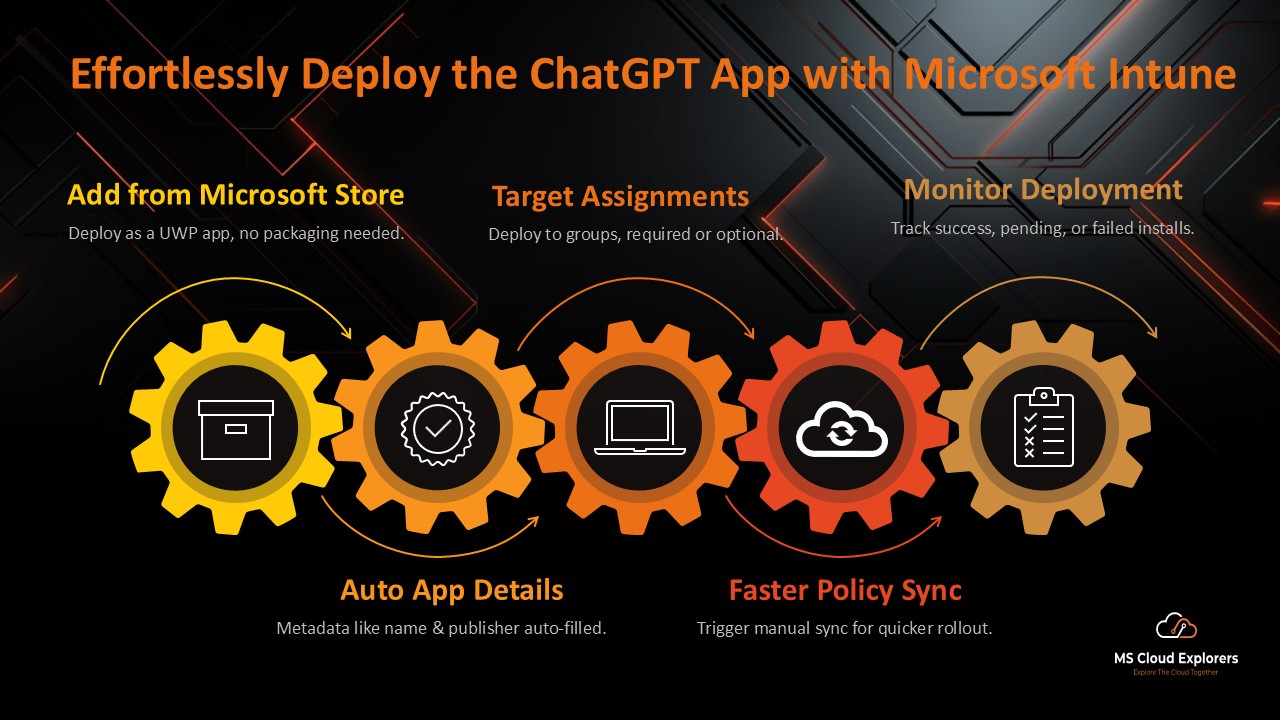
Deploying applications to corporate Windows devices doesn’t have to be complicated. With Microsoft Intune, IT administrators can centrally deploy, manage, and monitor Microsoft Store applications across their organization without requiring users to manually install software.
Recently, one of our customers reached out with a request to make the ChatGPT application available to their users. While the ChatGPT app is already available in the Microsoft Store, the customer wanted a centralized deployment solution that would allow them to:
- Automatically deploy the application to managed devices
- Control app availability through Microsoft Intune
- Track which users and devices have successfully installed the application
- Eliminate the need for users to manually search for and install the app from the Microsoft Store
Fortunately, Microsoft Intune provides a seamless way to deploy Microsoft Store applications directly from the Microsoft Store catalog while maintaining visibility and management capabilities through the Intune admin center.
In this guide, we’ll use the ChatGPT app as a practical example to demonstrate how to deploy Microsoft Store apps using Microsoft Intune. The same process can be used to deploy any Microsoft Store application across your organization, making application management simpler, more secure, and easier to track.
Whether you’re deploying productivity tools, business applications, AI-powered assistants like ChatGPT, or other Microsoft Store apps, this step-by-step guide will help you configure and manage deployments efficiently using Microsoft Intune.
What Is the ChatGPT App?
You’ve probably already heard of ChatGPT—it’s one of the most popular AI tools available today. Developed by OpenAI, ChatGPT is an AI-powered assistant that can answer questions, generate content, summarize information, assist with coding, and improve productivity.
Although a web browser is typically used to access ChatGPT, OpenAI also offers a specific Windows application. The app allows users to access ChatGPT directly from their desktop, offering a more convenient experience without needing to keep a browser tab open.
As more organizations adopt AI tools, many IT administrators are deploying the ChatGPT Windows app through Microsoft Intune to provide users with easy access while maintaining centralized management and visibility.
Why Deploy the ChatGPT App Using Intune?
- Centralized Management: Intune lets administrators deploy the app to multiple users with ease.
- Time-Saving: Intune automates the app installation process, reducing manual effort.
- Scalability: Whether it’s ten devices or a thousand, Intune handles deployments efficiently.
- Availability: Check if the app is available in your region’s Microsoft Store.
Step-by-Step Guide to Deploy ChatGPT Using Intune
1. Prepare Your Intune Environment
Before deployment, ensure the following:
- You have a Microsoft Intune subscription.
- User groups are configured in Intune.
- Device should be enrolled in Intune
2. Add the ChatGPT App to Intune
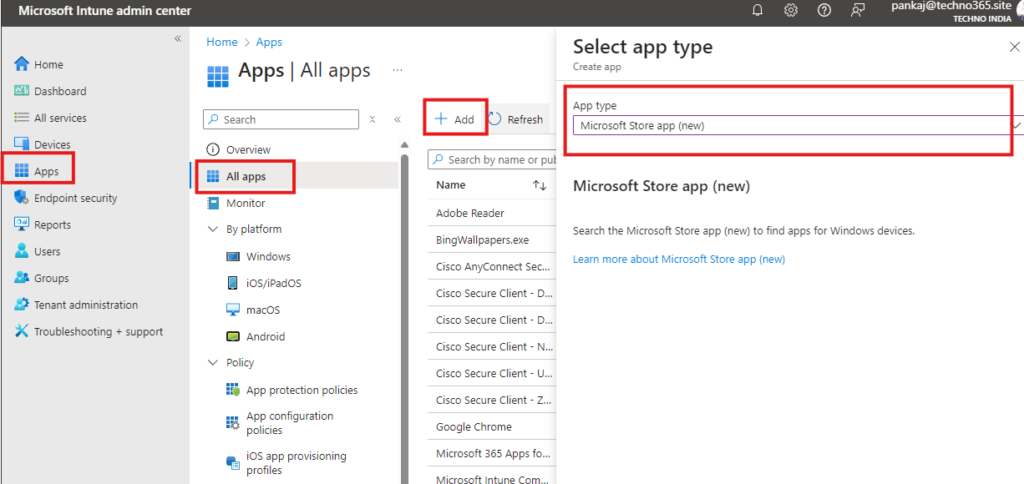
Step 1: Log In to the Intune Admin Center
- Navigate to Apps > All apps > Add.
Step 2: Select App Type
- In the drop-down menu for App type, choose Microsoft Store app (new).
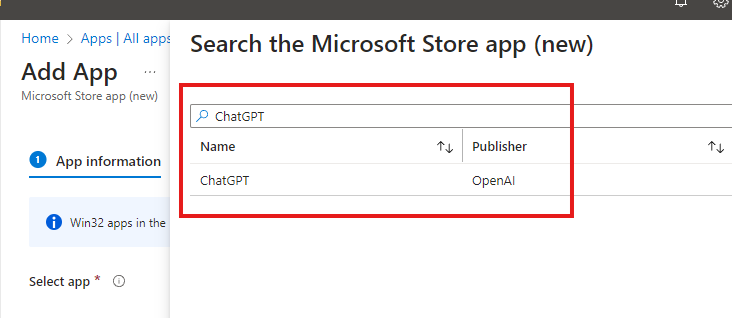
Step 3: Search for ChatGPT
- Enter “ChatGPT” in the search box and select the ChatGPT UWP app by OpenAI. In your case might be different App.
If your app is not available in the Microsoft Store, then you need to package the apps and this process will completely different for MSI and EXE apps.
Confirm its availability in your region.
3. Configure App Information
Intune pre-populates most of the app details from the Microsoft Store. You can optionally add:
- A custom logo for branding. You can Download from the Google or Most cases it automatically added.
- Additional descriptions for users in the Company Portal app.
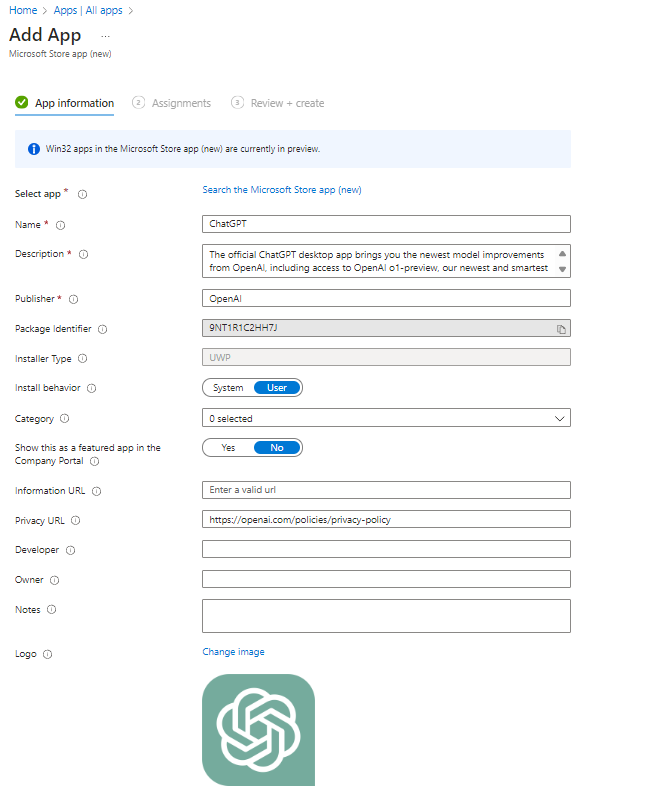
Click Next once you’ve verified the information.
4. Assign the App to User Groups
Step 1: Choose User Groups
- Assign the app to specific user groups based on your organization’s needs.
If you are in testing phase you can assign the app test device group
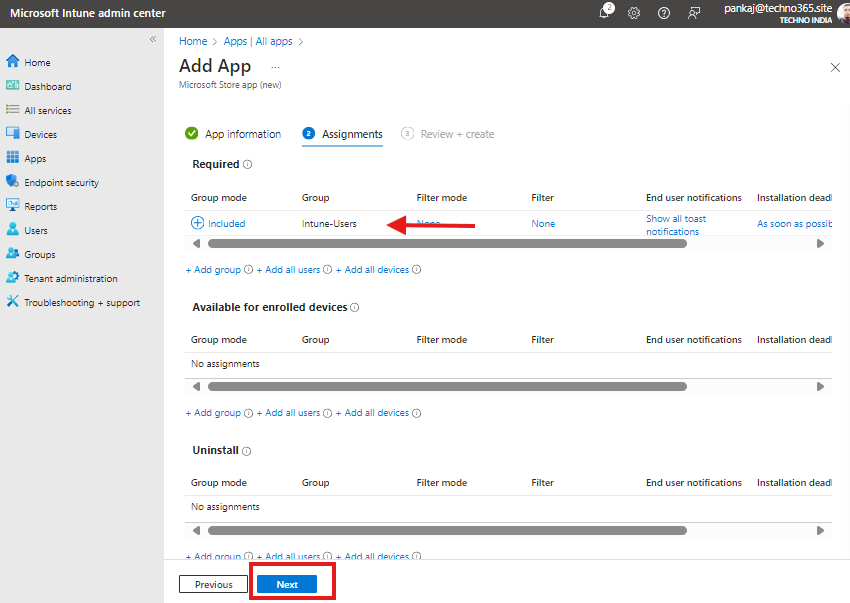
Step 2: Finalize Assignments Review and finalize the app assignment settings.
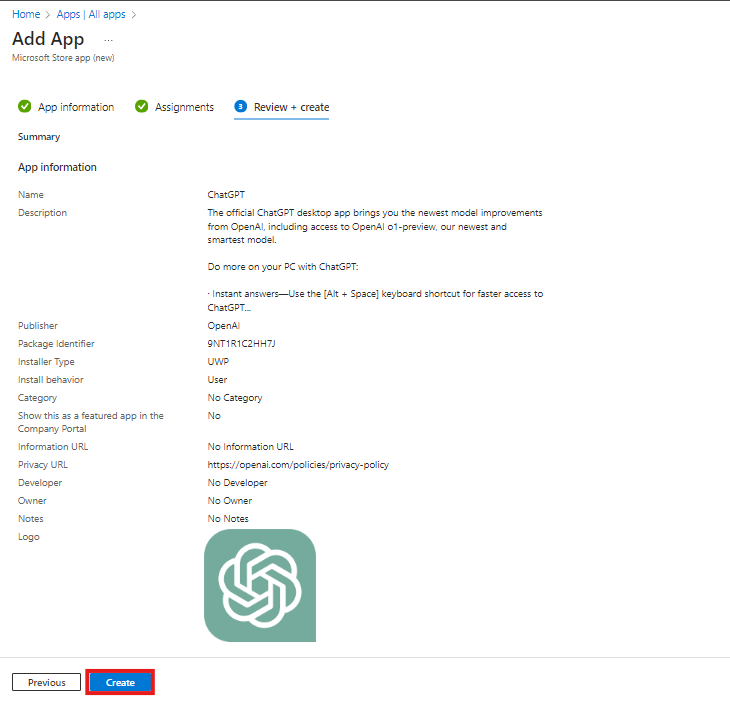
5. Create the Deployment Policy
Click Create to complete the setup. A confirmation message will indicate that the ChatGPT app has been successfully added for deployment.
6. Monitor the Deployment Process
Step 1: Check Deployment Status
- Navigate to the app’s Overview section in Intune to monitor:
- Successful installations.
- Pending installations.
- Failed attempts.
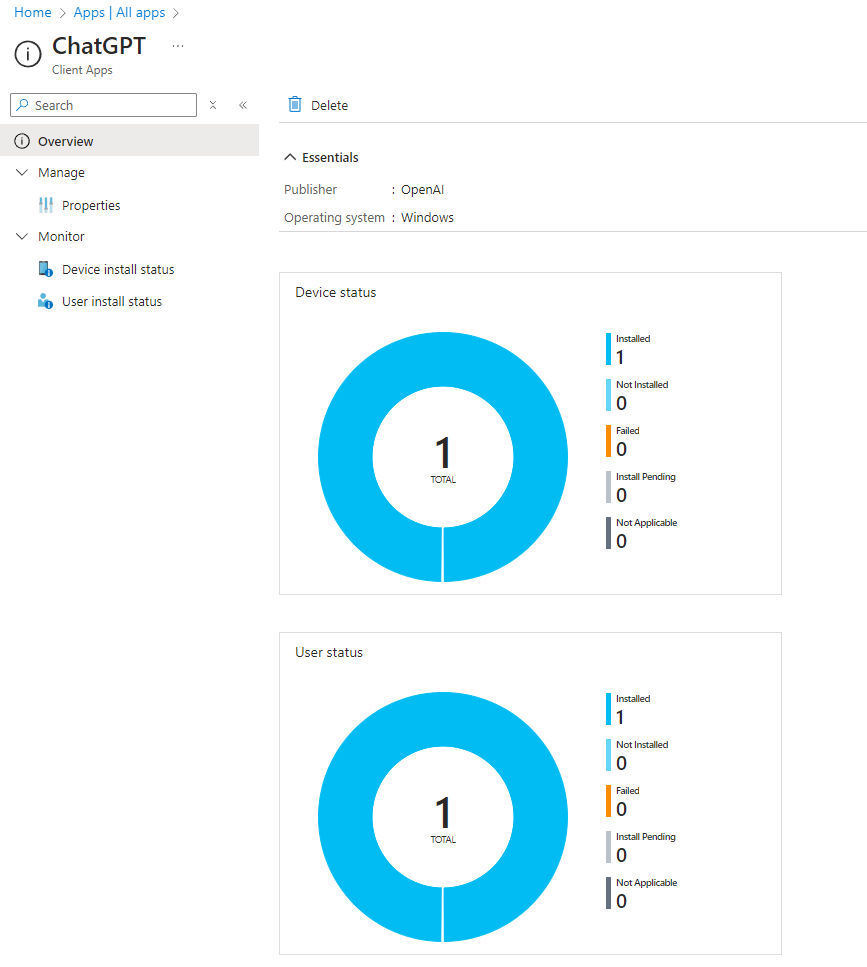
Step 2: Sync Policies
- Run a manual sync to expedite policy retrieval on endpoints.
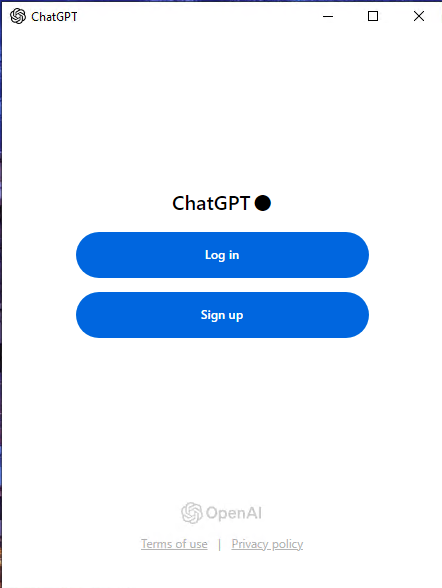
7. Verify Installation on Endpoints
For Windows 11 Devices:
- Open the Start Menu and type “ChatGPT.”
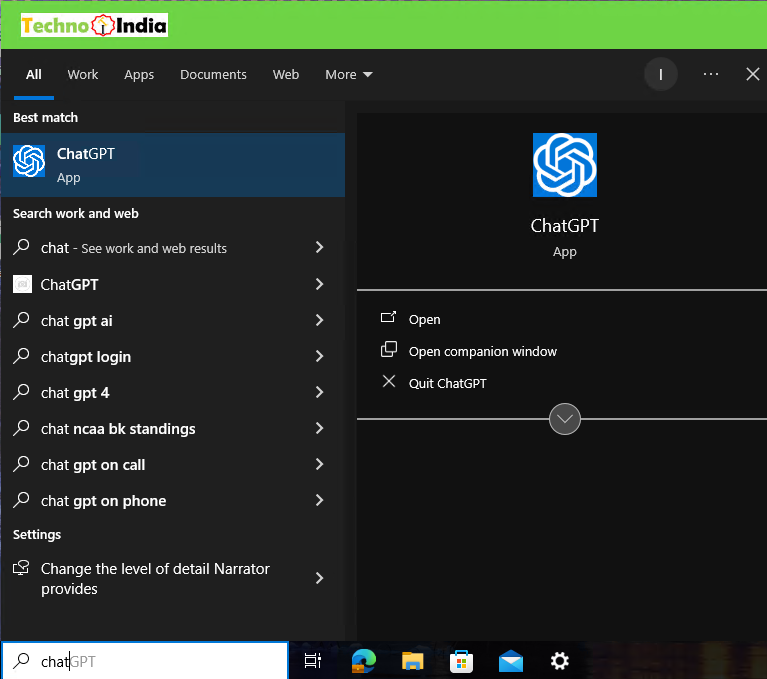
2. Select and launch the app.
For IT Administrators:
- Check Apps > Apps & Features > Apps list to confirm installation.
If you have Enterprise version of the App you can integrate with Microsoft Entra ID for Single Sign-in on (SSO).
Common Issues and Troubleshooting
During deployment, you may encounter a few common issues when installing the ChatGPT app through Microsoft Intune:
- App Not Found in Microsoft Store – Verify that the ChatGPT app is available in your region and that Microsoft Store integration is properly configured in Intune.
- Installation Failures – Check that the target device is enrolled in Intune, meets compliance requirements, and has internet connectivity.
- Deployment Delays – App deployments may take some time to process. Manually sync the device from Intune or review deployment status and logs for any reported errors.
- Assignment Issues – Confirm that the correct user or device groups have been assigned to the application and that users have the necessary licenses.
Best Practices for Deploying Microsoft Store Apps with Intune
To ensure a smooth and successful deployment of Microsoft Store apps through Microsoft Intune, consider the following best practices:
1. Test Before Broad Deployment
Deploy the application to a pilot group first to validate installation behavior, user experience, and compatibility before rolling it out across the organization.
2. Communicate with End Users
Notify users about upcoming app deployments, expected installation timelines, and any actions they may need to take. Clear communication helps reduce support requests.
3. Monitor Deployment Status
Regularly review app installation reports and deployment status within Intune to identify and resolve issues quickly.
4. Use Appropriate Assignment Types
Choose between Required, Available for enrolled devices, or Uninstall assignments based on your organization’s requirements and application usage scenarios.
5. Verify Device Compliance
Ensure target devices are properly enrolled, compliant, and able to access Microsoft Store services to prevent installation failures.
6. Track App Adoption
Use Intune reporting and analytics to monitor installation success rates, application usage, and overall adoption across your environment.
7. Keep Applications Updated
Take advantage of Microsoft Store app update capabilities to ensure users receive the latest features, performance improvements, and security updates automatically.
FAQs
1: What types of applications can be deployed using Microsoft Intune?
Microsoft Intune can deploy Microsoft Store apps, Win32 apps, LOB apps, Microsoft 365 apps, and web apps to corporate devices.
2: Can Microsoft Intune deploy Microsoft Store apps?
Yes, Intune supports deploying Microsoft Store apps to managed Windows devices using the new Microsoft Store integration.
3: Do users need local admin rights to install Intune apps?
No, apps deployed through Intune install automatically without requiring local administrator privileges.
4: Can apps be installed automatically during device enrollment?
Yes, Intune can automatically install required apps during enrollment using Windows Autopilot.
5: How does Intune manage apps after deployment?
Intune monitors app status, manages updates, and enforces security and compliance policies.
Conclusion
Deploying Microsoft Store apps with Microsoft Intune is a simple and efficient way to deliver applications to managed Windows devices. In this guide, we used the ChatGPT app as an example to demonstrate the deployment process, but the same steps can be applied to virtually any application available in the Microsoft Store.
By leveraging the Microsoft Store integration in Intune, administrators can centrally deploy, monitor, and manage applications without requiring manual installations or local administrator permissions. This approach helps streamline application management, improve user experience, and maintain visibility into deployment status across the organization.
Whether you’re deploying ChatGPT, Microsoft Teams, Company Portal, Adobe Express, or other Microsoft Store applications, the process remains largely the same. Simply select the desired app from the Microsoft Store catalog, configure your assignments, and let Intune handle the deployment.
For applications that are not available in the Microsoft Store, such as Win32 or Line-of-Business (LOB) applications, you’ll need to package and deploy them separately using the appropriate Intune app deployment methods. We have additional guides available that cover Win32 app packaging, deployment, and ready-to-use application templates.
Related URLs:-
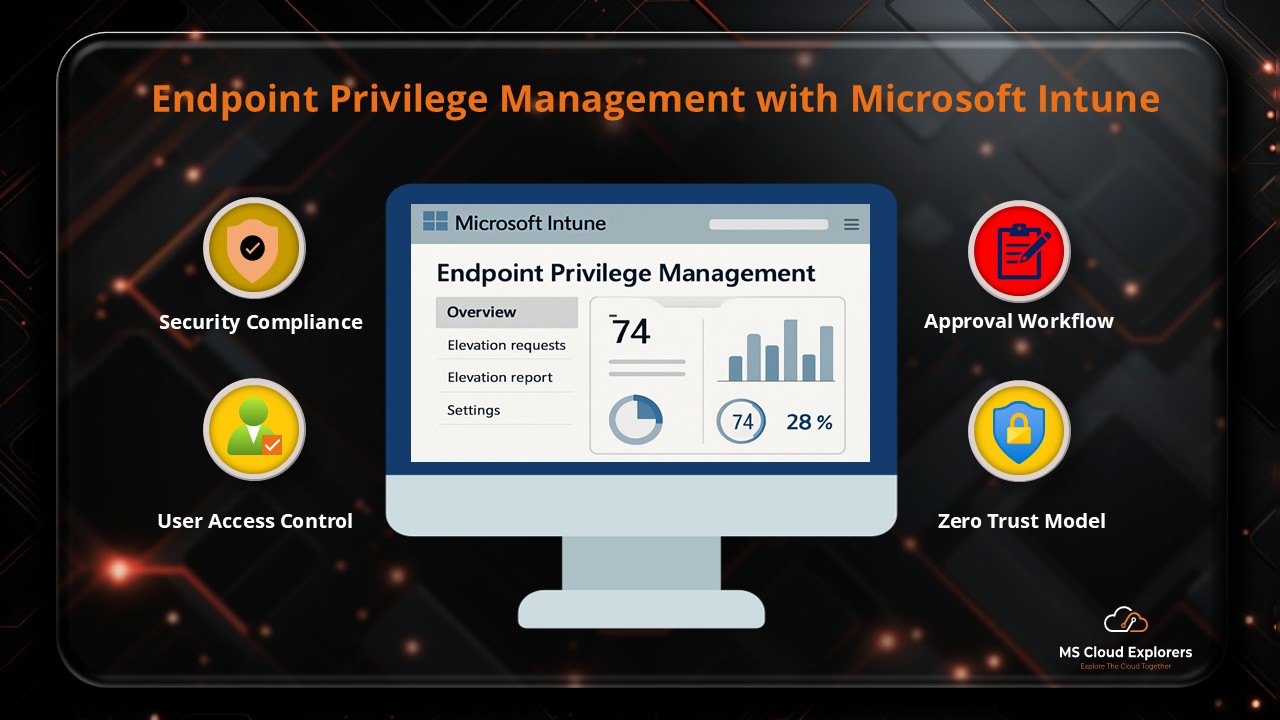
- Mastering Endpoint Privilege Management (EPM) in Microsoft Intune
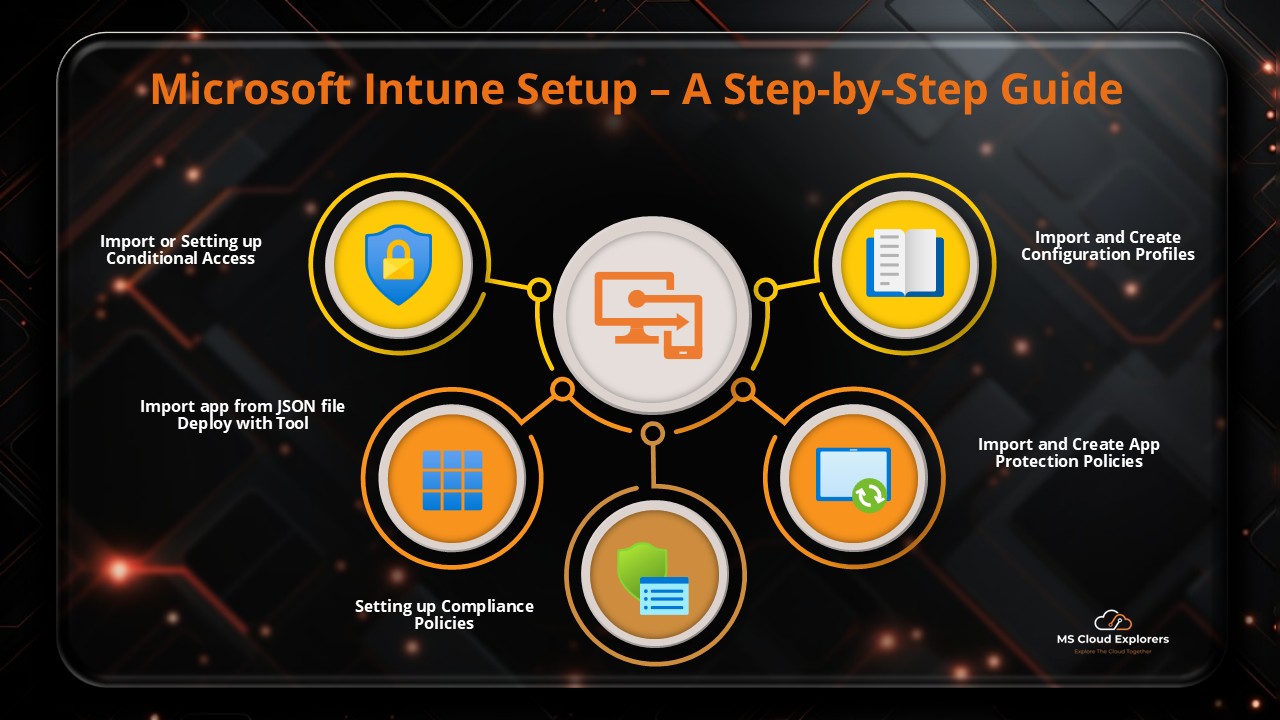
- Microsoft Intune Deployment: The Ultimate Guide for Administrators
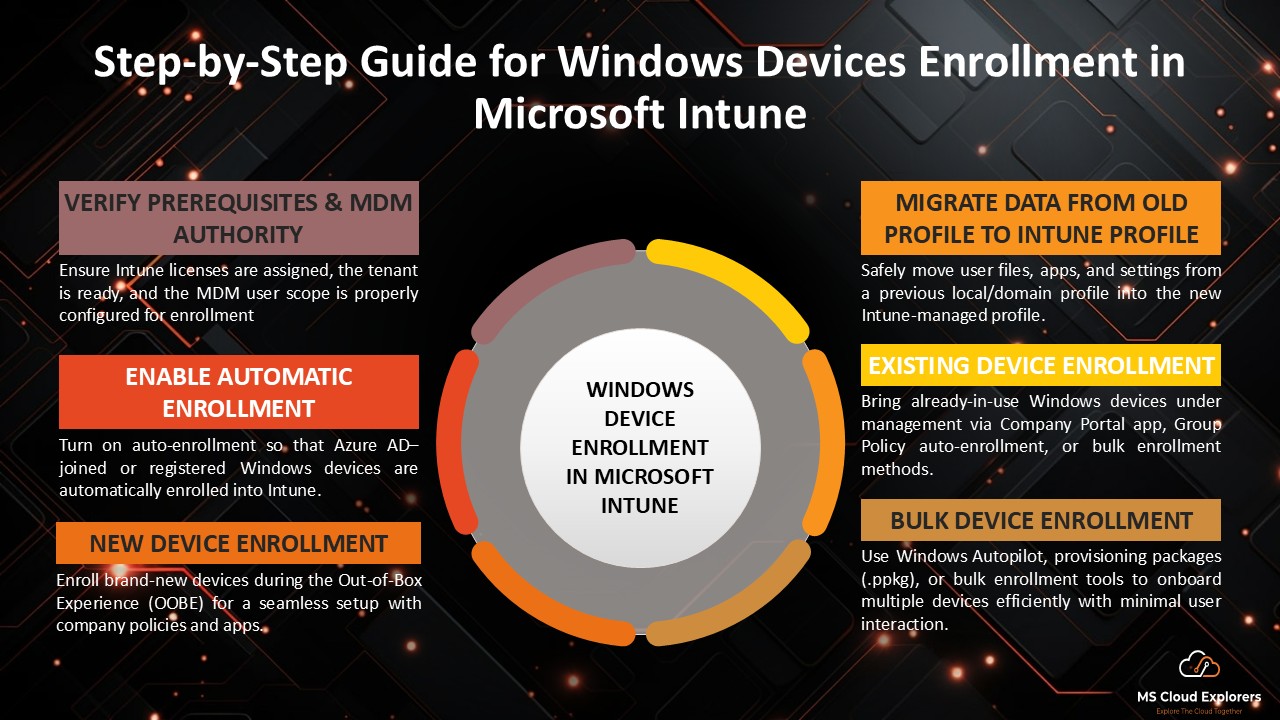
- Step-by-Step Guide for Windows Devices Enrollment in Microsoft Intune
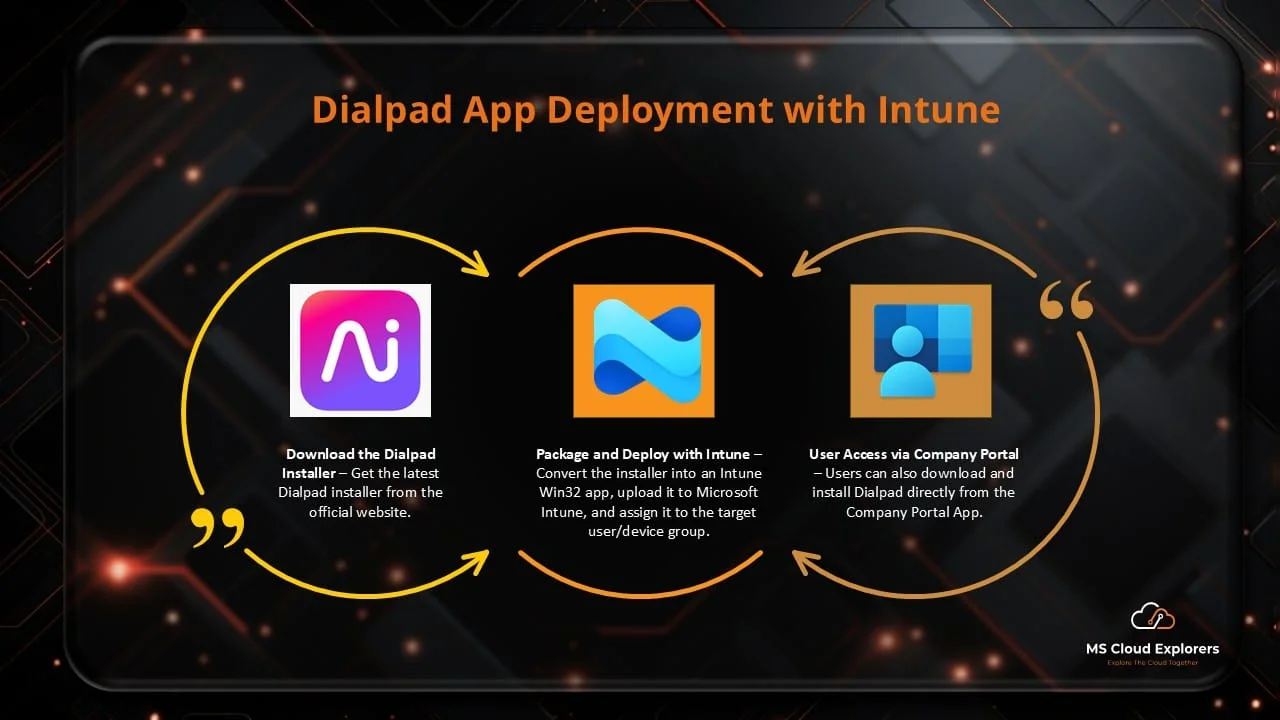
- Step-by-Step Guide to Package and Deploy Dialpad App Using Intune
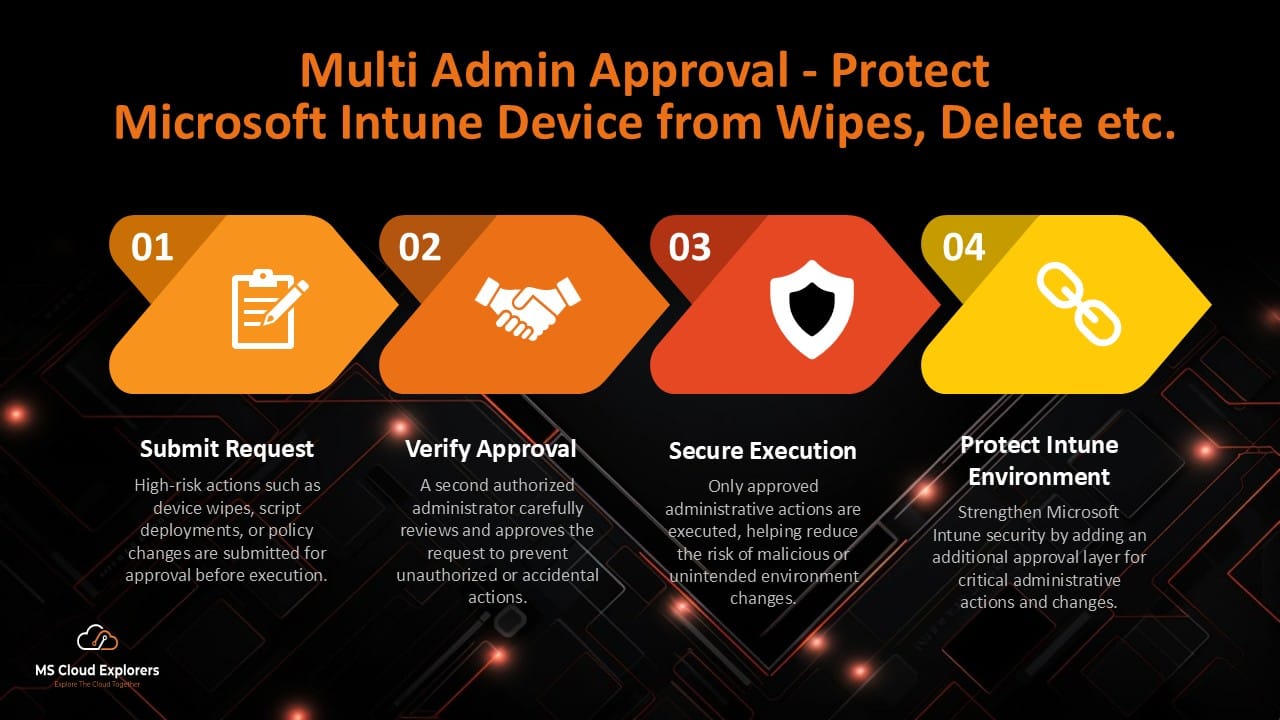
- How Multi Admin Approval Helps Prevent Large-Scale Device Wipes in Microsoft Intune 2026
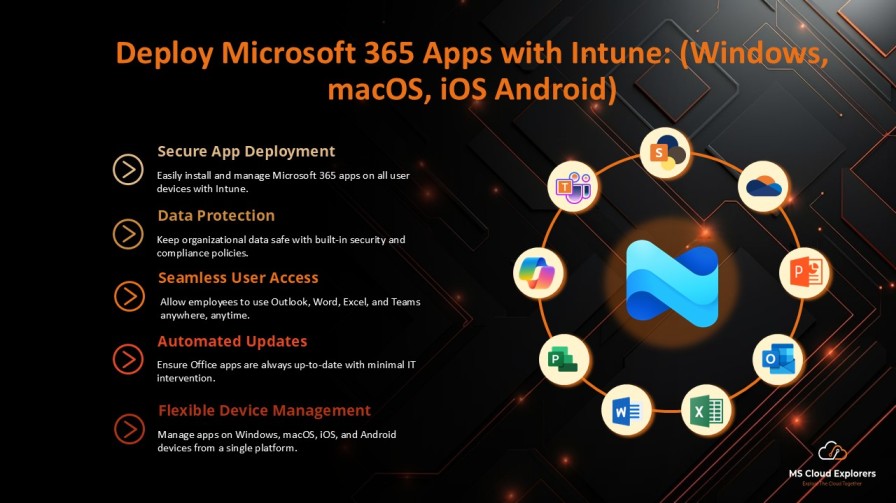
- How to Deploy Microsoft 365 Apps with Intune: Complete Enterprise Guide
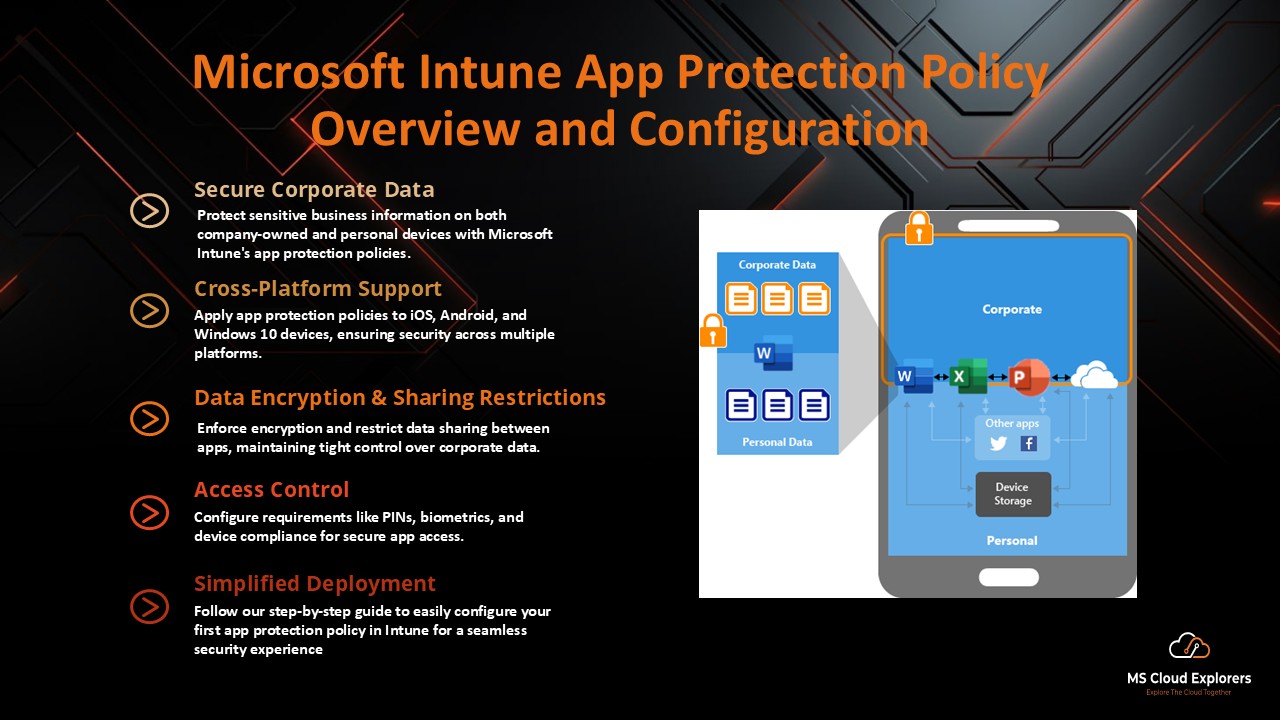
- How to Configure Your First App Protection Policy in Microsoft Intune: A Complete Guide (2026)
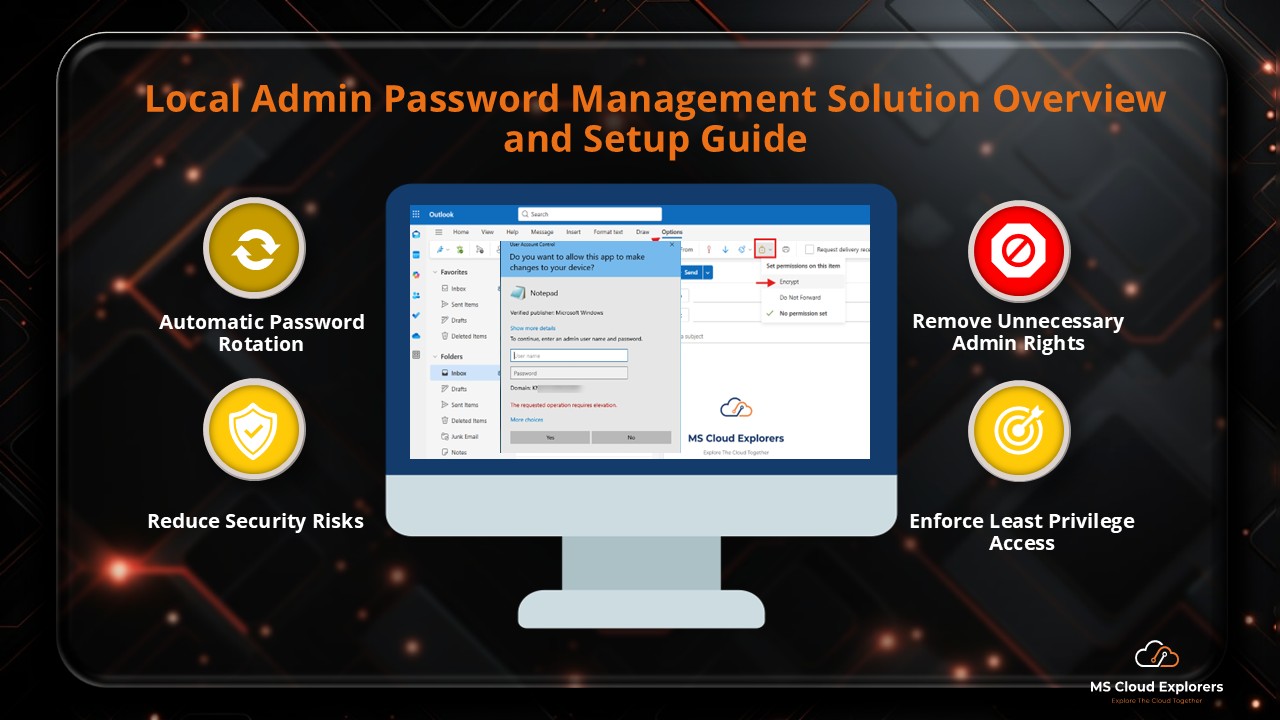
- Enabling LAPS with Intune and Removing Local Admin Access from Intune Enrolled Devices: A Step-by-Step Guide
- How to Deploy Microsoft Extended Security Updates (ESU) Using Intune: Step-by-Step Guide
Enjoyed the article?
We’d love to hear your thoughts—share your comments below!
For more insights, guides, and updates from the Microsoft ecosystem, be sure to subscribe to our newsletter and follow us on LinkedIn. Stay connected and never miss out on the latest tips and news!
4 comments on “How to Deploy the ChatGPT and Microsoft Store Apps Using Microsoft Intune (Step-by-Step Guide)”