Managing Microsoft 365 licensing efficiently is crucial for optimizing costs and ensuring compliance. In this guide, we provide a comprehensive PowerShell-based solution to export detailed Microsoft 365 license cost reports, enabling IT administrators to gain full visibility into licensing usage and expenditure.
Understanding Microsoft 365 Licensing and Costs
Before diving into the process of exporting a Microsoft 365 License Cost Report, it’s important to first understand how Microsoft 365 licenses are structured and the different pricing models available.
Types of Microsoft 365 Licenses
Microsoft 365 offers various license types, depending on the needs of your organization. These include:
- Business Plans: Suitable for small to medium businesses, offering essential productivity tools like Word, Excel, PowerPoint, and Teams.
- Enterprise Plans: Designed for large organizations with advanced security, compliance, and collaboration features.
- Education and Government Plans: Tailored to institutions and government entities with specific requirements for security and compliance.
- Add-Ons: Various optional add-ons like Microsoft 365 Defender, Power BI Pro, or Windows Virtual Desktop, which enhance the functionality of the core Microsoft 365 offering.
Each license type comes with its own set of features and pricing. Knowing your license distribution and usage is key to accurately tracking your costs. If you want to understand these license in more details, please check out our Microsoft 365 Adoption Guide.
Microsoft 365 Subscription Pricing Models
Microsoft 365 pricing typically follows two main models:
- Per User Pricing: Most Microsoft 365 plans are billed per user per month. This model is easy to scale, as you pay based on the number of users you have.
- Enterprise Agreement: For large organizations, Microsoft offers volume licensing, where you pay for licenses upfront, often at a discounted rate. These agreements may offer flexibility in terms of usage but can complicate cost tracking without detailed reporting.
If you operate in the U.S. and are planning to purchase Microsoft 365 licenses from an authorized Microsoft reseller at a discounted price, please reach out to us. We will be happy to assist you with the procurement process.
Why Export a Microsoft 365 License Cost Report?
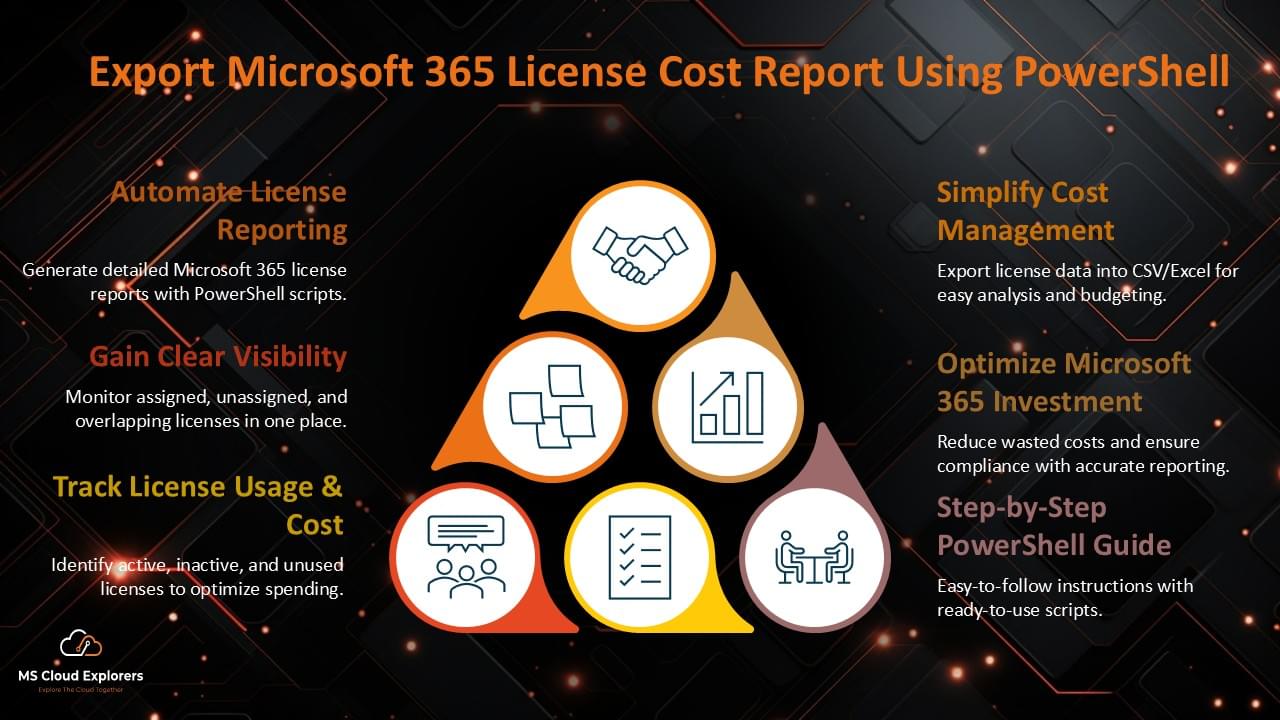
Exporting a Microsoft 365 License Cost Report allows you to track, manage, and optimize your subscription costs. This is especially useful for:
- Budgeting: Gain insights into how much you’re spending on Microsoft 365 licenses, enabling better cost management.
- Compliance: Ensure that your company is not over-licensed or under-licensed, avoiding both wasted spending and potential compliance issues.
- Optimization: Identify opportunities to reduce costs, such as eliminating unused licenses or downgrading users to lower-tier plans that still meet their needs.
Step-by-Step Guide to Export a Microsoft 365 License Cost Report
Now that we’ve covered the basics, let’s walk through the process of exporting a Microsoft 365 License Cost Report. This report can be generated directly from the Microsoft 365 admin center, which provides administrators with the tools necessary for managing licenses and subscriptions.
Accessing the Microsoft 365 Admin Center
To begin the process of exporting your license cost report, you first need access to the Microsoft 365 Admin Center. This is where you’ll find all the settings for managing users, licenses, and billing.
Steps:
- Log in to your Microsoft 365 Admin Center using your admin credentials.
- In the left-hand panel, select Billing, then click on Licenses.
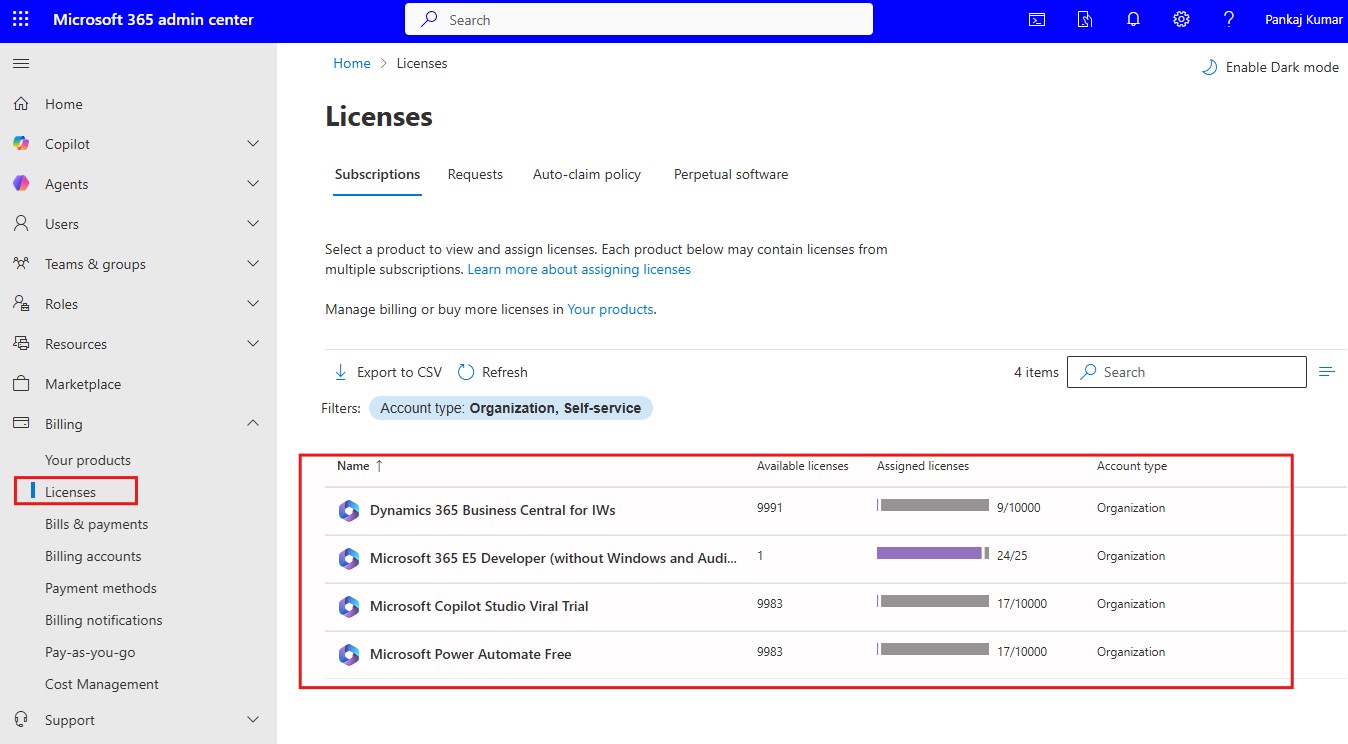
- Here you can see all your active licenses, subscription details, and usage information.
Gather Microsoft 365 License Information Using PowerShell
To install the Microsoft Graph PowerShell module, please refer to the step-by-step guide on how to install the module.
Use the following command to retrieve all SKUs (Stock Keeping Units) in the tenant:
Get-MgSubscribedSku | Select-Object SkuPartNumber, SkuId, ConsumedUnits, PrepaidUnitsTo make this data meaningful for cost reporting, map SKUs to their friendly names and costs.
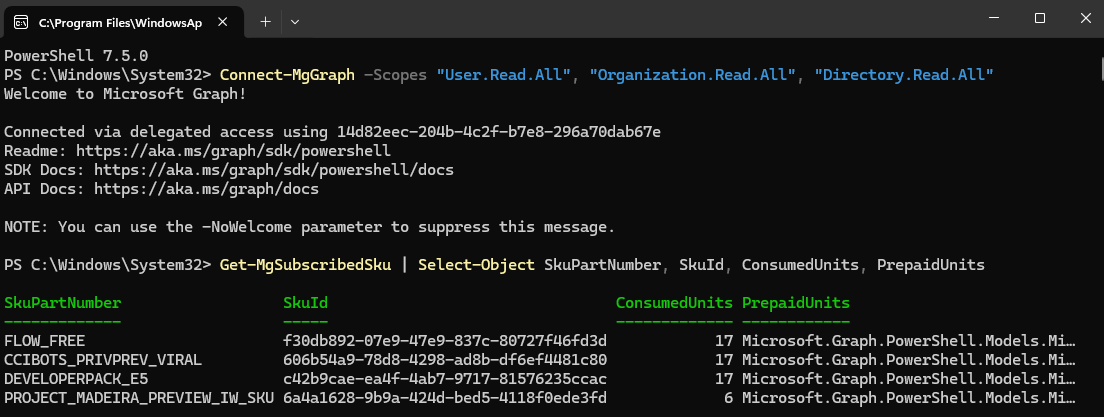
Assign Costs to Licenses Manually
Microsoft does not expose license pricing via API. To calculate cost, create a mapping file:
SkuPartNumber,UnitCostUSDnENTERPRISEPACK,35nBUSINESS_PREMIUM,22nE5_SECURITY,12nExport Microsoft 365 License Cost Report
Here’s a complete PowerShell script to extract and export the license usage and cost report:
# Load Cost Mapping
$costMap = Import-Csv -Path "./LicenseCostMap.csv" | Group-Object -Property SkuPartNumber -AsHashTable -AsString
# Get license details
$licenseData = Get-MgSubscribedSku | Select-Object SkuPartNumber, SkuId, ConsumedUnits, @{Name="AvailableUnits";Expression={$_.PrepaidUnits.Enabled}}
# Prepare report
$report = foreach ($item in $licenseData) {
    $sku = $item.SkuPartNumber
    $unitCost = $costMap[$sku].UnitCostUSD
    [PSCustomObject]@{
        SkuPartNumber    = $sku
        AssignedLicenses = $item.ConsumedUnits
        AvailableLicenses = $item.AvailableUnits
        TotalLicenses    = $item.ConsumedUnits + $item.AvailableUnits
        UnitCostUSD      = $unitCost
        TotalCostUSD     = [math]::Round($unitCost * $item.ConsumedUnits, 2)
    }
}
# Export to CSV
$report | Export-Csv -Path "./Microsoft365LicenseCostReport.csv" -NoTypeInformation
Write-Host "License cost report exported successfully."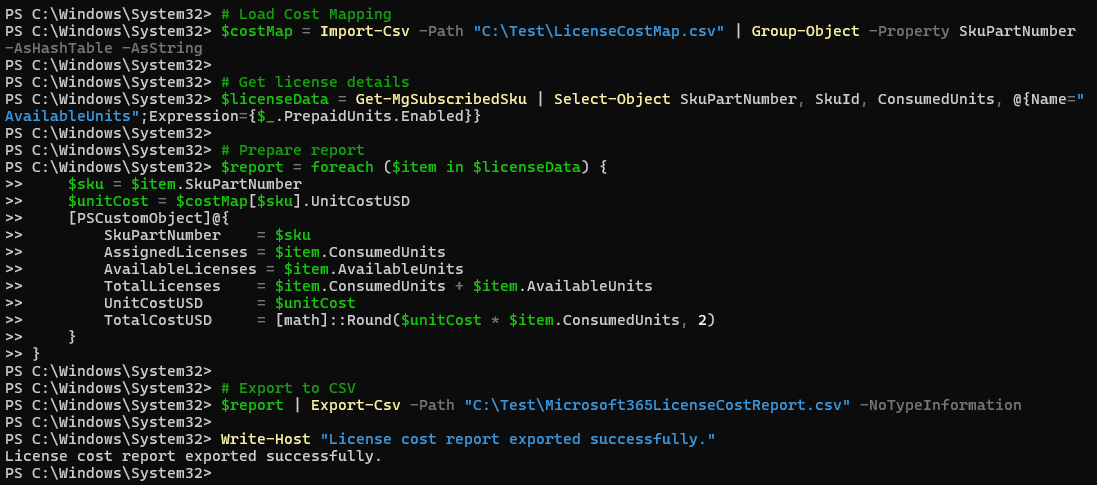
Sample Output: Microsoft 365 License Cost Report
| SkuPartNumber | AssignedLicenses | AvailableLicenses | TotalLicenses | UnitCost | TotalCost |
|---|---|---|---|---|---|
| ENTERPRISEPACK | 120 | 30 | 150 | $35 | $4200 |
| BUSINESS_PREMIUM | 60 | 10 | 70 | $22 | $1320 |
Customizing the Report for License Cost
The basic exported report contains useful data, but you may need to customize it to show only relevant license cost information. By adjusting filters and selecting columns in Excel or your preferred spreadsheet software, you can generate a report that focuses on the following:
- Total License Cost: Sum up the total cost of licenses based on the number of users and the cost per user.
- License Type Breakdown: Display how much is being spent on each specific plan (Business Basic, Enterprise E3, etc.).
- Unused Licenses: Identify licenses that have been assigned but are not actively used by employees.
- License Renewal Dates: Add columns showing when your licenses are up for renewal to help you plan future budgeting.
Analyzing and Reporting
With your custom report in hand, you can begin analyzing your Microsoft 365 license costs. Check for ways that you can cut costs, like:
- Unused Licenses: Reassign or remove any licenses that are not being used.
- Optimization Opportunities: Consider downgrading users who don’t require advanced features, such as reducing Enterprise plans to Business plans where possible.
- Cost Forecasting: Using historical data from past reports, you can forecast your future licensing costs and plan budgets accordingly.
Best Practices for Managing Microsoft 365 License Costs
1. Regular License Audits
Performing regular license audits is key to optimizing Microsoft 365 license usage. By reviewing your licensing data on a quarterly or biannual basis, you can ensure that you’re not overpaying for unnecessary licenses and can keep track of which plans are most cost-effective for your organization.
2. Automating License Assignment
Where possible, automate the assignment of licenses based on roles within the organization. This can help ensure that users are always assigned the correct licenses for their job functions, preventing unnecessary upgrades or downgrades.
3.Monitoring License Usage
Regularly monitor your organization’s license usage. Use the insights provided by the Microsoft 365 Admin Center to track which users are actively using their licenses, and which ones may be underutilized.
How to Optimize Microsoft 365 License Costs for Your Organization
Once you have exported your license cost report, it’s time to take action. Below are some key strategies to optimize Microsoft 365 licensing costs:
1.Remove Unused Licenses
When an employee leaves or transitions to a different role, be sure to remove their license. Unused licenses should be reallocated or canceled to reduce unnecessary spending.
2.Consolidate Licenses
Many businesses use multiple Microsoft 365 plans across departments. If you find that certain teams are using licenses with features that they don’t need, consider consolidating to a more appropriate plan that better matches their needs.
3.Take Advantage of Volume Licensing Discounts
For larger organizations, consider negotiating volume discounts with Microsoft. These agreements can provide significant savings, especially if you’re purchasing licenses in bulk.
Conclusion
Exporting a Microsoft 365 License Cost Report is a crucial task for IT administrators, financial officers, and anyone responsible for managing software costs within an organization. By regularly reviewing license usage, generating reports, and optimizing your licensing strategy, you can save money, improve compliance, and ensure your business is using Microsoft 365 efficiently. With this guide, you now have all the information needed to track and optimize your Microsoft 365 license costs effectively, helping your organization make the most of its software investment.
FAQs
- How do I access Microsoft 365 license data?
You can access license data through the Microsoft 365 Admin Center, under the Billing section. - Can I customize the exported license cost report?
Yes, once you export the data, you can customize it in Excel or another spreadsheet tool to show only the relevant license cost information. - How often should I audit my Microsoft 365 licenses?
It’s recommended to perform a license audit every 3 to 6 months to ensure optimal license usage and cost management. - Can I automate license assignment in Microsoft 365?
Yes, you can automate license assignment based on user roles or departments to streamline management. - How can I reduce Microsoft 365 license costs?
Remove unused licenses, consolidate plans where possible, and negotiate volume discounts with Microsoft for significant savings.
Explore More from MS Cloud Explorers
- How to Install Microsoft 365 PowerShell Modules (Step-by-Step Guide 2026)
- Microsoft 365 Applications Explained: A Complete Guide for IT Admins
- Step-by-Step Guide to Create and Manage Microsoft 365 Accounts and Groups
- Master Outlook Troubleshooting: Fix Common Issues in Outlook 365 & Beyond
- A Practical Guide to Successful Microsoft 365 Adoption
Enjoyed the article?
We’d love to hear your thoughts—share your comments below!
For more insights, guides, and updates from the Microsoft ecosystem, be sure to subscribe to our newsletter and follow us on LinkedIn. Stay connected and never miss out on the latest tips and news!