As an admin, you’ve likely encountered the frustrating situation where users have local admin rights on their devices, often installing apps or making system changes without notifying you. While these actions might seem harmless to the user, they can create serious security risks. Unauthorized apps can compromise company data, introduce vulnerabilities, and create compliance issues. Many users install applications simply to complete their work faster, unaware of the security threats they may be exposing the organization to.
If you’ve ever had to clean up after such incidents, you know how critical it is to properly manage local admin access. This is where Local Administrator Password Solution (LAPS) becomes essential. When combined with Microsoft Intune, organizations can automate password management, ensure unique and regularly updated local administrator credentials, and remove unnecessary admin rights. In this guide, you’ll learn how to enable LAPS with Intune and eliminate excessive local admin access to build a more secure and compliant environment.
What is LAPS and Why Is It Important?
Understanding Local Administrator Password Solution (LAPS)
LAPS is a Microsoft solution that automatically manages the local administrator password on domain-joined or Entra ID Joined computers. It ensures that each device has a unique password that is regularly updated, preventing the misuse of weak or static passwords. This is particularly important in large environments where multiple systems might be exposed to malicious actors or users with unnecessary administrative privileges.
Why You Should Use LAPS
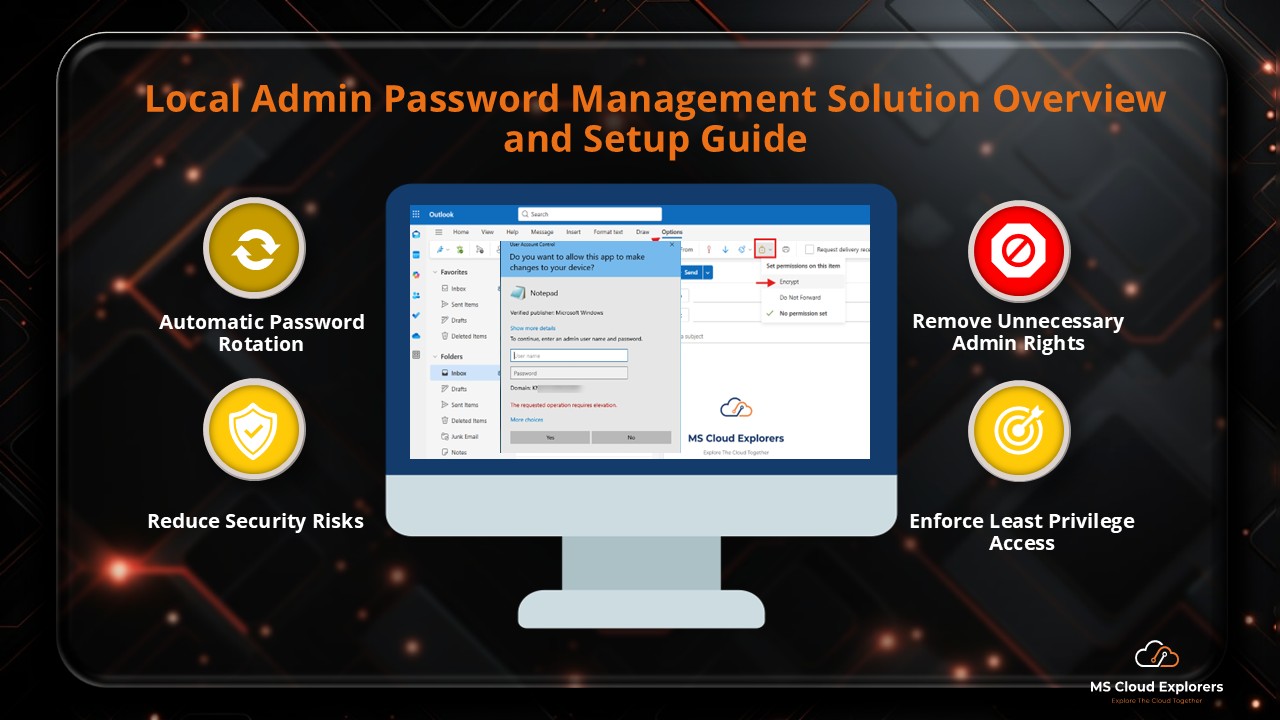
- Enhanced Security: LAPS prevents attackers from exploiting the same local admin password across multiple devices.
- Password Rotation: It automates the process of regularly rotating local administrator passwords, reducing the risk of password leaks or misuse.
- Compliance: LAPS helps organizations adhere to security and compliance standards by enforcing strict control over local admin access.
Step-by-Step instruction on How to Enable Local Admin Password Management (LAPS)
Step 1: Prepare Your Microsoft Intune Environment
Before enabling LAPS, you must ensure that your Microsoft Intune environment is set up and properly configured. This involves having access to Microsoft Entra ID and Microsoft Intune.
- Admin Roles: Manage LAPS you should have at least Intune Administrator and Local Administrator Password Administrator.
- Check License Requirements: Ensure that your organization has the necessary Microsoft 365 licensing, such as Microsoft 365 Business Premium or Microsoft 365 E3.
Step 2: Configure LAPS Settings in Microsoft Entra ID
To use LAPS with Intune, you need to configure the necessary settings in Microsoft Entra ID.
- Navigate to Microsoft Entra ID: In the Azure portal, go to Microsoft Entra ID and select Devices.
- Enable Local Administrator Password Management: Under Device settings, you’ll need to enable Local Administrator Password Solution.
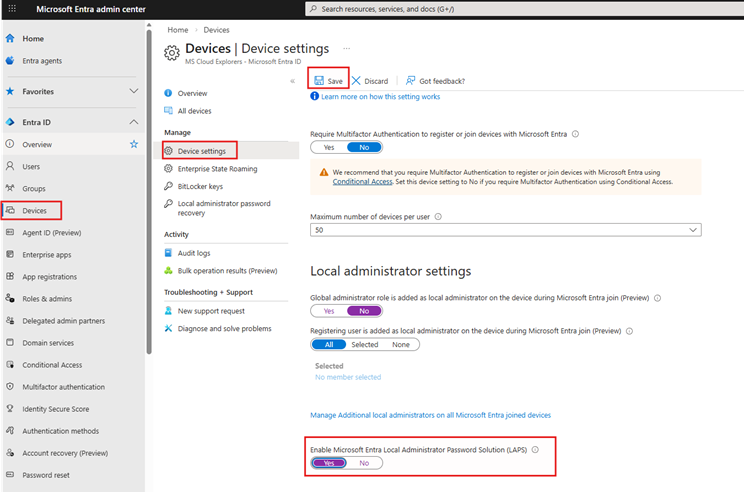
- Assign Device Groups: Ensure that the correct device groups are assigned to use LAPS so that these groups are managed through Intune.
- Manage Additional Settings:
- Enable the option to add the Global Administrator role as a Local Administrator. When a device is joined to Entra ID, all Global Administrator accounts will be added as local administrators on that device. This may be acceptable for a small tenant with only a few Global Admins. It is not recommended for large organizations with multiple Global Administrators.
- Enable the option only for those users to whom you want to grant local admin access on their devices. For example, create a Security Group and add the required admins here. This is not recommended if you are already using a Local Administrator Password Management solution with Intune.
- Create a Security Group and assign the Microsoft Entra Joined Device Local Administrator role to that group. Add all Helpdesk admins or users who require this access. This is the recommended setting. Admins can use their own accounts to install applications or manage device settings with administrative privileges.
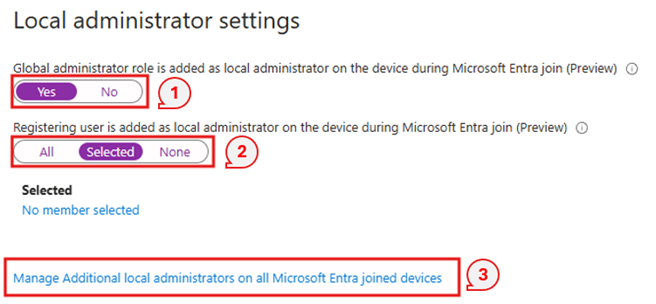
The above Method will only work with the New Devices, For the Existing Intune enrolled Devices you need to Manage LAPS with Intune.
Step 3: Set Up LAPS Policies in Intune
Once your environment is prepared, it’s time to configure the LAPS policies within Intune. This is done through Intune’s security baselines.
- Go to Endpoint Security in the Microsoft Intune Admin Center. Navigate to:
Endpoint Security > Account Protection > Create New Policy.
Select:
- Platform: Windows
- Profile: Local admin password solution (Windows LAPS)
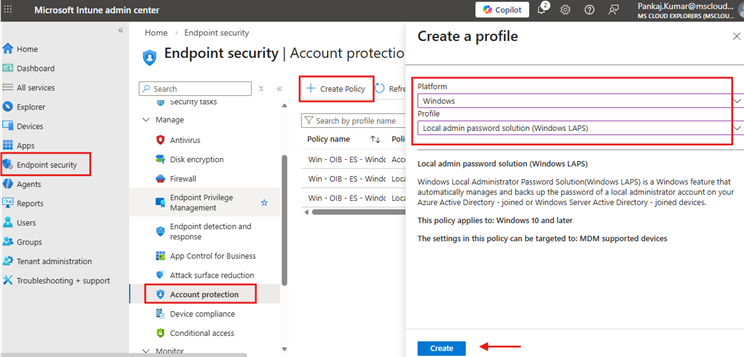
- Basics: Provide a name and description.
- Configure the Settings: Configure the settings according to your organization’s requirements. You can set options such as how often the password should be changed and who can access the password.
Backup Directory:
If you want to back up the local administrator password to Active Directory, select the option to back up the password to AD.
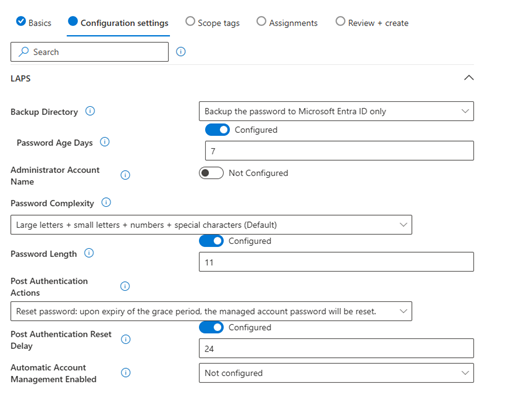
Step 4: Deploy LAPS Policies to Devices
- Once the policies are configured, deploy them to the target devices.
- Assign the Policy: Go to the Assignments section and assign the policy to the appropriate device groups in your organization. Create separate Dynamic or Security Groups for Intune assignments.
- Monitor Deployment: Monitor the deployment process to ensure that all devices in the targeted groups are successfully configured with LAPS.
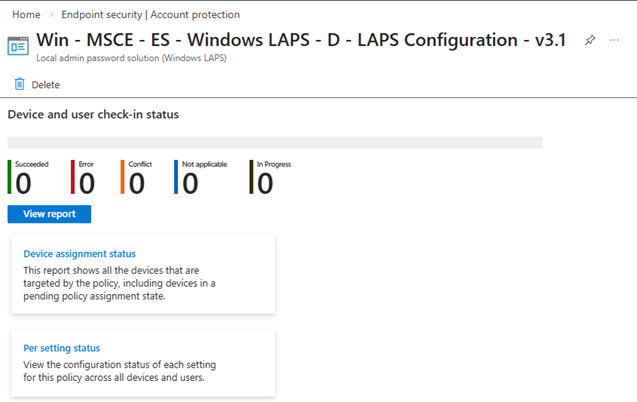
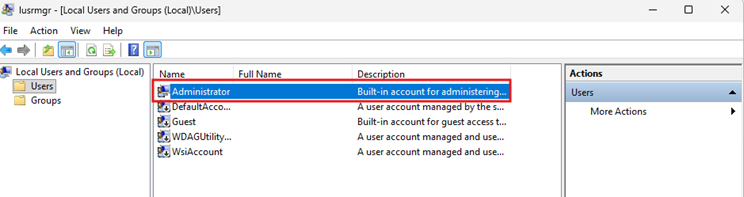
This configuration profile will enable the default local Administrator account on the device. You can verify this in the device’s Local Users and Groups settings.
Removing Local Admin Access from Devices Using Intune
After enabling LAPS, removing unnecessary local admin access from devices is the next step to further improve security.
Step 1: Identify Devices with Local Admin Access
Before removing local admin access, it is important to identify which devices still have local admin rights assigned. You can use Intune to generate a report listing devices with local administrator access.
- Unfortunately, there are some limitations, and you cannot check this directly from the GUI. However, you can achieve this using PowerShell and Microsoft Defender Advanced Hunting with KQL queries.
Please refer to the Microsoft Community guide, where all possible options are explained with step-by-step instructions.
Step 2: Create a Policy to Remove Local Admin Access
You can use Intune to create a policy that automatically removes local admin access from devices.
- Navigate to Endpoint Security in Intune: In the Microsoft Intune admin center, go to Endpoint Security > Account Protection.
Create a new policy with:
- Platform: Windows
- Profile: Local user group membership
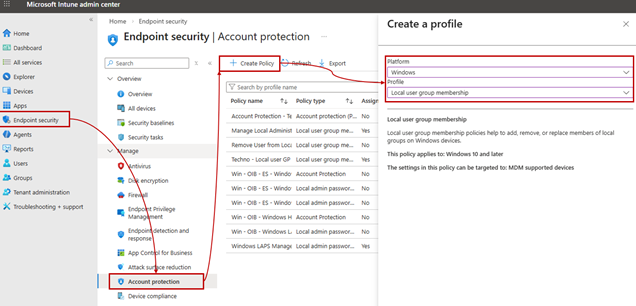
- Basic: Provide a name and description according to your company’s naming convention.
- Configuration Settings: In Configuration Settings, under Local Group, select Administrators.
Set the action to Remove (Update) and choose the selection type as Users/Groups.
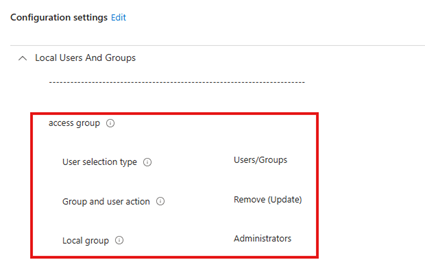
Add another setting. In the Selected Users section, add the group or user that you want to grant local admin access on the device.
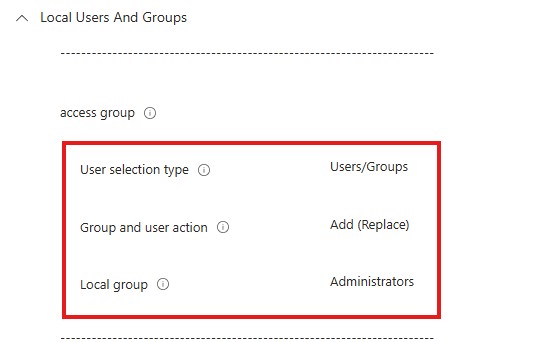 This configuration will first remove existing local admin memberships and then replace them with the selected user/group, along with the built-in local Administrator account.
- Assignments: Add the device or user group from which you want to remove the access.
Please note that this after applying this policy it may take up to 8 hours to fully remove and replace the Local Admin accounts.
Step 3: Use Group Policies to Remove Admin Rights
If there are devices that are not fully managed by Intune, you can also use traditional Group Policies to remove local admin rights.
- Create a Group Policy Object (GPO): Use Active Directory to create a GPO that removes local admin rights from all non-essential users.
- Apply GPO: Link the GPO to the relevant Organizational Units (OUs) that contain the devices from which you want to remove local admin access.
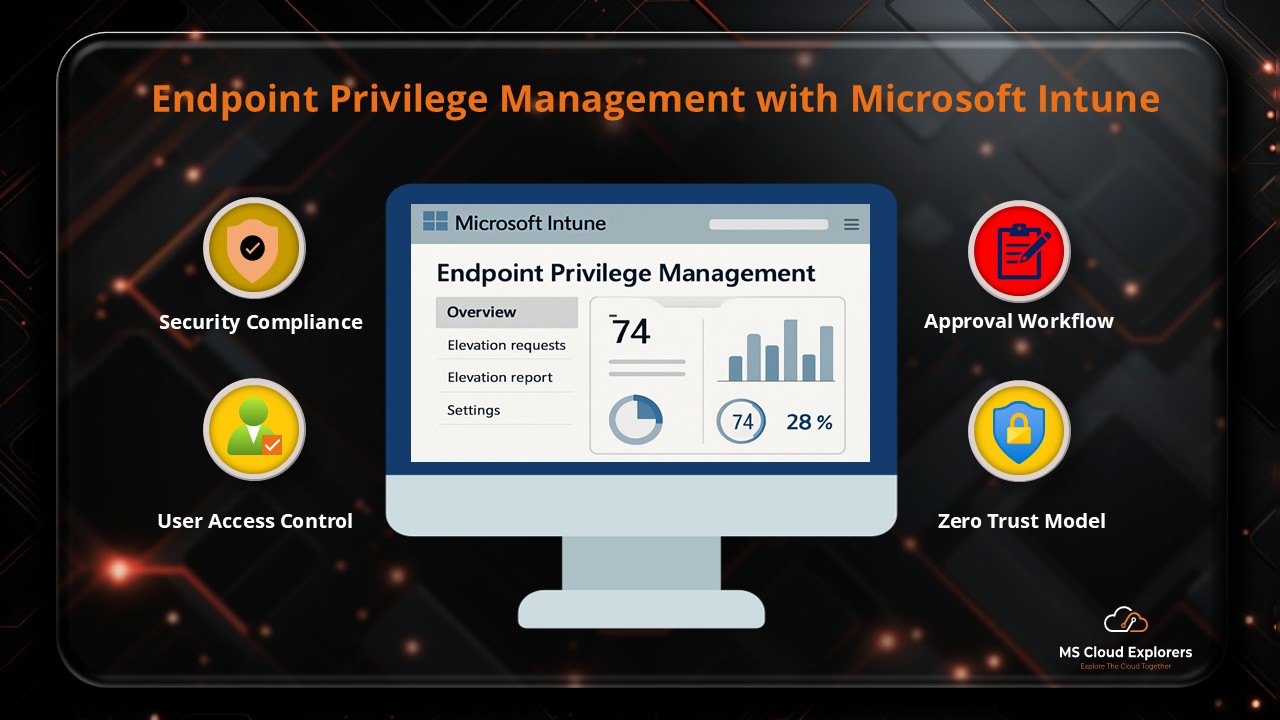
If you have large organization people frequently install the apps. I would recommend to use Intune Endpoint Privilege Management.
Best Practices for Managing LAPS and Admin Rights
1. Regularly Rotate Local Admin Passwords
To ensure maximum security, local admin passwords should be rotated on a regular basis. Configure LAPS to automate this process to prevent any human error.
2. Limit Local Admin Access
Only allow local admin rights for essential users. Having too many users with local admin access increases the attack surface.
3. Use Least Privilege Access
Always follow the principle of least privilege by granting users only the minimum permissions they need to perform their job functions. This reduces the risk of unauthorized access.
4. Enable MFA for Admin Accounts
To protect your local admin accounts, enable Multi-Factor Authentication (MFA) for all accounts with elevated privileges.
5. Regular Auditing and Monitoring
Constantly audit local admin access and monitor user activity on devices. This ensures that no unauthorized changes are made to sensitive systems.
Conclusion
Enabling LAPS with Intune and removing local admin access from devices is a critical step in strengthening your organization’s security posture. By automating password management with LAPS and restricting unnecessary admin privileges, you can significantly reduce the risk of security breaches. Follow the steps outlined in this guide to effectively manage and secure your environment, ensuring your organization stays compliant and protected from potential threats.
FAQs
- What is LAPS in Microsoft Intune?
LAPS stands for Local Administrator Password Solution. It’s a Microsoft solution that automatically manages local admin passwords on domain-joined devices, ensuring they are unique and regularly updated. - How do I enable LAPS with Intune?
You can enable LAPS by configuring the LAPS settings in Microsoft Entra ID and then applying the policies in Microsoft Intune. Once deployed, it manages local admin passwords across your devices. - Can I remove local admin access using Intune?
Yes, Intune allows you to create policies to remove local admin rights from devices by modifying user group memberships and applying device restrictions. - Why is it important to remove local admin access?
Removing local admin access reduces the risk of unauthorized access and limits the potential damage that can be caused by compromised accounts. - How often should local admin passwords be rotated?
It is recommended to rotate local admin passwords regularly, typically every 30 to 90 days, depending on your organization’s security policies
Related Links:-
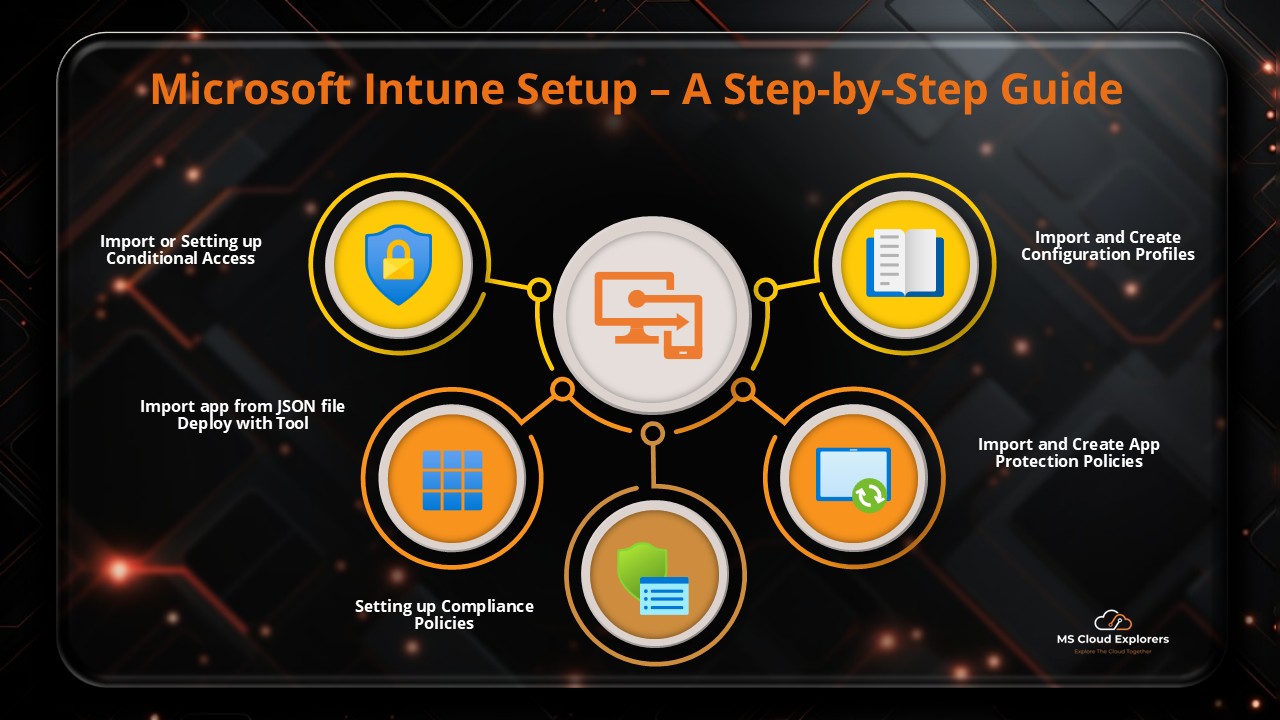
- A Step-by-Step Guide to Complete the Microsoft Intune Setup
- Mastering Endpoint Privilege Management (EPM) in Intune
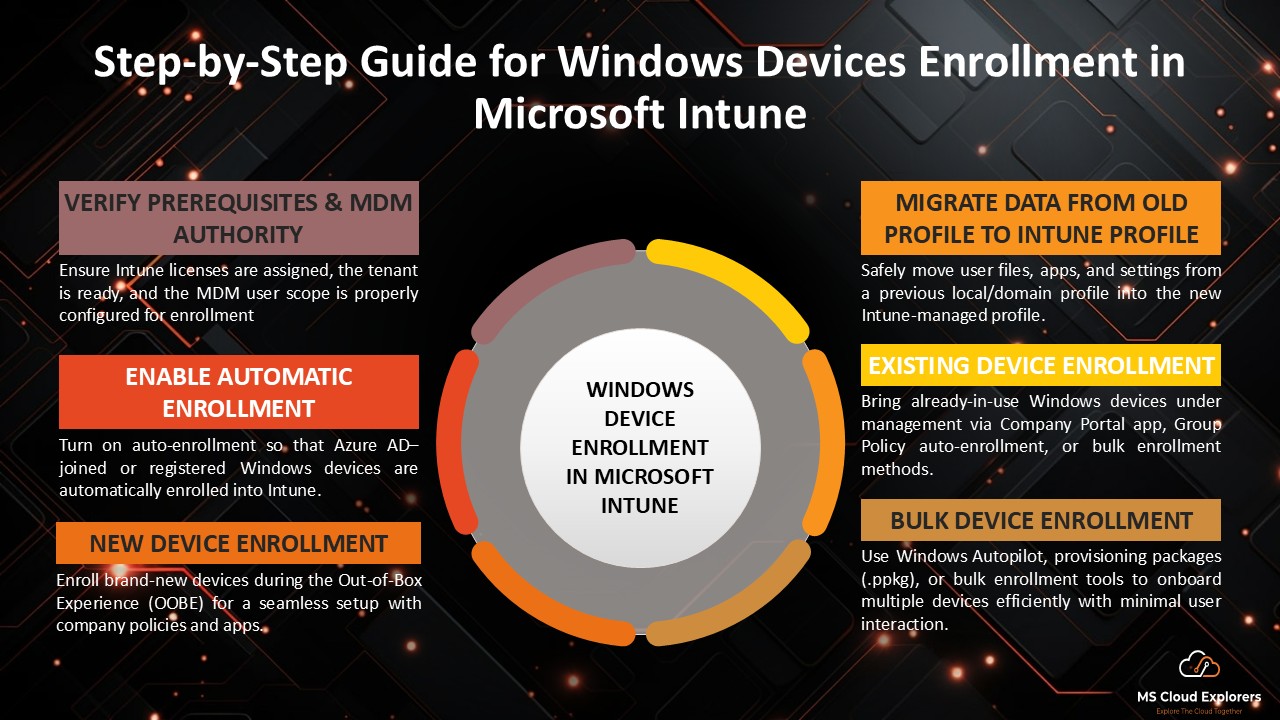
- Windows Device Enrollment in Microsoft Intune (2026)
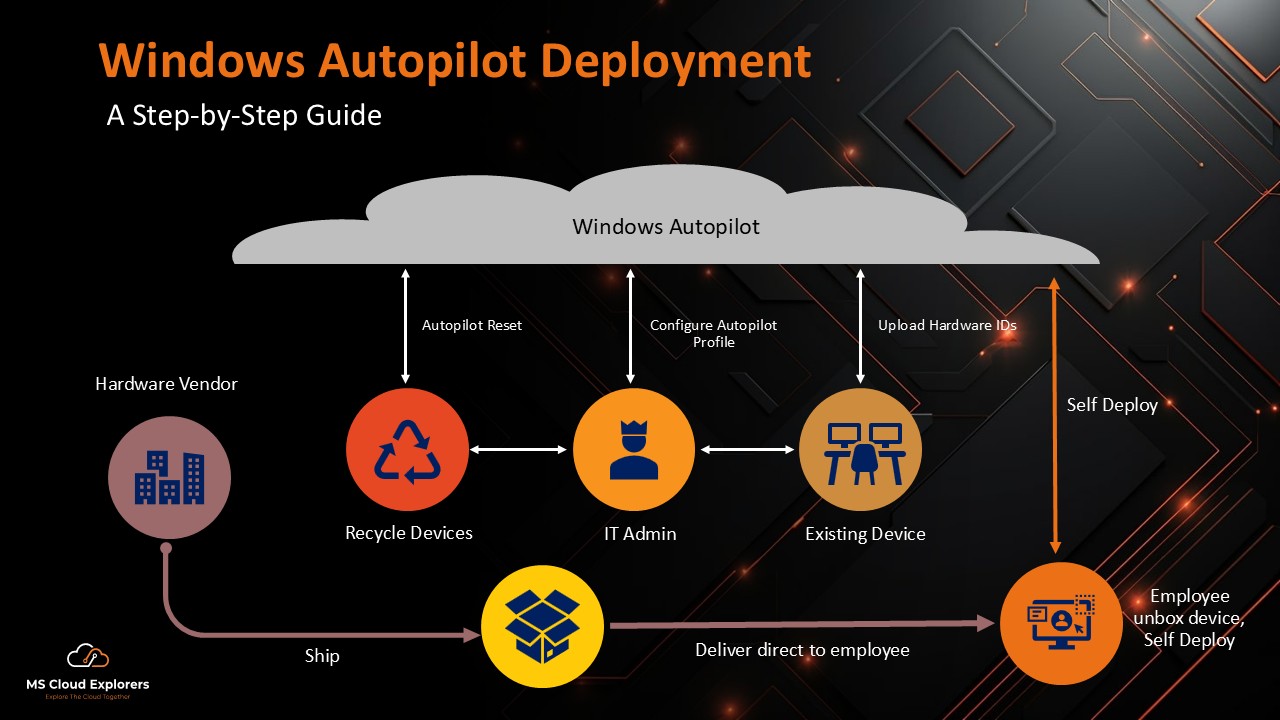
- Windows Autopilot Deployment Guide (2026)
Enjoyed the article?
We’d love to hear your thoughts—share your comments below!
For more insights, guides, and updates from the Microsoft ecosystem, be sure to subscribe to our newsletter and follow us on LinkedIn. Stay connected and never miss out on the latest tips and news!