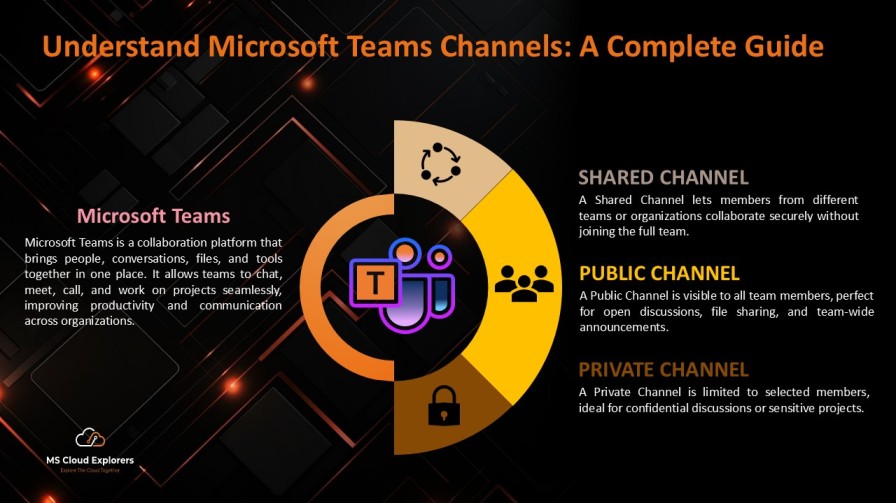
In Microsoft Teams, channels are the lifeblood of collaboration. They represent dedicated spaces inside a team where people discuss topics, share files, coordinate projects, and integrate applications. Think of channels as rooms in a digital office where focused conversations happen based on topic, group, or project.
Channels make it easy to keep conversations on topic and transparent. Instead of endless chat threads or confusing email chains, teams can organize all their communication in one structured place. And as Teams continues to evolve, the way these channels behave — and who can access them — has become more powerful and flexible.
What is a Team in Microsoft Teams
Before we unpack channel types, it’s important to understand what a team is. A Team in Microsoft Teams is a collection of people grouped around a shared goal: a project, department, class, or interest group.
Within this team, channels act like sub‑folders — each with its own discussion board, files, and tools. Every channel contributes to the overall communication structure of the team.
Why Channels Matter
Channels streamline communication and prevent clutter. Without channels, all team discussions — whether about weekly planning, project work, or random chit‑chat — would be lumped together. That chaos would make collaboration inefficient.
Channels give structure, meaning, and focus. You can think of them like different sections in a company meeting — each segment has a clear purpose.
Standard Channels
What Are Standard Channels
A standard channel is the most common channel type in Teams. It’s visible to all members of the team. Any message or file shared in a standard channel is accessible to everyone on that team — and its contents are searchable within the team context.
Standard channels are perfect when you want open and transparent communication across the entire team.
Common Standard Channel Use Cases
📣 Announcements & Team News
Standard channels are ideal for announcements like policy changes, weekly updates, or team goals. When everyone sees the same message in one place, there’s consistency in communication.
🤝 Project Collaboration
If multiple people are working on a project, a standard channel can serve as the digital workspace where chat, files, checklists, and meetings all happen together.
📚 Knowledge Sharing
Create a channel dedicated to training materials, documentation, processes, or best practices. This central hub can help new team members onboard faster.
🎉 Social & Culture Channels
Teams aren’t just about work. Standard channels are also great for non‑work chats like “Book Club”, “Watercooler”, or team hobbies.
How Standard Channels Work with SharePoint
Each standard channel in Teams is linked to the team’s SharePoint site. Files you upload in a channel are stored in the team’s document library in SharePoint — meaning they’re backed up, searchable, and integrated with Office 365 tools.
Private Channels
What Is a Private Channel
A private channel is a space within a team where only a subset of members can participate. If there’s a confidential discussion or sensitive documents that shouldn’t be visible to all team members, private channels are your go‑to choice.
For example, your HR team may need a private channel for salary reviews or performance discussions that only certain members should access.
When to Use Private Channels
Use private channels when:
- Sensitive topics must be restricted
- A subset of team members need their own workspace
- Confidential project work needs to be separated from the main team
Unlike standard channels, private channels have their own unique SharePoint site where files are stored — inaccessible to others.
Limitations of Private Channels
While private channels are useful, they come with limits:
- They can only include members already in the parent team
- They have a lower cap on the number you can create per team
- Apps and bots behave differently than in standard channels
Shared Channels
What Is a Shared Channel
A shared channel takes collaboration a step further by letting you invite people outside your team — even outside your organization — to collaborate in the same space. Shared channels are designed for cross‑team and cross‑org scenarios.
Think of a project where members from design, sales, support, and even partners from another company need to work together — a shared channel makes that possible without forcing them to join a team.
How Shared Channels Work Across Org Boundaries
Shared channels use Microsoft Entra B2B direct connect to allow participants from different organizations. This lets external partners collaborate securely while keeping data boundaries intact.
Only members and invited participants can see and interact in the shared channel — it doesn’t flood the whole team with content unrelated to them.
When to Use Shared Channels
Shared channels are especially useful when:
- Cross‑department work requires shared access
- External clients or partners need workspace without full team membership
- Collaboration needs to stay secure yet flexible
Shared Channel Permissions & Management
Only team owners can create shared channels, and they control membership. Files and conversations in a shared channel are managed independently — meaning you’ve got fine‑grained control over access and security.
Standard vs Private vs Shared — Key Differences
| Feature | Standard | Private | Shared |
| Visible to | All team members | Selected team members | Selected members inside/outside |
| Files stored in | Team SharePoint | Private SharePoint | Dedicated shared SP site |
| External users | No | No | Yes (via B2B direct connect) |
| Typical use | Open team discussions | Confidential work | Cross‑team/org collaboration |
How to Create Teams
- Open the Microsoft Teams.
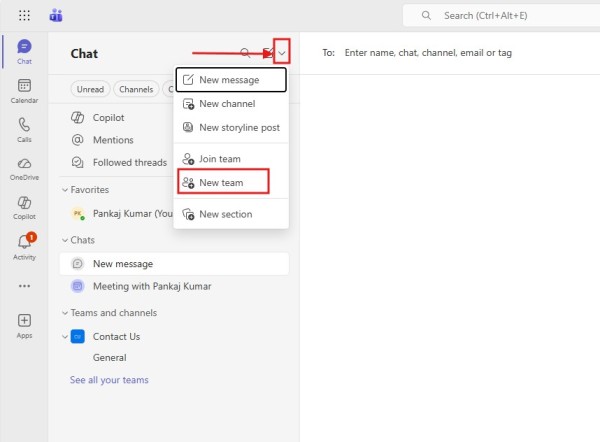
- Select the Drop down icon at the top and select the New team.
- Give it a Clear Name and Description. Choose the type of Group. Give It a Name for Channel also
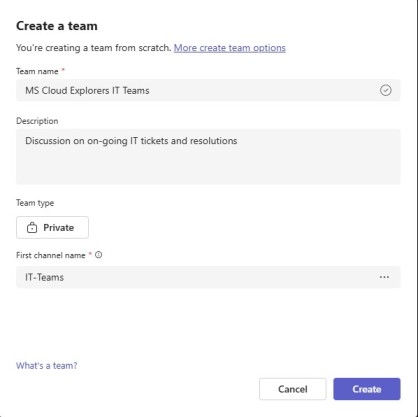
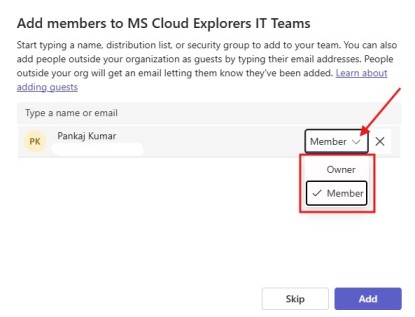
- Once the Teams and Channel is created, New windows will open to add the members.
How to Create Channels in Teams
Here’s the high‑level process:
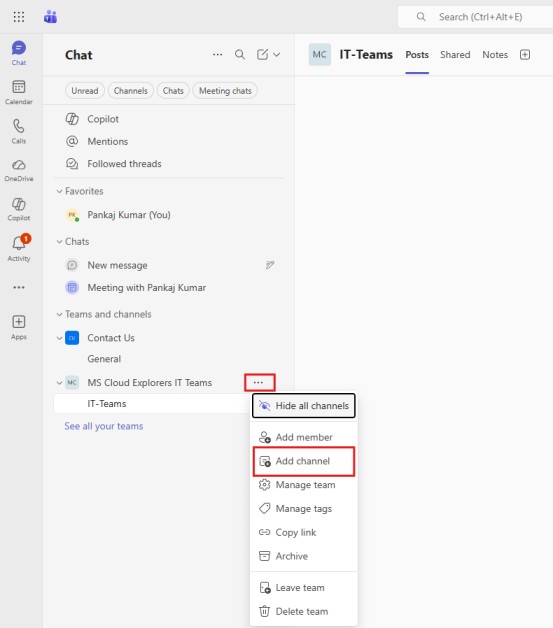
- Open Teams
- Select a Team
- Click More options (…)
- Choose Add channel
- Name it and Description
- Pick the channel type (Standard, Private, or Shared)
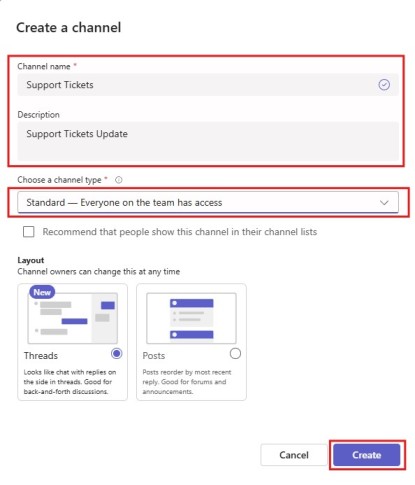
- Set permissions and add members
This process works on desktop and web, with slight differences in UI.
How to Manage Teams and Channels Members
Any user need to add in channels should be member of the parent teams.
- By Default Public Channels are visible all the teams Members and when you add them teams they should receive email.
- Add the members in Microsoft Teams Shared Channels.
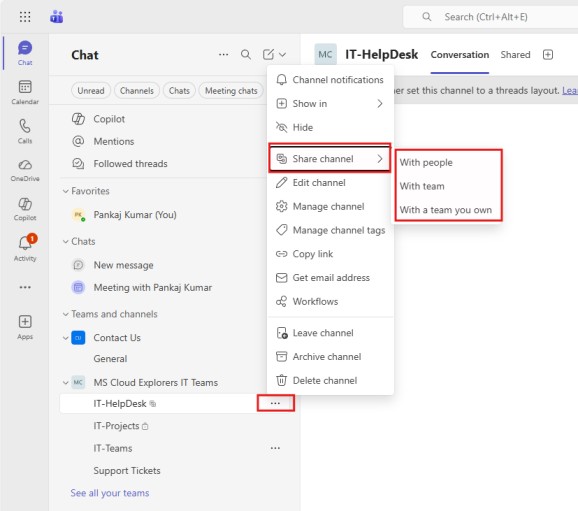
- Add the members in the Microsoft Teams Private Channels
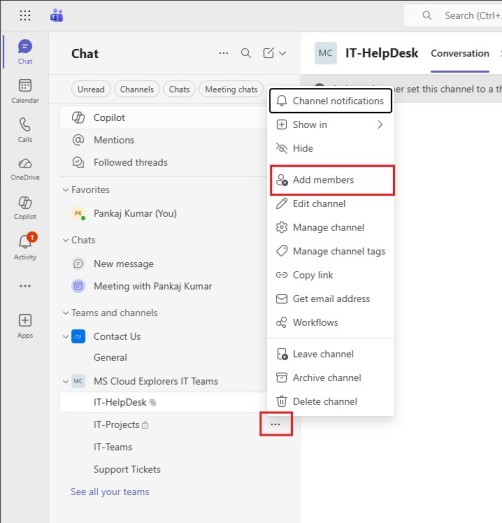
- Type the Username of the user you want to add and select the membership type (Owner/Member).
If you are unable to search the member user account then you may need to check if the user is added at the Parent Teams.
Tips for Managing Channel Permissions
- Set clear naming conventions (e.g., “Proj‑X‑Updates”)
- Limit channel creation rights if you want centralized governance
- Regularly review membership lists
Best Practices for Naming & Organizing Channels
Avoid vague names like “General Chat 2.” Use descriptive ones that clearly explain the purpose — this helps users find the right channels quickly.
Common Mistakes to Avoid
- Creating too many similar channels
- Ignoring channel permissions and access control
- Using channels for things better suited for Teams chats
Integrating Apps in Channels
You can add apps and tabs like Planner, OneNote, Lists, and third‑party tools. Just keep in mind that some apps behave differently in private and shared channels.
Files & SharePoint Integration
Files shared in standard channels live on the team’s SharePoint. Private and shared channels each have their own SharePoint‑backed libraries to manage file access securely.
Security & Compliance Considerations
Teams channels comply with Microsoft Purview and organizational governance settings. Admin policies can govern external sharing and compliance. Always ensure compliance rules are set appropriately when sharing channels beyond your org.
Conclusion
Microsoft Teams channels are powerful tools for collaboration. Whether you need an open space for teamwide communication (standard channels), a restricted space for confidential work (private channels), or flexible cross‑team collaboration (shared channels), Teams has a solution designed for your needs. Understanding each type — their capabilities, limitations, and best use cases — ensures your team stays productive and secure in a world where work happens together, digitally.
Frequently Asked Questions
- What happens if I delete a channel?
Deleted channels can be restored within 30 days, but you lose messages and files permanently if not restored in time. - Can I convert a standard channel to private or shared?
No — once a channel type is created, you cannot convert it to another type. - Can external users join standard channels?
No — external users can only join through shared channels using B2B direct connect. - Are channel messages searchable?
Yes — messages in standard channels are searchable by all team members. - How many channels can I create in a team?
Teams allow up to a large number of channels, including standard and shared types. Specific limits depend on tenant settings.