

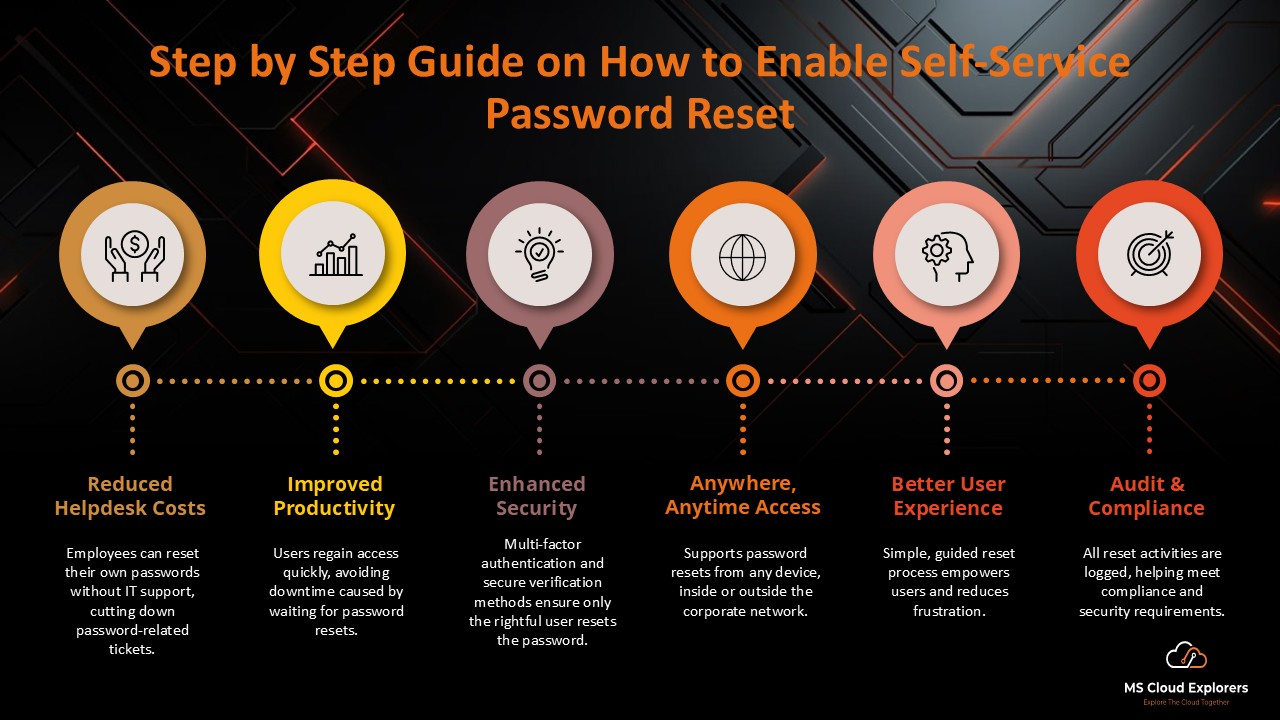
Self-Service Password Reset (SSPR) in Microsoft Entra ID allows users to reset or unlock their own passwords without waiting for the helpdesk. For Microsoft 365 organizations, this is one of the most useful identity features because password reset requests are still one of the most common support tickets handled by IT teams.
However, SSPR should not be enabled tenant-wide without planning. If users have not registered the required security information, they may see unexpected registration prompts or fail during the reset process. This usually creates confusion for end users and increases support tickets instead of reducing them.
In this guide, I will walk you through the correct way to enable Microsoft Entra Self-Service Password Reset, including prerequisites, authentication methods, user registration, notifications, testing, hybrid Active Directory password writeback, troubleshooting, and rollout best practices.
| Quick recommendation
Start with a pilot group first, validate the user experience, communicate the change, and then expand SSPR to the entire organization after users have registered their authentication methods. |
What Is Microsoft Entra Self-Service Password Reset?
Microsoft Entra Self-Service Password Reset, commonly called SSPR, lets users reset or change their password after verifying their identity with approved authentication methods. If the account is locked or the user forgets the password, they can use the password reset portal to unblock themselves and get back to work without contacting IT.
SSPR is especially useful for Microsoft 365 environments because users can recover access to Outlook, Teams, SharePoint, OneDrive, and other Microsoft cloud services faster. In hybrid environments, SSPR can also write password changes back to on-premises Active Directory when password writeback is configured correctly.
Why Enable SSPR in Microsoft 365?
- Reduce helpdesk password reset tickets and after-hours support requests.
- Allow users to recover access to Microsoft 365 services faster.
- Improve productivity by reducing downtime caused by forgotten passwords or account lockouts.
- Use registered authentication methods to verify the user before allowing a password reset.
- Support both cloud-only Microsoft Entra users and hybrid Active Directory users with the right configuration.
- Create a more consistent password reset experience for remote, office-based, and mobile users.
Before You Enable SSPR: Planning Checklist
Before enabling SSPR for all users, review the following checklist. This step is important because SSPR is simple to enable, but a poor rollout can create unnecessary MFA or security information registration prompts for users.
| Planning Item | What to Check | Why It Matters |
| Pilot group | Create or select a small Microsoft Entra security group. | Testing with a limited group avoids tenant-wide disruption. |
| Licensing | Confirm the tenant has the required Microsoft Entra or Microsoft 365 licensing. | Some SSPR capabilities depend on the license and user type. |
| Admin role | Use an account with at least Authentication Policy Administrator for SSPR setup. | Avoid using Global Administrator for routine configuration when a least-privilege role is enough. |
| Authentication methods | Decide which methods users can use for password reset. | Users must register methods that match the admin policy. |
| Registration campaign | Prepare users to register security information before enforcement. | This reduces confusion and failed reset attempts. |
| Hybrid identity | Check if users are cloud-only or synchronized from on-premises AD. | Hybrid users require password writeback for cloud-initiated password reset to update AD DS. |
| Communication | Send a short notice with the reset and registration URLs. | Users need to know what is changing and what action is expected. |
Licensing and Role Requirements for SSPR
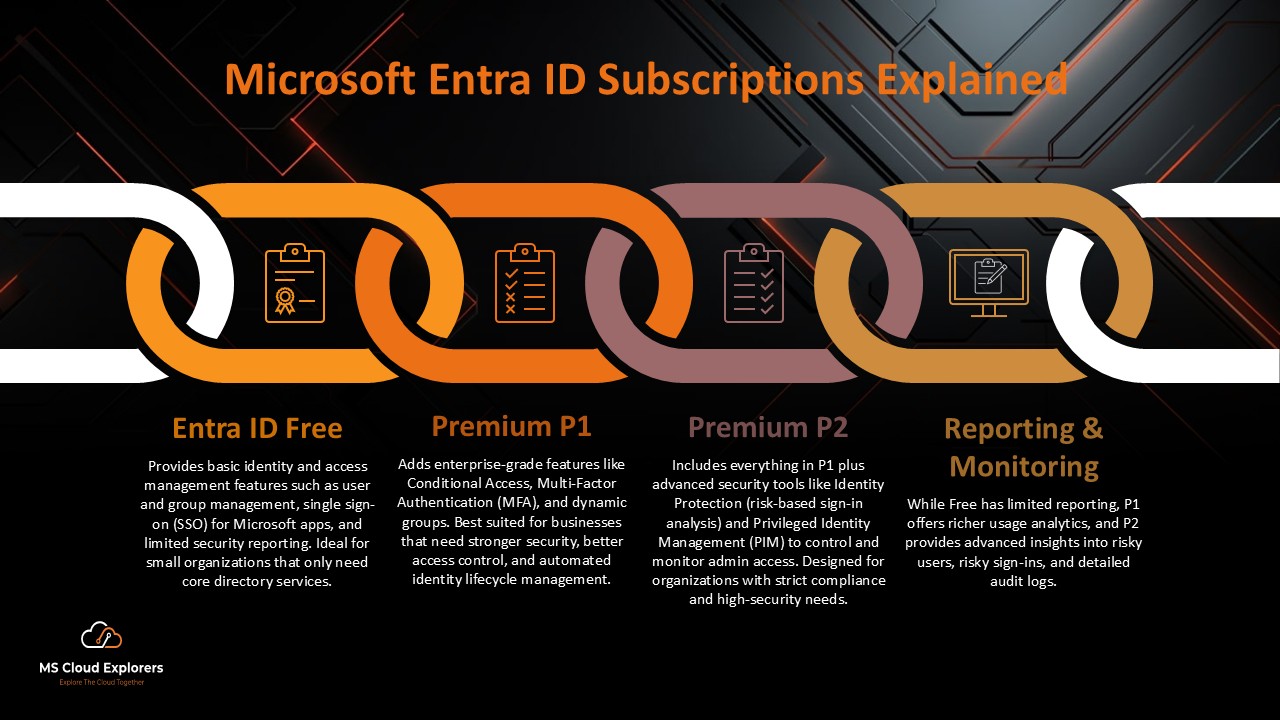
The SSPR licensing requirement depends on your identity model. Cloud-only users can use Self-Service Password Reset with Microsoft Entra ID Free. However, if your users are synchronized from on-premises Active Directory and require password writeback, each user must be licensed with at least Microsoft Entra ID P1, and password writeback must be configured in your hybrid identity environment.
| Requirement | Recommended Value |
| Admin role for SSPR configuration | Authentication Policy Administrator or a role with equivalent permissions. |
| Admin role for password writeback | Hybrid Identity Administrator is recommended for hybrid writeback configuration. |
| Test account | Use a non-administrator user account for validation. |
| Test group | Use a dedicated group such as SSPR-Pilot-Users. |
| Hybrid environment | Microsoft Entra Connect Sync or cloud sync must be configured before password writeback can work. |
| Admin account warning
Do not use a privileged administrator account as your first SSPR test user. Administrator accounts follow stronger reset requirements, and this can make the test look different from the normal end-user experience. |
Cloud-Only vs Hybrid Active Directory SSPR
One of the biggest reasons SSPR articles fail to satisfy search intent is that they explain only the cloud setup and ignore hybrid Active Directory. In real Microsoft 365 environments, many users are still synchronized from on-premises Active Directory, so admins need to understand the difference.
| Scenario | Where Password Is Managed | What SSPR Needs |
| Cloud-only user | Microsoft Entra ID | Enable SSPR in Entra ID and require users to register valid authentication methods. |
| Hybrid AD-synced user | On-premises Active Directory Domain Services | Enable SSPR in Entra ID and configure password writeback so password changes synchronize back to AD DS. |
| Federated or PTA environment | Usually on-premises AD DS | Validate hybrid connectivity and password writeback before rollout. |
Step-by-Step Instructions to Enable Self-Service Password Reset
The steps below are written for Microsoft 365 and Azure administrators who want a safe, phased rollout instead of enabling SSPR for everyone immediately.
Step 1: Create or Confirm Your Pilot Group
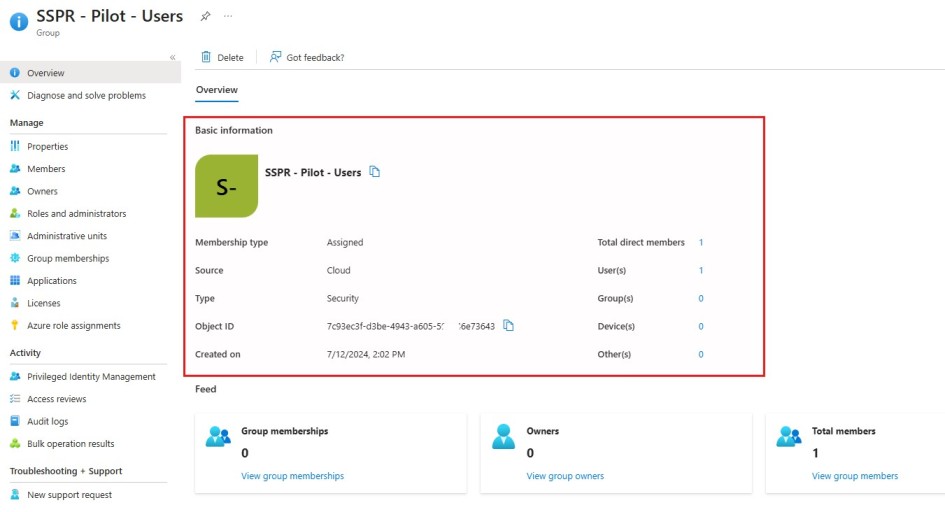
Create a Microsoft Entra security group for pilot testing, for example:
SSPR-Pilot-Users
Add a small number of users from different departments. Include users who can provide feedback and report whether the registration and password reset experience is clear. Check out the article on how to create Security group.
Step 2: Open Password Reset Settings
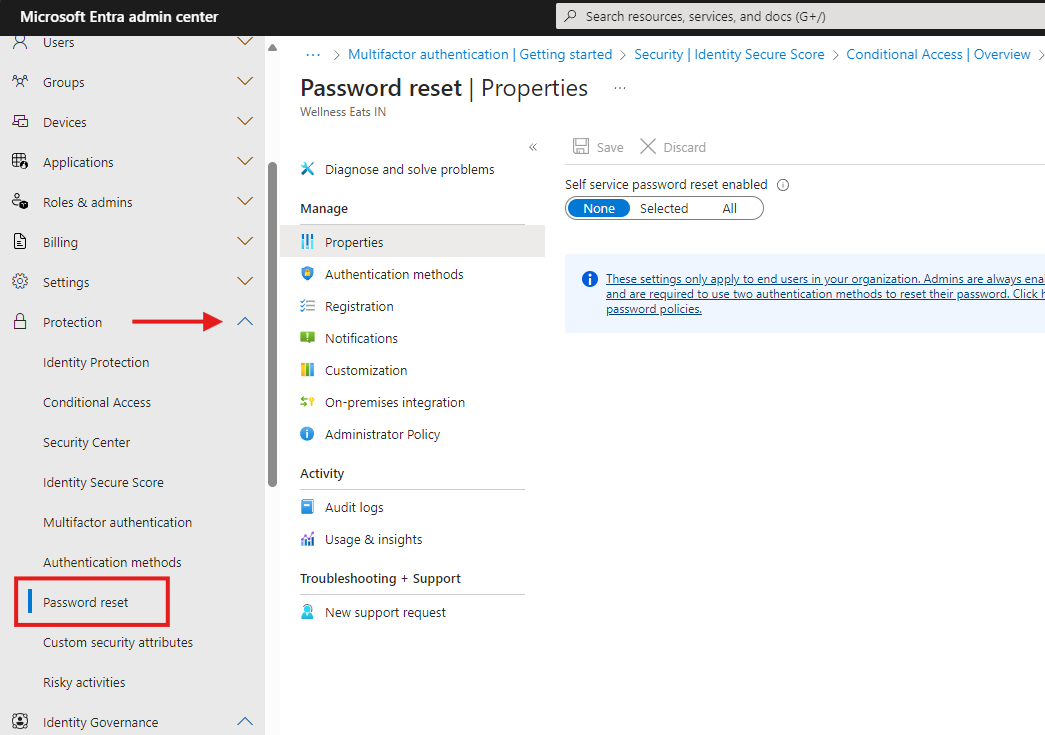
- Sign in to the Microsoft Entra admin center: https://entra.microsoft.com
- Go to Entra ID.
- Browse to Protection > Password reset.
- Open Properties.
Step 3: Enable SSPR for Selected Users
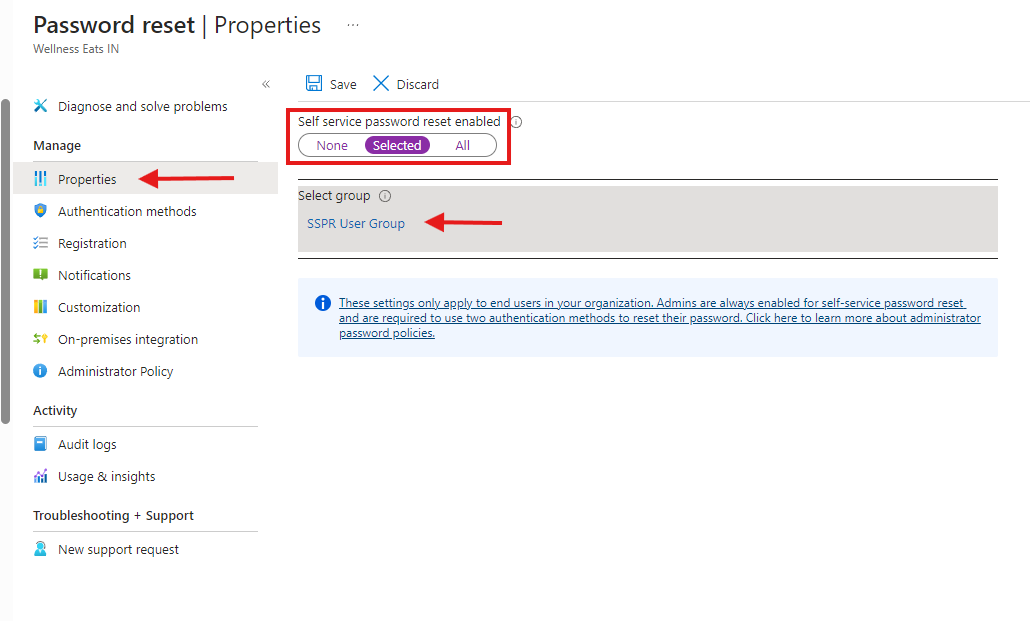
- Under Self service password reset enabled, choose Selected.
- Select your pilot group, such as SSPR-Pilot-Users.
- Click Save.
For a new deployment, I recommend using Selected first. After you validate the configuration and user communication, you can expand to additional groups or enable SSPR for all users.
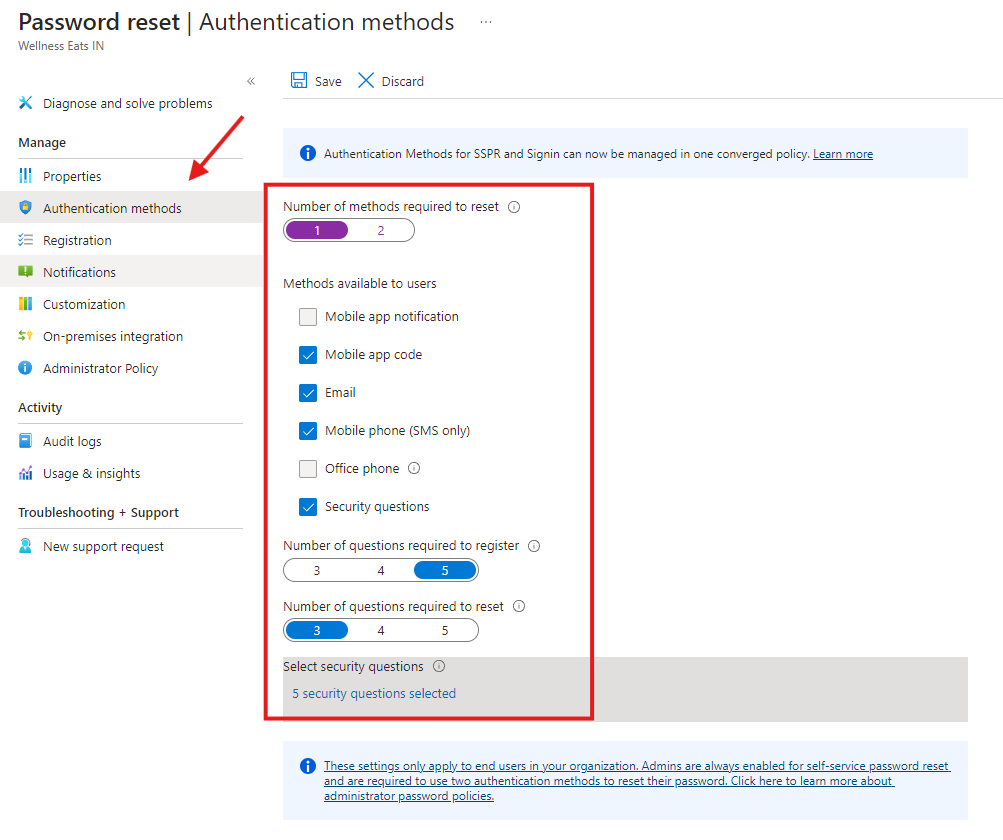
Step 4: Configure Authentication Methods
Next, configure how users verify their identity during password reset. SSPR uses registered authentication methods. Although these techniques may overlap with MFA and integrated security information registration, MFA and SSPR are not the same.
- In Password reset, open Authentication methods.
- Set Number of methods required to reset to 2 where possible.
- Choose the methods your organization will support.
- Click Save.
| Recommended configuration
For most Microsoft 365 environments, requiring two methods gives users a backup option if one method is unavailable. Avoid depending on only one method for high-risk or privileged users. |
Step 5: Configure Registration Settings
- Open Registration under Password reset.
- Set Require users to register when signing in to Yes if you want users to be prompted during sign-in.
- Set the reconfirmation period based on your organization policy. Microsoft documentation commonly uses 180 days in the tutorial example.
- Click Save.
Users can also register manually at:
https://aka.ms/ssprsetup
| Important 2026 readiness note
Microsoft has announced changes for SSPR registration behavior in 2026. Starting September 7, 2026, SSPR will only accept explicitly registered authentication methods. Directory-sourced properties such as mobilePhone, businessPhone, and otherMails that were never registered will no longer work for SSPR verification. Plan your registration campaign accordingly. |
Step 6: Configure Notifications
- Open Notifications under Password reset.
- Set Notify users on password resets to Yes.
- Set Notify all admins when other admins reset their password to Yes.
- Click Save.
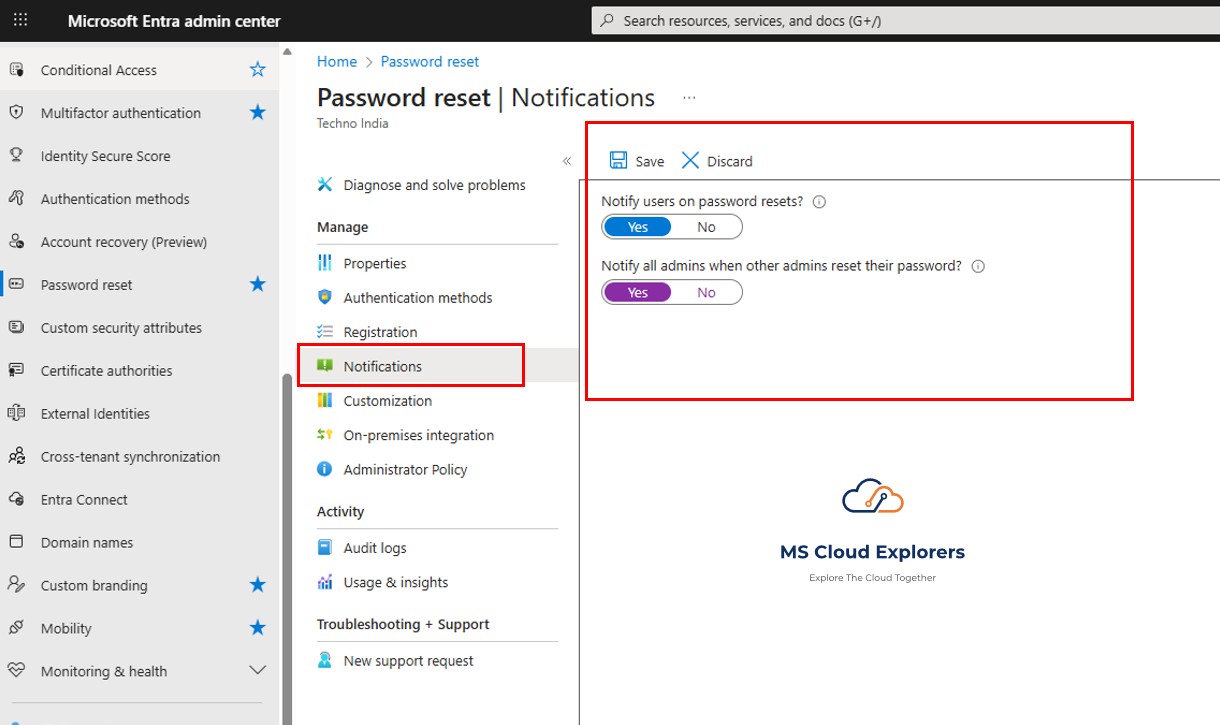
Notifications create visibility when password reset events occur. This is useful for both user awareness and security monitoring.
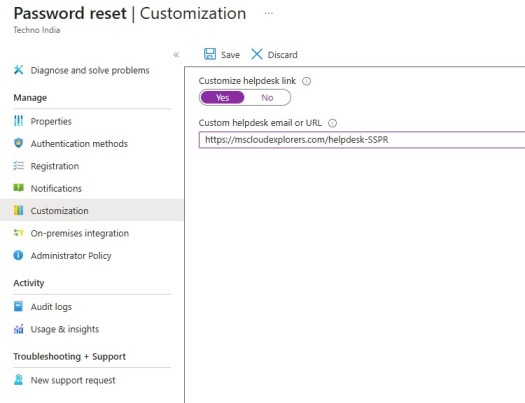
Step 7: Customize the Helpdesk Contact Link
The SSPR experience may provide a “Contact your administrator” option if a user is unable to finish registering or changing their password. Customize this link so users know exactly where to go for support.
- Open Customization under Password reset.
- Set Customize helpdesk link to Yes.
- Enter your support email address or helpdesk portal URL.
- Click Save.
Step 8: Test SSPR with a Non-Administrator Account
- Open an InPrivate or Incognito browser window.
- Go to https://aka.ms/ssprsetup and register the test user security information.
- After registration, open a new InPrivate or Incognito window.
- Go to https://aka.ms/sspr.
- Enter the test user account, complete verification, and reset the password.
- Confirm that the user receives the expected notification and can sign in successfully.
[Screenshot Placeholder: User registration and SSPR reset experience]
Recommended Authentication Methods for SSPR
The right authentication method selection depends on your user base, security requirements, and whether users are remote, office-based, mobile, or privileged.
| Method | Best For | Admin Notes |
| Microsoft Authenticator | Most users | A strong default option. If using legacy SSPR policy, ensure you configure it correctly with additional methods as required. |
| Mobile phone / SMS | Backup or basic recovery scenarios | Useful for availability, but consider security risks and avoid making it the only method for sensitive users. |
| Email OTP | Password recovery scenarios | Helpful when a user has access to an alternate email address. |
| Voice call | Users without smartphones or app access | Can be useful for office-based users but less ideal for remote users. |
| Security questions | Limited use cases | Avoid for privileged accounts and high-risk users when stronger methods are available. |
| OATH tokens | Users without mobile push capability | Useful in specific environments where app push is not appropriate. |
SSPR Links Every Microsoft 365 Admin Should Know
| Purpose | URL |
| User password reset portal | https://aka.ms/sspr |
| User SSPR registration portal | https://aka.ms/ssprsetup |
| Security info page | https://aka.ms/mysecurity |
| Microsoft Entra admin center | https://entra.microsoft.com |
How to Enable SSPR Password Writeback for Hybrid Active Directory
If your users are synchronized from on-premises Active Directory, enabling SSPR in Microsoft Entra ID alone is not enough. The cloud password reset must be written back to on-premises Active Directory Domain Services. This is where password writeback is required.
Hybrid prerequisites
- A working Microsoft Entra tenant with the required licensing.
- Microsoft Entra Connect Sync or Microsoft Entra cloud sync configured for your environment.
- An account with Hybrid Identity Administrator permissions for writeback configuration.
- SSPR already enabled in Microsoft Entra ID.
- Required permissions assigned to the Microsoft Entra Connect account in Active Directory.
Enable password writeback in Microsoft Entra Connect
- Sign in to the Microsoft Entra Connect server.
- Open the Microsoft Entra Connect configuration wizard.
- Select Configure.
- Select Customize synchronization options.
- Sign in with the required Microsoft Entra credentials.
- Continue through the wizard until Optional features.
- Select Password writeback.
- Complete the wizard and confirm the configuration finishes successfully.
Enable password writeback in Microsoft Entra SSPR
- Sign in to https://entra.microsoft.com.
- Go to Entra ID > Password reset.
- Open On-premises integration.
- Enable Write back passwords to your on-premises directory.
- If cloud sync provisioning agents are detected and used, enable the cloud sync writeback option as required.
- Set Allow users to unlock accounts without resetting their password to Yes if this matches your operational requirement.
- Click Save.
Review the on-premises minimum password age policy
For password writeback to work efficiently, review the on-premises Active Directory password policy. Microsoft documentation notes that Minimum password age should be set to 0 if users need to change or reset passwords more than once per day.
Computer Configuration > Policies > Windows Settings > Security Settings > Account Policies > Password Policy
After changing the policy, allow replication or run: gpupdate /force
Common SSPR Issues and Fixes
| Issue | Likely Cause | Recommended Fix |
| User sees “contact your administrator” | The user is not enabled for SSPR or does not have required authentication methods registered. | Confirm the user is in the SSPR scope and has registered the required methods. |
| User cannot reset a hybrid AD password | Password writeback is not configured or the Microsoft Entra Connect account lacks permissions. | Enable password writeback and verify Reset password, Change password, lockoutTime, pwdLastSet, and Unexpire Password permissions. |
| Users receive unexpected registration prompts | SSPR registration or combined security info registration was enabled without communication. | Run a registration campaign and notify users before enforcement. |
| SSPR works for cloud users but not AD-synced users | Cloud-only reset works, but on-premises password authority requires writeback. | Configure password writeback and test with a synchronized non-admin user. |
| Password reset succeeds but user cannot sign in immediately | Hybrid synchronization delay or federated sign-in timing. | Wait for synchronization and verify password hash sync/federation behavior. |
| Notifications are not received | Email filtering, spam, or missing user email attributes. | Check spam filtering and verify the user has a valid primary or alternate email address. |
| Authenticator method behaves differently than expected | Legacy SSPR policy and Authentication methods policy are not aligned. | Review migration to the centralized Authentication methods policy. |
Best Practices for Rolling Out SSPR
- Use a pilot group before enabling SSPR for everyone.
- Communicate the change before users see registration prompts.
- Include the registration URL and reset URL in the communication.
- Require two authentication methods whenever possible.
- Make sure users have at least one registered method that satisfies your SSPR policy.
- Avoid security questions for privileged accounts when stronger methods are available.
- Enable user and admin notifications for password reset events.
- Customize the helpdesk link so users know where to get support.
- For hybrid environments, validate password writeback before expanding the rollout.
- Move MFA and SSPR method management to the centralized Authentication methods policy if your tenant still depends on legacy policy settings.
- Monitor audit logs and support tickets during the first few weeks after rollout.
Sample User Communication for SSPR Rollout
You can use the following short message when preparing users for SSPR registration:
| Sample message
We are enabling Microsoft Entra Self-Service Password Reset to help you reset your password securely without contacting IT. You may be asked to register or confirm your security information during sign-in. Please complete the prompt when it appears. You can also register manually at https://aka.ms/ssprsetup. After registration, if you forget your password, use https://aka.ms/sspr to reset it securely. |
FAQs
What is Microsoft Entra Self-Service Password Reset?
Microsoft Entra Self-Service Password Reset allows users to reset or change their passwords after verifying their identity with approved authentication methods, without contacting the helpdesk.
Is SSPR the same as MFA?
No. SSPR is used for password reset or account unlock. MFA is used during sign-in or access verification. However, both can use similar registered authentication methods.
What is the SSPR reset URL?
Users can reset their password at https://aka.ms/sspr.
What is the SSPR registration URL?
Users can register security information for SSPR at https://aka.ms/ssprsetup.
Should I enable SSPR for all users immediately?
For most organizations, it is better to start with a pilot group, validate the configuration, communicate with users, and then expand the rollout.
Does SSPR work with hybrid Active Directory?
Yes. For AD-synchronized users, you must configure password writeback so password changes made from Microsoft Entra ID are written back to on-premises Active Directory.
Why are users prompted to register security information?
Users are prompted because SSPR requires registered authentication methods. If users have not registered the required methods, they must complete registration before they can reset their password.
Can administrators use SSPR?
Administrator accounts can use SSPR, but privileged accounts follow stronger reset requirements. Always test the standard user experience with a non-admin account.
Why does SSPR fail for an AD-synced user?
The most common causes are missing password writeback, incorrect Microsoft Entra Connect permissions, unsupported on-premises password policy settings, or missing authentication methods.
What changed with SSPR authentication methods management?
Microsoft has deprecated managing authentication methods in legacy MFA and SSPR policies. Organizations should manage methods through the centralized Authentication methods policy.
Conclusion
By implementing Self-Service Password Reset correctly, organizations can significantly improve operational efficiency, reduce downtime, and minimize helpdesk dependency. Proper planning, MFA readiness, user awareness, and phased deployment are key to a successful SSPR rollout. When configured thoughtfully, SSPR empowers users while maintaining strong security and compliance across the Microsoft 365 environment.
Explore More from MS Cloud Explorers
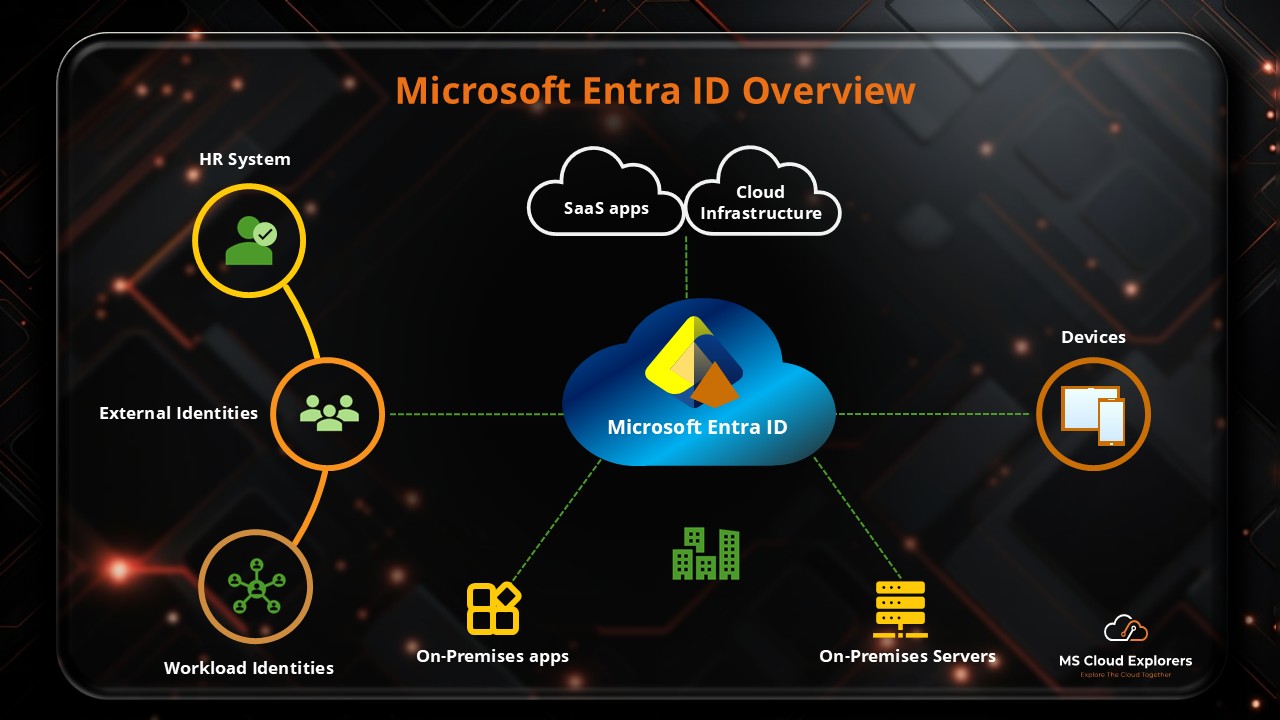
- Understand the Microsoft Entra ID and its Features
- Microsoft Entra ID editions and features
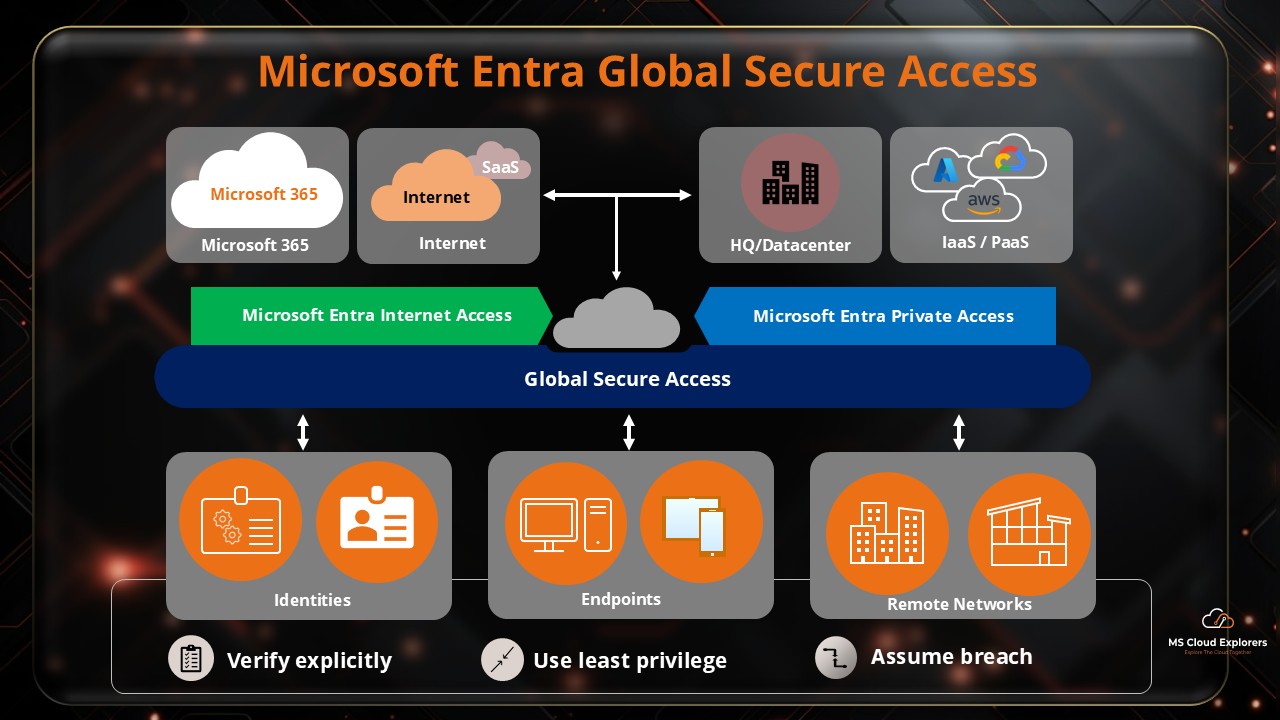
- Microsoft Entra Global Secure Access and Entra Private Access
- Microsoft Entra ID protection: A complete guide
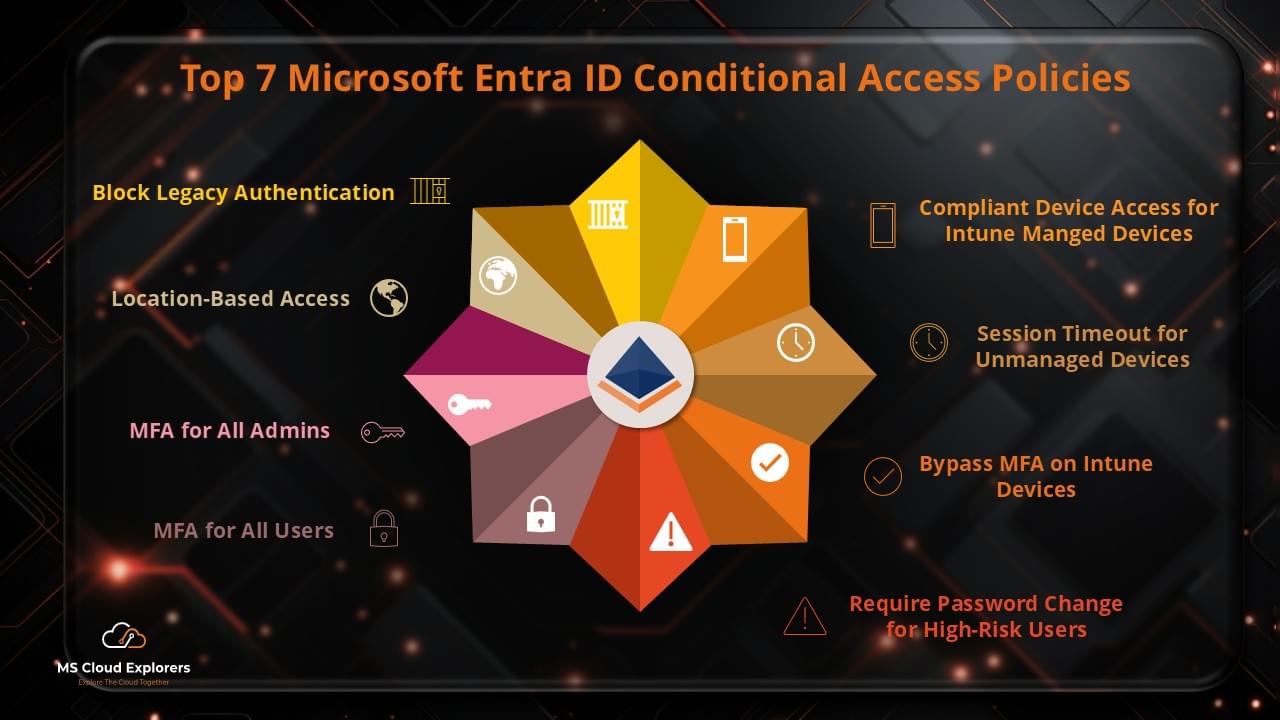
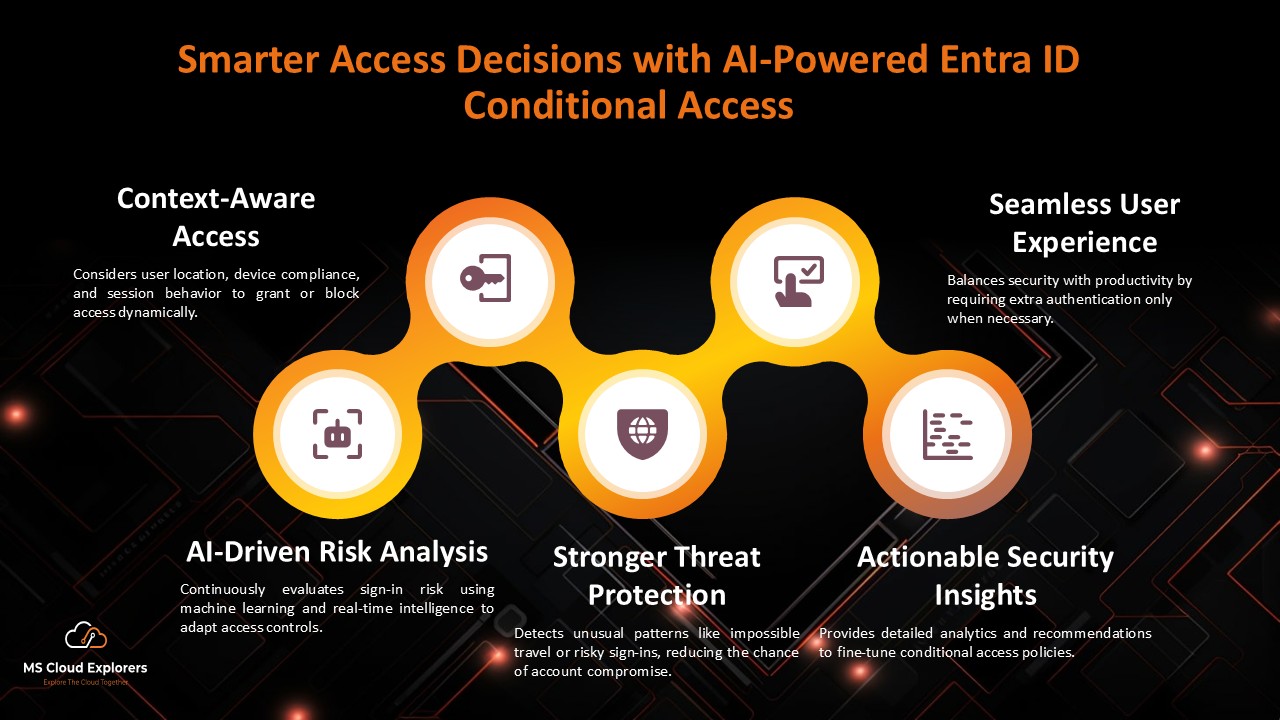
- Microsoft Entra ID Conditional Access Policies
References and Further Reading
- Tutorial – Enable users to unlock their account or reset passwords using Microsoft Entra self-service password reset
- How it works – Microsoft Entra self-service password reset
- Prepopulate user authentication contact information for Microsoft Entra SSPR
- Migrate MFA and SSPR policy settings to the Authentication methods policy
- Enable Microsoft Entra self-service password reset writeback to an on-premises environment
Enjoyed the article?
We’d love to hear your thoughts—share your comments below!
For more insights, guides, and updates from the Microsoft ecosystem, be sure to subscribe to our newsletter and follow us on LinkedIn. Stay connected and never miss out on the latest tips and news!
Super helpful! Just curious — does this work for hybrid users too, or only for cloud-only accounts?
Great question! Yes, self-service password reset (SSPR) can work for hybrid users too — as long as you have password writeback enabled through Azure AD Connect. It lets users reset their passwords in the cloud and syncs them back to your on-prem AD. Let us know if you’d like help setting that up!