

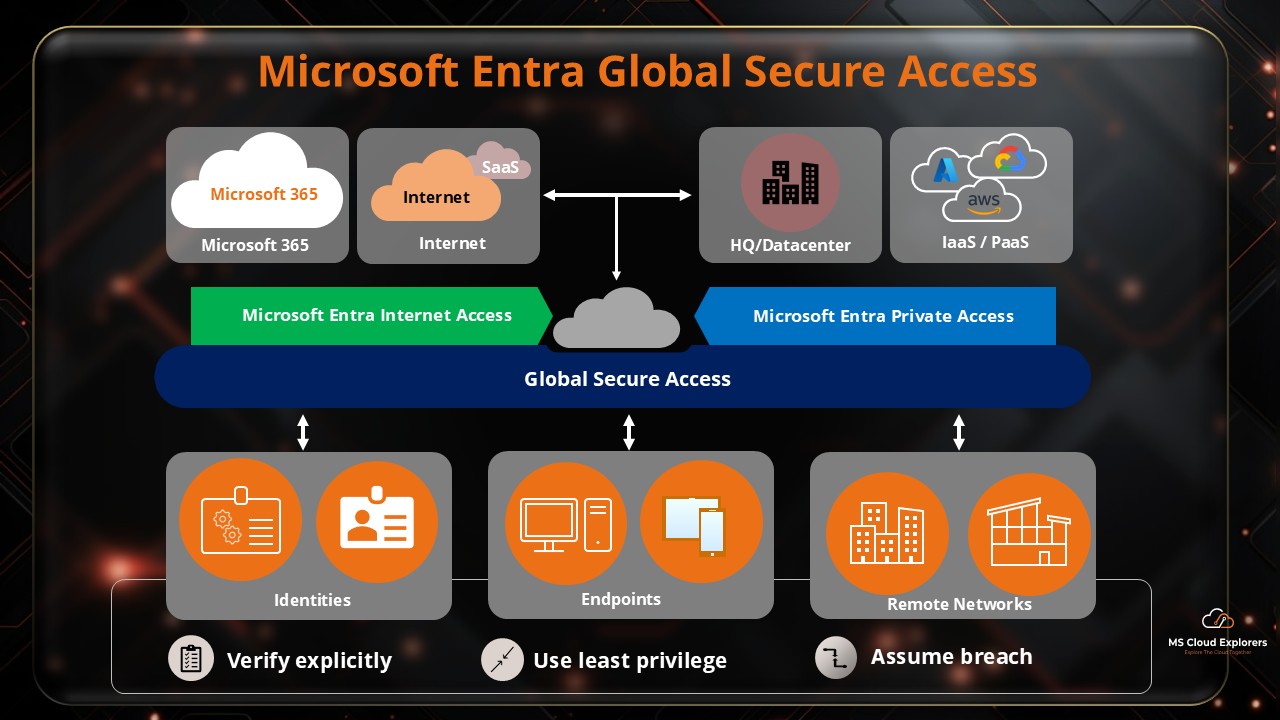
Microsoft Global Secure Access is Microsoft’s Security Service Edge solution for organizations that want to secure access to Microsoft 365, SaaS apps, public internet destinations, and private corporate resources using identity-first Zero Trust controls. Instead of depending only on legacy VPNs or network perimeter rules, Global Secure Access brings network, identity, device, and Conditional Access signals together inside Microsoft Entra.
This guide explains what Microsoft Global Secure Access is, how licensing works, how to download and install the Global Secure Access client, and how to configure Microsoft traffic, Internet Access, and Private Access profiles.
|
Quick answer Microsoft Global Secure Access is the unified Microsoft Entra location for Microsoft Entra Internet Access and Microsoft Entra Private Access. Internet Access safeguards public internet traffic, SaaS, and Microsoft 365. Private Access provides Zero Trust access to internal apps and private resources without exposing the entire network through a VPN. |
What is Microsoft Global Secure Access?
Microsoft Global Secure Access, often called GSA, is Microsoft’s identity-aware cloud-delivered network security solution. Microsoft positions Global Secure Access as the unifying term for Microsoft Entra Internet Access and Microsoft Entra Private Access. Together, these capabilities form Microsoft’s Security Service Edge approach for securing access from anywhere.
Traditional network security normally starts with the network location. Global Secure Access starts with identity, device state, app context, risk signals, and Conditional Access. This makes it more aligned with Zero Trust principles: verify explicitly, use least privilege access, and assume breach.
For Microsoft 365 administrators, the biggest value is that Global Secure Access can help protect Exchange Online, SharePoint Online, Teams, OneDrive, SaaS applications, internet traffic, and private applications using policies that are closely integrated with Microsoft Entra ID..
Why Global Secure Access matters for Microsoft 365 and Azure environments
- It helps modernize secure remote access without relying only on legacy VPN designs.
- It provides identity-aware access controls by using Microsoft Entra ID and Conditional Access.
- It improves protection for Microsoft 365 services by routing supported Microsoft traffic through the Microsoft traffic profile.
- It supports private application access through app segments, Quick Access, and private network connectors.
- It gives administrators better visibility through audit logs, traffic logs, dashboards, and sign-in signals.
- It supports phased adoption, so organizations can start with pilot groups before expanding to production.
Global Secure Access components explained
Before configuring Global Secure Access, it is important to understand the main components. Many admins confuse Global Secure Access, Entra Internet Access, Entra Private Access, and the Microsoft traffic profile. The table below separates each component clearly.
|
Component |
Purpose |
Typical Use Case |
|
Microsoft traffic profile |
Routes supported Microsoft 365 traffic through Global Secure Access. |
Protect Exchange Online, SharePoint Online, Teams, OneDrive, and Microsoft 365 access. |
|
Microsoft Entra Internet Access |
Identity-aware Secure Web Gateway for SaaS and public internet traffic. |
Secure internet browsing, control web categories, inspect risky destinations, and manage SaaS access. |
|
Microsoft Entra Private Access |
Zero Trust Network Access for internal resources and private applications. |
Replace broad VPN access for RDP, line-of-business apps, internal web apps, and private IP/FQDN resources. |
|
Global Secure Access client |
Endpoint client that forwards configured traffic profiles to Global Secure Access. |
Windows/macOS/mobile device traffic forwarding based on assigned profiles. |
|
Private network connector |
Connector used to reach internal resources for Private Access. |
Enable access to private apps without exposing the entire network. |
|
Conditional Access integration |
Uses network and identity signals to control access. |
Require compliant network, block access outside GSA, or apply risk-based access controls. |
Microsoft Entra Internet Access
Microsoft Entra Internet Access protects access to internet and SaaS applications using an identity-based Secure Web Gateway approach. It can enforce web filtering, Conditional Access, traffic logging, and context-aware access decisions based on user, device, location, risk, and compliance signals.
Microsoft Entra Private Access
Microsoft Entra Private Access provides secure access to private corporate resources. It is designed to reduce dependency on traditional VPNs by granting access to specific private applications, IP addresses, FQDNs, ports, and protocols instead of placing a user device broadly on the corporate network.
Microsoft traffic profile
The Microsoft traffic profile is especially useful for Microsoft 365 environments. It can route supported Microsoft 365 traffic through Global Secure Access and enable options such as compliant network checks, source IP restoration, Universal Tenant Restrictions, and enhanced visibility for Microsoft 365 access scenarios.
Microsoft Global Secure Access licensing and pricing overview
Licensing is one of the most important sections for this topic because many admins search for Microsoft Global Secure Access pricing, Global Secure Access licensing, or whether Microsoft Entra ID P1 or P2 comes with Global Secure Access. The short answer is that the type of traffic profile and capability you want to use will decide your licensing.
|
Capability |
Common License Requirement |
Notes |
|
Microsoft traffic profile |
Microsoft Entra ID P1 or P2 |
Useful for Microsoft 365 traffic and compliant network scenarios. |
|
Microsoft Entra Internet Access |
Microsoft Entra Internet Access standalone or Microsoft Entra Suite |
Required for full internet and SaaS protection capabilities. |
|
Microsoft Entra Private Access |
Microsoft Entra Private Access standalone or Microsoft Entra Suite |
Required for private app access, Quick Access, and ZTNA scenarios. |
|
Global Secure Access client |
Depends on assigned profile and licensed capability |
The client is used to acquire and forward traffic from supported devices. |
|
Remote network connectivity |
Requires eligible licensing and tenant prerequisites |
Useful for branch office traffic forwarding without installing a client on every endpoint. |
|
Licensing note for production Always validate licensing in the Microsoft 365 admin center or Microsoft Entra licensing page before enabling production policies. Microsoft may update packaging, standalone availability, and included features over time. |
||
|
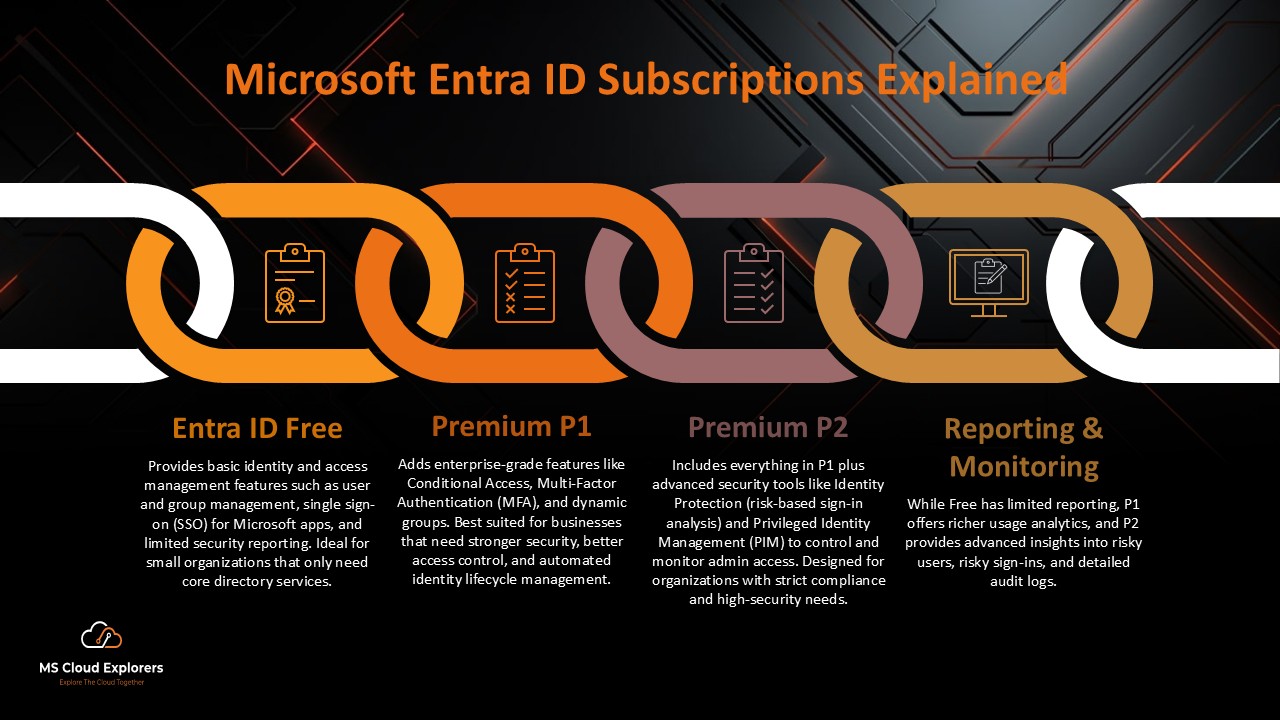
Understand Licensing To understand the complete features, benefits, and licensing capabilities of Microsoft Entra ID Premium P1, Premium P2, and Entra ID Suites, we have created a dedicated guide. You can check out the detailed article below. |
||
How Microsoft Global Secure Access works
At a high level, Global Secure Access forwards selected traffic from the user device or remote network to Microsoft’s cloud-delivered security service. The service evaluates the traffic based on the enabled traffic profile and applies the relevant access controls, security policies, and Conditional Access signals.
Traffic flow example:
- User signs in from a supported device.
- The Global Secure Access client starts and receives the traffic profile assignment.
- Traffic matching Microsoft, Internet Access, or Private Access profiles is forwarded to Global Secure Access.
- Microsoft Entra evaluates identity, device, network, and Conditional Access signals.
- Traffic is allowed, blocked, bypassed, or routed to the required Microsoft 365, SaaS, internet, or private resource.
- Admins review activity through traffic logs, audit logs, sign-in logs, and dashboards.
Architecture overview
Use this simplified architecture when explaining the solution in customer documentation or internal design reviews:
|
1. User device or branch network |
|
2. Global Secure Access client or remote network assignment |
|
3. Traffic forwarding profile: Microsoft, Internet Access, or Private Access |
|
4. Microsoft Entra Conditional Access and security evaluation |
|
5. Destination: Microsoft 365, SaaS, internet, or private app |
Prerequisites before configuration
Before enabling Global Secure Access in a production tenant, confirm the following prerequisites:
- A Microsoft Entra tenant with the required licensing for the profile you plan to configure.
– Microsoft Entra ID P1 or P2 for Microsoft Traffic
– Microsoft Entra Internet and Private Access required Microsoft Entra Suite
– Microsoft Defender for Cloud Apps (for deeper integration) - Administrative roles such as Global Secure Access Administrator, Conditional Access Administrator, Application Administrator, or Global Administrator based on the task.
- A pilot user group for testing.
- At least one break-glass account excluded from blocking policies.
- Supported devices for the Global Secure Access client.
- Local administrator permissions or Intune deployment for client installation.
- A test plan for Microsoft 365 access, private app access, and expected blocked behavior.
Step-by-Step Configuration of Global Secure Access for Microsoft Traffic and Internet access Profiles
Start with a pilot group and use report-only mode where possible before enforcing blocking policies.
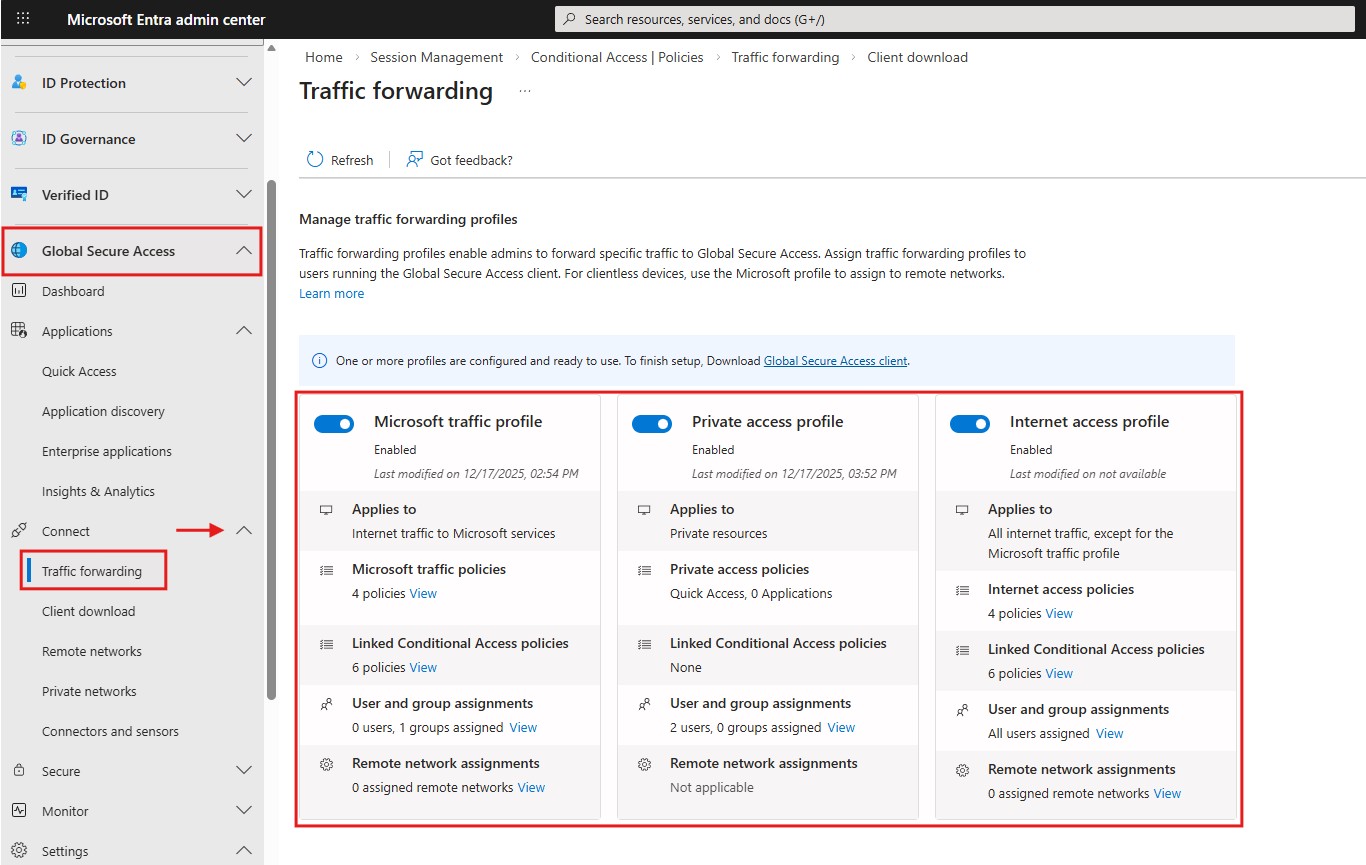
Step 1: Enable Microsoft traffic and Internet Access profiles
- Go to the Microsoft Entra admin center.
- Navigate to Global Secure Access.
- Open Connect > Traffic forwarding.
- Enable the Microsoft traffic profile.
- Enable the Internet access profile if your licensing and rollout plan require public internet and SaaS protection.
- Assign the profile to the pilot users or groups you want to test first.
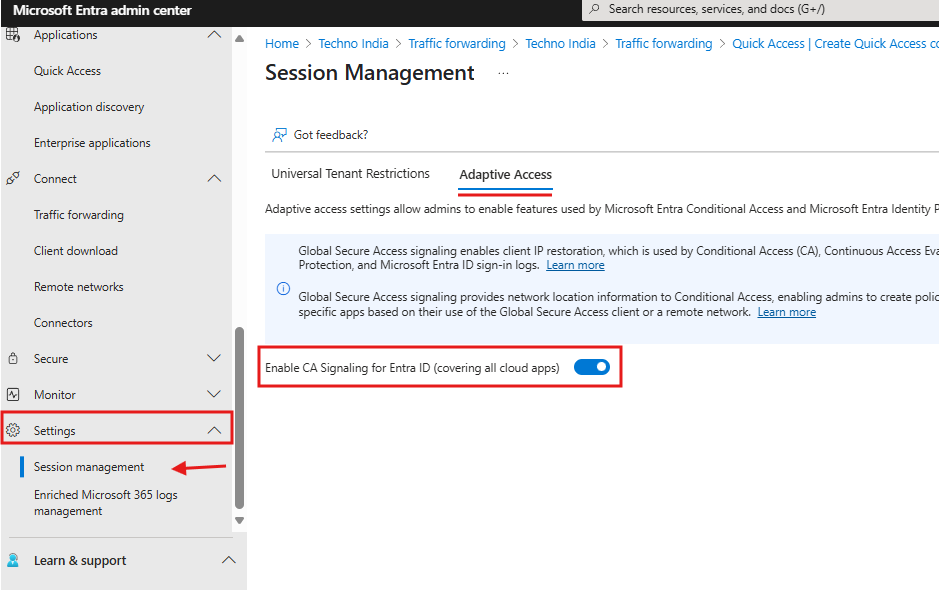
Step 2: Enable Conditional Access signaling
- In Global Secure Access, open Settings.
- Select Session management.
- Open the Adaptive Access tab.
- Enable CA signaling so Global Secure Access network signals can be used by Conditional Access.
- Save the setting and allow time for the change to become available in Conditional Access.
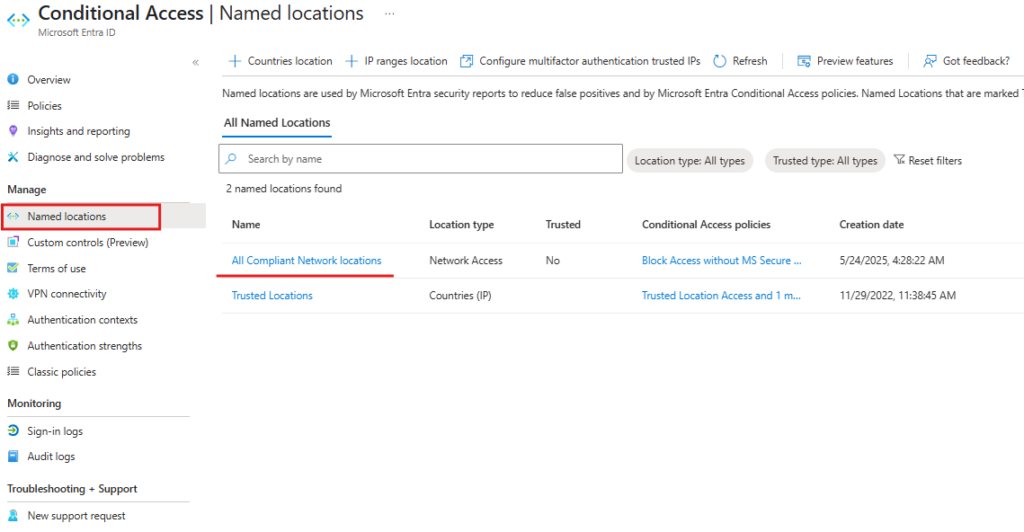
 Step 3: Confirm the compliant network named location
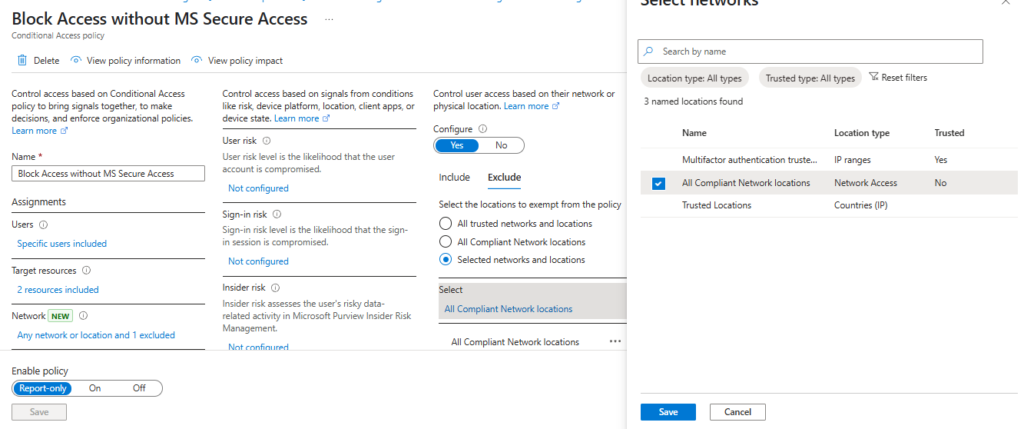
- After Conditional Access signaling is enabled, you should see the named location option called All Compliant Network Locations in Conditional Access. This location is used to identify traffic that is passing through Global Secure Access and is considered compliant for policy evaluation.
 Step 4: Create a Conditional Access policy to require Global Secure Access
This policy blocks access when users are not coming through the compliant Global Secure Access network. Use this carefully and test with a small pilot group first.
- Go to Microsoft Entra admin center > Protection > Conditional Access > Policies.
- Create a new policy.
- Under Users, select the test user or pilot group.
- Exclude emergency access or break-glass accounts.
- Under Target resources, select all cloud apps or limit the scope to apps such as Exchange Online and SharePoint Online.
- Under Conditions > Locations, include Any network or location.
- Exclude All Compliant Network Locations.
- Under Grant, select Block access.
- Start with Report-only mode if you are validating the effect, then turn the policy On after successful testing.
- Review the policy carefully and create it.
|
Important production warning Do not apply a blocking Conditional Access policy to all users without testing. Always exclude emergency access accounts and validate with a small group before enforcing tenant-wide access control. |
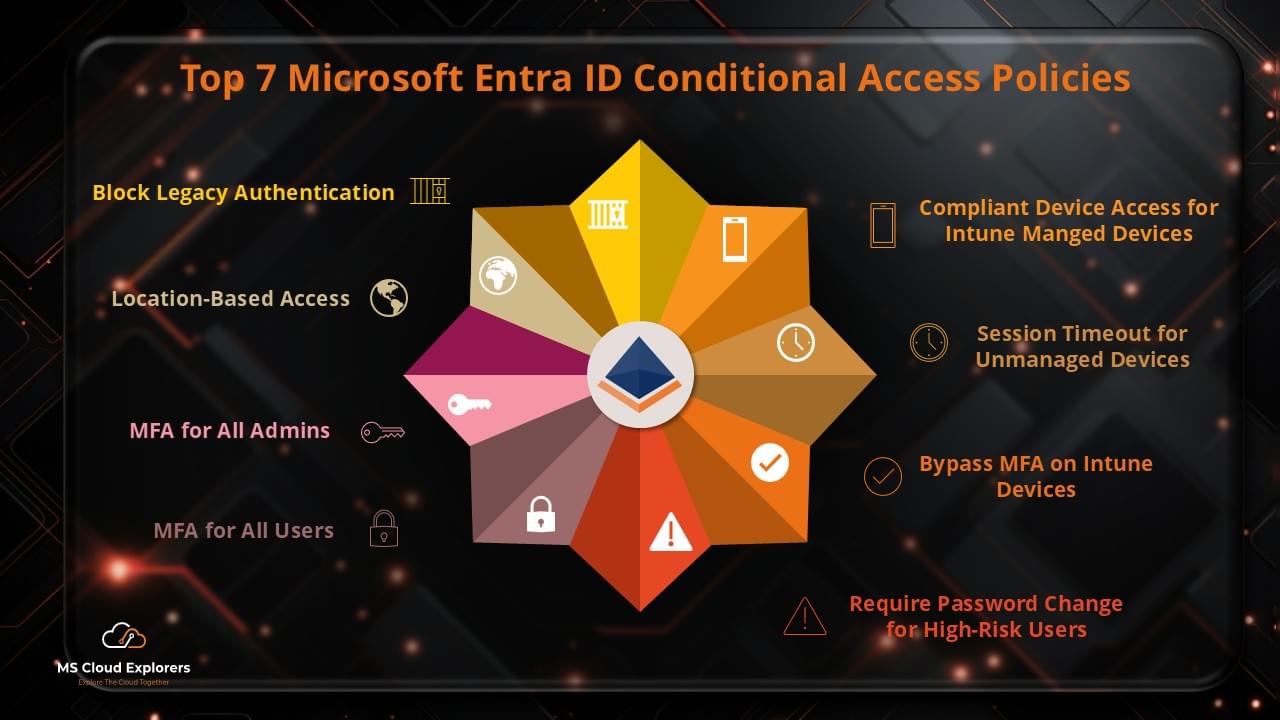
If you want to learn more about recommended Conditional Access design, internally link this section to your existing article: Top 7 Conditional Access Policies.
Step 5: Enable the Private Access profile
If your goal is to provide secure access to internal resources such as a server, file share, RDP endpoint, or line-of-business application, configure the Private Access profile. If the profile is already enabled from previous testing, you can continue to the connector configuration.
- Navigate to Global Secure Access.
- Open Connect > Traffic forwarding.
- Enable the Private Access profile.
- Confirm the profile is assigned only to the pilot users or groups required for testing.
Step 6: Download and install the private network connector
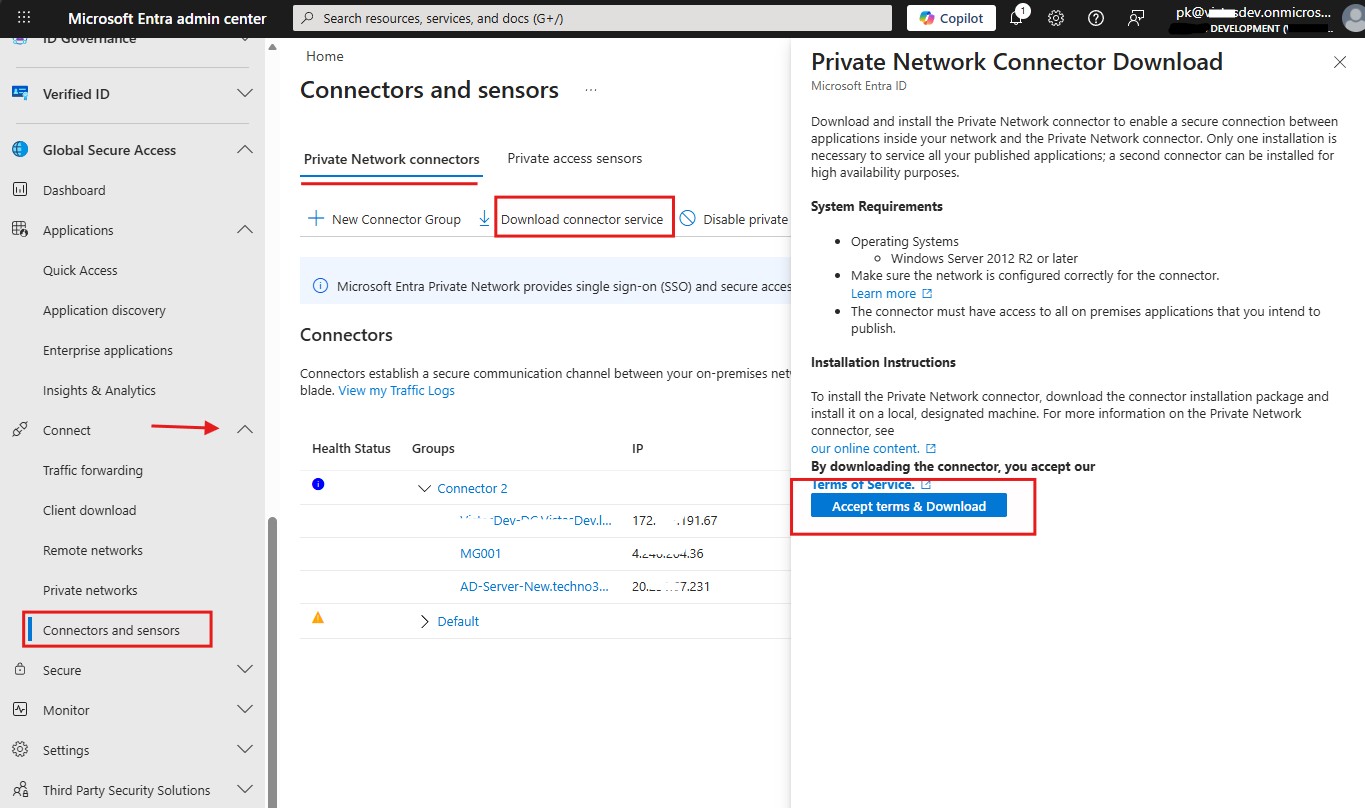
- Under Global Secure Access, open Connect > Connectors and sensors.
- Open the Private Network Connectors tab.
- Select Download Connector Service.
- Accept the terms and download the connector on the server that can reach the private resources.
- Install the connector service.
- Sign in with an account that has the required administrative permissions.
- After installation, confirm the connector status shows Active.
Step 7: Create or select a connector group
After the connector is active, you can either use the default connector group or create a new connector group. A connector group helps you organize connectors that serve specific private resources, locations, or environments.
- Go to Connectors and sensors.
- Confirm the connector is Active.
- Create a new connector group if you want to separate workloads by location or application.
- Add the connector to the required connector group.
Step 8: Configure Quick Access for private resources
Quick Access is useful for testing access to private resources such as a server IP, internal web app, or RDP endpoint. In the original guide, the test scenario used a VM IP address and validated RDP access through Global Secure Access.
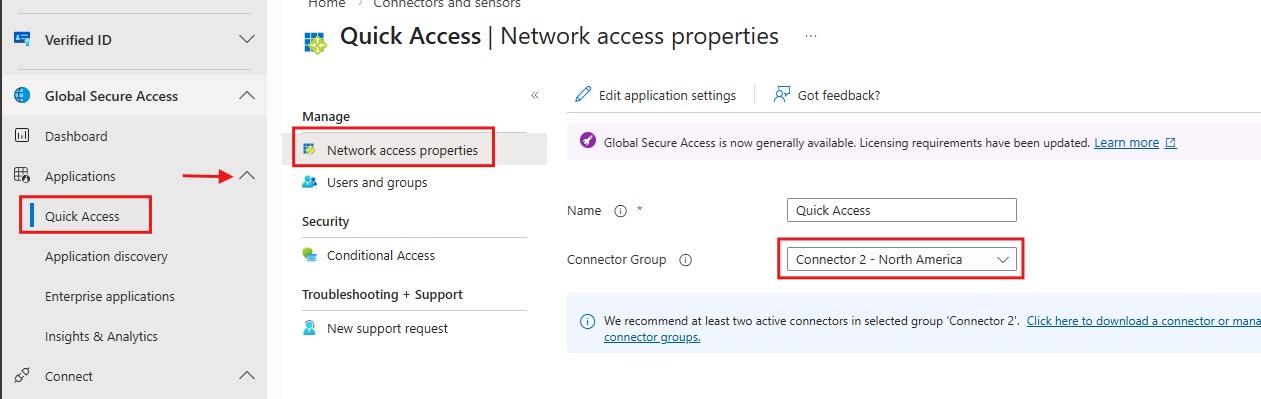
- Open Global Secure Access > Applications.
- Select Quick Access.
- Open Network Access Properties.
- Provide a meaningful name for the access group.
- Select the connector group that contains the active private network connector.
- Save the configuration.
Step 9: Add a Quick Access app segment
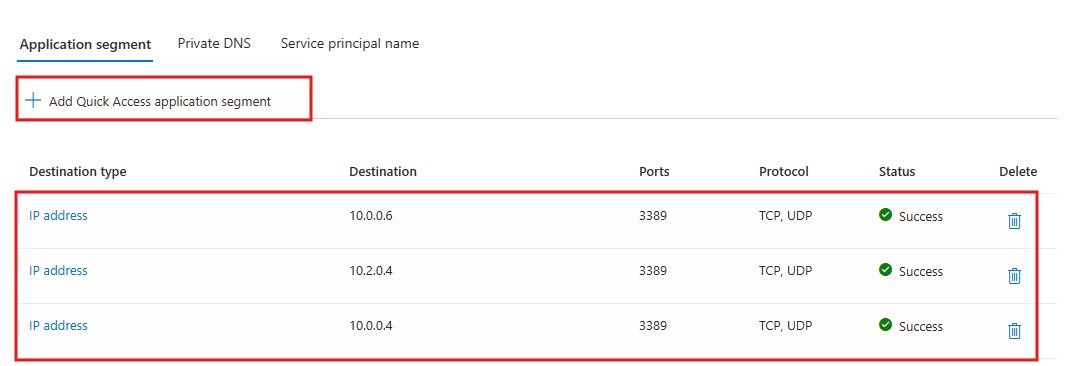
- In Quick Access, select Add Quick Access App.
- Enter the private resource details.
- For testing, you can use a VM IP address, internal web app FQDN, or another private resource.
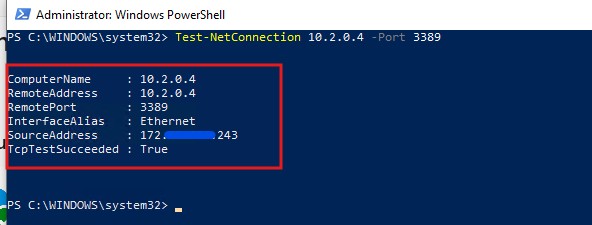
- Specify the required port and protocol, such as TCP 3389 for RDP if testing remote desktop access.
- Save the app segment.
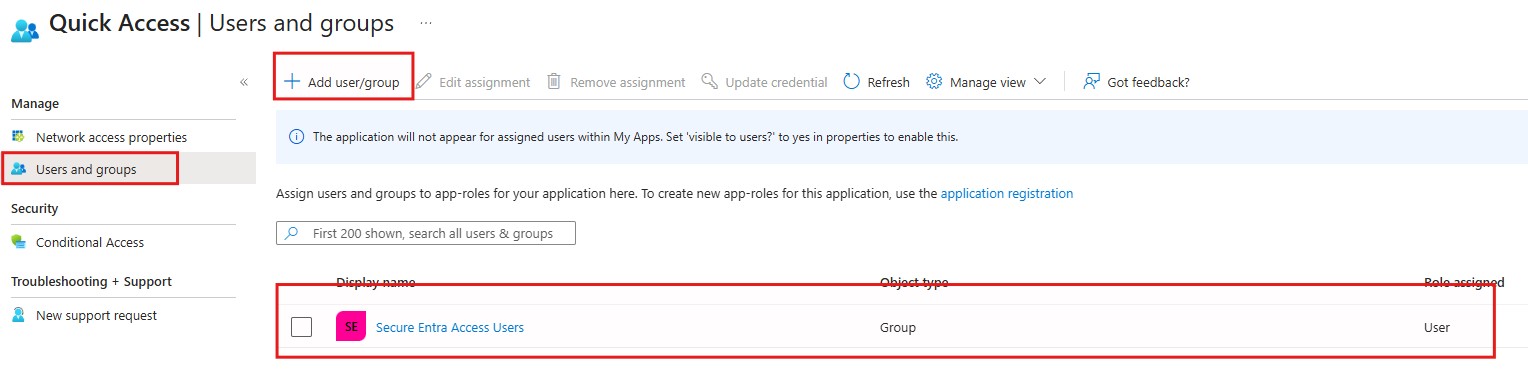
Step 10: Assign users and groups to Private Access
- Open the same Private Access or Quick Access application section.
- Select Users and groups.
- Add the pilot users or groups that need access to the private resource.
- Avoid assigning all users during the initial test phase.
- Save the assignment.
How to download and install the Microsoft Global Secure Access client
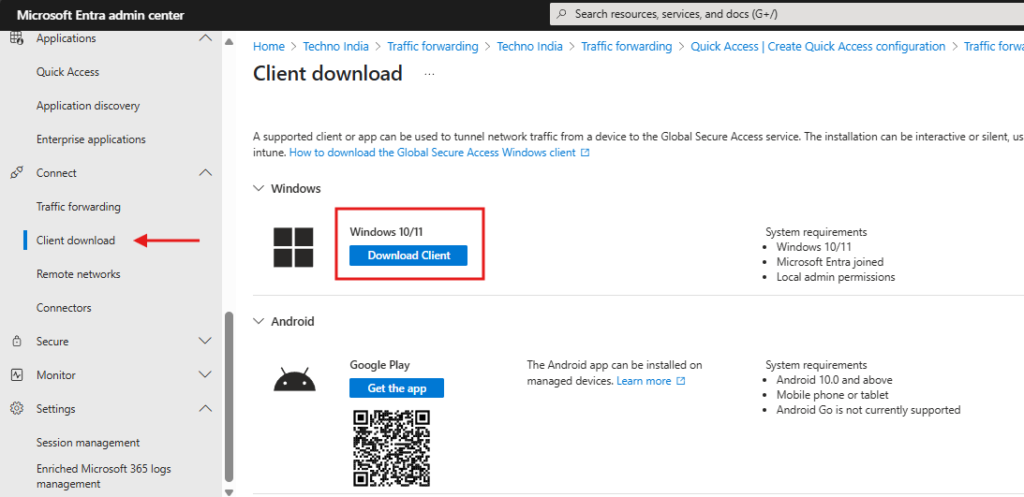
The Global Secure Access client is required when you want endpoint traffic to be acquired and forwarded based on the assigned traffic profiles. This is one of the most searched topics around Global Secure Access, so the article should include a dedicated section for client download, installation, and validation.
- In the Microsoft Entra admin center, go to Global Secure Access.
- Select Connect > Client download.
- Choose the device platform you want to deploy.
- Download the Global Secure Access client.
- Install the client on a supported Microsoft Entra joined, hybrid joined, or supported registered device based on Microsoft requirements.
- Make sure the user or deployment method has local administrator rights for installation.
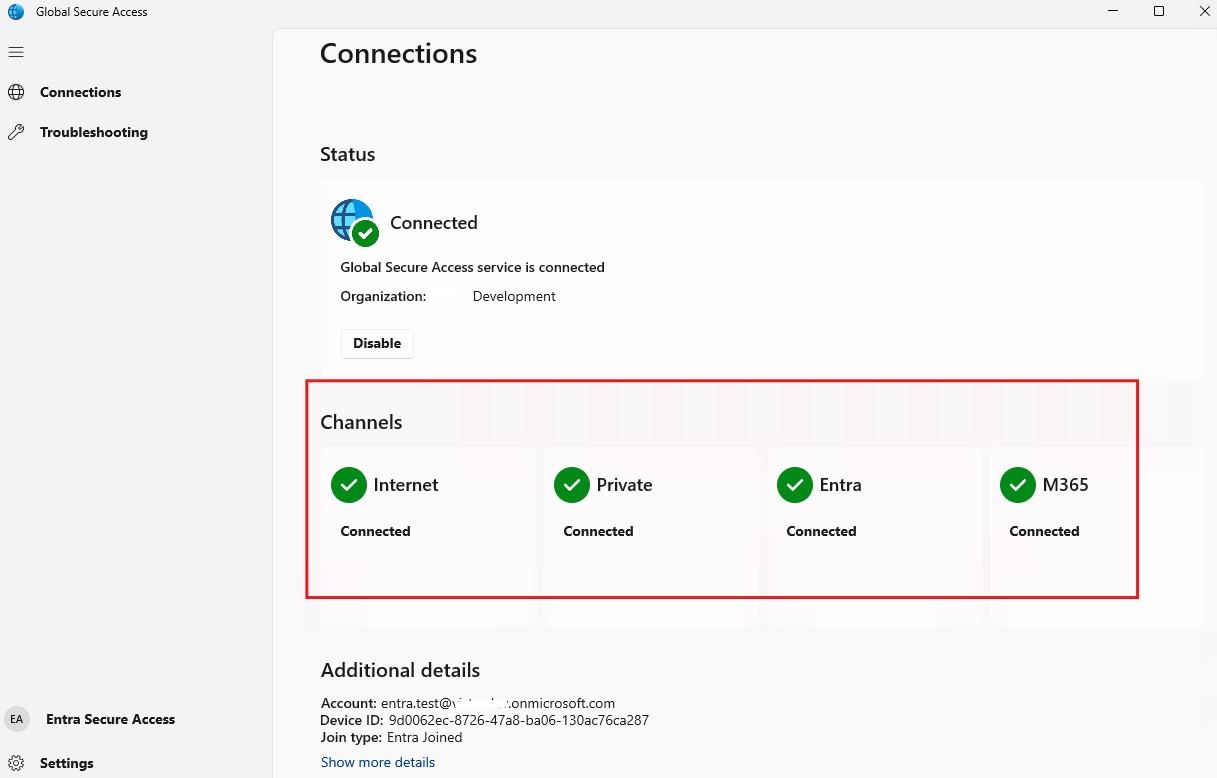
- After installation, sign in and confirm the client is connected.
End-user testing and expected behavior
After the profiles, Conditional Access policy, connector, Quick Access segment, user assignment, and client installation are complete, validate the user experience. The original guide tested Microsoft 365 apps and access to a private VM through RDP.
Test 1: Access Microsoft 365 and private resources while connected
With the Global Secure Access client connected, test access to Microsoft 365 services such as Outlook, SharePoint, Teams, or OneDrive. Then test the private resource configured in Quick Access. In the original scenario, the private resource was a VM accessed using RDP.
Test 2: Disconnect the Global Secure Access client and test blocking behavior
Next, disconnect the Global Secure Access client or test from a device that does not meet the compliant network requirement. If the Conditional Access policy is configured to block access outside compliant network locations, the user should receive a blocked access message.
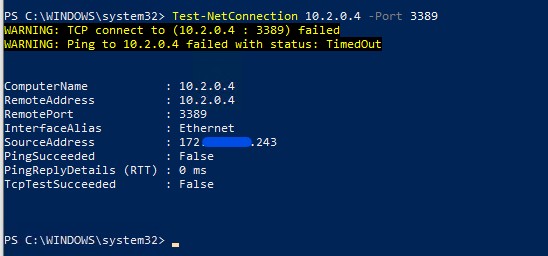
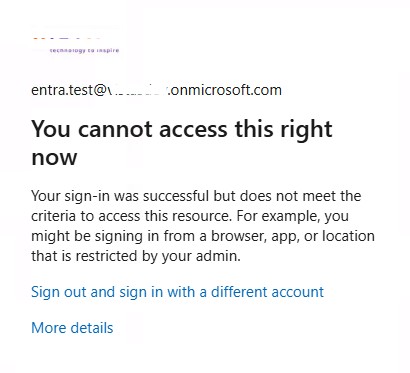
|
Expected result When the user is connected through Global Secure Access, access should succeed based on the configured policies. When the user is outside the compliant network path and the Conditional Access policy is enforced, access should be blocked. |
Monitoring Global Secure Access traffic
Monitoring is important after the pilot is enabled. Use the Global Secure Access monitoring pages and Microsoft Entra logs to validate traffic flow, policy enforcement, and user impact.
- Review Global Secure Access dashboards for traffic and usage visibility.
- Check audit logs for configuration changes.
- Review traffic logs to confirm whether traffic is forwarded, bypassed, allowed, or blocked.
- Check Microsoft Entra sign-in logs for Conditional Access results.
- Validate whether the compliant network condition is applied as expected.
- Document successful and failed test cases before expanding rollout.
Troubleshooting Microsoft Global Secure Access
Use the following troubleshooting table as a quick reference during pilot and production rollout.
|
Issue |
Possible Cause |
Recommended Fix |
|
User cannot access Microsoft 365 |
Conditional Access policy blocks access because traffic is not recognized as compliant. |
Confirm client connection, profile assignment, and the All Compliant Network Locations exclusion. |
|
Global Secure Access client not connected |
Client not installed correctly, user not assigned, or device not supported. |
Verify device requirements, reinstall client, and confirm traffic profile assignment. |
|
Private resource not reachable |
Connector, connector group, app segment, port, or routing issue. |
Check connector health, app segment destination, protocol, port, and server reachability. |
|
No traffic logs visible |
Traffic profile not enabled or traffic not matching forwarding rules. |
Confirm traffic forwarding profile status and test with a supported destination. |
|
User receives blocked access message |
Policy is working, but scope may be too broad. |
Validate pilot scope, exclusions, and emergency access accounts. |
|
RDP fails through Private Access |
TCP 3389 not included or VM firewall blocks traffic. |
Confirm app segment, TCP port, Windows Firewall, and connector network path. |
|
Unexpected user impact after policy enforcement |
Policy applied to too many users or all cloud apps too early. |
Move policy to report-only, narrow user/app scope, and test again. |
Microsoft Global Secure Access vs VPN vs traditional Secure Web Gateway
|
Capability |
Traditional VPN |
Traditional SWG |
Global Secure Access |
|
Access model |
Network-level access |
Web traffic inspection |
Identity-aware access to Microsoft 365, SaaS, internet, and private apps |
|
Zero Trust alignment |
Limited unless heavily customized |
Partial |
Strong integration with Microsoft Entra and Conditional Access |
|
Private app access |
Broad network access |
Not primary use case |
Per-app access through Entra Private Access |
|
Internet security |
Not designed for full internet security |
Core capability |
Available through Entra Internet Access |
|
Microsoft 365 protection |
Depends on routing and policies |
Depends on integration |
Microsoft traffic profile and compliant network checks |
|
User experience |
May add latency and broad tunneling |
Varies by provider |
Cloud-delivered and Microsoft-integrated |
|
Policy engine |
Network/security appliance rules |
Web/security rules |
Microsoft Entra Conditional Access and security policies |
Best practices for production rollout
- Start with a small pilot group instead of all users.
- Use report-only Conditional Access mode before enforcing block policies.
- Exclude break-glass accounts from all restrictive policies.
- Create separate policies for Microsoft traffic, internet access, and private access scenarios.
- Document the expected user experience before rollout.
- Deploy the Global Secure Access client using Intune for better control.
- Use clear naming conventions for profiles, connector groups, app segments, and Conditional Access policies.
- Monitor traffic logs, sign-in logs, and helpdesk tickets during the first rollout phase.
- Keep rollback steps ready in case a policy causes unexpected access issues.
Common mistakes to avoid
- Applying a block policy to all users without excluding emergency access accounts.
- Mixing Microsoft traffic, Internet Access, and Private Access explanations without separating the use cases.
- Forgetting to assign users or groups to the traffic forwarding profile.
- Installing the client but not confirming the user profile assignment.
- Creating app segments without confirming port, protocol, and connector reachability.
- Skipping traffic logs and sign-in logs during testing.
- Assuming all Global Secure Access capabilities are included in the same license.
Frequently Asked Questions
What is Microsoft Global Secure Access?
Microsoft Global Secure Access is Microsoft’s unified Security Service Edge solution in Microsoft Entra. It brings together Microsoft Entra Internet Access and Microsoft Entra Private Access to secure Microsoft 365, SaaS, internet, and private application access.
Is Microsoft Global Secure Access the same as Microsoft Entra Internet Access?
No. Global Secure Access is the broader unified term. Microsoft Entra Internet Access is one component focused on SaaS and internet traffic, while Microsoft Entra Private Access is focused on internal private resources.
What license is required for Microsoft Global Secure Access?
Licensing depends on the capability. The Microsoft traffic profile commonly requires Microsoft Entra ID P1 or P2. Full Internet Access and Private Access capabilities require the relevant standalone licenses or Microsoft Entra Suite.
How do I download the Microsoft Global Secure Access client?
Go to Microsoft Entra admin center > Global Secure Access > Connect > Client download. Select the required device platform and download the client.
Does Global Secure Access replace VPN?
Global Secure Access can reduce or replace broad VPN access for many private application scenarios when using Microsoft Entra Private Access. Organizations should test workloads carefully before replacing existing VPN services.
How does Global Secure Access work with Conditional Access?
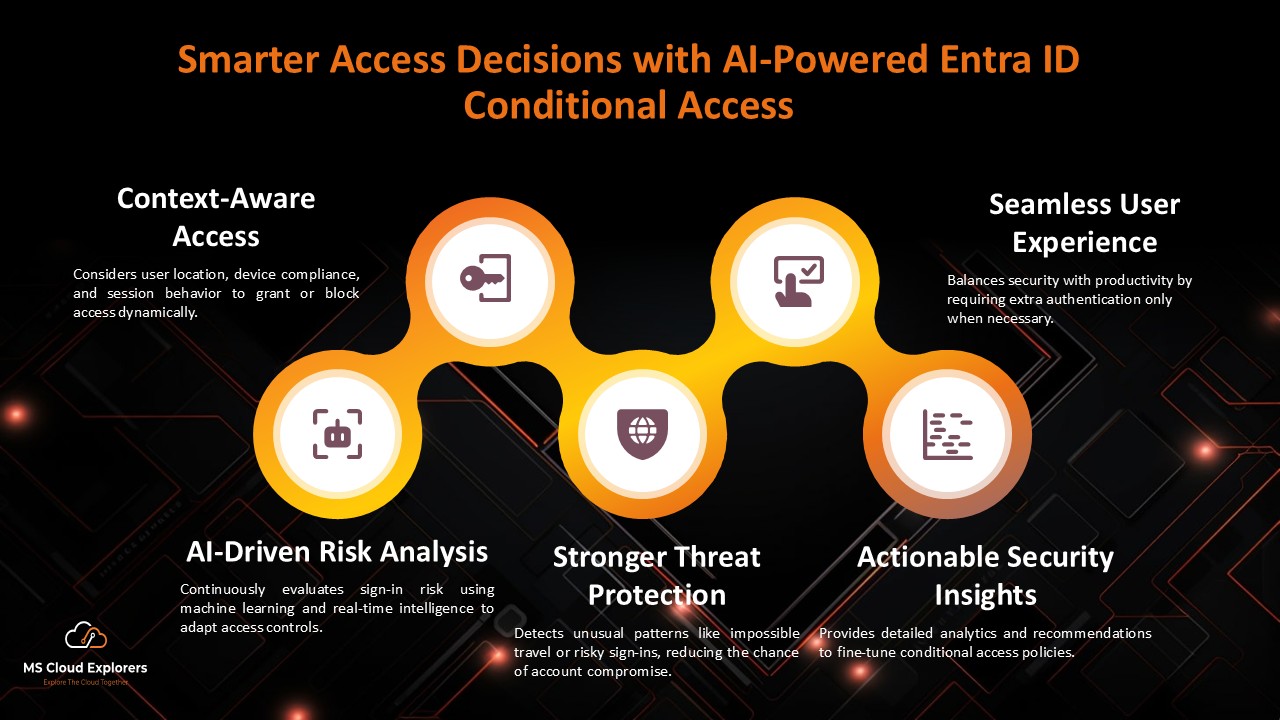
Global Secure Access can provide network signals to Conditional Access. Admins can use compliant network locations to allow or block access based on whether traffic is routed through Global Secure Access.
Can I use Global Secure Access for RDP access?
Yes, Private Access can be configured with TCP app segments such as RDP if the connector, port, protocol, user assignment, and security policies are configured correctly.
Should I enable Global Secure Access for all users immediately?
No. Start with a pilot group, validate logs and user experience, then expand gradually.
Final thoughts
Microsoft Global Secure Access is becoming an important part of Microsoft Entra security architecture because it connects identity, network, endpoint, and Conditional Access controls in one Microsoft-managed access layer. For Microsoft 365 and Azure administrators, the best approach is to start with Microsoft traffic protection, validate client behavior, test Conditional Access compliant network policies, and then expand into Private Access or Internet Access based on the business requirement.
The strongest version of this article is not just a product overview. It should be a practical implementation guide that shows the configuration, explains licensing, includes screenshots, demonstrates end-user behavior, and gives troubleshooting steps. That is what helps both readers and search engines understand that the content is useful, experience-based, and more valuable than a generic summary.
Explore More From MS Cloud Explorers
- Azure AD Free vs. Premium P1 & P2: Which Edition Is Right for Your Business?
- Microsoft Entra ID Identity Protection: A Complete Guide to Securing Your Environment
- Top 7 Conditional Access Policies Every Organization Should Implement
- A Complete Guide to Privileged Identity Management in Azure AD (PIM)
- Microsoft Entra ID: The Gateway to Microsoft’s Identity and Access Management
- Microsoft Defender for Identity: Modern Threat Detection and Identity Protection
- How to Send Encrypted Email in Outlook: A Step-by-Step Guide
- Microsoft Intune Setup Step by Step: A Complete Guide for Admins
References and Further Reading
- Microsoft Learn: What is Global Secure Access?
- Microsoft Learn: Global Secure Access documentation hub
- Microsoft Learn: Install the Global Secure Access client for Windows
- Microsoft Learn: Traffic forwarding profiles
- Microsoft Entra pricing
-
Enjoyed the article?
We’d love to hear your thoughts—share your comments below!
For more insights, guides, and updates from the Microsoft ecosystem, be sure to subscribe to our newsletter and follow us on LinkedIn. Stay connected and never miss out on the latest tips and news!
Really helpful summary! Global Secure Access seems like a big step forward for securing hybrid work. Thanks for making it easy to understand.