

Many organizations still run business-critical applications on physical servers or legacy virtualization platforms. These environments often create challenges such as hardware refresh costs, limited scalability, manual maintenance, downtime risk, and complex disaster recovery planning.
A Microsoft Azure Virtual Machine, commonly called an Azure VM, helps solve these challenges by allowing administrators to run Windows or Linux servers in the Microsoft Azure cloud without purchasing physical hardware.
For Azure Administrators and Cloud Architects, understanding Azure Virtual Machines is important because many modern environments still require Infrastructure as a Service workloads. Examples include domain controllers, application servers, jump servers, SQL workloads, security tools, test labs, and legacy applications.
What is an Azure Virtual Machine?
An Azure Virtual Machine is an on-demand cloud-based server hosted in Cloud like Microsoft Azure, AWS or Other Cloud Platforms. It provides compute resources such as CPU, memory, operating system, storage, and networking. Microsoft Azure Virtual Machines are useful when a workload requires full control over the operating system, custom software installation, advanced networking, or compatibility with legacy applications.
- Azure Windows VM or Azure Windows Virtual Machine
- Linux VM
- SQL Server VM
- GPU-enabled VM
- Development or test VM
- Domain controller VM
- Jump box or privileged access workstation VM
Key Concepts of Azure Virtual Machines
VM Size
An Azure VM size defines the amount of CPU, memory, temporary storage, and network performance assigned to the VM.
Image
An image is the operating system template used to create the VM, such as Windows Server, Ubuntu, Red Hat Enterprise Linux, or SQL Server on Windows Server.
Disk
Azure VMs use managed disks for the operating system and data. Common disk options include Standard HDD, Standard SSD, Premium SSD, Premium SSD v2, and Ultra Disk.
Virtual Network
Every Azure VM needs network connectivity. A VM is connected to a subnet inside an Azure Virtual Network.
Network Security Group
A Network Security Group, or NSG, controls inbound and outbound traffic to the VM.
Public IP
A public IP allows internet-based access to the VM. For production workloads, direct public access should be avoided unless required.
Benefits of Azure Virtual Machines
- Flexible compute capacity with the ability to resize VMs as workload requirements change.
- Support for Windows and Linux operating systems.
- Faster deployment compared with physical server procurement.
- Cost control using pay-as-you-go pricing, reserved capacity, savings plans, Azure Hybrid Benefit, and auto-shutdown.
- High availability using availability zones, availability sets, and Virtual Machine Scale Sets.
- Security integration with Microsoft Defender for Cloud, Microsoft Entra ID, Azure Monitor, Microsoft Sentinel, Azure Backup, Azure Disk Encryption, Azure Key Vault, and Just-in-Time VM access.
- Azure Site Recovery and Azure Backup provides business continuity.
Azure Virtual Machine Types
Choosing the correct azure VM types is one of the most important design decisions. Azure virtual machine types are optimized for different workload patterns.
| VM Type | Best For | Example Use Case |
| General Purpose | Balanced CPU and memory | Web servers and application servers |
| Compute Optimized | High CPU workloads | Batch processing and application processing |
| Memory Optimized | High memory workloads | SQL Server, SAP, and analytics |
| Storage Optimized | High disk throughput | NoSQL, big data, and data warehousing |
| GPU Optimized | Graphics, AI, and ML | Rendering and AI model processing |
| Burstable | Low-cost variable workloads | Dev/test and small services |
Recommended VM Selection Examples
| Scenario | Recommended Series | Example Size |
| Small test server or Azure free VM lab | B-series | Standard_B2s |
| Production web or application server | D-series | Standard_D2s_v5 or Standard_D4s_v5 |
| SQL Server or memory-heavy application | E-series | Standard_E4s_v5 |
| GPU or AI workload | N-series | N-series size based on GPU need |
Prerequisites for Creating a Virtual Machine in Azure
Required Licenses
- An Active Azure subscription
- Azure Hybrid Benefit if using existing Windows Server licenses
- SQL Server license if SQL Server is installed
- Microsoft Defender for Servers if advanced security protection is required
- Microsoft Entra ID P1 or P2 if using advanced identity-based access controls
Required Permissions
- Owner: Full access, including role assignment
- Contributor: Can create and manage VMs but cannot assign RBAC roles
- Virtual Machine Contributor: Can manage VMs but not networking or storage fully
- Network Contributor: Required for virtual network and NSG management
- Security Admin or Security Reader: Security posture review
- Monitoring Contributor: Azure Monitor configuration
Infrastructure Requirements
- Resource group
- Region
- Virtual network and subnet
- Network Security Group
- Disk configuration
- VM size
- Admin username and authentication method
- Backup and monitoring plan
Azure Pricing Calculator
Before deploying an Azure Virtual Machine, it is important to estimate the expected monthly cost. Azure VM pricing is based on several factors, including the VM size (vCPU and memory), operating system, region, storage type and capacity, networking usage, backup requirements, and any additional services attached to the virtual machine. Using the Azure Pricing Calculator helps administrators compare VM configurations, understand ongoing costs, and select the most cost-effective option for their workload before deployment. This is especially useful when evaluating different Azure VM sizes for development, testing, or production environments.
Tip: Always calculate costs before deployment and consider Reserved Instances, Azure Savings Plans, and Azure Hybrid Benefit opportunities to reduce long-term Azure VM expenses.
| Azure Component | Billing Model | Notes |
| Virtual Machine Compute (Standard_D8ls_v6) | Hourly (Pay only while VM is running) | Main compute cost based on vCPUs and RAM |
| OS Disk | Monthly fixed cost | Charged even if the VM is stopped (deallocated) |
| Data Disks | Monthly fixed cost | Based on disk type and allocated capacity |
| Public IP Address | Monthly fixed cost | Standard Public IP incurs additional charges |
| Network Egress | Usage-based | Charged for outbound internet traffic |
| Azure Backup | Monthly fixed cost + storage consumption | Optional but recommended |
Estimate your expected monthly Azure VM cost using the Microsoft Azure Pricing Calculator. By selecting the VM size, operating system, region, storage type, backup requirements, and networking options, you can generate an estimated cost before deployment and compare different configurations to find the most cost-effective solution for your workload. Microsoft Azure Pricing Calculator
Step-by-Step Implementation Guide: Creating a Virtual Machine in Azure
Method 1: Create Azure VM from Azure Portal
- Sign in to https://portal.azure.com.
- Navigate to Azure Portal > Virtual Machines > Create > Azure virtual machine.
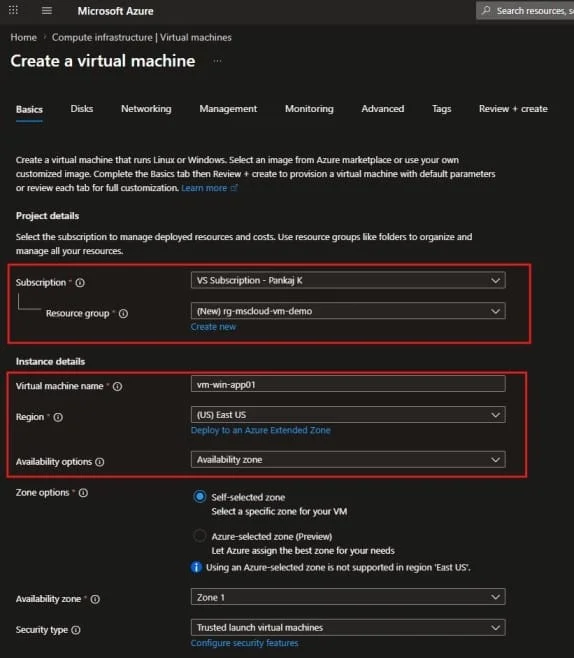
- Configure basic settings: subscription, resource group, VM name, region, availability option.
 Select the security type, virtual machine image, architecture, VM size, and configure the administrator account using a strong password or SSH key.
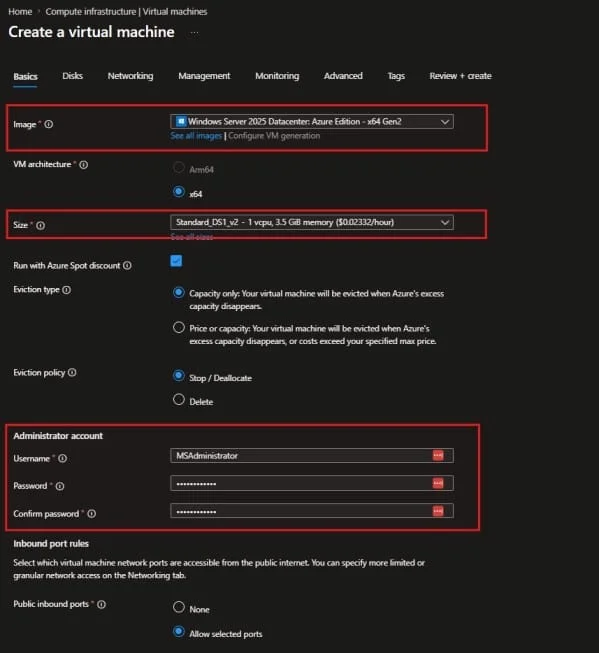 Once you have completed the Basic Information tab, click Next to continue.
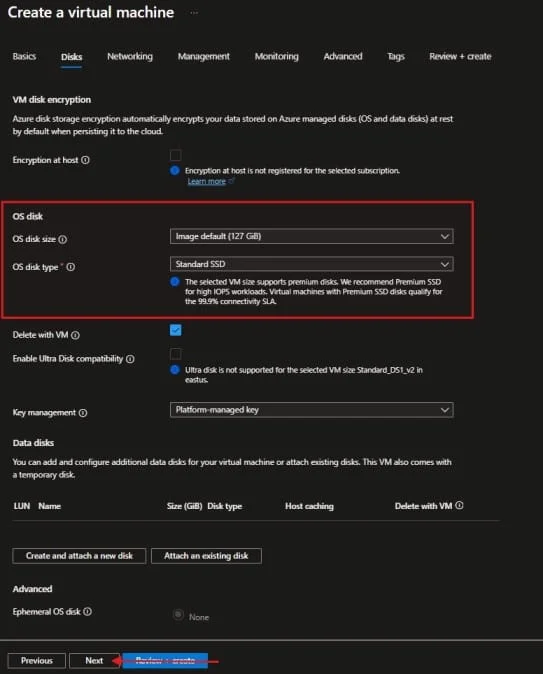
- Configure the disk settings by selecting the appropriate disk type and size based on your workload requirements. Use separate data disks for application data and leave the remaining settings at their default values unless you have specific requirements.
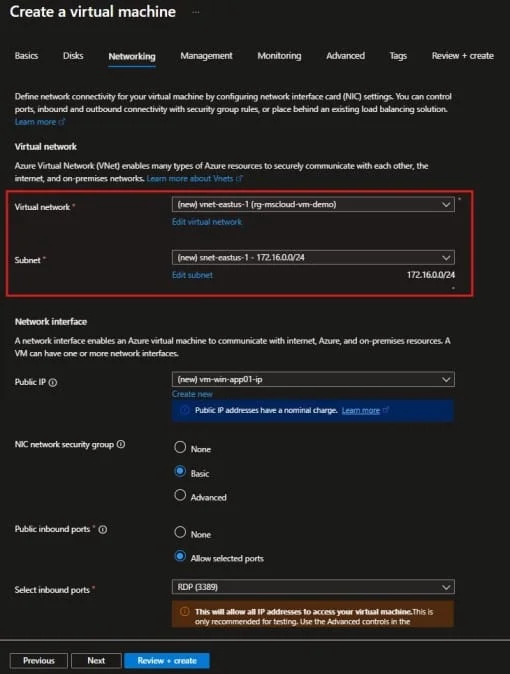
 Configure the networking settings, including the virtual network, subnet, public IP address (if required), Network Security Group (NSG), and load balancing options. If you do not have an existing virtual network, you can create a new one and leave the remaining settings at their default values.
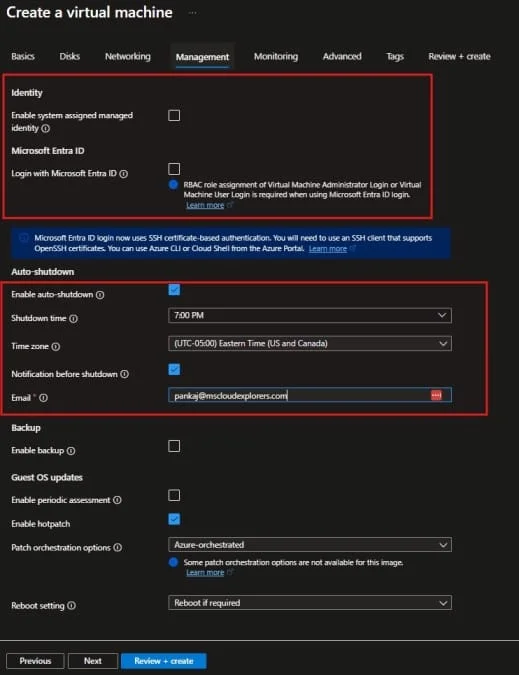
 Configure the management settings, such as Boot Diagnostics, Azure Monitor, Auto-shutdown (for development and test environments), Backup, and Update Management.
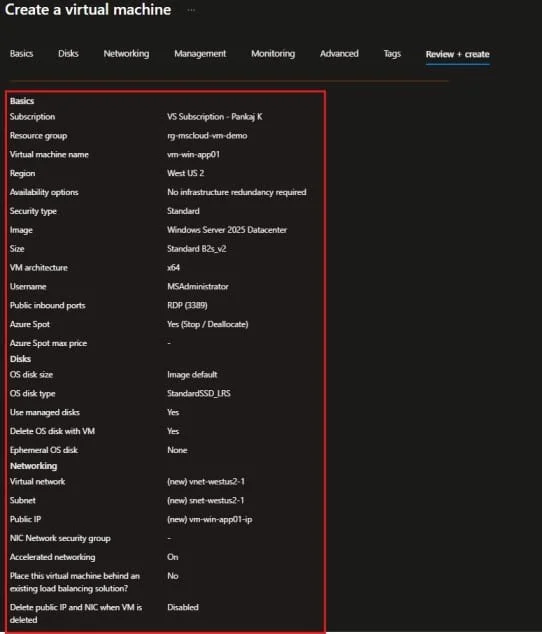
 On the Review + Create tab, Azure validates your configuration before deployment. If you receive a validation error, review the error message and return to the Basics tab. In some cases, selecting a different VM size can resolve deployment validation issues caused by regional capacity or subscription limitations.
 Once the deployment is complete, navigate to Azure Portal > Virtual Machines, where you should see your newly created virtual machine listed and ready for management.
| Security Note For production workloads, use Azure Bastion, VPN, private connectivity, or Just-in-Time VM access instead of opening RDP or SSH directly to the internet. |
Method 2: Create Azure VM Using PowerShell
PowerShell is useful when administrators need repeatable deployment.
Install and Connect to Azure PowerShell
Install-Module Az -Scope CurrentUser -Repository PSGallery -Force
Connect-AzAccountCreate Resource Group
New-AzResourceGroup `
-Name "rg-mscloud-vm-demo" `
-Location "East US"Create Windows Azure VM
New-AzVm `
-ResourceGroupName "rg-mscloud-vm-demo" `
-Name "vm-win-app01" `
-Location "East US" `
-VirtualNetworkName "vnet-mscloud-demo" `
-SubnetName "snet-app" `
-SecurityGroupName "nsg-vm-app01" `
-PublicIpAddressName "pip-vm-app01" `
-OpenPorts 3389 `
-Image "Win2025Datacenter" `
-Size "Standard_D2s_v5"Important Security Note
The above command opens RDP for initial access. For production, do not expose RDP directly to the internet. Use Azure Bastion, VPN, or Just-in-Time access.
Method 3: Create Azure VM Using Azure CLI
az login

az group create \
  --name rg-mscloud-vm-demo \
  --location EastUS

az vm create \
  --resource-group rg-mscloud-vm-demo \
  --name vm-linux-app01 \
  --image Ubuntu2204 \
  --size Standard_D2s_v5 \
  --admin-username azureadmin \
--generate-ssh-keysSecurity Best Practices for Azure Virtual Machines
- Avoid public RDP and SSH. Use Azure Bastion, VPN, Privileged Access Workstations, or Just-in-Time VM access.
- Use Network Security Groups carefully and allow only required traffic from trusted sources.
- Enable Microsoft Defender for Cloud to review recommendations, secure score, vulnerabilities, and endpoint protection status.
- Use managed identity for applications running on Azure VMs instead of storing secrets in scripts.
- Encrypt disks and consider customer-managed keys where stronger control is required.
- Apply least privilege access using Azure RBAC.
- Patch regularly using Azure Update Manager or an approved patching process.
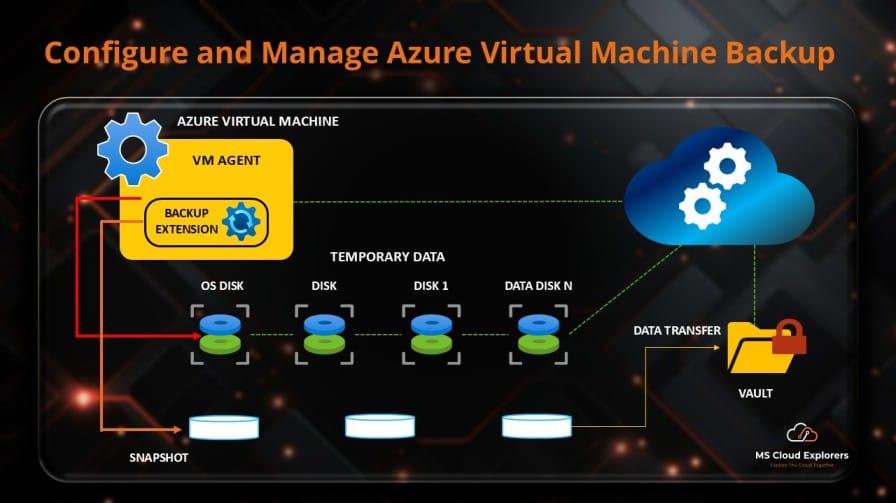
- Enable Azure Backup for production VMs.
- Use Azure Policy to enforce required tags, allowed regions, allowed VM sizes, encryption, backup, and no public IP rules.
- Monitor sign-in and administrative activity by forwarding logs to Log Analytics or Microsoft Sentinel.
Pro Tip: Use a Standard VM Naming Convention
A good naming convention makes management, automation, and cost reporting easier. Example: vm-prod-app-cin-001.
| Part | Meaning |
| vm | Resource type |
| prod | Environment |
| app | Workload |
| cin | Central India |
| 001 | Instance number |
Proper resource naming is an important part of Azure governance and operational management. Microsoft provides recommended naming conventions for Azure resources, including virtual machines, storage accounts, networks, and other services. To learn more, visit the official Microsoft documentation. Microsoft Azure Resource Naming Convention Best Practices
Common Pitfalls
| Pitfall | How to Avoid It |
| Choosing the wrong VM size | Start with a right-sized VM and monitor CPU, memory, disk, and network utilization. |
| Exposing RDP or SSH publicly | Use Azure Bastion, VPN, source IP restrictions, or Just-in-Time access. |
| Not enabling backup | Enable Azure Backup during or after deployment and test restore regularly. |
| Storing data on temporary disk | Use managed data disks for persistent application data. |
| No monitoring configuration | Enable Azure Monitor, alerts, and Log Analytics. |
| No tagging | Use Azure Policy to enforce required tags. |
Monitoring and Troubleshooting Azure VMs
Logs to Review
- Azure Activity Log
- Resource Health
- Azure Monitor metrics
- Boot diagnostics
- Serial console
- VM Insights
- Windows Event Viewer: System, Application, Security, Setup, Windows PowerShell, and Terminal Services logs
- Linux logs: /var/log/syslog, /var/log/auth.log, /var/log/messages, and /var/log/waagent.log
Common Errors and Resolution Steps
| Error | Likely Cause | Resolution |
| VM deployment failed due to quota | Not enough regional vCPU quota | Request quota increase or choose another region or size |
| VM size not available | Selected size is unavailable in region or zone | Choose another VM size, region, or availability option |
| Cannot RDP to Azure Windows VM | NSG, firewall, VM state, public IP, or RDP service issue | Confirm VM is running, check NSG, use Bastion, review boot diagnostics, or use Run Command |
| VM performance is slow | High CPU, memory pressure, disk latency, or application issue | Review Azure Monitor metrics and resize if required |
| VM resize failed | Target size unavailable on current host cluster | Stop and deallocate the VM, then retry resize |
Real-World Use Cases
Use Case 1: Hosting a Legacy Business Application
- Deploy an Azure Windows Virtual Machine.
- Join the VM to Active Directory or Microsoft Entra Domain Services.
- Restrict access using VPN or Azure Bastion.
- Enable Azure Backup and monitoring.
- Recommended size: Standard_D2s_v5 or Standard_D4s_v5.
Use Case 2: Secure Administrative Jump Server
- Create a hardened Azure Windows VM.
- Do not assign public IP.
- Use Azure Bastion.
- Enable Defender for Cloud.
- Restrict admin access using RBAC and privileged groups.
- Recommended size: Standard_B2s or Standard_D2s_v5.
Use Case 3: Test Lab for Microsoft 365 and Intune Engineers
- Create low-cost B-series VMs or Azure free VM lab resources where eligible.
- Configure auto-shutdown.
- Use snapshots before testing.
- Apply Intune policies if the VM is Entra joined or hybrid joined.
- Delete unused VMs to avoid cost.
- Recommended size: Standard_B2s.
Frequently Asked Questions
What is an Azure Virtual Machine?
An azure virtual machine is a cloud-based server running in Microsoft Azure. It provides CPU, memory, operating system, storage, and networking similar to a physical server.
What is the difference between Azure VM and physical server?
A physical server runs on hardware owned by the organization. An Azure VM runs on Microsoft-managed cloud infrastructure. You manage the operating system and applications, while Microsoft manages the physical datacenter hardware.
What is an Azure Windows VM?
An azure windows VM is a virtual machine running a Windows operating system such as Windows Server. It is commonly used for application servers, domain services, jump servers, and legacy workloads.
Can I create an Azure free virtual machine?
Yes, Azure free account options may provide credits or limited free services depending on Microsoft current offers. Administrators should monitor usage because VM charges can apply based on size, storage, network, and runtime.
Which Azure VM type should I choose?
Choose B-series for dev/test, D-series for general purpose workloads, E-series for memory-intensive workloads, F-series for compute-intensive workloads, L-series for storage-heavy workloads, and N-series for GPU workloads.
Can I resize an Azure VM after creation?
Yes. You can resize a VM from Azure Portal, PowerShell, or Azure CLI. Resizing can restart the VM and may require deallocation depending on the selected size.
Is Microsoft Azure VM secure by default?
Azure provides strong platform security, but VM security depends on configuration. Secure network access, enable Defender for Cloud, patch regularly, use least privilege, enable backup, and avoid public RDP or SSH.
What is the difference between Azure VM and Azure Virtual Machine Scale Sets?
An Azure VM is usually a single virtual machine. Virtual Machine Scale Sets allow administrators to deploy and manage multiple VM instances for scalable and highly available applications.
What is the best practice for production Azure VMs?
Use private networking, Azure Bastion, least privilege RBAC, managed disks, backup, monitoring, availability zones, Defender for Cloud, Azure Policy, and documented operational procedures.
Conclusion
An azure virtual machine is one of the most flexible compute services in Microsoft Azure. It allows organizations to run Windows and Linux workloads in the cloud while maintaining control over the operating system, applications, networking, and security configuration.
For administrators and cloud architects, success depends on choosing the right azure VM types, securing access properly, enabling monitoring, configuring backup, and following Microsoft Azure Well-Architected best practices.
If you are creating a virtual machine in Azure, start with a clear workload requirement. Choose the right VM size, avoid unnecessary public exposure, enable security and monitoring from day one, and continuously optimize cost and performance.
Enjoyed the article?
We’d love to hear your thoughts—share your comments below!
For more insights, guides, and updates from the Microsoft ecosystem, be sure to subscribe to our newsletter and follow us on LinkedIn. Stay connected and never miss out on the latest tips and news!
2 comments on “Azure Virtual Machine Guide: Create, Manage, Secure, and Choose the Right Azure VM Types”