Data loss is one of the biggest risks for any organization using cloud or hybrid infrastructure. A virtual machine may fail after a bad update, a user may accidentally delete important files, a database may become corrupted, or ransomware may impact production workloads. Without a proper backup and recovery strategy, restoring business services can become stressful, expensive, and time-consuming.
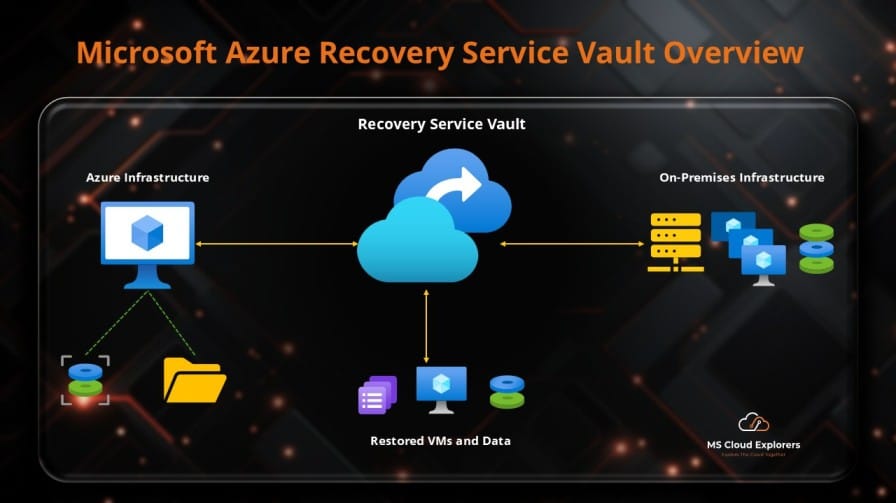
This is where Azure Recovery Services Vault becomes important. A recovery services vault provides a centralized location in Azure to store backup data, manage backup policies, monitor backup jobs, and restore workloads when required. It is commonly used with Azure Backup and Azure Site Recovery to protect Azure virtual machines, SQL Server workloads, SAP HANA databases, Azure Files, and supported on-premises workloads.
What Is Azure Recovery Services Vault?
An Azure Recovery Services Vault is a management and storage container in Azure used to store backup data, recovery points, backup policies, and replication information. It is part of Azure Backup and Azure Site Recovery services.
You can think of a Recovery Services vault as a secure backup container where Azure stores protected workload data and allows you to recover that data when something goes wrong. Administrators often use terms like recovery service vault azure, azure backup vault, recovery services vault, and azure vault backup in real-world conversations.
| In Simple Terms
Azure Recovery Services Vault is a secure Azure storage and management container used by Azure Backup and Azure Site Recovery to store backup data, recovery points, backup policies, and replication information for Azure and supported hybrid workloads. It helps administrators protect virtual machines, databases, file shares, and servers from accidental deletion, corruption, ransomware, and disaster recovery scenarios. |
Key Concepts You Should Know
Backup Item
A backup item is a protected workload. Examples include an Azure virtual machine, SQL Server database running inside an Azure VM, SAP HANA database running inside an Azure VM, Azure File share, or supported on-premises server.
Recovery Point
A recovery point is a restore point created by Azure Backup. If an issue occurs, you can restore a workload from one of the available recovery points.
Backup Policy
A backup policy defines backup frequency, backup schedule, retention period, instant restore snapshot retention, and long-term retention rules. For example, a production VM may require daily retention for 30 days, weekly retention for 12 weeks, monthly retention for 12 months, and yearly retention for 7 years.
Storage Redundancy
Storage redundancy controls how backup data is replicated in Azure. Depending on the workload and region, administrators may use locally redundant storage, zone-redundant storage, or geo-redundant storage. This setting should be planned before production backup is enabled.
Soft Delete
Soft delete helps protect backup data from accidental or malicious deletion. When backup data is deleted, soft delete keeps the deleted backup data for an additional retention period so administrators can recover it if the deletion was not intended.
Azure RBAC
Recovery Services vaults support Azure role-based access control. Instead of giving broad subscription access, organizations can assign backup-specific permissions such as Backup Contributor, Backup Operator, and Backup Reader.
Benefits of Azure Recovery Services Vault
- Centralized backup management for Azure and supported hybrid workloads.
- Protection against accidental or malicious deletion using soft delete and security controls.
- Long-term retention support for compliance and audit requirements.
- Hybrid workload support for selected on-premises and Azure workloads.
- Disaster recovery integration with Azure Site Recovery.
- Monitoring and alerting through the Azure portal, Backup Center, Azure Monitor, and Log Analytics.
- Cost control through workload-specific backup policies and retention planning.
Prerequisites
Required Licenses and Billing
Azure Recovery Services Vault requires an active Azure subscription, supported Azure resources or supported on-premises workloads, and Azure Backup billing based on protected instances and storage usage.
Required Permissions
Use least privilege access wherever possible. Owner, Contributor, Backup Contributor, Backup Operator, Backup Reader, and Reader are standard roles. For production environments, avoid assigning Owner access only for backup operations.
Infrastructure Requirements
- Azure virtual machine or supported workload exists.
- Recovery Services vault is created in the correct Azure region.
- Backup policy is created and aligned with RPO and RTO requirements.
- VM agent is healthy for Azure VM backup.
- Network connectivity is available for hybrid backup scenarios.
- Storage redundancy is selected before production backup is enabled.
- Resource locks, RBAC, and alerting are planned before production use.
Step-by-Step Implementation Guide to Create Azure Recovery Service Vault
Step 1: Create a Recovery Services Vault from Azure Portal
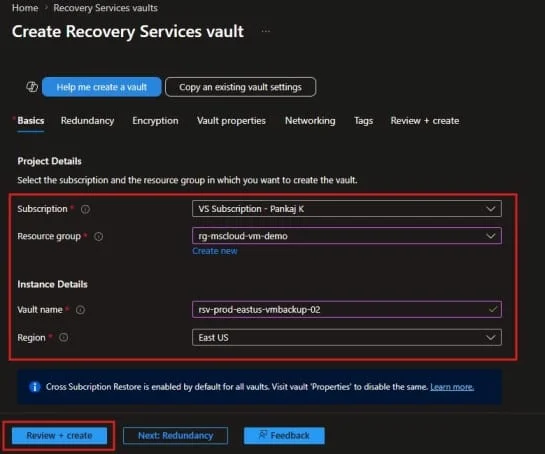
Azure Portal > Search for Recovery Services vaults > Create
Configure the subscription, resource group, vault name, and region. For Azure VM backup, create the vault in the same region as the virtual machine. Then select Review + Create and Create.
Step 2: Configure Backup Storage Redundancy
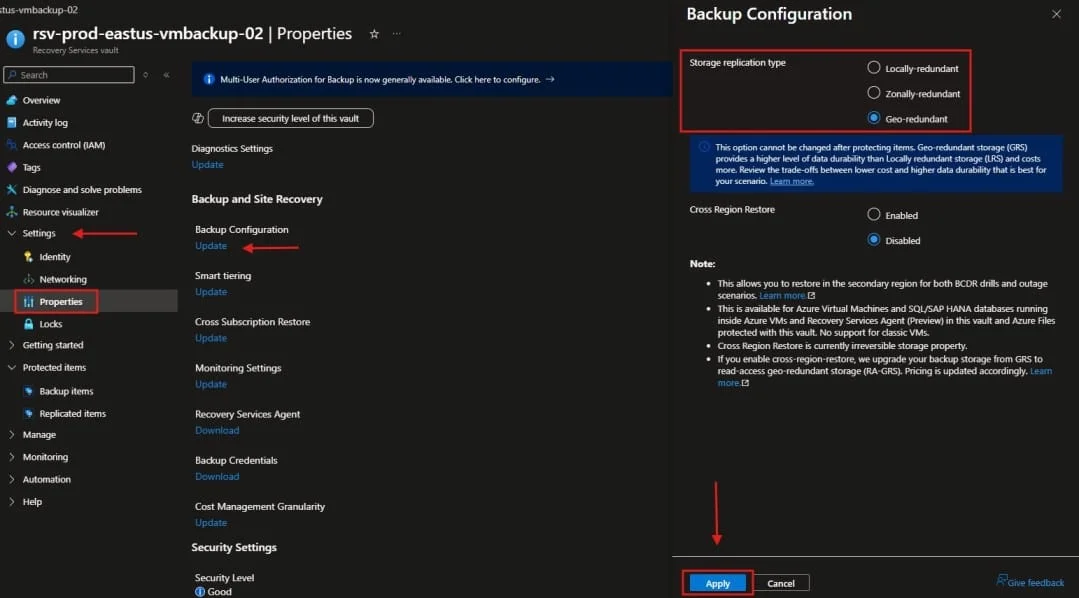
Recovery Services vault > Properties > Backup Configuration > Update
Choose the redundancy option based on business requirements. Geo-redundant storage is common for critical production workloads, while locally redundant storage may be suitable for non-critical workloads where lower cost is preferred.
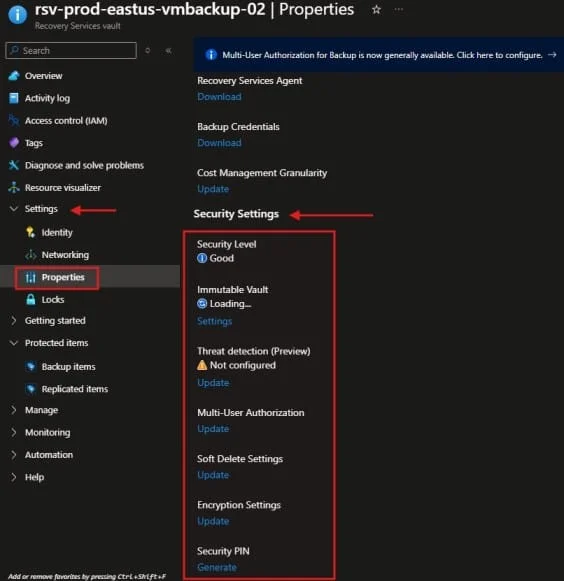
Step 3: Enable Security Features
Recovery Services vault > Properties > Security Settings
- Enable soft delete.
- Use Azure RBAC and least privilege roles.
- Enable multi-user authorization where available.
- Consider immutability for ransomware protection and compliance.
- Enable alerts for critical backup operations.
- Use resource locks to reduce accidental vault deletion risk.
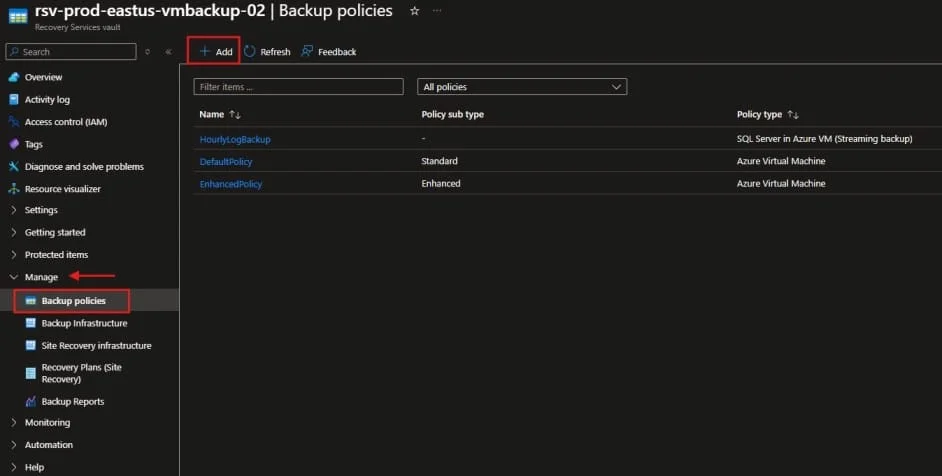
Step 4: Create a Backup Policy
Recovery Services vault > Backup policies > Add
Example production VM policy: daily backup at night, 30 days daily retention, 12 weeks weekly retention, 12 months monthly retention, and yearly retention if required by compliance.
| Pro Tip Use clear naming conventions such as bkpol-prod-vm-daily-30d or bkpol-prod-sql-daily-90d. A consistent naming standard makes reporting, support handover, and troubleshooting much easier. |
Step 5: Enable Backup for an Azure Virtual Machine
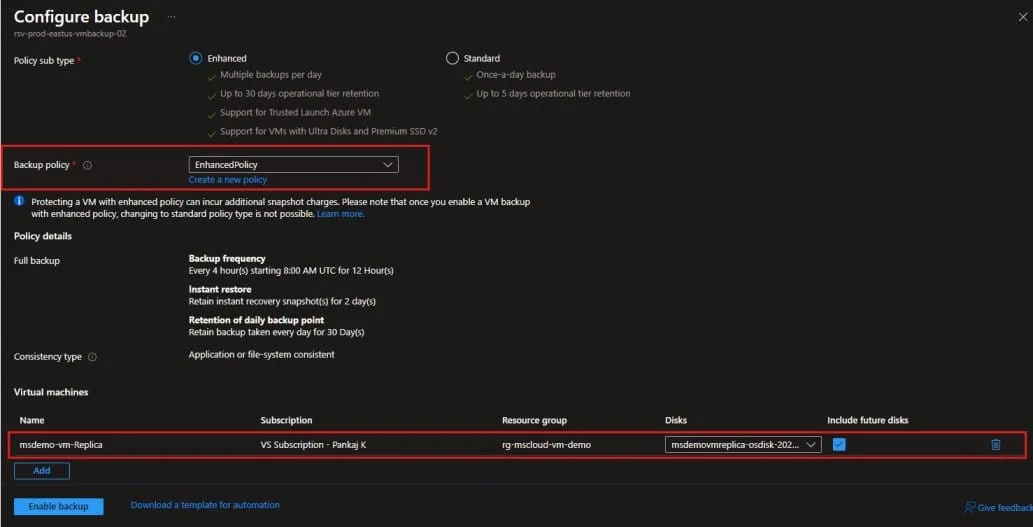
Recovery Services vault > Backup > Azure > Virtual machine > Backup
Select the backup policy, choose the Azure VM, and select Enable Backup. You can also configure backup directly from the virtual machine blade by going to Virtual Machines > Select VM > Backup > Configure Backup.
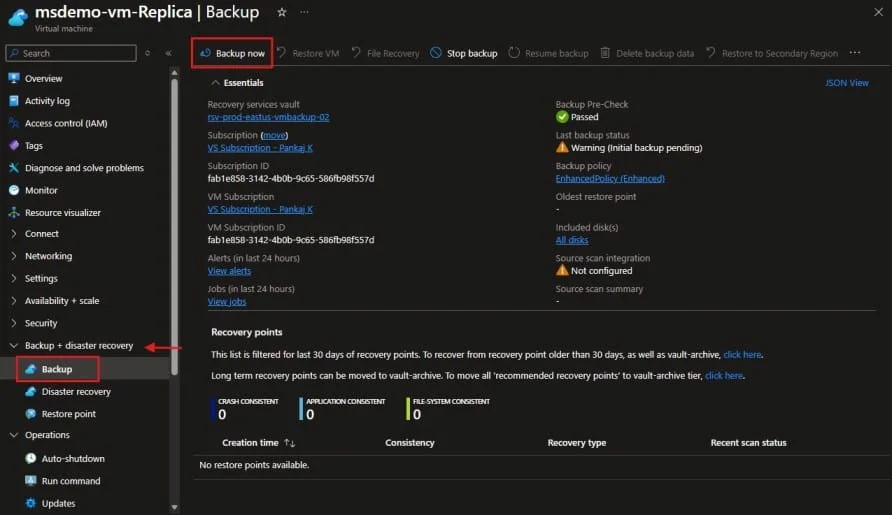
Step 6: Run an On-Demand Backup
After enabling backup, run the first backup manually to verify configuration.
Recovery Services vault > Backup items > Azure Virtual Machine > Select VM > Backup now
Step 7: Restore an Azure Virtual Machine
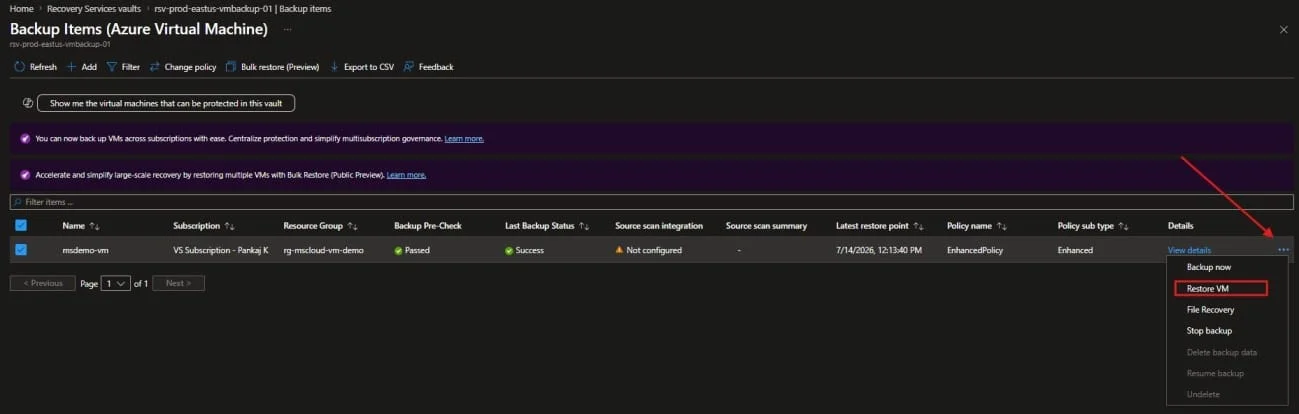
Recovery Services vault > Backup items > Azure Virtual Machine > Select VM > Restore VM
Common restore options include creating a new virtual machine, restoring disks, replacing existing disks, or performing file recovery. For production environments, test restore in a non-production network before reconnecting restored resources to production.
We have created dedicated guides that walk you through the complete process of enabling Azure Virtual Machine backups and restoring a VM from an Azure Recovery Services Vault. Check out our step-by-step guides below: Azure Virtual Machine Backup
PowerShell Examples
PowerShell is useful when you need to automate vault creation, backup configuration, job validation, and reporting.
Install and Connect to Azure PowerShell
Install-Module Az -Scope CurrentUser -Repository PSGallery -Force

Connect-AzAccount

Set-AzContext -SubscriptionId "<Subscription-ID>"Create a Resource Group and Recovery Services Vault
New-AzResourceGroup `

-Name "rg-backup-prod" `

-Location "EastUS"

# Create Resource Group

New-AzRecoveryServicesVault `

-Name "rsv-prod-eastus-001" `

-ResourceGroupName "rg-backup-prod" `

-Location "EastUS"Set Vault Context and Storage Redundancy
$vault = Get-AzRecoveryServicesVault `

-Name "rsv-prod-eastus-001" `

-ResourceGroupName "rg-backup-prod"

Set-AzRecoveryServicesVaultContext -Vault $vault

Set-AzRecoveryServicesBackupProperty `

-Vault $vault `

-BackupStorageRedundancy GeoRedundantEnable Backup for an Azure VM
$policy = Get-AzRecoveryServicesBackupProtectionPolicy `
  -Name "DefaultPolicy"

Enable-AzRecoveryServicesBackupProtection `
  -ResourceGroupName "rg-prod-vms" `
  -Name "vm-prod-app01" `
-Policy $policyTrigger Backup Now and Review Jobs
$container = Get-AzRecoveryServicesBackupContainer `
  -ContainerType AzureVM `
  -FriendlyName "vm-prod-app01"

$item = Get-AzRecoveryServicesBackupItem `
  -Container $container `
  -WorkloadType AzureVM

Backup-AzRecoveryServicesBackupItem `
  -Item $item

## Check Backup Jobs

Get-AzRecoveryServicesBackupJob |
Select-Object JobId, Operation, Status, StartTime, EndTimeReview Members of an Azure Backup Administrators Group
$group = Get-MgGroup -Filter "displayName eq 'Azure Backup Administrators'"

Get-MgGroupMember -GroupId $group.Id |
Select-Object Id, AdditionalProperties

Get-MgDirectoryRole |
Select-Object DisplayName, IdUse Microsoft Graph to review users, groups, directory roles, and access governance. Use Azure PowerShell, Azure CLI, or REST API for actual vault, backup policy, and restore operations.
Security Best Practices
- Enable soft delete and avoid turning it off in production.
- Use least privilege RBAC instead of assigning Owner access broadly.
- Enable multi-user authorization for critical operations where available.
- Use immutable vault protection if required by compliance or ransomware recovery planning.
- Apply resource locks to production Recovery Services vaults.
- Monitor critical operations such as disabling backup, deleting backup data, changing policies, and restore operations.
- Separate production and non-production vaults for cleaner permissions and reporting.
Example: Add a Delete Lock to the Vault
New-AzResourceLock `
-LockName “lock-rsv-prod-eastus-001” `
-LockLevel CanNotDelete `
-ResourceGroupName “rg-backup-prod” `
-ResourceName “rsv-prod-eastus-001” `
-ResourceType “Microsoft.RecoveryServices/vaults”
Common Pitfalls
- Creating the vault in the wrong region for Azure VM backup.
- Not configuring storage redundancy before enabling production backup.
- Using one generic backup policy for every workload.
- Never testing restore operations.
- Giving too much access to backup operators or support teams.
- Ignoring backup alerts for several days.
- Not documenting RPO and RTO before designing retention policies.
- Deleting backup data without understanding soft delete, immutability, and compliance requirements.
Monitoring and Troubleshooting
Logs and Areas to Review
- Backup Jobs: Review job status, error details, start time, end time, and duration.
- Backup Alerts: Review warnings and critical backup alerts.
- Backup Items: Check last backup status, latest recovery point, assigned policy, and protection state.
- Activity Log: Identify who changed policies, disabled backup, deleted data, or changed vault settings.
- Log Analytics: Use diagnostic settings for advanced backup reporting and trend analysis.
Common Error: Backup Extension Failed
Possible causes include unhealthy VM agent, unavailable VM, operating system snapshot issue, or extension installation problem. Check VM agent health, review backup job details, restart only if approved, and retry backup.
Common Error: User Does Not Have Permission
The user may have Reader access only, RBAC may be assigned at the wrong scope, or the user may not have Backup Contributor or Backup Operator permissions. Assign the correct role at vault, resource group, or subscription scope.
Common Error: No Recovery Points Available
This can happen if backup was never successful, the policy was recently enabled, backup jobs are failing, or backup data was deleted. Review backup jobs, run Backup now, validate VM health, and check soft-deleted items.
Common Error: Vault Cannot Be Deleted
The vault may still contain protected items, soft-deleted items, replicated Azure Site Recovery items, or resource locks. Remove protected items only after approval, check soft delete state, remove locks, and then delete the vault if allowed.
Real-World Use Cases
Use Case 1: Protecting Production Azure Virtual Machines
A company hosts a business-critical application on Azure VMs. The recommended design is to create a Recovery Services vault in the same region, configure appropriate redundancy, enable soft delete, create workload-specific policies, and test restore regularly.
Use Case 2: Compliance and Long-Term Retention
Financial, healthcare, and regulated organizations may need long-term retention. Create dedicated production vaults, define monthly and yearly retention, restrict restore permissions, and document recovery test evidence.
Use Case 3: Hybrid Backup for On-Premises Servers
Organizations with Azure and on-premises workloads can use Recovery Services vault with supported backup agents or Azure Backup Server. This helps centralize cloud-based backup retention and monitoring.
Frequently Asked Questions
1. What is Azure Recovery Services Vault used for?
Azure Recovery Services Vault is used to store backup data, manage backup policies, monitor backup jobs, and restore supported Azure and hybrid workloads.
2. Is Recovery Services Vault the same as Azure Backup Vault?
Not exactly. Administrators often use the terms interchangeably, but Azure has different vault types. Recovery Services vault is commonly used for Azure VM backup, Azure Site Recovery, and supported hybrid backup scenarios.
3. Does Azure Recovery Services Vault support disaster recovery?
Yes. Recovery Services vault can be used with Azure Site Recovery for disaster recovery and replication scenarios.
4. Can I restore a deleted Azure VM from Recovery Services Vault?
Yes, if backup was enabled and recovery points are available, you can restore a deleted Azure VM by creating a new VM or restoring disks from a recovery point.
5. What is soft delete in Azure Recovery Services Vault?
Soft delete protects backup data from accidental or malicious deletion by retaining deleted backup data for an additional period so it can be recovered if needed.
6. Should the Recovery Services vault be in the same region as the VM?
Yes, for Azure VM backup, the Recovery Services vault should be created in the same region as the Azure VM.
7. What permissions are required to manage Azure Backup?
Use Azure RBAC roles such as Backup Contributor, Backup Operator, and Backup Reader depending on the required task. Avoid assigning Owner unless required.
8. How often should I test Azure backup restore?
For production workloads, test restore at least quarterly or after major application, infrastructure, or backup policy changes.
9. Can I use PowerShell to manage Azure Recovery Services Vault?
Yes. You can use Azure PowerShell cmdlets such as New-AzRecoveryServicesVault, Set-AzRecoveryServicesVaultContext, Enable-AzRecoveryServicesBackupProtection, and Backup-AzRecoveryServicesBackupItem.
10. What is the best backup policy for Azure VM?
There is no single best policy for every VM. A common starting point is daily backup with 30-day retention, plus weekly, monthly, and yearly retention for critical workloads based on RPO, RTO, and compliance requirements.
Conclusion
Azure Recovery Services Vault is a core component of Azure Backup and disaster recovery planning. It provides a centralized and secure way to protect Azure virtual machines, databases, file shares, and supported hybrid workloads. For administrators managing production cloud environments, a properly designed azure recovery services vault helps reduce business risk, improve recovery readiness, and protect against accidental deletion, corruption, and ransomware scenarios.
To implement azure backup vault and azure vault backup successfully, start by documenting backup requirements, defining RPO and RTO, choosing the right storage redundancy, enabling soft delete, applying least privilege access, and testing restore regularly. If you are designing backup for a new Azure environment, create your recovery services vault, configure backup policies, secure the vault, enable monitoring, and perform a restore test before the workload becomes business critical.
Microsoft References for Final Review
- Overview of Recovery Services vaults – Azure Backup
- Create and Configure Recovery Services Vaults – Azure Backup
- Back Up Azure VMs in a Recovery Services Vault
- Quickstart: Back up a VM with Azure Backup
- Azure Backup Support Matrix
- Monitor and Manage Recovery Services Vaults
Enjoyed the article?
We’d love to hear your thoughts—share your comments below!
For more insights, guides, and updates from the Microsoft ecosystem, be sure to subscribe to our newsletter and follow us on LinkedIn. Stay connected and never miss out on the latest tips and news!