Azure virtual machines often host business-critical workloads such as application servers, domain controllers, SQL workloads, web servers, file servers, and line-of-business applications. If a VM is accidentally deleted, corrupted by ransomware, impacted by a failed patch, or affected by a disk issue, recovery can become difficult without a proper backup strategy.
This is where azure virtual machine backup becomes important. Azure Backup provides a native way to protect Azure VMs by creating recovery points that can be used to restore the full virtual machine, individual disks, or selected files and folders. For most production VM backup scenarios, Azure Backup is preferred over manual snapshots because it provides policy-based retention, centralized monitoring, security controls, and multiple restore options.
In this guide, we have covered how to configure azure vm backup, understand azure virtual machine backup pricing, restore Azure VM from backup, compare snapshots with backups, and apply Microsoft best practices for security, monitoring, and troubleshooting.
| What Is the Best Way to Back Up an Azure Virtual Machine? Azure Backup is the recommended method for protecting Azure Virtual Machines. It creates automated recovery points in a Recovery Services Vault and allows administrators to restore an entire VM, individual disks, or specific files and folders. Azure Backup also provides centralized management, long-term retention, security features, and multiple recovery options, making it the preferred solution for production workloads. |
What Is Azure Virtual Machine Backup?
Azure virtual machine backup is part of the Azure Backup service. It protects Azure IaaS virtual machines by taking scheduled backups and storing recovery points in a Recovery Services vault. The backup of Azure VM can later be used for azure vm backup and restore scenarios such as full VM restore, disk restore, file-level recovery, cross-region restore, and recovery after accidental VM deletion.
Azure VM backup is not the same as a simple managed disk snapshot. A snapshot is a point-in-time copy of a disk, commonly used for short-term scenarios such as testing or pre-change protection. Azure Backup is a managed backup solution with backup policies, retention, monitoring, restore workflows, soft delete, role-based access control, and long-term recovery support.
Key Components of Azure VM Backup
| Component | Purpose |
| Recovery Services vault | A management container that stores recovery points and manages backup operations such as on-demand backup, restore, retention, alerts, and policy assignment. |
| Backup policy | Defines the backup schedule, backup frequency, instant restore retention, and daily, weekly, monthly, or yearly retention. |
| Recovery point | A point-in-time backup copy that can be used to restore virtual machine data. |
| Backup extension | A VM extension used by Azure Backup to coordinate snapshots. Windows VMs can use VSS for application-consistent backups where supported. |
| Backup Center | A centralized experience for managing, monitoring, and reporting backup status across vaults and protected workloads. |
Benefits of Azure VM Backup
- Native Azure integration: Administrators can configure backup from the Azure portal, Recovery Services vault, Backup Center, PowerShell, Azure CLI, or Azure Resource Manager automation.
- Multiple restore options: You can restore the full VM, restore disks, replace existing disks, restore files, or restore to an alternate location depending on the scenario.
- Application-consistent backup support: Windows workloads can use Volume Shadow Copy Service to capture application-consistent recovery points when the workload supports it.
- Long-term retention: Backup policies can retain recovery points for days, weeks, months, or years based on business and compliance requirements.
- Centralized monitoring: Backup jobs, alerts, and reports can be reviewed from Recovery Services vaults and Backup Center.
- Protection against accidental deletion: Recovery points are stored independently from the VM, helping protect against accidental changes or deletion of the original resource.
Prerequisites
Before configuring vm backup in Azure, review the following requirements.
Required Azure Resources
- Active Azure subscription
- One or more Azure virtual machines
- Recovery Services vault in the same region as the protected VM
- Backup policy aligned with business retention requirements
- Supported Windows or Linux operating system
- Healthy Azure VM agent and backup extension communication
Permissions
The administrator enabling Azure VM backup should have the required Azure RBAC role. Common roles include Owner, Contributor, Backup Contributor, Backup Operator, and Virtual Machine Contributor. For production environments, follow least privilege and avoid assigning Owner unless it is required for the task.
Licensing and Cost Considerations
Azure VM backup does not require a Microsoft 365 license. It is billed through Azure Backup usage. Azure vm backup cost usually depends on the number of protected instances, VM size category, backup storage consumed, storage redundancy type, retention duration, data change rate, and long-term retention design.
For accurate azure virtual machine backup pricing, use the Azure Pricing Calculator before production rollout. Estimate the fixed protected instance cost and the variable backup storage cost separately because VM uptime cost and backup cost are different Azure billing items.
| Cost Area | What It Means | Optimization Tip |
| Protected instance | Backup charge based on protected workload size/category. | Protect only required VMs and remove retired workloads after approval. |
| Backup storage | Storage consumed by recovery points in the vault. | Use retention based on business need, not a generic long retention for all VMs. |
| Redundancy | LRS, GRS, or ZRS affects resiliency and cost. | Use GRS/ZRS for critical workloads; use LRS only where business risk allows. |
| Retention | Longer retention increases backup storage consumption. | Separate production and non-production policies. |
Step-by-Step Implementation Guide to Enable the Azure Virtual Machine Backup
Method 1: Configure Azure VM Backup from Azure Portal
- Sign in to the Azure portal.
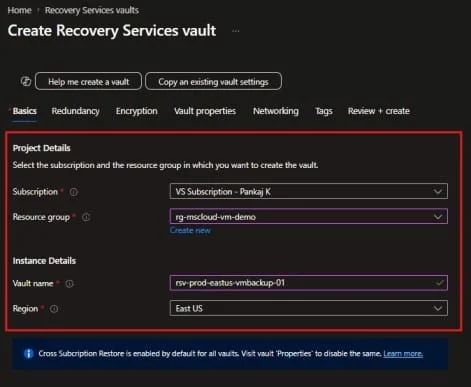
- Search for Recovery Services vaults and select Create.
- Select the subscription and resource group.
- Enter a vault name such as rsv-prod-eastus-vmbackup-01.
- Select the same region where your Azure VM is located.
- Leave the default value rest of the settings unless you want to modify any other settings.
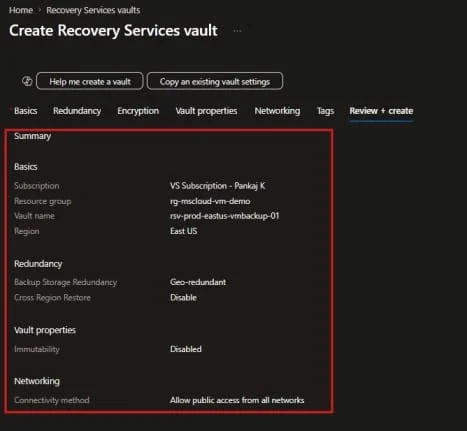
- Select Review + create, then Create.
- Open the Recovery Services vault and review Backup Configuration before enabling protection.
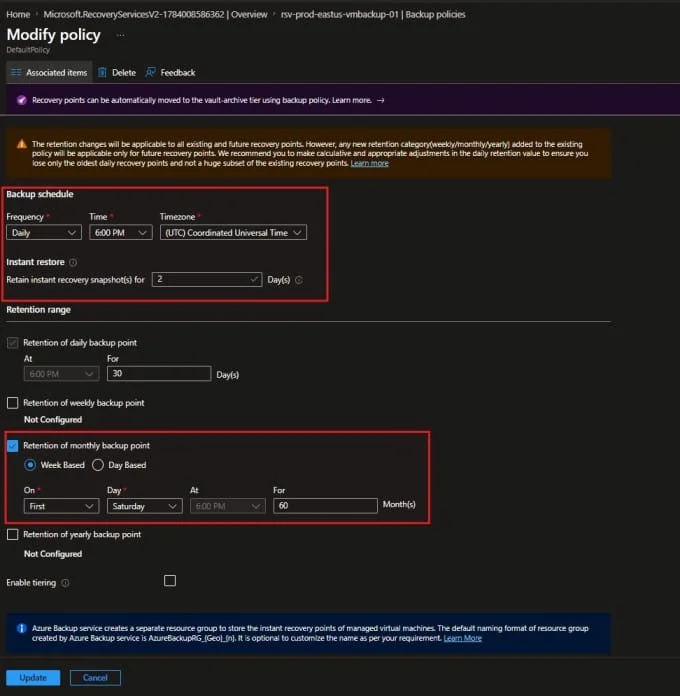
- Go to Backup policies, create or select an Azure Virtual Machine policy, and define schedule and retention.
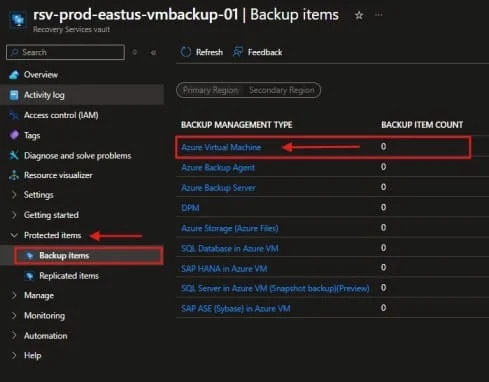
- Go to Backup items, Under the Protected Items, select Azure as the workload location, select Virtual machine.
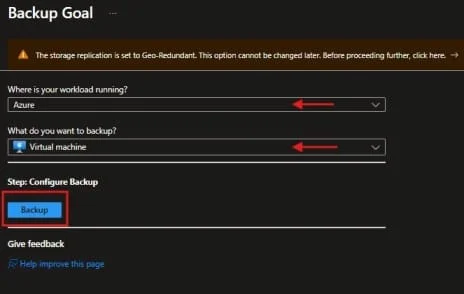
- Click on the + icon at the Top. Choose the Azure in the Workload running and VM on the Backup option and click on the Backup.
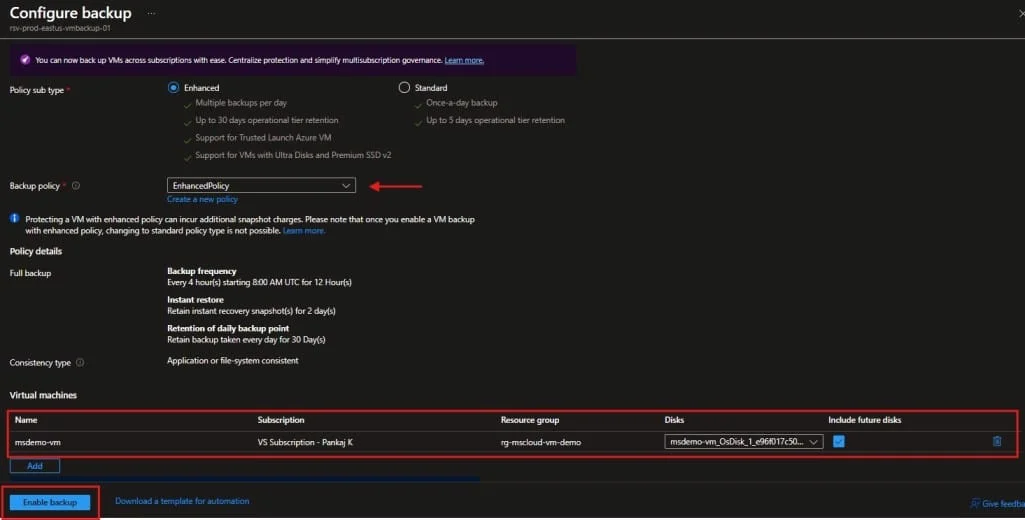
- choose the policy, Add the VM under the Virtual Machines,(If you are not able to find the VM that you want to Enable the backup, Please check the VM region you created) and enable backup.
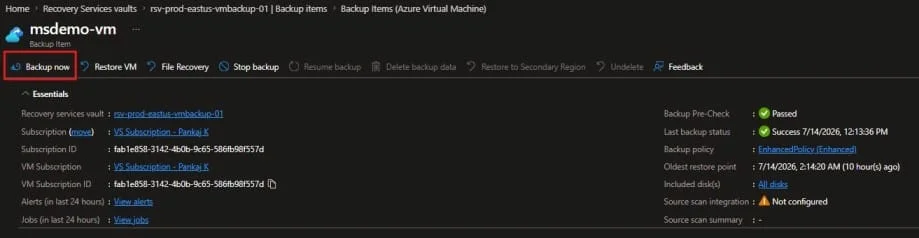
- After protection is enabled, select Backup now to create an initial recovery point.
| Common mistake: Do not create one Recovery Services vault in a random region and expect to protect all Azure VMs globally. For Azure VM backup, create the vault in the same region as the protected VM. Use separate vaults for separate regions when required. |
Method 2: Configure Azure VM Backup with PowerShell
PowerShell is useful when you need to standardize deployment or enable backup for multiple VMs.
Step 1: Connect to Azure
Connect-AzAccountSelect the subscription:
Set-AzContext -SubscriptionId "<Subscription-ID>"Step 2: Create a Recovery Services Vault
$resourceGroup = "rg-prod-backup"
$location = "EastUS"
$vaultName = "rsv-prod-eastus-vmbackup-01"

New-AzResourceGroup -Name $resourceGroup -Location $location

$vault = New-AzRecoveryServicesVault `
    -ResourceGroupName $resourceGroup `
    -Name $vaultName `
-Location $locationStep 3: Set Vault Context
Set-AzRecoveryServicesVaultContext -Vault $vaultStep 4: Create or Use a Backup Policy
To view existing backup policies:
Get-AzRecoveryServicesBackupProtectionPolicy `
-WorkloadType "AzureVM"Step 5: Enable Backup for a VM
$vmName = "vm-prod-app-01"
$vmResourceGroup = "rg-prod-app"

Enable-AzRecoveryServicesBackupProtection `
    -ResourceGroupName $vmResourceGroup `
    -Name $vmName `
-Policy $policyStep 6: Start an On-Demand Backup
$backupItem = Get-AzRecoveryServicesBackupItem `
    -BackupManagementType AzureVM `
    -WorkloadType AzureVM `
    -Name $vmName

Backup-AzRecoveryServicesBackupItem `
-Item $backupItemHow to Verify if Backup Is Enabled for an Azure Virtual Machine
After enabling backup, follow the steps below to confirm that your Azure Virtual Machine is successfully protected by Azure Backup.
Step 1: Open the Virtual Machine
- Sign in to the Azure Portal.
- Navigate to Virtual Machines.
- Select the Virtual Machine for which you recently enabled backup.
Step 2: Open the Backup Page
- In the Virtual Machine menu, navigate to Operations.
- Select Backup + Disaster recovery > Backup
- The Backup page displays the backup configuration and protection status for the virtual machine.
Step 3: Verify Protection Status
- On the Backup page, verify that the following status is displayed:
- If the status shows Protected, the Azure VM is successfully configured for backup.
Backup Status: Protected
Step 4: Verify the Last Backup Job
- Review the backup details and confirm the last backup job status.
- A status of Completed confirms that Azure Backup successfully created a recovery point for the virtual machine.
Step 5: Verify Recovery Points
- On the Backup page, select View Details or Recovery Points.
- Verify that one or more recovery points are available.
- The presence of recovery points confirms that backups are being created and stored successfully in the Recovery Services Vault.
Step 6: Verify Backup Jobs Optional
- You can also verify backup job status from the Recovery Services Vault.
- Confirm that recent backup jobs show Operation as Backup and Status as Completed.
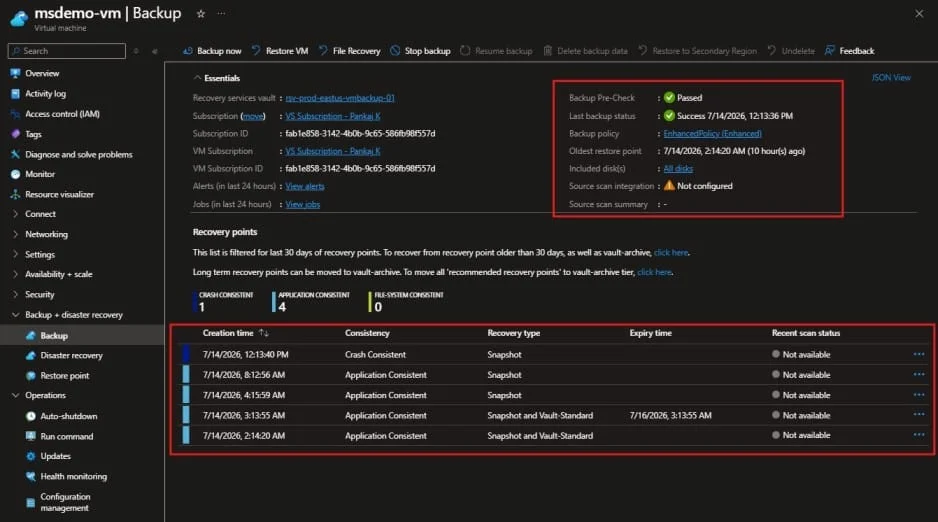
Details You Should See on the Backup Page
- Recovery Services Vault Name
- Backup Policy Name
- Last Backup Status
- Last Backup Date and Time
- Next Scheduled Backup
- Number of Available Recovery Points
Example Recovery Points
| Recovery Point Date | Status |
| July 14, 2026 | Completed |
| July 13, 2026 | Completed |
| July 12, 2026 | Completed |
Note:
A VM showing Protection Status = Protected confirms that backup is enabled. However, always verify that recovery points exist and recent backup jobs are completing successfully to ensure the VM can be restored when needed.
Architecture Overview
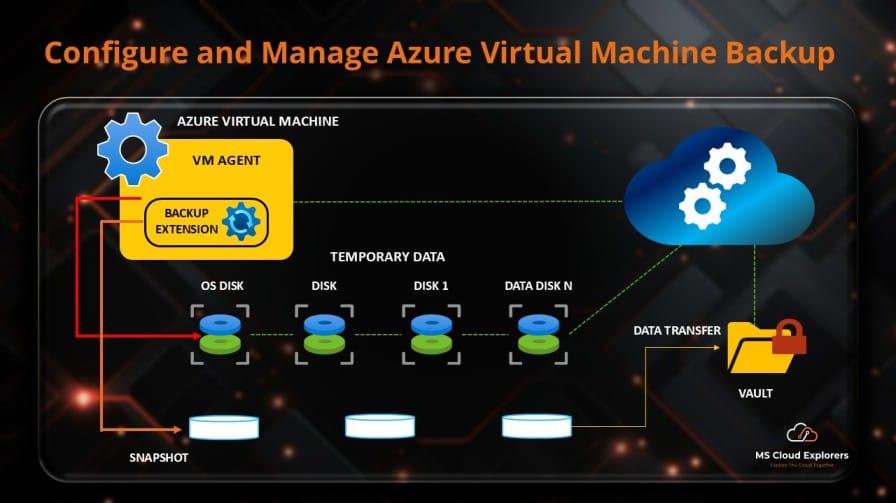
A recommended Azure VM backup architecture includes the Azure VM, VM backup extension, Azure Backup service, Recovery Services vault, backup policy, monitoring layer, and security controls. During the backup process, Azure Backup triggers the protection job based on the schedule, coordinates snapshot creation, and transfers backup data to the Recovery Services vault according to the configured policy and retention settings.
- Azure VM hosts the workload and attached OS/data disks.
- VM backup extension coordinates snapshot creation and application consistency where supported.
- Azure Backup service manages backup scheduling, job execution, and recovery point creation.
- Recovery Services vault stores and manages recovery points.
- Backup policy controls frequency and retention.
- Monitoring and alerts help administrators detect failed backup jobs or unhealthy backup items.
- Security controls such as soft delete, RBAC, resource locks, and vault monitoring reduce risk.
Azure VM Backup vs Azure VM Snapshot Restore
| Area | Azure VM Backup | Azure Managed Snapshot |
| Best use case | Production backup and recovery | Short-term disk copy or dev/test |
| Retention policy | Yes | No native backup retention policy |
| Monitoring | Centralized backup jobs and alerts | Limited |
| Application consistency | Supported depending on workload and OS | Manual process dependent |
| Full VM restore | Built-in restore workflow | Manual rebuild may be required |
| File-level restore | Supported | Not a native workflow |
| Long-term retention | Recommended | Not ideal |
Use azure restore vm from snapshot or azure vm restore from snapshot carefully. Snapshots are helpful before risky changes, but Azure Backup is the better long-term strategy for production workloads.
Restore Options for Azure VM Backup
Restore Azure VM from backup
Use this when the full VM is lost, corrupted, or accidentally deleted. In the portal, go to Recovery Services vault > Backup items > Azure Virtual Machine > select VM > Restore VM.
Restore disks
Use this when you want to recover OS or data disks and manually attach them to another VM or rebuild the VM in a controlled way.
File-level recovery
Use this when a user deletes a file or folder and you do not want to restore the full VM.
Cross-region restore
Use this for supported vault configurations when you need to restore in a secondary region for resilience or disaster recovery requirements.
Step-by-Step Guide: Restore Azure Virtual Machine from a Previous Backup
There may be situations where your Azure Virtual Machine becomes corrupted, accidentally deleted, impacted by a failed patch update, ransomware attack, operating system issue, or application misconfiguration. In these scenarios, Azure Backup allows you to restore the VM from a previously created recovery point stored in the Recovery Services Vault. Azure Backup supports restoring the entire virtual machine, individual disks, or specific files and folders.
Step 1: Open the Recovery Services Vault
- Sign in to the Azure Portal.
- Navigate to Recovery Services Vaults.
- Select the Recovery Services Vault that contains the backup of the virtual machine.
- Under Protected Items, select Backup Items.
- Select Azure Virtual Machine.
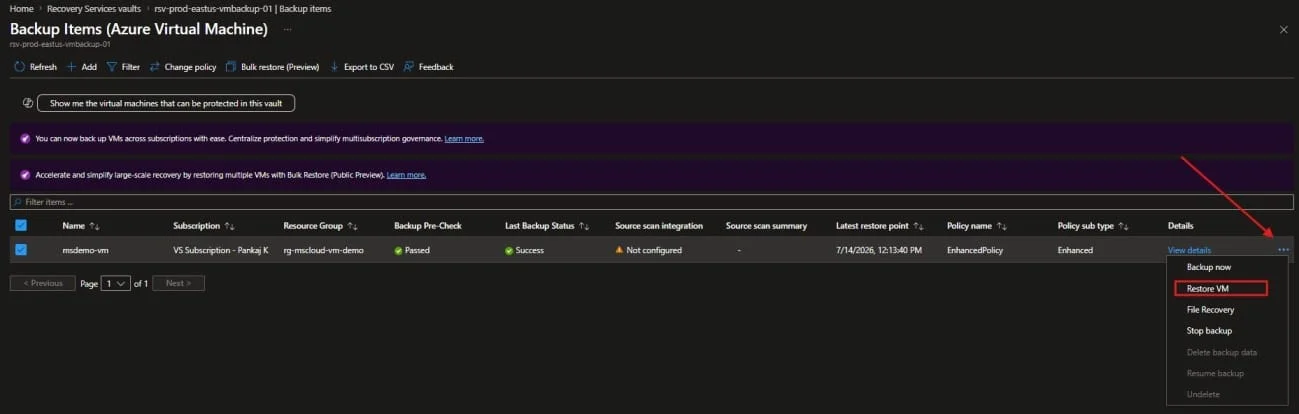
- Locate the virtual machine you want to restore, click the three dots (⋯) next to the VM, and select Restore VM (or File Recovery if you only need to recover files).
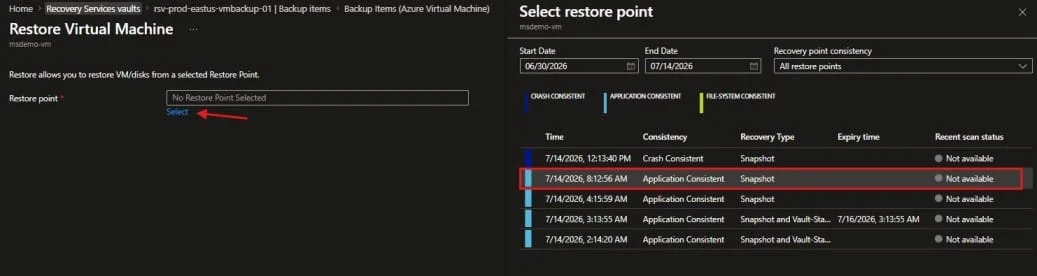
- Select the appropriate Restore Point from which you want to restore the virtual machine.
- Configure the required settings, including:
– Virtual Machine Name
– Resource Group
– Virtual Network (VNet)
– Subnet
– Storage Account
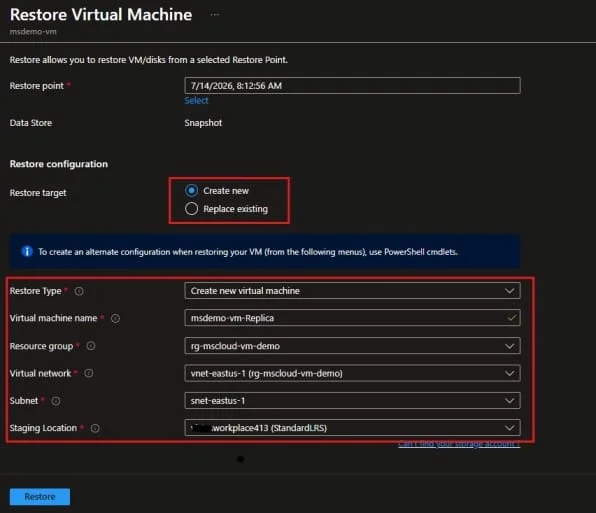
Note: Ensure a storage account is available in the selected region. If one does not exist, create a temporary storage account before starting the restore operation.
- Review the configuration and click Restore. Azure will validate the configuration before starting the restore process.
- Monitor the restore progress by navigating to:
- Recovery Services Vault
- → Backup Jobs
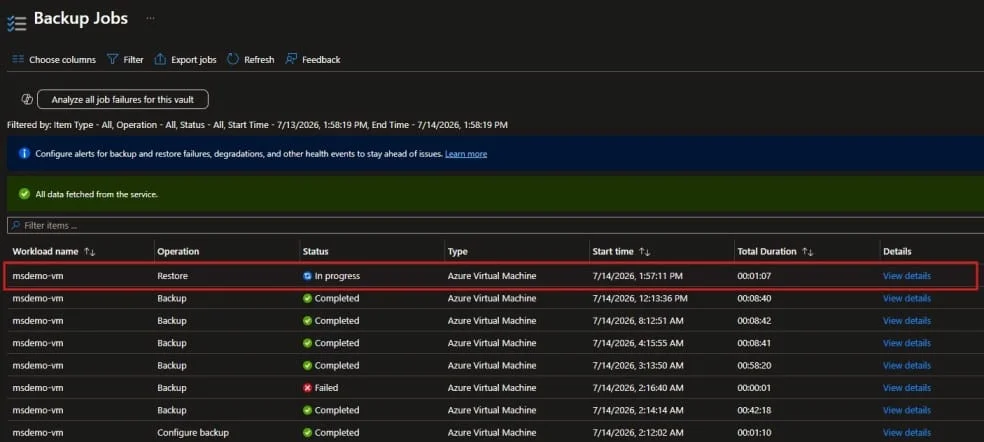
- Once the restore job is completed, a new virtual machine will be created. Navigate to Virtual Machines and verify that the restored VM is available.
- Connect to the restored VM using RDP (Windows) or SSH (Linux) and verify that the operating system, applications, and data are functioning correctly.
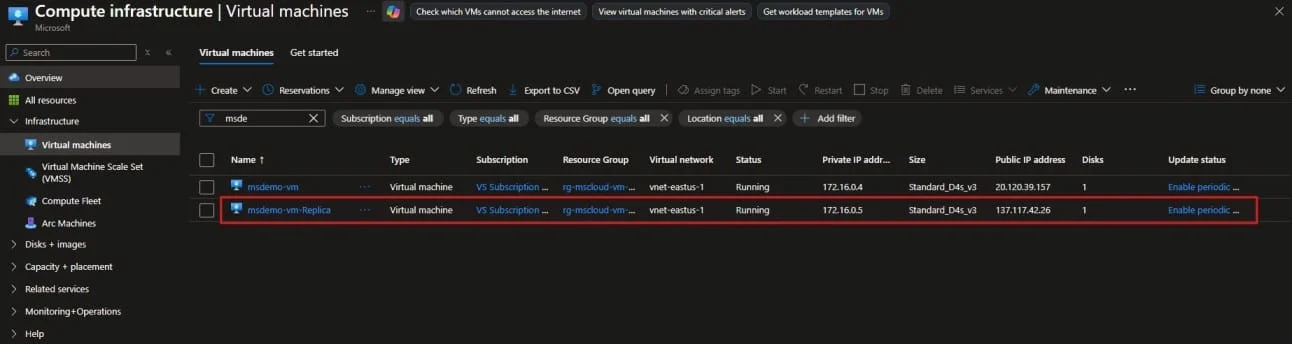
- If you plan to replace the existing virtual machine with the restored one, you can:
- Stop the old VM.
- Dissociate the existing Public IP Address from the old VM.
- Assign the Public IP Address to the restored VM.
- Validate connectivity and application functionality before decommissioning the old VM.
Best Practice: Always restore the backup to a new virtual machine first and verify functionality before replacing the production VM. This allows you to test the restored environment without impacting the existing workload.
Security Best Practices
- Enable soft delete for Recovery Services vaults to protect backup data from accidental or malicious deletion.
- Use least-privilege Azure RBAC. Assign Backup Contributor or Backup Operator instead of Owner when possible.
- Apply resource locks to critical Recovery Services vaults to reduce accidental deletion risk.
- Monitor backup deletion, policy modification, and restore activities using Activity Log and backup alerts.
- Separate VM administration and backup administration for critical workloads.
- Use private endpoints where network isolation is required for regulated environments.
- Document backup ownership, restore approval process, and emergency recovery process.
Monitoring and Troubleshooting
A backup strategy is only useful when backups are successful and restore has been tested. Review the following locations regularly:
- Recovery Services vault > Backup jobs
- Recovery Services vault > Backup alerts
- Recovery Services vault > Backup items
- Backup Center > Jobs
- Backup Center > Alerts
- Azure Monitor > Activity Log
- Log Analytics workspace if diagnostic settings are configured
| Issue | Possible Cause | Resolution |
| Backup extension failed | VM agent is unhealthy, extension provisioning is stuck, or OS is unsupported. | Check VM agent status, review Extensions + applications, then retry backup. |
| VSS writer failure | Application writer issue, disk space issue, pending reboot, or Windows service problem. | Run vssadmin list writers, restart related services, or reboot during maintenance window. |
| Backup job timed out | Large disk change rate, temporary platform issue, or performance bottleneck. | Retry backup, review VM health, and check job details. |
| Restore failed | Permission, quota, policy, lock, or target resource issue. | Confirm RBAC, subscription quota, target resource group, and Activity Log errors. |
Common Pitfalls
- Using snapshots as long-term backup instead of Azure Backup.
- Not testing restore after configuring backup.
- Creating the vault in the wrong Azure region.
- Using one retention policy for every workload without considering cost or criticality.
- Not using SQL-aware backup for SQL Server workloads that require database-level restore or lower RPO.
- Ignoring failed backup alerts until a real incident occurs.
Real-World Use Cases
Failed patch recovery
An IT Support Engineer applies monthly patches to a production application server. After reboot, the application fails. Because azure virtual machine backup was configured, the administrator restores the VM from the previous recovery point and reduces downtime.
Deleted file recovery
A user accidentally deletes an important application folder from a file server hosted on Azure VM. The administrator uses file-level recovery instead of restoring the full VM.
SQL Server protection
A company hosts SQL Server on Azure VM. The Cloud Architect uses VM-level backup for full machine recovery and Azure SQL VM backup for database-level restore requirements.
Deleted VM recovery
An administrator deletes a VM by mistake. Since backup was enabled before deletion, the team restores the deleted VM from the Recovery Services vault.
Ransomware recovery
A Security Analyst detects ransomware activity on a VM. The VM is isolated, investigated, and restored from a clean recovery point after validation.
Frequently Asked Questions
What is Azure virtual machine backup?
Azure virtual machine backup is an Azure Backup feature that protects Windows and Linux Azure VMs by creating recovery points in a Recovery Services vault.
How do I configure azure vm backup?
Create a Recovery Services vault, create or select a backup policy, select the Azure VM, enable backup, and run an initial backup.
What is the difference between Azure VM backup and Azure VM snapshot?
Azure VM backup is a managed backup service with policies, retention, monitoring, and restore workflows. A snapshot is a point-in-time disk copy and is better for short-term scenarios.
Can I restore Azure VM from backup?
Yes. You can create a new VM, restore disks, replace disks, or restore files depending on the recovery scenario.
Can I restore Azure VM from snapshot?
Yes, but the process is usually manual. You typically create a disk from the snapshot and then attach it or create a VM from it.
How much does Azure VM backup cost?
Azure VM backup cost depends on protected instance size, backup storage, retention duration, redundancy type, and data change rate.
Does Azure Backup support SQL Server running on Azure VM?
Yes. For azure sql virtual machine backup, use workload-aware SQL Server backup when you need database-level restore or point-in-time recovery.
Can Azure Backup restore individual files?
Yes. Azure Backup supports file-level recovery so you can restore individual files or folders without restoring the full VM.
Can I restore a deleted VM in Azure?
Yes, if backup was enabled before deletion. Restore the VM or disks from the Recovery Services vault recovery point.
Conclusion
Azure virtual machine backup is one of the most important protections for Azure IaaS workloads. Whether you manage application servers, file servers, domain controllers, SQL workloads, or business-critical systems, Azure Backup provides a reliable way to create recovery points and perform azure vm backup and restore when something goes wrong.
For production environments, do not rely only on snapshots. Use azure backup for vm with a Recovery Services vault, proper backup policies, secure vault settings, monitoring, and regular restore testing. Review azure vm backup cost and retention settings regularly so your backup strategy remains secure, compliant, and cost-effective.
If you are planning to configure backup of Azure VM, start with a pilot VM, validate backup and restore, document the process, and then scale using Azure Policy, PowerShell, Azure CLI, or Azure Resource Manager automation.
Microsoft References for Final Review
- How to Create Azure Virtual Machine Step-by-Step.
- Quickstart: Back up a VM with Azure Backup
- About Azure VM backup
- Backup and restore options for Azure VMs
- About Azure Virtual Machine restore
- Azure Backup documentation
Enjoyed the article?
We’d love to hear your thoughts—share your comments below!
For more insights, guides, and updates from the Microsoft ecosystem, be sure to subscribe to our newsletter and follow us on LinkedIn. Stay connected and never miss out on the latest tips and news!