Azure virtual machines are powerful, flexible, and easy to deploy. However, one common challenge for Azure Administrators, and Cloud Architects is controlling VM running costs. Many development, testing, training, and lab virtual machines are created for temporary work but accidentally remain powered on after business hours.
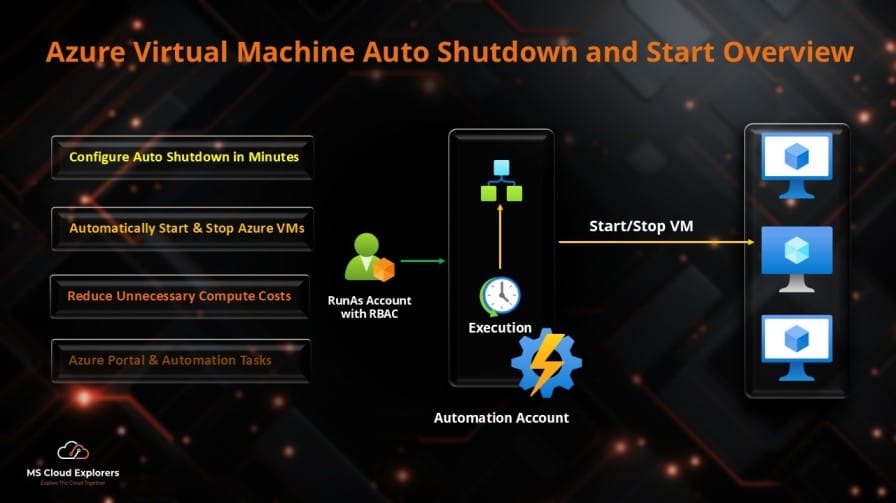
This is where azure virtual machine auto shutdown becomes very useful. Azure VM auto shutdown helps automatically stop a virtual machine at a scheduled time every day. This is especially useful for non-production workloads where the VM does not need to run 24/7.
By using auto shutdown Azure VM settings correctly, organizations can reduce unnecessary compute costs, improve operational discipline, and build better cloud cost management practices without adding complex automation for every small environment.
What Is Azure Virtual Machine Auto Shutdown?
Azure virtual machine auto shutdown is a built-in Azure feature that allows administrators to configure a daily scheduled shutdown time for an Azure VM. When enabled, Azure automatically shuts down the selected virtual machine at the configured time.
The feature is available directly on the virtual machine blade in the Azure portal under Operations > Auto-shutdown. Administrators can set the shutdown time, choose the correct time zone, and configure optional notification before shutdown using email or webhook.
In simple terms, auto shutdown vm Azure is a cost-control and governance feature. It is not designed to replace full enterprise scheduling, but it is excellent for single VMs, dev/test systems, training labs, demos, and temporary project servers.
Important: Azure VM auto shutdown is built in, but automatic startup usually requires additional automation such as Azure Automation, Azure Functions, Logic Apps, or Start/Stop VMs v2.
Benefits of Azure Virtual Machine Auto Shutdown
Cost optimization
When a VM is stopped and deallocated, compute charges stop. You may still pay for managed disks, backups, snapshots, public IPs, and other attached resources.
Reduced human error
Administrators and developers often forget to shut down temporary VMs. Auto-shutdown removes dependency on manual action.
Better governance
Cloud teams can define predictable rules such as shutting down dev/test VMs at 7:00 PM every day.
Operational consistency
A scheduled shutdown applies the same rule every day, improving cost discipline and environment hygiene.
Prerequisites
You need an active Azure subscription, an existing Azure virtual machine, and the correct Azure RBAC permissions to manage the VM.
If you implement azure virtual machine auto shutdown and start using Azure Automation, Azure Functions, Logic Apps, or Start/Stop VMs v2, those services may generate additional costs based on usage.
Required Permissions
- Virtual Machine Contributor for VM lifecycle management
- Contributor or Owner if broader resource management is required
- Managed identity with least-privilege access for automation workflows
Step-by-Step Implementation Guide azure virtual machine auto shutdown and start
Method 1: From the Azure Portal, set up Azure VM Auto Shutdown.
- Sign in to the Azure portal.
- Go to Virtual machines.
- Select the required VM.
- In the left menu, under Operations, select Auto-shutdown.
- Set Enable auto-shutdown to On.
- Choose the scheduled shutdown time.
- Select the correct time zone.
- Optional: Set Send notification before auto-shutdown to Yes.
- Add an email address or webhook URL.
- Select Save.
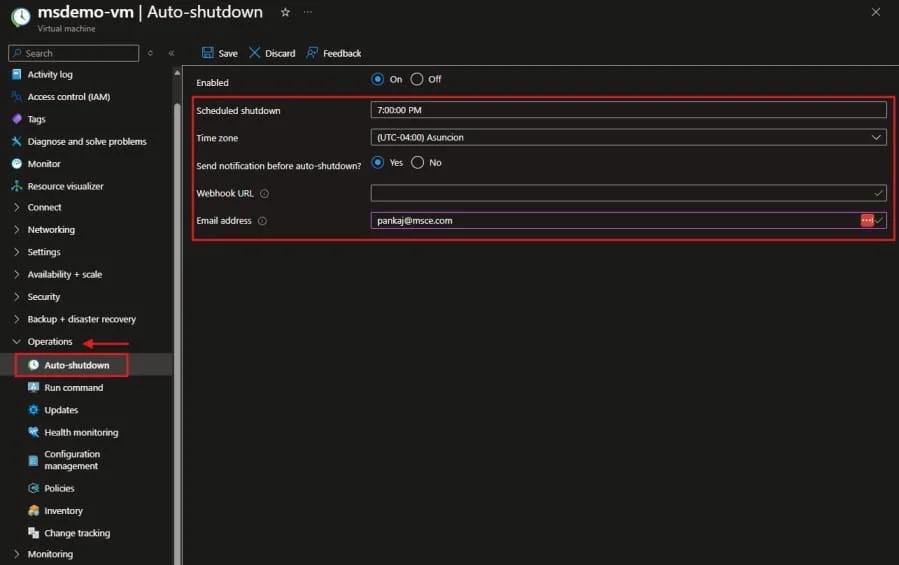
Example: If a development team works from 9:00 AM to 6:00 PM, configure shutdown at 7:00 PM, select the local business time zone, and send notifications to the cloud operations mailbox.
Create an Auto Shutdown Task from VM Automation Tasks
Follow these steps to create a scheduled task that stops or deallocates the Azure VM from the Automation > Tasks section shown in the Azure portal.
- Sign in to the Azure portal.
- Go to Virtual machines.
- Select the VM that you want to automate.
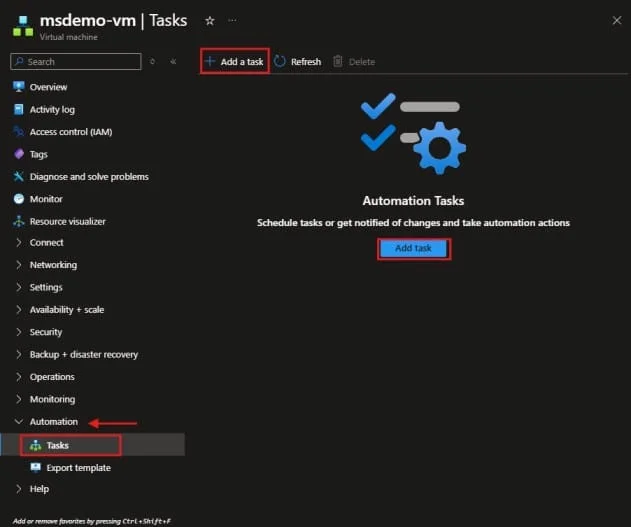
- Navigate to the Automation area by scrolling down from the Navigation menu on the left.
- Select Tasks.
- Click Add a task.
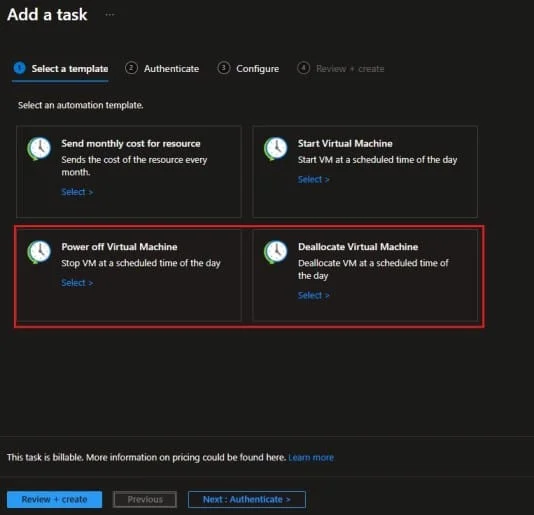
- From the available task templates, select Power off Virtual Machine or Deallocate Virtual Machine, depending on your requirement.
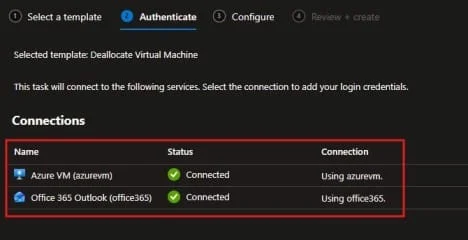
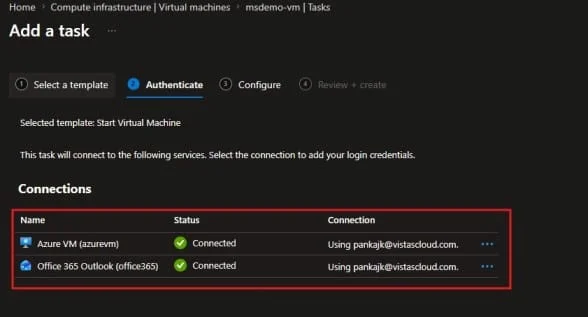
- Once you select the Templates, you need to authenticate the task scheduler with the account that has sufficient permission to create this task.
- Configure the task name, schedule frequency, interval, start time, and time zone.
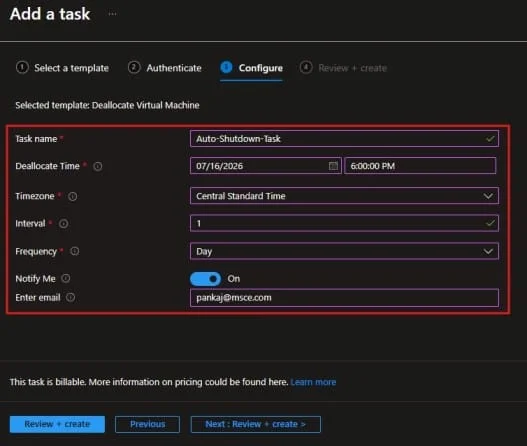
- Review the authentication or connection details required by the task.
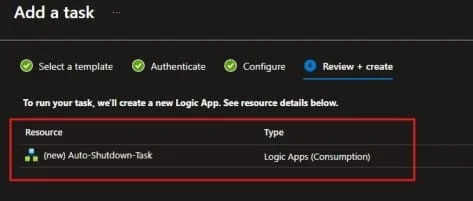
- Click Create to save and enable the shutdown task.
| Setting | Recommended Example | Description |
| Task template | Deallocate Virtual Machine | Stops and deallocates the VM to reduce compute cost. |
| Task name | Daily-VM-Shutdown | Use a clear name that describes the schedule and action. |
| Frequency | Day | Runs the task daily. |
| Interval | 1 | Runs once every day. |
| Start time | 6:00 PM | Time when the VM should be stopped. |
| Time zone | India Standard Time or business time zone | Always choose the correct business time zone. |
Create an Auto Startup Task from VM Automation Tasks
After creating the shutdown task, create a second task to automatically start the VM before users begin work.
- Open the same Azure VM in the Azure portal.
- Go to Automation > Tasks.
- Click Add a task.
- Select the Start Virtual Machine task template.
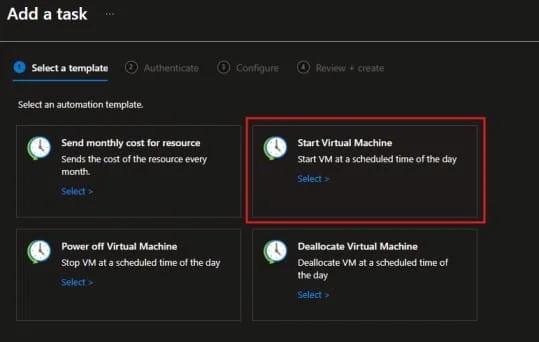
- Click Next or Continue.
- Enter a task name such as Daily-VM-Startup.
- Configure the schedule frequency, interval, start time, and time zone.
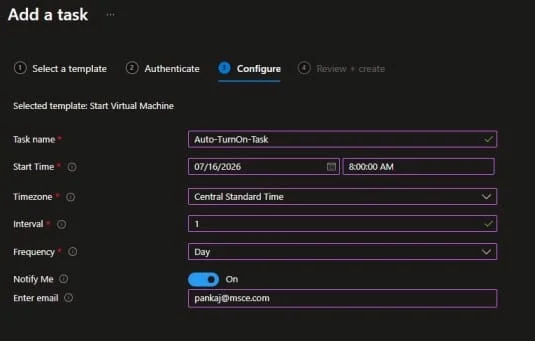
- Review the authentication or connection details.
- Click Create to save and enable the startup task.
| Setting | Recommended Example | Description |
| Task template | Start Virtual Machine | Starts the selected Azure VM. |
| Task name | Daily-VM-Startup | Use a clear name that describes the schedule and action. |
| Frequency | Day | Runs the task daily. |
| Interval | 1 | Runs once every day. |
| Start time | 8:00 AM | Time when the VM should be available. |
| Time zone | India Standard Time or business time zone | Use the same time zone as the shutdown task. |
Recommended Schedule Example
For a standard development or test VM, you can use the following schedule:
| Action | Task Template | Schedule Example | Purpose |
| Start VM | Start Virtual Machine | Daily at 8:00 AM | Makes the VM available before business hours. |
| Stop VM | Deallocate Virtual Machine | Daily at 6:00 PM | Reduces compute cost after business hours. |
How to Verify the Automation Tasks
- Open the Azure VM.
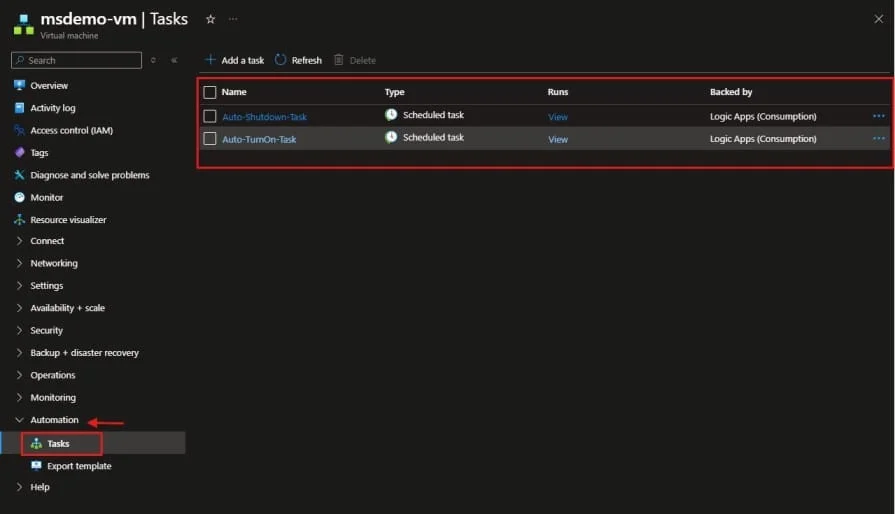
- Go to Automation > Tasks.
- Confirm that both startup and shutdown tasks are listed.
- Check that the tasks are enabled.
- Open each task and review the schedule configuration.
- After the first scheduled run, review the task run history to confirm whether the workflow completed successfully.
- Also review the VM Activity Log to confirm start, stop, or deallocate operations.
Architecture Overview
Small Environment Architecture
- Use Azure VM built-in auto-shutdown.
- Configure email notification.
- Manually start VMs when needed.
- Use Azure Cost Management budgets and alerts for visibility.
Medium to Enterprise Architecture
- Use VM tags for schedule classification.
- Use Azure Automation or Azure Functions for start and stop schedules.
- Use managed identity for authentication.
- Assign least-privilege RBAC permissions.
- Log executions to Log Analytics or Application Insights.
- Send notifications using Teams, email, or action groups.
Recommended architecture: Create a centralized automation resource group that contains the Automation Account or Function App, managed identity, schedules, runbooks or functions, logging workspace, and alerting configuration. Target VMs should be controlled using tags such as AutoShutdown, AutoStart, Environment, and Owner.
Security Best Practices
Use managed identity
Avoid storing usernames, passwords, client secrets, or certificates in scripts.
Apply least privilege
Use Virtual Machine Contributor at the required scope instead of broad Owner permissions.
Limit automation scope
Assign access at VM or resource group level whenever possible.
Protect automation resources
Users who can edit automation schedules may indirectly control VM start and stop behavior.
Monitor changes
Monitor Activity Log events for tag changes, automation updates, RBAC modifications, and virtual machine operations.
Exclude production workloads
Use tags such as Environment = Production and AutoShutdown = Disabled to prevent accidental shutdowns.
Monitoring and Troubleshooting
Logs to Review
| Area | Where to Check | What to Look For |
| Azure Activity Log | VM > Activity log | Stop, deallocate, authorization, and failed operation events |
| Automation Account Jobs | Automation Account > Jobs | Runbook errors, authentication failures, script output |
| Function App Logs | Function App > Monitor or Application Insights | Trigger failures, managed identity errors, execution traces |
| VM Power State | Azure CLI or portal Overview | Verify whether the VM is running, stopped, or deallocated |
Common Errors and Resolution Steps
| Issue | Possible Cause | Resolution |
| Azure VM auto shutdown not working | Auto-shutdown disabled, wrong time zone, incorrect time, or VM recreated | Confirm Auto-shutdown settings, verify time zone, review Activity Log, and reconfigure using portal or Azure CLI |
| VM stops but does not start automatically | Built-in auto-shutdown does not equal auto-start | Configure Azure Automation, Azure Functions, Logic Apps, or Start/Stop VMs v2 |
| Runbook authorization error | Managed identity lacks RBAC permission | Assign Virtual Machine Contributor at the correct scope |
| Shutdown notification not received | Notification disabled, email typo, or mail filtering | Enable notifications, validate email address, check junk/quarantine, or use webhook |
| Wrong VM stopped | Broad automation target or weak tagging | Use clear tags, exclusions, approvals, and test scope before production rollout |
Common Pitfalls
- Selecting the wrong time zone and assuming the schedule uses local time.
- Expecting auto-start from the built-in auto-shutdown setting.
- Applying shutdown automation to production VMs without approvals or exclusions.
- Not informing end users before shutdown.
- Forgetting that storage, snapshots, backups, and other resources can still generate costs after compute is stopped.
- Using hardcoded VM names instead of scalable tag-based automation.
Real-World Use Cases
Development Team VMs
A development team uses Azure VMs from 9:00 AM to 6:00 PM. Configure auto shutdown Azure VM at 7:00 PM and optionally start the VM at 8:30 AM using Azure Automation.
Training Lab Environment
A training team creates 20 lab VMs for a one-week program. Configure auto shutdown vm in Azure at the end of each training day to prevent unnecessary compute spend.
Azure Virtual Desktop Auto Shutdown
Azure Virtual Desktop session hosts may not need to run 24/7. To move unused session hosts after business hours, use automation, Start VM on Connect, or scaling plans.
Demo and Proof-of-Concept VMs
Cloud Architects often create demo VMs for short-term testing. Enable azure auto shutdown vm, add owner and expiry tags, and review resources after the demo ends.
Frequently Asked Questions
What is azure virtual machine auto shutdown?
Azure virtual machine auto shutdown is a built-in Azure feature that automatically shuts down a VM at a scheduled daily time. It is mainly used to reduce compute costs for non-production workloads.
Does Azure VM auto shutdown reduce cost?
Yes. When the VM is stopped and deallocated, compute charges stop. You may still pay for managed disks, snapshots, backup, public IPs, and other associated resources.
How do I enable auto shutdown Azure VM?
Go to Azure Portal > Virtual machines > select VM > Operations > Auto-shutdown. Enable the setting, choose the shutdown time and time zone, configure notification if required, and save.
Can Azure automatically start a VM after shutdown?
The built-in auto-shutdown feature is mainly for shutdown. For azure vm auto shutdown and startup, use Azure Automation, Azure Functions, Logic Apps, or Start/Stop VMs v2.
What is the Azure CLI command for az vm auto shutdown?
Use az vm auto-shutdown –resource-group <resource-group-name> –name <vm-name> –time <HHMM>. You can also add –email to send notification.
Why is azure vm auto shutdown not working?
Common reasons include wrong time zone, auto-shutdown not enabled, incorrect schedule, VM recreated after configuration, or confusion between shutdown and startup automation.
Can I configure auto shutdown azure vm when idle?
The built-in auto-shutdown feature is schedule-based, not idle-based. For idle-based shutdown, create custom automation that reviews metrics such as CPU, network, or user sessions before stopping the VM.
Can I use auto shutdown for production VMs?
It is not recommended unless there is a clear business requirement and approval. Production workloads should be carefully reviewed before applying shutdown automation.
Does auto-shutdown delete the VM?
No. Auto-shutdown stops and deallocates the VM. It does not delete the VM, disks, NICs, or related resources.
Can I configure azure virtual machine auto shutdown and start for multiple VMs?
Yes. Use Azure Automation, Azure Functions, Start/Stop VMs v2, or tag-based scripts to control VM startup and shutdown schedules at scale.
Conclusion
Azure virtual machine auto shutdown is one of the simplest and most effective ways to control Azure VM costs. For individual VMs, the built-in auto shutdown Azure VM option in the Azure portal is quick and easy to configure. For larger environments requiring azure vm auto shutdown and startup, Azure Automation, Azure Functions, Logic Apps, or Start/Stop VMs v2 provides better scalability and control.
The best approach is to use built-in auto-shutdown for single dev/test VMs, Azure CLI for repeatable configuration, automation for enterprise scheduling, and tags for scalable governance. Always validate time zones, permissions, notification settings, and production exclusions before enabling shutdown automation widely.
By properly implementing azure auto shutdown, IT teams can reduce wasted compute spend, improve governance, and keep Azure environments better organized.
Microsoft References for Final Review
- Auto-shutdown a Virtual Machine – Azure Virtual Machines
- Create Automation Tasks to Manage Azure Resources
- Start/Stop VMs v2 Overview
- Deploy Start/Stop VMs v2 in Azure
- Azure CLI Reference: az vm auto-shutdown
- Azure Virtual Machine Cost Management Best Practices
- Azure Automation Documentation
- Managed Identities for Azure Resources
- Monitor Azure Virtual Machines
- Azure Virtual Machine Power States and Billing
Enjoyed the article?
We’d love to hear your thoughts—share your comments below!
For more insights, guides, and updates from the Microsoft ecosystem, be sure to subscribe to our newsletter and follow us on LinkedIn. Stay connected and never miss out on the latest tips and news!