

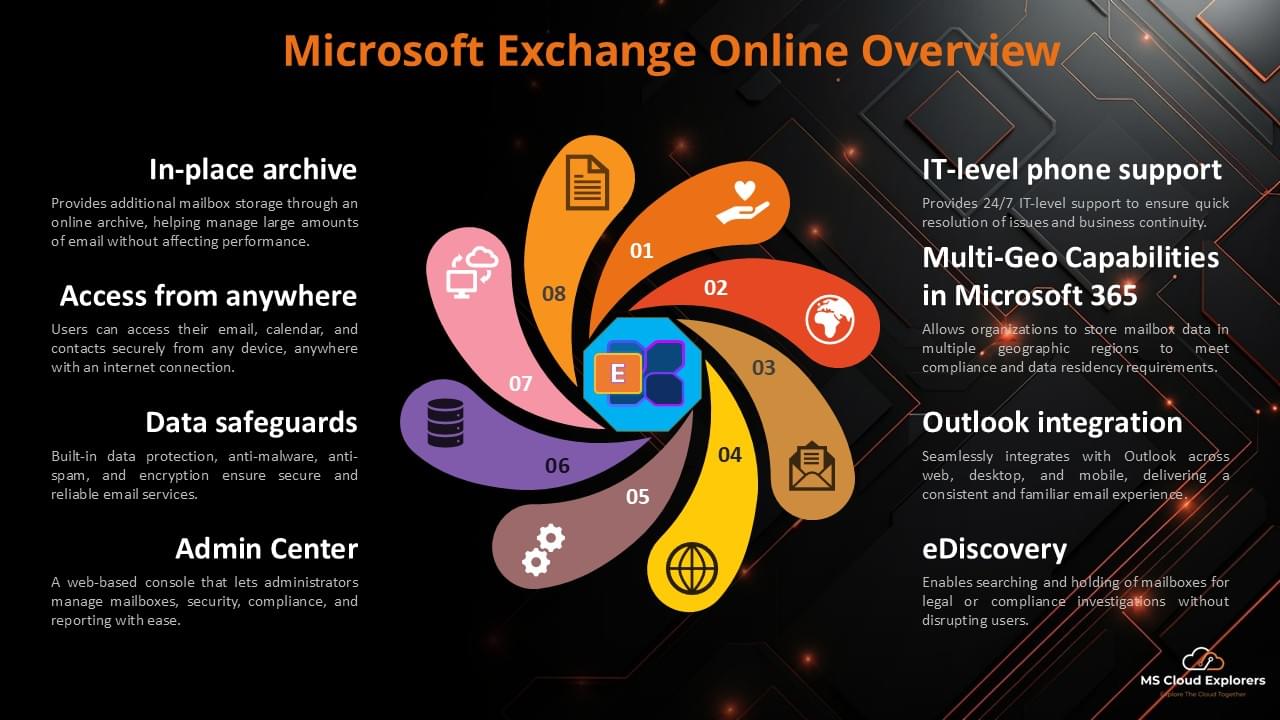
Email is an important part of everyday work. People use it to communicate, schedule meetings, and share information. To do this safely and reliably, organizations need a good email system. Exchange Online is Microsoft’s cloud-based email service, and it is included with Microsoft 365.
Exchange Online lets users send and receive emails, manage calendars, and store contacts in one place. Because it is cloud-based, users can access their email from anywhere using Outlook, a web browser, or a mobile phone. Administrators do not need to manage servers, and Microsoft takes care of security, updates, and availability.
Key Features of Exchange Online
- Email Hosting: Manage emails for your organization with custom domain support.
- Calendars and Scheduling: Set up shared calendars for team collaboration.
- Contacts Management: Store and manage contacts for easy access across devices.
- Mobile Access: Access emails and calendars on the go with mobile apps.
Benefits of Exchange Online for Businesses
Improved Productivity
Exchange Online works smoothly with Microsoft Outlook, so users can access email, calendars, and contacts from one place (Outlook Desktop Client or New Outlook app or Outlook on the web (OWA). This makes daily work easier and users can choose the outlook version as per their convenient.
Built-In Security
Exchange Online includes built-in security features such as spam filtering, malware protection, phishing protection, safe links and safe attachment protection as well as user can send and receive encrypted emails. Microsoft regularly updates these protections options, so the Administrators only need to configure the right protection according to the environment. We have published the blog on how to configured these protections step-by-step. Check out the link and start configuring the right configuration for your organization.
Better Communication and Collaboration
Exchange Online is part of the Microsoft 365 subscription and it is tightly integrated with the with other Microsoft 365 services like Microsoft Teams, SharePoint Online and OneDrive. Which means users can schedule meetings, share calendars, and communicate easily across different apps. This helps teams stay connected and work together more effectively.
Exchange Online vs. Exchange On-Premises
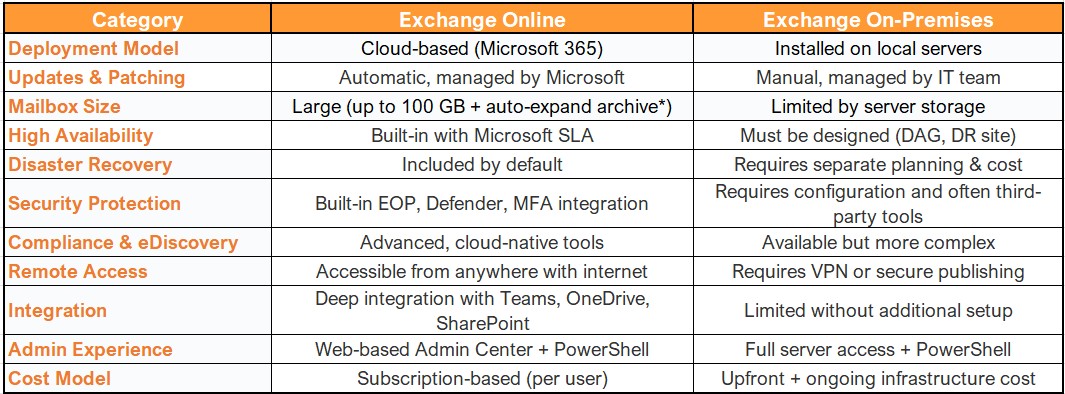
* Auto-expanding archive depends on licensing.
How Exchange Online Works
Basic Features of Exchange Online
Exchange Online is Microsoft’s cloud-based email service. It lets people send, receive, and store emails safely. It also includes calendars to schedule meetings, contacts to save email addresses, and tasks to help users keep track of their work. Everything is available in one place and works smoothly on computers, web browsers, and mobile phones, so users can stay connected wherever they are.
Working with Other Microsoft 365 Apps
Exchange Online works closely with other apps in Microsoft 365. For example, users can schedule meetings in Outlook that appear automatically in Microsoft Teams. Email attachments can be saved to OneDrive, and calendars can be shared with teams using SharePoint. Microsoft 365 Groups allow teams to share a mailbox, calendar, files, and conversations in one shared space. Also Microsoft recently introduced the copilot that help users write emails, summarize long messages, and suggest replies using AI. These all connections make employee’s work simpler and more efficient.
Setting Up Exchange Online
Subscription Plans and Pricing
Exchange Online is available through different Microsoft 365 plans. Common options include Business Basic, Business Standard, Business Premium, and Enterprise plans. Users can also choose Exchange Online Plan 1 or Plan 2 if they do not need the full Microsoft 365 suite. The right plan depends on the number of users and the features required by the organization.
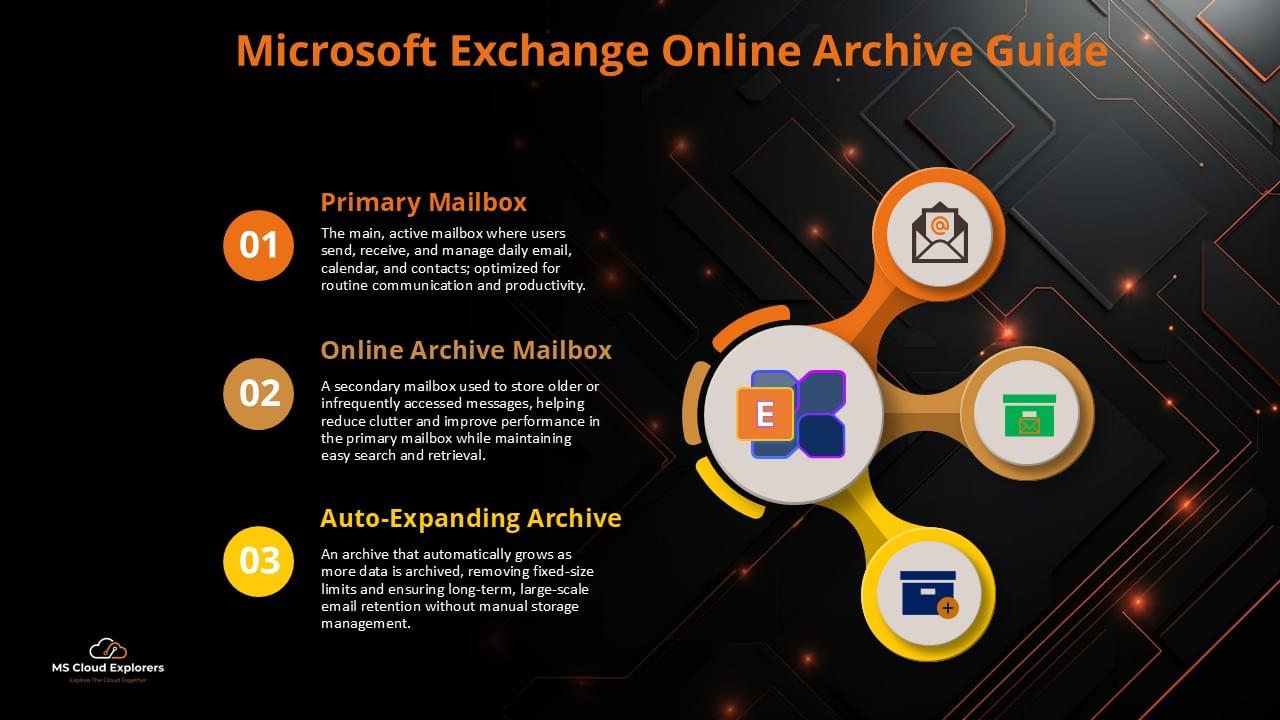
Microsoft 365 Business and Enterprise plans include the complete Microsoft 365 suite, along with Exchange Online. Exchange Online Plan 1 provides a 50 GB mailbox per user. If more storage is needed, users can upgrade to Exchange Online Plan 2, which offers a 100 GB mailbox. In addition, the Exchange Online Archiving feature can be enabled to further increase mailbox storage. With Plan 2 and online archiving enabled, the total mailbox storage can grow to up to 1.6 TB.
To better understand online email archiving, you can refer to a blog that explains how Exchange Online Archiving works and how it can be enabled.
Initial Setup and Configuration
After choosing a plan, the setup process usually begins with creating user accounts. Administrators then configure DNS records so the organization can use a custom email domain. Once this is completed, email policies and basic security settings can be applied to protect users and manage mail flow.
To add a custom domain name in Microsoft 365, check out the step-by-step guide.
For professional assistance with Exchange Online setup or management, contact us at Support@mscloudexplorers.com.
Managing Users and Mailboxes in Exchange Online
Creating and Managing User Mailboxes
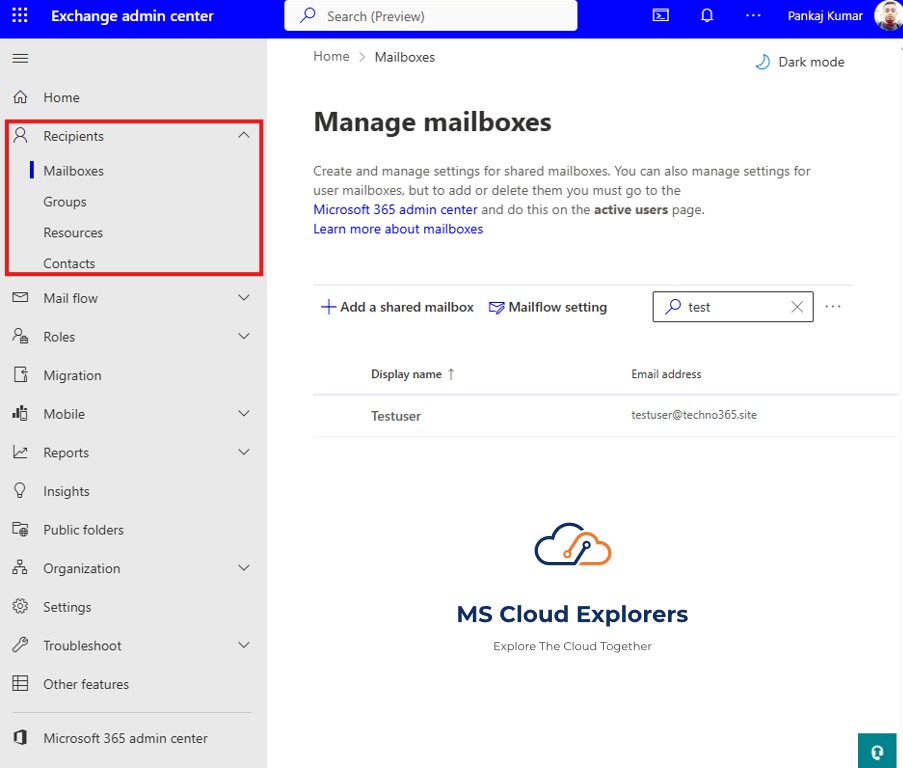
Administrators can create user mailboxes from the Microsoft 365 admin center. During this process, the appropriate licenses are assigned so users can access email and other services. Admins can also manage mailbox settings and grant mailbox access to other users when required.
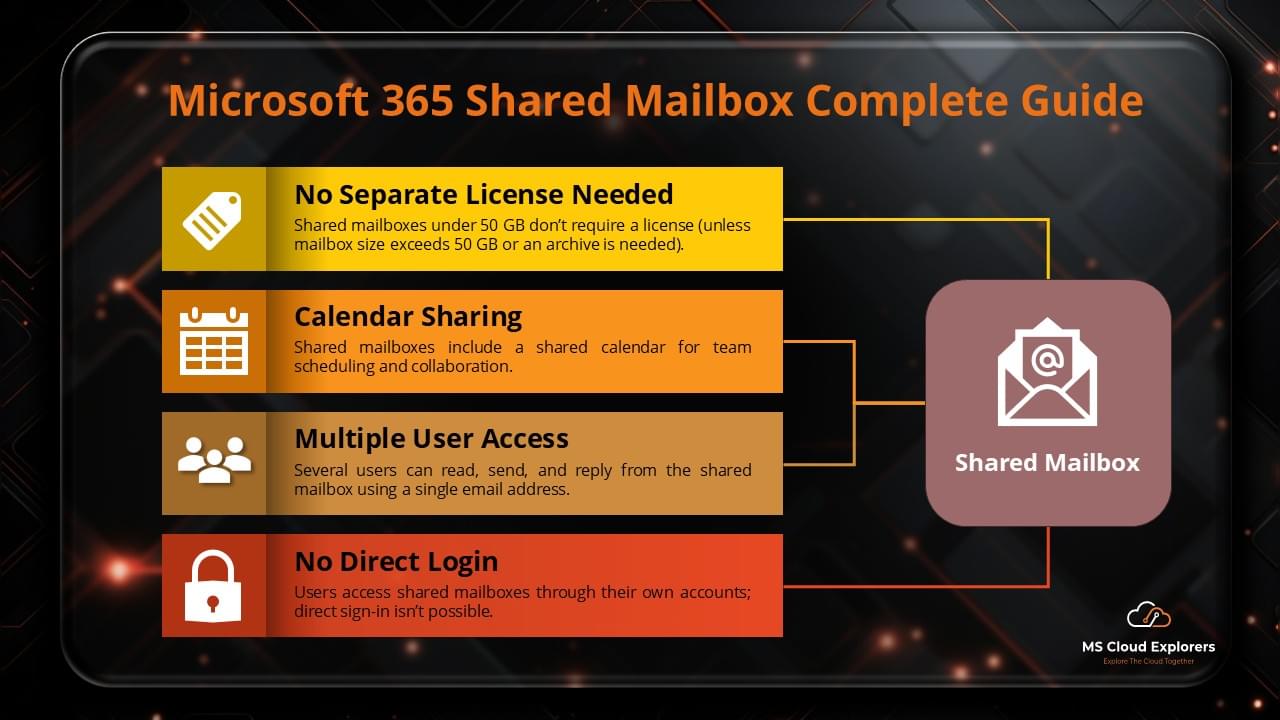
Exchange Online allows administrators to control who can access a mailbox and what level of access they have. For example, an admin can create a shared mailbox that multiple users can access to manage emails together, such as a support or sales mailbox. Administrators can delegate permissions like Read access, Send As, or Full access, depending on the user’s role and responsibility.
Users who are granted access to a shared or another user’s mailbox do not need a username or password for that mailbox. The mailbox is added automatically to their Outlook, allowing them to read, send, and manage emails directly from their own account.
To understand these permissions and how shared mailboxes works in more detail, please check out our dedicated blog on this topic.
Customizing Exchange Online
Mail Flow Rules
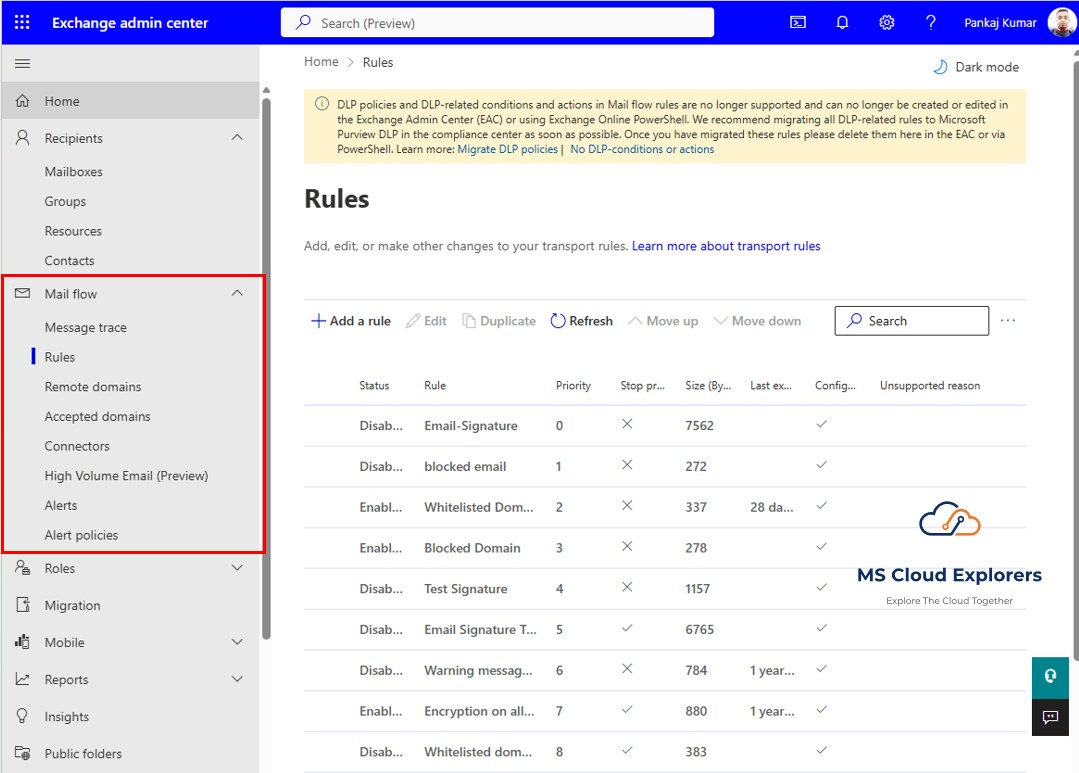
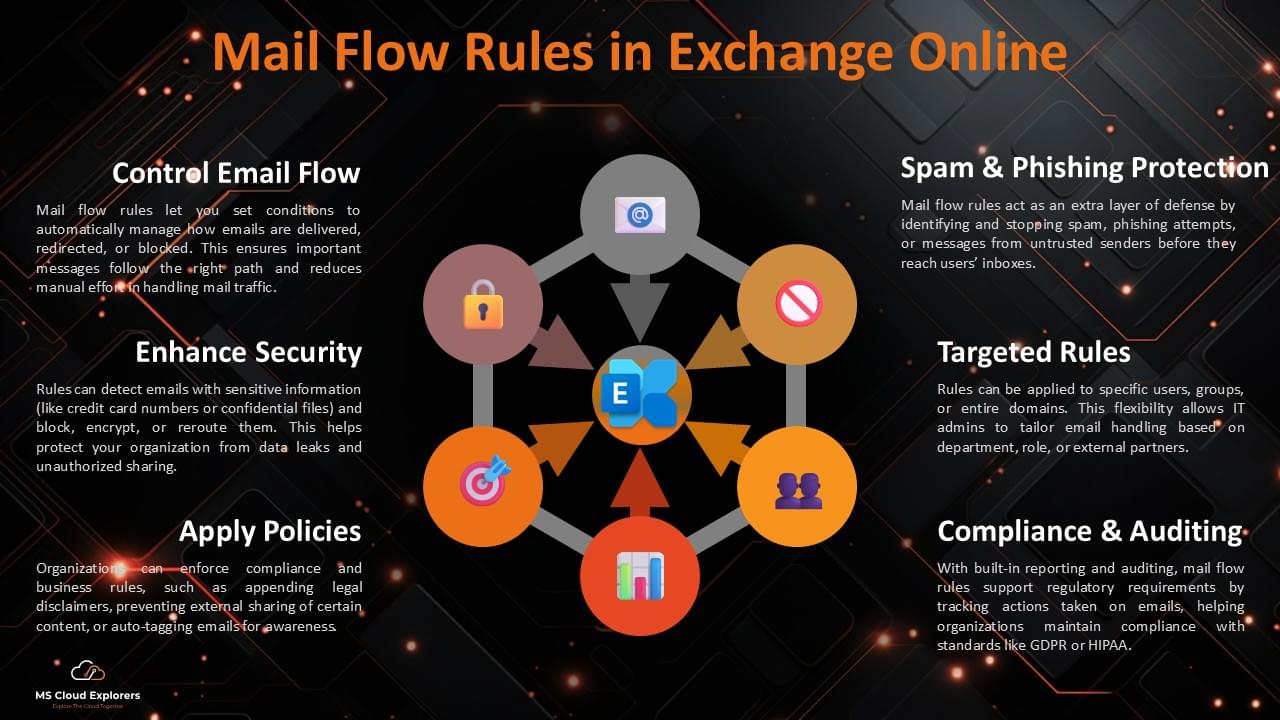
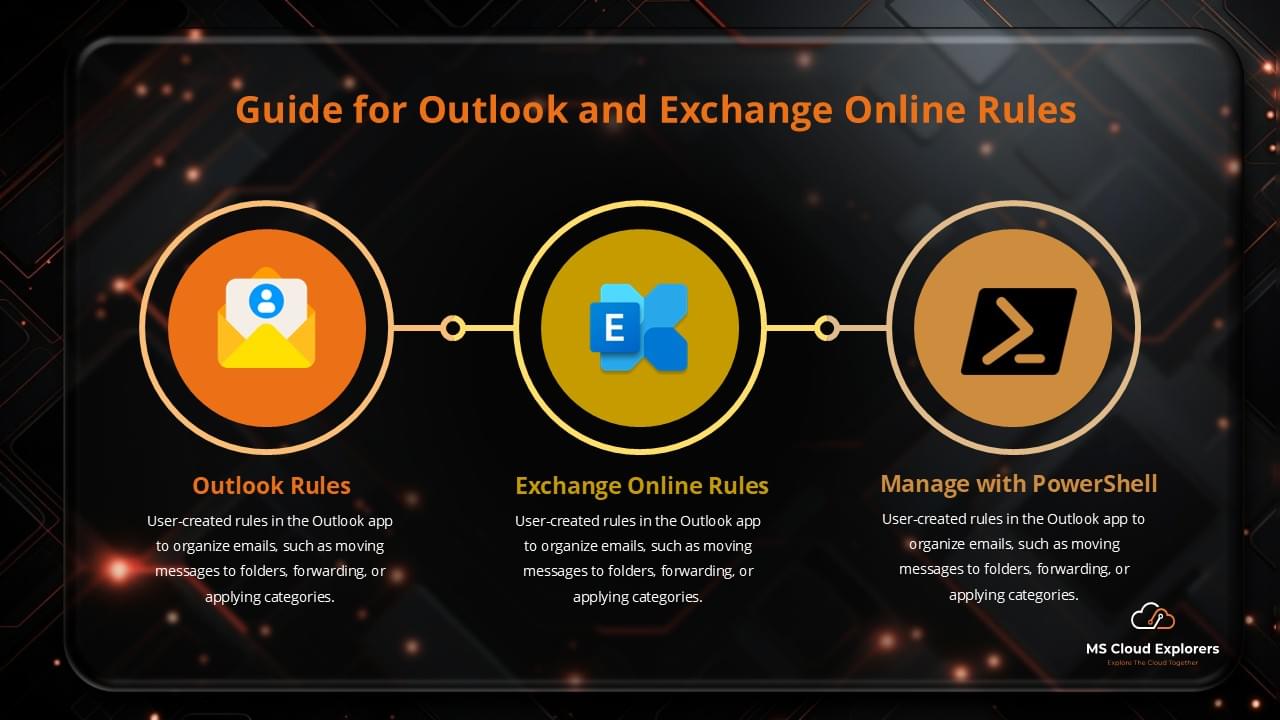
Mail flow rules, also known as transport rules, work similarly to Outlook rules, but they are applied before an email reaches the end user’s mailbox and offer much more functionality. These rules can perform actions such as adding disclaimers, blocking specific messages, or redirecting emails based on defined conditions.
To better understand how mail flow rules work and how to implement them in your environment, please check out our detailed blog: Mail Flow Rules in Exchange Online
Email Signatures and Branding
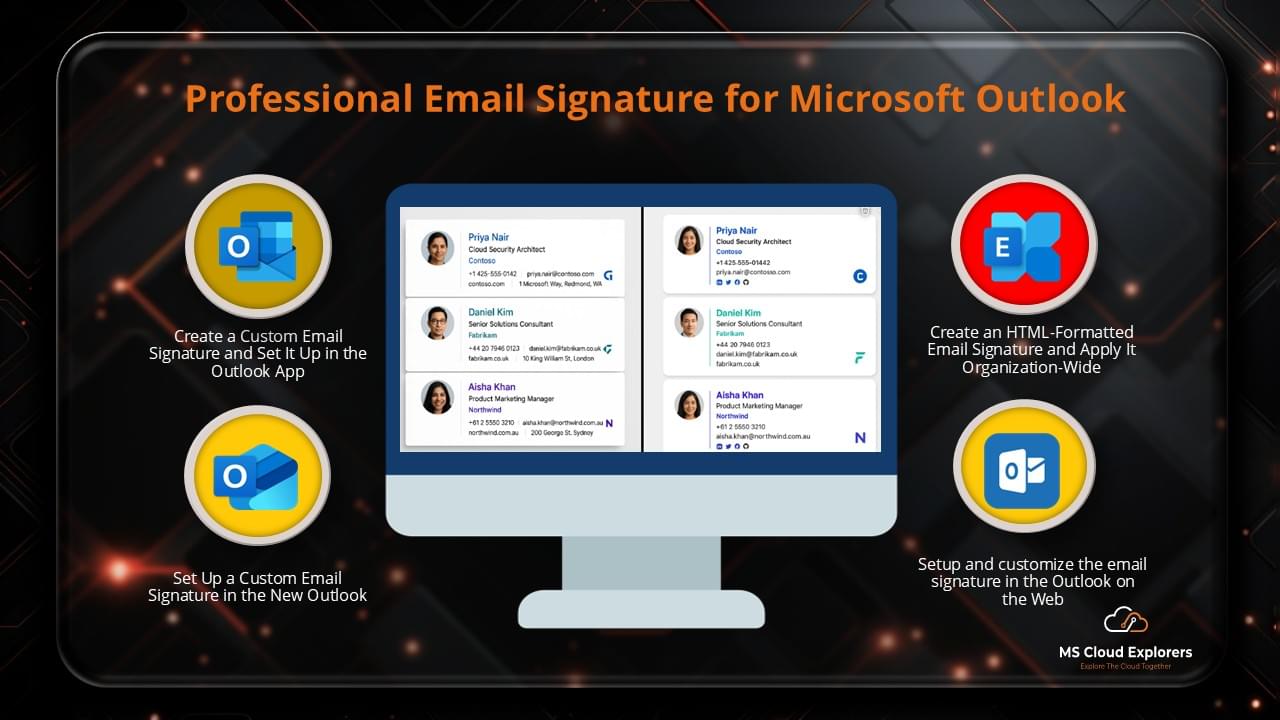
Organizations can set up standard email signatures for users to ensure a consistent company name, logo, and contact information in all outgoing emails. For advanced customization and better branding, you can use third-party tools such as Letsignit or CodeTwo.
If you prefer a free email signature solution without any third-party integration, you can check out our blog that explains all the available options for setting up email signatures for Microsoft 365 user accounts.
Working with Microsoft Teams and Other Apps
Exchange Online and Microsoft Teams
Exchange Online is integrated with Microsoft Teams. Meetings scheduled in Outlook appear in Teams automatically, making communication and scheduling simple and connected.
Outlook, OneDrive, and SharePoint Integration
Exchange Online integrates tightly with Outlook for email and calendar access. Attachments can be saved to OneDrive, and files can be shared through SharePoint, making teamwork easier.
Mobile Access to Exchange Online
Users can access Exchange Online on mobile devices using the Outlook mobile app, which lets them check emails, manage calendars, and view contacts while on the move. Emails, calendars, and contacts sync automatically across all devices, so any change made on one device is updated everywhere, ensuring users always see the most up-to-date information.
Data Backup, Recovery, and Compliance in Exchange Online
Exchange Online helps you manage emails automatically with built-in features called MRM tags. If you accidentally delete an email, it first stays in your Deleted Items folder for 30 days. After that, it moves to the Recoverable Items folder for another 14 days before being permanently deleted. If you want to keep emails longer, and avoid to permanently purged, you can set up a Data Retention Policy in Microsoft 365 to protect important messages from being permanently removed. Check out our blog for a step-by-step guide on how to set this up.
Microsoft 365 Data Retention Policies let organizations decide how long emails should be kept. Even if a user deletes an email, the system can keep a copy in the litigation hold for a specific time period based on the date retention policy. This helps organizations meet legal and compliance rules, like GDPR, without needing extra tools.
Exchange Online also offers features like email archiving to safely store older emails while keeping mailboxes organized, and Litigation Hold to preserve important emails. For legal or compliance purposes, you can use eDiscovery and Content Search to find, restore, or investigate emails when needed.
To learn more about these features, including how retention policies, archiving, and eDiscovery work, check out our complete guide on Exchange Online compliance and data protection.
Troubleshooting Common Exchange Online Issues
Resolving Syncing Issues
Sometimes emails, calendars, or contacts may not sync correctly. This is often caused by internet connectivity problems, outdated apps, or account configuration issues. In most cases, checking the service status, restarting the app, or signing in again helps resolve the problem.
Fixing Email Delivery Problems
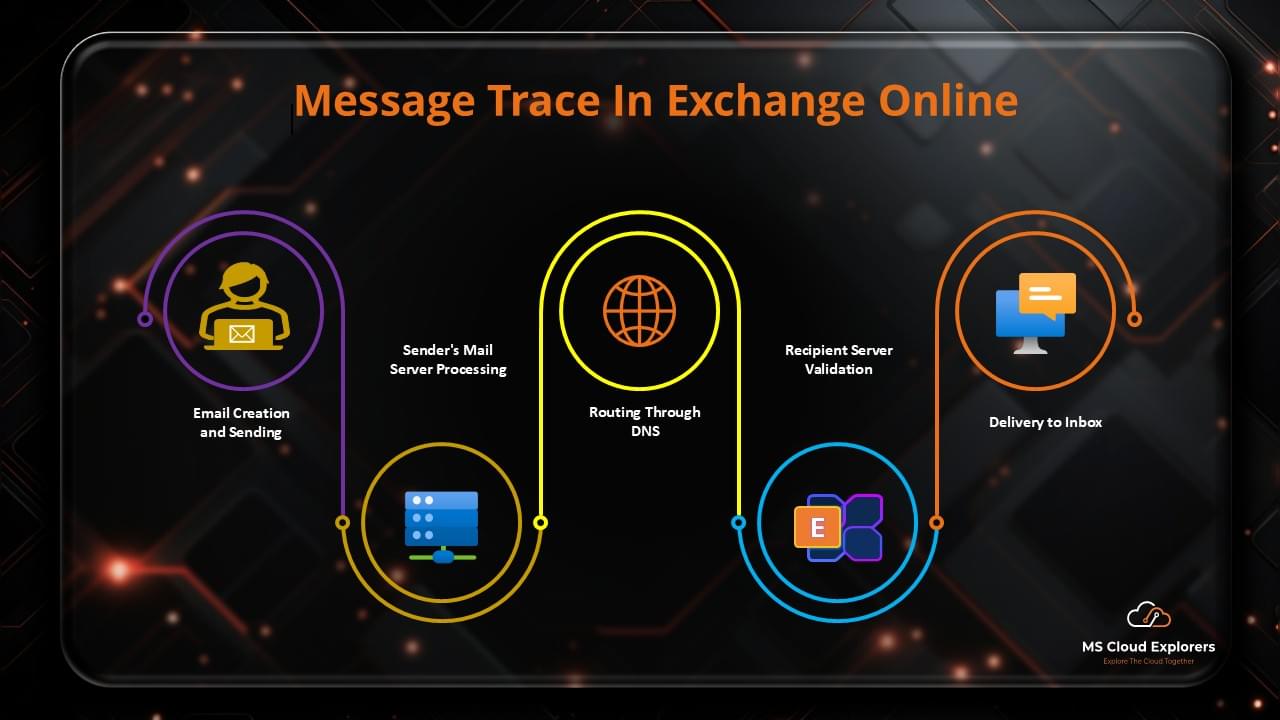
When emails are delayed or not delivered, the first step is to check mail flow settings. Message trace can help confirm whether an email was delivered, blocked, or filtered. Security policies and spam filters should also be reviewed to make sure legitimate emails are not being blocked.
Explore the Data Backup option for Microsoft 365
There are a few built-in features that you can use to protect Exchange Online mailbox data. If you have specific compliance requirements for data backup and restore, you can also use third-party software. We have published a blog on Microsoft 365 Backup and Restore options and how they work.
Conclusion
Exchange Online is part of the Microsoft 365 subscription and is a powerful, secure, and flexible solution for businesses looking to manage email communication efficiently. With robust security features, seamless integrations, and easy setup, it’s a top choice for businesses of all sizes. If you’re considering making the switch to Exchange Online, now is the perfect time to explore its features and benefits.
FAQs
- How secure is Exchange Online?
Exchange Online provides advanced security features such as spam filtering, anti-malware protection, and multi-factor authentication. - How can I recover deleted emails in Exchange Online?
Exchange Online provides a recovery feature that allows you to restore deleted emails within a certain period. This option is only available if you have setup the Data retention Policy. - Is Exchange Online suitable for small businesses?
Yes, Exchange Online offers scalable plans suitable for businesses of all sizes, from small startups to large enterprises. - Which Data Backup options are best to Protect data in Exchange Online?
If you don’t have any compliance requirements, you can use the Data Retention Policy or utilize the Microsoft 365 native backup solutions.
Explore More from MS Cloud Explorers
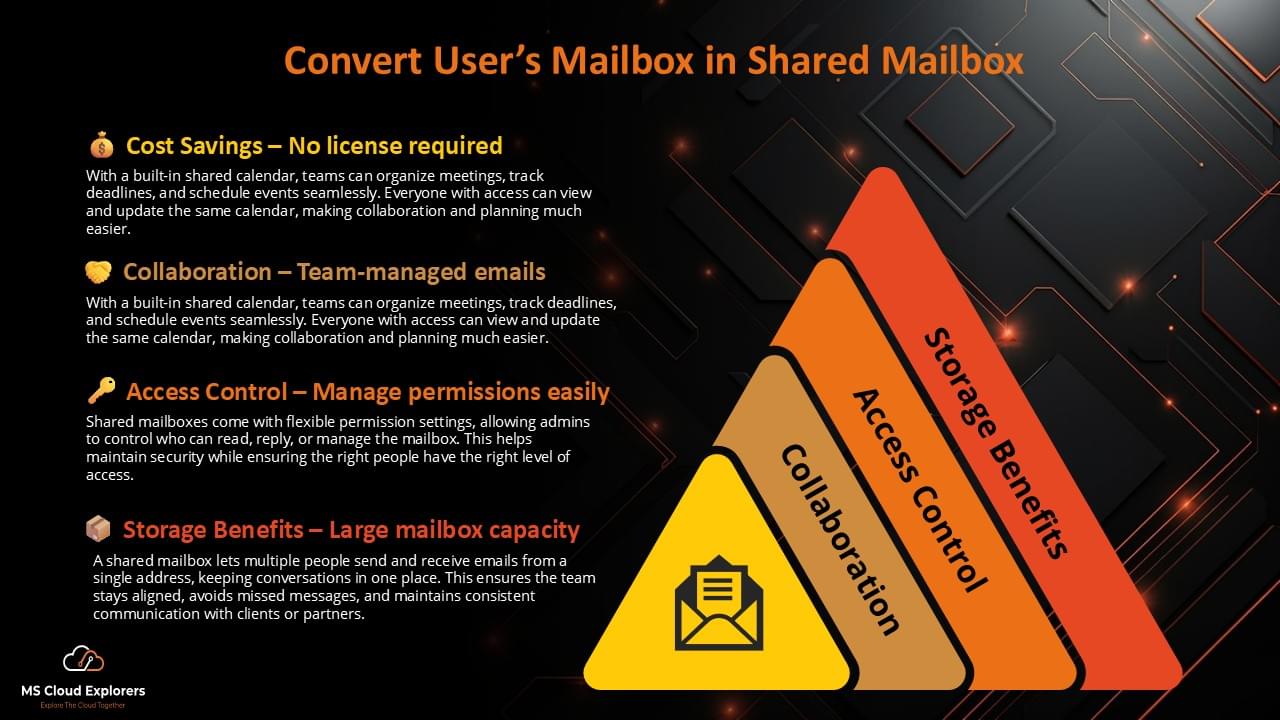
- How to Transition a Microsoft 365 User Mailbox to a Shared Mailbox
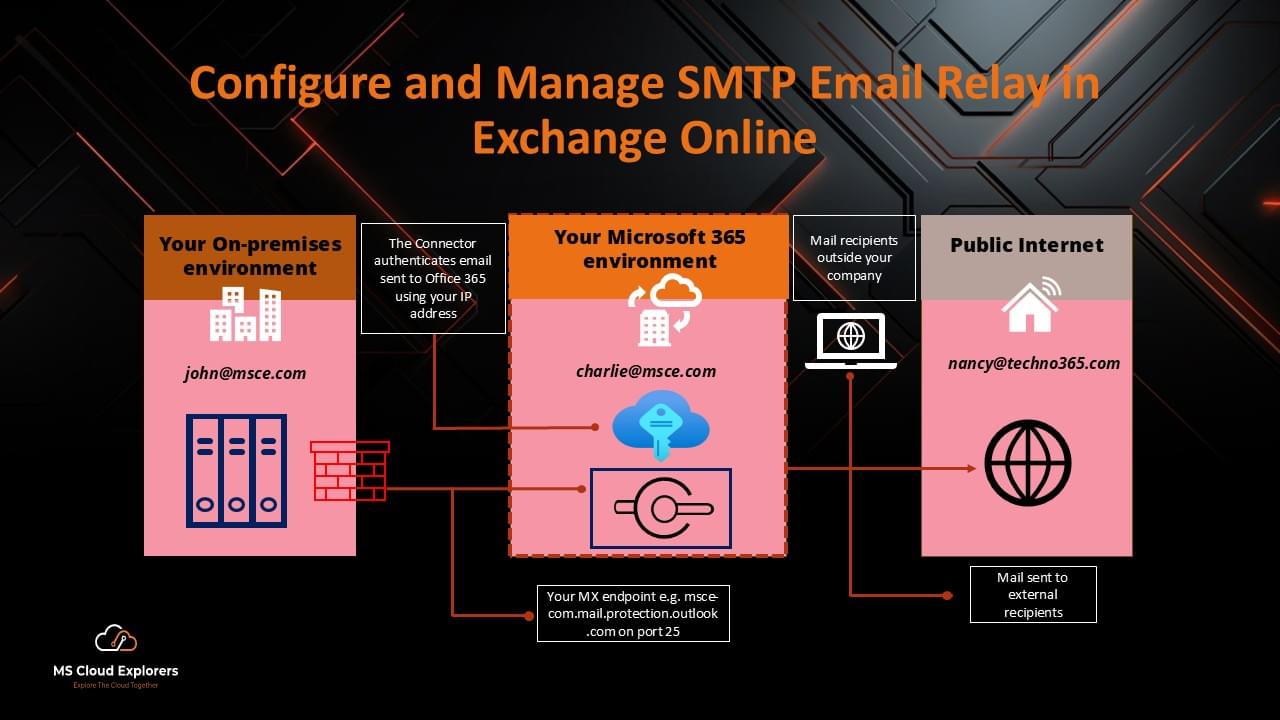
- How to Configure SMTP Relay in Office 365: A Comprehensive Guide
- Step by Step Guide Managing Outlook Rules from Exchange Admin
- How to Run Extended Message Trace in Microsoft 365
Enjoyed the article?
We’d love to hear your thoughts—share your comments below!
For more insights, guides, and updates from the Microsoft ecosystem, be sure to subscribe to our newsletter and follow us on LinkedIn. Stay connected and never miss out on the latest tips and news!
Great overview of Exchange Online! I liked how you explained shared mailboxes, archiving, and protection features clearly. The step-by-step parts were easy to follow. It would be helpful to include a quick comparison of different plan tiers like Business Standard vs E3/E5. Thanks for sharing such practical info!
Thanks so much for your kind words! Glad the guide was helpful. That’s a great suggestion—I’ll be adding a plan comparison section soon to highlight key differences like storage, compliance, and DLP features. Appreciate your feedback!