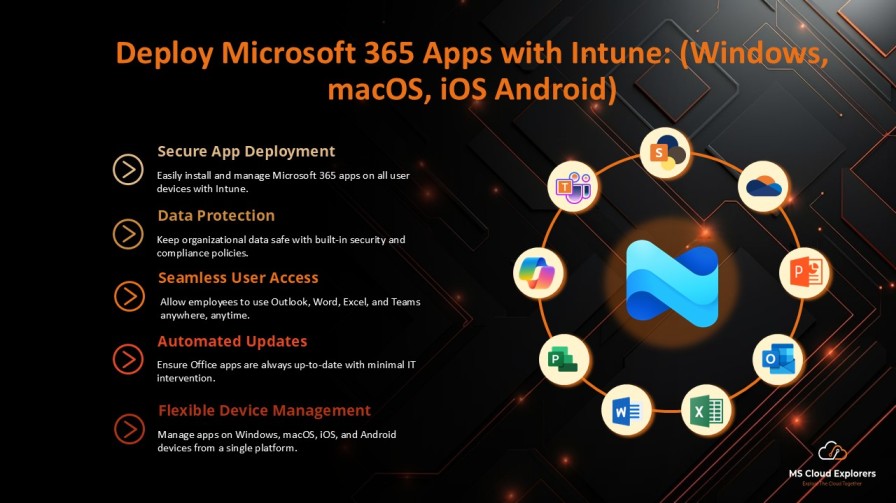
Deploy Microsoft 365 Apps in today’s modern workplace to allow employees to access their email, Word documents, Excel spreadsheets, and other Office apps directly on their personal or corporate mobile devices. For example, a sales team member might need to check Outlook emails on their phone while traveling, or a project manager may need to edit Excel sheets during a client meeting. While providing this access is essential for productivity, it also introduces risks to organizational data.
By deploying Microsoft 365 apps with Intune, IT administrators can securely manage both the apps and the data on users’ devices. Intune allows you to ensure that Office apps like Outlook, Teams, and Word are properly installed, configured, and updated, while also enforcing security policies that protect sensitive company information. This approach gives employees the flexibility to work from anywhere while keeping organizational data secure, compliant, and under IT control.
Prerequisites for Deployment
Before you can deploy Microsoft 365 apps with Intune, ensure the following prerequisites are met:
- Intune Subscription: A valid Microsoft Intune license is required.
- Microsoft 365 Apps License: Users must have Microsoft 365 Apps for Enterprise or Business licenses assigned.
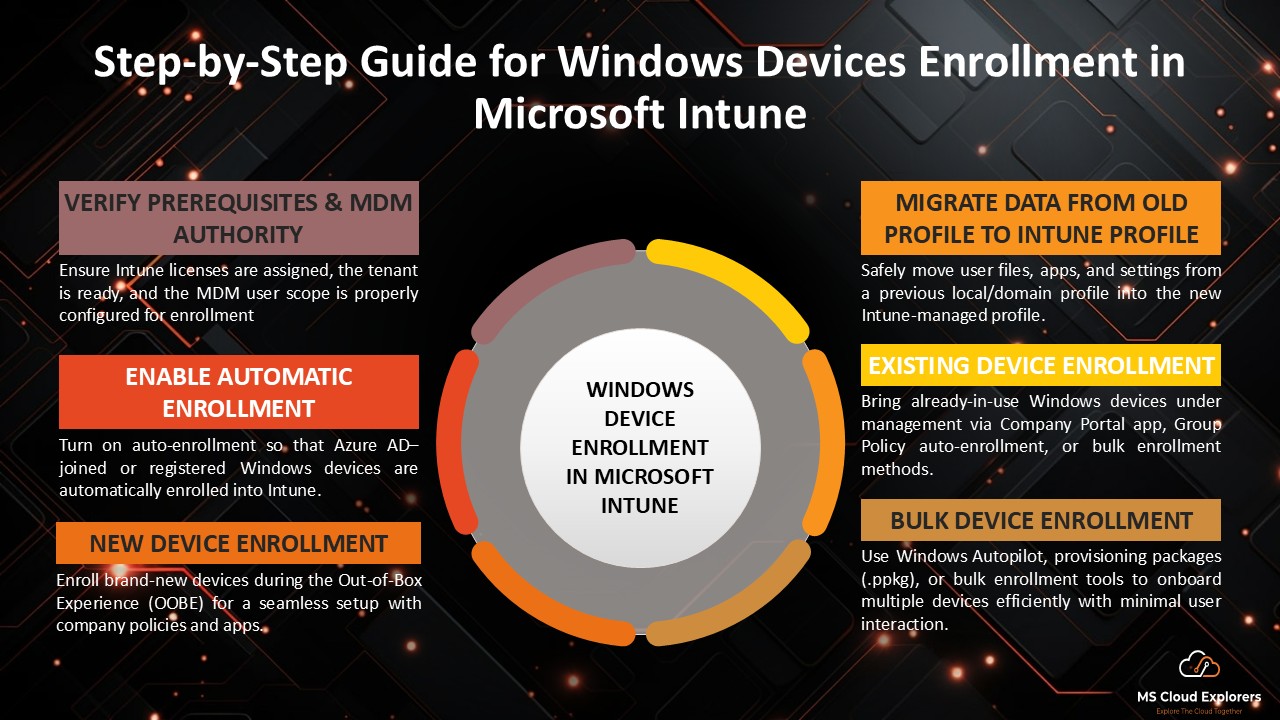
- Device Enrollment: Devices must be enrolled in Intune. Supported devices include Windows 10/11, macOS, iOS, and Android.
- Administrative Permissions: Global Administrator or Intune Service Administrator roles are necessary.
- Network Access: Devices must have access to Microsoft 365 endpoints for installation and updates.
Preparing Microsoft 365 Apps for Intune Deployment
-
Configure the Office Deployment Tool (ODT)
- Customize which Microsoft 365 apps to include.
- Set preferred languages, update channels, and installation behavior.
- Generate a deployment package compatible with Intune.
-
Create an Intune Deployment Profile
- Define installation settings, licensing, and app behavior.
- Choose user-based or device-based deployment context.
-
Test Deployment
- Pilot the deployment to a small group of devices.
- Identify errors, conflicts, or configuration issues before enterprise-wide rollout.
Step-by-Step Process: Deploy Microsoft 365 Apps with Intune
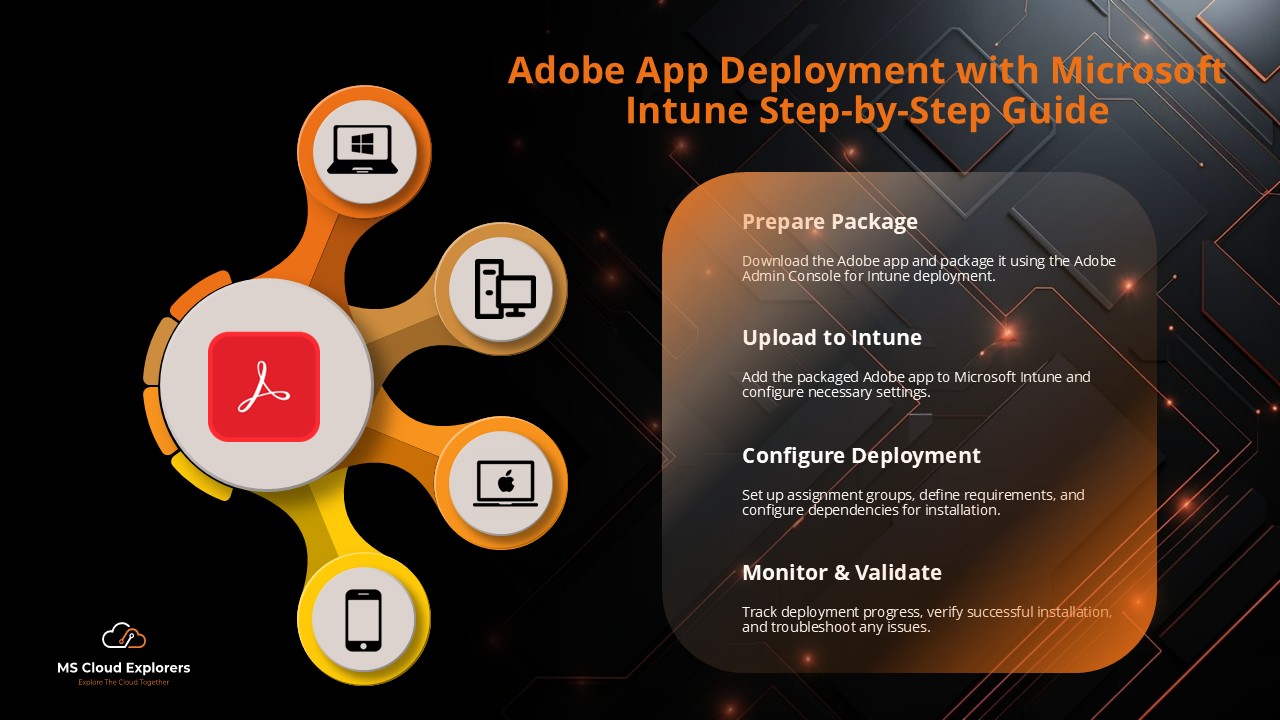
Step 1: Add Microsoft 365 Apps to Intune (Windows)
- Go to Microsoft Endpoint Manager Admin Center → Apps → All Apps → Add.
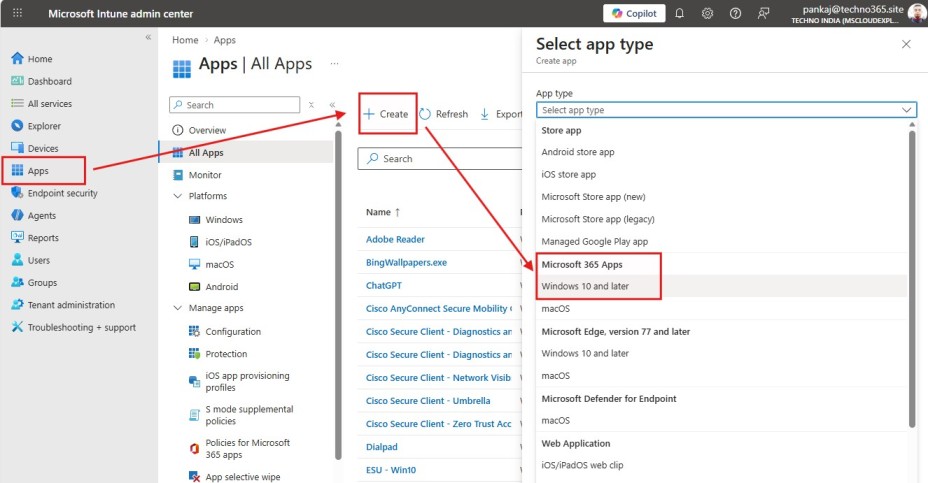
- Choose Office 365 Suite for native deployment or Win32 app for packaged apps.
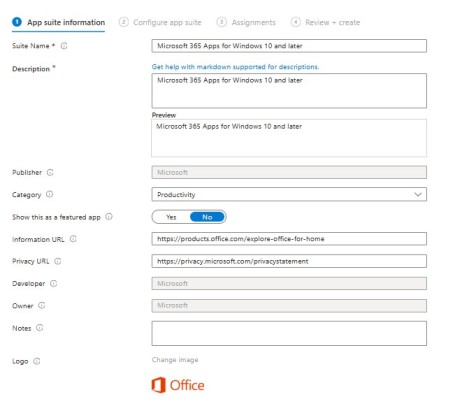
- Upload the deployment package and configure installation commands, detection rules, and return codes.
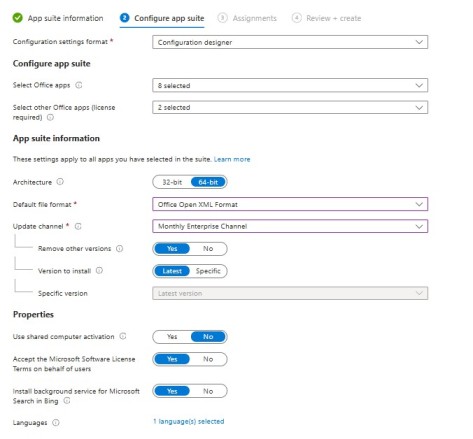
- Select other Office Apps: Add the other office apps if you want to include in the M365 App bundle
- Default File Format: Choose the Office open XML format, if you choose the Open Document Format all of the files will be save in ODT format by default and users need to change the saving format each time.
- Update Channel: Monthly Enterprise (Recommended) but you can choose as per your preference.
- Languages: Add the multiple languages if you are require.
- Other Options: Leave default all other options
(MAC Devices)
Before Deploying any apps for Apple Devices Make sure you have created the Apple MDM Push Certificate.
- Go to Microsoft Endpoint Manager Admin Center → Apps → All Apps → Add.
- Choose Microsoft 365 Apps macOS for deployment.
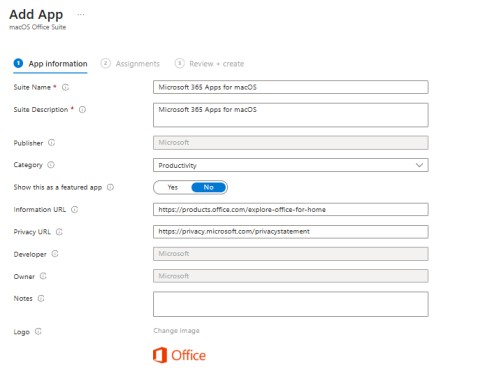
- Review the Autofill information and click next to assignment tab.
(iOS/Android Devices)
- Go to Microsoft Endpoint Manager Admin Center → Apps → All Apps → Add.
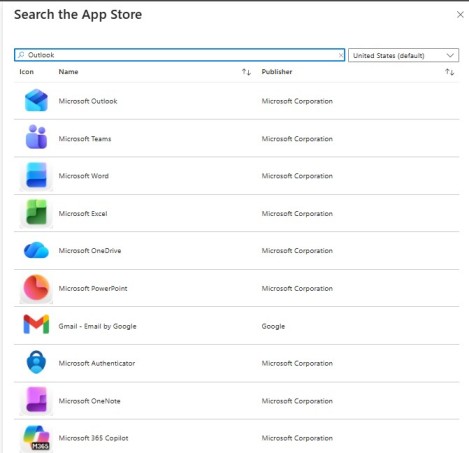
- App Type Store Apps Managed Google Play App or iOS Store App.
- Search the App by Its name eg: Outlook, Teams, OneDrive.
- Review the Autofill information and click next to assignment tab.
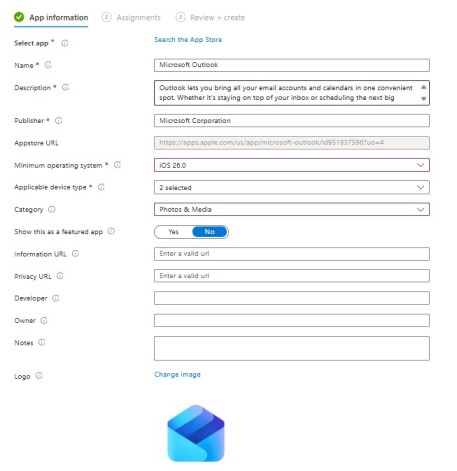
Step 2: Assign Apps to Users or Devices
- Use Required to automatically install apps.
- Use Available for enrolled devices to let users install manually.
- Use Uninstall to remove outdated or conflicting Office versions.
Step 3: Monitor Deployment
- Track installation progress and errors through the Intune monitoring dashboard.
- Generate reports for success rate and troubleshoot failed installations.
Step 4: Manage Updates
- Set update channels: Current, Monthly Enterprise, or Semi-Annual Enterprise.
- Automate updates to maintain the latest features and security patches.
Advanced Deployment Techniques
Dynamic Device Groups
Automatically target devices based on attributes like OS, department, or user role. Dynamic groups ensure only relevant devices receive Microsoft 365 apps.
PowerShell Integration
Use PowerShell scripts in Intune for custom configuration tasks or complex installations post-deployment.
Conditional Access and Compliance
Link app deployment with conditional access policies to enforce compliance before granting Microsoft 365 resource access.
Troubleshooting Common Deployment Issues
- Installation Failures: Review Intune logs at %ProgramData%\Microsoft\IntuneManagementExtension\Logs.
- Licensing Errors: Ensure users are correctly assigned Microsoft 365 licenses.
- Network Restrictions: Verify firewall or proxy rules allow access to Microsoft 365 endpoints.
- Existing Office Conflicts: Remove older Office installations to prevent installation errors.
Best Practices: Deploy Microsoft 365 Apps with Intune
- Pilot First: Test deployment on a small group before full rollout.
- Use Latest ODT: Ensures full compatibility with Intune and Microsoft 365 updates.
- Enable Reporting: Set alerts for failed deployments or compliance issues.
- Document Processes: Maintain internal guides for troubleshooting and future deployments.
Conclusion
Deploying Microsoft 365 apps with Intune offers organizations a secure, scalable, and efficient method to manage enterprise applications. By carefully preparing packages, configuring Intune profiles, and following best practices, IT teams can achieve seamless deployment, automated updates, and consistent compliance across all devices.
FAQs
- Which devices can be managed with Intune for Microsoft 365 deployment?
Intune supports Windows 10/11, macOS, iOS, and Android devices. This ensures your organization can deploy Microsoft 365 apps across desktops, laptops, tablets, and mobile devices seamlessly. - Do users need licenses to receive Microsoft 365 apps via Intune?
Yes. Each user must be assigned a Microsoft 365 Apps for Enterprise or Business license. Intune will not install apps on devices for users without a valid license. - Can I automate updates for Microsoft 365 apps with Intune?
Yes. Intune allows you to configure update channels such as Current Channel, Monthly Enterprise Channel, or Semi-Annual Enterprise Channel. Apps can be automatically updated to ensure the latest features and security patches. - How do I troubleshoot failed Microsoft 365 app deployments in Intune?
Check Intune logs located at %ProgramData%\Microsoft\IntuneManagementExtension\Logs. Ensure users have the correct licenses, verify network access to Microsoft 365 endpoints, and remove any conflicting older Office versions. - Can I test Microsoft 365 app deployment before a full rollout?
Yes. It is recommended to deploy Microsoft 365 apps to a pilot group first. Testing helps identify potential installation issues, network restrictions, or conflicts with existing applications before organization-wide deployment. - Can Intune target specific groups for Microsoft 365 app deployment?
Yes. Using dynamic device or user groups, Intune can automatically deploy apps based on attributes like department, device type, or OS version. This ensures only relevant devices receive the deployment. - Is it possible to remove older Office versions during deployment?
Absolutely. Intune can be configured to uninstall older Office installations automatically during deployment to prevent conflicts and ensure a clean installation of Microsoft 365 apps.
Related Links:-
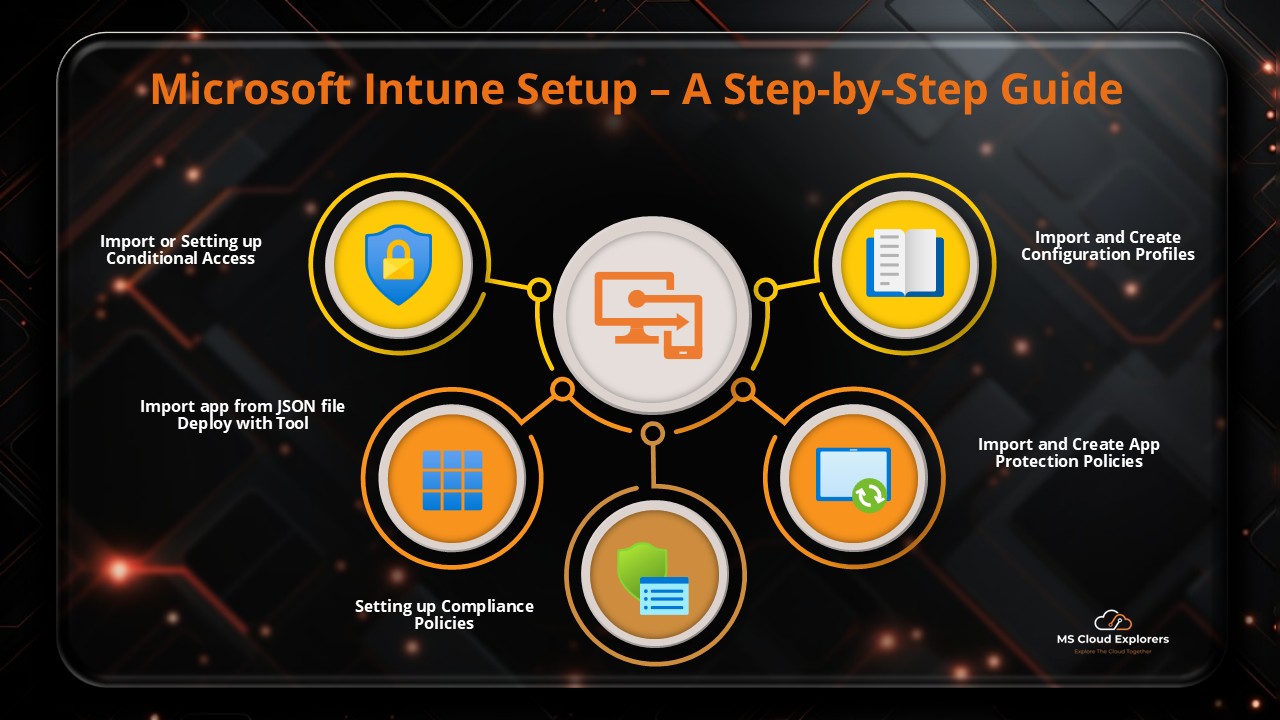
- A Step-by-Step Guide to Complete the Microsoft Intune Setup
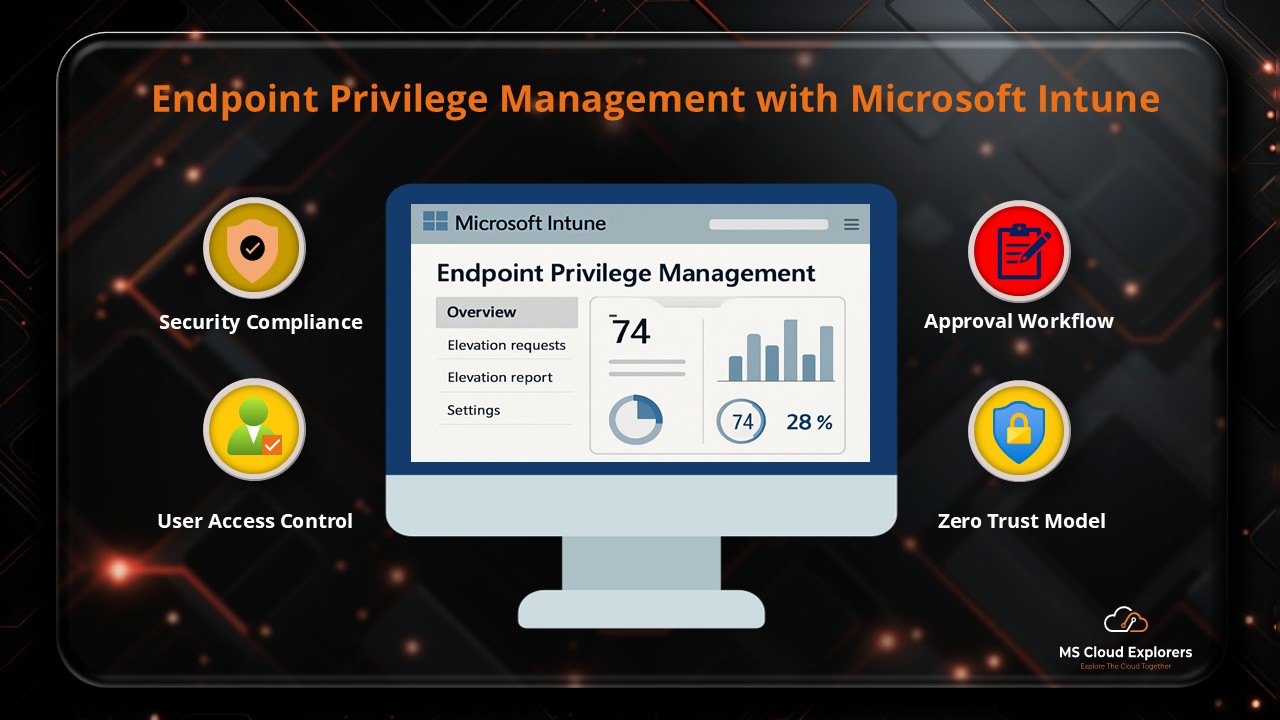
- Mastering Endpoint Privilege Management (EPM) in Intune
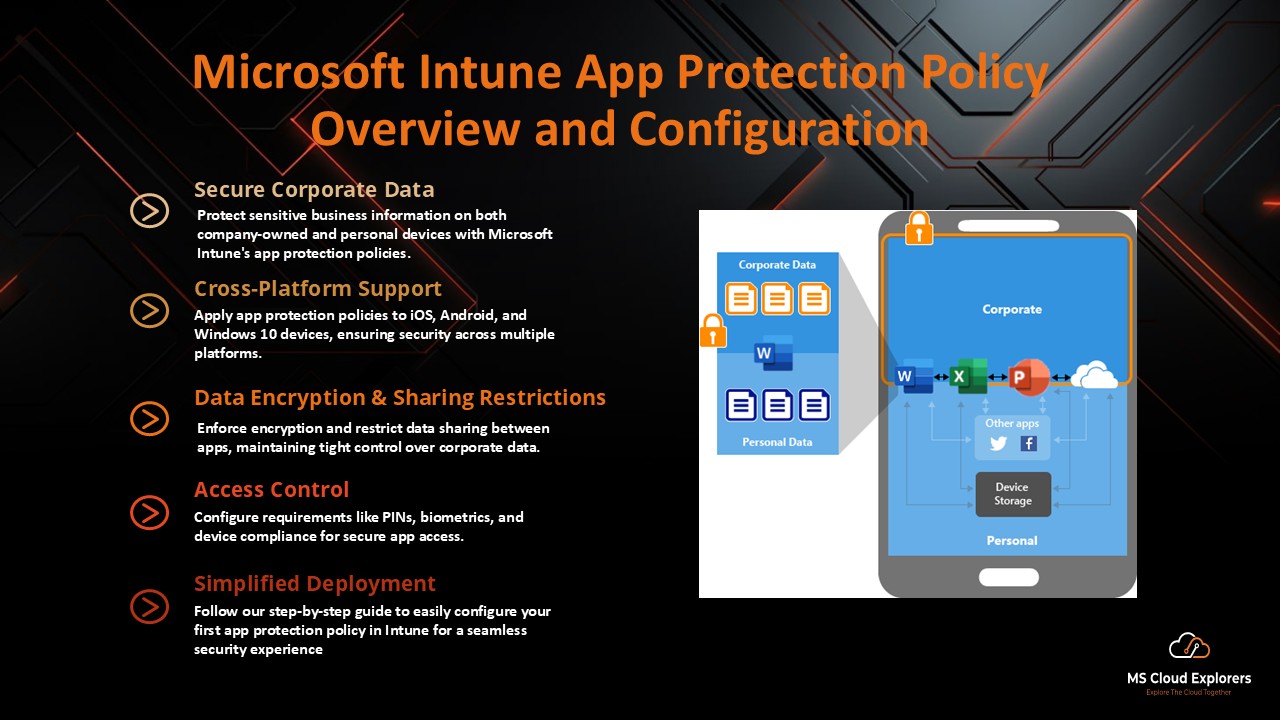
- How to Configure App Protection Policy in Microsoft Intune
- Windows Device Enrollment in Microsoft Intune (2026)
- Windows Autopilot Deployment Guide (2026)
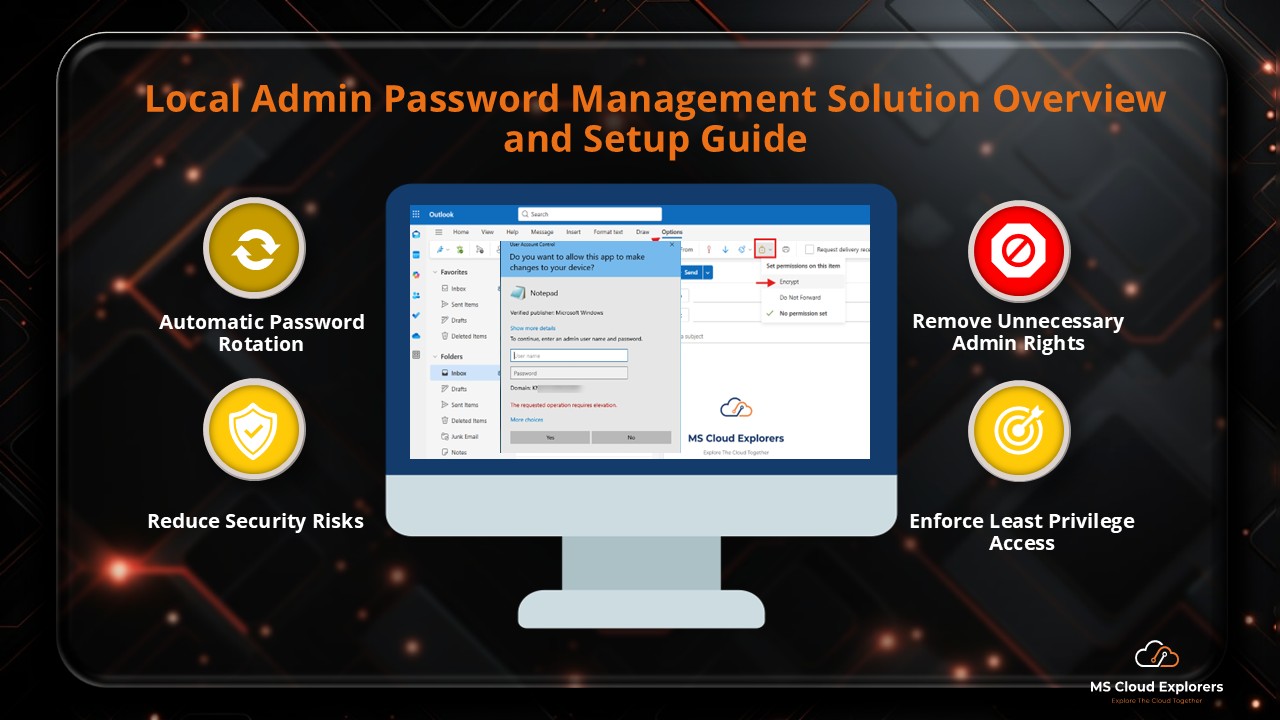
- Configure and Manage Local Admin Password Management with Entra ID and Intune (LAPS)
Enjoyed the article?
We’d love to hear your thoughts—share your comments below!
For more insights, guides, and updates from the Microsoft ecosystem, be sure to subscribe to our newsletter and follow us on LinkedIn. Stay connected and never miss out on the latest tips and news!