

If you suspect suspicious sign-ins, missing emails, or unexpected account changes, you may be dealing with a security breach.
This guide explains how to recover a hacked Microsoft account used with Microsoft 365 (formerly Office 365), how to investigate what happened, and how to secure the account properly to prevent future attacks.
Whether you are an IT administrator or an end user, the steps below will help you regain control quickly and safely.
What does it mean when a Microsoft account is hacked?
When an Office 365 or Microsoft 365 account is compromised, an attacker has obtained the user’s credentials and can access:
- Outlook email
- SharePoint files
- OneDrive documents
- Teams data and conversations
In many cases, attackers use the compromised account to:
- send phishing or spam emails,
- hide malicious inbox rules,
- forward emails to external addresses,
- steal sensitive business information.
Understanding how to recover a hacked Microsoft account starts with recognizing the warning signs.
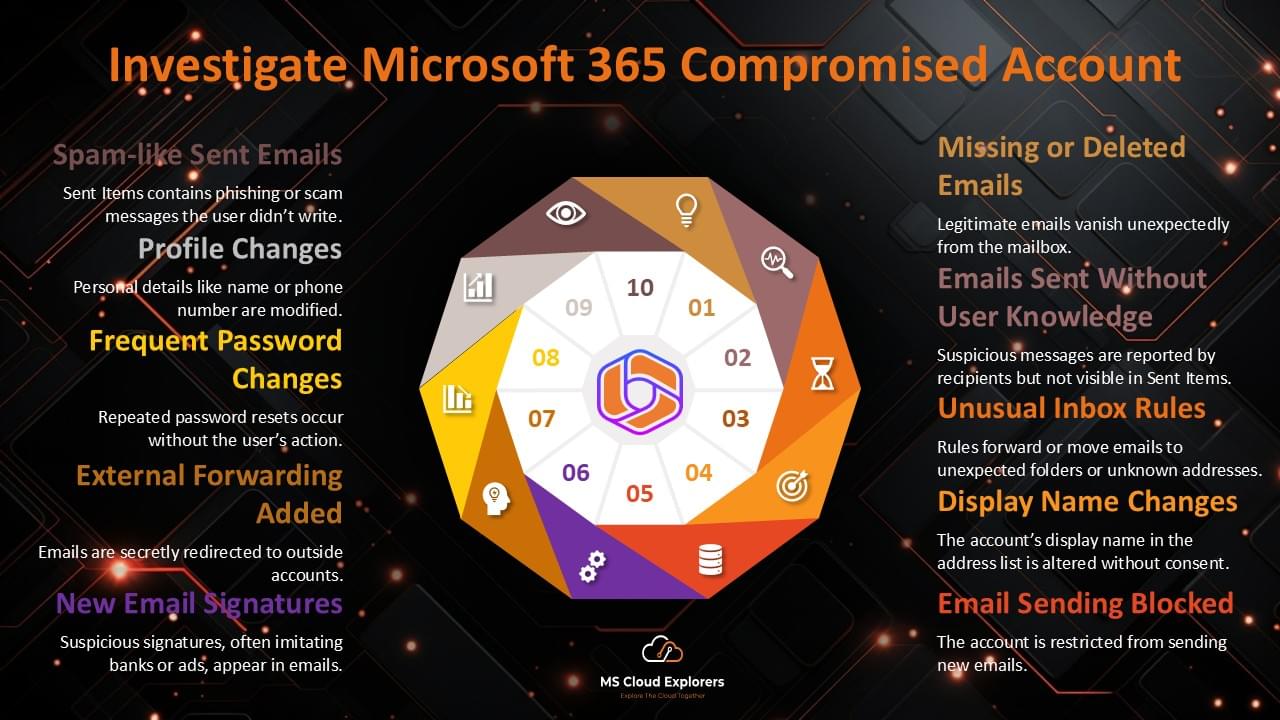
Symptoms of a hacked Microsoft account
One or more of the following indicators may be observed by users.
- Missing or deleted emails
Messages disappear unexpectedly. - Emails sent without the user’s knowledge
Recipients receive suspicious emails, but nothing appears in Sent Items. - Suspicious inbox rules
Rules automatically move emails to folders such as Notes or Junk, or forward them to unknown addresses. - Display name changes
The user’s name in the address book is modified. - Account blocked from sending email
The account is restricted due to spam activity. - Spam or phishing emails in Sent Items
Example like, messages such as “Your payment is pending. Please clear it immediately to avoid service interruption.”. - Profile information changes
Name, phone number, or address is changed unexpectedly. - Unexpected password resets
- External email forwarding enabled
- New or suspicious email signatures
Tools to Investigate Suspicious Activity
- Microsoft Defender Audit Logs: Search audit logs for unusual activities using a date range starting before the breach.
- Entra ID (Azure AD) Sign-In Logs: Check for unusual IP addresses, sign-in locations, and failed login attempts.
- Microsoft 365 Admin Center Test: Run tests to detect compromised accounts. RUN TEST
These tools help confirm whether you truly need to follow the full process for how to recover a hacked Microsoft account.
How to Secure and Restore an Office 365 Compromised Account (Complete Checklist)
Make sure you complete all the steps — attackers often create multiple persistence points.
How to recover a hacked Microsoft account (step-by-step)
Even after regaining account access, attackers may have left backdoors. Follow these steps to secure the account and prevent further unauthorized access:
Step 1: Reset the User’s Password
- Create a strong password (uppercase, lowercase, numbers, and special characters).
- Don’t email the new password since attackers may still have mailbox access.
- If the account uses federated identities, reset the password in the on-premises system as well.
- Delete and recreate app passwords. Learn how to manage app passwords.
- Enable Multi-Factor Authentication (MFA) for enhanced security. Set up MFA now.
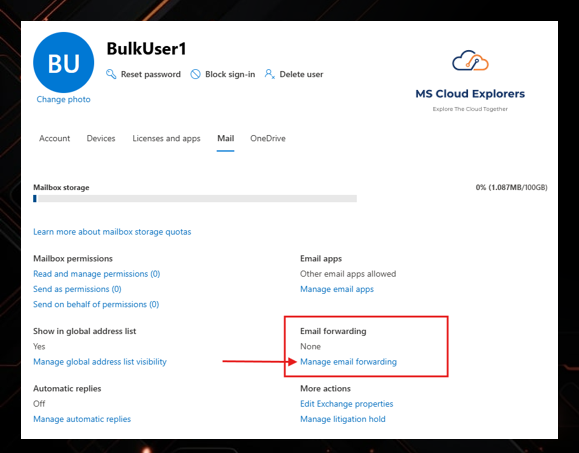
Step 2: Remove Suspicious Forwarding Addresses
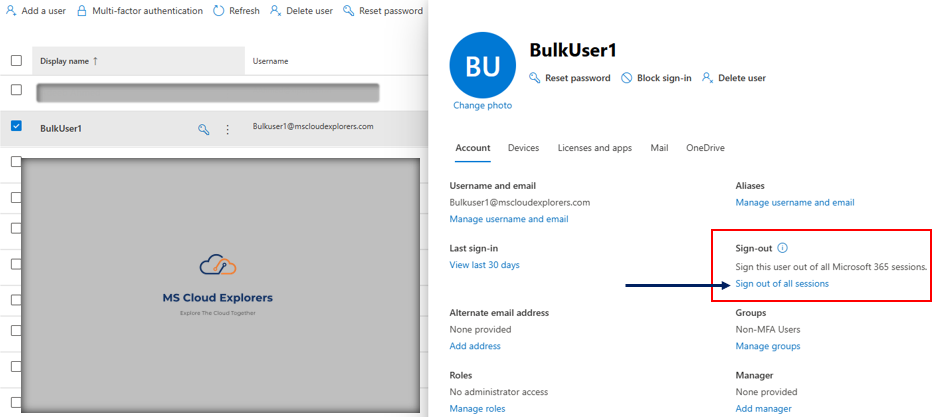
- Go to Microsoft 365 Admin Center.
- Navigate to Users > Active Users.
- Select the affected user account and click the Mail tab.
- Under Email Forwarding, check and remove any unknown forwarding addresses.
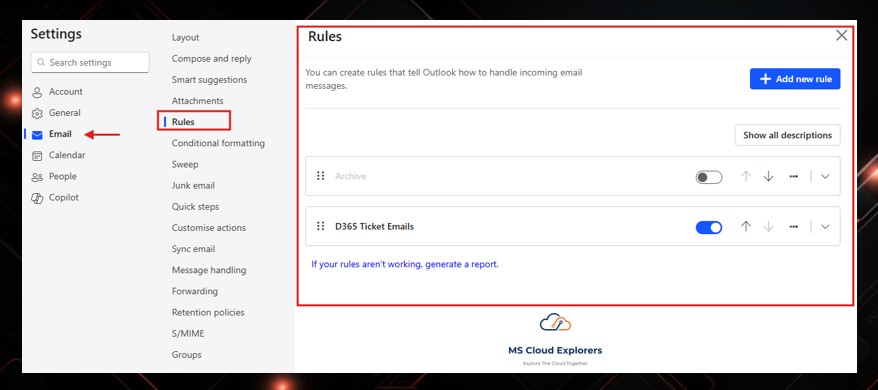
Step 3: Disable Suspicious Inbox Rules
- Sign in to Outlook Web.
- Go to Settings (gear icon) and search for “Inbox rules.”
- Review and delete any suspicious rules redirecting or hiding emails.
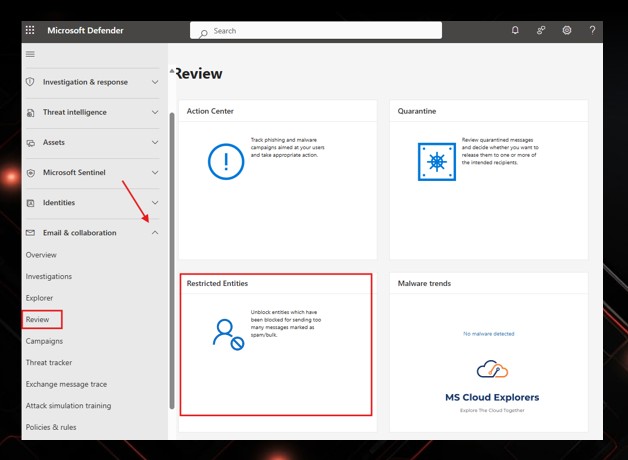
Step 4: Unblock the user account (if restricted)
If the account was sending spam, Microsoft may have blocked it. You can also setup the custom Spam Policy.
Microsoft 365 Defender:
Security → Review → Restricted entities → Unblock
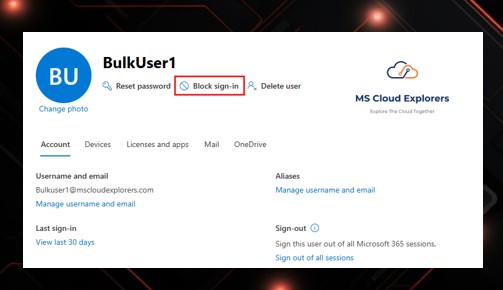
Step 5 (Optional): Block the User from Signing In
-
Useful while investigating or if multiple systems are affected.
-
Users → Select User → Block sign-in
-
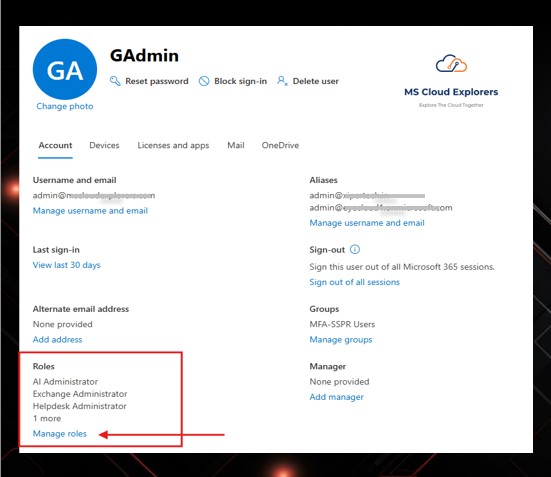
Step 6 (If Admin Account Compromised) Remove Admin Roles
Attackers frequently elevate compromised accounts.
-
Go to Entra ID or Microsoft Admin→ Roles & Administrators
-
Remove any admin privileges
-
Reassign admin access only after the account is fully secured
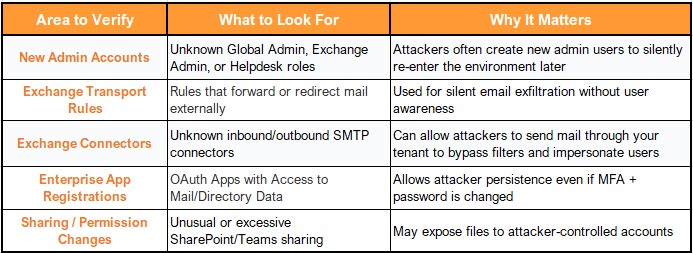
Important Security Tip
When an admin account is compromised, attackers may try to create alternate backdoors inside the environment. Before restoring trust, check the following:
Step 7: Notify Affected Users and Review Sent Items
- Inform contacts if phishing messages were sent
- Identify if any financial fraud attempts occurred
- Document findings for compliance or audit requirements
If you would like to Automate the entire process with the PowerShell, Please checkout the guide Published By Office 365 Reports – Automate Compromised Account.
Best Practices to Prevent Office 365 Compromises
- Use Strong Passwords: Avoid reusing passwords and make them difficult to guess.
- Enable MFA for All Accounts: This adds an extra layer of protection. Learn more about MFA.
- Monitor Account Activity: Regularly review audit and sign-in logs for unusual activities.
- Educate Users: Train employees to recognize phishing scams and avoid sharing credentials.
- Set Up Alerts: Use tools like Microsoft Defender to receive notifications about suspicious activities.
Conclusion
Recovering from an Office 365 compromised account requires immediate action to secure data and prevent further damage. Recognizing the signs, using Microsoft’s investigation tools, and following recovery steps can help regain control quickly. Proactive measures, like MFA and employee training, are essential for reducing the risk of future compromises.
FAQs
- What should I do first if my account is hacked?
Immediately reset the password and enable MFA. - How can I tell if my Microsoft account is hacked?
You may see unknown sign-ins, missing emails, strange inbox rules, or emails sent without your knowledge. - Can MFA really help prevent hacking?
Yes. MFA significantly reduces the risk of account compromise. - Which logs should I check to investigate the issue?
Check Entra ID sign-in logs and Microsoft 365 audit logs. - How can I avoid future attacks?
Use strong passwords, enable MFA for all users, and monitor sign-in activity regularly.
For further assistance, explore Microsoft’s official security resources or consult your IT administrator
Explore More From MS Cloud Explorers
- Microsoft Zero Trust Assessment: A Step-by-Step Guide for IT Admins
- Top Features of Microsoft Defender for Business That You Need to Know
- Microsoft Defender for Endpoint: Comprehensive Guide
- How to Create and Assign Microsoft Phishing Simulator Training in Microsoft 365
Enjoyed the article?
We’d love to hear your thoughts—share your comments below!
For more insights, guides, and updates from the Microsoft ecosystem, be sure to subscribe to our newsletter and follow us on LinkedIn. Stay connected and never miss out on the latest tips and news!

Great guide! Super helpful. Quick one — if the hacker changes the recovery email, can I still reset the password from the admin portal?
Recovered an account using your steps — thanks! Should I block sign-ins from other countries now?
After recovery, do I need to reset app passwords or service accounts too?
Yes — if you have another global admin account, you can reset it directly from the admin portal. Just make sure to revoke all sessions and recheck MFA settings. If all admins are locked out, contact Microsoft Support for tenant recovery.
Nice work! Instead of blocking by country, use Conditional Access to require MFA for risky logins. It’s more flexible and travel-friendly.
Yes — definitely rotate anything the user had access to (service accounts, API keys, etc.) and double-check sharing links. Better safe than sorry!