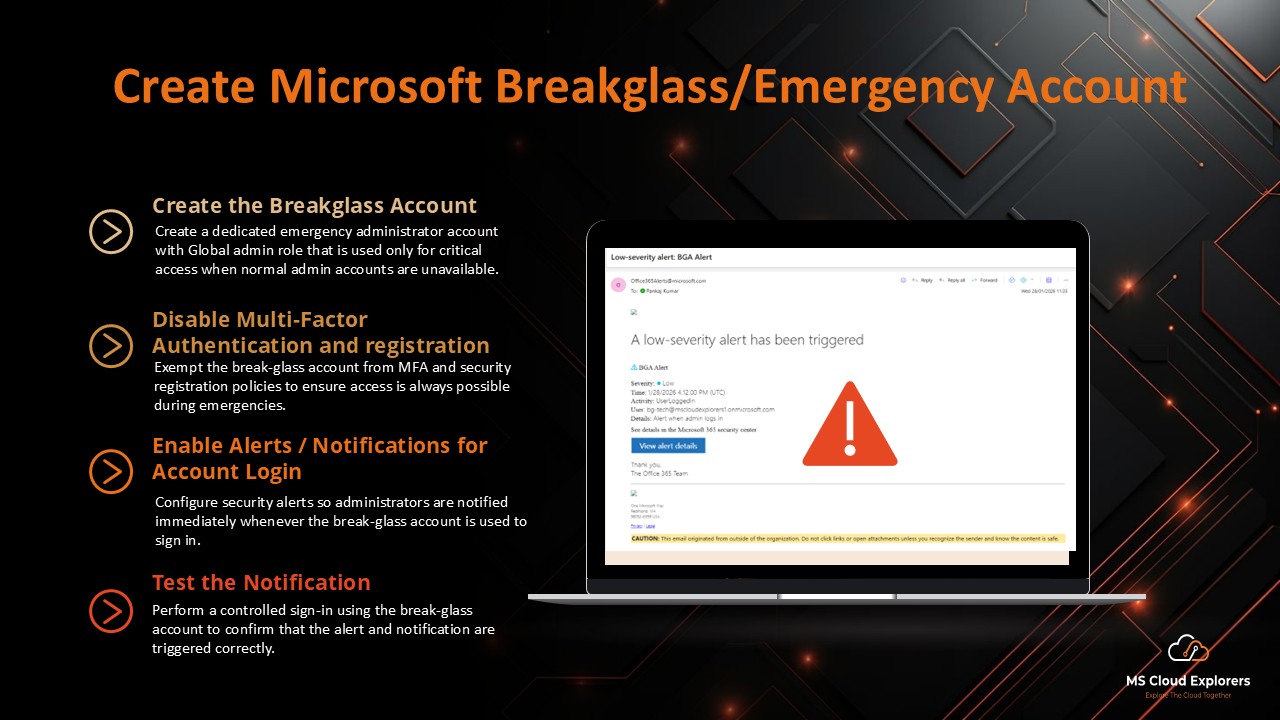
When managing enterprise-level systems like Microsoft 365, ensuring secure and reliable access during emergencies is critical. One key tool that addresses this need is the Breakglass account—an emergency administrative account that allows IT administrators to regain control when standard credentials are unavailable, compromised, or inaccessible.
Recent Issues and Lessons Learned
In recent months, there have been instances where technical glitches in Microsoft Entra Conditional Access Policies caused significant disruptions. For example, administrators sometimes enable or configure a conditional access policy for all users but forget to exclude their own accounts or other emergency access accounts. As a result, they risk locking themselves out of the system.
Another issue arose with the Authentication Strength Phishing Resistance MFA policy. When an administrator inadvertently enabled this policy for all users, it automatically applied to everyone, including non-compliant users or those who were not enrolled in Intune. Only users with Intune-enrolled, compliant devices could access their accounts. This caused a situation where access was blocked for non-compliant users, and the entire tenant was effectively locked out. This happened to one of our customers a few months ago, and it led to a situation where the entire tenant was locked out.
Resolving the issue required contacting Microsoft Support, which, as you can imagine, took a considerable amount of time and effort. Following this, Microsoft began recommending that administrators exclude emergency or breakglass accounts from conditional access policies to prevent such lockouts. Now, whenever you create or enable a new conditional access policy, Microsoft automatically excludes the account you’re using, even if you initially add it to the policy, and notifies you about this exclusion.
With these lessons in mind, I’ve explored the best practices for creating breakglass accounts and have implemented them across all our customer tenants. In this comprehensive guide, I’ll walk you through the importance of breakglass accounts, the correct way to set them up, and the best practices for securing them.
What Are Breakglass Account in Microsoft 365?
Definition and Purpose
A breakglass account is a type of emergency account used to maintain access to a system, such as Microsoft 365, in the event of a security breach or when regular administrator credentials fail. It is designed to be used only in rare emergency situations, like recovery from a major outage or when other admin accounts are locked or compromised. These accounts typically have high-level privileges, allowing them to bypass regular security protocols.
Why Breakglass Accounts Matter
In critical situations, breakglass accounts ensure that IT admins can regain control of the system, preventing further damage or prolonged downtime. These accounts are specifically created to give access to all areas of the Microsoft 365 environment, including Exchange, SharePoint, and Azure AD, even if other admin accounts are inaccessible.
How to Set Up a Breakglass Account in Microsoft 365
Microsoft Recommend at least two breakglass accounts in every tenant. If you have small environment. You can only create one. To Avoid to increase unnecessary Global admin. It reduces the Microsoft Secure score.
Step 1: Create the Account
- Log in to the Microsoft 365 Admin Portal.
- Create a new account (avoid using easily guessable usernames like admin, emergency, etc.).
- Use a format like BGA_EMC_Domain_etc@domain.onmicrosoft.com (Always use the Microsoft default fallback domain).
- Assign the Global Admin and Privileged Admin roles to the account.
- Set a strong password (at least 32 characters).
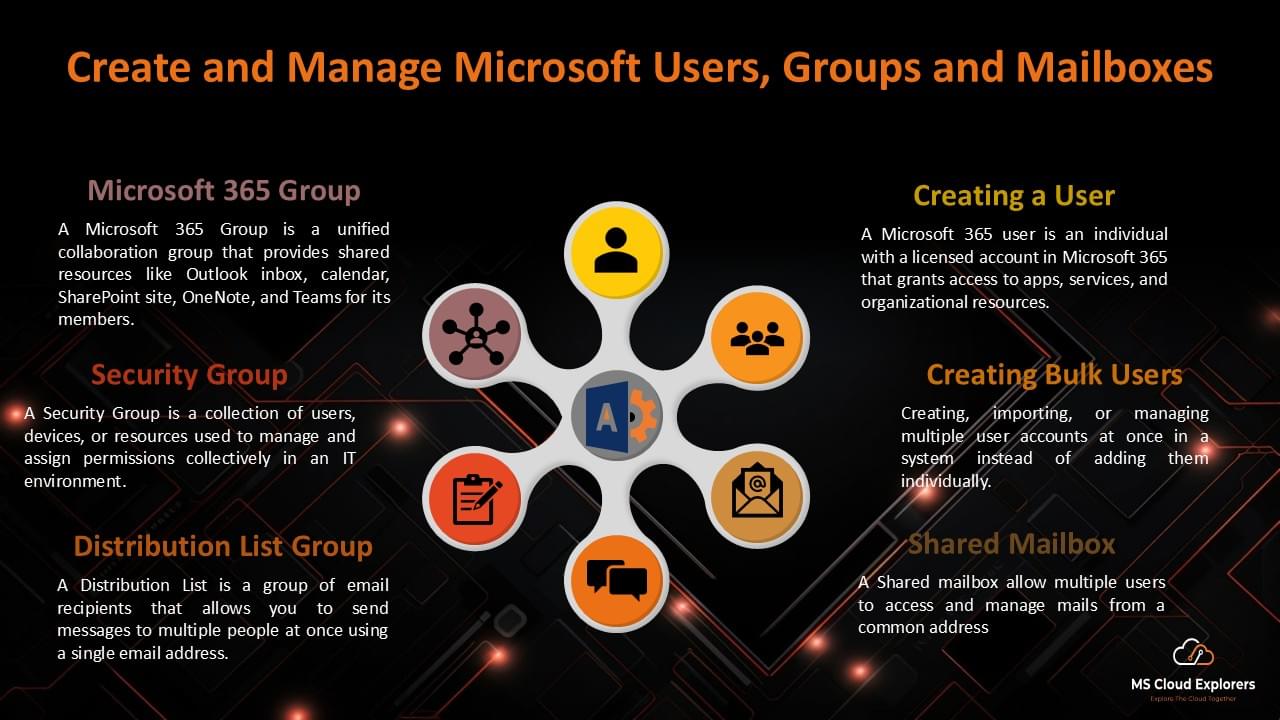
Check out the guide on how to create Users in Microsoft 365.
Step 2: Disable Multi-Factor Authentication (MFA)
- Disable MFA for the breakglass account so you can access it in emergencies if MFA is unavailable.
- You can add the account to location-based and IP-based conditional access restrictions, but this is not recommended.
- Ensure your tenant has disabled Security Defaults and is using Conditional Access policies for MFA. With Security Defaults enabled, you cannot exclude the breakglass account from MFA.
- Exclude the breakglass account from conditional access policies.
- Exclude the account from Self-Service Password Reset (otherwise, you may be prompted to register for MFA upon login).
- Exclude the account from MFA campaign policies as well.
- Exclude the account from Identity Protection to fully disable MFA for this account.
Step 3: Document and Secure the Credentials
Ensure the credentials for the breakglass account are well documented but securely stored. Use a password manager or offline secure storage to ensure that only authorized personnel can retrieve the account details when needed.
Step 4: Ensure the Breakglass Account is Not Regularly Used
The breakglass account should remain inactive under normal circumstances and only be used in emergencies. To prevent accidental use, configure audit logs and alerts within your Microsoft 365 environment to notify administrators whenever the breakglass account is accessed.
Step 5: Enable Notifications for Account Login
This step is crucial. You need to set up notifications for when the breakglass account is used. If you have an Azure subscription, you can enable notifications using Log Analytics in the Azure portal. However, if your customers don’t have an active Azure subscription and don’t want to incur unnecessary costs, I researched alternative methods. Although Microsoft had previously retired a built-in feature for this, I found that you can still achieve this using PowerShell. Below are the steps on how to create alerts when the breakglass account is used.
Connect the Powershell with the Security and Compliance Admin center
Connect-IPPSSessionCreate the Alert rule
New-ProtectionAlert -Name "[SECURITY ALERT] Break-Glass Account Sign-In Detected" `
-Category Others `
-NotifyUser SOCalerts@contoso.com `
-ThreatType Activity `
-Operation UserLoggedIn `
-Description "Alert when admin logs in" `
-AggregationType None `
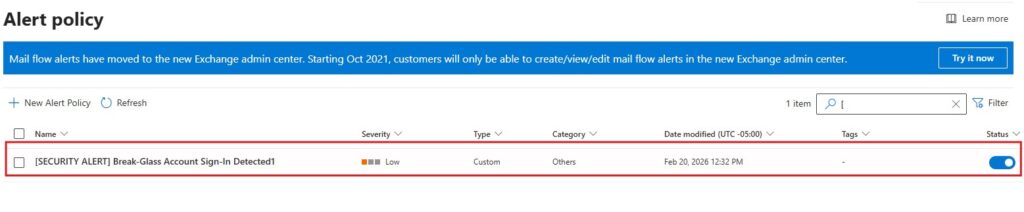
-Filter "Activity.UserId -eq 'Admin.GA@contoso.com'"Once the rule is created you can review the Alert in the Alerts Policy.
Security >Email & Collaboration > Policies & Rules > Alert Policy
Step 6: Test the Notification
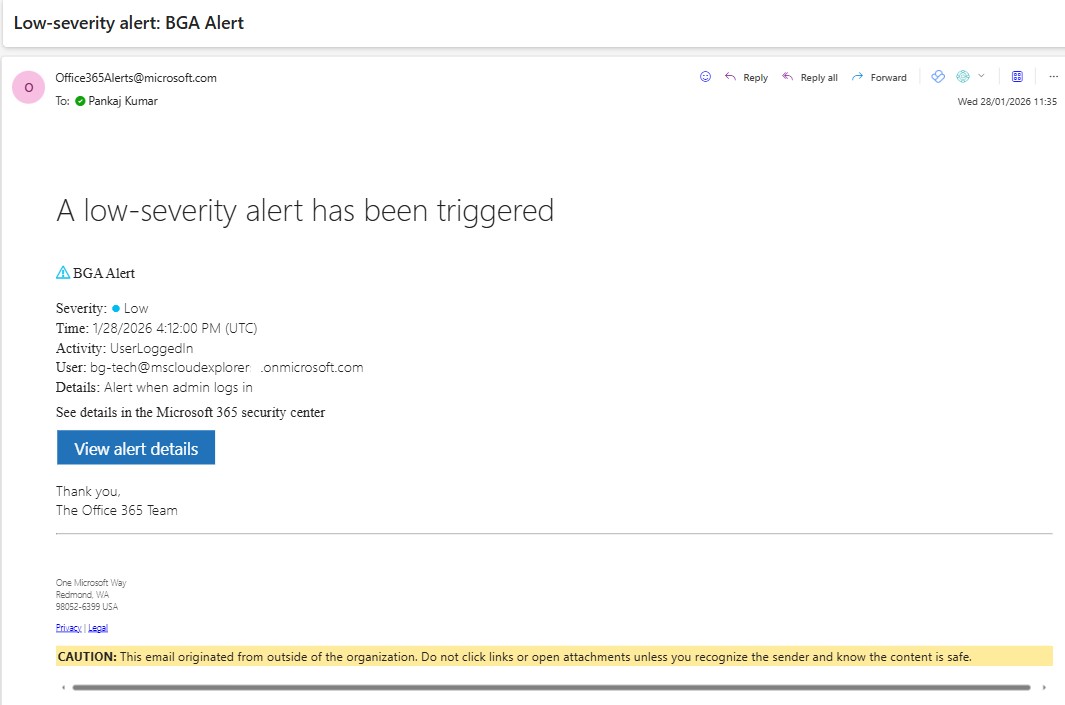
After the breakglass account is created and the notifications are set up, test the login process. Log in with the breakglass account and ensure:
- No MFA registration prompts are displayed.
- A notification is sent for every login attempt.
Best Practices for Managing Breakglass Accounts
- Minimize Access to the Breakglass Account
Limit the number of people who have access to the breakglass account credentials. Only a select group of IT administrators should know how to retrieve the credentials in case of an emergency. - Regularly Test and Audit the Account
It’s essential to regularly audit the use of the breakglass account. Conduct simulated tests to ensure that the account functions correctly during a crisis. Also, check for any unauthorized access attempts or misuse of the account. - Enable Alerts for Access
Set up alert notifications for any activity associated with the breakglass account. These alerts should be sent to security admins, ensuring that any use of the account is immediately noticed and can be investigated. - Use Separate Accounts for Daily Administration
Never use the breakglass account for day-to-day administrative tasks. This ensures that the account is kept isolated and only accessed during true emergencies.
When Should You Use a Breakglass Account?
- Administrator Account Compromise
If an administrator’s account is compromised and you’re unable to regain access, the breakglass account provides a fail-safe method for recovery. - System Lockout or Unavailability
In case your main admin accounts are locked out due to misconfigurations or a system issue, the breakglass account can be used to troubleshoot and restore access. - Emergency Recovery from a Cyberattack
During a cyberattack, such as a ransomware attack or a data breach, using the breakglass account ensures that your team can take control and begin recovery operations without delay.
Conclusion
Breakglass accounts are a critical component of any Microsoft 365 security strategy. They provide admins with an emergency method for gaining access to their systems when all else fails. By carefully setting up, managing, and securing breakglass accounts, you ensure that your organization remains protected during crises, without compromising security in the process.
FAQs
- What is the main purpose of a breakglass account in Microsoft 365?
A breakglass account provides emergency access to your Microsoft 365 environment in situations where normal admin credentials are unavailable or compromised. - How often should I test my breakglass account?
It’s important to regularly test the breakglass account, at least quarterly, to ensure it functions properly during emergencies. - Can I use the breakglass account for daily administration?
No, the breakglass account should only be used for emergency situations. It should remain inactive for regular administration tasks. - How do I securely store breakglass account credentials?
Store the credentials for your breakglass account in an encrypted, secure location, such as a password manager or offline secure vault. - Is multi-factor authentication required for breakglass accounts?
Yes, multi-factor authentication is highly recommended for breakglass accounts, adding an extra layer of security in case the account is used during an emergency.
Explore More From MS Cloud Explorers
- A Complete Guide to Privileged Identity Management in Azure AD (PIM)
- How to Recover a Hacked Microsoft Account (Microsoft 365 & Outlook)
- Top 7 Conditional Access Policies Every Organization Should Implement
- Step-by-Step Guide to Create Microsoft 365 Accounts and Groups
Enjoyed the article?
We’d love to hear your thoughts—share your comments below!
For more insights, guides, and updates from the Microsoft ecosystem, be sure to subscribe to our newsletter and follow us on LinkedIn. Stay connected and never miss out on the latest tips and news!