Microsoft recently released the Microsoft Entra Backup and Recovery solution, a powerful solution designed to protect your tenant objects and simplify recovery in Microsoft Entra ID. While it is still in preview, you can already access this option directly in your Entra ID admin center. Imagine spending hours meticulously setting up users, groups, applications, and policies, only to have a single accidental change disrupt your entire environment. That’s where Entra Backup and Recovery comes in. It provides a reliable safety net for your organization, automatically backing up tenant configurations, allowing you to compare changes, and restoring them selectively when needed.
In today’s fast-paced enterprise IT environment, misconfigurations can lead to costly downtime, security risks, and compliance issues. With this solution, admins can confidently manage their environments, minimize disruption, and ensure business continuity, making it a must-have tool for modern IT operations.
Why Tenant Object Backup Matters
Backing up tenant objects may seem like an IT administrative chore, but it’s really a critical safeguard. Tenant objects—users, groups, policies, and applications—are the backbone of your organization’s identity infrastructure. Without a reliable recovery mechanism, any accidental changes could ripple through your organization, affecting everything from access permissions to authentication policies. In short, you need a safety net that can undo errors quickly and efficiently.
Think of it like having a high-tech insurance policy: it might sit quietly in the background most of the time, but when disaster strikes, it’s invaluable. Organizations without automated backup processes often rely on manual exports, which are prone to human error, and recovery becomes tedious, time-consuming, and error-prone.
The Risks of Misconfiguration
Even small configuration changes can have massive consequences. Consider a scenario where a Conditional Access policy is misapplied or a user is accidentally removed from a critical group. Suddenly, employees can’t access important applications, or sensitive data becomes exposed. Recovery without a proper backup often requires painstaking manual intervention, which increases the risk of errors and downtime. Microsoft Entra Backup and Recovery mitigates this risk by automating backups and enabling granular restores, so admins can confidently manage their environments without fear of catastrophic mistakes.
Understanding Microsoft Entra ID
What Is Entra ID?
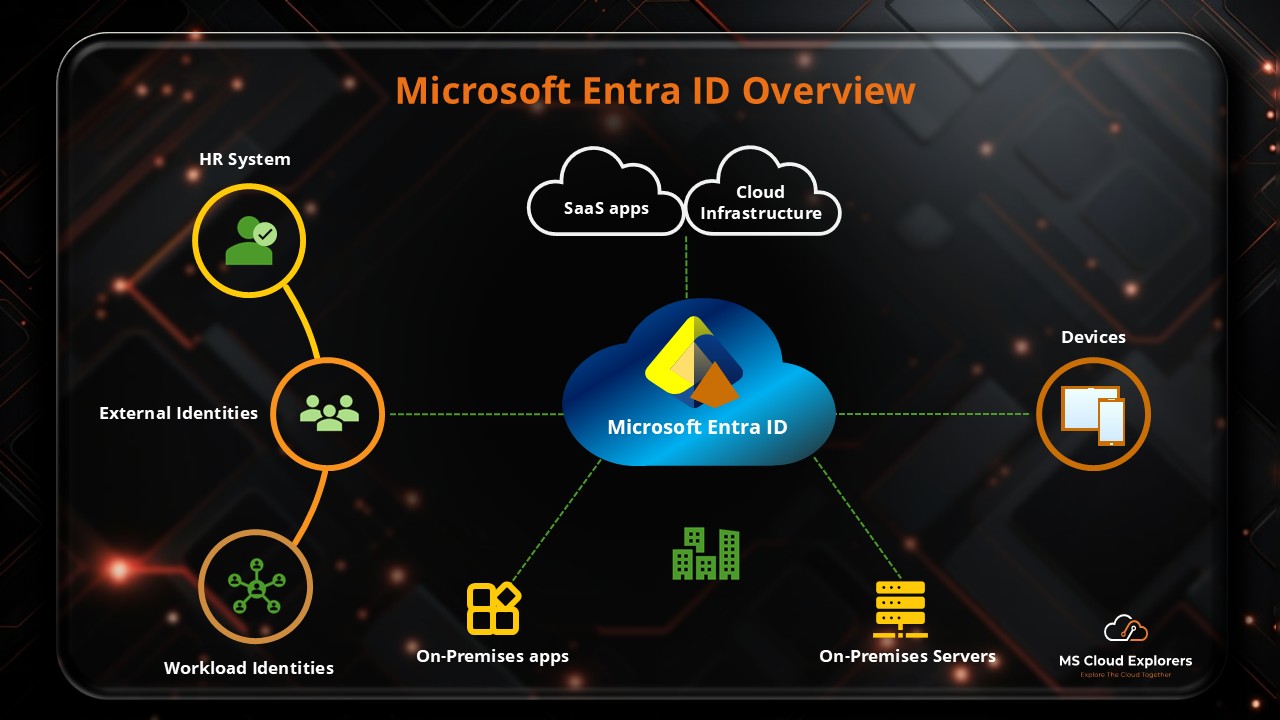
Microsoft Entra ID is essentially Microsoft’s modern identity and access management (IAM) service, providing a secure, centralized hub for managing users, groups, applications, and access policies. It integrates tightly with Microsoft 365, Azure, and other enterprise systems, ensuring that authentication and authorization are consistent and secure across the organization.
How Backup Integrates with Entra
Before Entra Backup and Recovery, administrators often had to rely on manual exports, third-party tools, or JSON backups to safeguard their tenant objects. While these methods worked, they were cumbersome, inconsistent, and prone to human error. With Entra Backup and Recovery, Microsoft built a native, automated solution directly into Entra ID, which seamlessly integrates with the admin center, tracks changes, and allows easy restoration of configuration settings.
Overview of Microsoft Entra Backup and Recovery
Features at a Glance
Microsoft Entra Backup and Recovery is designed to automatically protect your tenant’s critical configurations. Key highlights include:
- Automated daily backups of supported objects.
- Five-day retention window, allowing restores from multiple points in time.
- Difference reports to compare current settings against previous backups.
- Granular recovery options: full tenant restoration or object-specific recovery.
Supported Objects
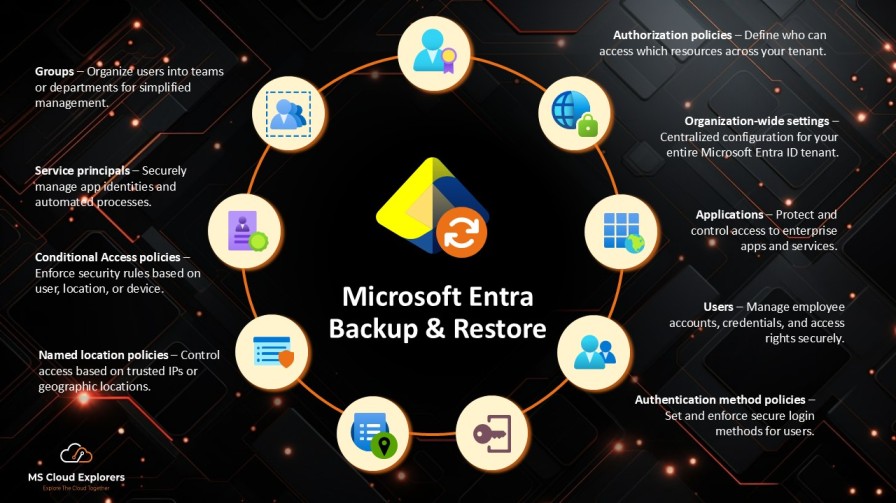
The feature supports daily backup for the following objects:
- Users
- Groups
- Applications
- Service principals
- Conditional Access policies
- Named location policies
- Authentication method policies
- Authorization policies
- Organization-wide settings
- Agent IDs
Note: Recovery is currently limited to certain properties within each object type, but Microsoft is actively expanding support.
Key Capabilities
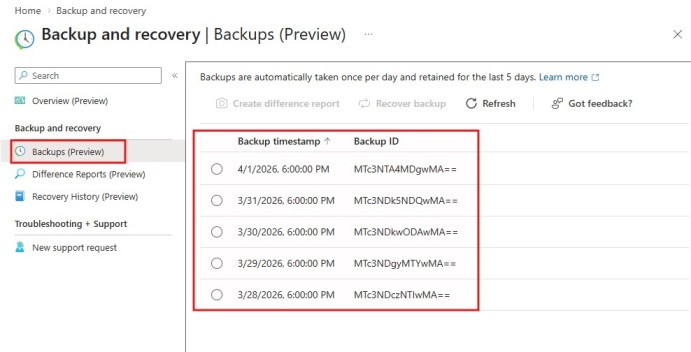
Viewing Backups
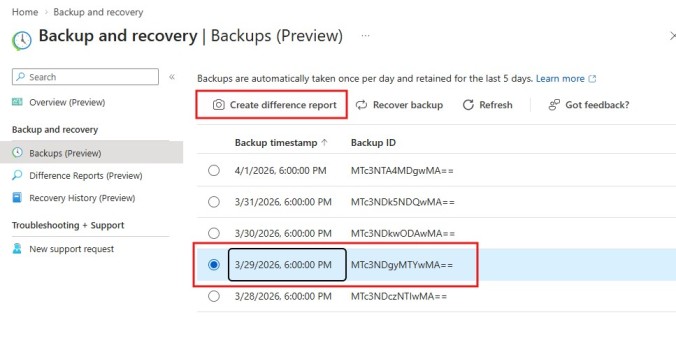
Admins can view all backups from the past five days in the Entra admin center, including timestamps and backup IDs. This allows you to choose a precise restore point, ensuring you revert to the correct configuration snapshot without affecting recent legitimate changes.
Difference Reports
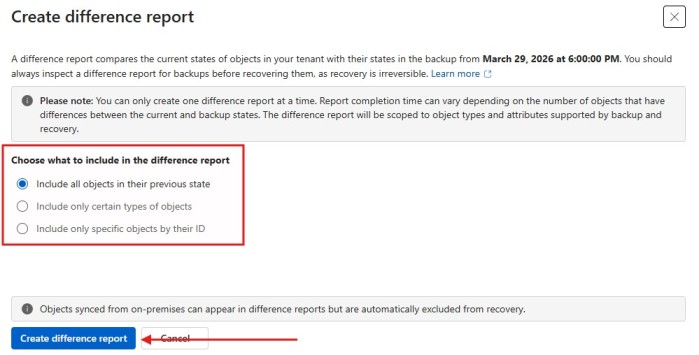
Difference reports allow you to compare your current tenant configuration against any backup. You can:
- Compare all objects in their previous state.
- Focus on specific object types.
- Recover specific objects by ID (up to 100 objects at a time).
These reports not only reveal what changed but also help decide what to restore, offering a surgical approach to recovery rather than a blunt, all-or-nothing method.
Object Restoration Options
Restoration comes in two main flavors:
- From a Difference Report – Ideal for recovering individual changes without affecting other configurations.
- Direct Backup Restoration – Suitable for broader recovery scenarios, such as after major misconfigurations or security incidents.
Prerequisites for Using Backup and Recovery
Tenant Configuration Requirements
Your tenant must be a workforce tenant; external ID or Azure AD B2C tenants are currently unsupported. This ensures compatibility with Microsoft’s backup framework.
License Requirements
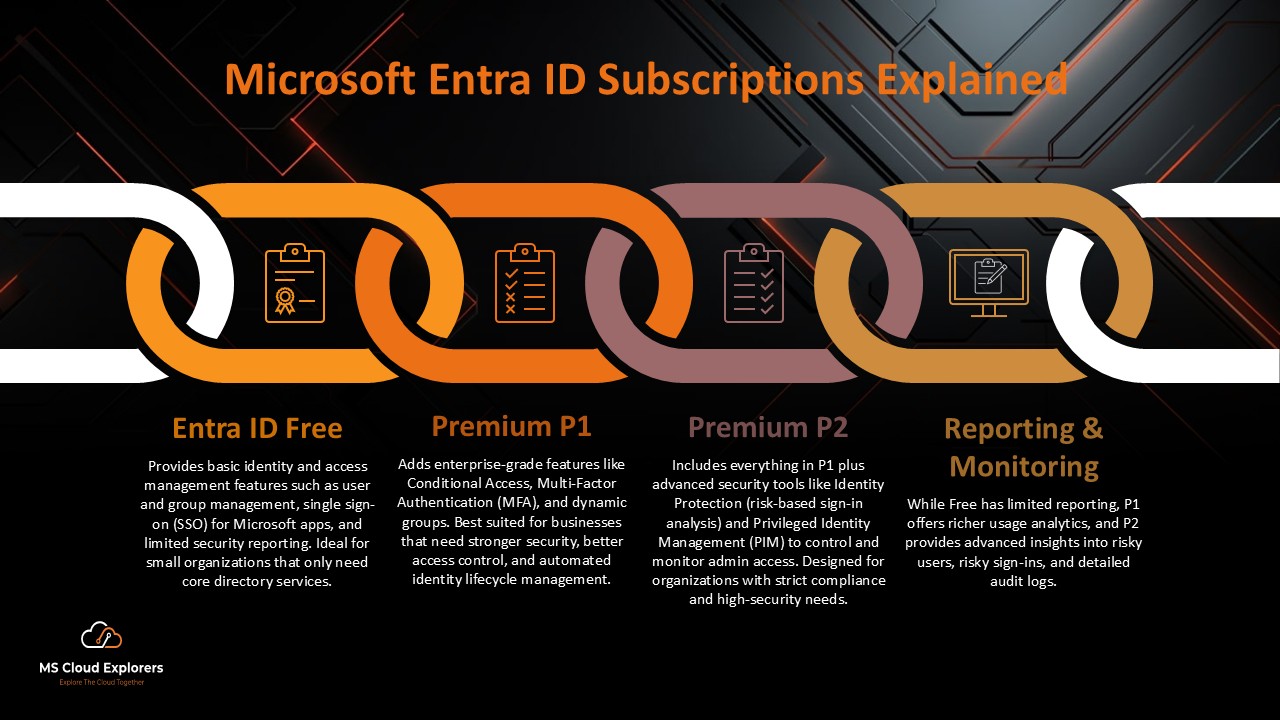
A Microsoft Entra ID P1 or P2 license is required to use the backup and recovery feature. These licenses provide access to advanced security and identity management features beyond the free tier.
Role-Based Permissions
Admins must hold appropriate roles:
- Entra Backup Reader: View backups, difference reports, and recovery history.
- Entra Backup Administrator: Full recovery capabilities, including running difference reports and restoring objects.
- Global Administrator: Default permissions include all backup and recovery actions.
Step-by-Step Guide to Using Microsoft Entra Backup and Restore
Viewing Backups in Admin Center
- Sign in to the Identity or Microsoft Entra admin Portal.
- Navigate to Entra ID → Backup and Recovery (Preview).
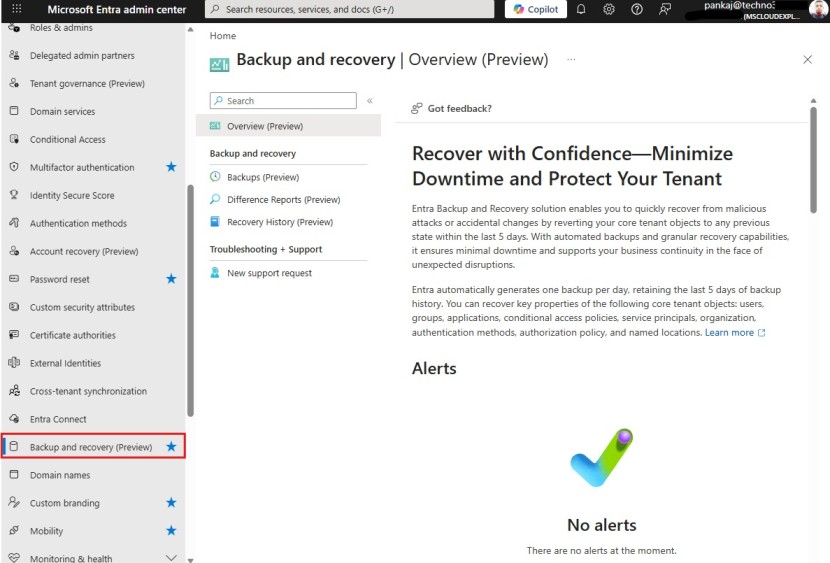
- Browse backups from the last five days with detailed timestamps and backup IDs.
Creating and Analyzing Difference Reports
Difference reports help you understand changes before restoring:
- Select a backup and generate a report.
- Choose whether to include all objects, specific types, or individual IDs.
- Review changes in attributes and links.
- The first report may take longer depending on tenant size, but subsequent reports are faster.
Restoring Objects from Backups
Recovery from Difference Reports
- Recover only the objects or attributes that were unintentionally modified.
- Useful when you want a targeted recovery without affecting legitimate recent changes.
- Recovery actions include Update, Restore, or Soft Delete for newly created objects.
Direct Backup Restoration
- Restore all objects to a previous known good state.
- Apply filters to recover specific types or individual objects.
- Recovery is irreversible, so choose backup points carefully.
Monitoring Recovery History
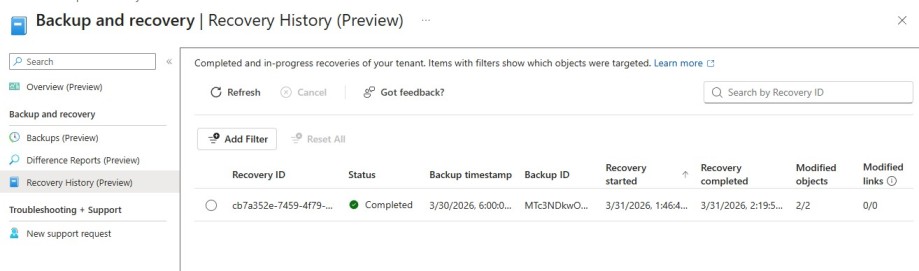
- Track all recovery operations in the Recovery History section.
- Includes details like recovery ID, status, modified objects, and links.
- Allows cancellation of ongoing recoveries if needed.
Best Practices
Running Difference Reports First
Always run a difference report before restoring objects. This ensures you know exactly what will change, preventing unintended overwrites of legitimate updates.
Managing Cloud vs On-Premises Objects
Objects synced from on-premises cannot be restored via Entra Backup. For some users or groups, converting to cloud-managed allows full recovery functionality.
Protecting Critical Attributes
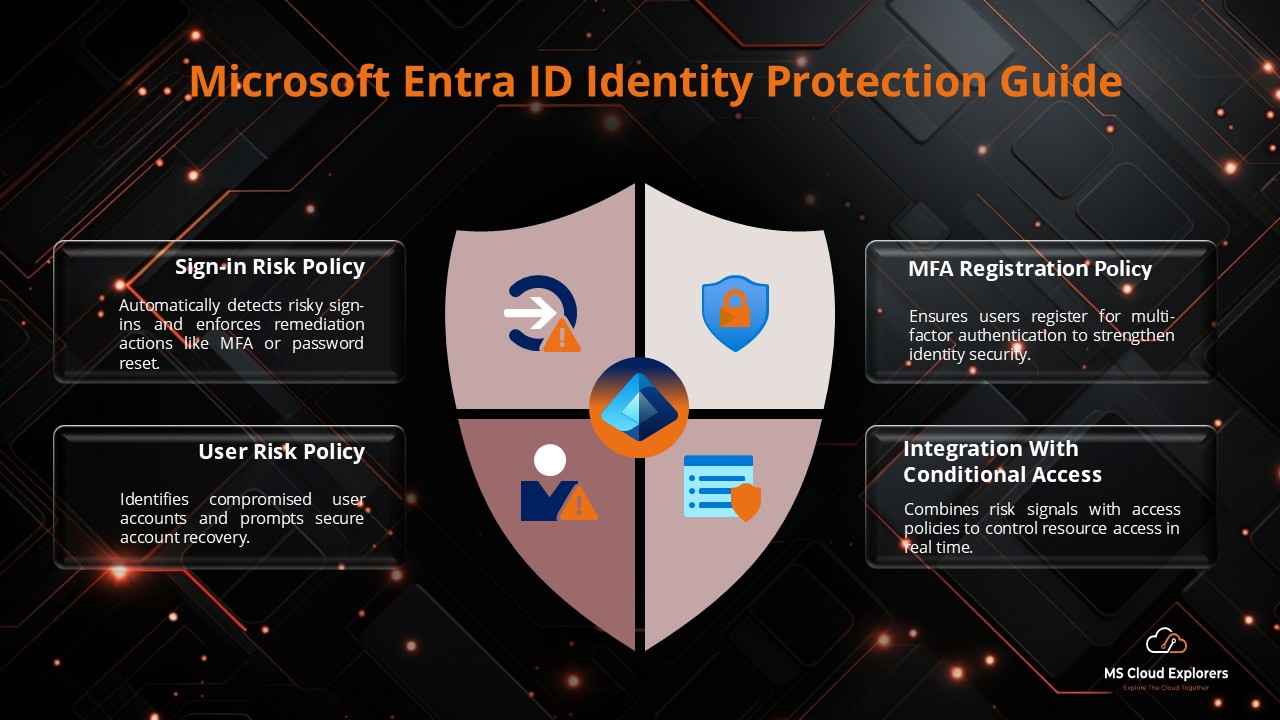
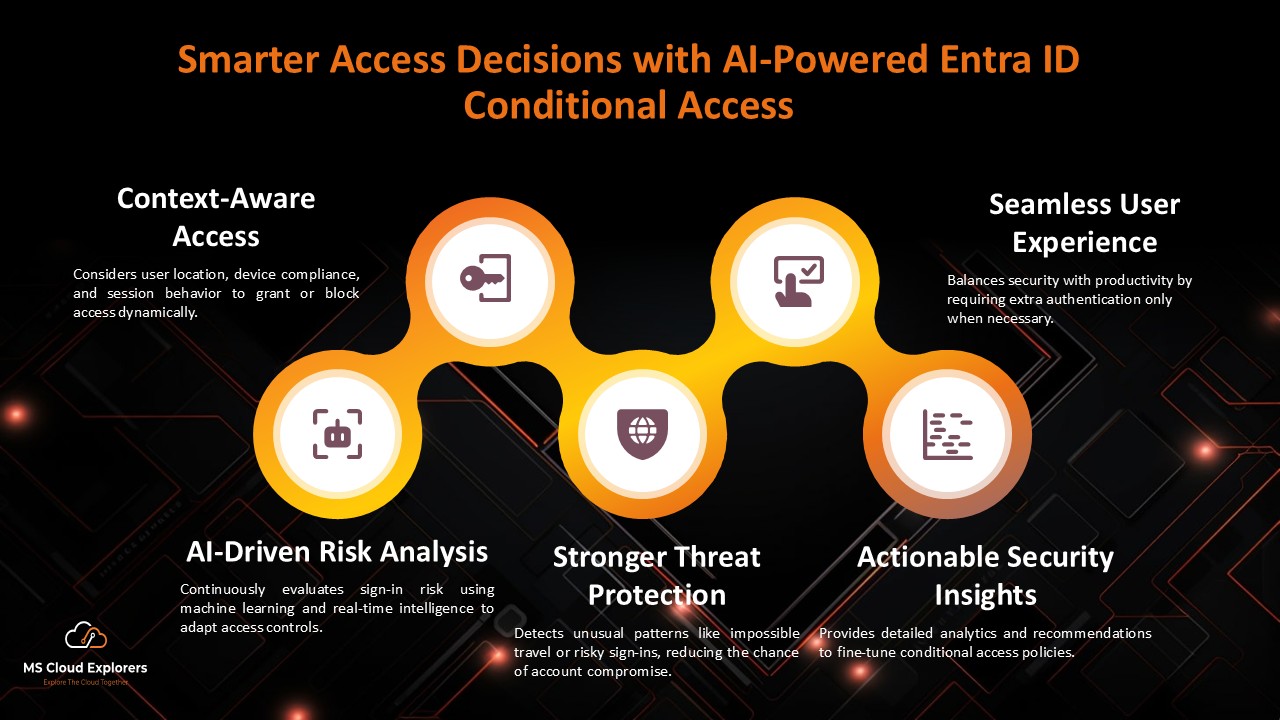
Use Conditional Access policies to mark critical objects or actions as protected, ensuring even admins cannot modify or delete them without proper authorization.
Common Challenges
Limitations of the Current System
- Recovery is limited to soft-deleted or modified objects; hard-deleted objects cannot be restored.
- Some properties within objects may not yet be recoverable.
- Large tenants may face longer initial report generation times.
Handling Large Tenants
For tenants with millions of objects, plan backup review and recovery carefully. Use filtering in difference reports to manage workloads efficiently and reduce recovery time.
Future of Microsoft Entra Backup
Planned Enhancements
Microsoft plans to expand support for more object types and attributes, enhancing recovery granularity and flexibility.
Expanding Object Support
Future updates will likely include agent IDs, hybrid objects, and additional policy types, giving admins more comprehensive coverage for enterprise environments.
Conclusion
Microsoft Entra Backup and Recovery provides a robust safety net for administrators managing critical tenant configurations. Its automated backups, difference reports, and granular recovery options empower IT teams to handle accidental changes, misconfigurations, and security incidents with confidence. While there are limitations—like hard-deleted object recovery and on-premises sync restrictions—the system drastically reduces downtime and risk compared to manual backups. By following best practices, using difference reports, and carefully choosing restore points, organizations can maintain a secure and reliable identity management environment in Microsoft Entra ID.
FAQs
- Can I restore hard-deleted objects in Entra Backup?
No, currently only soft-deleted or modified objects can be restored. Hard-deleted objects require alternative recovery methods. - How long are backups retained in Microsoft Entra Backup?
Backups are retained for five days, giving admins a short but flexible window for recovery. - Do I need a special license to use Entra Backup and Recovery?
Yes, you need Microsoft Entra ID P1 or P2 licenses to access backup and recovery features. - Can on-premises synced objects be restored?
Objects synced from Active Directory cannot be restored unless converted to cloud-managed. - Is recovery from a difference report reversible?
No, once a recovery is completed, the changes cannot be rolled back. Always review the difference report first.
Explore More From MS Cloud Explorers
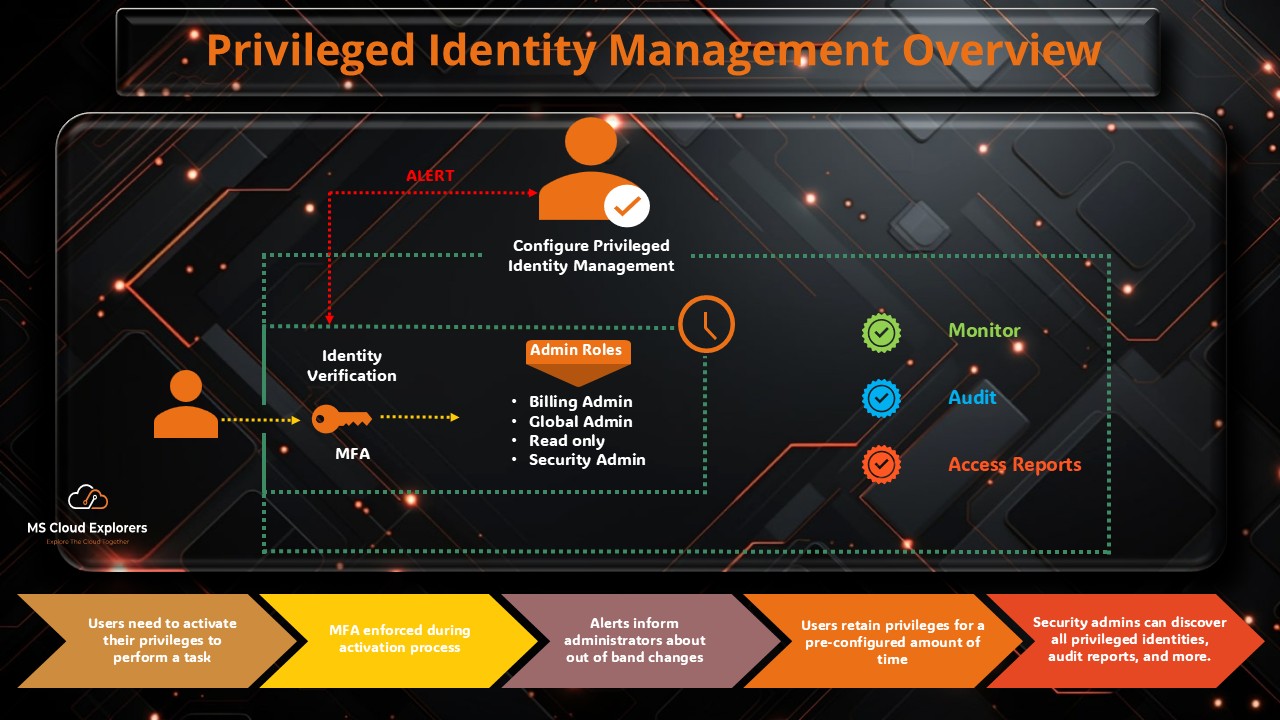
- A Complete Guide to Privileged Identity Management in Azure AD (PIM)
- Microsoft 365 Backup Native: A Complete Step-by-Step Guide
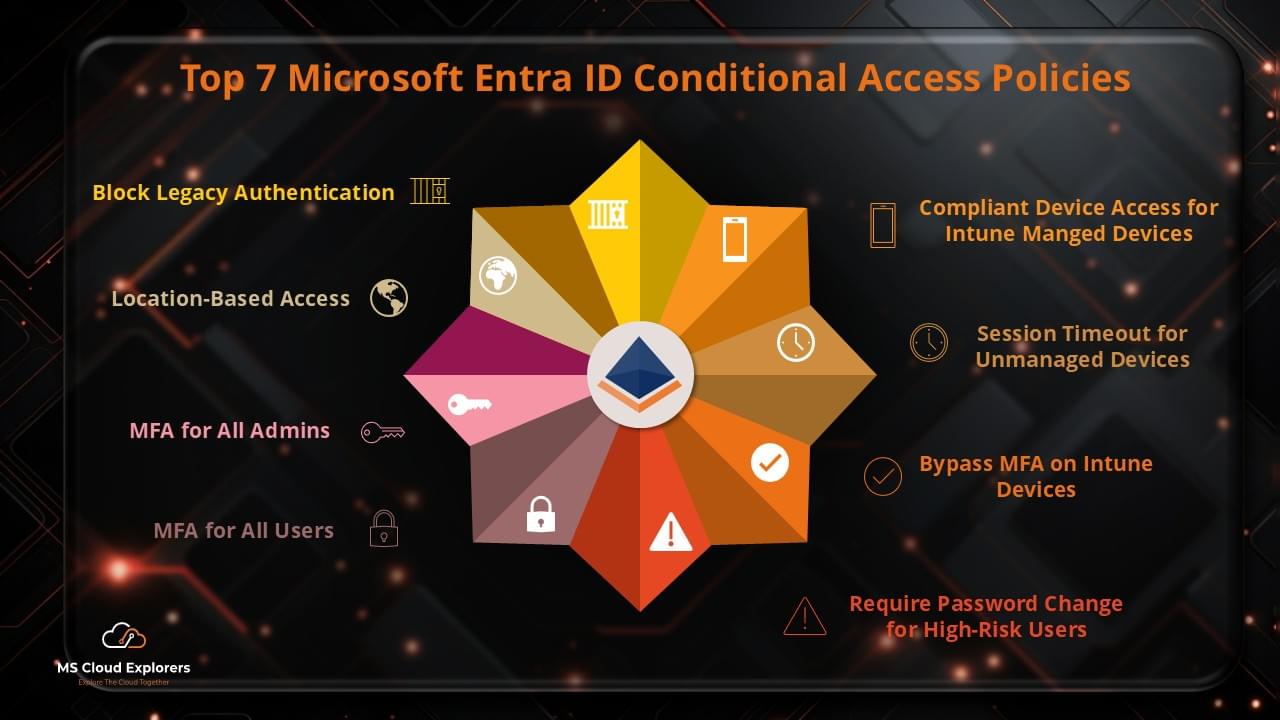
- Top 7 Conditional Access Policies Every Organization Should Implement
- Microsoft Defender for Identity: Modern Threat Detection and Identity Protection
Enjoyed the article?
We’d love to hear your thoughts—share your comments below!
For more insights, guides, and updates from the Microsoft ecosystem, be sure to subscribe to our newsletter and follow us on LinkedIn. Stay connected and never miss out on the latest tips and news!