

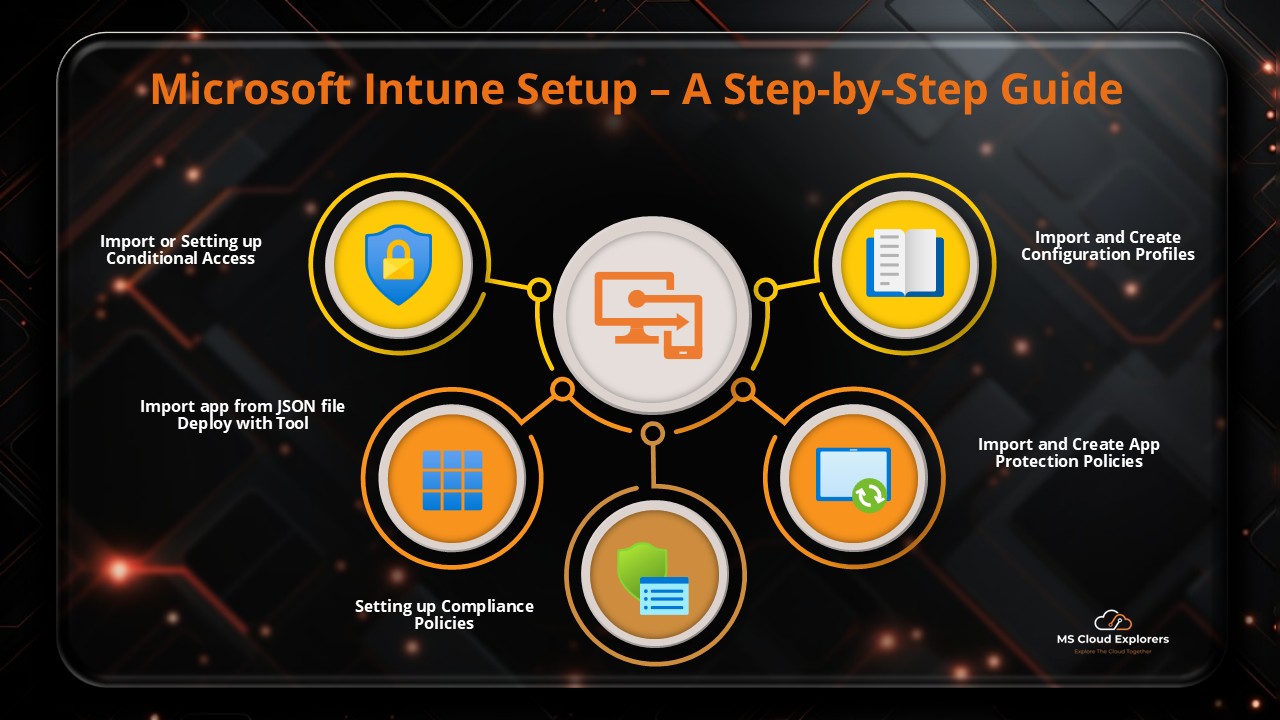
Setting up Microsoft Intune policies for each new Microsoft Intune tenant can be both frustrating and time-consuming, especially for IT administrators managing multiple environments. For instance, when you’re tasked with configuring Microsoft Intune setup across several tenants, you often start by applying all the standard and baseline policies. The manual process involves repeating the same steps for each environment, which not only eats up valuable time but also increases the risk of human error and inconsistency.
Now, imagine if you could streamline the Microsoft Intune setup process to just a few clicks. This would allow you to apply consistent baseline policies across all customer tenants with ease, so you only need to focus on custom policy requirements rather than spending time configuring each policy individually. You could even create new custom policies in your developer tenant and save as a templates for future implementations. This approach would save time, reduce errors, and provide a more consistent and secure experience across all your tenants.
In this guide, you’ll learn a proven, automated method for Microsoft Intune Setup using reusable templates, PowerShell scripts, and community-backed tools. If you’re an Intune administrator tasked with onboarding new tenants, this method will help ensure accuracy, reduce effort, and standardize deployments across environments.
Special thanks to Jonathan Edwards—his excellent YouTube tutorial inspired this guide and provided access to essential tools and scripts.
Why Automate Setting Up Intune Policy Deployment?
-
Faster onboarding: Eliminate hours—or even days—of tedious manual configuration.
-
Minimize errors: Automated, repeatable setups virtually eliminate human mistakes.
-
Consistency: Every tenant setup follows the exact same policy baseline.
Prerequisites for Microsoft Intune Setup Automatically
Before you begin setting up Intune with automation, prepare the following:
Download the Intune Deployment Tool: This Windows PowerShell-based GUI tool is designed specifically for adding custom JSON policy files directly to Intune.
Microsoft Intune Setup: Step-by-Step Guide
This guide outlines the process for downloading, installing, and configuring Intune policies using the Intune Deployment Tool and configuration files. Follow these steps to set up Intune policies, compliance policies, and export/import applications between tenants.
Step 1: Download and Prepare Files
- Download Intune Policies:
- Obtain the Intune Configuration Files (template policies created by Intune experts) from the provided source.
- Download the Deployment Software:
- Download the Intune Deployment Tool, a Windows PowerShell-based GUI tool designed to add custom JSON files to Intune.
- Extract Files:
- Extract both ZIP files (Intune Policies and Deployment Software) to a desired location on your computer (e.g., C:UsersYourUsernameDownloadsSettings).
- Run the Deployment Tool:
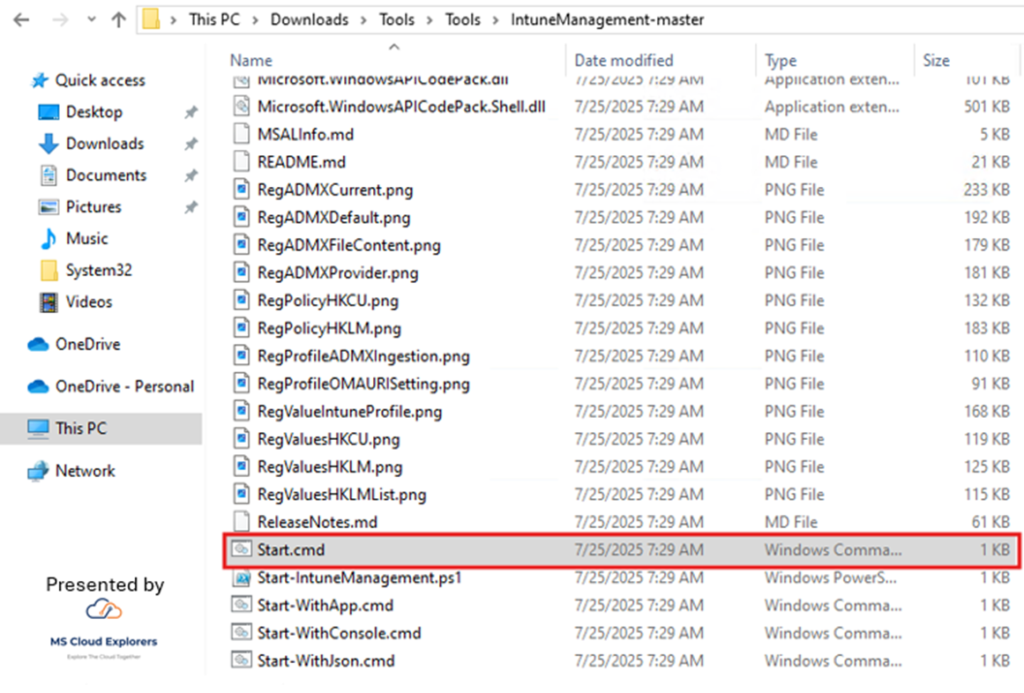
- Navigate to the extracted software folder, then go to the IntuneManagement-master folder.
- Locate the Start.cmd file and run it as an Administrator.
Step 2: Initial Setup of the Intune Deployment Tool
- Accept Terms and Conditions:
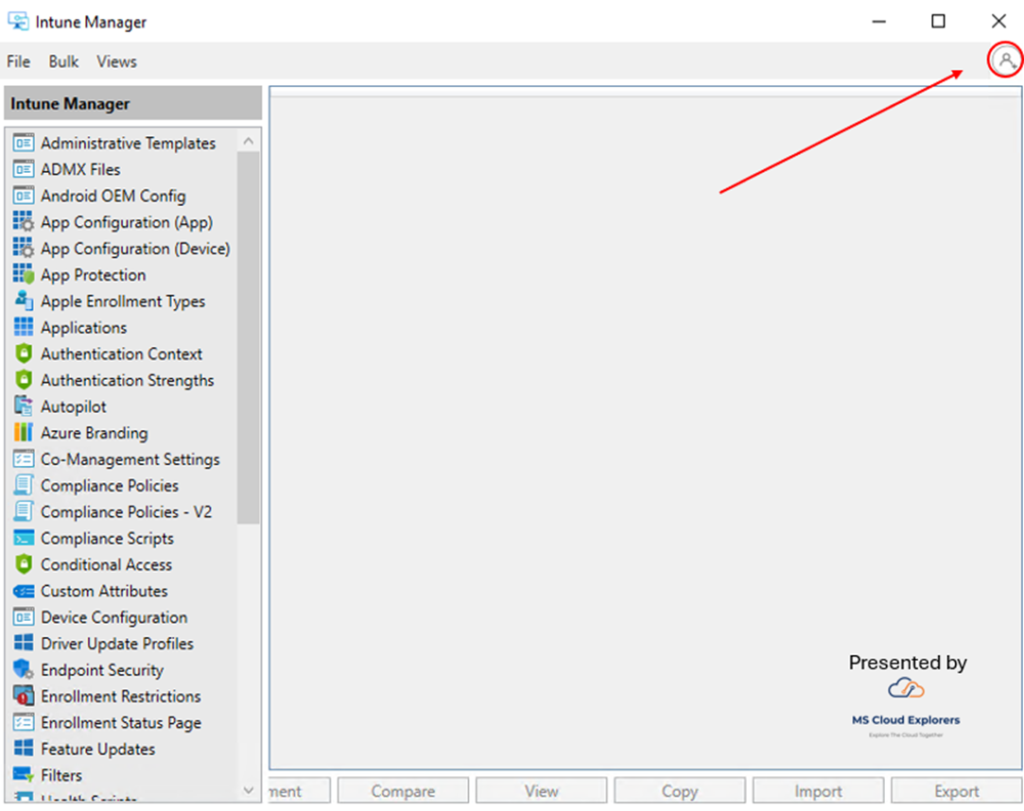
- On the first launch, the tool will prompt you to accept the terms and conditions. Accept them to proceed.
- The home screen of the tool should appear.
- Log In:
- Log in using an Intune Administrator or Global Administrator account.
- Grant Consent:
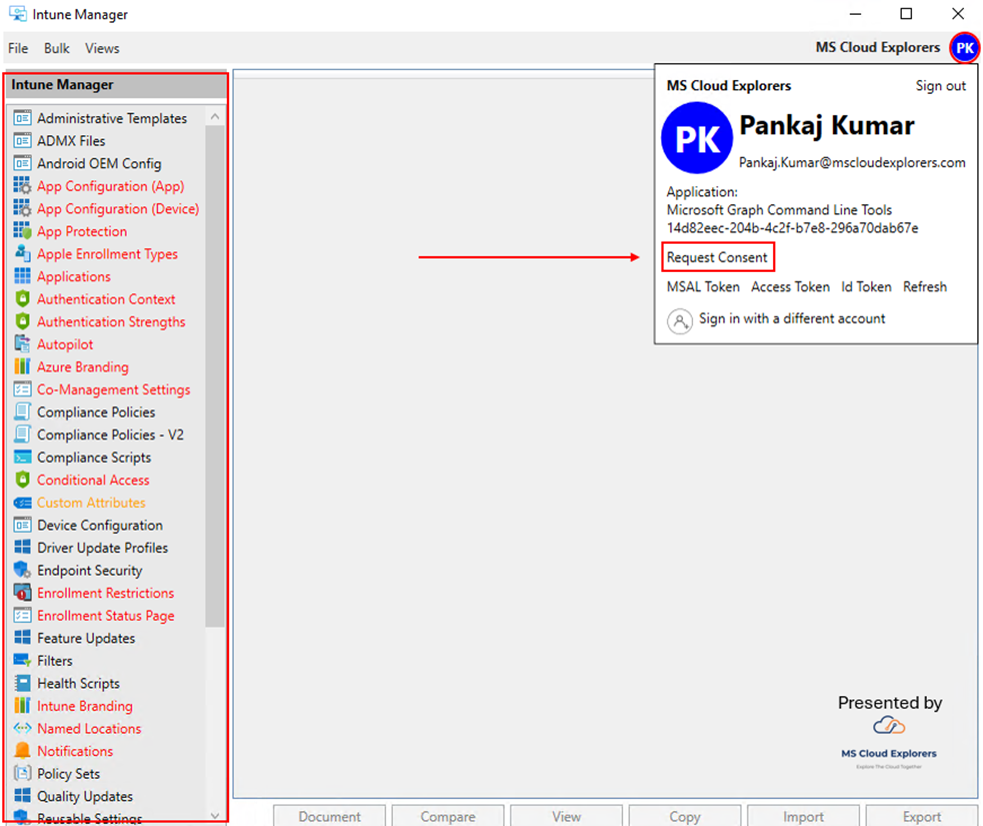
- Upon first login, some options on the left-hand menu may appear in red.
- Click on the account you logged in with, then select Request Consent.
- This action creates an application in the Microsoft Entra portal to manage policies.
- Once consent is granted, all menu options should appear in black, indicating they are active.
Step 3: Import Configuration Profiles
- Access Settings Catalog:
- In the Intune Deployment Tool, click Settings Catalog in the left-hand menu.
- If configuration profiles already exist in your tenant, they will be visible here.
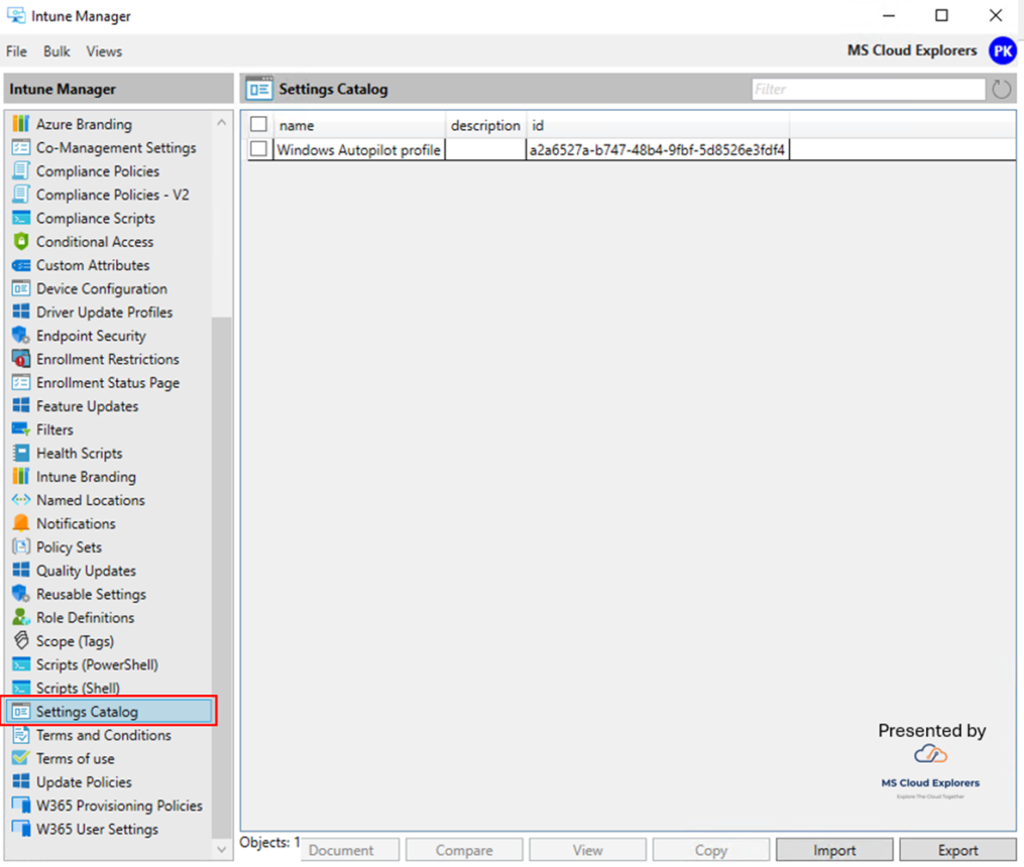
- Import Configuration Profiles:
- Click the Import button at the bottom of the screen.
- Navigate to the folder where you extracted the Intune Configuration Files (e.g., C:UsersYourUsernameDownloadsSettingsOpenIntuneBaseline-mainWINDOWSIntuneManagementSettingsCatalog).
- Select the folder and click Import.
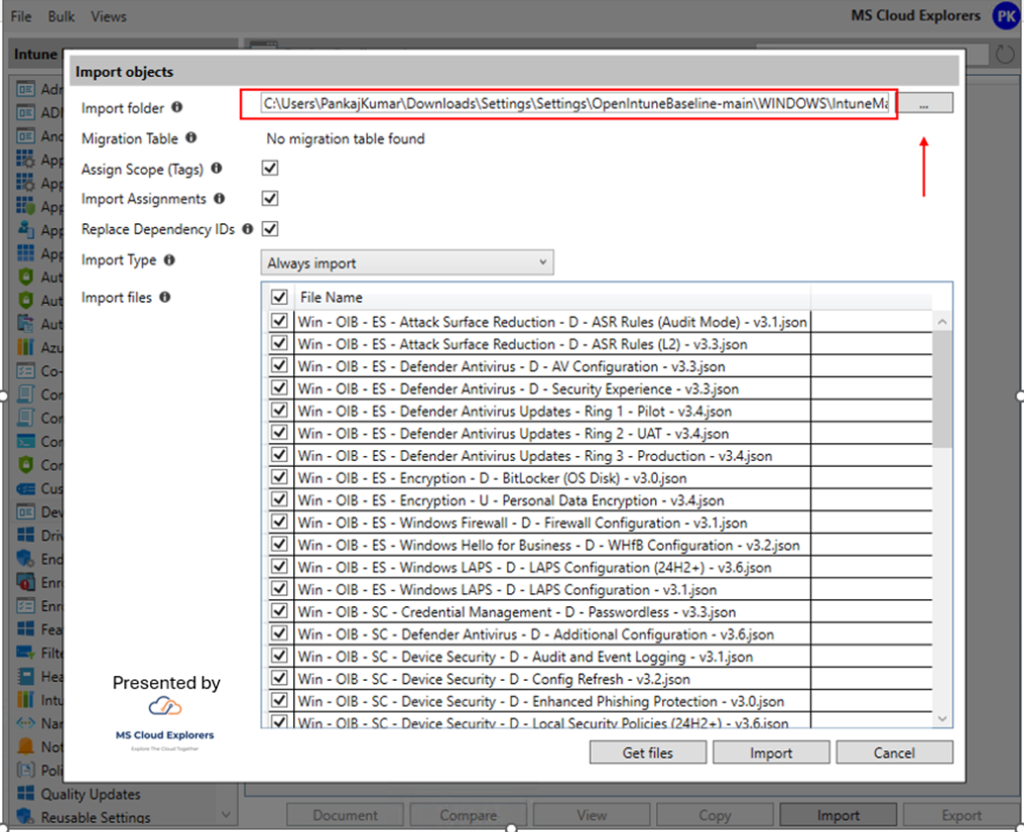
- Verify Import:
- The import process may take a few minutes.
- Once completed, verify that the configuration profiles appear in the Intune Portal.
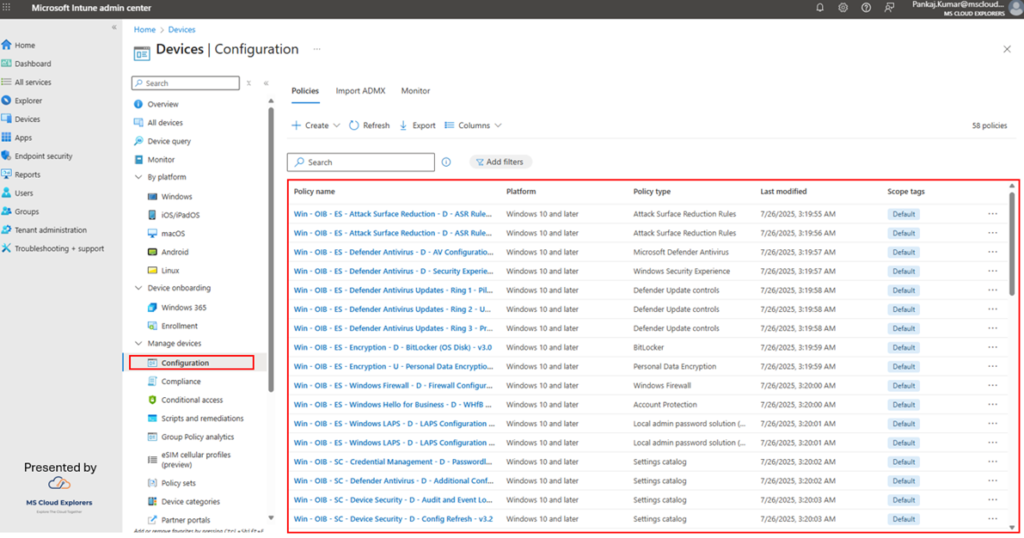
- Assign Profiles:
- In the Intune Portal, review the imported configuration profiles and assign them to the appropriate Intune groups.
Step 4: Set Up Compliance Policies
- Access Compliance Policies:
- In the Intune Deployment Tool, click Compliance Policies in the left-hand menu.
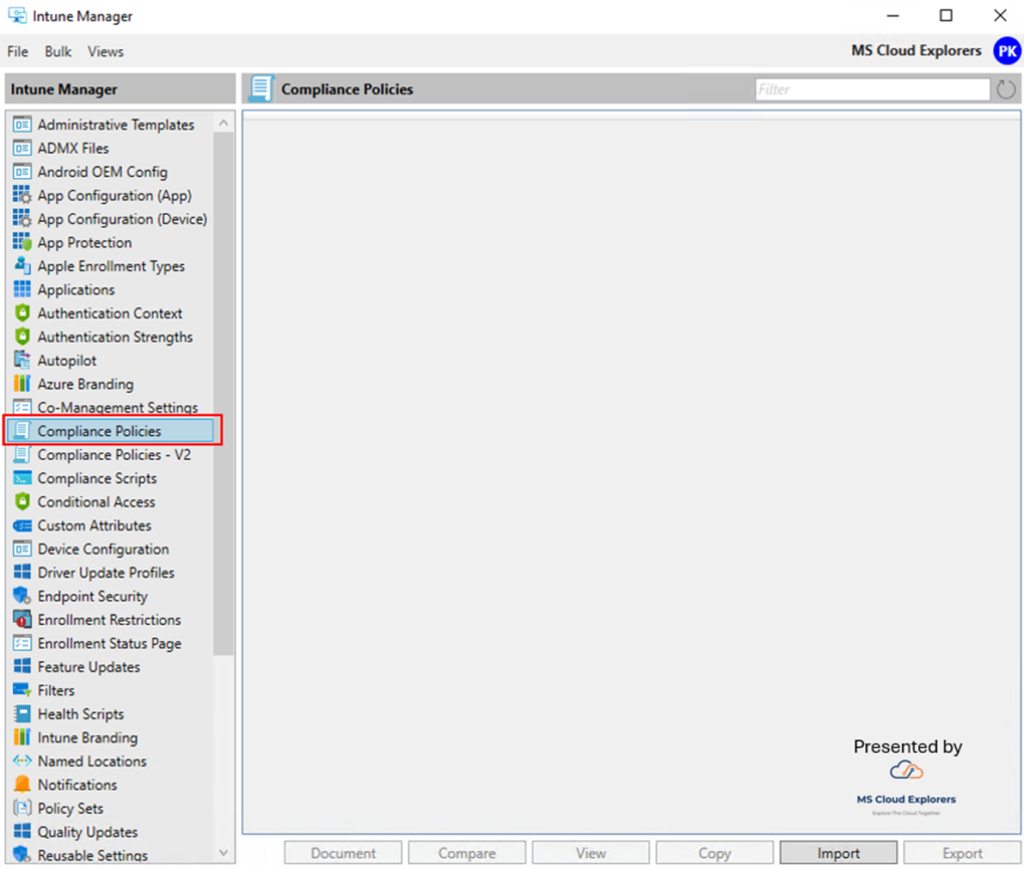
- Import Compliance Policies:
- Click the Import button.
- Navigate to the folder containing the compliance policy files (e.g., C:UsersYourUsernameDownloadsSettingsOpenIntuneBaseline-mainWINDOWSIntuneManagementCompliancePolicies).
- Select the folder and click Import.
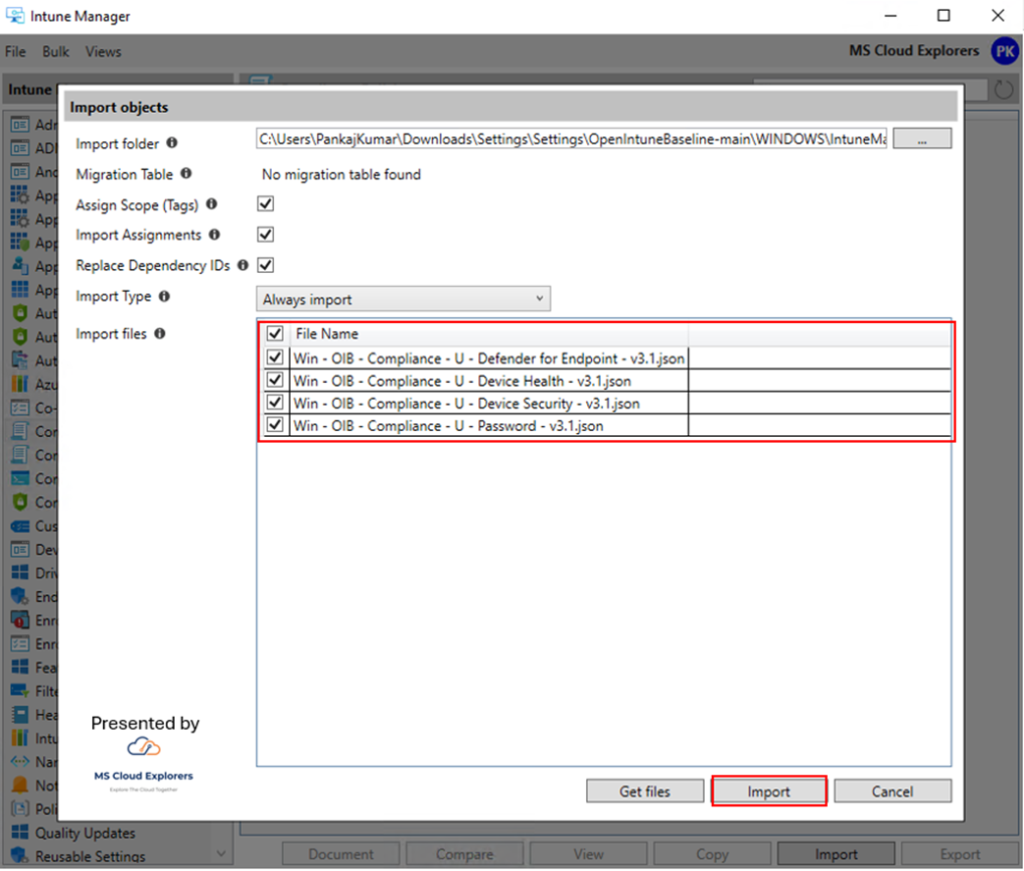
- Verify Import:
- Confirm that the compliance policies appear in the Intune Portal.
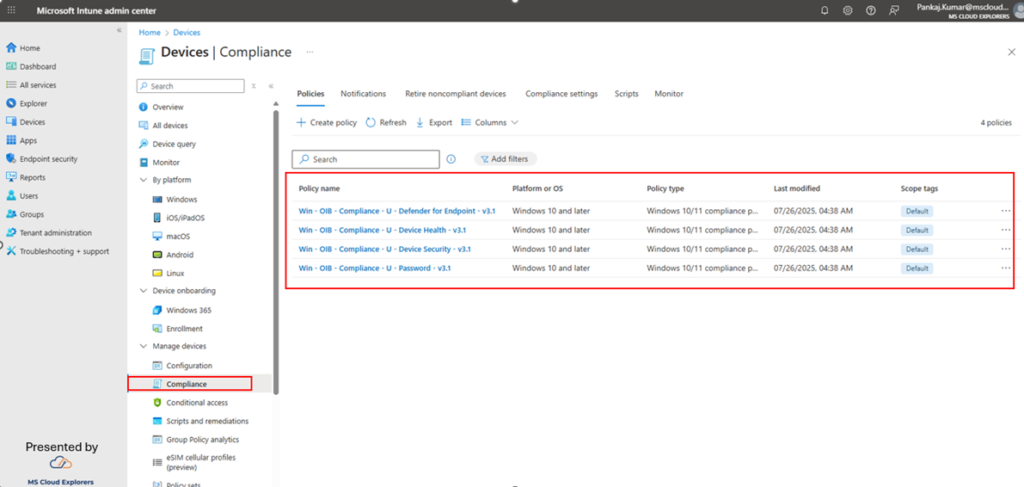
Step 5: Explore Additional Policy Imports
- You can use the same method to import other sets of Intune policies from the extracted ZIP files by following similar steps in the Intune Deployment Tool.
Step 6: Export and Import Applications Between Tenants
If you want to copy policies or applications from one tenant to another, follow these steps:
Export Applications from a Source Tenant
- Log In to the Source Tenant:
- Open the Intune Deployment Tool and log in to the tenant from which you want to export policies or applications.
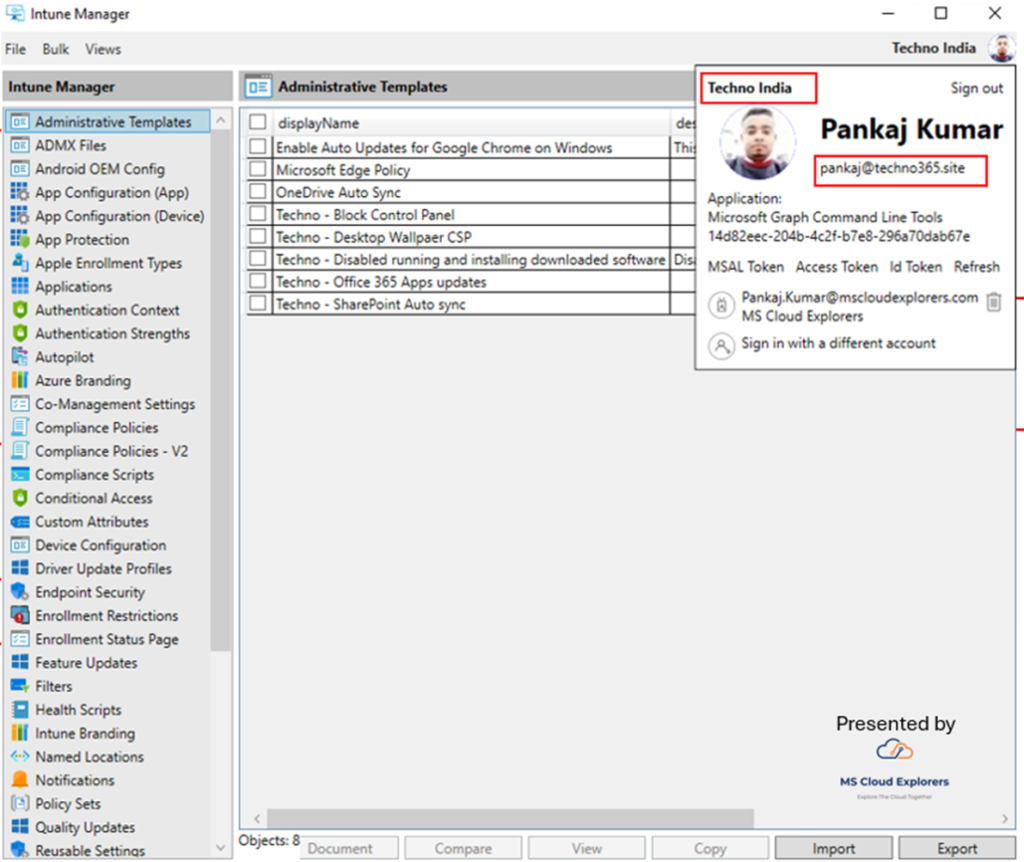
- Select Applications:
- In the left-hand menu, click Applications.
- Select the checkboxes for the Intune deployed Apps you want to export.
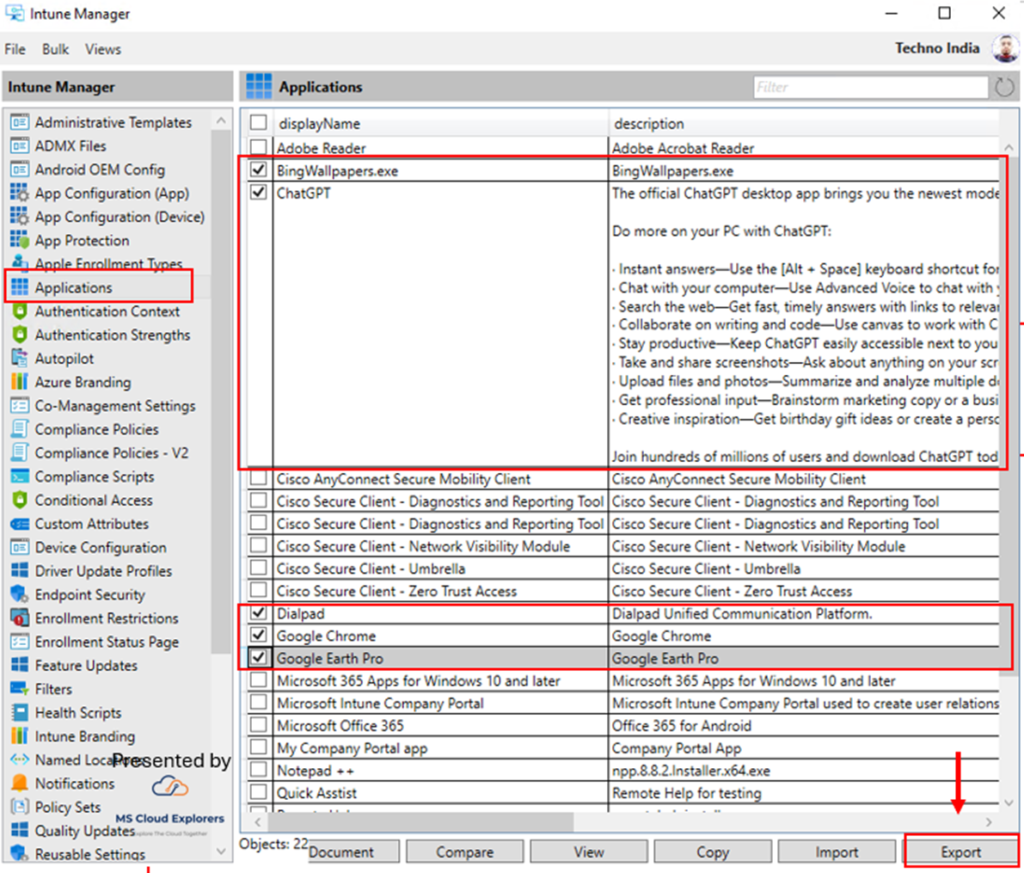
- Export Applications:
- Choose a destination folder for the exported JSON files.
- Click Export Selected to save the application data as JSON files in the selected folder.
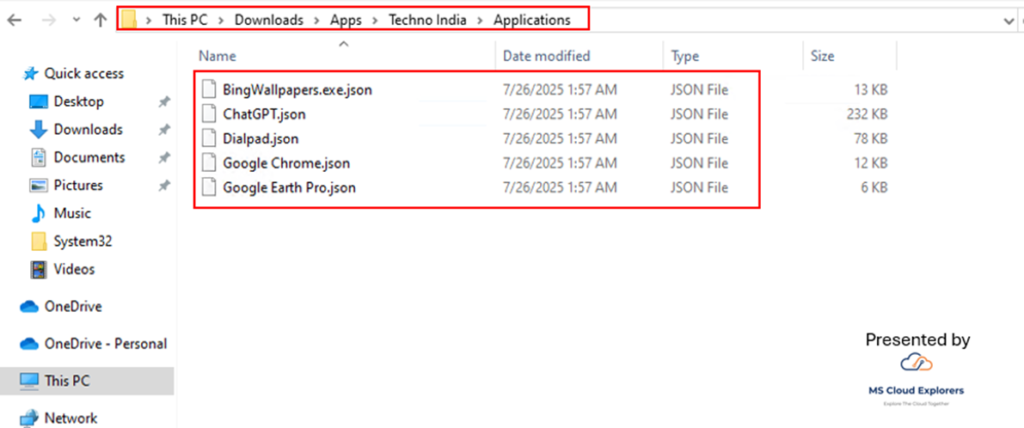
- Verify Exported Files:
- Check the destination folder to confirm that the exported JSON files are present.
Import Applications to a Target Tenant
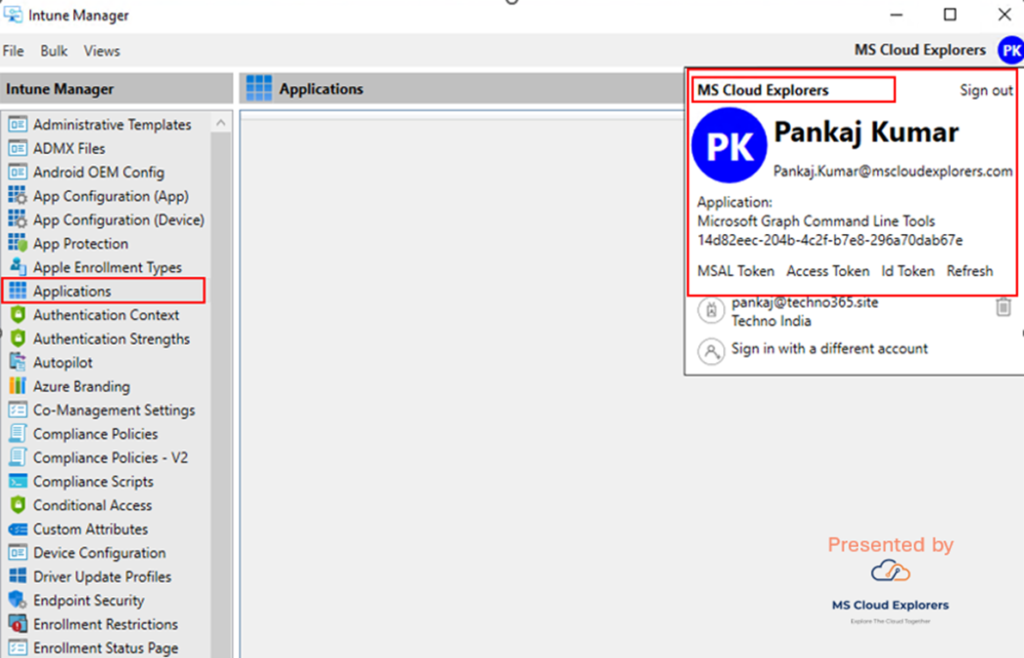
- Log In to the Target Tenant:
- Log in to the Intune Deployment Tool using the credentials for the tenant where you want to import the applications.
- Verify that no applications are currently added to this tenant.
- Import Applications:
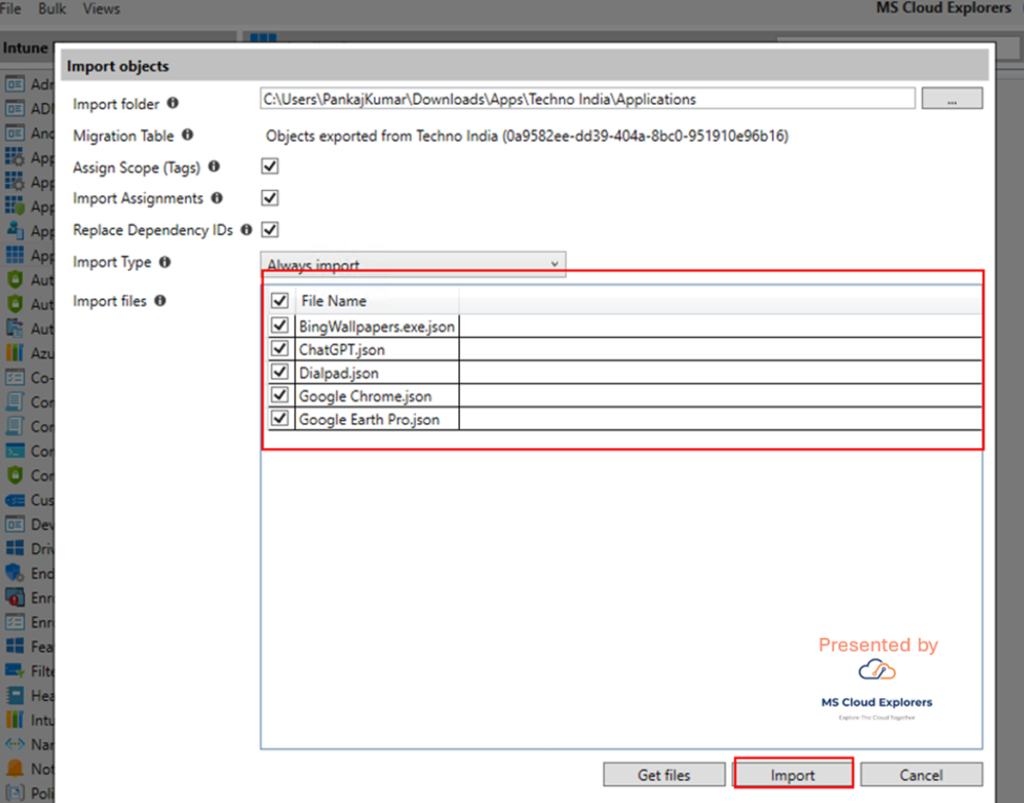
- Click Applications in the left-hand menu, then click Import.
- Navigate to the folder where you saved the exported JSON files (e.g., the Applications folder from the export step).
- Select the applications you want to import and click Import at the bottom.
- Verify Import:
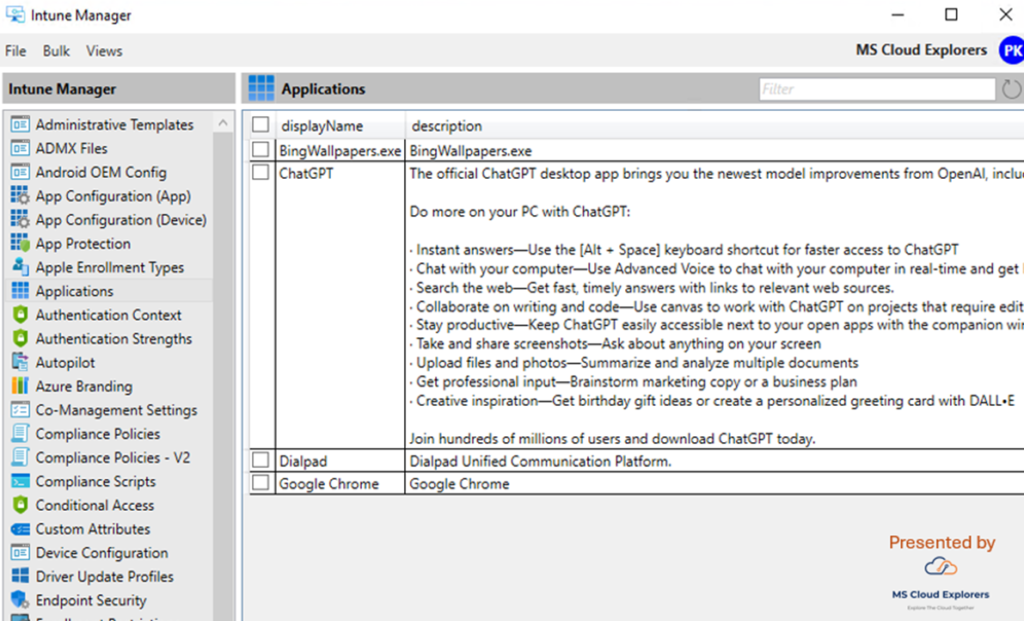
- Once the import is complete, confirm that the applications appear in the target tenant.
- Check the Intune Portal to ensure the applications are listed correctly.
Quick Tips
- Exporting Other Policies: You can export and import other Intune settings (e.g., configuration profiles, compliance policies) using the same export/import process described for applications.
- File Locations: Always ensure you select the correct folder paths for importing/exporting files to avoid errors.
- Administrator Privileges: Run the Start.cmd file as an Administrator to avoid permission issues.
- Intune Portal Verification: Always verify imported policies or applications in the Intune Portal to ensure successful deployment.
Conclusion
Setting up Microsoft Intune no longer needs to be a complex, repetitive task. By leveraging the Microsoft Intune Deployment Tool alongside reusable templates and automation scripts, you can onboard new tenants in minutes, not hours. This approach guarantees consistent, error-free policy deployment—saving you time and ensuring every environment is secure and compliant.
Ready to automate your next Microsoft Intune setup? Start setting up Microsoft Intune the smart way—quickly, reliably, and at scale.
Explore More From MS Cloud Explorers
- Windows Autopilot Deployment Guide
- Mastering Endpoint Privilege Management (EPM) in Microsoft Intune
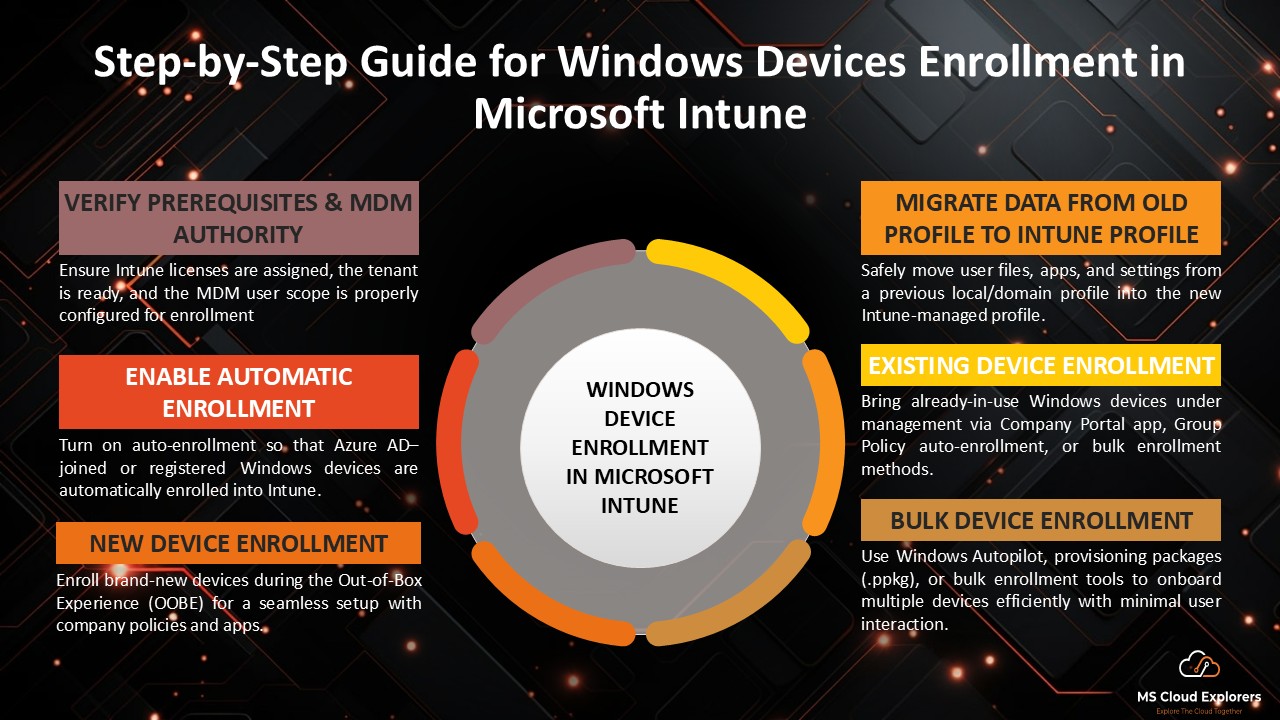
- Step-by-Step Guide for Windows Devices Enrollment in Microsoft Intune 2026
- Microsoft Intune Guide for Beginner
- Setting up Microsoft Defender for Endpoint
Enjoyed the article?
We’d love to hear your thoughts—share your comments below!
For more insights, guides, and updates from the Microsoft ecosystem, be sure to subscribe to our newsletter and follow us on LinkedIn. Stay connected and never miss out on the latest tips and news!
I really appreciate this post. I’ve been looking everywhere for this! Thank goodness I found it on Bing. You’ve made my day! Thank you again!