If your team already lives inside Microsoft Teams for calls and chat, jumping to a phone or a separate app just to send a quick text feels clunky. The good news is that Microsoft Teams now supports native SMS for users on a Microsoft Teams Calling Plan. That means you can send and receive text messages in the same window where you take calls and reply to chats.
This guide walks you through everything an administrator needs to enable SMS in Microsoft Teams in 2026, from licensing and 10DLC registration to the exact clicks in the Teams admin center. It also covers the limits you should set expectations around before you roll it out.
|
Quick answer: Microsoft Teams SMS lets Calling Plan users send and receive one-to-one text messages directly inside Teams. It is available on Calling Plan numbers in the United States (including Puerto Rico) and Canada, and requires Teams, Teams Phone, and a Calling Plan license, plus approved 10DLC Brand and Campaign registration. |
What Is Microsoft Teams SMS?
Microsoft Teams SMS is a built-in texting feature for Teams Phone customers who use Microsoft Calling Plans. Once enabled, a user’s Calling Plan phone number can send and receive standard text messages, and those conversations appear right in the Teams chat list, on both desktop and mobile.
It is worth being precise about how Microsoft classifies this. All texting to and from Teams is treated as business (A2P, application-to-person) messaging rather than personal consumer texting. That classification is what drives the 10DLC registration requirement we cover below.
Where it works
- Countries: United States (including Puerto Rico) and Canada only.
- Numbers: Microsoft Teams Calling Plan numbers assigned to individual users.
- Apps: Teams on Windows, macOS, iOS, and Android.
- Recipients: Mobile numbers regionally assigned in the US or Canada that can receive SMS.
Why Enable SMS in Microsoft Teams?
For many organizations, SMS is the difference between a message being seen now versus hours later. Bringing it into Teams gives you a few practical wins:
- One place for everything. Calls, chats, and texts live in a single app, so staff stop switching between tools.
- Fewer third-party tools. For simple one-to-one texting, you may not need a separate SMS platform or licence.
- Governed and visible. Messaging stays within your Microsoft 365 tenant, with admin reporting available.
- Familiar experience. Users already know how Teams chat works, so adoption is fast.
Microsoft Teams SMS Limitations You Should Know First
Set expectations before you roll this out. Native Teams SMS is deliberately lightweight, and knowing the boundaries up front saves a lot of support tickets later.
- One-to-one only. You cannot start a group text; each conversation is between two people.
- Plain text only. Images, file attachments, GIFs, and stickers are not supported.
- Region-locked. Only US, Puerto Rico, and Canada numbers, texting other US/Canada numbers.
- Calling Plan required. Numbers connected through Direct Routing or Operator Connect are not covered by this native feature.
- Not for bulk or marketing. The registration is scoped to low-volume, person-to-person business conversations, not campaigns, automated alerts, or API-driven messaging.
|
Need more than this? If you need MMS, group texting, shared inboxes, or high-volume outbound campaigns, native SMS won’t be enough on its own, and you’ll want to evaluate a carrier or third-party texting solution. See the comparison table later in this guide. |
What You Need Before You Start
Confirm each of these is in place before you begin. The most common reason for setup stalls is missing any one of them.
1. Licences
Every user who will use SMS needs all three of the following assigned:
- Microsoft Teams
- Teams Phone
- Microsoft Teams Calling Plan
2. A Calling Plan phone number
The user must have a Calling Plan number assigned through the Teams admin center. Numbers tied to resource accounts (for example, auto attendants or call queues) do not support SMS.
3. A billing mechanism
You need a way to fund usage. Overages are covered either by prepaid Communication Credits under a Microsoft Online Subscription Agreement (MOSA), or by postpaid invoicing under a Microsoft Customer Agreement (MCA). A billing mechanism is required for pay-as-you-go Calling Plans.
4. Admin permissions
To register and manage SMS you must hold one of these Teams RBAC roles:
- Teams Administrator
- Teams Communications Administrator
- Teams Telephony Administrator
5. Approved 10DLC Brand and Campaign
This is the big one. In the US, business texting must travel over the 10DLC (10-Digit Long Code) network, and carriers only accept it from senders registered with The Campaign Registry (TCR). No number can be enabled for SMS until your Brand and Campaign are approved.
Understanding 10DLC Registration
If you have never dealt with 10DLC before, here is the short version. Carriers want to know two things before they let business texts onto their network:
- Who you are (Brand). Your company’s legal identity so carriers can verify you are a real, legitimate business.
- Why you’re texting (Campaign). The purpose and nature of your messaging, including sample messages and how people opt in and out.
For Teams SMS, Microsoft submits this information to TCR on your behalf through the Teams admin center. The campaign use case is fixed by Microsoft as Unified Communications as a Service (UCaaS), Low Volume, and it is meant strictly for one-to-one conversations from numbers assigned to individual employees.
|
Plan ahead: Because of high demand, approval of Brand and Campaign applications (and any rejected re-submissions) can currently take 4 to 6 weeks. Start registration well before you promise SMS to end users. |
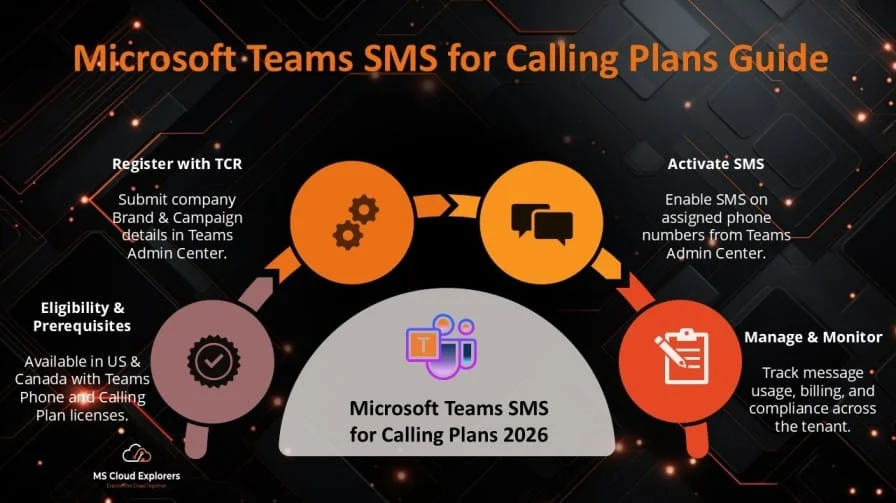
How to Set Up Microsoft Teams SMS for Calling Plans
With the prerequisites ready, here is the full setup flow inside the Teams admin center and the Microsoft 365 admin center.
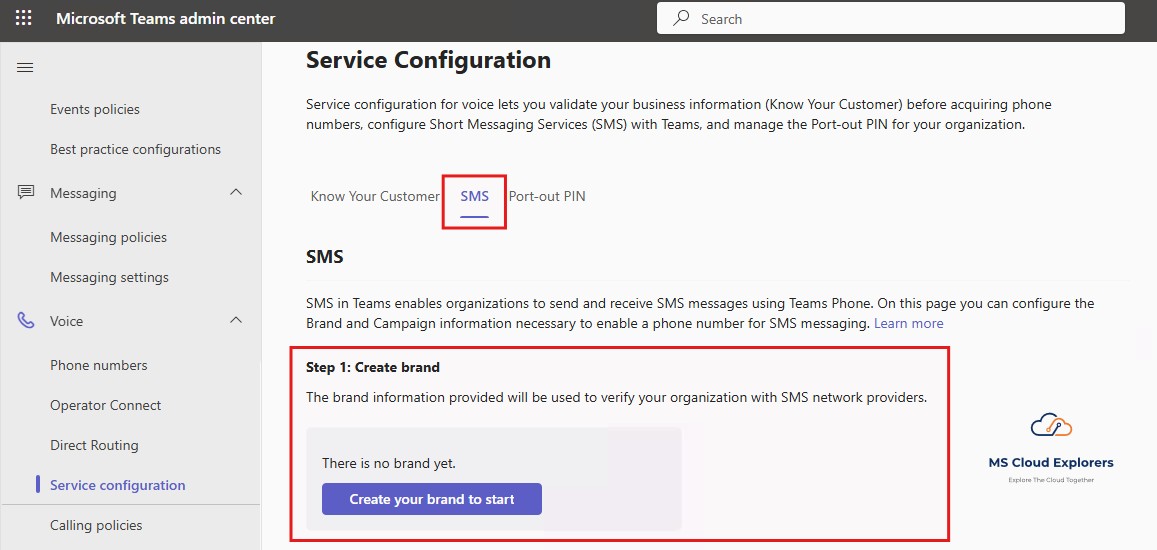
Step 1: Register Your Brand
- Sign in to the Teams Admin Center.
- Go to: Voice > Phone Numbers > SMS > then start Brand Registration
- Enter your company details, including legal business name, Tax ID (EIN, BN, or VAT), registered address, and website URL.
- 6. Submit and wait for verification. The status in the Teams admin center will change to Approved once TCR verifies your Brand.
Step 2: Register Your SMS Campaign
Once the Brand shows as Approved, you can create the Campaign:
- In the Teams admin center, go to Voice > Phone numbers > SMS and start Campaign registration.
- Provide a clear campaign description: what the messages are for, who receives them, and how users opt in and opt out.
- Add sample messages, plus publicly accessible links to your Privacy Policy and Terms & Conditions. Your privacy policy should explain how consumer data is used and how people can contact the sender.
- Submit for review. 10DLC operators are the final approvers, so accuracy and completeness directly affect your timeline and outcome

Pro Tip: Pro tip: Keep every detail consistent with your Brand registration. Mismatched company names, URLs, or contact info are a frequent cause of rejection.
Step 3: Assign the required licenses
In the Microsoft 365 Admin Center:
- Assign the following licenses to each SMS-enabled user:
- Microsoft Teams
- Teams Phone
- Teams Calling Plan
Step 4: Assign a Phone Number and Enable SMS
- In Teams Admin Center, go to: Voice > Phone Numbers
- Assign a Calling Plan number to the user.
- In the toolbar above the list, select Enable SMS.

Activation can take up to two hours. When the SMS status reads Activated, the user can start texting from within Teams.
How to Check SMS Status in the Teams Admin Center
Not every number supports SMS. Under Voice > Phone numbers > Numbers, the SMS status column tells you exactly where each number stands:
|
SMS Status |
What it means |
|
Not available |
SMS cannot be used on this number. Usually because the number is assigned to a resource account or the number itself does not support SMS. |
|
Not Activated |
SMS is supported but not yet turned on. Select Enable SMS to activate it. |
|
In Progress |
Activation has started and can take up to two hours to complete. |
|
Activated |
SMS is live on the number. Select Disable SMS if you ever need to turn it off. |
How End Users Send and Receive SMS in Teams
Once a number is activated, the experience for users is refreshingly simple.
Sending a text
- In the chat list, select New chat.
- Type the recipient’s phone number instead of a name.
- Write the message in the compose box and select Send.
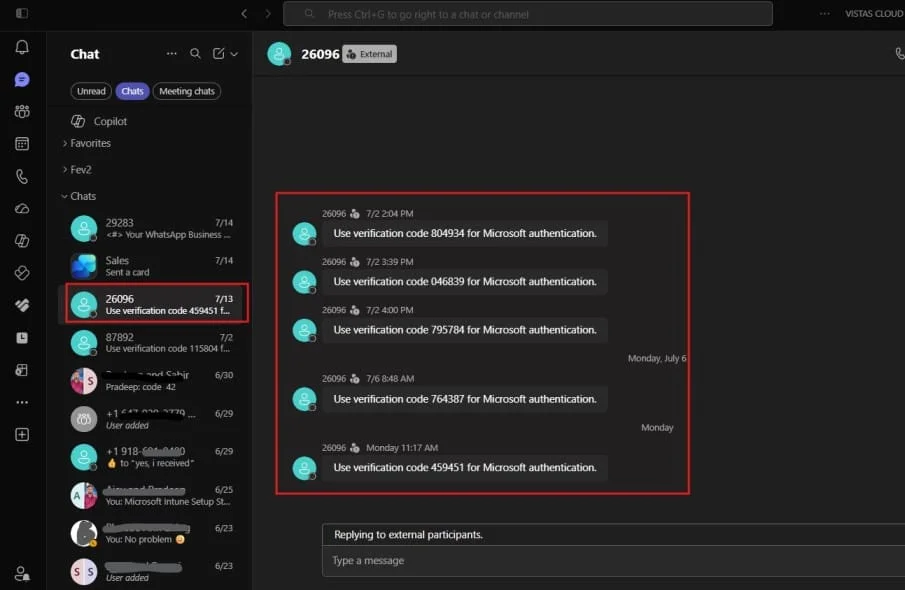
Receiving and managing texts
- Incoming texts arrive as notifications; the first message from a new number must be accepted or blocked.
- Users can reply STOP to block a sender, START to resume, and HELP to see options.
- SMS chats can be muted like any other Teams conversation.
Monitoring SMS Usage
To keep an eye on consumption and costs, run the built-in report: in the Teams admin center go to Reports & analytics > Usage reports > PSTN and SMS Usage, choose a date range, and select Run report. This gives you itemised SMS activity across your tenant.
Native Teams SMS vs Third-Party Texting
If you’re deciding whether native SMS is enough or whether you need a carrier/third-party solution, this side-by-side makes the trade-offs clear.
|
Capability |
Native Teams SMS |
Third-Party / Carrier SMS |
|
1:1 plain text |
Yes |
Yes |
|
MMS (images, files) |
No |
Yes |
|
Group texting |
No |
Yes |
|
Shared team inbox |
No |
Yes |
|
Works without a Calling Plan |
No |
Yes |
|
Bulk / marketing campaigns |
No |
Yes |
|
Built-in to Teams (no extra app) |
Yes |
Varies |
|
Coverage |
US, Puerto Rico, Canada |
Depends on provider |
Troubleshooting Common Teams SMS Issues
- SMS status shows “Not available.” The number is likely on a resource account or simply doesn’t support SMS. Assign an eligible Calling Plan number to a user instead.
- Brand or Campaign rejected. A support case is generated automatically. Track it in the Phone Number Service Center under My Company Cases, correct the flagged details, and resubmit. Re-reviews can take 4–6 weeks.
- User can’t text internationally. Expected behaviour. Both sender and recipient must be US or Canada numbers.
- Can’t send an image. MMS isn’t supported. Native Teams SMS is plain text only.
- “Enable SMS” is greyed out. Confirm the three licences are assigned and your Brand and Campaign are approved.
Frequently Asked Questions
Can Microsoft Teams send text messages?
Yes. Users on a Microsoft Teams Calling Plan in the US, Puerto Rico, or Canada can send and receive one-to-one SMS directly in Teams once an admin enables it on their number.
Is Microsoft Teams SMS free?
The feature is included with Teams Phone and a Calling Plan, but SMS consumption can incur charges. You need a billing mechanism such as Communication Credits or a Microsoft Customer Agreement to cover overages.
Does Microsoft Teams support MMS?
No. Native Teams SMS is plain text only. Images, file attachments, GIFs, and stickers are not supported.
Can I send SMS from Direct Routing or Operator Connect numbers?
Not with the native feature. Native Teams SMS works only on Microsoft Calling Plan numbers. For Direct Routing or Operator Connect numbers you’d need a third-party or carrier texting solution.
How long does 10DLC approval take for Teams SMS?
Currently around 4 to 6 weeks due to high demand, including re-reviews of any rejected Brand or Campaign applications. Start early.
Which countries support Teams SMS?
Only the United States (including Puerto Rico) and Canada, and messages must be between US/Canada numbers.
Why is SMS not working in Microsoft Teams?
The most common reasons are missing licences, an unapproved Brand or Campaign, a number on a resource account, or a number whose SMS status isn’t yet Activated.
Final Thoughts
Native SMS in Microsoft Teams is a genuinely useful addition for Calling Plan customers who want texting in the same place they already work. It won’t replace a full business messaging platform, but for straightforward one-to-one conversations it removes friction and keeps communication inside your Microsoft 365 environment. Get your 10DLC registration moving early, confirm licences, and the rest is a handful of clicks
Explore More from MS Cloud Explorers
- How to Secure a Teams Meeting with External Users Using Email OTP
- Microsoft Teams PSTN Call System and Plans: A Complete Guide for Businesses
- Exploring SharePoint Online: A Comprehensive Guide for Businesses
Enjoyed the article?
We’d love to hear your thoughts—share your comments below!
For more insights, guides, and updates from the Microsoft ecosystem, be sure to subscribe to our newsletter and follow us on LinkedIn. Stay connected and never miss out on the latest tips and news!