Azure Virtual Desktop has changed significantly over the last few years. Many organizations are moving away from traditional domain-joined session hosts and building a cloud-native identity model using Microsoft Entra ID joined devices, Azure Files, and FSLogix profile containers.
Earlier, if you wanted to use FSLogix profiles with Azure Files, you usually needed Active Directory Domain Services, Microsoft Entra Domain Services, or hybrid identities synced from on-premises Active Directory. That created extra dependencies such as domain controllers, DNS planning, domain line-of-sight, network routing, and additional operational overhead.
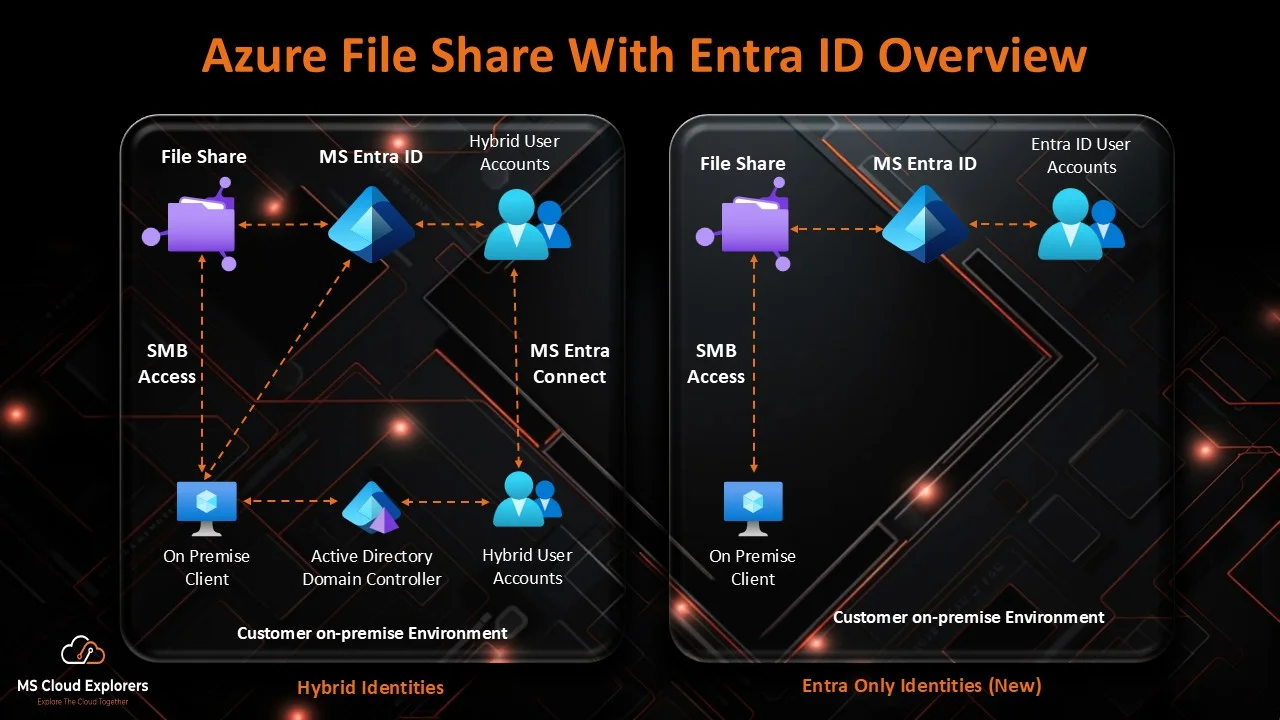
With Microsoft Entra Kerberos support for Azure Files, it is now possible to configure FSLogix Entra ID only scenarios for Azure Virtual Desktop using cloud-only identities in supported environments. This means you can store FSLogix profiles on Azure Files without deploying traditional domain controllers only for the profile storage access layer.
This guide explains how Fslogix entra ID only works, how fslogix entra id authentication is handled through Microsoft Entra Kerberos, where Fslogix Kerberos fits into the architecture, and what administrators should validate before deploying this design in production.
What Is FSLogix Entra ID Only?
FSLogix Entra ID only is an Azure Virtual Desktop architecture where user identities, session hosts, and profile access are managed using Microsoft Entra ID instead of traditional Active Directory Domain Services.
- Users are created and managed in Microsoft Entra ID.
- Azure Virtual Desktop session hosts are Microsoft Entra joined.
- FSLogix profile containers are stored on Azure Files.
- Azure Files uses Microsoft Entra Kerberos for SMB authentication.
- No on-premises domain controller is required for FSLogix profile access in supported cloud-only scenarios.
Microsoft Entra Kerberos allows Microsoft Entra ID to issue Kerberos tickets that are used to access Azure file shares through SMB. For Azure Virtual Desktop, this is important because FSLogix requires reliable SMB storage for user profile containers.
Why FSLogix Entra ID Only Matters
A cloud-native AVD design is useful for organizations that do not want to maintain domain controllers only for profile storage. For example, a modern business using Microsoft 365, Microsoft Entra ID, Intune, and Azure Virtual Desktop may not have any on-premises Active Directory footprint.
In that type of environment, deploying domain controllers only to support FSLogix adds additional cost and complexity. Avd fslogix entra id only helps simplify the design because identity, device management, access control, and profile storage can all be managed through Microsoft cloud services.
Benefits of FSLogix Entra ID Only
1. No Domain Controller Dependency
The biggest benefit is removing the dependency on traditional domain controllers for profile storage access in supported scenarios. This reduces domain controller management, AD replication concerns, VPN or ExpressRoute dependency for profile access, and DNS complexity.
2. Better Cloud-Native Architecture
This architecture aligns well with organizations already using Intune, Microsoft Entra ID, Conditional Access, and Azure Virtual Desktop. You can create a more tidy cloud-native stack rather than merging old and new identity models.
Microsoft Entra ID
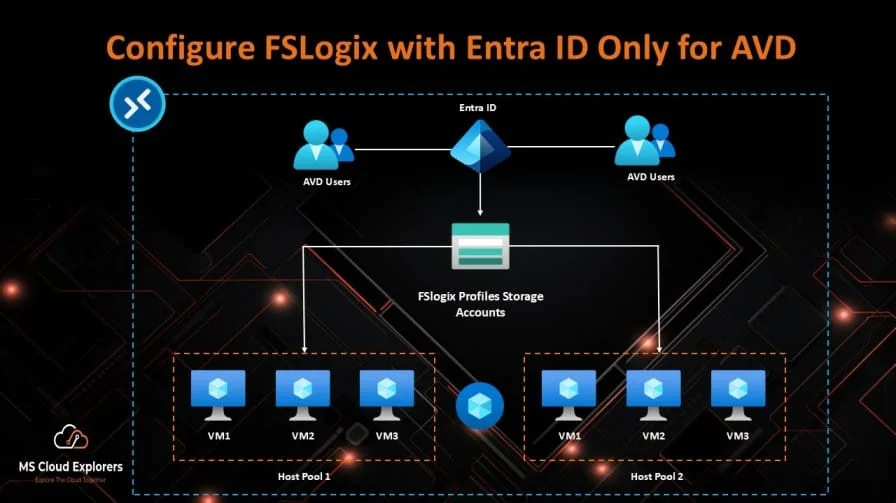
-> Microsoft Entra joined AVD session hosts
-> Microsoft Entra Kerberos
-> Azure Files SMB share
-> FSLogix profile containers
3. Simplified AVD Deployment
For small and medium-sized environments, removing traditional domain dependencies can make Azure Virtual Desktop easier to deploy and maintain. This is especially helpful for greenfield projects where all users are already cloud-only.
4. Centralized Access Control
Access to Azure Files can be controlled using Azure RBAC, Microsoft Entra security groups, and file share permissions. This makes it easier to use group-based access rather than assigning permissions directly to individual users.
5. Better Fit for Modern Endpoint Management
If session hosts are managed through Intune, required Windows settings such as Cloud Kerberos ticket retrieval can be configured using Settings Catalog, policy CSP, proactive remediation, or registry deployment.
Prerequisites for FSLogix Entra ID Only
Required Licenses and Services
- Azure subscription
- Azure Virtual Desktop
- Microsoft Entra ID
- Azure Files
- FSLogix
- Microsoft Intune, recommended for policy deployment
- Supported Windows 11 Enterprise multi-session or supported Windows Server version for AVD
Required Permissions
- Permission to manage AVD storage accounts
- Permission to create Azure file shares
- Permission to configure identity-based access for Azure Files
- Permission to assign Azure RBAC roles
- Permission to manage Microsoft Entra enterprise applications/app registrations
- Permission to grant admin consent
- Permission to manage Intune device configuration profiles
- Permission to configure FSLogix registry settings on AVD session hosts
Infrastructure Requirements
- Azure Virtual Desktop host pool
- Microsoft Entra joined session hosts
- Dedicated Azure Files storage account
- Azure file share for FSLogix profiles
- Microsoft Entra security group for AVD users
- FSLogix installed on session hosts
- Network access from session hosts to Azure Files over SMB port 445
- Intune or another management method to deploy required Windows settings
| Important Important: A storage account can use only one identity-based authentication method for Azure Files. Do not try to configure Microsoft Entra Kerberos and AD DS authentication on the same storage account. |
Architecture Overview
In a Cloud native identity with Azure Files design, users sign in to AVD using Microsoft Entra ID. During sign-in, Windows retrieves a Microsoft Entra Kerberos ticket. FSLogix reads the configured VHDLocations path, connects to the Azure Files SMB share, and creates or attaches the user profile container.
How FSLogix Entra ID Authentication Works
- User signs in to Azure Virtual Desktop.
- The Microsoft Entra joined session host retrieves a cloud Kerberos ticket.
- FSLogix checks the configured profile container path.
- The session host accesses the Azure Files share using SMB.
- Azure Files validates access using Microsoft Entra Kerberos and share permissions.
- FSLogix creates or attaches the user profile container.
- The user receives a persistent profile experience across AVD session hosts.
Step-by-Step Implementation Guide for Create FSlogix Entra ID only
Step 1: Create a Dedicated Storage Account
Create a dedicated storage account for FSLogix profiles. For production AVD workloads, Premium Azure Files is commonly recommended because FSLogix profile containers are sensitive to latency and IOPS.
Azure Portal path: Azure Portal > Storage accounts > Create
Connect-AzAccount

$resourceGroupName = "rg-avd-fslogix"
$location = "eastus"
$storageAccountName = "stavdfslogix001"

New-AzResourceGroup -Name $resourceGroupName -Location $location

New-AzStorageAccount `
    -ResourceGroupName $resourceGroupName `
    -Name $storageAccountName `
    -Location $location `
    -SkuName Premium_LRS `
-Kind FileStorageStep 2: Create an Azure File Share
Create a file share to store FSLogix profile containers. Use a clear file share name such as fslogixprofiles.
Azure Portal path: Storage account > Data storage > File shares > + File share
$storageAccount = Get-AzStorageAccount `
    -ResourceGroupName $resourceGroupName `
    -Name $storageAccountName

$ctx = $storageAccount.Context

New-AzStorageShare `
    -Name "fslogixprofiles" `
-Context $ctxStep 3: Enable Microsoft Entra Kerberos on Azure Files
This is the most important step in the Fslogix entra ID only setup. Microsoft Entra Kerberos enables Azure Files to authenticate SMB access using Kerberos tickets issued by Microsoft Entra ID.
Azure Portal path: Storage account > File shares > Identity-based access > Microsoft Entra Kerberos > Set up
Set-AzStorageAccount `
    -ResourceGroupName $resourceGroupName `
    -Name $storageAccountName `
    -EnableAzureActiveDirectoryKerberosForFile $true

# Verify the Settings

    Get-AzStorageAccount `
    -ResourceGroupName $resourceGroupName `
    -Name $storageAccountName |
Select-Object -ExpandProperty AzureFilesIdentityBasedAuthStep 4: Assign Share-Level Permissions
Users need permission to access the Azure Files share. For normal FSLogix users, assign Storage File Data SMB Share Contributor. For administrators who manage profile folders, assign Storage File Data SMB Share Elevated Contributor.
Azure Portal path: Storage account > File share > Access Control (IAM) > Add role assignment
$groupName = "AVD-FSLogix-Users"
$shareScope = "/subscriptions/<subscription-id>/resourceGroups/$resourceGroupName/providers/Microsoft.Storage/storageAccounts/$storageAccountName/fileServices/default/fileshares/fslogixprofiles"

$group = Get-AzADGroup -DisplayName $groupName

New-AzRoleAssignment `
    -ObjectId $group.Id `
    -RoleDefinitionName "Storage File Data SMB Share Contributor" `
-Scope $shareScopeStep 5: Grant Admin Consent to the Storage Account Application
When Microsoft Entra Kerberos is enabled, Azure creates an enterprise application or service principal for the storage account. Admin consent is required so users can request tokens for the storage account.
Portal path: Microsoft Entra admin center > Enterprise applications > Search storage account app > Permissions > Grant admin consent
Step 6: Review Conditional Access and MFA Requirements
The Kerberos ticket process runs silently during sign-in. Avoid Conditional Access rules that require interactive MFA directly against the storage account enterprise application. You can still enforce MFA for the user sign-in to Azure Virtual Desktop, but the storage account app should not be blocked by a step-up prompt that cannot be displayed.
Step 7: Enable Cloud-Only Group Support
For cloud-only identities, add the kdc_enable_cloud_group_sids tag to the storage account service principal so Microsoft Entra ID includes cloud-only group SID information in the Kerberos ticket.
Connect-MgGraph -Scopes "Application.ReadWrite.All"

$storageAccountName = "stavdfslogix001"

$sp = Get-MgServicePrincipal -Filter "displayName eq '$storageAccountName'"

$tags = $sp.Tags

if ($tags -notcontains "kdc_enable_cloud_group_sids") {
    $tags += "kdc_enable_cloud_group_sids"

    Update-MgServicePrincipal `
        -ServicePrincipalId $sp.Id `
        -Tags $tags
}

#Verify

Get-MgServicePrincipal -ServicePrincipalId $sp.Id |
Select-Object DisplayName, Tags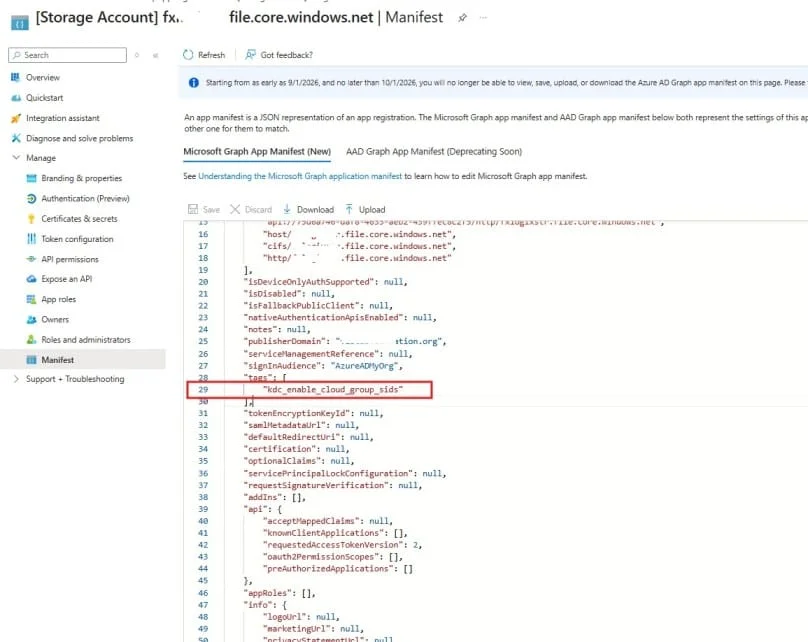
Step 8: Configure Cloud Kerberos Ticket Retrieval on Session Hosts
AVD session hosts must be configured to retrieve the Microsoft Entra Kerberos ticket during logon. Using the registry or Intune Settings Catalog, you can implement this configuration, if you do not have any one you can manually create these by login on the AVD desktop with the local admin account.
Intune path: Intune admin center > Devices > Configuration profiles > Create profile > Windows 10 and later > Settings catalog. Search for Cloud Kerberos Ticket Retrieval and enable the setting.
reg add HKLM\SYSTEM\CurrentControlSet\Control\Lsa\Kerberos\Parameters /v CloudKerberosTicketRetrievalEnabled /t REG_DWORD /d 1 /fStep 9: Configure LoadCredKeyFromProfile
When using Microsoft Entra ID with FSLogix, credential keys should load from the profile currently being attached. This helps credentials roam correctly with the FSLogix profile across AVD session hosts.
reg add HKLM\Software\Policies\Microsoft\AzureADAccount /v LoadCredKeyFromProfile /t REG_DWORD /d 1 /fStep 10: Configure FSLogix Profile Container Registry Settings
Configure FSLogix to point to the Azure Files share. The most important settings are Enabled and VHDLocations.
reg add HKLM\SOFTWARE\FSLogix\Profiles /v Enabled /t REG_DWORD /d 1 /f

reg add HKLM\SOFTWARE\FSLogix\Profiles /v VHDLocations /t REG_SZ /d "\\stavdfslogix001.file.core.windows.net\fslogixprofiles" /fRecommended additional settings for controlled production behavior:
reg add HKLM\SOFTWARE\FSLogix\Profiles /v DeleteLocalProfileWhenVHDShouldApply /t REG_DWORD /d 1 /f

reg add HKLM\SOFTWARE\FSLogix\Profiles /v PreventLoginWithFailure /t REG_DWORD /d 1 /f

reg add HKLM\SOFTWARE\FSLogix\Profiles /v PreventLoginWithTempProfile /t REG_DWORD /d 1 /f| Important Use DeleteLocalProfileWhenVHDShouldApply carefully. Review existing local profiles before enabling this setting in production because deleting local profiles may remove user data stored locally. |
Step 11: Test User Sign-In
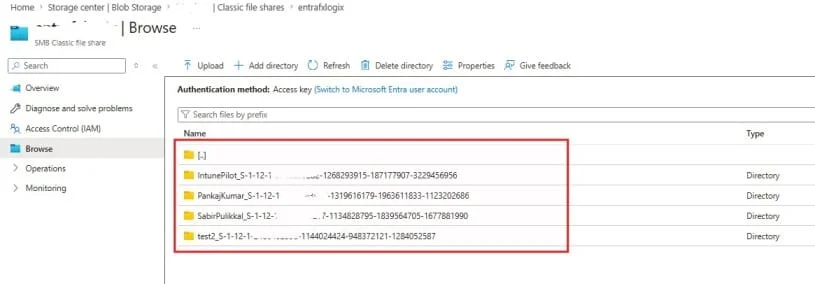
Use a test user who is assigned to the AVD application group, added to the FSLogix Azure Files access group, licensed correctly, and allowed by Conditional Access. Verify that a profile folder has been created by opening the Azure file share after user logging in.
Azure Portal path: Storage account > File shares > fslogixprofiles > Browse
Expected folder format:
<SID>_<username>
Pro Tip: Use Separate Groups for Access and Administration
Create separate Microsoft Entra groups for different access layers. This makes troubleshooting easier and keeps your permissions clean.
AVD-FSLogix-Users
AVD-FSLogix-Admins
AVD-SessionHost-Devices
AVD-ApplicationGroup-Users
Keep the storage account dedicated for FSLogix. Avoid using the same storage account for unrelated workloads because it makes permissions, monitoring, and performance troubleshooting harder.
Common Pitfalls
1. Forgetting Admin Consent
If admin consent is missing on the storage account enterprise application, users may fail to retrieve the required token for Kerberos authentication.
2. Applying MFA to the Storage Account App
If Conditional Access requires interactive MFA for the storage account app, silent Kerberos ticket retrieval can fail. Keep MFA for user sign-in, but review the storage account enterprise application requirements carefully.
3. Missing Cloud Group SID Tag
Because the necessary group SID information might not be provided in the Kerberos ticket, forgetting the kdc_enable_cloud_group_sids tag can result in group-based access failing for cloud-only groups.
4. Wrong VHDLocations Path
The correct UNC format is:
\\storageaccount.file.core.windows.net\sharename
Avoid using HTTPS URLs, blob endpoints, or incomplete paths for FSLogix VHDLocations.
5. Existing Local Profiles
If a user already has a local profile on the session host, FSLogix may continue using that local profile instead of creating or attaching the expected container.
6. Port 445 Blocked
Azure Files uses SMB. If outbound TCP 445 is blocked between the session host and Azure Files, FSLogix cannot attach the profile container.
7. Unsupported OS Versions
Cloud-only Microsoft Entra Kerberos scenarios require supported Windows versions and current cumulative updates. Validate OS support before production deployment.
Security Best Practices
- Use least privilege access. Assign users only Storage File Data SMB Share Contributor unless elevated access is required.
- Use a dedicated storage account for FSLogix profiles.
- Restrict storage network access where possible using private endpoints, storage firewall rules, and proper DNS resolution.
- Review Conditional Access policies to avoid blocking silent Kerberos ticket retrieval.
- Avoid using storage account keys for normal user profile access. Prefer identity-based access with Microsoft Entra Kerberos and RBAC.
- Monitor Microsoft Kerberos hardening announcements and keep session hosts updated.
Monitoring and Troubleshooting
Logs to Review
Start with FSLogix logs on the session host:
C:\ProgramData\FSLogix\Logs\Profile
Then review these additional locations:
- Event Viewer > Applications and Services Logs > FSLogix
- Event Viewer > Windows Logs > System
- Event Viewer > Windows Logs > Application
- Storage account > Monitoring > Metrics
- Storage account > Activity log
Common Error: Access Denied
Possible causes include missing Storage File Data SMB Share Contributor role, wrong group membership, missing cloud group SID tag, or incorrect file share permissions.
Get-AzRoleAssignment -ObjectId <UserOrGroupObjectId> -Scope <ShareScope>
Common Error: The User Name or Password Is Incorrect
Possible causes include missing Microsoft Entra Kerberos ticket retrieval, MFA blocking the storage account app, missing admin consent, or the Cloud Kerberos setting not being enabled.
Common Error: FSLogix Creates a Local Profile
Possible causes include FSLogix not being enabled, an existing local profile, incorrect VHDLocations value, or storage connectivity issue.
reg query HKLM\SOFTWARE\FSLogix\Profiles
Common Error: Profile Is Locked
Profile lock issues usually happen when a user is still signed in on another session host or the profile container is locked by another process. Ask the user to sign out from all sessions and review FSLogix logs before making changes.
Real-World Use Cases
Use Case 1: Greenfield Azure Virtual Desktop Deployment
A company is deploying AVD for the first time and has no on-premises Active Directory. All users are cloud-only in Microsoft Entra ID. The company uses Microsoft Entra joined session hosts, Azure Files with Microsoft Entra Kerberos, FSLogix profile containers, and Intune for configuration.
Use Case 2: Contractor or Temporary Workforce Environment
An organization needs to provide short-term virtual desktops to external consultants. Access can be controlled using Microsoft Entra groups, and profiles can be stored in Azure Files without extending the corporate Active Directory environment.
Use Case 3: Reducing Domain Controller Dependency
A business already has AD DS but wants to reduce dependency on domain controllers for new AVD workloads. A dedicated cloud-native host pool can be created with Entra joined session hosts and Azure Files using Microsoft Entra Kerberos.
Short Answer FSLogix Entra ID only
|
FSLogix Entra ID only allows Azure Virtual Desktop users to store FSLogix profile containers on Azure Files using Microsoft Entra Kerberos authentication instead of traditional domain controllers. In this architecture, users sign in with Microsoft Entra ID, Windows retrieves a cloud Kerberos ticket, Azure Files validates SMB access, and FSLogix attaches the user profile container from the Azure file share. |
Frequently Asked Questions
1. What is FSLogix Entra ID only?
FSLogix Entra ID only is an Azure Virtual Desktop design where FSLogix profiles are stored on Azure Files and accessed using Microsoft Entra Kerberos authentication without requiring traditional domain controllers for profile access.
2. Does FSLogix support cloud-only Entra ID users?
Yes. FSLogix profile containers can be used with Azure Files and Microsoft Entra Kerberos for supported cloud-only identity scenarios in Azure Virtual Desktop.
3. What is FSLogix Kerberos?
FSLogix Kerberos refers to using Kerberos-based SMB authentication for the file share where FSLogix profile containers are stored. In a cloud-native design, Microsoft Entra Kerberos provides the Kerberos ticket instead of traditional AD DS.
4. Do I need a domain controller for FSLogix Entra ID only?
For supported cloud-only Microsoft Entra Kerberos scenarios, a traditional domain controller is not required for FSLogix profile access.
5. What registry settings are required?
reg add HKLM\SOFTWARE\FSLogix\Profiles /v Enabled /t REG_DWORD /d 1 /f

reg add HKLM\SOFTWARE\FSLogix\Profiles /v VHDLocations /t REG_SZ /d "\\storageaccount.file.core.windows.net\share" /f

reg add HKLM\SYSTEM\CurrentControlSet\Control\Lsa\Kerberos\Parameters /v CloudKerberosTicketRetrievalEnabled /t REG_DWORD /d 1 /f

reg add HKLM\Software\Policies\Microsoft\AzureADAccount /v LoadCredKeyFromProfile /t REG_DWORD /d 1 /f6. Can I use the same storage account with AD DS and Microsoft Entra Kerberos?
No. Use only one identity-based authentication method per storage account for Azure Files.
7. Why does FSLogix create a temporary or local profile?
Common reasons include incorrect VHDLocations, missing permissions, existing local profiles, storage connectivity issues, or FSLogix not being enabled.
8. Is MFA supported for the Azure Files Kerberos flow?
MFA should not be required directly on the storage account enterprise application because Kerberos ticket retrieval happens silently during logon. MFA can still be enforced for user sign-in to Azure Virtual Desktop.
9. Which Azure role should users have?
Users typically need Storage File Data SMB Share Contributor on the Azure file share. Administrators may need Storage File Data SMB Share Elevated Contributor.
10. Is this architecture production-ready?
Yes, if the operating system, region, identity type, Conditional Access policies, storage design, and security requirements match Microsoft-supported requirements. Always validate in a pilot host pool before production rollout.
Conclusion
Fslogix entra ID only is an important improvement for cloud-native Azure Virtual Desktop deployments. It allows organizations to use Azure Files, Microsoft Entra Kerberos, and FSLogix profile containers without building traditional domain controller dependencies only for profile storage.
For administrators and cloud architects, the key success factors are simple: use a dedicated Azure Files storage account, enable Microsoft Entra Kerberos correctly, assign the correct Azure RBAC permissions, grant admin consent, avoid blocking the storage account app with interactive MFA, enable Cloud Kerberos ticket retrieval, configure FSLogix registry settings correctly, and test with a clean user profile before production rollout.
If you are designing a modern AVD environment with Cloud native identity with Azure Files, FSLogix Entra ID only is a strong architecture option. It simplifies identity, reduces infrastructure overhead, and aligns well with Microsoft cloud-first management.
References and Further Reading
- Step by Step Guide on how to create Azure Virtual Desktop
- Store FSLogix profile containers on Azure Files using Microsoft Entra ID
- Enable Microsoft Entra Kerberos authentication for Azure Files
- Kerberos Policy CSP – CloudKerberosTicketRetrievalEnabled
- Troubleshooting FSLogix old, temporary, or local profiles
- Azure File Share with Entra ID Cloud Identities for FSLogix
- Entra-only identities: Fully cloud-native AVD + FSLogix architecture
- Use Azure Files with Entra ID joined method for AVD
- Using FSLogix file shares with Azure AD cloud identities in AVD
Enjoyed the article?
We’d love to hear your thoughts—share your comments below!
For more insights, guides, and updates from the Microsoft ecosystem, be sure to subscribe to our newsletter and follow us on LinkedIn. Stay connected and never miss out on the latest tips and news!