Many organizations need a secure way to provide users access to Windows desktops and business applications from anywhere. Traditional Remote Desktop Services environments often require on-premises servers, public-facing gateways, VPN dependency, and ongoing infrastructure maintenance.
This is where Azure Virtual Desktop becomes useful. Azure Virtual Desktop, also called AVD, allows businesses to deliver Windows desktops and RemoteApps from Microsoft Azure. It is commonly used by remote users, contractors, call centers, healthcare teams, developers, and organizations that want centralized desktop management.
With microsoft azure virtual desktop, administrators can publish full desktops or specific applications, control access using Microsoft Entra ID, protect sessions with Conditional Access and MFA, and monitor user connections through Azure Monitor and Log Analytics. Microsoft recommends FSLogix profile containers with Azure Virtual Desktop to manage user profiles and personalization in pooled environments.
In this guide, we have covered how to create and manage an azure virtual desktop environment, including both FSLogix and without FSLogix setup options.
What is Azure Virtual Desktop?
Azure Virtual Desktop (AVD) is Microsoft’s cloud-based service that delivers virtual desktops and remote applications securely from Azure, enabling users to access their workspace from anywhere.
- Full Windows desktop publishing
- RemoteApp publishing
- Pooled and personal host pools
- Windows 10/11 Enterprise multi-session
- Microsoft Entra ID and Active Directory integration
- FSLogix profile containers
- Azure Monitor and Log Analytics integration
- Autoscale and Start VM on Connect
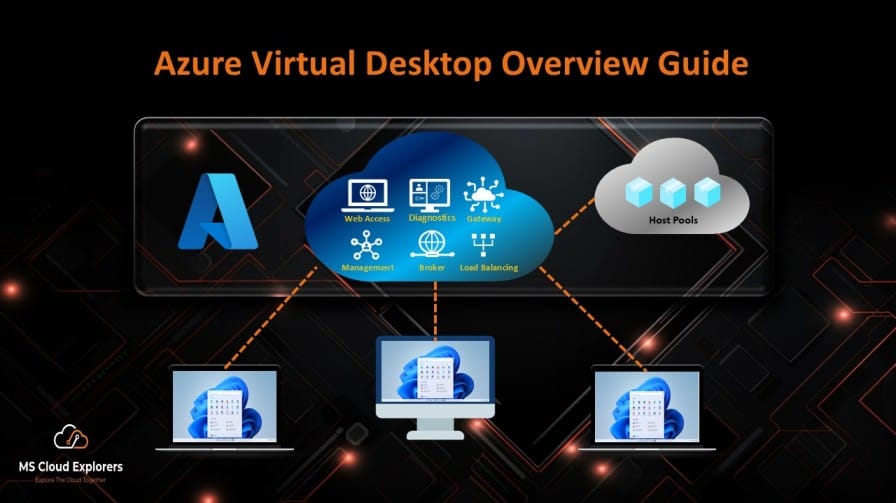
At a high level, users connect to the Azure Virtual Desktop service, authenticate with Microsoft Entra ID, and are redirected to a healthy session host inside the assigned host pool. Azure Virtual Desktop uses a reverse connect model, which means inbound RDP ports do not need to be opened directly to the internet, reducing the attack surface.
Benefits of Azure Virtual Desktop
1. Secure Remote Access
Azure Virtual Desktop provides secure access to desktops and apps without exposing session hosts directly to the internet. Microsoft-managed control plane components help reduce infrastructure overhead, while administrators remain responsible for securing session hosts, identities, networking, and storage.
2. Centralized Desktop Management
Instead of managing laptops or desktops individually, IT teams can manage golden images, host pools, application groups, and user assignments from Azure. For example, if an IT support team needs to deploy an accounting application to 100 remote users, the application can be installed on the session hosts and published as a RemoteApp.
3. Windows 11 Multi-Session Support
Azure Virtual Desktop supports Windows Enterprise multi-session operating systems, allowing multiple users to connect to the same session host. This helps reduce infrastructure cost compared to assigning one VM per user.
4. Better User Profile Experience with FSLogix
In pooled host pools, users may connect to different session hosts each time. FSLogix stores the user profile in a VHD or VHDX container and attaches it during sign-in, giving users a consistent profile experience across session hosts.
5. Flexible Access
Users can connect using Windows App, Remote Desktop client, web browser, macOS client, or mobile client. This makes azure remote desktop access practical for distributed teams and hybrid work scenarios.
Prerequisites for Azure Virtual Desktop
Before creating an azure virtual desktop environment, make sure the following requirements are ready. Microsoft lists the core prerequisites as an active Azure subscription, supported identity provider, supported operating system, appropriate licenses, network connectivity, and a Remote Desktop client.
Required Licenses
For internal users, Azure Virtual Desktop access rights are included with eligible Microsoft licenses. Common examples include:
- Microsoft 365 E3/E5
- Microsoft 365 Business Premium
- Windows Enterprise E3/E5
- Microsoft 365 A3/A5 for education scenarios
If Azure Virtual Desktop is used for external commercial purposes, licensing works differently and may require per-user access pricing.
Required Permissions
The administrator deploying Azure Virtual Desktop should have the required Azure RBAC permissions. Microsoft provides Azure Virtual Desktop-specific built-in roles such as Desktop Virtualization Contributor, Desktop Virtualization Reader, and other granular roles for host pools, workspaces, and application groups.
- Desktop Virtualization Contributor for managing AVD resources
- User Access Administrator if assigning users or groups
- Virtual Machine Contributor for managing session host VMs
- Network Contributor if creating or modifying networking
- Storage Account Contributor if configuring FSLogix storage
- Log Analytics Contributor for monitoring configuration
Infrastructure Requirements
- Azure subscription
- Resource group
- Virtual network and subnet
- DNS resolution to domain services if domain-joined
- Session host VM image
- Host pool
- Application group
- Workspace
- User group for assignment
- Log Analytics workspace for monitoring
- Storage account or Azure Files share if using FSLogix
Architecture Overview
Core AVD Components
- Host Pool: A collection of session hosts.
- Session Hosts: Azure VMs where users connect.
- Application Group: Defines what users can access, such as full desktop or RemoteApps.
- Workspace: Publishes application groups to users.
- User Assignment: Assign individual users or security groups to the appropriate application groups to provide access to published desktops and applications.
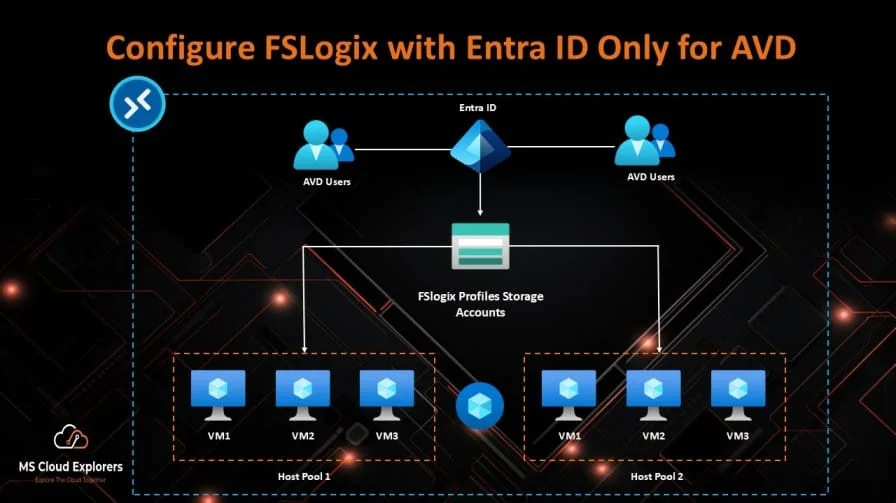
- FSLogix Profile Storage: Stores roaming user profiles.
- Log Analytics Workspace: Collects diagnostic and performance data.
Recommended Architecture Description
- Users authenticate with Microsoft Entra ID.
- Conditional Access validates MFA, device compliance, and sign-in risk.
- Azure Virtual Desktop broker redirects the session.
- User connects to an available session host in the host pool.
- FSLogix mounts the user profile container from Azure Files or Azure NetApp Files.
- Logs and metrics are sent to Azure Monitor and Log Analytics.
- Admins monitor health using Azure Virtual Desktop Insights.
Azure Virtual Desktop Insights is built on Azure Monitor Workbooks and helps administrators understand connection quality, session host health, performance counters, event logs, and user experience data.
FSLogix vs Without FSLogix Setup
What is FSLogix?
FSLogix is a profile container solution used to provide consistent user profiles in virtual desktop environments. It stores the complete user profile in a VHD or VHDX file and dynamically attaches it during sign-in. Microsoft recommends using FSLogix profile containers with Azure Virtual Desktop for roaming profiles and personalization.
Azure Virtual Desktop with FSLogix
This is the recommended approach for pooled host pools. Use FSLogix when users connect to different session hosts, use pooled desktops, require persistent settings, need Outlook cached mode, use OneDrive in non-persistent VDI, or require profile consistency.
Example: A finance team of 80 users connects to a pooled windows azure virtual desktop host pool. Users may land on different VMs each day. FSLogix ensures their Outlook profile, desktop shortcuts, browser settings, and application preferences follow them.
Azure Virtual Desktop Without FSLogix
You can deploy Azure Virtual Desktop without FSLogix, but it is usually suitable only for specific scenarios such as personal desktops, temporary labs, kiosk workloads, or users whose data is stored entirely in cloud applications.
- Users may lose personalization in pooled host pools.
- Outlook and Teams experience may be poor.
- First sign-in may create a new local profile on each host.
- Troubleshooting profile issues becomes difficult.
Recommendation: For production pooled Azure Virtual Desktop environments, use FSLogix unless there is a valid business reason not to.
Step-by-Step Implementation Guide to Create Azure Virtual Desktop
Step 1: Create a Resource Group
Azure Portal path: Azure portal > Resource groups > Create
New-AzResourceGroup `
  -Name "rg-avd-prod-eastus-001" `
-Location "EastUS"Use a clear naming convention such as rg-avd-prod-region-number. Example: rg-avd-prod-eastus-001.
Step 2: Create or Select a Virtual Network
Azure Portal path: Azure portal > Virtual networks > Create
Recommended subnet design: snet-avd-sessionhosts, snet-private-endpoints, and snet-management.
$rg = "rg-avd-prod-eastus-001"
$location = "EastUS"

$vnet = New-AzVirtualNetwork `
  -ResourceGroupName $rg `
  -Location $location `
  -Name "vnet-avd-prod-eastus-001" `
  -AddressPrefix "10.10.0.0/16"

Add-AzVirtualNetworkSubnetConfig `
  -Name "snet-avd-sessionhosts" `
  -AddressPrefix "10.10.1.0/24" `
  -VirtualNetwork $vnet

$vnet | Set-AzVirtualNetworkCommon mistake: Do not deploy session hosts into a subnet that cannot resolve domain services if you are using Active Directory Domain Services or hybrid identity.
Step 3: Create a Host Pool
Azure Portal path: Azure portal > Azure Virtual Desktop > Host pools > Create
- Host pool type: Pooled or Personal
- Load balancing: Breadth-first for general use
- Max session limit: Based on VM size and workload
- Validation environment: No for production
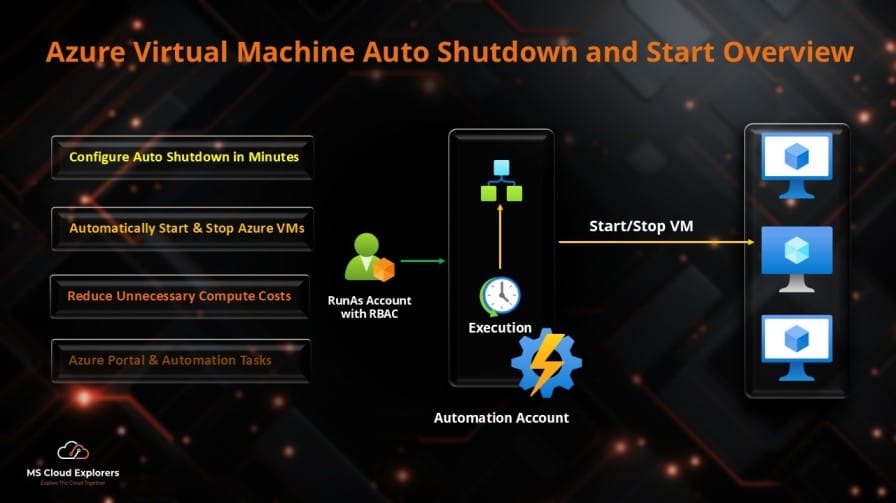
- Start VM on Connect: Enable this feature when optimizing Azure compute costs is a priority.
New-AzWvdHostPool `
  -ResourceGroupName "rg-avd-prod-eastus-001" `
  -Name "hp-avd-prod-users-001" `
  -Location "EastUS" `
  -HostPoolType "Pooled" `
  -LoadBalancerType "BreadthFirst" `
-PreferredAppGroupType "Desktop"Step 4: Create an Application Group
Azure Portal path: Azure Virtual Desktop > Application groups > Create
New-AzWvdApplicationGroup `
  -ResourceGroupName "rg-avd-prod-eastus-001" `
  -Name "dag-avd-prod-users-001" `
  -Location "EastUS" `
  -HostPoolArmPath "/subscriptions/<subscription-id>/resourceGroups/rg-avd-prod-eastus-001/providers/Microsoft.DesktopVirtualization/hostPools/hp-avd-prod-users-001" `
-ApplicationGroupType "Desktop"Step 5: Create a Workspace
Azure Portal path: Azure Virtual Desktop > Workspaces > Create
New-AzWvdWorkspace `
  -ResourceGroupName "rg-avd-prod-eastus-001" `
  -Name "ws-avd-prod-users-001" `
  -Location "EastUS"

Register-AzWvdApplicationGroup `
  -ResourceGroupName "rg-avd-prod-eastus-001" `
  -WorkspaceName "ws-avd-prod-users-001" `
-ApplicationGroupPath "/subscriptions/<subscription-id>/resourceGroups/rg-avd-prod-eastus-001/providers/Microsoft.DesktopVirtualization/applicationGroups/dag-avd-prod-users-001"Step 6: Add Session Hosts
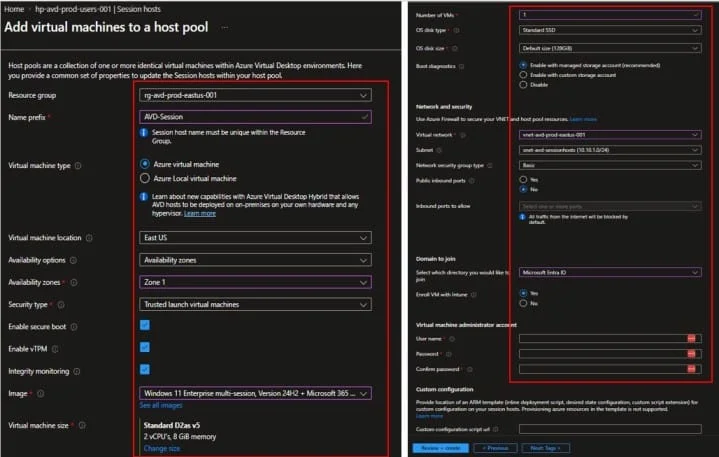
Azure Portal path: Azure Virtual Desktop > Host pools > Select host pool > Session hosts > Add
- Windows 11 Enterprise multi-session + Microsoft 365 Apps is recommended for modern deployments.
- Configure VM size, number of VMs, availability zone, join type, local admin credentials, and network settings.
- Do not select an undersized VM. Poor CPU, memory, or disk performance can create login delays and application slowness.
Step 7: Assign Users
Azure Portal path: Azure Virtual Desktop > Application groups > Select application group > Assignments > Add
Best practice: Assign security groups, not individual users. Use a naming convention like grp-avd-prod-users.
New-AzRoleAssignment `
  -ObjectId (Get-AzADGroup -DisplayName "<AVD-Users&Admins>").Id `
  -RoleDefinitionName "Desktop Virtualization User" `
  -ResourceName "dag-avd-prod-users-001" `
  -ResourceGroupName "rg-avd-prod-eastus-001" `
  -ResourceType "Microsoft.DesktopVirtualization/applicationGroups"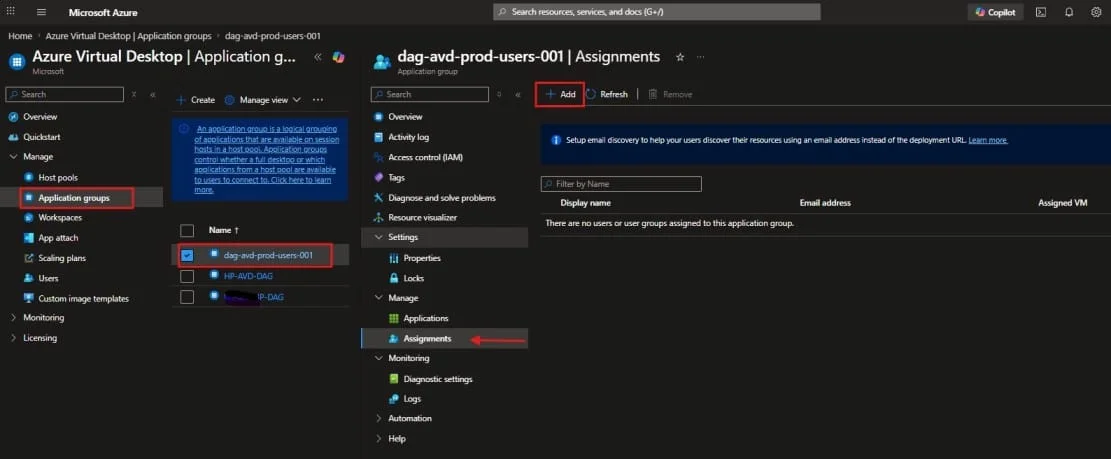
Step 8: Assign VM Login Roles for Azure Virtual Desktop Session Hosts
After assigning users to the Azure Virtual Desktop Application Group, you also need to assign Azure VM login permissions at the resource group level, depending on your design.
This is especially required when your AVD session hosts are configured for Microsoft Entra ID sign-in. Azure supports two built-in roles for VM sign-in: Virtual Machine User Login for standard user access and Virtual Machine Administrator Login for local administrator access on the VM. These roles allow Azure RBAC to control who can sign in to the Windows session host as a regular user or administrator.
Recommended Role Assignment Design
For most AVD environments, assign these roles at the Resource Group level where the AVD session host VMs are located.
| Role | Assign To | Purpose |
| Virtual Machine Administrator Login | AVD Admin group | Allows admins to sign in to session hosts with local administrator privileges |
| Virtual Machine User Login | Standard AVD user group | Allows normal users to sign in to session hosts without administrator privileges |
PowerShell Commands to Assign VM Login Roles
Assign Virtual Machine Administrator Login Role
New-AzRoleAssignment -ObjectId (Get-AzADGroup -DisplayName "AVD-Admins").Id -RoleDefinitionName "Virtual Machine Administrator Login" -ResourceGroupName "rg-avd-prod-eastus-001"Assign Virtual Machine User Login Role
New-AzRoleAssignment -ObjectId (Get-AzADGroup -DisplayName "AVD-Users").Id -RoleDefinitionName "Virtual Machine User Login" -ResourceGroupName "rg-avd-prod-eastus-001"Step 9: Configure Storage Account and FSLogix Setup
Azure Portal path: Storage accounts > Create > File shares > Create (If you already have storage account)
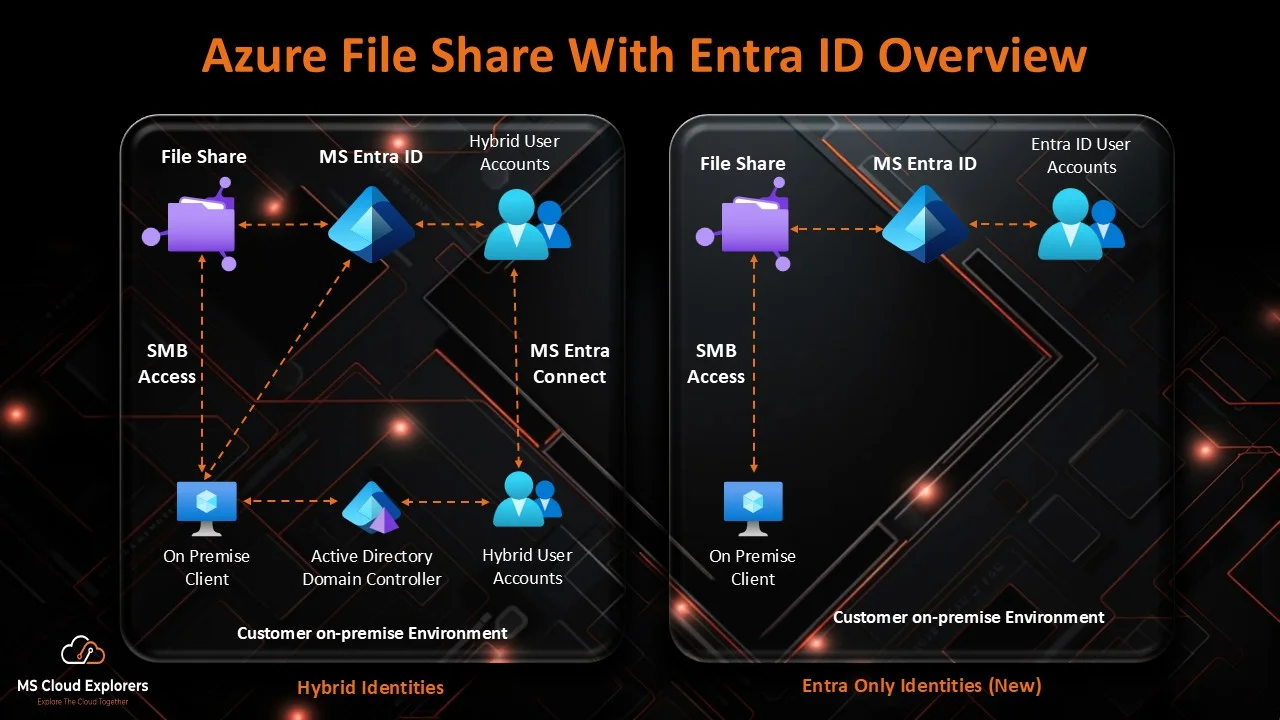
Recommended share name: fslogixprofiles. Example UNC path: \\stavdprodeastus001.file.core.windows.net\fslogixprofilesImportant: If your Azure Virtual Desktop environment is using Microsoft Entra ID only (Cloud-Only) and does not have an on-premises or Azure Domain Controller, additional FSLogix storage configuration is required. Since this process involves several prerequisites and configuration steps, we have created a dedicated guide on setting up Azure Storage for FSLogix with Cloud-Only Authentication. Please complete those steps before proceeding with the FSLogix configuration outlined in this article.
Setting up FSLogix with ADDS for Azure Virtual Desktop
If you already have an on-premises Active Directory environment with a Domain Controller and want to configure FSLogix with Azure Virtual Desktop, you can follow this guide. It explains the complete setup process step by step, including configuration, permissions, profile container setup, and integration with your existing domain environment.
New-Item -Path "HKLM:\SOFTWARE\FSLogix\Profiles" -Force

New-ItemProperty `
  -Path "HKLM:\SOFTWARE\FSLogix\Profiles" `
  -Name "Enabled" `
  -PropertyType DWORD `
  -Value 1 `
  -Force

New-ItemProperty `
  -Path "HKLM:\SOFTWARE\FSLogix\Profiles" `
  -Name "VHDLocations" `
  -PropertyType MultiString `
  -Value "\stavdprodeastus001.file.core.windows.net slogixprofiles" `
  -Force

New-ItemProperty `
  -Path "HKLM:\SOFTWARE\FSLogix\Profiles" `
  -Name "VolumeType" `
  -PropertyType String `
  -Value "VHDX" `
  -Force
Note: These FSLogix registry settings must be configured on all Azure Virtual Desktop Session Hosts. Connect to each session host VM using Remote Desktop (RDP) with administrative privileges, open PowerShell as Administrator, and run the commands. In larger environments, you can deploy these settings centrally using Group Policy, Microsoft Intune, or include them in your golden image before deploying session hosts.
FSLogix storage permission tip: Make sure only the profile owner and required administrators can access each user profile folder. Incorrect NTFS or share permissions can cause profile attach failures.
Step 10: Configure Without FSLogix Setup
- Use personal host pools where possible.
- Make sure users are consistently assigned to the same session host.
- Redirect known folders to OneDrive where appropriate.
- Avoid pooled host pools for users who require profile persistence.
- Clearly inform users that local profile settings may not roam.
Example use case: A temporary training lab uses pooled azure remote desktop VMs. Users only need browser access and do not save data locally. In this case, a non-FSLogix setup may be acceptable.
Step 11: Connect Using AVD Remote Desktop Client
- Open Remote Desktop client or Windows App.
- Sign in with work account.
- Subscribe to workspace.
- Open assigned desktop or RemoteApp.
If the workspace does not appear, check user assignment, application group registration, Conditional Access policy, licensing, and AVD diagnostic logs.
Security Best Practices
1. Enforce MFA with Conditional Access
Users can access Azure Virtual Desktop from different devices and locations. Microsoft recommends using Microsoft Entra multifactor authentication with Conditional Access to protect Azure Virtual Desktop sign-ins.
Portal path: Microsoft Entra admin center > Protection > Conditional Access > Policies > New policy
- Require MFA
- Require compliant device for corporate users
- Block high-risk sign-ins
- Exclude break-glass accounts
- Test in report-only mode before enabling
2. Use Least Privilege RBAC
Avoid assigning Owner or Contributor at subscription level unless required. Azure Virtual Desktop includes built-in RBAC roles for granular management of host pools, application groups, workspaces, and users.
3. Protect Session Hosts
- Enable Microsoft Defender for Endpoint.
- Keep Windows updated.
- Use Intune or Group Policy for baseline security.
- Disable local admin access for standard users.
- Restrict clipboard, drive redirection, and printer redirection if required.
- Enable BitLocker or Azure Disk Encryption as per security policy.
4. Secure FSLogix Storage
- Use private endpoints where possible.
- Restrict public network access.
- Configure correct NTFS permissions.
- Enable storage account protection.
- Monitor capacity and IOPS.
- Back up profile containers if business required.
5. Avoid Opening Inbound RDP
Do not expose session hosts directly to the internet. Azure Virtual Desktop uses reverse connect, so opening inbound TCP 3389 from the internet is not required and increases risk.
Monitoring and Troubleshooting
Azure Virtual Desktop integrates with Azure Monitor and Log Analytics. Diagnostic categories include Management Activities, Feed, Connections, Host registration, Errors, Checkpoints, Agent Health Status, Network, Connection Graphics, Session Host Management Activity, and Autoscale.
Enable Diagnostic Settings
Azure Portal path: Azure Virtual Desktop > Host pools > Select host pool > Diagnostic settings > Add diagnostic setting
Recommended: Send diagnostics to a Log Analytics workspace and enable Azure Virtual Desktop Insights.
Common Errors and Resolution Steps
Error: User cannot see desktop. Possible causes include missing application group assignment, workspace registration issues, missing license, or Conditional Access blocks. Resolution: Check application group assignment, confirm user license, review Entra sign-in logs, and check AVD Feed logs.
Error: No available session hosts. Possible causes include powered-off hosts, AVD agent issue, drain mode, network issues, or domain join issues. Resolution: Check session host status, restart AVD agent services, confirm registration, and review WVDAgentHealthStatus.
Error: FSLogix profile failed to attach. Common causes may include Azure Files permission issues, storage availability problems, Kerberos authentication failures, inaccessible profile containers, or storage firewall restrictions. Resolution: Review FSLogix event logs, validate share and NTFS permissions, test UNC access, and check for locked VHDX files.
Common Pitfalls
- Deploying pooled host pools without FSLogix creates inconsistent user profiles.
- Assigning users directly makes access difficult to manage. Use Microsoft Entra security groups.
- Not enabling diagnostics makes windows azure remote desktop connection issues difficult to troubleshoot.
- Opening RDP to the internet increases security risk.
- Ignoring storage performance causes slow sign-ins and FSLogix profile issues.
Pro Tip
Pro Tip: For production Azure Virtual Desktop deployments, start with a small pilot host pool before onboarding all users. Test login time, FSLogix profile attach, Outlook and Teams performance, Conditional Access behavior, printing, clipboard redirection, application compatibility, and user experience from different networks.
Once the pilot is stable, create a golden image and scale additional session hosts.
Real-World Use Cases
Use Case 1: Secure Remote Access for Contractors
A company needs to provide contractors access to internal applications without giving them corporate laptops. Azure Virtual Desktop can publish a locked-down RemoteApp or full desktop. Conditional Access can require MFA, and session policies can restrict clipboard and drive redirection.
Use Case 2: Call Center Desktop Environment
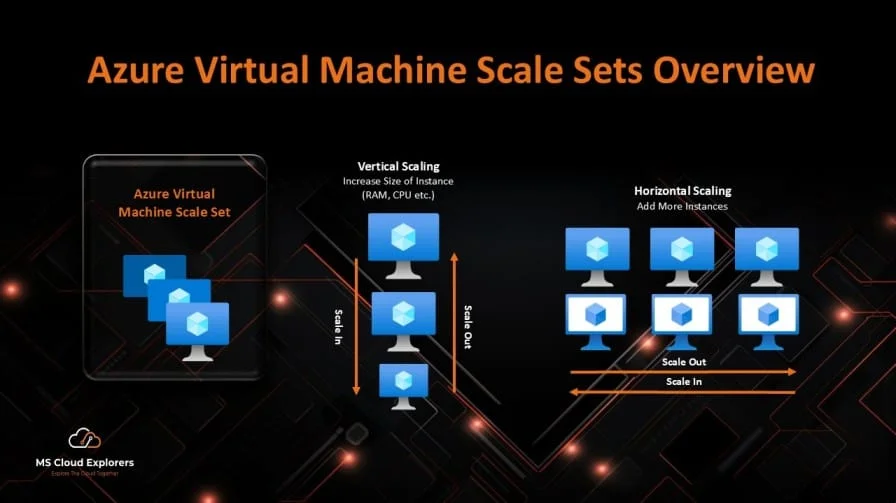
A call center has 200 users working in shifts. Instead of assigning one physical machine per user, the company can use pooled Azure Virtual Desktop session hosts with FSLogix. Autoscale can shut down unused VMs during off-hours to reduce cost.
Use Case 3: Healthcare Application Access
A healthcare organization needs secure access to legacy Windows applications. Azure Virtual Desktop can publish the application as a RemoteApp while keeping data inside Azure. Administrators can monitor user activity and connection quality using Azure Virtual Desktop Insights.
Frequently Asked Questions
What is Azure Virtual Desktop?
Azure Virtual Desktop is a Microsoft Azure service that delivers virtual Windows desktops and applications to users from the cloud.
Is Azure Virtual Desktop the same as Remote Desktop?
Not exactly. Remote Desktop is a general remote access technology, while Azure Virtual Desktop is a complete cloud-based desktop and application virtualization platform.
Azure Virtual Desktop vs Windows 365: Understand the key differences between these services to determine which solution best fits your organization’s desktop virtualization requirements.
Azure Virtual Desktop is highly customizable and infrastructure-based, while Windows 365 provides Cloud PCs with a more simplified management model.
Do I need FSLogix for Azure Virtual Desktop?
FSLogix is strongly recommended for pooled Azure Virtual Desktop environments because it provides consistent user profiles across session hosts.
Can I use Azure Virtual Desktop without FSLogix?
Yes, but it is best suited for personal desktops, temporary labs, kiosk workloads, or environments where user profile persistence is not required.
Which client is used to connect to Azure Virtual Desktop?
Users can connect using Windows App, Remote Desktop client, web client, macOS client, or mobile client. Many administrators still refer to this as the AVD Remote Desktop client.
Does Azure Virtual Desktop require VPN?
No, VPN is not required for basic user access. Users connect through the Azure Virtual Desktop service. However, VPN or private connectivity may still be used for backend access to internal resources.
How do I monitor Azure Virtual Desktop?
Use Azure Monitor, Log Analytics, diagnostic settings, and Azure Virtual Desktop Insights to monitor connections, errors, host health, and performance.
Is Azure Virtual Desktop secure?
Yes, Azure Virtual Desktop includes Microsoft-managed components and security features such as reverse connect, but administrators must secure identities, session hosts, storage, networking, and access policies.
Conclusion
Azure Virtual Desktop is a powerful solution for delivering secure Windows desktops and applications from Microsoft Azure. It helps organizations support remote work, contractors, temporary users, call centers, and application virtualization scenarios without maintaining traditional on-premises Remote Desktop infrastructure.
For most production deployments, use FSLogix with Azure Virtual Desktop to provide a consistent user profile experience. For temporary or personal desktop scenarios, a setup without FSLogix may be acceptable if users do not need roaming profiles.
- Use Microsoft Entra ID and Conditional Access.
- Require MFA for Azure Virtual Desktop access.
- Use FSLogix for pooled host pools.
- Assign users through security groups.
- Enable Azure Monitor and Log Analytics.
- Avoid exposing session hosts directly to the internet.
- Pilot Testing: Before a full production deployment, validate the configuration with a small group of users to identify potential issues and ensure a smooth rollout.
By following these best practices, Azure Administrators, IT Support Engineers, and Cloud Architects can create a scalable, secure, and well-managed azure virtual desktop environment for modern remote access.
References
- Complete guide to create and Manage FSlogix Entra ID only
- Azure Virtual Desktop prerequisites
- FSLogix profile containers for Azure Virtual Desktop
- Security recommendations for Azure Virtual Desktop
- Send diagnostic data to Log Analytics for Azure Virtual Desktop
- Enable Insights to monitor Azure Virtual Desktop
- Enforce MFA for Azure Virtual Desktop using Conditional Access
- Create an Azure storage account
- Create and Manage Entra ID Conditional Access Policies
- Create and Manage Entra ID Groups
Enjoyed the article?
We’d love to hear your thoughts—share your comments below!
For more insights, guides, and updates from the Microsoft ecosystem, be sure to subscribe to our newsletter and follow us on LinkedIn. Stay connected and never miss out on the latest tips and news!