- June 19, 2026
- Pankaj Kumar
- 0

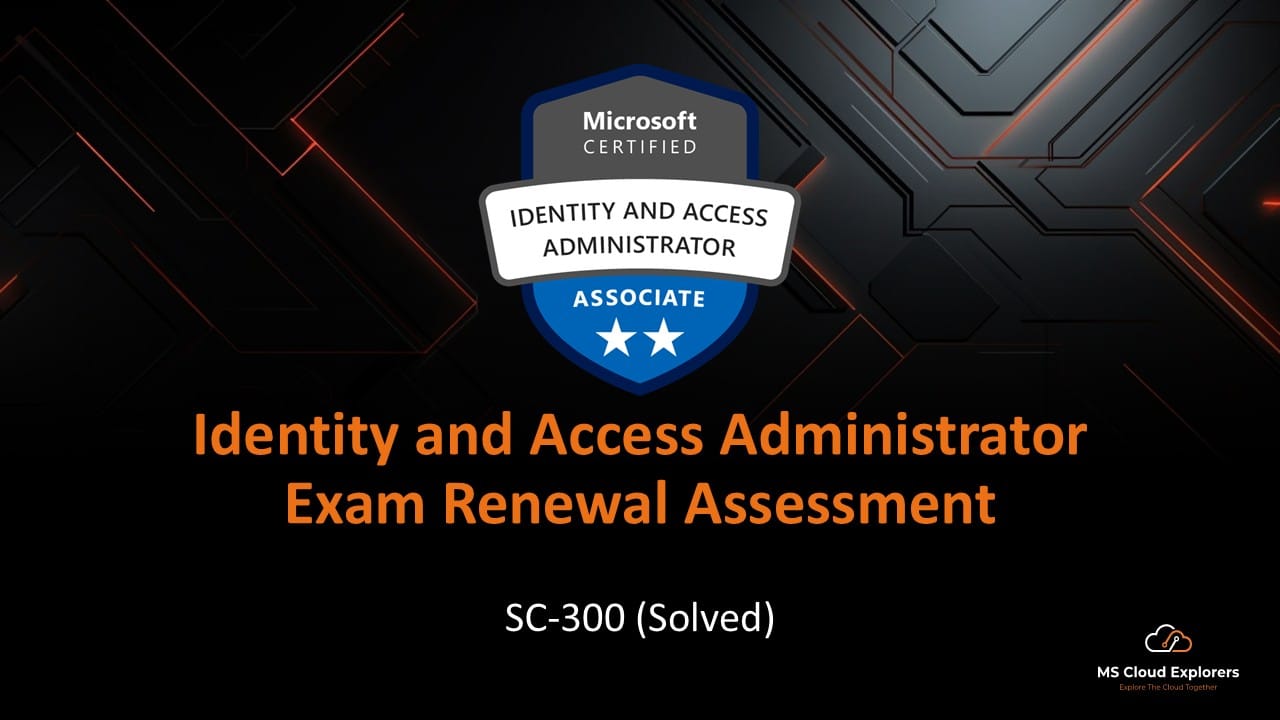
SC-300 Assessment
Identity and Access Administrator Associate
You have an on-premises Active Directory forest and a Microsoft Entra tenant.
You plan to synchronize Microsoft Entra tenant with Active Directory by using Microsoft Entra Cloud sync.
You need to install the Microsoft Entra provisioning agent.
What should you create in Active Directory first?
- a group managed service account
- a security group
- a user account that is member of the Incoming Forest Trust Builders group
- a user account that is member of the Key Admins group
Reveal Solution
✅ Correct Answer: A. a group managed service account
Explanation
When deploying Microsoft Entra Cloud Sync, the Microsoft Entra provisioning agent requires a Group Managed Service Account (gMSA) in Active Directory. The agent uses this account to securely connect to and read data from Active Directory without requiring a traditional user account password.
The other options are not prerequisites for installing the Microsoft Entra provisioning agent:
- ❌ Security group — not required.
- ❌ User in Incoming Forest Trust Builders — related to trust creation, not Cloud Sync.
- ❌ User in Key Admins — related to key management, not Cloud Sync.
You have an on-premises Active Directory forest and a Microsoft Entra tenant.
You are implementing Microsoft Entra Cloud sync.
You need to configure Microsoft Entra Cloud sync to synchronize an organizational unit named OU1 to Microsoft Entra tenant.
What should you use?
- the Microsoft Entra provisioning agent
- the Active Directory Domains and Trusts
- the Active Directory Sites and Services
- the Microsoft Entra admin center
Reveal Solution
✅ Correct Answer: D. the Microsoft Entra admin center
Explanation
With Microsoft Entra Cloud Sync, you configure which users and groups are synchronized (including filtering by Organizational Unit) in the Microsoft Entra admin center.
The Microsoft Entra provisioning agent is installed on-premises to facilitate synchronization, but it is not where you configure OU scoping.
The other options are unrelated:
- ❌ Active Directory Domains and Trusts – used for managing trusts and domains.
- ❌ Active Directory Sites and Services – used for AD replication and site configuration.
- ❌ Microsoft Entra provisioning agent – performs synchronization but is not the configuration interface.
Your company has customers that use following services:
- Active Directory Domain Services (AD DS)
- Active Directory Federation Services (AD FS)
- Microsoft Entra Connect Sync
Which services can you monitor by using Microsoft Entra Connect Health?
- Microsoft Entra Connect Sync, AD DS and AD FS
- Microsoft Entra Connect Sync and AD DS only
- Microsoft Entra Connect Sync and AD FS only
- Microsoft Entra Connect Sync only
Reveal Solution
✅ Correct Answer: A. Microsoft Entra Connect Sync, AD DS and AD FS
Explanation
Microsoft Entra Connect Health provides monitoring and reporting for:
- ✅ Microsoft Entra Connect Sync (formerly Azure AD Connect)
- ✅ Active Directory Domain Services (AD DS)
- ✅ Active Directory Federation Services (AD FS)
It helps monitor synchronization, authentication, and directory infrastructure health from the Microsoft Entra portal.
You have a Microsoft Entra tenant that contains the following groups:
- Group1: Contains 200 pilot users
- Group2: Contains two emergency access accounts
You need to reduce the risk of account compromise by requiring additional verification for risky sign-ins, while enabling users to complete the sign-in when verification succeeds. The emergency access accounts must be unaffected.
What should you configure?
- a Conditional Access policy that is assigned to All users, evaluates sign-in risks, and blocks access
- an authentication method registration campaign that requires the users in Group1 to register to Microsoft Authenticator
- a Conditional Access policy that is assigned to Group1, excludes Group2, evaluates user risks, and requires password change
- a Conditional Access policy that is assigned to Group1, excludes Group2, evaluates sign-in risks, and requires multifactor authentication (MFA)
Reveal Solution
✅ Correct Answer: D. a Conditional Access policy that is assigned to Group1, excludes Group2, evaluates sign-in risks, and requires multifactor authentication (MFA)
Why?
The requirement is:
- Detect risky sign-ins → use Sign-in Risk.
- Require additional verification → use MFA.
- Allow users to continue if verification succeeds → MFA satisfies this.
- Ensure emergency access accounts are unaffected → exclude Group2.
Option D does exactly that.
Why not the others?
- ❌ A: Blocks access instead of allowing users to verify and continue.
- ❌ B: Authenticator registration campaign doesn’t evaluate sign-in risk.
- ❌ C: Uses User Risk and requires password change; the requirement is for risky sign-ins and additional verification.
You have a Microsoft Entra tenant that contains two emergency access accounts.
You want to reduce help desk tickets by enabling users to self-remediate when Microsoft Entra ID Protection detects High user risk.
You need to ensure that users with a High user risk perform a secure password reset to regain access. The solution must exclude emergency access accounts.
What should you do?
- Configure an authentication method registration campaign that requires users to register to Microsoft Authenticator.
- Configure manual remediation in Microsoft Entra ID Protection, so that administrators review and dismiss high-risk users.
- Create a Conditional Access policy that evaluates a high user risk, requires password change, and excludes the emergency access accounts.
- Create a Conditional Access policy that evaluates sign-in risk = High, requires multifactor authentication (MFA), and excludes the emergency access accounts.
Reveal Solution
✅ Correct Answer: C. Create a Conditional Access policy that evaluates a high user risk, requires password change, and excludes the emergency access accounts.
Why?
The requirements are:
- High user risk detected by Microsoft Entra ID Protection.
- Self-remediation by the user.
- Secure password reset to regain access.
- Emergency access accounts excluded.
A User Risk Conditional Access policy with Require password change allows users to remediate their own risk by performing a secure password reset, reducing help desk involvement.
Why not the others?
- ❌ Authentication method registration campaign only registers MFA methods; it doesn’t remediate user risk.
- ❌ Manual remediation increases admin workload and help desk involvement.
- ❌ Sign-in risk + MFA addresses risky sign-ins, but does not require a password reset to remediate a high user risk.
You have a Microsoft Entra tenant.
You create the following groups:
- Group1: Contains all non-admin users
- Group2: Contains two emergency access accounts
You need to ensure that users perform a secure password change whenever their user risk level is High. The requirement must apply only to Group1 and must exclude Group2.
What should you configure?
- a Conditional Access policy assigned to Group2 that requires password change when the user risk is High
- a Conditional Access policy assigned to Group1 that excludes Group2 and blocks access when the user risk is High
- a Conditional Access policy assigned to Group1 that excludes Group2 and requires password change when the user risk is High
- a Conditional Access policy assigned to Group1 that excludes Group2 and requires multifactor authentication (MFA) when the sign-in risk is High
Reveal Solution
✅ Correct Answer: C. a Conditional Access policy assigned to Group1 that excludes Group2 and requires password change when the user risk is High
Explanation
The requirements are:
- Apply to Group1 (all non-admin users).
- Exclude Group2 (emergency access accounts).
- Trigger when User Risk = High.
- Force a secure password change.
A User Risk Conditional Access policy configured to Require password change is the recommended self-remediation method for high-risk users.
Why not the others?
- ❌ A: Assigned to Group2 (the accounts that should be excluded).
- ❌ B: Blocks access instead of allowing self-remediation via password change.
- ❌ D: Uses Sign-in Risk and MFA, not User Risk and password change.
Your company has a Microsoft Entra tenant with Microsoft Entra ID P2 licenses.
You enforce MFA by using Microsoft Entra ID Protection for all users.
What is the maximum number of days, after a user sign-in, when users are required to use MFA?
- 2
- 7
- 14
- 30
Reveal Solution
✅ Correct Answer: C. 14
Microsoft Entra ID Protection’s MFA registration policy gives users a 14-day grace period after they are prompted to register for MFA. During those 14 days, they can skip registration (if MFA isn’t otherwise required), but after the period expires they must complete MFA registration before they can sign in.
You have a Microsoft Entra tenant that uses Microsoft Entra ID Governance and Security Copilot.
You enable the Access Review Agent for an existing recurring access review of a Microsoft Entra group.
You need to identify which signal the Access Review Agent can use when generating recommendations.
Which signal should you identify?
- a user’s assigned Microsoft Entra roles
- a user’s employeeLeaveDateTime attribute
- a user’s device compliance status in Microsoft Intune
- a user’s Conditional Access evaluation results for their last sign-in
Reveal Solution
✅ Correct Answer: B. a user’s employeeLeaveDateTime attribute
Explanation
The Access Review Agent in Microsoft Entra ID Governance can use signals from Microsoft Entra to help reviewers make decisions. One of the supported signals is the employeeLeaveDateTime attribute, which indicates that a user has left or is scheduled to leave the organization.
This helps the Access Review Agent recommend removing access for users who are no longer employed.
Why not the others?
- ❌ Assigned Microsoft Entra roles – not a recommendation signal for the Access Review Agent.
- ❌ Device compliance status – not used by Access Review Agent recommendations.
❌ Conditional Access evaluation results – not a recommendation signal for access reviews.
You have a Microsoft Entra tenant that uses Microsoft Entra ID Governance.
The HR department at your company provisions user accounts 10 days before each new employee’s start date.
New hires must complete multifactor authentication (MFA) registration before their first day, but their accounts must remain disabled until their start date. Administrators want this onboarding process to occur automatically.
You need to implement a lifecycle workflow to meet the requirements.
Which built-in template should you use?
- Onboard new hire employee
- Onboard pre-hire employee
- Pre-offboarding of an employee
- Real-time employee change
Reveal Solution
✅ Correct Answer: B. Onboard pre-hire employee
Explanation
The key clue is:
User accounts are provisioned 10 days before the employee’s start date, and new hires must complete MFA registration before their first day while accounts remain disabled until the start date.
The Onboard pre-hire employee lifecycle workflow template is specifically designed for employees who have been hired but have not yet reached their official start date. It automates pre-start activities such as preparing accounts and enabling onboarding tasks before day one.
Why not the others?
- ❌ Onboard new hire employee – intended for employees who have already started.
- ❌ Pre-offboarding of an employee – used before an employee leaves the organization.
- ❌ Real-time employee change – used when employee attributes change, not for pre-hire onboarding.
You have a Microsoft Entra tenant that uses Microsoft Entra ID Governance lifecycle workflows.
You run a lifecycle workflow on demand for a pilot user. The run status shows Completed with errors, and the workflow did not complete all onboarding tasks.
You need to identify which operations failed during the workflow run.
What should you review?
- the Runs summary for the workflow
- the Users summary for the workflow
- the Tasks summary for the workflow run
- Microsoft Entra ID sign-in logs filtered to the pilot user
Reveal Solution
✅ Correct Answer: C. the Tasks summary for the workflow run
Explanation
When a Lifecycle Workflow run shows “Completed with errors”, the best place to identify exactly which operations succeeded or failed is the Tasks summary for that specific workflow run.
The Tasks summary provides:
- Individual task status
- Success/failure details
- Error messages
- Execution results for each onboarding/offboarding action
Why not the others?
- ❌ Runs summary – shows overall run status, not detailed task failures.
- ❌ Users summary – shows affected users, not which tasks failed.
- ❌ Sign-in logs – unrelated to Lifecycle Workflow task execution.
You have a Microsoft Entra tenant that uses Microsoft Entra ID Governance. The hire date user property is populated for new employees, and the department attribute is set for each user.
You need to automate onboarding so that new hires in the sales department receive a welcome email and are added to a specific security group when they start. The solution must run automatically based on each user’s hire date and apply only to users whose department equals sales.
What should you implement?
- Microsoft Entra access reviews
- Microsoft Entra Conditional Access
- Microsoft Entra entitlement management
- Microsoft Entra lifecycle workflows
Reveal Solution
✅ Correct Answer: D. Microsoft Entra lifecycle workflows
Explanation
The requirements are:
- Trigger automatically based on a user’s hire date.
- Apply only to users whose department = Sales.
- Send a welcome email.
- Add users to a security group.
- Automate the onboarding process.
Microsoft Entra Lifecycle Workflows are specifically designed for onboarding, employee changes, and offboarding based on user attributes such as hire date and department. They can automatically execute tasks like sending emails and adding users to groups.
Why not the others?
- ❌ Access Reviews – used to review and certify access, not onboarding.
- ❌ Conditional Access – controls access based on conditions, not onboarding tasks.
- ❌ Entitlement Management – manages access packages and approvals, not hire-date-based onboarding workflows.
You have a Microsoft Entra subscription.
You create a named location named Location1 in the subscription.
You create a Conditional Access policy named Policy1 that uses Location1 as a condition.
You need to identify which users will be affected by Policy1.
What should you use?
- activity logs
- Code Identity
- sign-in logs
- What If
Reveal Solution
✅ Correct Answer: D. What If
Explanation
The What If tool in Microsoft Entra Conditional Access allows you to simulate a sign-in and determine:
- Which Conditional Access policies will apply
- Which policies will not apply
- The resulting access controls and requirements
This is the recommended way to identify which users would be affected by Policy1 before enforcing it.
Why not the others?
- ❌ Activity logs – show administrative actions, not policy impact.
- ❌ Code Identity – not used for Conditional Access evaluation.
- ❌ Sign-in logs – show results of actual sign-ins after policies are applied; they don’t predict who will be affected.
You have a Microsoft 365 subscription.
You implement Microsoft Entra ID Protection.
You plan to enable continuous access evaluation (CAE).
You need to identify the benefits of CAE.
What should you identify?
- CAE policies will be evaluated and enforced in near-real-time (NRT).
- Identity Protection policies will be evaluated and enforced in near-real-time (NRT).
- Session management controls will be evaluated and enforced in near-real-time (NRT).
- Sign-in frequency controls will be evaluated and enforced in near-real-time (NRT).
Reveal Solution
✅ Correct Answer: B. Identity Protection policies will be evaluated and enforced in near-real-time (NRT).
Explanation
Continuous Access Evaluation (CAE) allows access decisions to be reevaluated in near real time when critical events occur, such as:
- User account disabled
- Password changed
- MFA enabled
- High user risk detected by Microsoft Entra ID Protection
This means Identity Protection risk-based policies can be enforced much faster without waiting for token expiration.
Why not the others?
- ❌ Conditional Access policies are not all evaluated in near real time through CAE.
- ❌ Session management controls are separate Conditional Access session controls.
- ❌ Sign-in frequency controls are not a CAE benefit; they rely on token lifetime/sign-in frequency settings.
You have a Microsoft 365 subscription.
You plan to enable Microsoft Entra Security defaults.
You need to identify what will occur after you enable Security defaults.
What should you identify?
- Security defaults will create Conditional Access policies.
- Security defaults will enforce the use of Microsoft Entra ID Protection for risk events.
- Security defaults will remove anyone from the Global Administrator role
- Security defaults will require all users to register for the multifactor (MFA) authentication
Reveal Solution
✅ Correct Answer: D. Security defaults will require all users to register for multifactor authentication (MFA).
Explanation
When Microsoft Entra Security Defaults are enabled, Microsoft automatically applies a set of baseline security protections, including:
- Requiring users to register for MFA
- Requiring administrators to use MFA
- Challenging users for MFA when necessary
- Blocking legacy authentication protocols
Why not the others?
- ❌ A. Create Conditional Access policies – Security Defaults do not create visible Conditional Access policies.
- ❌ B. Enforce Microsoft Entra ID Protection – Identity Protection is a separate P2 feature.
- ❌ C. Remove Global Administrators – Security Defaults do not modify role assignments.
You have a Microsoft 365 tenant that contains a group named Group1.
You plan to create a conditional access policy named Policy1 that will use Conditional Access App Control with a custom policy.
You need to create the custom policy that will be used by Policy1.
In which portal can you create the custom policy?
- Microsoft 365 admin center
- Microsoft Defender portal
- Microsoft Entra admin center
- Microsoft Intune admin center
Reveal Solution
✅ Correct Answer: B. Microsoft Defender portal
Explanation
Conditional Access App Control (CAAC) is part of Microsoft Defender for Cloud Apps (MDCA). Custom session policies and access policies used with Conditional Access App Control are created and managed in the Microsoft Defender portal.
Why not the others?
- ❌ Microsoft 365 admin center – does not manage CAAC custom policies.
- ❌ Microsoft Entra admin center – used to create the Conditional Access policy, but not the custom App Control policy.
- ❌ Microsoft Intune admin center – used for device management and compliance policies.
Your company has a Microsoft 365 E5 subscription. All company users are connected to an on-premises network.
You plan to implement Microsoft Entra Internet Access.
You need to ensure that Global Secure Access is used by all devices that are connected to the on-premises network without installing the Global Secure Access client.
What must you create in the Microsoft Entra admin center?
- An Access package
- A Conditional access policy
- A Connected organization
- A Named location
- A Remote network
Reveal Solution
✅ Correct Answer: E. A Remote network
Explanation
For Microsoft Entra Internet Access and Global Secure Access, if you want all devices on an on-premises network to use the service without installing the Global Secure Access client, you configure a Remote Network.
A Remote Network:
- Represents an on-premises site/network.
- Routes traffic from that network through Global Secure Access.
- Does not require the Global Secure Access client on individual devices.
Why not the others?
- ❌ Access package – used in Entitlement Management.
- ❌ Conditional Access policy – controls access decisions, not network onboarding.
- ❌ Connected organization – used for external collaboration.
- ❌ Named location – used in Conditional Access to identify trusted locations, not to onboard a network to Global Secure Access.
Your company has a Microsoft 365 E5 subscription.
The company plans to implement Microsoft Entra Private Access.
You need to identify the ports required for Microsoft Entra Private Access.
Which ports should you enable?
- Inbound port 443 only
- Inbound ports 80 and 443 only
- Outbound port 443 only
- Outbound ports 80 and 443 only
Reveal Solution
✅ Correct Answer: C. Outbound port 443 only
Explanation
Microsoft Entra Private Access uses outbound HTTPS connections from the connector to Microsoft’s service. The connector establishes the connection, so you do not need to open inbound ports.
Required connectivity:
- ✅ Outbound TCP 443 (HTTPS)
Why not the others?
- ❌ Inbound port 443 only – no inbound connections are required.
- ❌ Inbound ports 80 and 443 only – inbound ports are not required.
- ❌ Outbound ports 80 and 443 only – port 80 is not required for Microsoft Entra Private Access operation.
Your company has a Microsoft 365 E5 subscription.
The company plans to implement Microsoft Entra Internet Access.
You set up tenant restrictions.
You need to enable a user named Admin1 to apply tagging for tenant restrictions.
To which two roles should you assign Admin1? Each correct answer presents part of the solution.
- Conditional Access Administrator
- Global Secure Access Administrator
- Network Administrator
- Security Administrator
- Service Support Administrator
Reveal Solution
✅ Correct Answers: B. Global Secure Access Administrator
✅ D. Security Administrator
Explanation
To apply tagging for tenant restrictions in Microsoft Entra Internet Access / Global Secure Access, the administrator must have both:
- Global Secure Access Administrator
- Security Administrator
Microsoft’s documentation specifically states that an administrator with both roles is required to enable enforcement and tagging for tenant restrictions.
Why not the others?
- ❌ Conditional Access Administrator – not sufficient for tenant restriction tagging.
- ❌ Network Administrator – not used for this feature.
- ❌ Service Support Administrator – support role only.
Your company has a Microsoft 365 E5 subscription.
The company plans to implement Microsoft Entra Internet Access.
You are creating a conditional access policy named CAPolicy1.
You need to configure CAPolicy1 to apply to Internet traffic.
Which section of CAPolicy1 should you configure?
- Conditions
- Grant
- Network
- Session
- Target resources
Reveal Solution
✅ Correct Answer: E. Target resources
To apply a Conditional Access policy to Microsoft Entra Internet Access traffic, you configure the Target resources section and select “All internet resources with Global Secure Access” (or the appropriate Internet Access traffic profile). This is where Internet traffic is targeted in the policy.
Why not the others?
- ❌ Conditions – used for user risk, sign-in risk, locations, device platforms, etc.
- ❌ Grant – specifies controls like MFA or compliant device requirements.
- ❌ Network – used for network-related conditions, not for targeting Internet Access traffic.
- ❌ Session – used for session controls.
Your company has a Microsoft 365 E5 subscription.
You plan to implement conditional access app control.
You need to control apps that were published with conditional access app control.
Where should you create a policy to control published apps?
- Microsoft Defender for Cloud
- Microsoft Defender for Cloud Apps
- Microsoft Defender for Identity
- Microsoft Defender for Endpoint
Reveal Solution
✅ Correct Answer: B. Microsoft Defender for Cloud Apps
Explanation
Conditional Access App Control (CAAC) is a feature of Microsoft Defender for Cloud Apps (MDCA). Policies used to monitor, control, block downloads, protect sessions, and govern published applications are created in Microsoft Defender for Cloud Apps.
Why not the others?
- ❌ Microsoft Defender for Cloud – cloud security posture management.
- ❌ Microsoft Defender for Identity – identity threat detection for Active Directory.
- ❌ Microsoft Defender for Endpoint – endpoint protection and EDR.
You have a Microsoft Entra tenant.
You are creating a conditional access policy named CAPolicy1.
You need to configure CAPolicy1 for app control.
Which section of CAPolicy1 should you configure?
- Conditions
- Grant
- Session
- Target resources
Reveal Solution
✅ Correct Answer: C. Session
Explanation
To enable Conditional Access App Control in a Conditional Access policy, you configure the Session section.
Path:
Conditional Access Policy → Session → Use Conditional Access App Control
From there, you can:
- Monitor only
- Use custom policy
- Block downloads
- Apply session controls through Microsoft Defender for Cloud Apps
Why not the others?
- ❌ Conditions – defines when the policy applies.
- ❌ Grant – defines access requirements such as MFA.
- ❌ Target resources – specifies the apps/resources the policy targets.
Your company has the following on-premises web app servers:
- Server1 that is connected to a network segment that uses the address space 172.16.10.0/24 and hosts a web app named WebApp1
- Server2 that is connected to network segment that uses the address space 172.16.10.0/24 and hosts two web apps named WebApp2 and WebApp3
- Server3 that is connected to a network segment that uses the address space 172.16.50.0/24 and hosts three web apps named WebApp4, WebApp5 and WebApp6
You need to publish all six web apps by using a Microsoft Entra Application Proxy.
What is the minimum number of connectors that you must install?
- 1
- 2
- 3
- 6
Reveal Solution
✅ Correct Answer: A. 1
Explanation
A Microsoft Entra Application Proxy connector can publish multiple applications and can access any application that is reachable from the network where the connector is installed.
In this scenario:
- One connector can publish WebApp1–WebApp6, provided it has network connectivity to both:
- 172.16.10.0/24
- 172.16.50.0/24
The question asks for the minimum number of connectors. Microsoft Entra Application Proxy does not require one connector per application or per server.
Why not the others?
- ❌ 2 – would be needed only if network connectivity constraints existed.
- ❌ 3 – not required.
- ❌ 6 – definitely not; a connector can publish many applications.
You have a web app named App1 that is hosted on your company’s on-premises network. The network is located behind a firewall.
You need to publish App1 to remote users by using a Microsoft Entra Application Proxy.
What should you allow on the firewall?
- inbound connection over HTTP and HTTPS
- inbound connection over RDP
- outbound connection over HTTP and HTTPS
- outbound connection over RDP
Reveal Solution
✅ Correct Answer: C. outbound connection over HTTP and HTTPS
Explanation
Microsoft Entra Application Proxy works by installing a connector on-premises. The connector initiates outbound connections to Microsoft Entra services over HTTP/HTTPS (primarily HTTPS 443).
Because the connection is outbound:
- No inbound firewall ports need to be opened.
- Remote users connect to Microsoft Entra, which securely relays traffic through the connector.
Why not the others?
- ❌ Inbound HTTP/HTTPS – not required.
- ❌ Inbound RDP – not used by Application Proxy.
- ❌ Outbound RDP – not required.
You have a Microsoft Entra tenant that stores sign-in logs in a Log Analytics workspace.
You need to ensure that administrator is notified when any user is performing multiple sign-ins from anonymous IP addresses. The solution must minimize cost and configuration effort.
What should you use?
- a workbook
- an Azure Automation runbook
- an Azure Monitor alert rule
- Microsoft Sentinel
Reveal Solution
✅ Correct Answer: C. an Azure Monitor alert rule
Explanation
The sign-in logs are already being sent to a Log Analytics workspace.
To notify administrators when users perform multiple sign-ins from anonymous IP addresses with minimal cost and configuration effort, create an Azure Monitor alert rule based on a Log Analytics query.
Azure Monitor alert rules:
- Monitor Log Analytics data.
- Trigger notifications automatically.
- Require less setup and cost than Microsoft Sentinel.
- Are specifically designed for alerting scenarios.
Why not the others?
- ❌ Workbook – provides visualization and reporting, not alerting.
- ❌ Azure Automation runbook – requires custom automation and more configuration.
- ❌ Microsoft Sentinel – can do this, but adds unnecessary cost and complexity for this requirement.
You have a Microsoft 365 subscription.
You plan to create a Microsoft Entra workbook that will show sign-in activity from the last 90 days.
What should you do first?
- From the Azure portal, create a Log Analytics workspace.
- From the Azure portal, create the Workbook
- From the Microsoft Entra admin center, create the Workbook
- From the Microsoft Entra admin center, create the diagnostic settings
Reveal Solution
✅ Correct Answer: A. From the Azure portal, create a Log Analytics workspace.
Explanation
Microsoft Entra workbooks use data from Microsoft Entra logs. Before you can create a workbook that reports on sign-in activity (especially historical data such as 90 days), you must first create a Log Analytics workspace to act as the destination data repository.
Why this is the correct choice:
- The 30-Day Limit: By default, Microsoft Entra ID only stores sign-in logs for up to 30 days (for Premium P1/P2 licenses) or 7 days (for Free/Free tier licenses).
- The 90-Day Requirement: To retain and query logs for 90 days, you must export them to an external storage sink. A Log Analytics workspace is required to store this historical log data so that Microsoft Entra Workbooks can query it.
- The Correct Sequence: You cannot configure the diagnostic settings to route the logs or build the workbook until the underlying storage repository (the Log Analytics workspace) exists.
Why the other options are incorrect:
- From the Microsoft Entra admin center, create the diagnostic settings: While this is a critical next step to stream the sign-in logs, you cannot complete or create the diagnostic settings until you have a destination Log Analytics workspace to point them to.
From the Azure portal / Microsoft Entra admin center, create the Workbook: If you create the workbook first without a Log Analytics workspace attached, it will only have access to the default short-term tenant logs and will not be able to pull data back up to 90 days.
We’d love your feedback!
Share your thoughts on the Renewal Test and help us improve by reporting any inaccurate answers.
🔗 Explore more Renewal Tests at mscloudexplorers.com/learn
📘 Discover more Microsoft 365 & Intune-related blogs at mscloudexplorers.com/blog
📰 Join our newsletter to get the latest Microsoft Cloud updates directly in your inbox.
🔔 Follow us on LinkedIn for regular updates, tips, and community insights.