

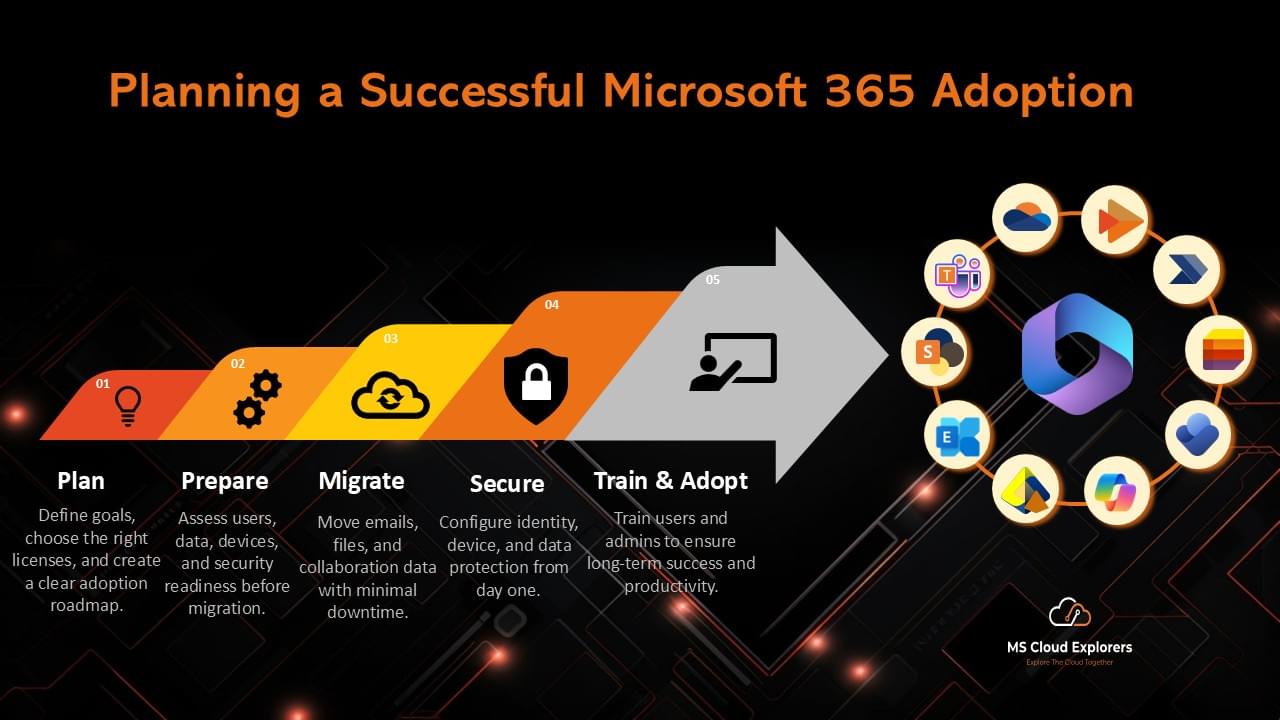
If you are planning to move to Microsoft 365 but still feel unsure about choosing the right subscription or the correct adoption strategy, you are not alone. Many organizations struggle because Microsoft offers multiple subscription models, each with different features, security levels, and productivity tools.
Over the past few years, I’ve completed numerous migrations—mailboxes, databases, IM systems—from Google Workspace, Microsoft Exchange servers, IMAP providers, GoDaddy, Zoho, and many more. Every project taught me something unique about Microsoft 365 Adoption, especially how to migrate without downtime, avoid data loss, and ensure users feel comfortable with the new tools.
This guide is based entirely on that real-world experience.
What is Microsoft 365?
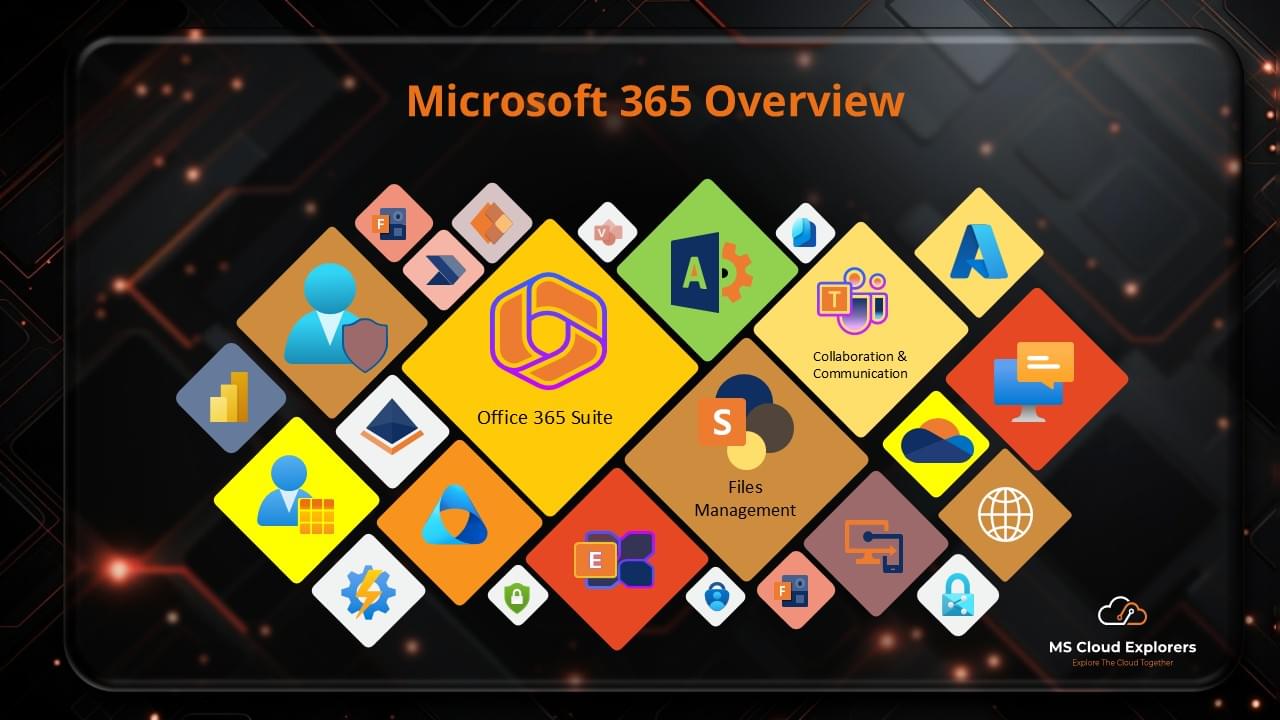
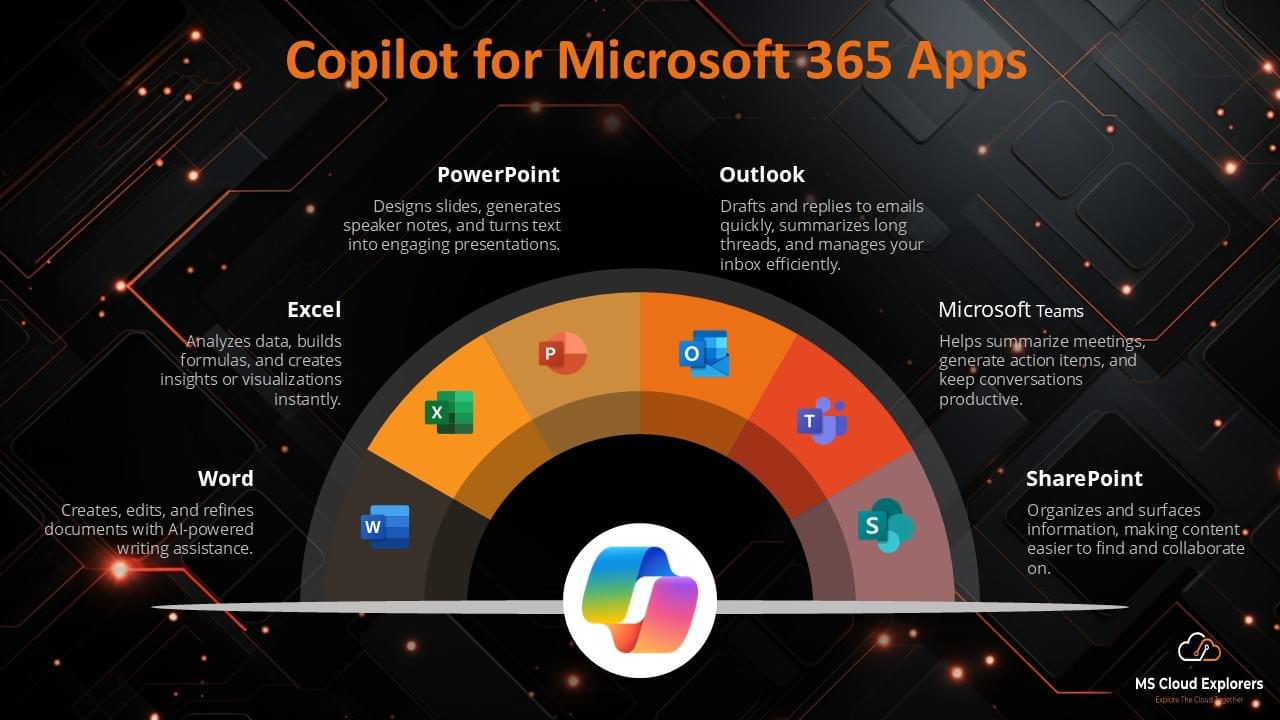
Microsoft 365 is a cloud-based subscription service that provides productivity tools like Word, Excel, PowerPoint, Outlook, OneDrive, and Teams. It also includes built-in security, device management, collaboration tools, automation capabilities, and AI-powered support through Microsoft Copilot.
You pay monthly or yearly depending on your licenses, and Microsoft continuously updates your environment—so you always have the latest features.
Microsoft 365 Licensing – Choosing the Right Plan
Selecting the right license is one of the most important steps in Microsoft 365 Adoption. Microsoft offers several licensing options, each designed for different types of organizations. Below is a simplified and easy-to-understand breakdown based on your needs.
Microsoft 365 Business Plans
(For small and medium-sized organizations — up to approximately 300 users)
- Business Basic
Includes web and mobile versions of Office apps, email, OneDrive, and Microsoft Teams. Ideal for cloud-first organizations that don’t need desktop applications. - Business Standard
Offers everything in Business Basic, plus full desktop apps and additional collaboration tools. Including standard email Protection (Spam, Malware and Phishing) - Business Premium
Includes all Business Standard features along with advanced security, Intune device management, and enhanced threat protection. Including (Safe links and Safe Attachments)
Microsoft 365 Enterprise Plans
(For large organizations — unlimited users)
- E1 — Web and mobile apps, Teams, and essential security features. Similar to Business basic.
- E3 — Desktop apps plus advanced security, compliance, and device management. Similar to Business Premium but with 100GB mailbox size and upto 5TB OneDrive Storage space.
- E5 — Full E3 capabilities plus the most advanced security, analytics, and threat protection. Including Microsoft Entra ID P2, Attack Simulator, full Features of Data loss prevention with Auto labelling and Microsoft Insider Risk Management.
- F1 / F3 — Designed for frontline workers using shared or low-powered devices. Specially for mobile devices
Microsoft 365 Edu Plans (A1 / A3 / A5)
Created for schools, colleges, and universities with features tailored to students, faculty, and staff.
Microsoft also provides specialized licensing options for Government and Non-Profit organizations.
If you’d like a deeper comparison of all licensing SKUs, check out the detailed blog that explains the differences to help you choose the right subscription for your organization.
If you’re still unsure about choosing the right Microsoft 365 subscription or planning a migration and are looking for reliable IT support, please reach out to us. Our experienced team will assist you throughout the entire migration process and help you select the subscription that best fits your company’s needs. We will also help you connect with the right Microsoft Trusted Reseller who can provide Microsoft 365 licenses at discounted pricing.
Understand the Security & Compliance Before Microsoft 365 Adoption
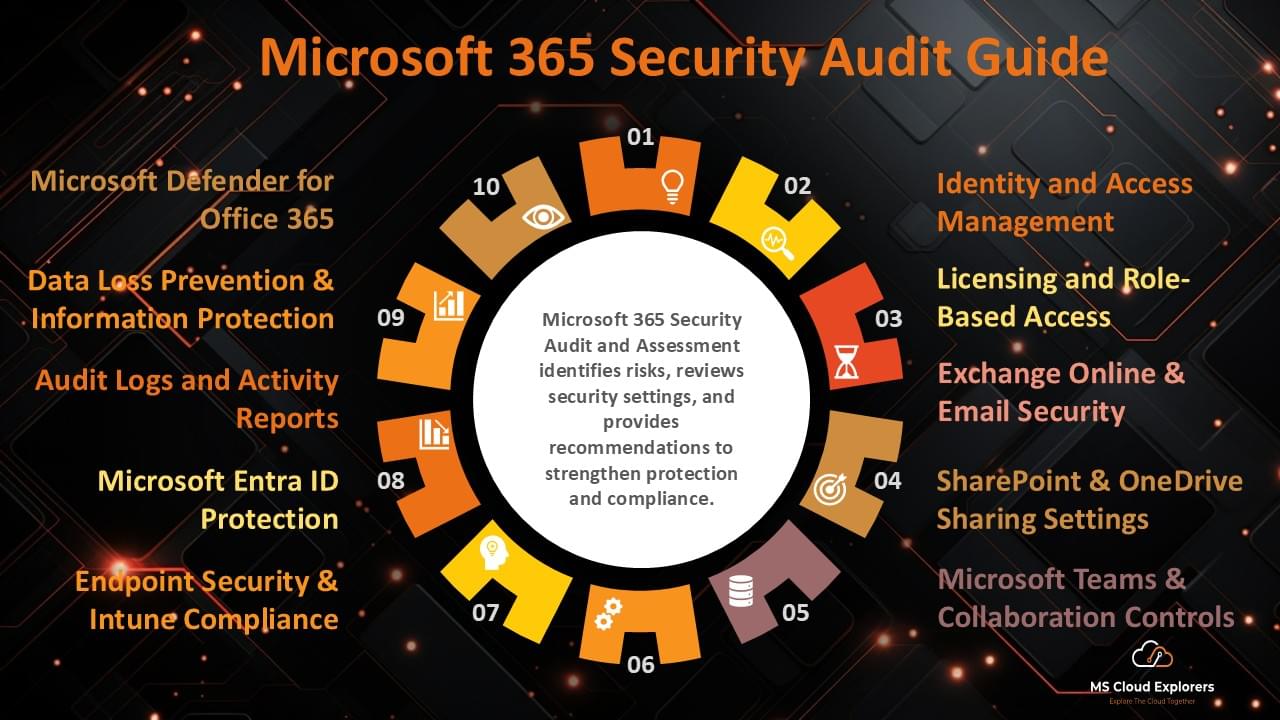
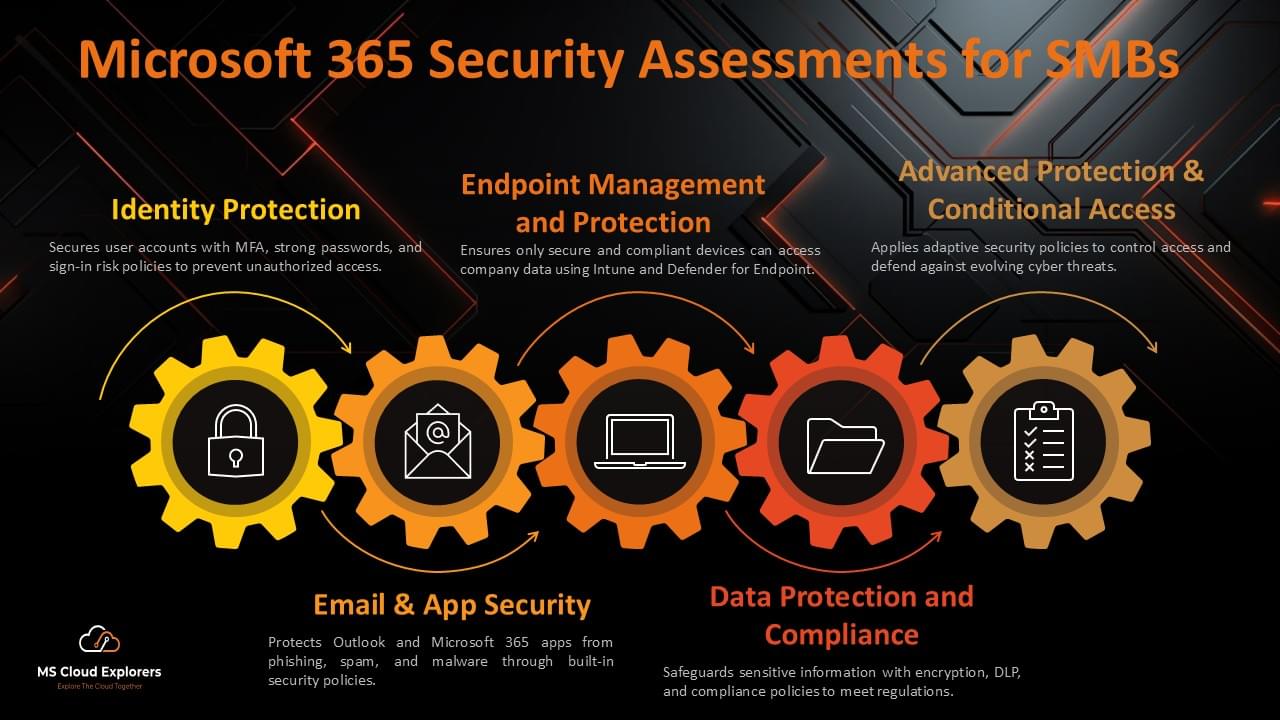
Microsoft 365 includes enterprise-grade security by default. Here’s a quick overview:
Email Security
- Defender for Office 365
- Safe Links
- Safe Attachments
- Anti-phishing
- Anti-malware
- Anti-Spam
Identity Security
- Multi-Factor Authentication
- Conditional Access
- Privileged Identity Management
- Identity Protection
- Single Sign-On (SSO)
- Self Service Password Reset (SSPR)
Device & Endpoint Security
- Defender for Endpoint Management.
- Intune device management.
- App protection policies.
- App Management.
Application Security
- OAuth app controls
- Defender for Cloud Apps
- Shadow IT monitoring
Network & Access Security
- Zero Trust access
- Browser protection
- VPN-less secure access
Compliance Tools
- Data Loss Prevention (DLP)
- Retention & record management
- Sensitivity labels
- eDiscovery & legal hold
- Compliance Manager
These features become critical during Microsoft 365 Adoption, especially when handling sensitive data or meeting regulatory requirements.
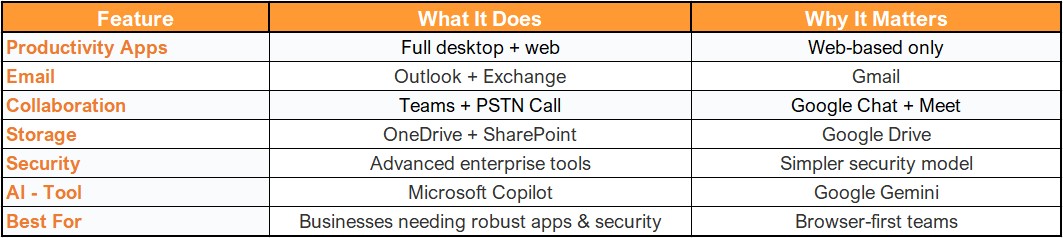
Microsoft 365 vs. Google Workspace — Quick Comparison
How to Prepare for Your Microsoft 365 Migration
Every successful migration begins with good planning.
Before moving any data, prepare an inventory of:
- Mailboxes + mailbox size.
- Shared mailboxes/Groups/Conference Rooms/Distribution Lists.
- Personal drives + Drive Size.
- Shared drives + Drive Size.
- IM/Chat data (Slack, Google Chat, etc.)
Microsoft offers official step-by-step migration guides for:
- IMAP mailboxes
- Google Workspace to Microsoft 365
- Slack to Microsoft Teams
- Exchange Server migrations
If you need professional support, we can help you plan, manage, and complete your Microsoft 365 migration with a personalized strategy that fits your organization perfectly. Contact us today to get started.
Training Users – A Critical Step in Microsoft 365 Adoption
Technology adoption fails when users don’t know how to use the tools.
Many organizations start receiving complaints after migration because employees feel overwhelmed. Proper training eliminates this problem.
Recommended User Training Topics
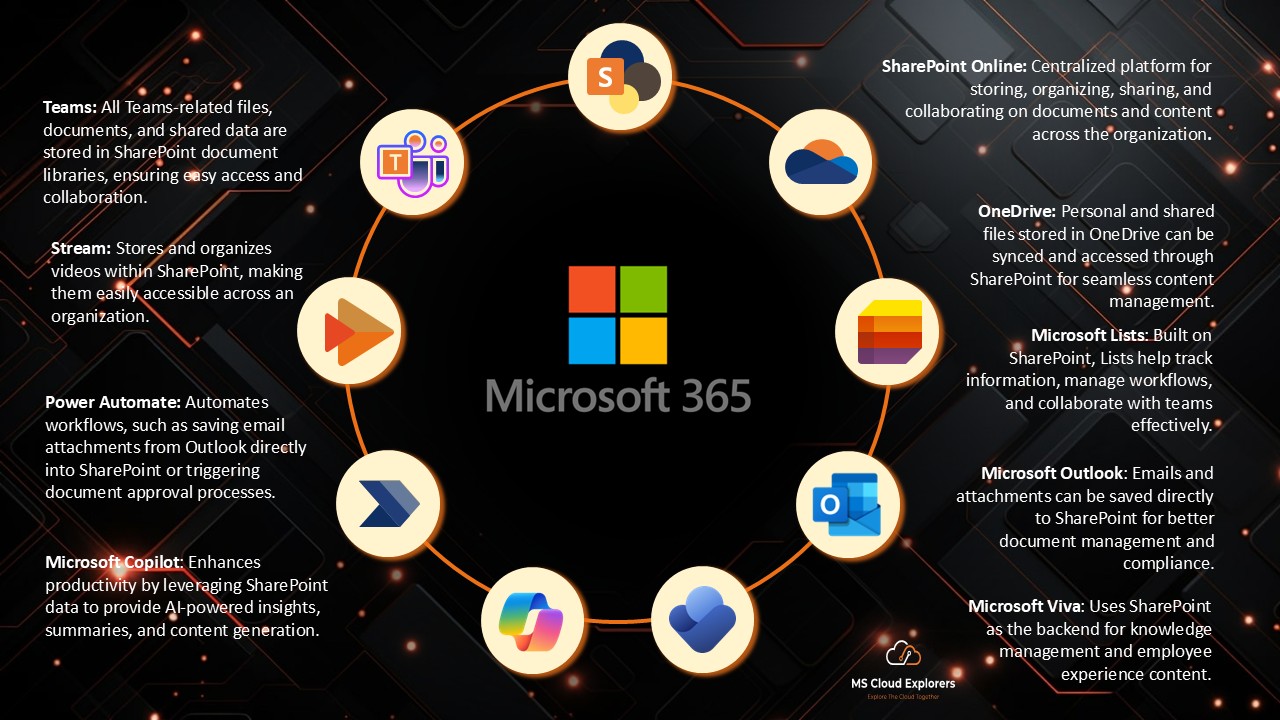
These training resources ensure users can perform their tasks confidently after adopting Microsoft 365.
Admin Training – Empowering Your IT Team
Admins play a major role in long-term success. They must understand:
- Admin Center
- Exchange Online
- SharePoint & OneDrive administration
- Teams administration
- Security & Compliance Center
- Power Platform management
- Monitoring & reporting
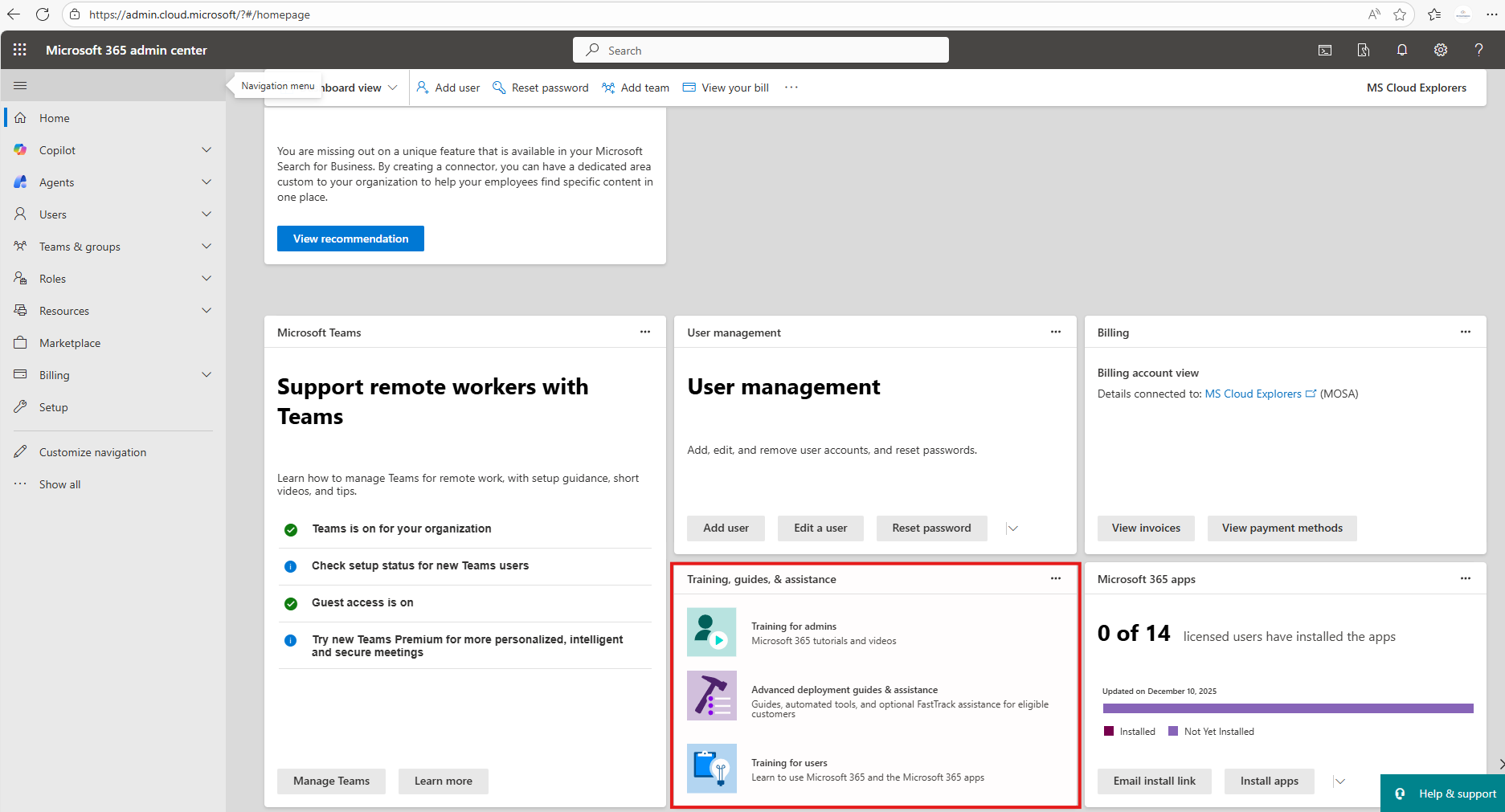
Trained administrators keep things safe, stable, and running smoothly. If you want clear, step-by-step instructions, read our other blog posts. They will help you manage user accounts, security, and devices more easily. Additionally Admin can find the more admin training in the Youtube. You will get all the links in Microsoft 365 Admin Center Home tab under Training, guides & Assistance section.
Conclusion
Successful Microsoft 365 Adoption goes far beyond purchasing licenses. It requires the right strategy, proper planning, a structured rollout, skilled administrators, and ongoing user training.
By following a step-by-step approach—supported by real-world experience—you can migrate smoothly, secure your environment, and help your organization take full advantage of Microsoft 365’s powerful capabilities.
If you invest time in planning and training, Microsoft 365 will transform your workflow, collaboration, and security posture for years to come.
FAQs
- Which Microsoft 365 plan is best for my organization?
Small businesses typically use Business Premium, while larger enterprises choose E3 or E5 for advanced security. - Does Microsoft 365 offer strong security?
Yes. It includes MFA, Conditional Access, DLP, Defender, and many other enterprise-grade protections. - Can I migrate from Google Workspace?
Yes. Microsoft provides official tools and guides for a smooth migration. - How long does Microsoft 365 Adoption take?
Small organizations can migrate within hours or days. Large, complex environments may require weeks. - What is Microsoft Copilot?
Microsoft Copilot is an AI-powered assistant that helps users work more efficiently by providing intelligent assistance across Microsoft 365 apps
Explore More From MS Cloud Explorers
- Microsoft Zero Trust Assessment: A Step-by-Step Guide for IT Admins
- Setting Up Intune Policies with Just a Few Clicks: The Ultimate Guide for Administrators
- The Ultimate Guide to SharePoint: Create a Stunning Site Template and Lock Down Permissions
- The Ultimate Guide to Exchange Email Online Archive for Efficient Email Management
Enjoyed the article?
We’d love to hear your thoughts—share your comments below!
For more insights, guides, and updates from the Microsoft ecosystem, be sure to subscribe to our newsletter and follow us on LinkedIn. Stay connected and never miss out on the latest tips and news!
4 comments on “A Practical Guide to Successful Microsoft 365 Adoption”