

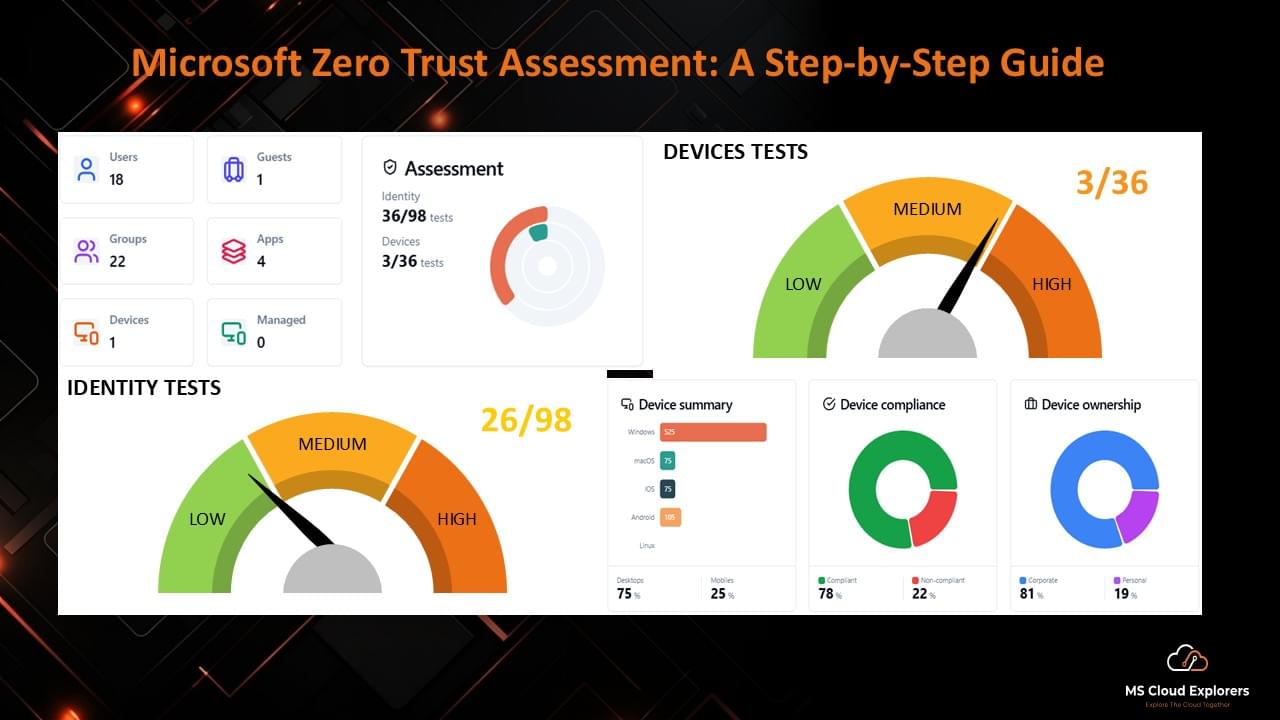
Organizations today face increasingly sophisticated cyber threats targeting identities, devices, and cloud services. Traditional security models that rely on perimeter defenses are no longer sufficient in modern hybrid environments.
The Microsoft Zero Trust Assessment Tool helps organizations evaluate their Microsoft 365 security posture based on Zero Trust principles. By analyzing your tenant configuration, the tool identifies potential risks, highlights misconfigurations, and provides actionable recommendations to improve your overall security posture.
In this guide, you’ll learn what the Microsoft Zero Trust Assessment Tool is, how it works, and how IT administrators can run it to identify and remediate security gaps in their environment.
What is Zero Trust Security?
Zero Trust is a modern cybersecurity framework built on the principle that no user, device, or application should be trusted by default, regardless of whether it originates from inside or outside the corporate network.
Instead of assuming trust, Zero Trust requires continuous verification before granting access.
The framework is based on three core principles.
Verify Explicitly
Every access request must be authenticated and authorized using multiple signals, including:
- User identity
- Device health
- Location
- Risk level
- User behavior patterns
Organizations often enforce Zero Trust access using Conditional Access policies in Microsoft Entra ID, which evaluate user identity, device compliance, and sign-in risk before granting access.
Enforce Least Privilege Access
Users and workloads should only receive the minimum permissions required to perform their tasks. This helps reduce the potential impact of compromised accounts.
Common approaches include:
- Role-Based Access Control (RBAC)
- Just-In-Time (JIT) access
- Just-Enough Access (JEA)
- Adaptive Conditional Access policies
Assume Breach
Zero Trust operates under the assumption that attackers may already be present within the environment.
This approach focuses on:
- Continuous monitoring
- Rapid threat detection
- Limiting lateral movement
- Protecting sensitive resources
Security teams can use solutions like Microsoft Defender for Identity to detect suspicious activities, compromised credentials, and lateral movement attempts within the environment.
Why Zero Trust Is Important for Modern Organizations
Modern IT environments are more complex than ever. Cloud services, remote work, and mobile devices have dramatically expanded the attack surface.
Traditional security approaches struggle to protect these environments.
Organizations adopt Zero Trust for several reasons:
- Growth of hybrid and remote work
- Increased adoption of SaaS applications
- Identity-based cyberattacks
- Supply-chain vulnerabilities
- Regulatory compliance requirements
Implementing Zero Trust helps organizations strengthen identity protection, improve governance, and align security practices with frameworks such as NIST, CISA, and CIS. Many breaches begin with stolen credentials, which is why administrators must know how to recover a compromised Microsoft 365 account quickly.
What Is the Microsoft Zero Trust Assessment Tool?
The Microsoft Zero Trust Assessment Tool is a PowerShell-based tool designed to evaluate your Microsoft 365 tenant against Zero Trust security best practices.
The tool scans your environment and identifies potential security gaps across identity and device security configurations.
Key characteristics of the tool include:
- Free for Microsoft 365 tenants
- Currently available in public preview
- Focused on Identity and Device security pillars
- Generates a detailed interactive report
- Provides remediation guidance for detected issues
The tool also includes direct links to the relevant Microsoft 365 admin portals so administrators can quickly resolve configuration issues.
This makes it extremely useful for IT administrators who want to understand their organization’s Zero Trust maturity level.
What the Zero Trust Assessment Report Includes
After the scan completes, the tool generates a comprehensive report outlining the organization’s security posture.
The report includes the following components:
- Security Tests Performed – Each assessment evaluates specific security configurations related to identity and device protection.
- Pass or Fail Status – Every test is marked as pass or fail to clearly indicate whether the environment meets the recommended security baseline.
- Risk Severity – The tool highlights findings based on severity levels to help prioritize remediation.
- User Impact – Each recommendation includes information about how the change might affect users.
- Implementation Effort – The report indicates how difficult it is to implement each security improvement.
- Remediation Recommendations – Detailed guidance explains how administrators can resolve each issue.
These tests are aligned with widely accepted cybersecurity frameworks and Microsoft security best practices.
Prerequisites to Run the Microsoft Zero Trust Assessment Tool
Before running the assessment, ensure that the following prerequisites are met.
Tenant Permissions
You must have Global Administrator permissions to grant the required application consent.
PowerShell Environment
The tool requires a system that supports:
- PowerShell 7 or later
- Internet connectivity
- Ability to install PowerShell modules
Using the latest PowerShell version ensures compatibility with modern authentication methods.
How to Run the Microsoft Zero Trust Assessment Tool (Step-by-Step)
Running the assessment is straightforward and requires only a few PowerShell commands:
Step 1: Install the Module
PowerShell
Install-Module ZeroTrustAssessment -Scope CurrentUserStep 2 – Connect to Your Microsoft 365 Tenant
Next, connect the tool to your Microsoft tenant.
PowerShell
Connect-ZtAssessmentAccept the Consent for all apps and follow the sign-in prompts for Microsoft Graph and Azure.
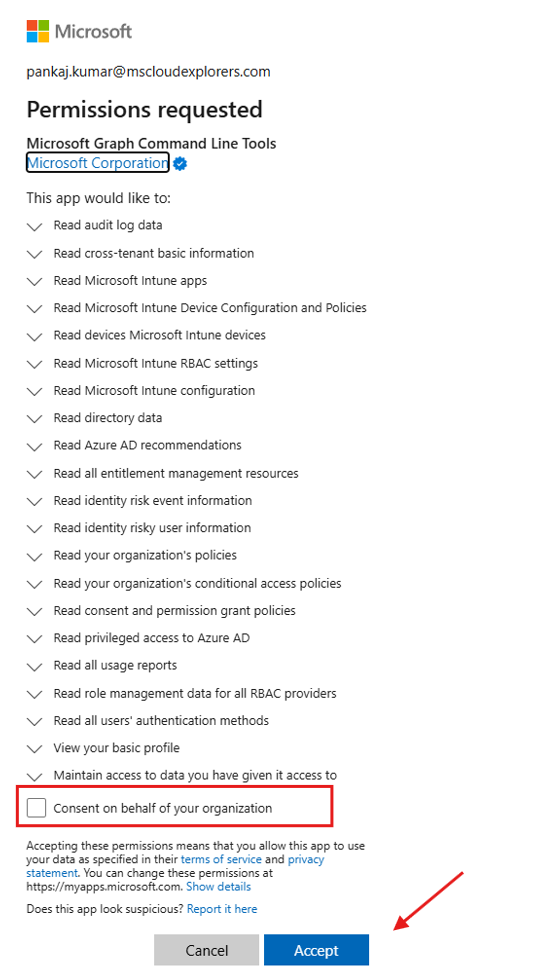
During the connection process, you will be prompted to authenticate and grant permissions required to run the assessment.
Step 3: Run the Assessment
After connecting successfully, execute the assessment command.
PowerShell
Invoke-ZtAssessmentThe tool will begin scanning your tenant configuration.
Large environments may take several hours to complete the analysis.
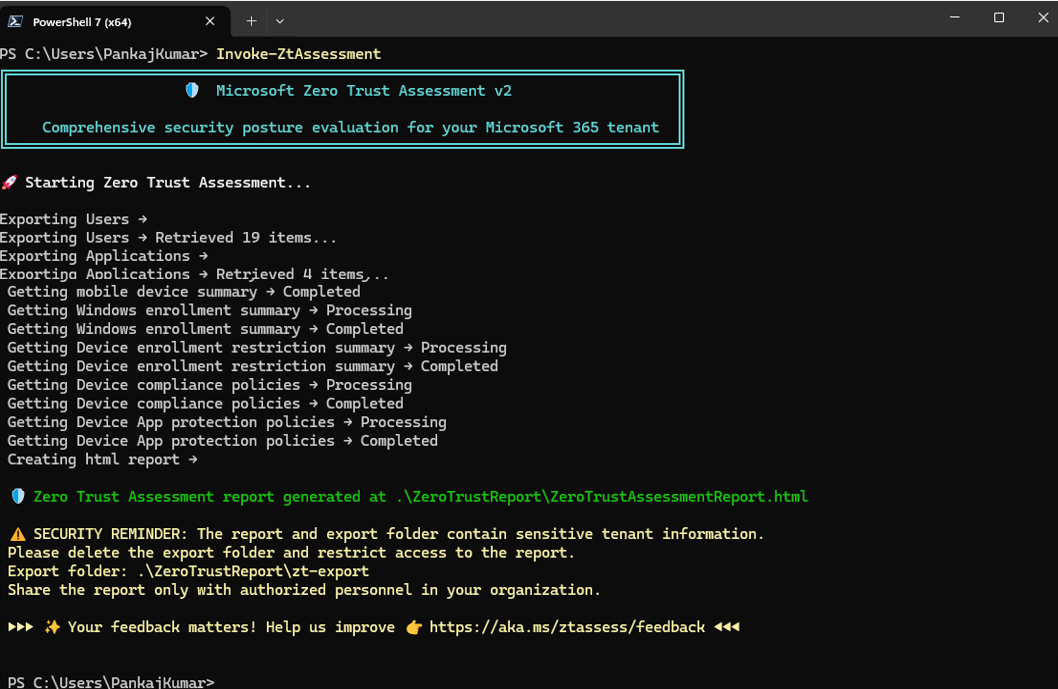
Step 4 – Review the Assessment Report
Once the scan finishes, an interactive report will appear with all findings and recommendations.
Administrators can review the results and begin addressing security gaps immediately.
Understanding the Zero Trust Assessment Results
The report contains multiple findings that should be evaluated carefully.
Administrators should prioritize improvements based on three key factors.
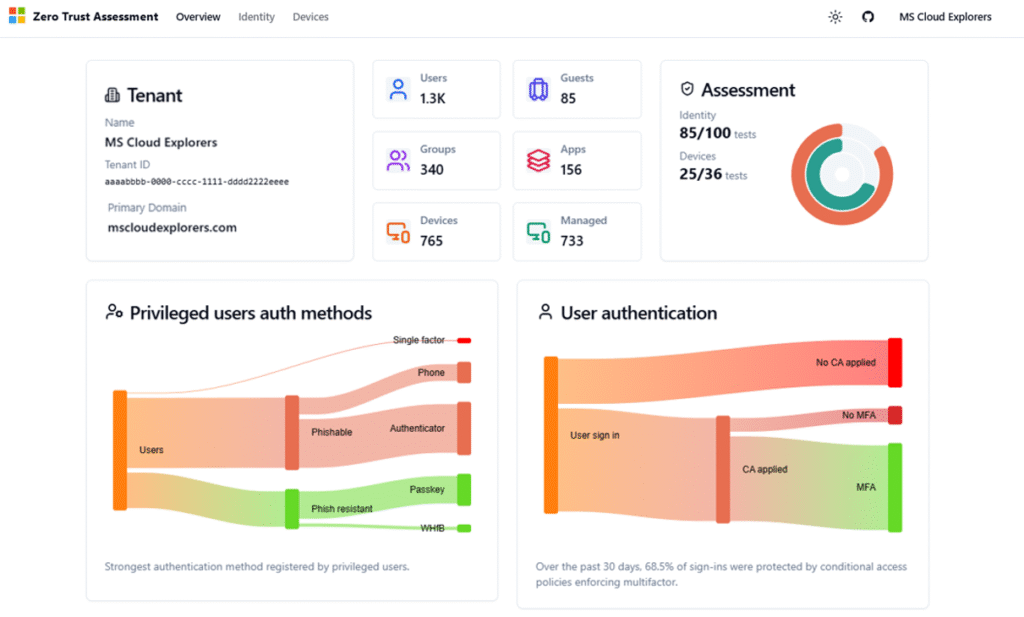
- Risk Level – Address high-risk findings first, especially those affecting identity protection and administrative privileges.
- User Impact – Some changes may affect authentication workflows or user access. Evaluate potential disruptions before implementing changes.
- Implementation Effort –
Focus on quick wins that significantly improve security with minimal operational impact.
Common high-value improvements include:
- Enforcing multi-factor authentication
- Restricting legacy authentication protocols
- Strengthening device compliance policies
- Improving privileged access management
Identity & Devices
This Zero Trust Assessment Report provides a detailed overview of your organization’s Zero Trust posture based on Microsoft Entra and Intune security best practices. You can review the identified risks and plan the necessary changes to improve your overall security posture.
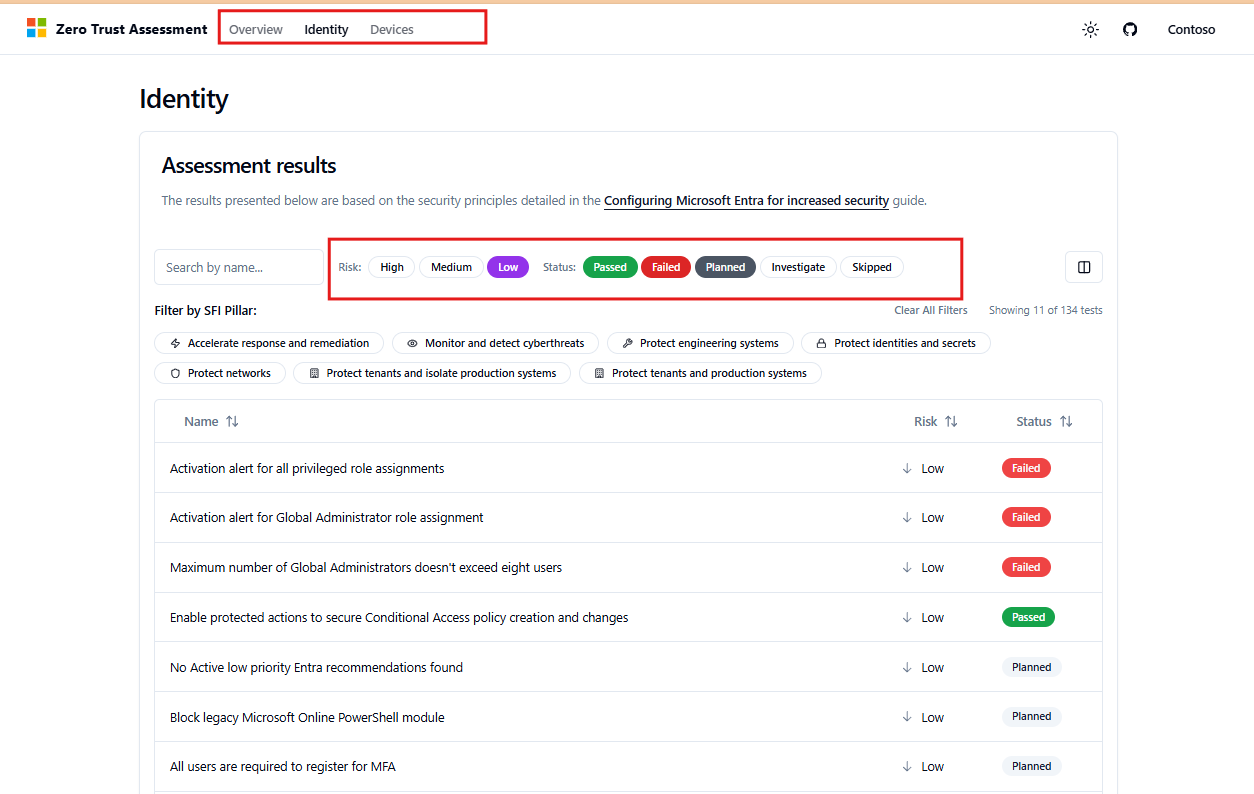
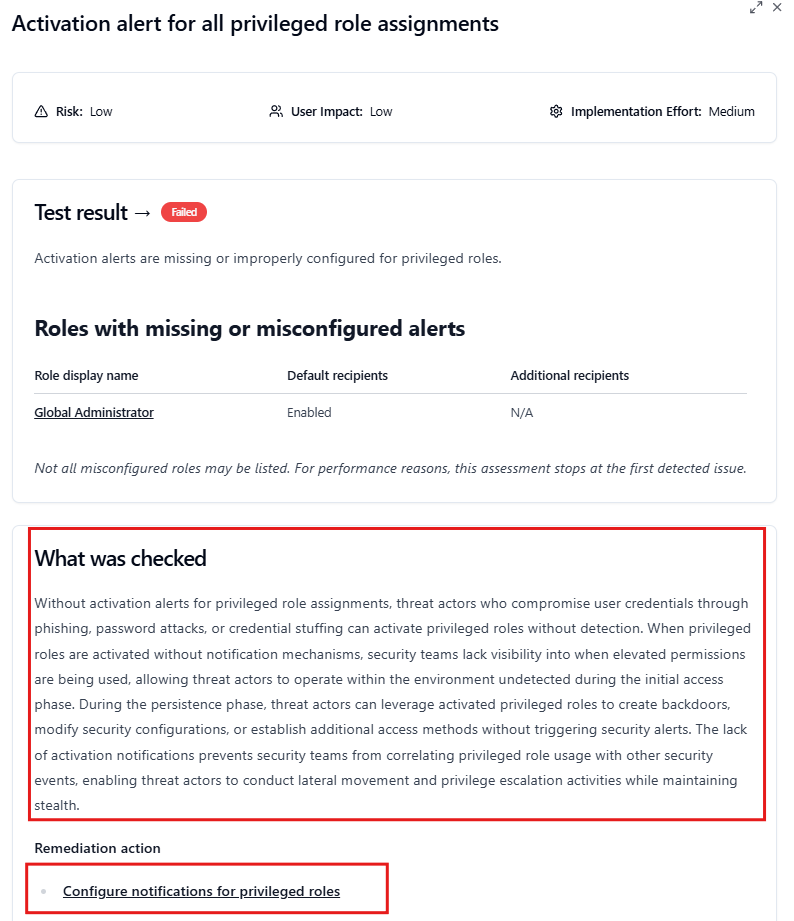
When you click on a risk item, a window will appear that provides more information about the issue, along with the configuration steps needed to resolve it.
Microsoft Zero Trust Maturity Model Explained
Zero Trust implementation typically progresses through several maturity levels.
Initial Stage
Organizations begin implementing identity protections such as multi-factor authentication and basic access policies.
Intermediate Stage
Security teams introduce device compliance policies and stronger identity governance.
Advanced Stage
Organizations adopt automated risk detection, advanced monitoring, and full Zero Trust architecture across multiple security layers.
Running the Zero Trust Assessment regularly helps organizations measure progress toward higher maturity levels.
Best Practices After Running the Assessment
The assessment report provides valuable insights, but its true value comes from acting on the recommendations.
Organizations should consider the following best practices.
Prioritize Identity Security
Identity remains the most targeted attack vector. Strengthening identity protections should be the first priority.
Improve Device Security
Ensure that devices accessing corporate resources meet compliance standards. Device compliance policies managed through Microsoft Intune device management help ensure that only secure and compliant devices can access corporate resources.
Establish a Security Improvement Roadmap
Use the assessment results to build a long-term security roadmap.
Run Assessments Regularly
Running the tool every quarter allows organizations to track improvements and detect new configuration gaps.
Organizations should also review their device compliance configurations when setting up Intune security policies to strengthen endpoint protection.
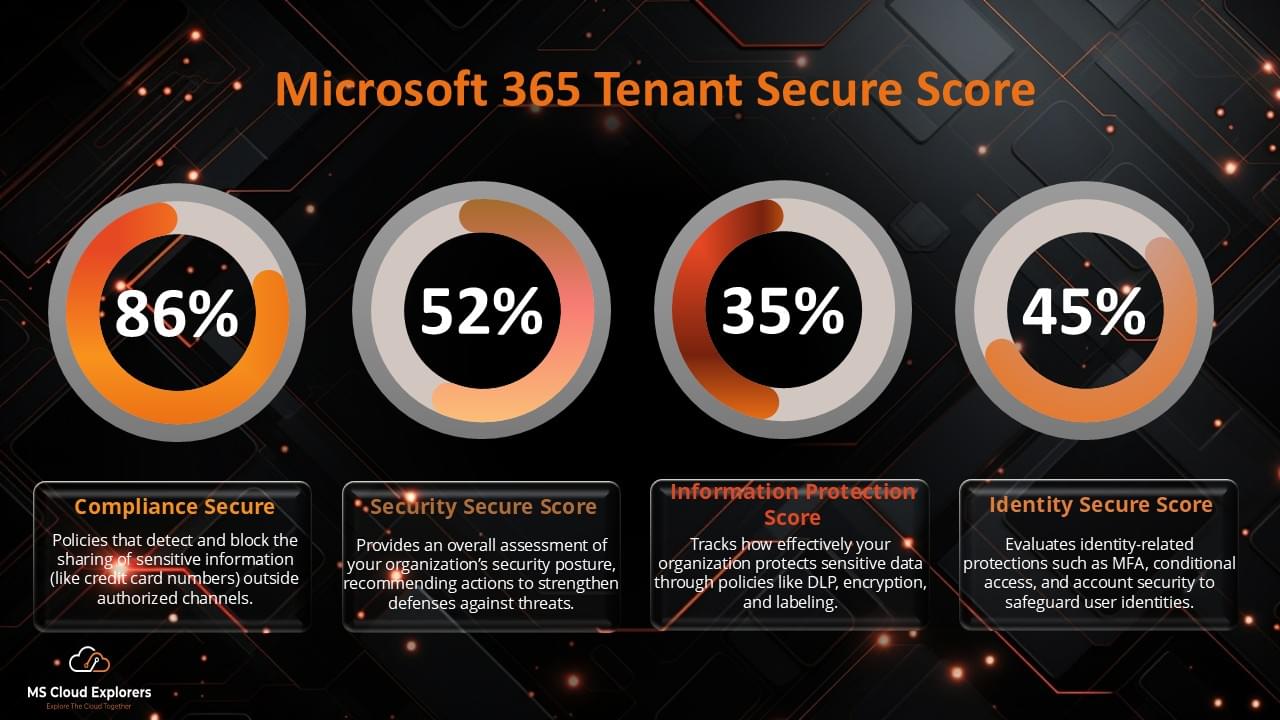
Microsoft Zero Trust Assessment vs Microsoft Secure Score
Many administrators confuse the Zero Trust Assessment Tool with Microsoft Secure Score. While both evaluate security posture, they serve different purposes.
|
Feature |
Zero Trust Assessment |
Microsoft Secure Score |
|
Purpose |
Evaluate Zero Trust maturity |
Measure overall security posture |
|
Tool Type |
PowerShell-based tool |
Built-in Microsoft 365 dashboard |
|
Focus Area |
Identity and device security |
Broad Microsoft 365 security controls |
|
Output |
Detailed assessment report |
Security score with recommendations |
Both tools complement each other and should be used together to improve security posture.
Governance and Continuous Security Improvement
Zero Trust is not a one-time project. It requires continuous evaluation and improvement.
Organizations should integrate assessment results into their security governance processes.
Recommended practices include:
- Running assessments quarterly
- Tracking security improvement metrics
- Aligning security initiatives with Microsoft’s seven Zero Trust pillars
- Reporting progress to leadership teams
This ensures that security posture improves over time.
Administrators should also review OneDrive for Business account management policies to prevent unauthorized access to sensitive files.
Conclusion
The Microsoft Zero Trust Assessment Tool is a powerful resource for IT administrators seeking to strengthen their organization’s security posture.
By analyzing Microsoft 365 configurations and identifying security gaps, the tool helps organizations move toward a modern Zero Trust architecture.
Running the assessment regularly allows organizations to identify weaknesses, prioritize improvements, and continuously strengthen their security defenses.
Whether your organization is beginning its Zero Trust journey or refining an existing security strategy, this tool provides valuable insights that support long-term security resilience.
Frequently Asked Questions
- What is the Microsoft Zero Trust Assessment Tool?
It is a PowerShell-based tool that evaluates Microsoft 365 configurations and identifies security gaps based on Zero Trust security principles. - Is the tool free to use?
Yes. The Microsoft Zero Trust Assessment Tool is available at no cost for organizations using Microsoft 365. - Does the assessment modify my tenant configuration?
No. The tool runs in read-only mode and does not make any changes to your environment. - What security pillars does the tool currently evaluate?
The current version primarily evaluates Identity and Device security pillars. - How often should organizations run the assessment?
It is recommended to run the assessment every quarter or after major configuration changes.
Related Links
You may also find these guides helpful:
- Top 7 Microsoft Entra ID Conditional Access Policies
- Complete Guide of Microsoft Entra Privileged Identity Management
- Microsoft 365 Security Audit Guide with Complete information
- The Ultimate Guide to Manage and Improve Microsoft Secure Score
Enjoyed the article?
We’d love to hear your thoughts—share your comments below!
For more insights, guides, and updates from the Microsoft ecosystem, be sure to subscribe to our newsletter and follow us on LinkedIn. Stay connected and never miss out on the latest tips and news!
10 comments on “Microsoft Zero Trust Assessment Tool: Complete Step-by-Step Guide for IT Admins (2026)”