

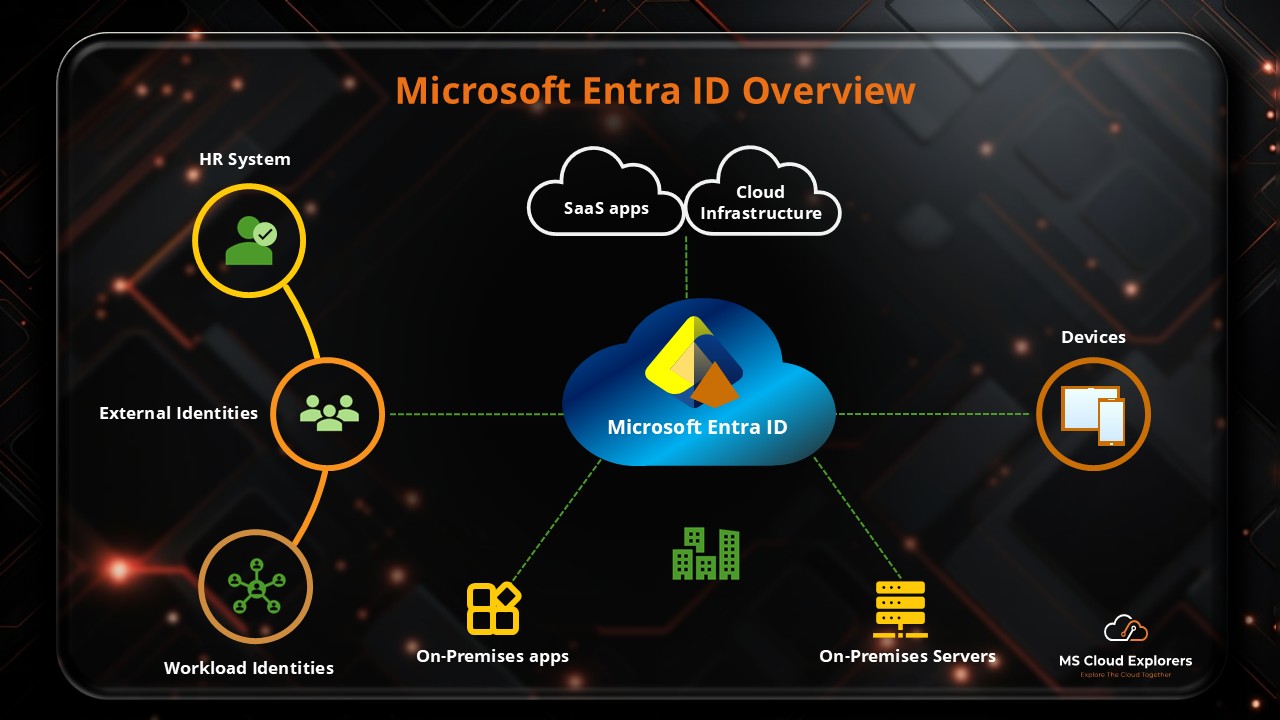
Microsoft Entra ID (formerly Azure Active Directory) provides the foundation for modern identity and access management. It allows organizations to control access to applications and data based on identity, location, device, and risk level—without adding unnecessary friction for users.
When you create any Microsoft subscription, you automatically get access to Microsoft Entra ID. The available Entra ID features depend on the license included with your subscription. For example, when you create a Microsoft 365 subscription, a Microsoft Entra ID tenant is created along with it.
Microsoft Entra ID is tightly integrated with Microsoft 365, Microsoft Intune, and Azure, making it a core service in the Microsoft cloud ecosystem.
In this guide, I break down Microsoft Entra ID in detail. You’ll learn about its key features, subscription types, and best practices to secure your identity environment.
How does Microsoft Entra ID operate?
Microsoft Entra ID is an identity and access management for all Microsoft Services. It enables organizations to manage users, groups, devices, and application access from a centralized platform.
How Microsoft Entra ID Works
When a user attempts to sign in:
- Entra ID verifies the user’s identity.
- It evaluates security policies such as Multi-Factor Authentication (MFA) and Conditional Access.
- If all conditions are met, access is granted to applications like Microsoft 365 or supported third-party apps.
This entire process happens in real time, ensuring strong security while maintaining a smooth user experience.
Why Microsoft Entra ID Matters and Its Core Value
Identity Is the New Security Perimeter
Traditional network-based security is no longer sufficient. Today, most cyberattacks target user identities. Microsoft Entra ID helps protect organizations by securing who can access systems, rather than only where access originates.
This is especially important for remote users. Administrators can control access based on location, device compliance, and risk level. One important built-in feature is Smart Lockout, which helps protect user identities from brute-force password attacks.
Core Benefits at a Glance
- Reduces identity-based attacks
- Improves employee productivity
- Centralizes access management
- Supports cloud, hybrid, and remote work
Overview of Microsoft Entra ID
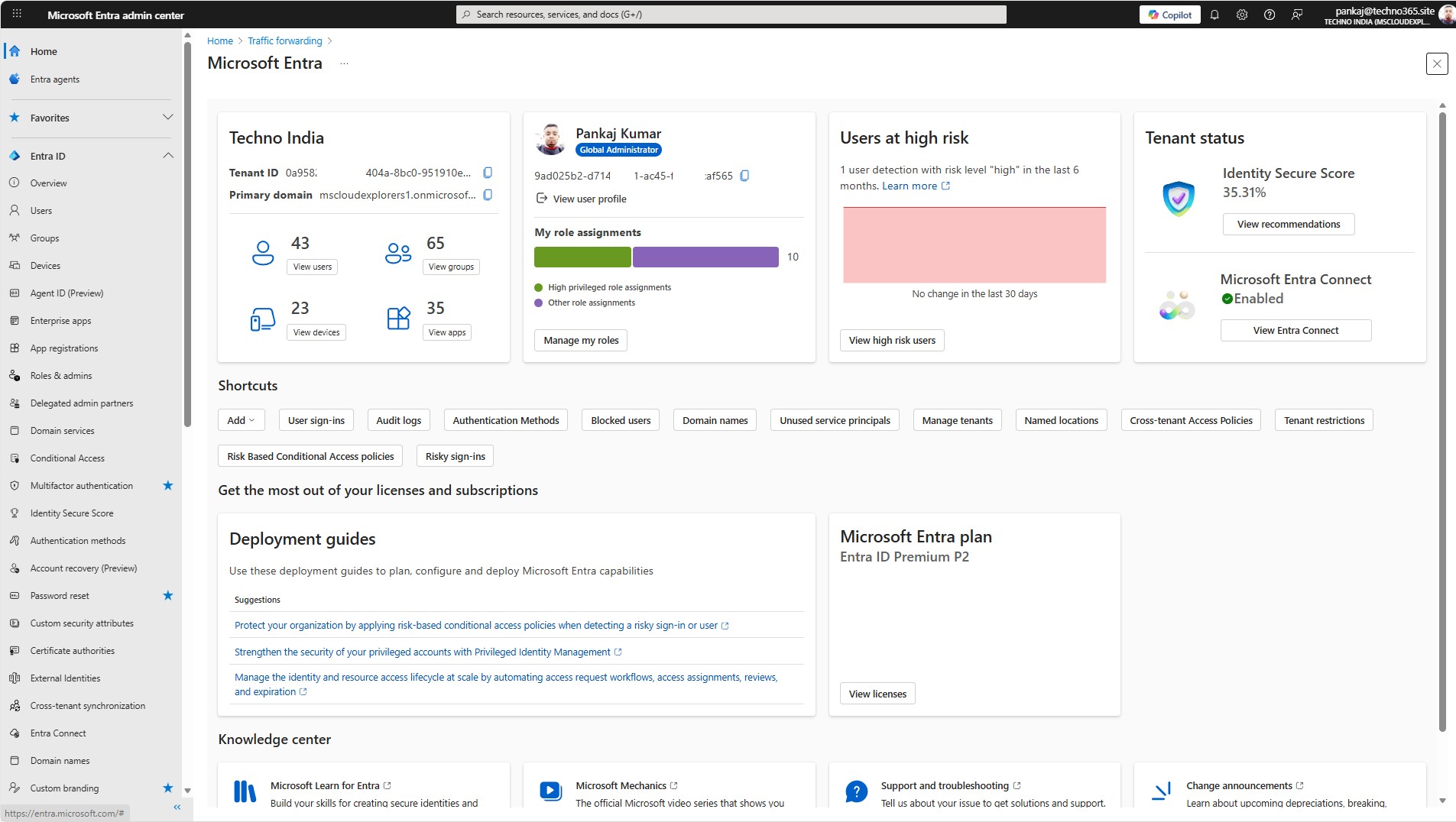
The Microsoft Entra portal brings all identity-related tools together in one place, making it easier for administrators to manage users, devices, access, and security.
Every section of the Entra ID portal has a particular role:
- Home: Displays tenant details such as company information, tenant ID, available licenses, and quick navigation links.
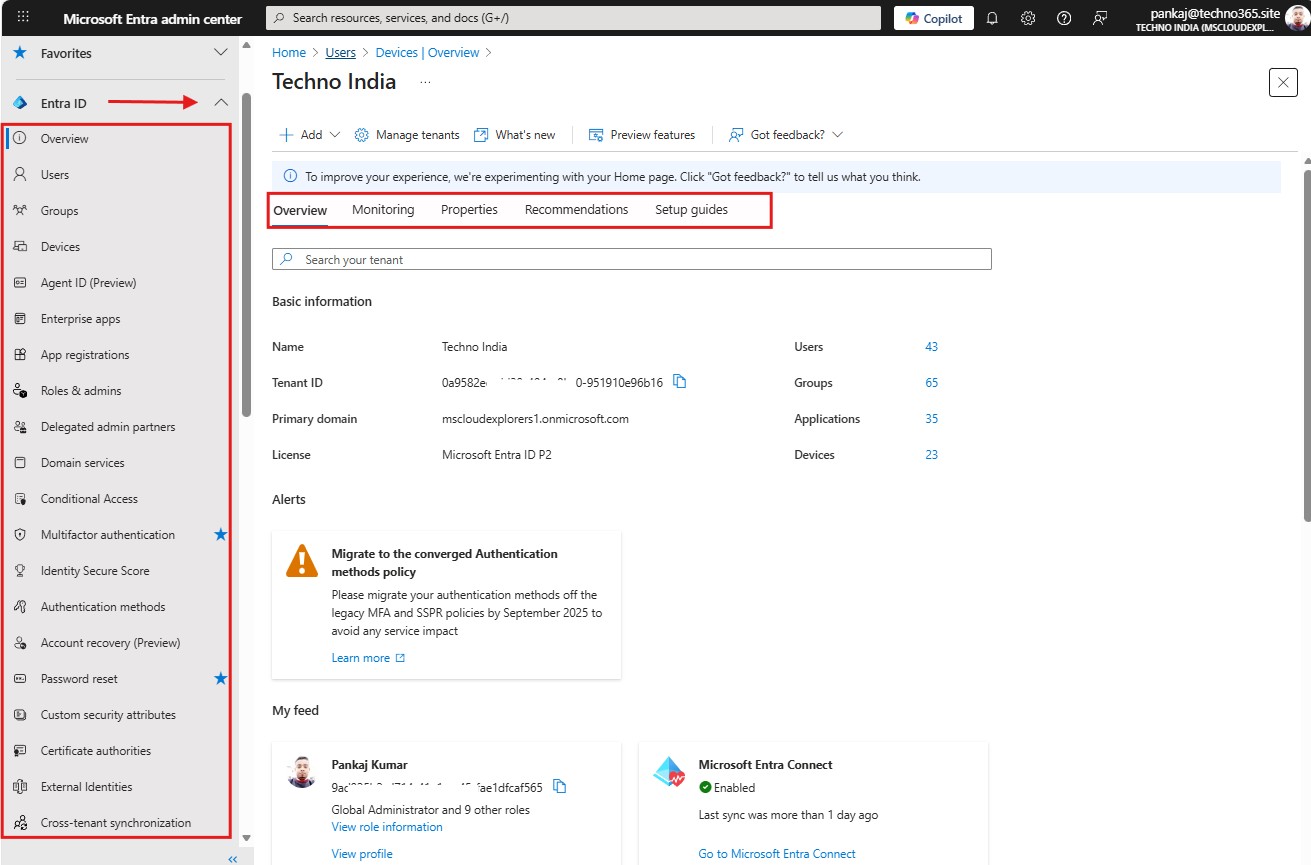
- Entra ID: The main area for managing users, groups, devices, enterprise applications, and access settings.
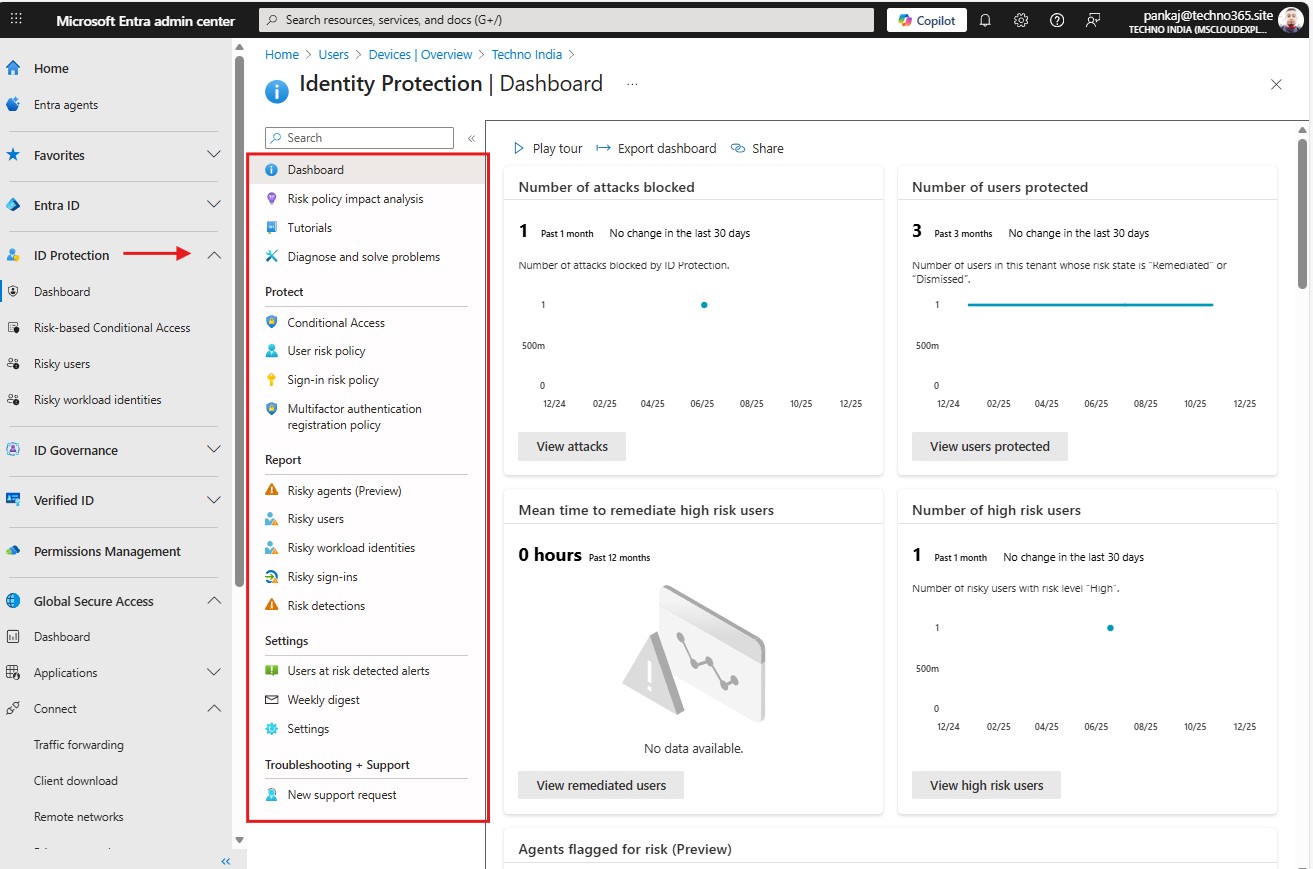
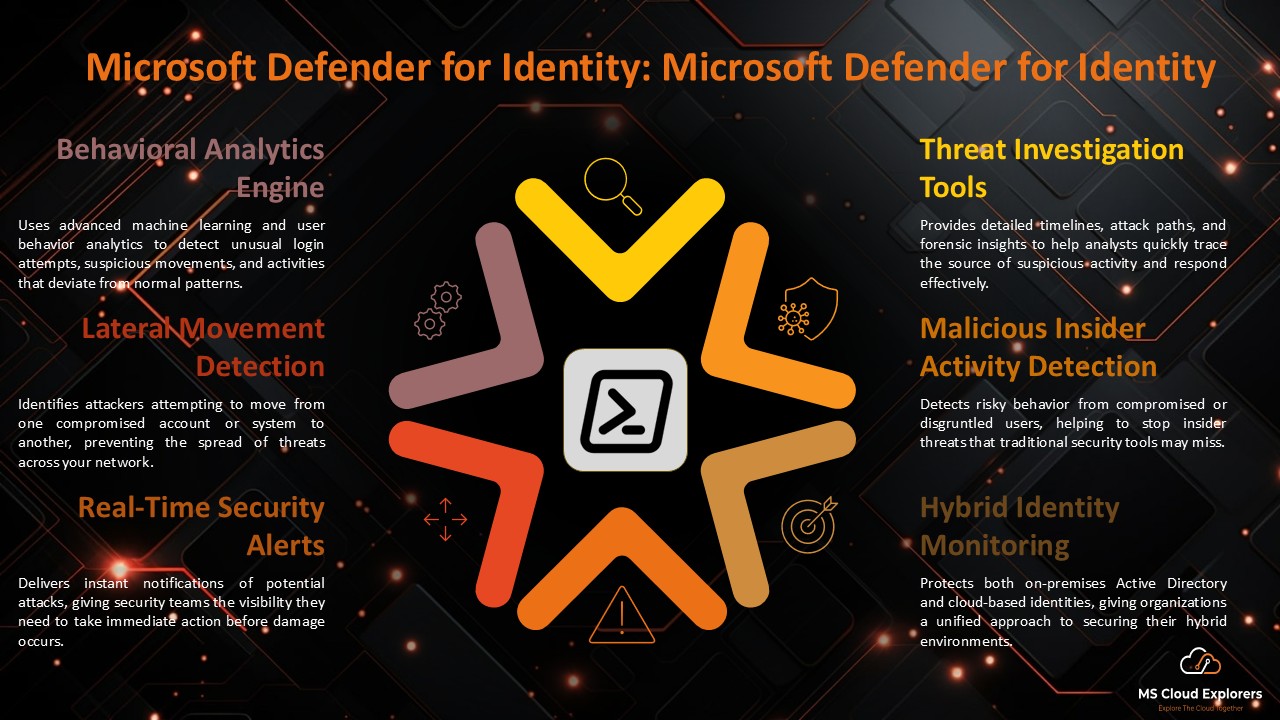
- Identity Protection: Detects risky sign-ins and users, providing alerts, reports, and automated protection policies.
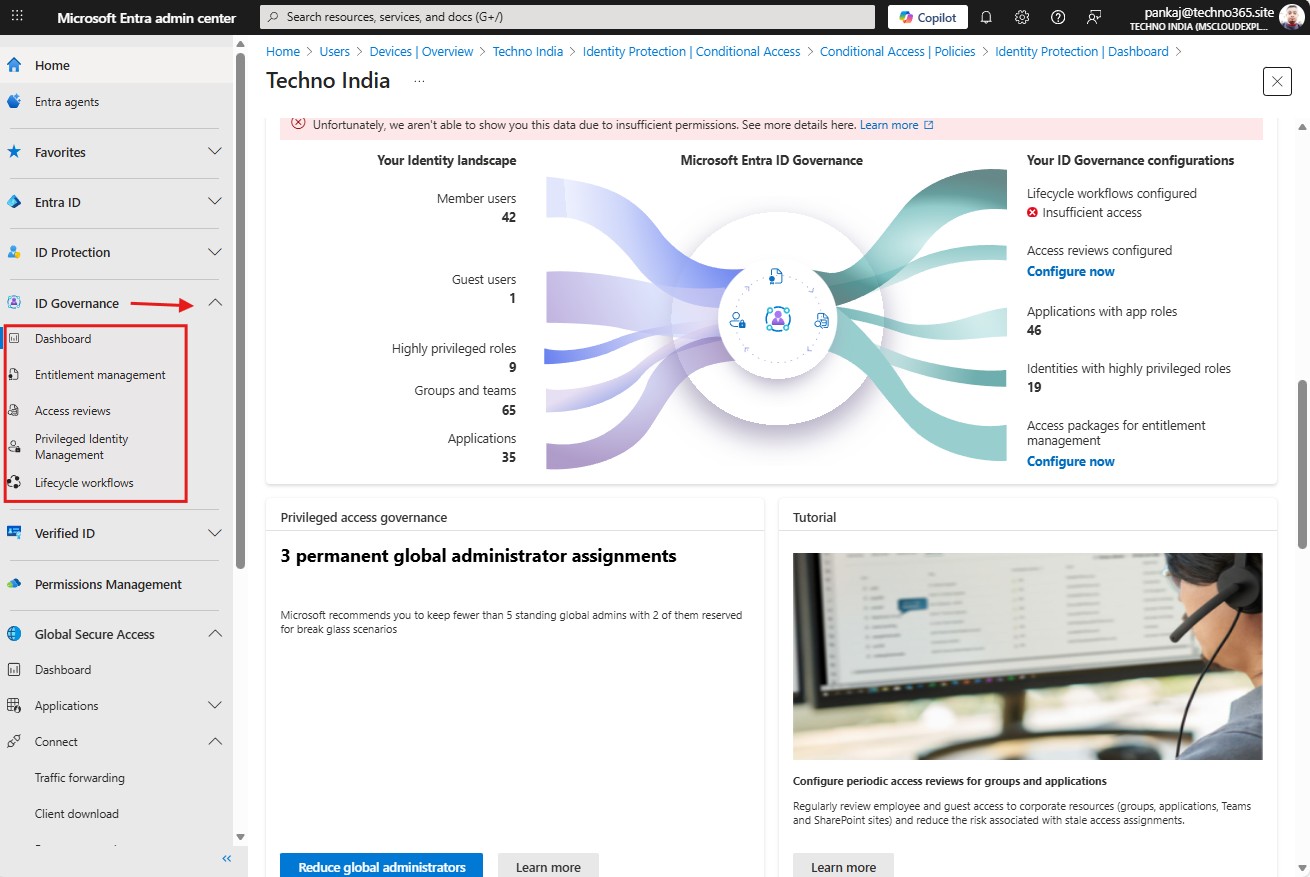
- Identity Governance: Manages access lifecycles using access reviews, lifecycle workflows, and entitlement management.
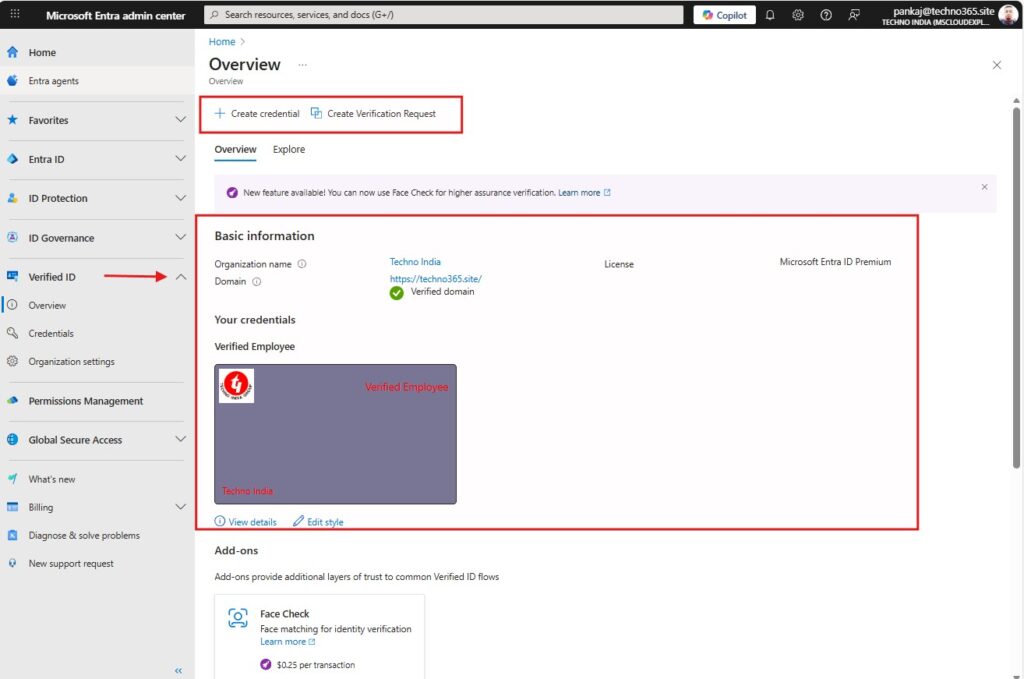
- Verified ID: Enables organizations to issue and verify digital identity credentials securely.
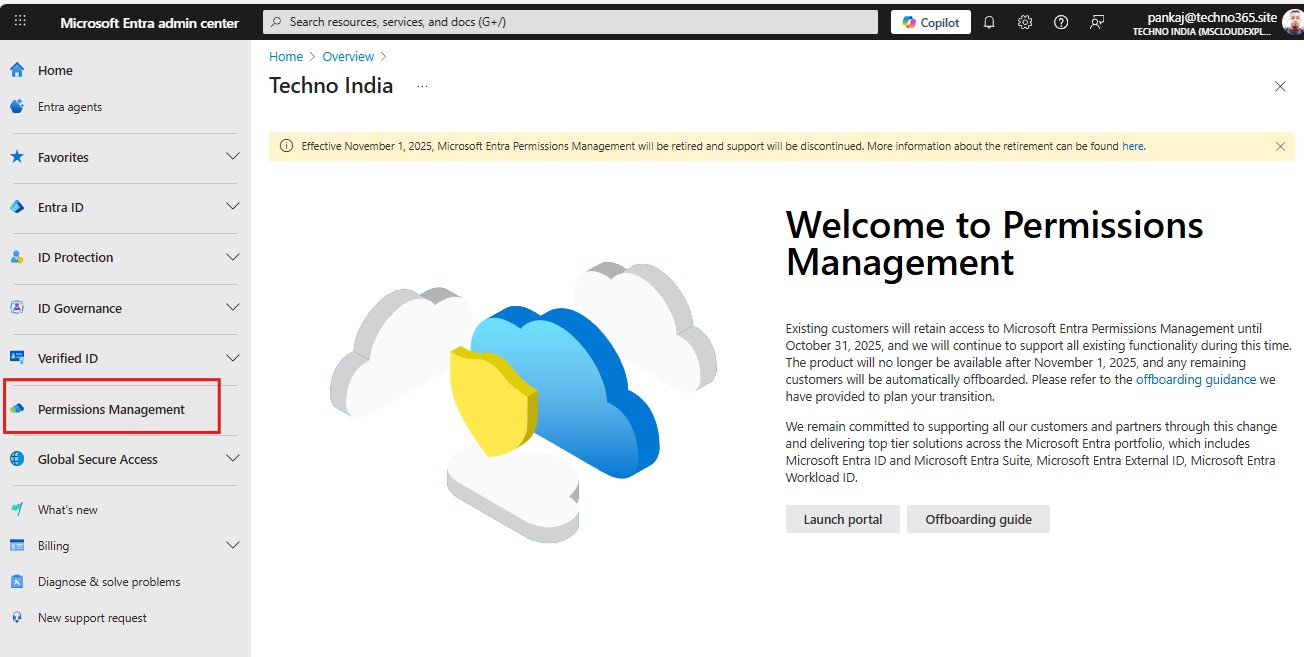
- Permissions Management: Monitors and controls permissions across Azure, AWS, and Google Cloud environments. I don’t have any integration with any other Cloud service. However, if you have any, you can monitor the data here.
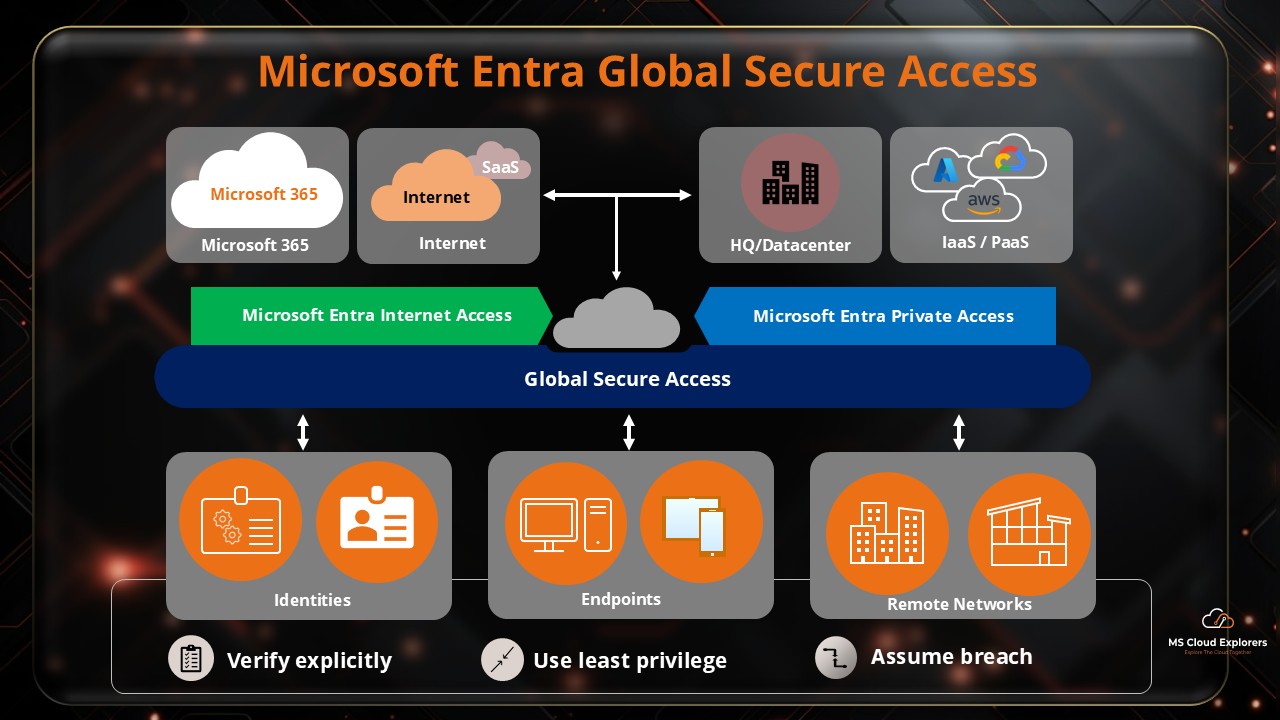
- Global Secure Access: Provides secure access to apps and resources using Zero Trust networking principles.
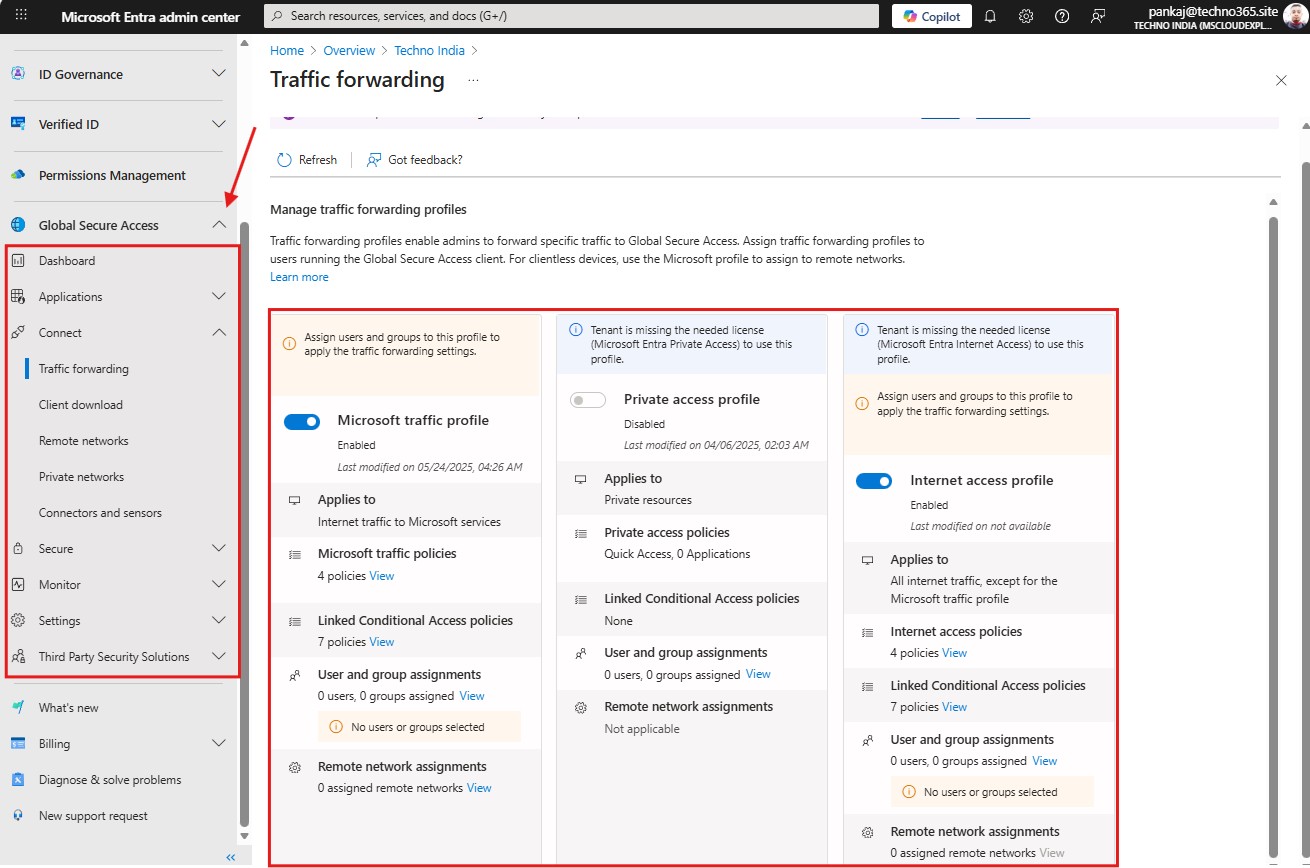
Together, these features give administrators a complete, modern identity management experience.
Key Features of Microsoft Entra ID
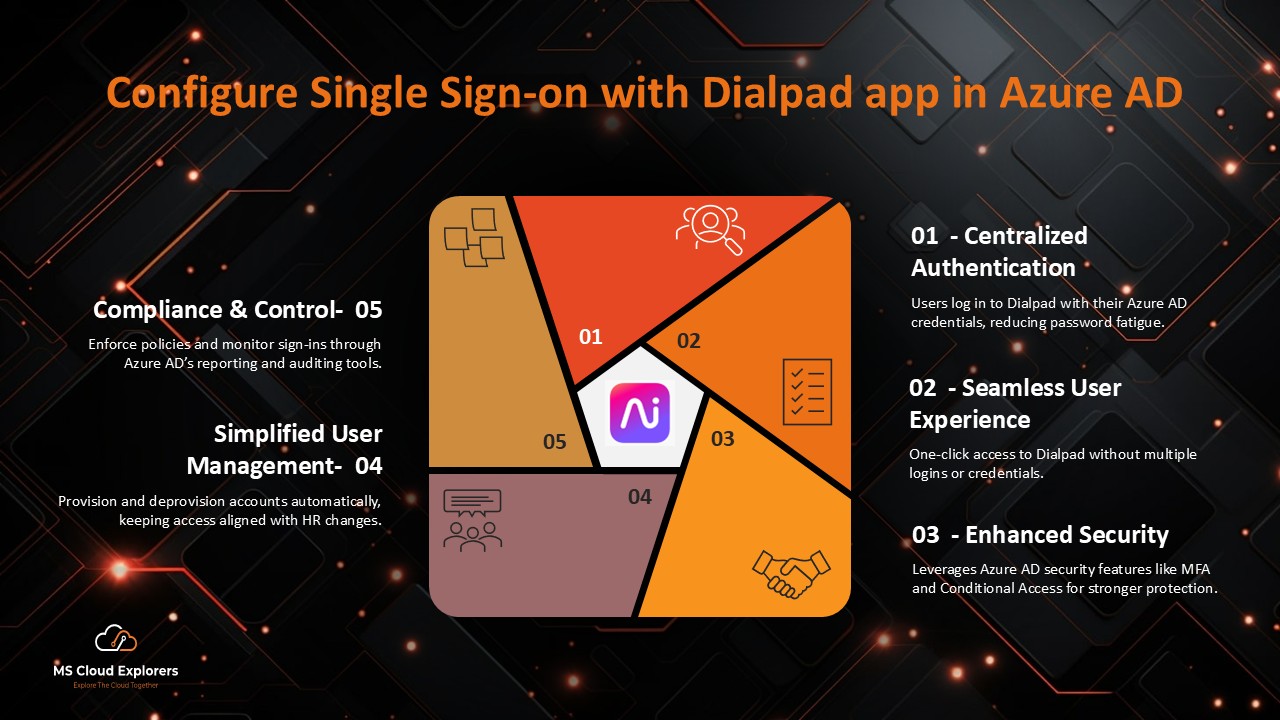
1. Single Sign-On (SSO)
Users sign in once and can access multiple applications without entering their credentials again. This improves productivity and reduces password fatigue. Single Sign-On (SSO) is enabled by default for Microsoft 365 apps and can also be configured for third-party cloud applications.
To help you better understand Single Sign-On, we have created integrations with Adobe Acrobat and Dialpad. You can review the guide to understand the concept and how it works.
2. Multi-Factor Authentication (MFA)
It adds an extra layer of security by requiring users to verify their identity using more than one method before accessing an application. In addition to a username and password, users may need to approve a sign-in through a phone notification, enter a one-time SMS code, or use an authenticator app. By enforcing multiple verification factors, MFA significantly reduces the risk of unauthorized access, even if credentials are compromised, and helps protect against common threats such as phishing, password spray attacks, and credential theft.
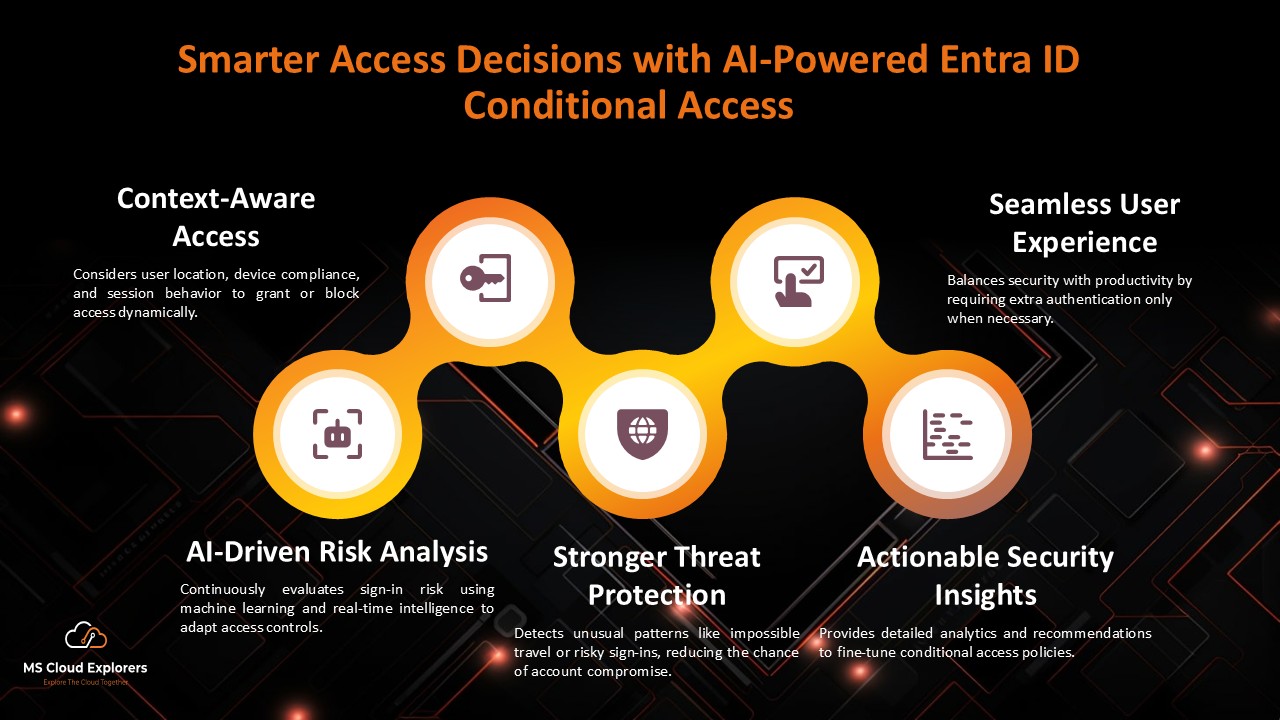
3. Conditional Access
Allows administrators to control access using rules based on:
- Location
- Device compliance
- Risk level
- Application sensitivity
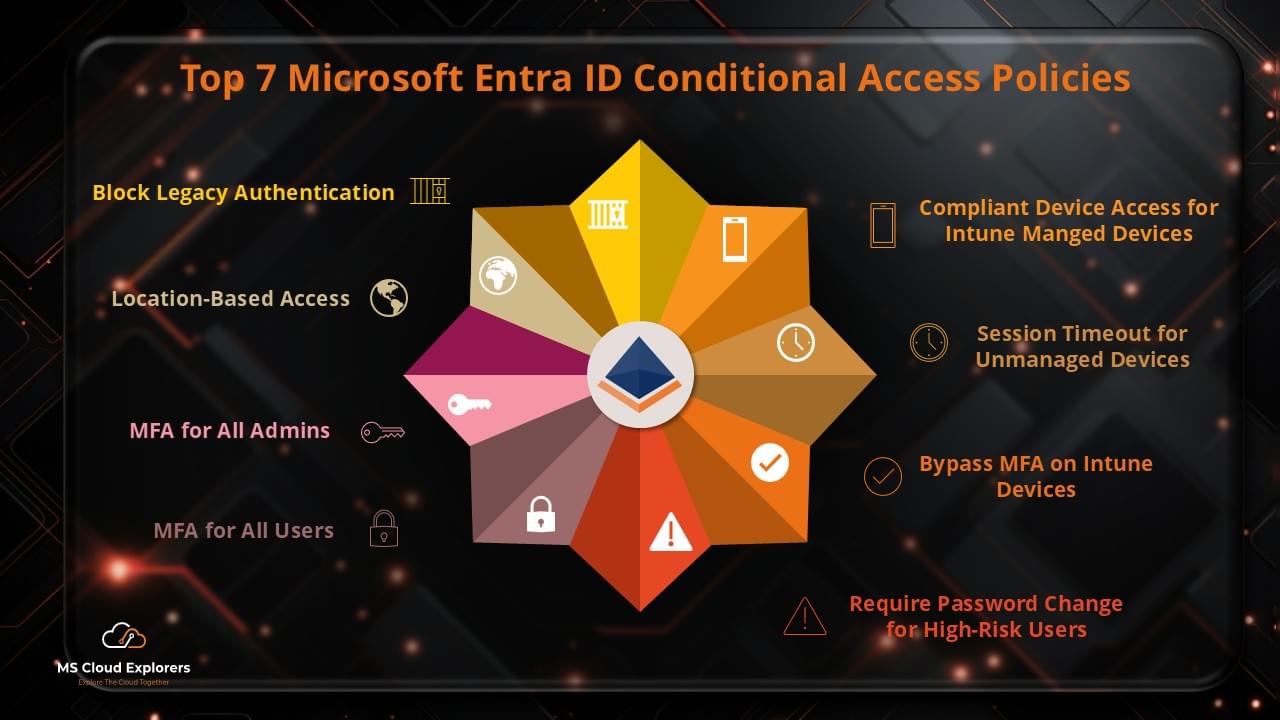
Only trusted users and compliant devices are granted access. We have created a complete guide on the Conditional Access Policies. What policy should you implement in order to secure your Microsoft 365 users.
4. Identity Protection
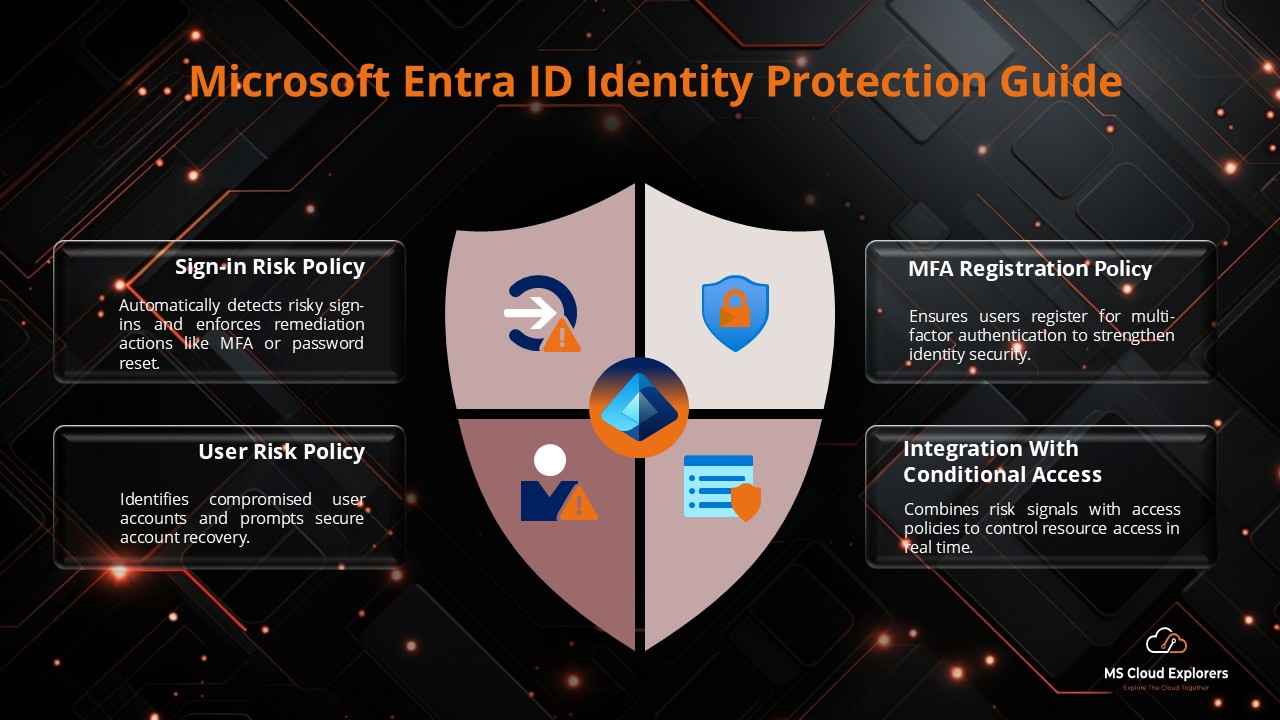
Uses AI-driven analytics to detect risky sign-ins, compromised accounts, and unusual behavior. By default, Microsoft applies minimal restrictions for user risk and sign-in risk policies. With a Microsoft Entra ID P2 license, organizations can customize these policies based on their security requirements. In our guide on Identity Protection how you can configure and integrate with the Conditional Access Policies.
5. Application Integration
Supports thousands of SaaS applications using industry-standard authentication protocols such as SAML, OAuth, and OpenID Connect, enabling secure Single Sign-On (SSO) across business applications. This allows users to sign in once with their organizational credentials and securely access multiple cloud services without remembering multiple passwords, improving productivity and reducing password fatigue. Centralized authentication also helps administrators apply consistent security policies and manage access efficiently.
You can check out this link, where Microsoft has provided step-by-step instructions for integrating cloud applications and enabling Single Sign-On (SSO).
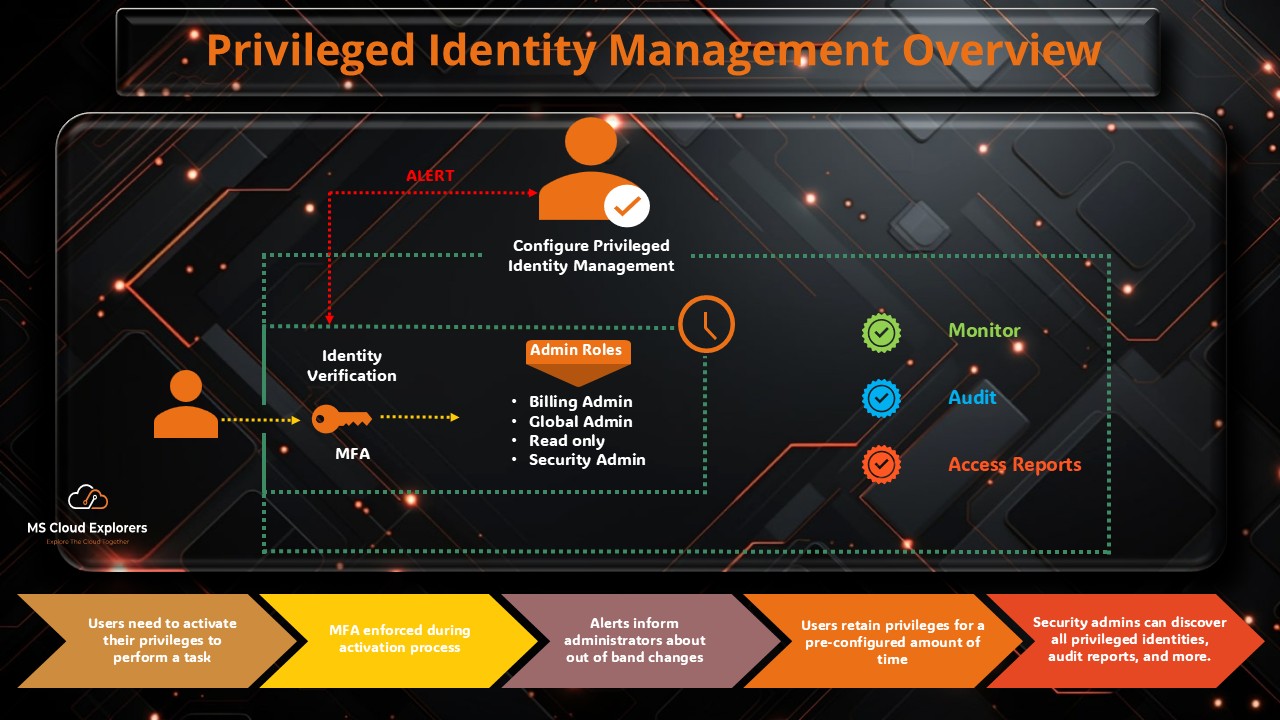
6. Privileged Identity Management (PIM)
Provides just-in-time (JIT) access for administrative roles and sensitive permissions, ensuring that elevated privileges are granted only when needed and for a limited duration. This feature is part of Microsoft Entra ID P2 and is especially useful for large organizations where multiple users hold administrative access but occasionally require different roles to perform specific tasks. Users can request the required admin role directly from the Microsoft Entra ID portal to complete their work. Once a request is initiated, designated approvers receive notifications and can review, approve, or deny the request. We have explained how this Privileged Identity Management works and how to set it up in your environment.
7. Hybrid Identity Support
Connects on-premises Active Directory with Microsoft Entra ID so users can use one account to sign in to both cloud and on-premises applications. This keeps user accounts and passwords in sync, makes sign-in easier for users, and helps IT teams manage access more easily while maintaining security. Check out the Step-by-Step guide.
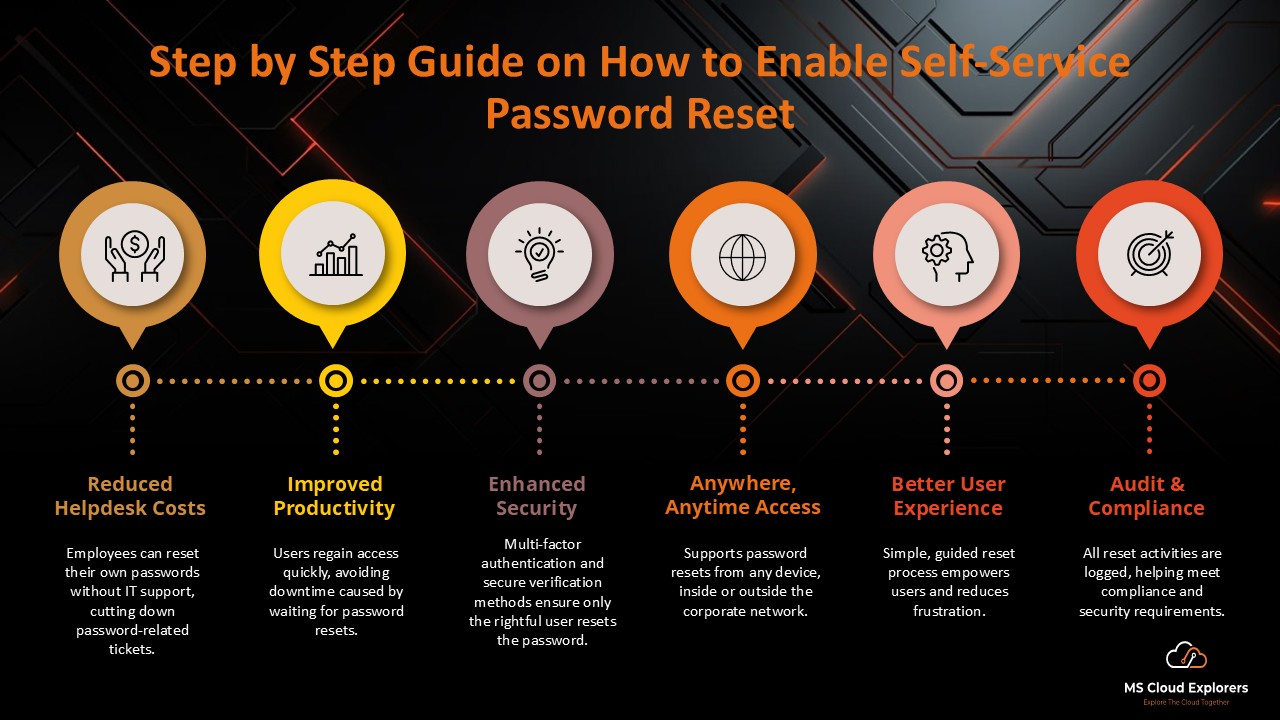
8. Self-Service Password Reset (SSPR)
Allows users to safely reset their own passwords without needing help from the IT team. This makes it faster for users to regain access and reduces the workload on the helpdesk. Check out the complete guide on how to enable the SSPR in Microsoft Entra ID and best practices.
9. Custom Branding
Organizations can personalize and customize the sign-in experience by adding their logos, brand colors, and custom messages or instructions. This not only creates a consistent and professional look across all applications but also helps users quickly recognize and trust the login page, improving the overall user experience and reducing the risk of phishing attempts.
10. Monitoring and Health
Administrators can track and monitor sign-in activity, audit logs, security alerts, and overall tenant health from a centralized dashboard. This provides a clear view of user activity, helps detect suspicious behavior, ensures compliance, and allows IT teams to quickly respond to potential security issues.
11. Global Secure Access
Provides secure access to applications and on-premises resources using a Zero Trust approach, without needing traditional VPNs. Access is granted based on user identity, device health, and context, keeping systems safe while allowing employees to work securely from anywhere. We have explained and set up Global Secure Access, and you can check the guide for simple step-by-step instructions on how to configure and use it.
12. External Identities
Let’s partners, vendors, and customers sign in with their own accounts from their identity providers, so they don’t need a separate account in your Microsoft Environment. This makes working together easier and safer.
These are some key features of Microsoft Entra ID. Explore the Entra portal to discover more and see how they can help your organization.
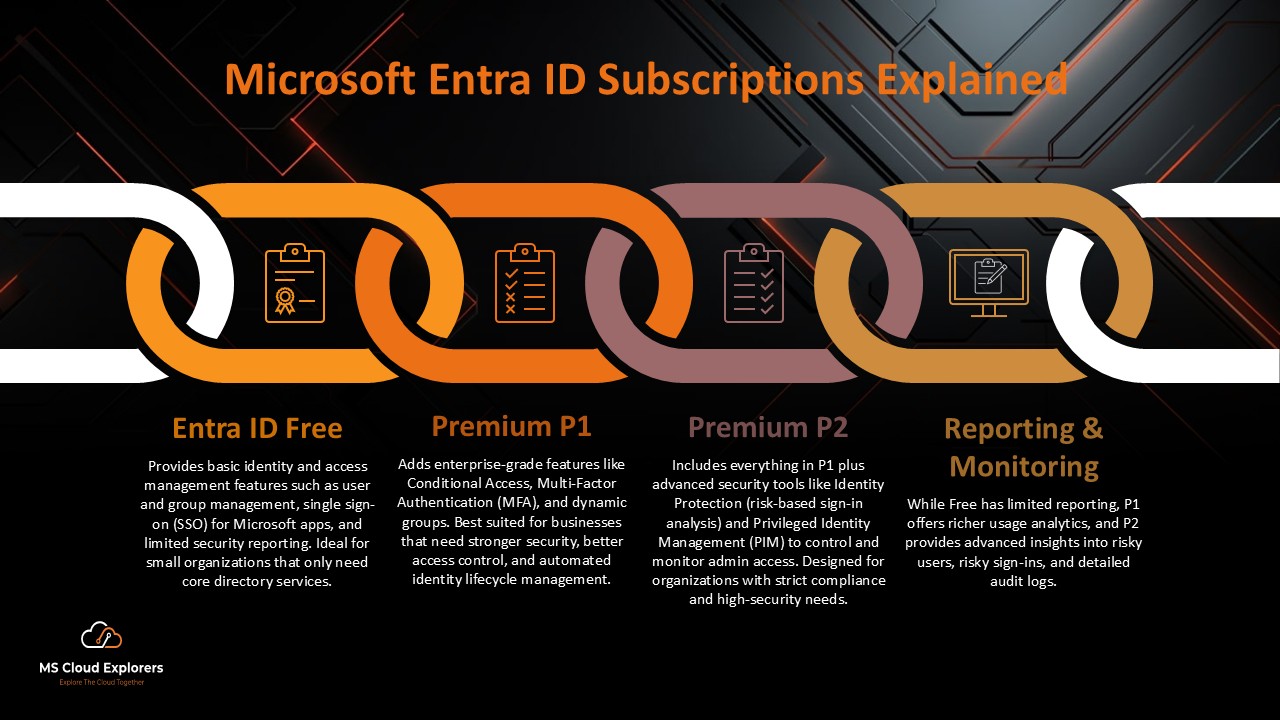
Types of Microsoft Entra ID Subscriptions
Microsoft Entra ID is available in multiple plans to meet different organizational needs.
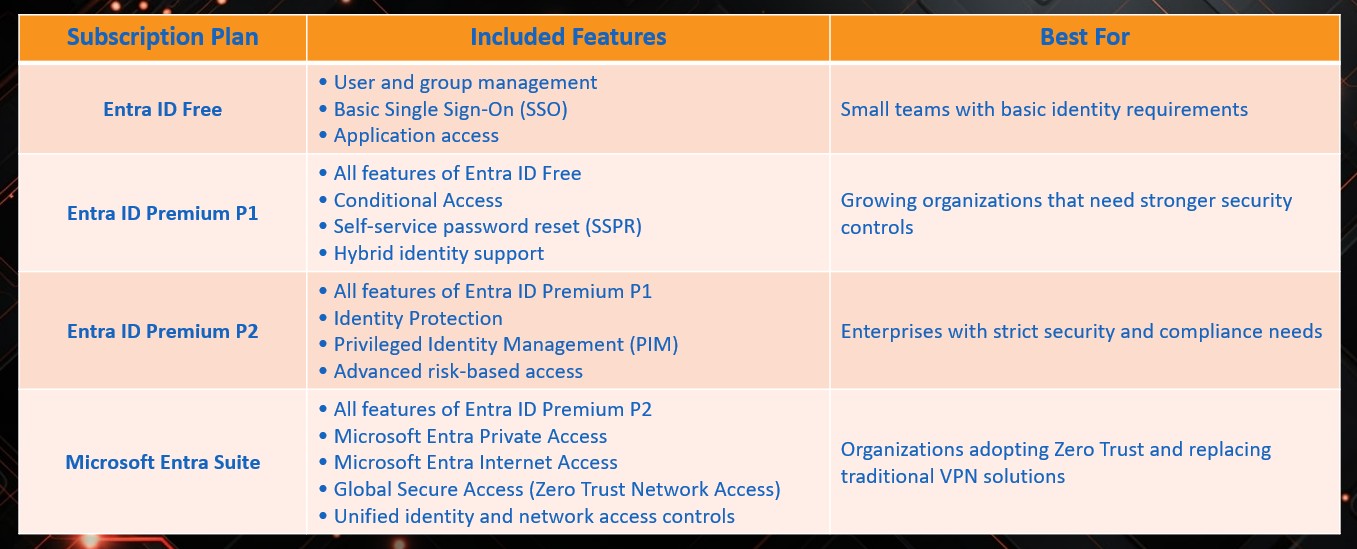
If you would like to understand all the features of these Plans, you can check out our guide on Microsoft Entra ID Plans and Pricing.
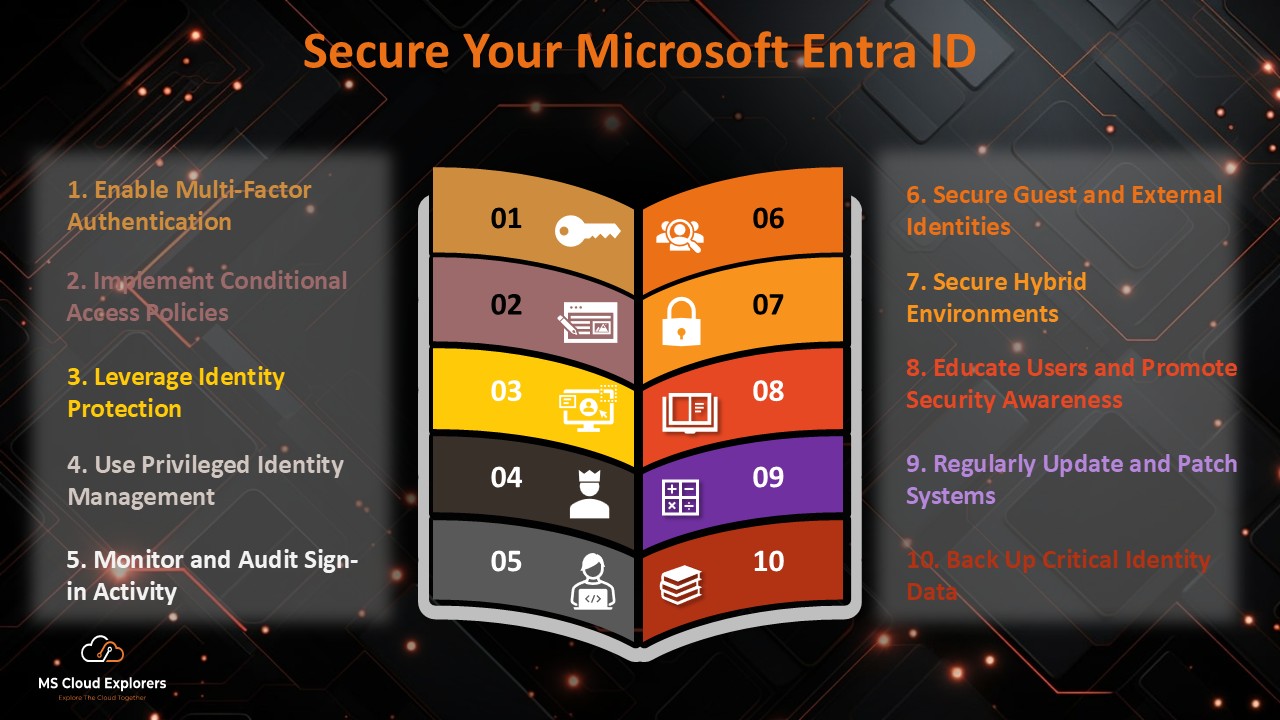
How to Secure Microsoft Entra ID (Best Practices)
To maximize protection, Entra ID must be configured correctly.
Essential Security Recommendations
- Enable MFA for all users, especially administrators
- Use Conditional Access policies
- Limit standing admin privileges using PIM
- Monitor sign-in and audit logs regularly
These steps significantly reduce the risk of account compromise.
Conclusion
Microsoft Entra ID is the core identity platform of the Microsoft cloud. It protects users, devices, and data while simplifying access to applications and services.
With the right configuration, organizations can strengthen security, support flexible work environments, and provide a seamless sign-in experience. Microsoft Entra ID is not just a directory service—it is the foundation that keeps Microsoft services secure and connected.
FAQs
- Can Microsoft Entra ID integrate with third-party applications?
Yes. Microsoft Entra ID supports thousands of third-party applications using protocols such as SAML, OAuth, and OpenID Connect. - Are security defaults enough to fully protect user identities?
No. Security defaults provide basic protection but are not sufficient for strong identity security. Organizations should implement MFA and Conditional Access policies. - Can security defaults and Conditional Access be used together?
No. When Conditional Access is enabled, security defaults are automatically disabled. - What are the minimum Conditional Access policies recommended?
At a minimum:- Enable MFA for all users
- Enable MFA for all administrators
- How can we reduce MFA prompts for office users?
You can reduce MFA prompts by configuring Conditional Access policies based on trusted locations or IP ranges.
Explore More From MS Cloud Explorers
- Microsoft Zero Trust Assessment: A Step-by-Step Guide for IT Admins
- Setting Up Intune Policies with Just a Few Clicks
- Guide to Successful Microsoft 365 Adoption
Enjoyed the article?
We’d love to hear your thoughts—share your comments below!
For more insights, guides, and updates from the Microsoft ecosystem, be sure to subscribe to our newsletter and follow us on LinkedIn. Stay connected and never miss out on the latest tips and news!
6 comments on “Microsoft Entra ID: Complete Guide, Features, Security, and Subscriptions”