If you are running a business application on a single Azure virtual machine, scaling can quickly become a challenge. During normal hours, one or two VMs may be enough. In times of high traffic, batch processing, end-of-month reporting, or increased seasonal demand, additional computing resources may be required without the necessity of manually deploying and configuring extra servers.
This is where Azure Virtual Machine Scale Sets, also known as Azure VMSS, become useful.
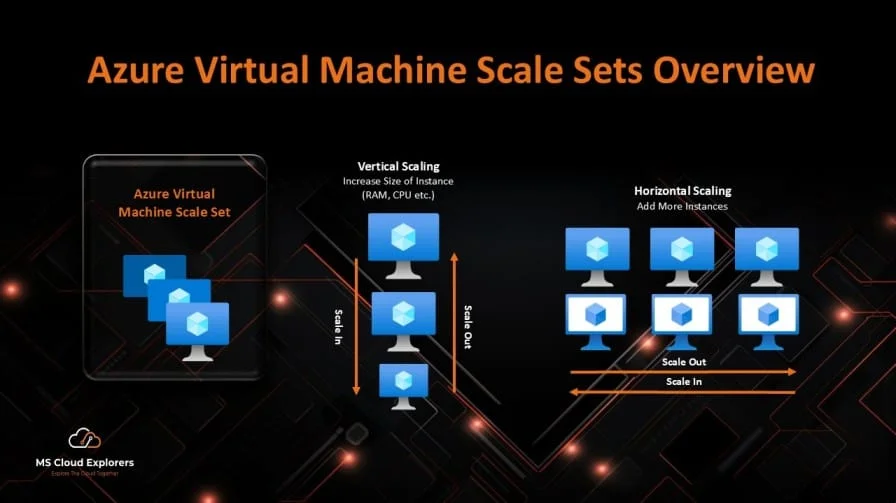
Azure Virtual Machine Scale Sets allow you to deploy and manage a group of virtual machines as a single scalable resource. You can automatically increase or decrease VM instances based on demand, schedule, application health, or platform metrics.
Organizations use Azure scale sets to improve high availability, support automatic scaling, standardize deployments, reduce operational overhead, and optimize cost. However, beginners often struggle with orchestration modes, autoscale rules, load balancer configuration, health probes, and troubleshooting unhealthy instances.
This article I have explained what azure virtual machine scale sets are, how they work, how to deploy them, and how to design them for real enterprise environments.
What is Azure Virtual Machine Scale Sets?
Azure Virtual Machine Scale Sets is an Azure compute service that allows you to deploy and manage multiple virtual machines as one logical group. Instead of creating each VM manually, you define a scale set configuration, and Azure creates VM instances based on that configuration.
In simple terms, VMSS means: Azure, create a group of VMs using this image, size, network, and scaling rule. Then add or remove VMs automatically when demand changes.
A normal Azure VM is usually managed individually. A VMSS is designed for workloads where multiple VMs perform the same or similar function. Common examples include web front-end servers, API servers, background workers, batch processing nodes, CI/CD build agents, and compute-heavy jobs.
Azure VMSS can scale manually, by schedule, or by metric thresholds such as CPU, network, or disk activity. This gives administrators a practical way to match compute capacity with actual workload demand.
| Real-World Example If your web application normally needs two VMs but requires ten VMs during business hours, VMSS can automatically scale out during peak demand and scale in when usage drops. |
Key Components and Architecture
| Component | Purpose |
| Virtual Machine Scale Set | Logical group that manages multiple VM instances. |
| VM Image | Base operating system and application image used to create instances. |
| VM Size | Defines CPU, memory, temporary storage, and performance. |
| Virtual Network and Subnet | Provides network connectivity and IP address space for VM instances. |
| Load Balancer or Application Gateway | Distributes traffic across healthy instances. |
| Autoscale Rules | Adds or removes instances based on metrics or schedule. |
| Managed Disks | Provides OS and data disk storage. |
| Application Health Extension or Health Probe | Checks whether instances are healthy. |
| Managed Identity | Allows secure access to Azure resources without storing credentials. |
| Azure Monitor and Log Analytics | Provides metrics, logs, alerts, and operational visibility. |
Flexible vs Uniform Orchestration Mode
One of the most important VMSS design decisions is choosing the orchestration mode. Azure Virtual Machine Scale Sets support Flexible orchestration and Uniform orchestration.
Flexible orchestration is recommended for most new deployments because it gives better control of individual VM instances and uses standard Azure VM APIs. Uniform orchestration is useful for specific scenarios where you need a highly consistent group of identical VMSS-managed instances.
The orchestration mode is selected during scale set creation and cannot be changed later. If you select the wrong mode, you usually need to recreate the scale set.
| Feature | Flexible Orchestration | Uniform Orchestration |
| Recommended for new workloads | Yes, in most modern deployments. | Only when a specific identical-instance requirement exists. |
| VM management | Standard Azure VM APIs. | VMSS-specific VM APIs. |
| Instance visibility | Instances appear as standard Azure VMs. | Instances are managed under the VMSS object. |
| Mixed VM sizes | Supported in many scenarios. | Not designed for mixed instances. |
| Best use case | Modern enterprise workloads with VM-level control. | Large groups of identical stateless instances. |
| Recommendation For most new deployments, choose Azure Virtual Machine Scale Sets Flexible orchestration mode unless you have a specific requirement for Uniform orchestration. |
How Azure VMSS Works Behind the Scenes
- A user accesses the application endpoint.
- Traffic reaches Azure Application Gateway or Azure Load Balancer.
- The load balancer checks backend VMSS instance health.
- Healthy VM instances receive traffic.
- Azure Monitor collects metrics from the scale set and its instances.
- Autoscale rules evaluate metrics such as CPU, schedule, or application load.
- Azure adds or removes VM instances when thresholds are met.
- Health monitoring detects unhealthy instances.
- Automatic instance repair can restart, reimage, or replace unhealthy instances if configured.
Authentication and Security Flow
Authentication depends on how administrators access the VMSS instances and how the instances access Azure resources. Administrators may use local credentials, SSH keys, Azure Bastion, or Microsoft Entra ID based sign-in where supported.
For application access to Azure resources, managed identity is usually the best option. It avoids storing secrets inside scripts, images, or configuration files. For instance, VMSS instances can safely access Azure Storage or read secrets from Azure Key Vault using managed identity.
Networking Requirements
- Virtual network and subnet with enough IP addresses for current and future scale-out.
- Network Security Groups with only required inbound and outbound ports.
- Load Balancer or Application Gateway backend configuration.
- Health probe port and path.
- Outbound access through NAT Gateway, Azure Firewall, or controlled internet egress.
- DNS configuration for internal and external application access.
- Private endpoints where the application connects to Azure PaaS services.
| Planned VMSS Instances | Suggested Subnet Size |
| 10 instances | /27 or larger |
| 50 instances | /25 or larger |
| 100 instances | /24 or larger |
| 500+ instances | Design carefully with IP growth, dependencies, and failure scenarios |
Step-by-Step Implementation Guide to Creating Azure Virtual Machine Scale Sets
Prerequisites
| Area | Requirement |
| Azure requirements | Active Azure subscription, resource group, target region, VM image, VM size, and monitoring workspace. |
| Licensing requirements | No separate license is required for VMSS itself. You pay for compute, disks, networking, monitoring, and related services. |
| Permissions required | Contributor on the resource group or a combination of Virtual Machine Contributor, Network Contributor, and monitoring permissions. |
| Networking requirements | VNet, subnet, NSG, load balancing option, DNS, health probe, and outbound connectivity. |
| Security requirements | Managed identity, least privilege access, disk encryption, patching plan, and secure administrative access. |
Create Azure VMSS Using Azure Portal
- Open the Azure Portal and search for Virtual Machine Scale Sets.
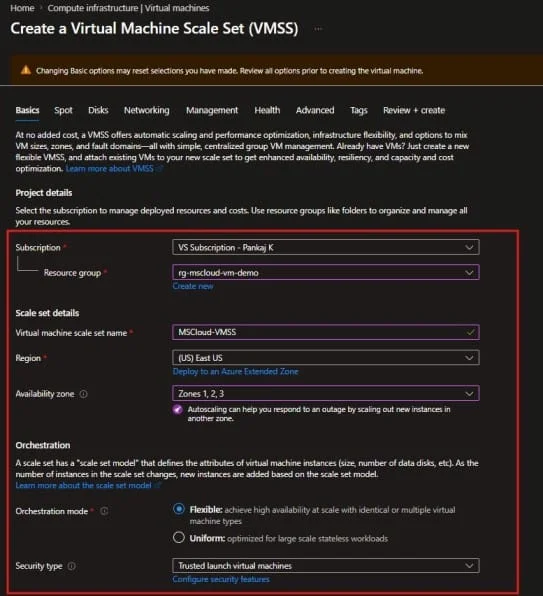
- Select Create and choose the subscription, resource group, scale set name, and region.
- Select Flexible orchestration mode for most new deployments.
- Choose Availability Zones if the application requires zone-level resiliency.
- Select a secure VM image, such as Windows Server or a supported Linux distribution.
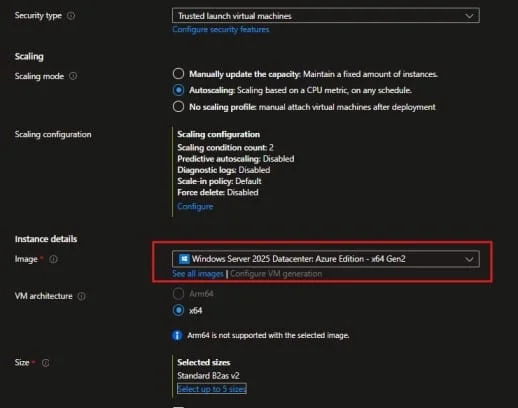
- Choose the VM size based on expected CPU, memory, and disk requirements.
- Configure administrator access. Avoid exposing RDP or SSH directly to the internet.
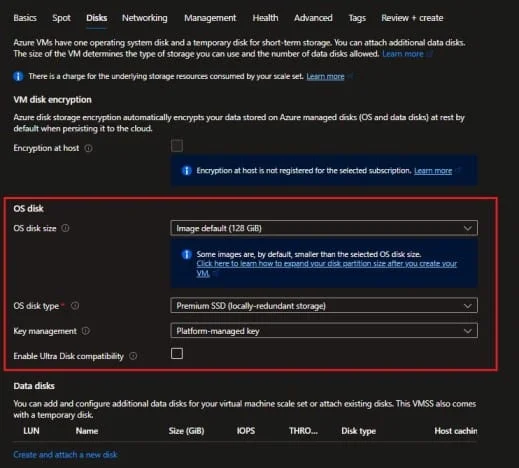
- Configure OS disks and optional data disks. Use Premium SSD for production workloads when performance is required.
- Select the virtual network and subnet. Confirm the subnet has enough IP capacity for future scaling.
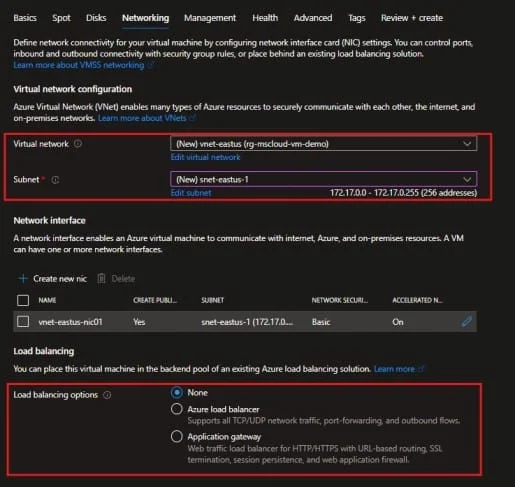
- Configure Azure Load Balancer or Application Gateway depending on the application type.
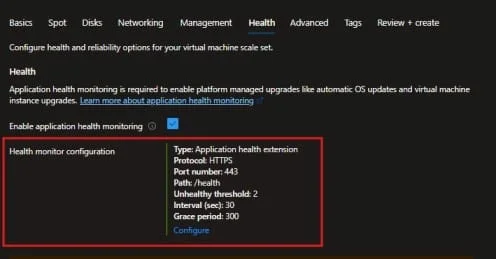
- Configure health monitoring using Application Health extension or Load Balancer health probe.
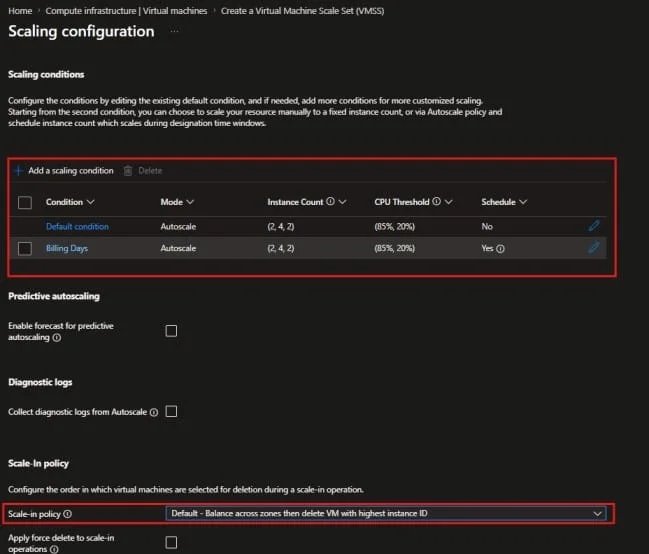
- Configure autoscale rules or start with manual scale during initial testing.
- Review the configuration and select Create.
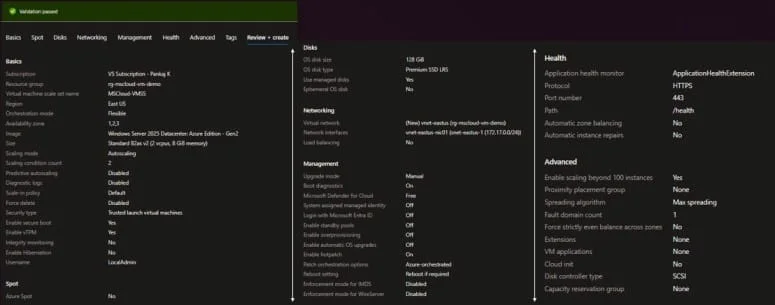
Recommended Autoscale Starting Point
| Setting | Recommended Starting Value |
| Minimum instances | 2 |
| Default instances | 2 |
| Maximum instances | 10 |
| Scale out rule | CPU greater than 70 percent for 10 minutes |
| Scale in rule | CPU less than 30 percent for 20 minutes |
| Cooldown | 5 to 10 minutes |
PowerShell Deployment Example
# Variables
$resourceGroupName = "rg-vmss-demo"
$location = "EastUS"
$vnetName = "vnet-vmss-demo"
$subnetName = "snet-vmss-web"
$vmssName = "vmss-web-demo"
$adminUsername = "azureadmin"

# Create Resource Group
New-AzResourceGroup `
    -Name $resourceGroupName `
    -Location $location

# Create Virtual Network and Subnet
$subnetConfig = New-AzVirtualNetworkSubnetConfig `
    -Name $subnetName `
    -AddressPrefix "10.10.1.0/24"

$vnet = New-AzVirtualNetwork `
    -ResourceGroupName $resourceGroupName `
    -Location $location `
    -Name $vnetName `
    -AddressPrefix "10.10.0.0/16" `
    -Subnet $subnetConfig

# Create Public IP for Load Balancer
$publicIP = New-AzPublicIpAddress `
    -ResourceGroupName $resourceGroupName `
    -Location $location `
    -Name "pip-vmss-lb" `
    -AllocationMethod Static `
-Sku Standard| Implementation Tip For production deployments, use Infrastructure as Code such as Bicep, Terraform, or Azure Verified Modules instead of manually repeating portal steps. |
Real-World Enterprise Scenario
Scenario: A company with 5,000 users wants to host an internal business web application on Azure. The application is used heavily during business hours and experiences a large increase during month-end reporting.
The company needs high availability, automatic scaling, secure access, centralized monitoring, cost control, and minimal manual VM management.
| Requirement | Recommended Design |
| Application traffic | Azure Application Gateway WAF |
| Compute layer | Azure Virtual Machine Scale Sets Flexible orchestration |
| High availability | Deploy across Availability Zones |
| Minimum instances | 3 instances |
| Maximum instances | 15 instances |
| Image strategy | Azure Compute Gallery custom image |
| Secret access | Managed identity plus Azure Key Vault |
| Monitoring | Azure Monitor and Log Analytics |
| Security posture | Defender for Cloud, NSG, Azure Bastion, and least privilege RBAC |
| Cost optimization | Autoscale, Reserved Instances, and Azure Hybrid Benefit where eligible |
Design Decisions
- Use Flexible orchestration for better VM-level control and modern scale set deployment.
- Use Availability Zones to improve resiliency for production workloads.
- Use Application Gateway WAF for internet-facing web applications.
- Use custom images through Azure Compute Gallery after the application baseline is finalized.
- Use separate autoscale profiles for business hours, non-business hours, and month-end processing.
- Use managed identity for secure access to Azure resources such as Key Vault and Storage.
Security Best Practices
- Apply Zero Trust principles: verify explicitly, use least privilege, and assume breach.
- Use managed identity instead of storing secrets in scripts or VM images.
- Restrict network access using NSGs, Azure Firewall, private endpoints, and Azure Bastion.
- Enable Trusted Launch where supported by the image and VM size.
- Avoid direct RDP or SSH exposure to the internet.
- Enable diagnostic settings, Azure Monitor alerts, and Log Analytics from day one.
- Harden VM images using Microsoft security baseline or organization-approved configuration.
- Use Azure Update Manager or your enterprise patching process for guest operating system updates.
- Review Defender for Cloud recommendations regularly.
- Assign RBAC permissions based on job role, not convenience.
Troubleshooting Guide
| Issue | Possible Cause | Solution |
| VMSS instance not created | Quota limit, SKU unavailable, subnet IP shortage | Check regional vCPU quota, SKU availability, and subnet IP capacity. |
| Autoscale not triggering | Wrong metric, short evaluation period, cooldown conflict | Review Azure Monitor autoscale rule, metric chart, and cooldown settings. |
| Instances unhealthy | Application not responding to probe | Validate health endpoint, NSG, local firewall, and application service. |
| Load balancer not sending traffic | Health probe failing or backend pool misconfigured | Check backend pool, probe path, probe port, and NSG rules. |
| Automatic repair not working | Health monitoring not enabled | Enable Application Health extension or Load Balancer health probe. |
| VM extension failed | Script error, dependency issue, or no outbound access | Check extension status and logs inside the VM. |
| Cannot change orchestration mode | Orchestration mode is immutable | Recreate the scale set with the required mode. |
Useful Log Locations
| Platform | Log Location |
| Azure | VMSS > Instances, Scaling, Health and repair, Extensions + applications, Azure Monitor Metrics, Activity Log, Log Analytics, Network Watcher. |
| Windows VM | C:\WindowsAzure\Logs\, C:\Packages\Plugins\, Event Viewer > Windows Logs > System. |
| Linux VM | /var/log/waagent.log, /var/log/cloud-init.log, /var/log/syslog, /var/log/messages. |
Useful Azure Resource Graph Query
resources
| where type =~ 'microsoft.compute/virtualmachines'
| where isnotempty(properties.virtualMachineScaleSet.id)
| extend vmssId = tostring(properties.virtualMachineScaleSet.id)
| extend powerState = tostring(properties.extended.instanceView.powerState.code)
| project name, resourceGroup, location, vmssId, powerState
| order by resourceGroup ascUseful PowerShell Commands
# Check VMSS
Get-AzVmss `
    -ResourceGroupName "rg-vmss-demo" `
    -VMScaleSetName "vmss-web-demo"

# Check VMSS instance view
Get-AzVmss `
    -ResourceGroupName "rg-vmss-demo" `
    -VMScaleSetName "vmss-web-demo" `
    -InstanceView

# Manually update VMSS capacity
$vmss = Get-AzVmss `
    -ResourceGroupName "rg-vmss-demo" `
    -VMScaleSetName "vmss-web-demo"

$vmss.Sku.Capacity = 4

Update-AzVmss `
    -ResourceGroupName "rg-vmss-demo" `
    -Name "vmss-web-demo" `
-VirtualMachineScaleSet $vmssBest Practices and Recommendations
- Use Flexible orchestration for most new VMSS deployments.
- Deploy across Availability Zones where supported.
- Use at least two instances for production workloads.
- Use Application Gateway WAF for internet-facing web applications.
- Use Azure Load Balancer for Layer 4 or internal load balancing scenarios.
- Use autoscale rules with clear minimum and maximum instance limits.
- Use Azure Compute Gallery for consistent custom images.
- Enable health monitoring before enabling automatic repairs.
- Keep subnet capacity larger than expected maximum instance count.
- Use Bicep or Terraform for repeatable deployments.
- Do not store persistent application data on local temporary disks.
- Test scale-out and scale-in behavior before production release.
Common Mistakes to Avoid
- Designing a subnet that is too small to expand in the future.
- Choosing Uniform orchestration without understanding the limitations.
- Not configuring health probes correctly.
- Exposing RDP or SSH directly to the internet.
- Running stateful workloads without a proper data architecture.
- Using autoscale without maximum instance limits.
- Forgetting Log Analytics and Azure Monitor alerts.
- Not testing application behavior during scale-in.
- Using scripts for every deployment instead of creating a reusable image.
Azure Virtual Machine Scale Sets Pricing
Azure Virtual Machine Scale Sets pricing depends on the resources used by the instances and related infrastructure. There is no separate charge for the scale set management service itself, but you pay for compute, disks, networking, monitoring, and other connected services.
Common cost items include VM compute, operating system licensing, managed disks, public IP addresses, Load Balancer or Application Gateway, bandwidth, Log Analytics ingestion, backup, Defender for Cloud, and NAT Gateway if used.
- Use autoscale to reduce instances during low demand.
- Use Reserved VM Instances for predictable baseline workloads.
- Use Azure Hybrid Benefit for eligible Windows Server workloads.
- Use Spot VMs only for interruptible workloads.
- Right-size VM SKUs based on real monitoring data.
- Set budget alerts and cost anomaly alerts.
Frequently Asked Questions
What is Azure Virtual Machine Scale Sets?
Azure Virtual Machine Scale Sets is an Azure compute service that lets you deploy, manage, and automatically scale a group of virtual machines.
What differentiate Azure VM from Azure VMSS?
An Azure VM is managed individually, while Azure VMSS manages multiple VM instances as a scalable group with autoscaling and centralized management.
What is Azure VMSS Flexible orchestration?
Flexible orchestration is the recommended mode for most new VMSS workloads. It supports normal Azure VM APIs and offers more control over individual VM instances.
Can Azure Virtual Machine Scale Sets autoscale automatically?
Yes. Azure VMSS can autoscale based on metrics, schedules, manual settings, or predictive autoscale patterns.
Does Azure VMSS need a load balancer?
A load balancer is not always required, but most production web and API workloads use Azure Load Balancer or Application Gateway to distribute traffic across VMSS instances.
Is Azure Virtual Machine Scale Sets free?
There is no separate charge for the VMSS service itself. You pay for virtual machines and supporting resources such as disks, networking, monitoring, and load balancing.
Can Azure VMSS repair unhealthy instances automatically?
Yes. Azure VMSS supports automatic instance repair when health monitoring is configured using Application Health extension or Load Balancer health probes.
When should I use Azure Virtual Machine Scale Sets?
Use Azure VMSS when you need multiple VM instances, autoscaling, high availability, consistent deployment, and centralized management for VM-based workloads.
Can I use Availability Zones with Azure VMSS?
Yes. VMSS can distribute instances across Availability Zones for better resiliency when the selected region and VM size support zones.
Can I change VMSS orchestration mode later?
No. The orchestration mode is selected when the scale set is created and cannot be changed later.
Conclusion
Azure Virtual Machine Scale Sets are one of the most useful Azure compute services for scalable VM-based workloads. They help organizations deploy multiple virtual machines, distribute traffic, automatically scale capacity, and improve application availability.
For most new deployments, use Azure Virtual Machine Scale Sets Flexible orchestration because it provides better VM-level control and aligns with modern Azure deployment practices.
Start with a small VMSS deployment, validate health probes, test autoscale behavior, monitor performance, and then move to an automated deployment model using Bicep, Terraform, or Azure DevOps.
References and Further Reading
- Microsoft Azure Virtual Machine Scale Sets product page
- Create virtual machines in a Flexible scale set using Azure Portal
- Orchestration modes for Virtual Machine Scale Sets
- Overview of autoscale with Azure Virtual Machine Scale Sets
- Automatic instance repairs for Azure Virtual Machine Scale Sets
- Virtual Machine Scale Sets and placement groups
Explore More from MS Cloud Explorers
- Azure Virtual Desktop: Step-by-Step Guide to Create and Manage AVD with FSLogix
- FSLogix Entra ID Only: Configure Cloud-Native Azure Files for AVD Without DC
- Azure Virtual Machine Guide: Create, Manage and Choose the Right Azure VM Types
- Azure Virtual Machine Backup: Complete Step-by-Step Guide to Back Up and Restore
- Azure Virtual Machine Auto Shutdown: Step-by-Step Guide to Reduce Azure VM Costs
- Azure Recovery Services Vault: Complete Guide to Azure Backup Vault.
Enjoyed the article?
We’d love to hear your thoughts—share your comments below!
For more insights, guides, and updates from the Microsoft ecosystem, be sure to subscribe to our newsletter and follow us on LinkedIn. Stay connected and never miss out on the latest tips and news!