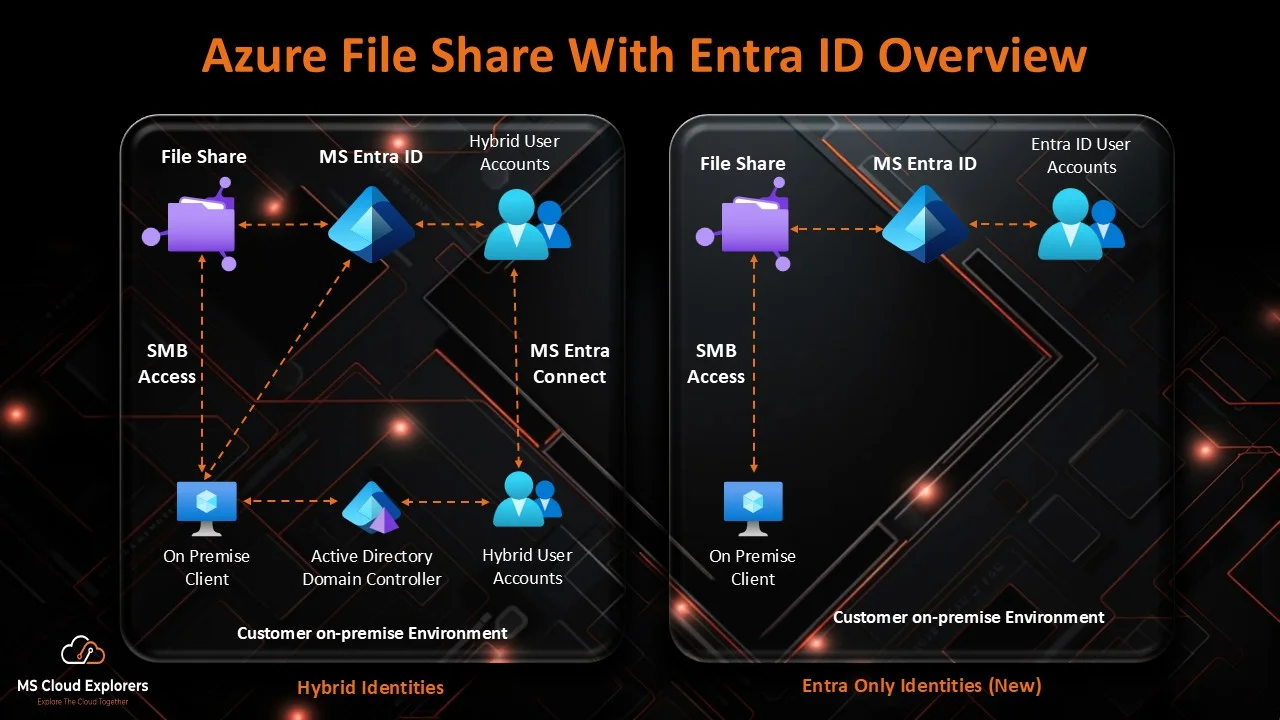
Many organizations still depend on traditional file shares. Even after adopting Microsoft 365, SharePoint Online, OneDrive, and Microsoft Teams, there are still workloads that need a standard file share path such as \server\share. This is common for legacy applications, shared tools, FSLogix profiles, application configuration files, and department-level storage.
This issue is resolved by Azure Files Share, which offers fully managed cloud file shares in Microsoft Azure. You do not need to deploy, patch, or maintain a Windows file server. Microsoft manages the storage platform, and you consume it as a cloud service.
Creating a file sharing is no longer the only need in modern times. The real requirement is creating an Azure Files Share with Microsoft Entra ID access, so users can access SMB file shares using identity-based authentication instead of storage account keys.
| What you will learn You will learn what Azure Files Share is, how Microsoft Entra Kerberos works, how to create an Azure file share, how to configure RBAC and NTFS permissions, how to secure access, and how to troubleshoot common deployment issues. |
What Is Azure Files Share?
Azure Files Share is a fully managed cloud file share service in Microsoft Azure. It allows administrators to create file shares that can be accessed from Windows, Linux, macOS, Azure virtual machines, Azure Virtual Desktop session hosts, and supported on-premises environments.
A simple way to understand Azure Files is this: Azure Files is a cloud-hosted file share that behaves like a traditional network share, but you do not manage the file server operating system, disks, hardware, or patching.
For example, instead of using an on-premises file server path such as:
\FS01\FinanceYou can use an Azure Files SMB path such as:
\\stfilesentraprod001.file.core.windows.net\finance-shareThis makes Azure Files a strong option for organizations that want to modernize file storage without rewriting applications that still expect SMB file paths.
Why Use Microsoft Entra ID Access with Azure Files?
In older Azure Files implementations, administrators often mounted Azure file shares using the storage account key. This works, but it is not ideal for enterprise security. A storage account key is powerful, difficult to scope for individual users, and risky if exposed.
Microsoft Entra ID access provides a better security model. Azure Files supports identity-based authentication over SMB using Microsoft Entra Kerberos, Active Directory Domain Services, or Microsoft Entra Domain Services. With Microsoft Entra Kerberos, users can access Azure file shares using Kerberos authentication tied to their Microsoft Entra identity.
For cloud-only identities, this is especially important because organizations can provide SMB access to Azure file shares without deploying traditional domain controllers solely for file share authentication.
| Access Method | Best Use Case | Security Consideration |
| Storage account key | Testing, automation, break-glass use, limited admin scenarios | Broad access; avoid distributing to end users. |
| AD DS authentication | Existing hybrid AD environments | Requires domain connectivity and synced identities. |
| Microsoft Entra Domain Services | Azure VMs joined to managed domain | Useful where managed domain services already exist. |
| Microsoft Entra Kerberos | Cloud-first, hybrid, AVD, and modern identity-based SMB access | Preferred modern approach for Entra-based access where supported. |
Common Use Cases for Azure Files Share
- Replacing or supplementing on-premises Windows file servers.
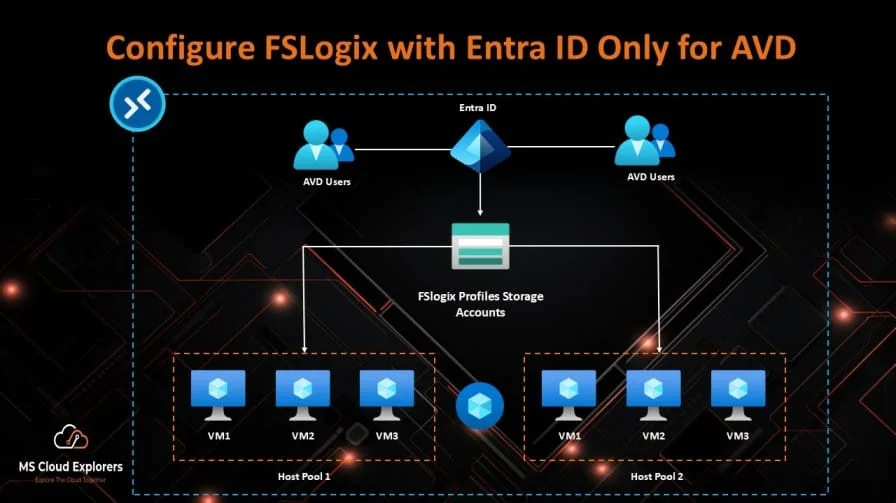
- Hosting FSLogix profile containers for Azure Virtual Desktop.
- Migrating legacy applications that require SMB file paths.
- Providing shared application configuration files.
- Creating diagnostic or log file shares for cloud applications.
- Caching cloud file shares on-premises with Azure File Sync.
- Providing persistent shared storage for cloud workloads.
Azure Files Share Architecture with Entra ID Access
User devices or Azure Virtual Desktop session hosts, SMB access over TCP 445, a storage account, an Azure file share, Microsoft Entra Kerberos authentication, share-level Azure RBAC, and folder-level NTFS permissions are all common components of an Azure Files implementation with Microsoft Entra ID access.
User / AVD Session Host
|
| SMB over TCP 445
|
Private Endpoint or Public Endpoint
|
Storage Account
|
Azure File Share
|
Azure RBAC + NTFS Permissions
|
Microsoft Entra Kerberos Authentication
| Component | Purpose |
| Azure Storage Account | Hosts the Azure file share in the classic Azure Files model. |
| Azure File Share | The SMB or NFS file share used by users, servers, or applications. |
| Microsoft Entra ID | Provides the identity platform for users and groups. |
| Microsoft Entra Kerberos | Issues Kerberos tickets for SMB access to Azure Files. |
| Azure RBAC | Controls share-level access to the Azure file share. |
| NTFS Permissions | Controls directory and file-level access inside the share. |
| Private Endpoint | Provides private IP access to Azure Files from a virtual network. |
| Azure Backup / Snapshots | Protects file share data and supports recovery. |
How Microsoft Entra Kerberos Works with Azure Files
- The user signs in to a supported Microsoft Entra joined or Microsoft Entra hybrid joined Windows device.
- The client is configured to retrieve cloud Kerberos tickets.
- When the user accesses the Azure file share UNC path, Microsoft Entra ID issues a Kerberos ticket.
- The client presents the Kerberos ticket to Azure Files over SMB.
- Azure Files validates the ticket and checks share-level Azure RBAC permissions.
- Folder and file-level NTFS permissions are then evaluated.
- Access is allowed or denied based on both RBAC and NTFS permissions.
| Important With identity-based access, you need both share-level permission and NTFS permission. If either layer is missing, the user may receive Access Denied. |
Azure Files Share Pricing Overview
Azure Files pricing depends on the selected billing model, media tier, redundancy, provisioned or consumed capacity, transactions, backup, private endpoint configuration, and expected performance requirements. For new deployments, plan the pricing before production rollout rather than after users start storing data.
| Pricing Factor | What to Consider |
| Billing model | Provisioned v2, provisioned v1, or pay-as-you-go depending on account type and design. |
| Media tier | SSD/Premium for high performance; HDD/Standard for general-purpose workloads. |
| Redundancy | LRS, ZRS, GRS, or GZRS depending on availability, region, tier, and business requirements. |
| Capacity | Used capacity or provisioned capacity depending on billing model. |
| IOPS and throughput | Performance requirements should be estimated for production workloads. |
| Transactions | Read, write, list, and metadata operations can affect cost in some models. |
| Backup and snapshots | Recovery features add value but should be included in cost planning. |
| Private endpoint | Provides security benefits but has separate networking cost. |
Azure File Share vs SharePoint
Azure Files and SharePoint are commonly compared, but they are not designed for the same purpose. SharePoint is a collaboration and content management platform. Azure Files is a cloud file share service for SMB/NFS access, application compatibility, and traditional file share workloads.
| Requirement | Azure Files Share | SharePoint Online |
| SMB or UNC path access | Best fit | Not supported |
| Legacy application file path | Best fit | Not recommended |
| FSLogix profiles | Best fit | Not supported |
| Document collaboration | Possible but not ideal | Best fit |
| Microsoft Teams file storage | No | Best fit |
| NTFS-style permissions | Supported with SMB identity-based access | Different permission model |
| Intranet portal / metadata / co-authoring | Not designed for this | Best fit |
Prerequisites
Azure Requirements
- Active Azure subscription.
- Resource group for the storage account and related resources.
- Storage account that supports Azure Files.
- Azure file share using SMB protocol for Entra Kerberos access.
- Supported Azure region for your selected Microsoft Entra Kerberos scenario.
- Role permissions to create and manage storage accounts, file shares, and RBAC assignments.
Client Requirements
- Microsoft Entra joined or Microsoft Entra hybrid joined Windows device.
- Supported Windows client or Windows Server version with required updates.
- Unless utilizing an architecture that manages this differently, outgoing SMB access to Azure Files over TCP port 445.
- Cloud Kerberos ticket retrieval enabled through Intune, Group Policy, or registry.
- WinHTTP Web Proxy Auto-Discovery Service and IP Helper service running where required.
Identity and Access Requirements
- Only one identity source can be enabled per storage account for Azure Files identity-based authentication.
- Admin consent must be granted to the storage account Microsoft Entra application after enabling Microsoft Entra Kerberos.
- MFA Conditional Access must not be enforced against the storage account enterprise application used for Azure Files Kerberos authentication.
- Users or groups must receive Azure RBAC share-level permissions.
- NTFS permissions must be configured for folder and file-level access.
Step-by-Step Guide: Create Azure Files Share with Entra ID Access
Step 1: Create a Resource Group
- Sign in to the Azure portal.
- Go to Resource groups.
- Select Create.
- Choose the subscription and Azure region.
- Enter a resource group name such as rg-azurefiles-entra-prod.
- Select Review + create, and then select Create.
Step 2: Create a Storage Account
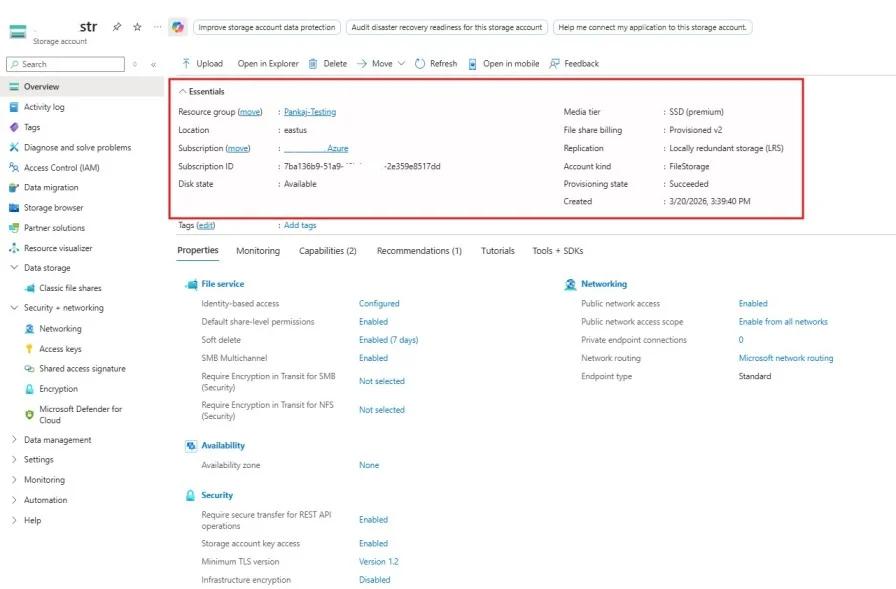
- Go to Storage accounts in the Azure portal.
- Select Create.
- Select the subscription and resource group.
- Enter a globally unique storage account name such as stfilesentraprod001.
- Select the Azure region close to your users or workloads.
- For Primary service, select Azure Files if available.
- Select Standard for general-purpose workloads or Premium for high-performance workloads.
- Choose the redundancy option based on business requirements.
- Review networking, data protection, and security settings.
- Select Review + create, and then select Create.
| Architect tip For production workloads, decide the storage tier and redundancy based on workload behavior. Do not select Premium only because it sounds better. Use Premium where low latency and predictable performance are required, such as FSLogix or high-IO workloads. |
Step 3: Create the Azure File Share
- Open the storage account.
- Go to Data storage > Classic file shares.
- Select + File share.
- Enter a lowercase file share name such as departments.
- Select SMB as the protocol.
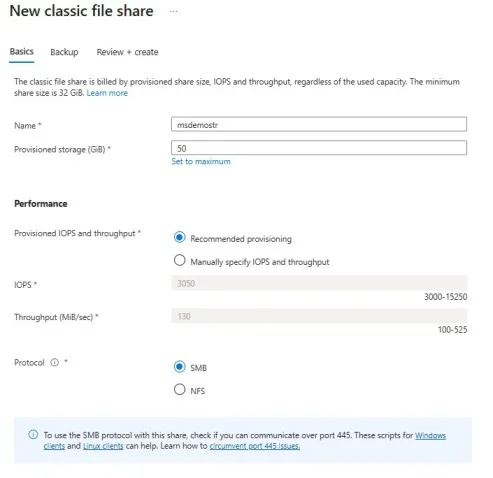
- Configure quota, provisioned storage, IOPS, or throughput depending on the billing model.
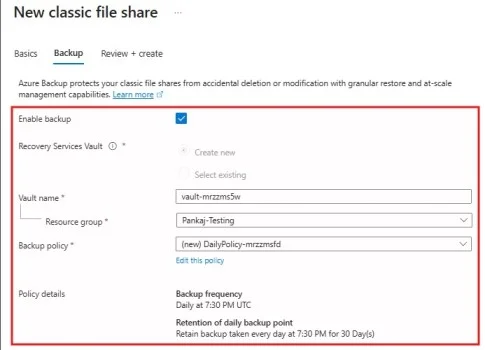
- Enable backup if the share is business-critical.
- Select Create.
Step 4: Enable Microsoft Entra Kerberos Authentication
- Open the storage account.
- Go to Data storage > Classic file shares.
- Next to Identity-based access, select the current configuration status.
- Under Microsoft Entra Kerberos, select Set up.
- Select Microsoft Entra Kerberos.
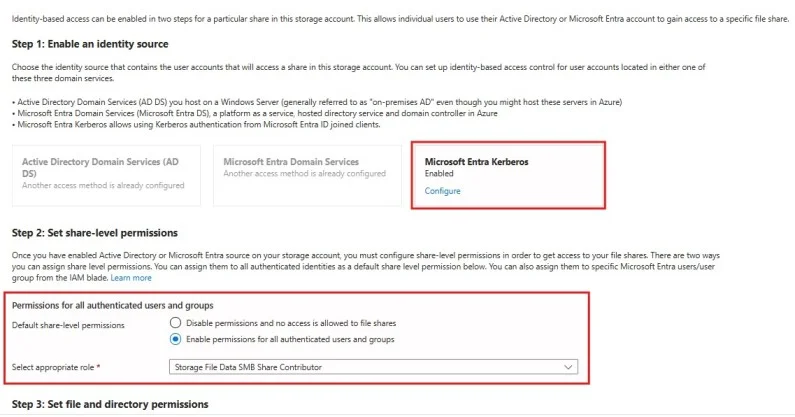
- For hybrid identity scenarios, provide the AD domain name and domain GUID if required for permission management.
- Select Save.
Step 5: Grant Admin Consent
- Go to Microsoft Entra ID.
- Open App registrations.
- Select All applications.
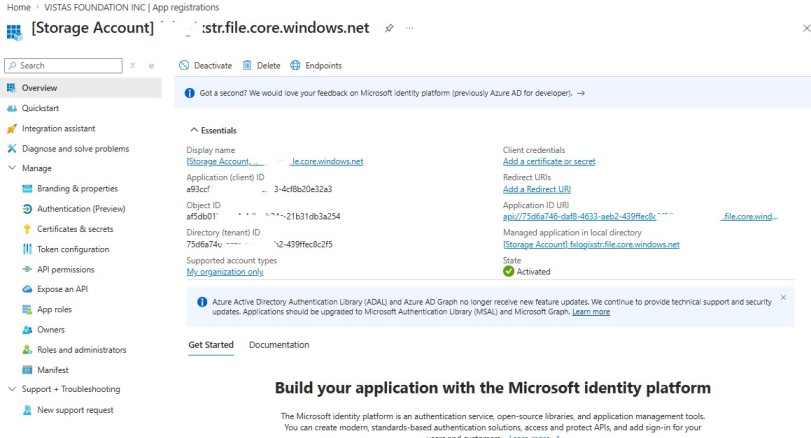
- Find the storage account application, usually named like [Storage Account] stfilesentraprod001.file.core.windows.net.
- Open API permissions.
- Select Grant admin consent.
- Confirm the consent.
Step 6: Exclude the Storage Account App from MFA Conditional Access
Microsoft Entra Kerberos authentication for Azure Files does not support MFA prompts during SMB access. If your Conditional Access policies enforce MFA for all cloud apps, exclude the storage account application from the MFA requirement. Do not disable MFA for users. Exclude only the storage account enterprise application used for Azure Files Kerberos authentication.
| Common issue If MFA is still enforced against the storage account application, users may fail to map the share and can receive account restriction errors. |
Step 7: Assign Share-Level RBAC Permissions
Assign Azure RBAC permissions at the file share scope. Use groups instead of individual users wherever possible.
| Azure RBAC Role | Purpose |
| Storage File Data SMB Share Reader | Read-only SMB access to the file share. |
| Storage File Data SMB Share Contributor | Read/write SMB access to the file share. |
| Storage File Data SMB Share Elevated Contributor | Read/write/delete access and ability to modify NTFS permissions. |
Step 8: Configure NTFS/SMB Permissions
To assign Azure Files SMB share-level permissions, go to:
Storage Account → Classic File Shares → Select File Share → Browse → Manage Access
From here, add the required Microsoft Entra ID users or groups and assign the appropriate SMB Share role. Remember that share-level permissions and NTFS permissions work together, so both must be configured to provide users with the correct access.
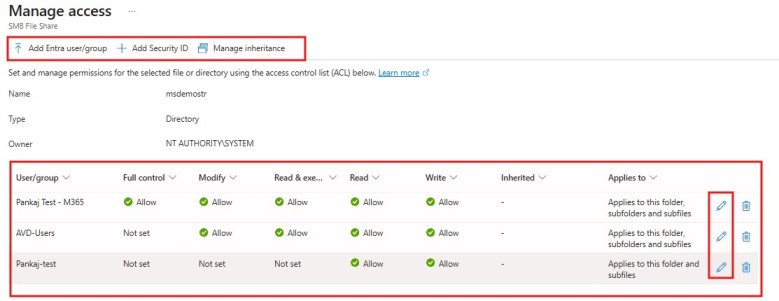
After share-level RBAC is configured, configure NTFS permissions inside the file share. This is the same concept administrators use with traditional Windows file servers: share-level access gets the user to the door, and NTFS permissions decide what they can access inside.
departments
├── Finance
├── HR
├── IT
└── Operations
| Folder | Recommended Group | Permission |
| Finance | AZF-Finance-Contributors | Modify |
| HR | AZF-HR-Contributors | Modify |
| IT | AZF-IT-Contributors | Modify |
| Operations | AZF-Ops-Contributors | Modify |
Step 9: Enable Cloud Kerberos Ticket Retrieval on Clients
Client devices must be configured to retrieve cloud Kerberos tickets. This can be configured using Microsoft Intune, Group Policy, or registry depending on your management model.
reg add HKLM\SYSTEM\CurrentControlSet\Control\Lsa\Kerberos\Parameters /v CloudKerberosTicketRetrievalEnabled /t REG_DWORD /d 1After applying this setting, restart the client or refresh device policy before testing access.
Step 10: Map the Azure File Share
To map the drive, use the Azure file share UNC path:
\stfilesentraprod001.file.core.windows.net\departmentsBefore mapping the share, test network connectivity to TCP port 445:
Test-NetConnection stfilesentraprod001.file.core.windows.net -Port 445Create Azure File Share Using PowerShell
You can also create the resource group, storage account, and file share using Azure PowerShell. This is useful for repeatable deployments and technical documentation.
Connect-AzAccount

$resourceGroupName = "rg-azurefiles-entra-prod"
$location = "EastUS"
$storageAccountName = "stfilesentraprod001"
$fileShareName = "departments"

New-AzResourceGroup `
    -Name $resourceGroupName `
    -Location $location

New-AzStorageAccount `
    -ResourceGroupName $resourceGroupName `
    -Name $storageAccountName `
    -Location $location `
    -SkuName Standard_LRS `
    -Kind StorageV2 `
    -EnableLargeFileShare

New-AzRmStorageShare `
    -ResourceGroupName $resourceGroupName `
    -StorageAccountName $storageAccountName `
    -Name $fileShareName `
-EnabledProtocol SMBReal-World Enterprise Scenario
Scenario: A 5,000-user organization wants to move department file shares from Windows file servers to Azure. The organization is cloud-first, uses Microsoft Entra joined Windows devices, and also runs Azure Virtual Desktop. The goal is to make users less reliant on file servers and keep storage account keys from being given to end users.
Recommended Design
- Create separate Azure file shares for Finance, HR, IT, Operations, and FSLogix profiles.
- Use Microsoft Entra Kerberos authentication for SMB access.
- Use Microsoft Entra security groups for access assignments.
- Apply Azure RBAC at the file share level.
- Apply NTFS permissions at folder level.
- Use private endpoints for production access.
- Enable Azure Backup or scheduled snapshots for critical shares.
| Share | Purpose | Recommended Tier |
| finance-share | Finance department data | Standard or Premium based on workload |
| hr-share | HR confidential data | Standard with private endpoint and backup |
| operations-share | Operational files and shared folders | Standard |
| avd-fslogix-share | FSLogix profile containers | Premium recommended for performance-sensitive environments |
Azure Files Share Snapshots
Azure Files supports share snapshots, which are point-in-time, read-only copies of a file share. Snapshots are useful for recovering previous versions of files, protecting against accidental changes, recovering after application mistakes, and supporting audit or recovery scenarios.
| Important snapshot note Share snapshots provide file-level recovery, but they do not replace a full backup and do not prevent deletion of the storage account. For critical data, combine snapshots with Azure Backup, soft delete, resource locks, and proper access control. |
Security Best Practices
- Use Microsoft Entra Kerberos instead of storage account keys for normal user access.
- Assign access to Microsoft Entra groups, not individual users.
- Use least privilege RBAC roles at the file share level.
- Apply NTFS permissions carefully at the folder and file level.
- Use private endpoints for production and sensitive shares.
- Exclude only the storage account app from MFA Conditional Access when required; do not weaken user MFA broadly.
- Enable backup and use snapshots for recovery scenarios.
- Monitor capacity, access errors, latency, and unusual access patterns.
- Document share owners, permission groups, and recovery procedures.
Troubleshooting Azure Files Share with Entra ID Access
| Issue | Possible Cause | Recommended Fix |
| Cannot map the share | TCP port 445 blocked, DNS issue, wrong UNC path, or firewall rule | Test with Test-NetConnection, validate DNS, check firewall, VPN, ExpressRoute, or private endpoint routing. |
| Access Denied | Missing RBAC, missing NTFS permissions, wrong group membership, or stale Kerberos ticket | Validate RBAC and NTFS permissions, confirm group membership, sign out/in, or refresh tickets. |
| Works with storage key but not Entra ID | Entra Kerberos not enabled, admin consent missing, client setting missing, or MFA blocking app | Check identity-based access, admin consent, CloudKerberosTicketRetrievalEnabled, and Conditional Access exclusions. |
| System error 1327 | MFA Conditional Access applied to storage account app | Exclude the storage account enterprise application from MFA requirement. |
| Private endpoint exists but access fails | Private DNS missing, DNS resolves public endpoint, or private endpoint not approved | Validate private DNS zone, test nslookup, and confirm private endpoint approval. |
| Slow performance | Wrong storage tier, insufficient provisioned IOPS/throughput, network latency, or workload too far from region | Review Azure Monitor metrics, consider Premium tier, adjust provisioned settings, and place storage close to workloads. |
Useful Troubleshooting Commands
Test-NetConnection stfilesentraprod001.file.core.windows.net -Port 445

nslookup stfilesentraprod001.file.core.windows.net

klistBest Practices and Recommendations
- Start with identity design before creating shares.
- Use Microsoft Entra Kerberos where it fits your user and device requirements.
- Use private endpoints for sensitive production workloads.
- Avoid storage account key-based user access.
- Use Azure RBAC for share-level permissions and NTFS for folder-level access.
- Use a clear naming standard for resource groups, storage accounts, shares, and groups.
- Validate client OS support before starting a large rollout.
- Test port 445 and DNS before blaming permissions.
- Review Azure Files pricing before production migration.
- Use Azure Backup or snapshots for recoverability.
- Document operational runbooks for access requests, restore requests, and incident response.
Common Mistakes to Avoid
| Mistake | Why It Causes Problems |
| Using storage account keys for all users | Creates broad access and makes auditing/user-level control difficult. |
| Skipping Conditional Access review | MFA policies can break Entra Kerberos access to Azure Files. |
| Only assigning NTFS permissions | Users also need share-level RBAC permissions. |
| Only assigning RBAC permissions | Users may still be blocked by NTFS permissions. |
| Ignoring port 445 | SMB access fails if TCP 445 is blocked. |
| Using Premium for every workload | Can increase cost unnecessarily. |
| Not using backup or snapshots | Redundancy is not the same as recoverability. |
| Confusing Azure Files with SharePoint | They solve different business and technical problems. |
Frequently Asked Questions
What is Azure Files Share?
Azure Files Share is a managed cloud file share service in Azure that supports SMB, NFS, and REST API access depending on the configuration.
Can I access Azure Files Share using Microsoft Entra ID?
Yes. Azure Files supports Microsoft Entra Kerberos authentication for SMB file shares, allowing users to access Azure file shares using identity-based authentication.
Does Azure Files with Entra ID require a domain controller?
For supported cloud-only identity scenarios, Microsoft Entra Kerberos can provide access without requiring a traditional domain controller for authorization or authentication.
What is the difference between Azure File Share and SharePoint?
Azure Files is designed for SMB/NFS file access, UNC paths, legacy applications, and FSLogix. SharePoint is designed for document collaboration, Teams files, co-authoring, metadata, and intranet content.
Why is port 445 required for Azure Files?
Azure Files SMB access uses TCP port 445. If this port is blocked by a firewall, ISP, or corporate network, users may not be able to mount the file share.
Can Azure Files replace a traditional file server?
Yes, Azure Files can replace or supplement traditional file servers in many use cases, especially when applications or users need SMB file share access.
Does Azure Files support snapshots?
Yes. Azure Files supports share snapshots that provide point-in-time, read-only copies of file share data.
Should I use storage account keys or Entra ID access?
For production user access, use Microsoft Entra ID-based access where possible. Storage account keys should be limited to controlled administrative or automation scenarios.
Can I use Azure Files for FSLogix profiles?
Yes, Azure Files is commonly used to store FSLogix profile containers in Azure Virtual Desktop (AVD) environments. For better performance and reliability, Premium Azure Files is usually recommended, especially for users with larger profiles or performance-sensitive workloads.
How do I troubleshoot Azure file share access denied?
Check both Azure RBAC share-level permissions and NTFS permissions. Also verify group membership, Kerberos ticket refresh, device join state, and Conditional Access exclusions.
Conclusion
Azure Files Share is one of the most practical Azure storage services for organizations that still need traditional file share access in the cloud. It is especially useful for legacy applications, Azure Virtual Desktop FSLogix profiles, cloud application data, and file server modernization projects.
The key to a successful deployment is planning the identity model first. If you are building a modern cloud-first design, Microsoft Entra Kerberos gives you a cleaner and more secure approach than distributing storage account keys. Combine it with Azure RBAC, NTFS permissions, private endpoints, backup, and monitoring for a production-ready design.
Use SharePoint when the requirement is document collaboration. Use Azure Files when the requirement is SMB/NFS access, UNC path compatibility, application file storage, or file server replacement.
References and Further Reading
- Microsoft Learn: Introduction to Azure Files
- Microsoft Learn: Create a classic file share
- Microsoft Learn: Azure Files identity-based authentication
- Microsoft Learn: Microsoft Entra Kerberos authentication for Azure Files
- Microsoft Learn: Azure Files share snapshots
- Azure Files pricing
Explore More from MS Cloud Explorers
- Azure Virtual Desktop: Step-by-Step Guide to Create and Manage AVD with FSLogix
- FSLogix Entra ID Only: Configure Cloud-Native Azure Files for AVD Without DC
- Azure Virtual Machine Guide: Create, Manage and Choose the Right Azure VM Types
- Azure Virtual Machine Backup: Complete Step-by-Step Guide to Back Up and Restore
- Azure Virtual Machine Auto Shutdown: Step-by-Step Guide to Reduce Azure VM Costs
- Azure Recovery Services Vault: Complete Guide to Azure Backup Vault.
Enjoyed the article?
We’d love to hear your thoughts—share your comments below!
For more insights, guides, and updates from the Microsoft ecosystem, be sure to subscribe to our newsletter and follow us on LinkedIn. Stay connected and never miss out on the latest tips and news!