If you’ve ever clicked “Sign in with Microsoft work or school account” and were met with a “Need admin approval” message, chances are you were left wondering why it happened and how to fix it. Whether this appeared for a third‑party SaaS app or an internal enterprise application, this error essentially means Microsoft Entra ID (formerly Azure AD) can’t complete the sign‑in until an admin takes action. In this article, we’ve explained what this message really means, why it appears, how to configure the necessary settings, and walk you through exactly how an admin can resolve it securely for your organization.
From my own experience investigating dozens of account breaches over the past couple of years, I’ve noticed a recurring pattern: most breaches happen because users signed up for third‑party apps to make their work easier, without realizing whether the app was genuine or approved by their organization. Microsoft has recognized this risk. In August 2025, they updated the Enterprise Apps consent and permission settings with the “Let Microsoft manage your consent” option. This change now affects all apps that aren’t verified by Microsoft, blocking access unless admins explicitly approve them.
This update is designed to protect organizations from unvetted apps requesting excessive permissions, reducing the risk of data leaks and account compromises. While it can be a bit confusing for users, it’s a crucial security safeguard — and understanding how to navigate it ensures smooth access while keeping your organization safe.
Understanding Microsoft Entra ID Enterprise Apps
Before we get into fixing the error itself, let’s break down what Enterprise Apps are and how they work under the hood in Microsoft Entra ID.
What Are Enterprise Applications?
Enterprise applications are representations of software (like SaaS apps, internal business tools, or custom integrations) that your organization might use. Underneath, Entra ID treats these applications as service principals — essentially a security identity for the app within your tenant. These identities determine what the app can do and what it can access.
Application Registrations vs. Service Principals
Many people confuse two concepts:
- Application Registration: The definition of the application’s identity from the perspective of the developer, describing what permissions it can request.
- Service Principal: The app’s identity within your tenant — what permissions it has been granted and is allowed to use. Consent happens at the service principal level.
Understanding this distinction helps explain why you might see approval errors even if the app seems registered correctly.
Why Users See “Need Admin Approval”
There are several reasons this message might appear:
Permissions That Require Admin Consent
Some permissions are just too powerful to be granted by ordinary users — such as those that can read all users’ calendars, modify directory data, or manage enterprise settings. When an app asks for such permissions, only administrators can approve them.
Tenant Consent Settings
Your organization’s policies can restrict user consent in these ways:
- User consent disabled: Users can’t grant any permissions themselves.
- Only verified publishers: Users can only consent to apps from publishers Microsoft recognizes.
- Selective consent policies: Some policies only allow user consent for low‑impact permissions.
This behavior is by design; it helps reduce risk from unvetted or overly permissioned applications.
How Consent Works in Entra ID
User Consent vs. Admin Consent
- User Consent: A user agrees to give the app permission to access their data only on their behalf, as long as the permission level is allowed.
- Admin Consent: An admin grants permissions for the entire organization, allowing all authorized users to access the app without further approval prompts.
End User Behavior
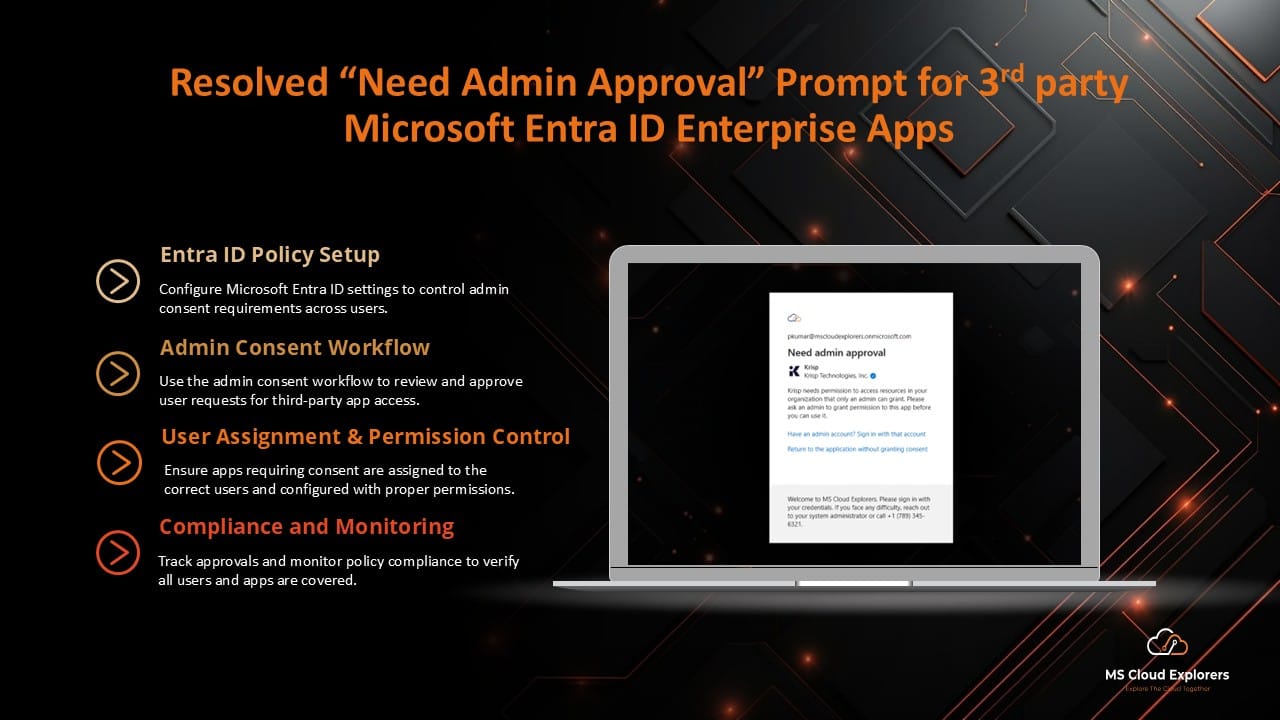
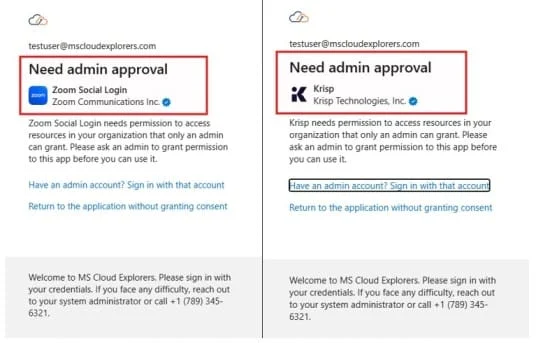
When users attempt to log in to a third-party app that requires permissions beyond what they can grant, they see an error like “Need admin approval.”
Admin Consent Workflow
To streamline approval requests, Microsoft provides an admin consent workflow. Once enabled, users who can’t grant consent on their own will see an option to request admin approval. When a request is submitted, designated reviewers in your organization are notified and can approve or deny it.
Admins can configure:
- Who reviews the requests
- How long requests remain valid
- Whether reviewers receive email notifications
Note: Changes may take up to an hour to take effect after configuration.
Fixing “Need Admin Approval”: Step‑by‑Step
For End Users: Requesting Admin Approval
If users see the “Need admin approval” prompt:
- Look for a button like “Request approval” (if the admin consent workflow is enabled).
- Clicking it sends a request to the IT team.
In organizations where this workflow isn’t enabled, the prompt will simply instruct users to contact their admin.
For IT Admins: Reviewing and Granting Consent
Admins have several options to manage approval requests:
1. Grant Tenant‑Wide Admin Consent
- Sign in to the Microsoft Entra Admin Center.
- Go to Enterprise apps → Consent and permissions.
- Grant tenant-wide admin consent to authorize the app for all users.
This ensures users won’t be blocked by consent prompts in the future.
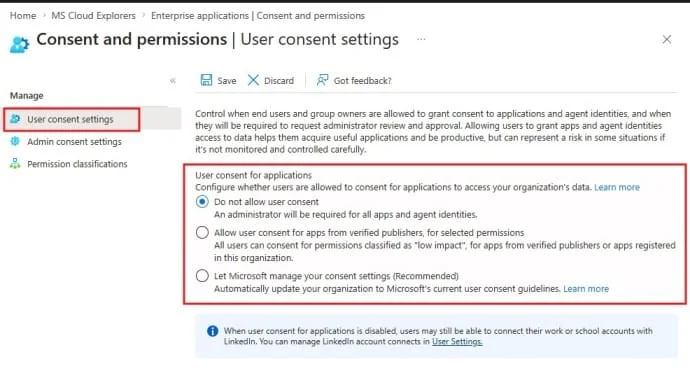
2. Configure User Consent Settings
By default, the “Let Microsoft manage your consent settings” option is selected. Microsoft recently enabled this for all tenants.
- If you want users to access Microsoft‑trusted apps automatically, leave this setting as-is.
- If you want IT admin approval for all third-party apps, select “Do not allow user consent”.
For this guide, we assume the organization wants to approve all apps before users can access them.
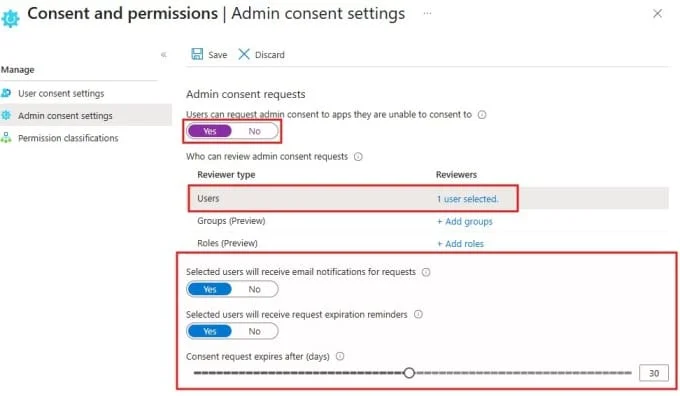
3. Configure Admin Consent Settings
- Enable “Users can request admin consent” — this allows users to send a request to the admin.
- Add the reviewer account(s) (users or groups).
- Enable email notifications and reminders.
- Set consent request expiration (e.g., 30 days).
- Save the changes.
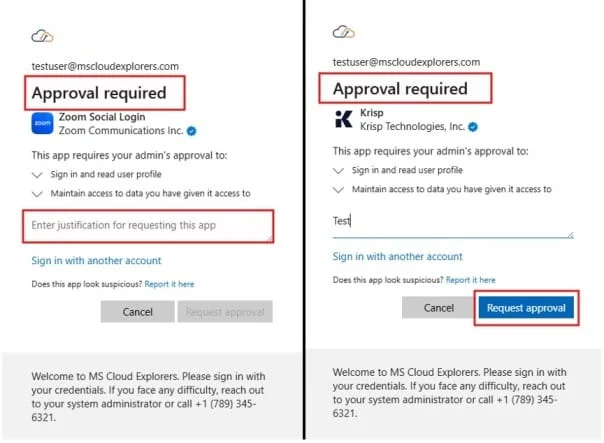
4. Sending a Request to Admin for Approval
When users try to log in to a third-party app after these settings:
- They see a prompt requiring approval.
- Users provide a justification for requesting the app.
- Click “Request Approval” to send it to the designated reviewers.
5. Reviewing Admin Consent Requests
Admins or reviewers can take the following actions:
- Approve: Grant admin consent and resolve user access issues.
- Deny: Refuse the permissions request.
- Block: Permanently prevent future requests for that app.
Steps for reviewing requests:
- All the Reviewers will receive the Notification when anyone send a request for approval
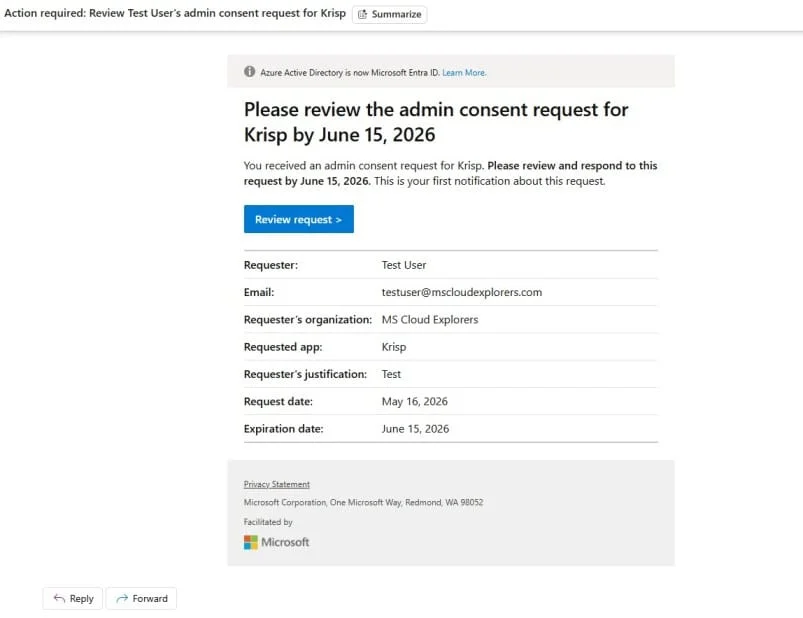
- Click “Review Request” from the email notification or in Enterprise apps → Admin consent requests in Entra ID.
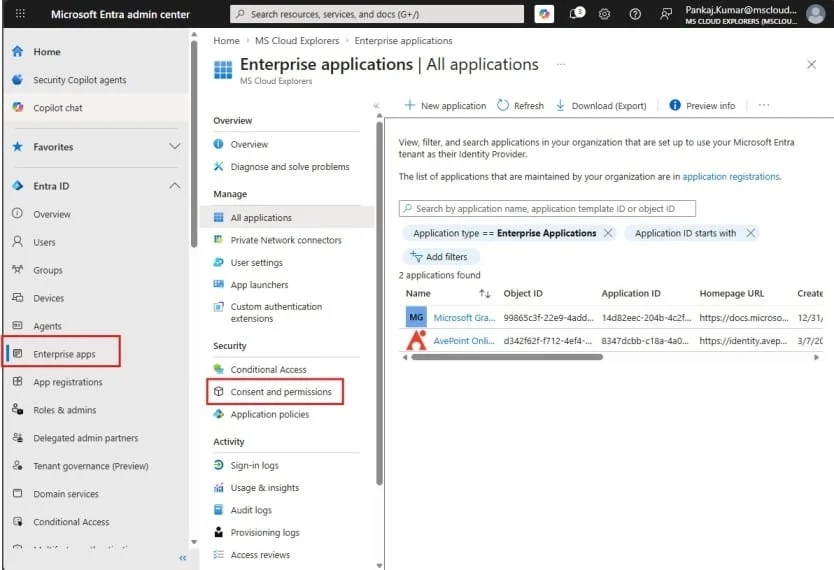
- Select the app and review the requested permissions.
- Click “Review Permissions and Consent”.
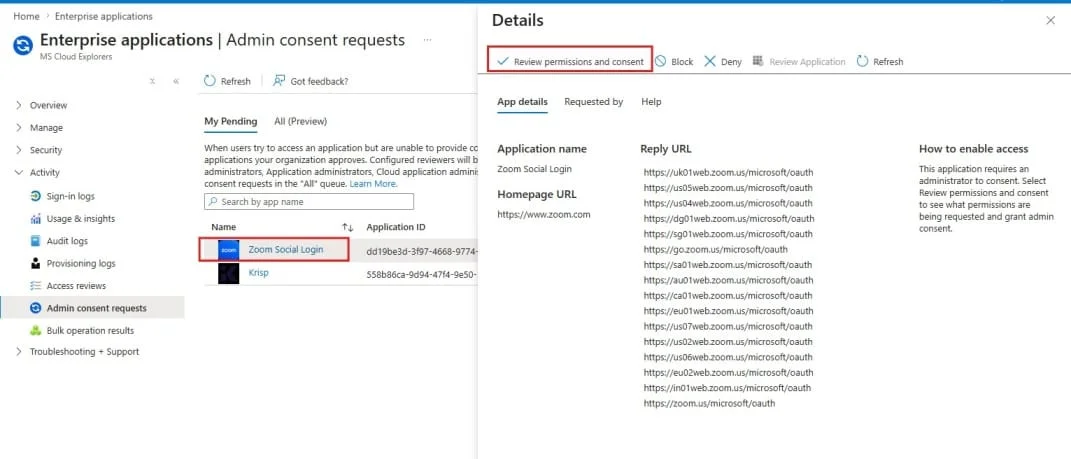
- Authenticate your account if prompted and accept the app.
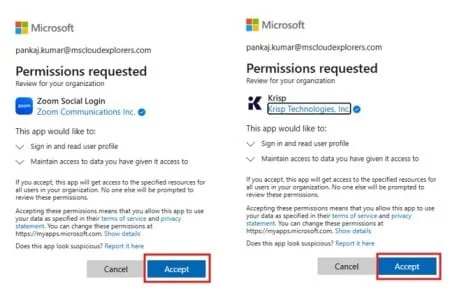
End User Behavior After Approval
Once the admin grants consent:
- Users can log in without seeing the “Need admin approval” or approval required prompts.
- Access is seamless, and the app functions as expected.
Configuring User Consent Policies
Good governance involves setting sensible consent policies.
Allowing Users to Consent
For environments that trust low‑risk apps, you can permit users to consent to certain categories of applications — especially those from verified publishers.
Restricting User Consent (Best Practice)
Security‑focused organizations often disable user consent entirely, forcing admin review for all cases. This prevents users from unintentionally granting access to apps they shouldn’t.
Common Misconfigurations and Troubleshooting
Assignment Required Setting
Even after admin consent, if the application is configured with “Assignment required = Yes,” users won’t be able to sign in until they’re explicitly assigned in the Enterprise app. This is a common oversight.
Scope and Permission Mismatches
If the app requests scopes that haven’t been consented to or configured properly, the “Need admin approval” prompt can appear unexpectedly. Check that permissions in the app’s registration match those in the service principal.
Security Considerations
Principle of Least Privilege
Never grant more access than necessary. Avoid blindly approving permissions requests — especially for powerful delegated rights.
Admin Roles and Security
Only users with appropriate admin roles (e.g., Global Admin or Application Admin) can grant certain types of consent. Always assign roles following least privilege principles.
Conclusion
The “Need admin approval” message is usually a sign of a consent governance control — not an error. It exists to protect your organization from potentially harmful permission grants. Whether you’re an end user attempting access or an admin responsible for approvals, understanding how Microsoft Entra ID handles consent will help you resolve these blockers quickly and securely.
With the right policy configuration, proper consent workflows, and a good grasp of permissions and assignments, you’ll reduce friction and improve both security and user experience across your enterprise applications.
FAQs
Q1: What exactly triggers the “Need admin approval” message?
A: It appears when an app requests permissions that your tenant policies or permission types require an administrator to approve.
Q2: Can normal users fix this error?
A: No — except by sending an admin approval request if the admin consent workflow is enabled.
Q3: Who can grant admin consent?
A: Global Administrators or roles with appropriate permissions can grant admin consent.
Q4: If an admin approves an app, does it grant everyone access?
A: By default, yes; but you can control access further with assignment policies.
Q5: How do I prevent future “Need admin approval” errors?
A: Configure consent policies, ensure necessary permissions are pre‑consented, and assign users to apps proactively.
Explore More From MS Cloud Explorers
- A Complete Guide to Privileged Identity Management in Azure AD (PIM)
- Microsoft 365 Backup Native: A Complete Step-by-Step Guide
- Top 7 Conditional Access Policies Every Organization Should Implement
- Microsoft Defender for Identity: Modern Threat Detection and Identity Protection
Enjoyed the article?
We’d love to hear your thoughts—share your comments below!
For more insights, guides, and updates from the Microsoft ecosystem, be sure to subscribe to our newsletter and follow us on LinkedIn. Stay connected and never miss out on the latest tips and news!