

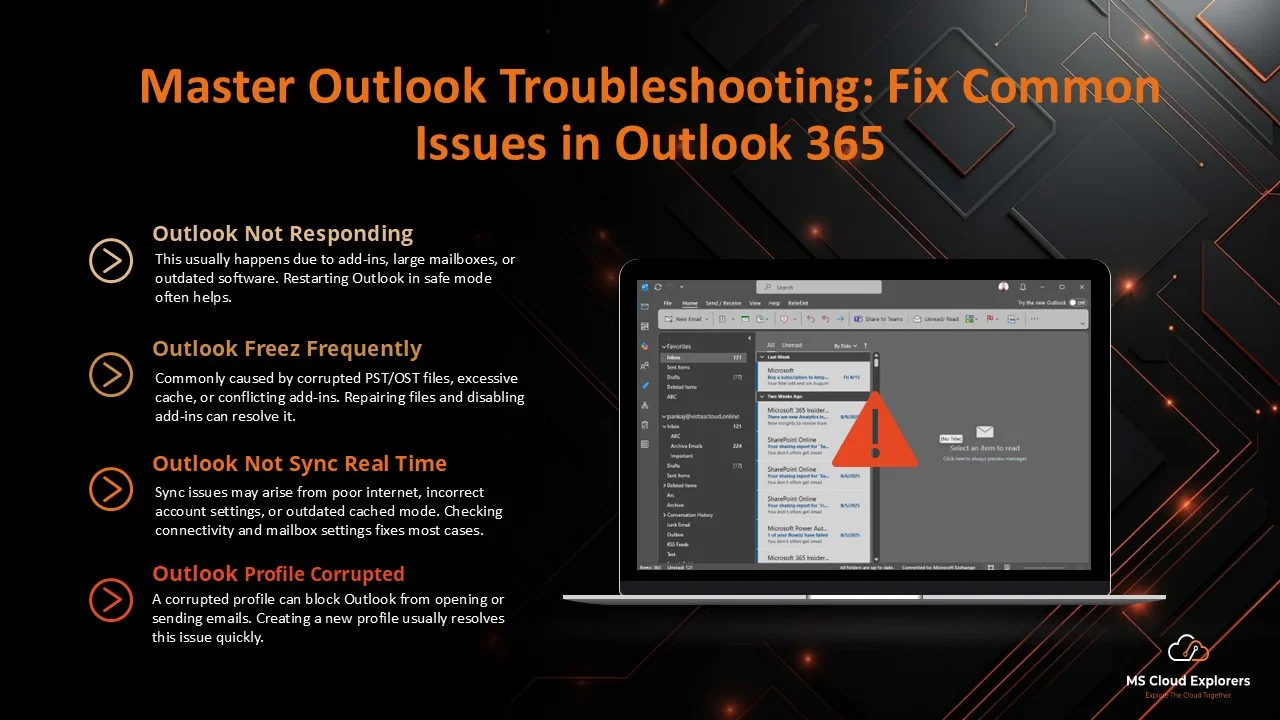
One of the most used email clients across the world is Microsoft Outlook. However, users often encounter issues ranging from minor glitches to more severe errors that can disrupt productivity. Whether you’re facing problems with sending and receiving emails, syncing issues, or performance slowdowns, this guide provides in-depth Outlook troubleshooting steps and common fixes for all types of Outlook-related issues.
Common Outlook Issues and How to Resolve Them
1. Outlook Won’t Open
One of the most common Outlook problems is the application not opening. When this happens, it may be due to issues like corrupted profile files, add-ins, or outdated software. Here’s how to fix it:
Solution:
- Open Outlook in Safe Mode: Hold down the Ctrl key while opening Outlook. This disables add-ins and might help the app open.
- Repair Outlook Profile: Go to Control Panel > Mail > Show Profiles > Select the Outlook Profile > Properties > Emails Accounts > Select the account and click on Repair at top.
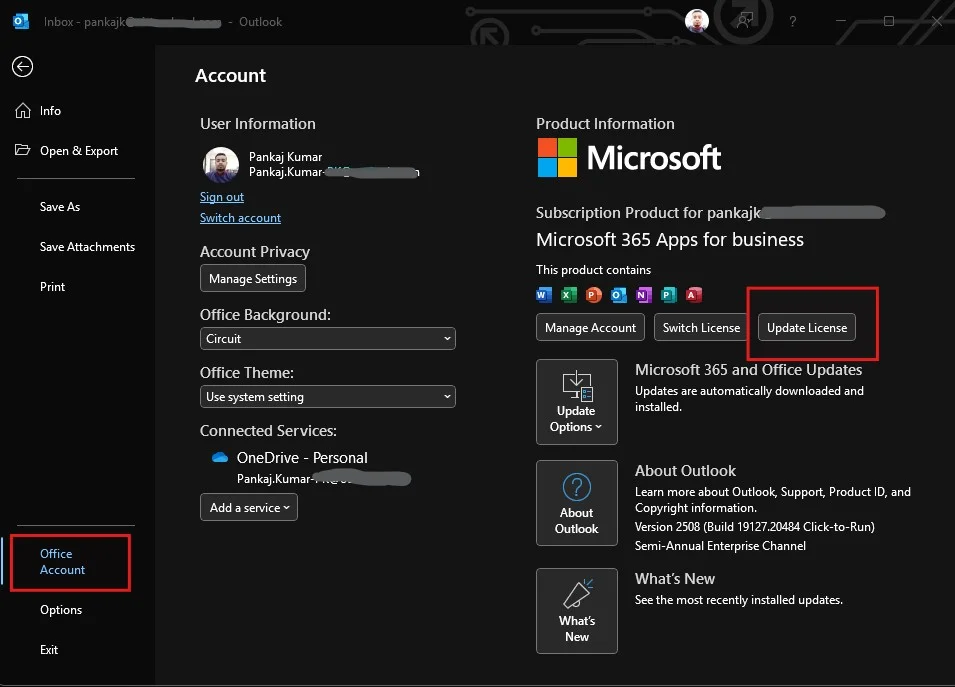
- Update Outlook: Make sure your Outlook app is up-to-date by visiting File > Office Account > Update Options > Update Now. If you can use the same setting on the other office apps to update the entire Microsoft Office.
- New Outlook Profile: Create the new outlook profile if none of the above steps work.
2. Outlook Not Syncing Emails
Syncing issues in Outlook can happen when your account isn’t syncing properly with the server. This can lead to emails not appearing or disappearing from your inbox.
Solution:
- Internet Connection: Make sure your internet connection up and stable.
- Check Account Settings: Verify your email account settings by going to File > Account Settings.
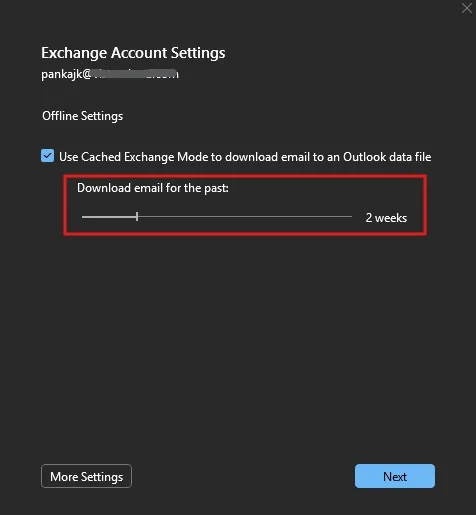
- Offline Outlook Email Cache: Try to adjust the Offline Outlook Emails Cache. File > Account Setting > Double click on the Outlook Account and Adjust the offline email period.
- Rebuild the Outlook Profile: Remove and recreate the email profile in Control Panel > Mail.
3. Outlook Crashing or Freezing
Outlook can sometimes freeze or crash unexpectedly, disrupting your work. This issue can stem from corrupt data files, add-ins, or insufficient system resources. There are multiple reason for this. Heavy mailbox or multiple emails accounts configured on the Outlook.
Solution:
- Repair Outlook Data Files: Use the Scanpst.exe tool to repair corrupt PST files.
- Run Outlook in Safe Mode: As mentioned earlier, use Ctrl while launching Outlook to disable add-ins and check if it runs smoothly.
- Remove Add-ins: Review the add-ins and Check if there are any add-ins slow down the performances. Disable any unnecessary add-ins and restart Outlook.

- New Outlook Profile: Create the new outlook profile if none of the above steps work.
4. Outlook Not Sending Emails
One of the more frustrating problems is Outlook not sending emails, even though you can receive them. This may be caused by incorrect email settings, large attachments, or issues with the outgoing mail server.
Solution:
- Check Outgoing Server Settings: Go to File > Account Settings > Email > Change > More Settings > Outgoing Server. Ensure the settings match your provider’s specifications.
- Reduce Attachment Size: If your email includes large attachments, try reducing the file size or using a file-sharing service.
- Repair Office Installation: If the problem persists, try repairing Office by going to Control Panel > Programs and Features > Microsoft Office > Change > Repair.
- Outlook on the Web (OWA): Try to login on the OWA and check if you are able to send email. By login to Outlook Personal or Outlook Office.
5. Missing Emails in Outlook
When emails are missing from your inbox, it could be due to filters, rules, or server issues. Missing emails are common, but they can be resolved.
Solution:
- Check Junk or Deleted Items: Review the Junk and Deleted Items folders in case the emails were mistakenly marked.
- Check Filter Settings: Go to View > View Settings > Filter. Disable any unnecessary filters.
- Review Outlook Rules: Go to File > Manage Rules & Alerts to all rules working as expected.
If you still not able to find you can request to Exchange Admin to Run a Message trace on the Server or Exchange Online.
Advanced Outlook Troubleshooting
6. Fixing Outlook Calendar Issues
The Outlook calendar is another critical feature for users. When calendar entries aren’t showing up or syncing properly, follow these steps:
Solution:
- Check Calendar Permissions: Ensure that your calendar permissions are correctly set by right-clicking the calendar and selecting Properties.
- Repair the Calendar: If your calendar data is corrupt, you can repair it by running the Scanpst.exe tool.
7. Resolving Outlook Search Problems
Outlook’s search function can sometimes fail to return accurate results, which is frustrating when you need to find a specific email. Here’s how to resolve it:
Solution:
- Rebuild the Search Index: Go to Control Panel > Indexing Options > Modify > Microsoft Outlook. Rebuild the index to improve search results.
- Update Outlook: Ensure that Outlook and Windows are fully updated, as search problems can arise from outdated software.
8. Fix Outlook Delayed Delivery Issues
Sometimes, you may set emails to be sent at a specific time, but Outlook fails to send them on schedule.
Solution:
- Check Send/Receive Settings: Go to File > Options at the bottom left> Click on Advanced > Locate the Send/Receive open the settings. Ensure that Schedule an automatic send/receive every 30 minutes is checked.
- Check Server Status: Ensure that your mail server is not down or experiencing issues.
9. Addressing Outlook Performance Problems
Outlook performance can slow down over time due to excessive data, large attachments, and other factors. To restore optimal performance, you can try the following:
Solution:
- Compact PST Files: Reduce the size of your PST file by compacting it. Or If you are Microsoft 365 User, you can enable the Online Archive. This will help to reduce the main mailbox size. Without loosing any email.
- Disable Unnecessary Add-ins: Deactivate any add-ins that you don’t frequently use.
10. Outlook for Mac Troubleshooting
Outlook for Mac can experience different issues from its Windows counterpart, particularly with syncing and email display.
Solution:
- Rebuild the Outlook Profile: Go to Tools > Public Folders > Rebuild to rebuild your profile.
- Update the Application: Always keep Outlook for Mac updated to avoid compatibility issues.
Outlook Troubleshooting Common Error Codes and Fixes
11. Error Code 0x8004010F
This error usually occurs when Outlook cannot connect to the mail server due to a network or configuration issue.
Solution:
- Network Connection: Make sure you are connected with the internet.
- Check Outlook Account Settings: Reconfigure the account settings by going to File > Account Settings.
12. Error Code 0x800ccc0e
The 0x800ccc0e error happens when Outlook cannot connect to the outgoing mail server.
Solution:
- Check Server Settings: Go to File > Account Settings > Email > Change > More Settings and ensure the outgoing mail server is correctly configured.
- Repair Office Installation: Try repairing Office using Control Panel > Programs > Microsoft Office > Change > Repair.
Conclusion
Outlook is a powerful tool that can help with communication, scheduling, and task management. However, as with any software, issues can arise that impact productivity. By following the troubleshooting steps outlined in this guide, you can quickly address common Outlook problems and get back to work without unnecessary delays. From syncing issues to performance slowdowns and error codes, we’ve covered solutions for a wide range of Outlook-related challenges.
FAQs
- Why is Outlook not opening?
If Outlook is not opening, it may be caused by corrupt profiles, outdated software, or add-ins. Try starting in Safe Mode or repairing your Outlook profile. - How do I fix syncing issues in Outlook?
To fix syncing issues, check your internet connection, ensure correct account settings, and consider rebuilding your Outlook profile. - What should I do if Outlook is not sending emails?
Ensure that your outgoing server settings are correct, reduce attachment size, and check for Office updates to resolve sending issues. - Why are emails missing in Outlook?
Missing emails could be due to filters, rules, or accidental deletions. Check your Junk and Deleted folders, and review your filter settings. - How do I improve Outlook’s search performance?
Rebuilding the search index and updating Outlook can help fix search issues. Make sure your software is up-to-date for better performance.

Thanks for this! Quick question — I’ve been getting the “Outlook not responding” error almost daily. I tried safe mode, but it still happens. Any idea what else I can check?
Great question! If safe mode didn’t help, it might be worth checking for any problematic add-ins or outdated OST files. Also, try repairing Office from the Control Panel — that fixes a lot of persistent issues. Let us know if that works or if you need help with the steps!
In some cases, an issue might be related to MDM settings, such
as restrictions on Outlook functionality, or user
account and mailbox setings in Exchange.