

Microsoft 365 compromised account recovery is a critical security process that every IT admin and security team must understand. A compromised Microsoft 365 account is not just a user issue—it quickly becomes a security incident at the tenant level.
When attackers gain access to a Microsoft 365 account, they don’t stop at simply reading emails. Instead, they often:
• Create inbox rules to hide conversations
• Enable external forwarding to steal sensitive data
• Launch internal phishing attacks across the organization
• Attempt privilege escalation to gain higher access
Microsoft’s security guidance shows that compromised accounts are frequently used in Business Email Compromise (BEC) attacks—one of the most financially damaging threats for organizations.
✅ Key Insight:
Resetting the password is only the first step.
Real recovery means removing persistence + investigating activity + securing identity.
This guide is designed specifically for:
- IT Admins
- Microsoft 365 Engineers
- Security teams
What does it mean when a Microsoft account is hacked?
What Is a Microsoft 365 Compromised Account?
A Microsoft 365 account is considered compromised when an unauthorized user gains access to it via:
- Phishing
- Password spray attacks
- Credential reuse
- MFA fatigue attacks
Once inside, attackers can access:
- Outlook mailbox
- OneDrive files
- SharePoint
- Teams data
- Azure/Entra identity (if privileged)
Microsoft confirms that attackers often use compromised mailboxes for:
- Sending phishing emails internally
- Stealing sensitive information
- Setting up persistence mechanisms
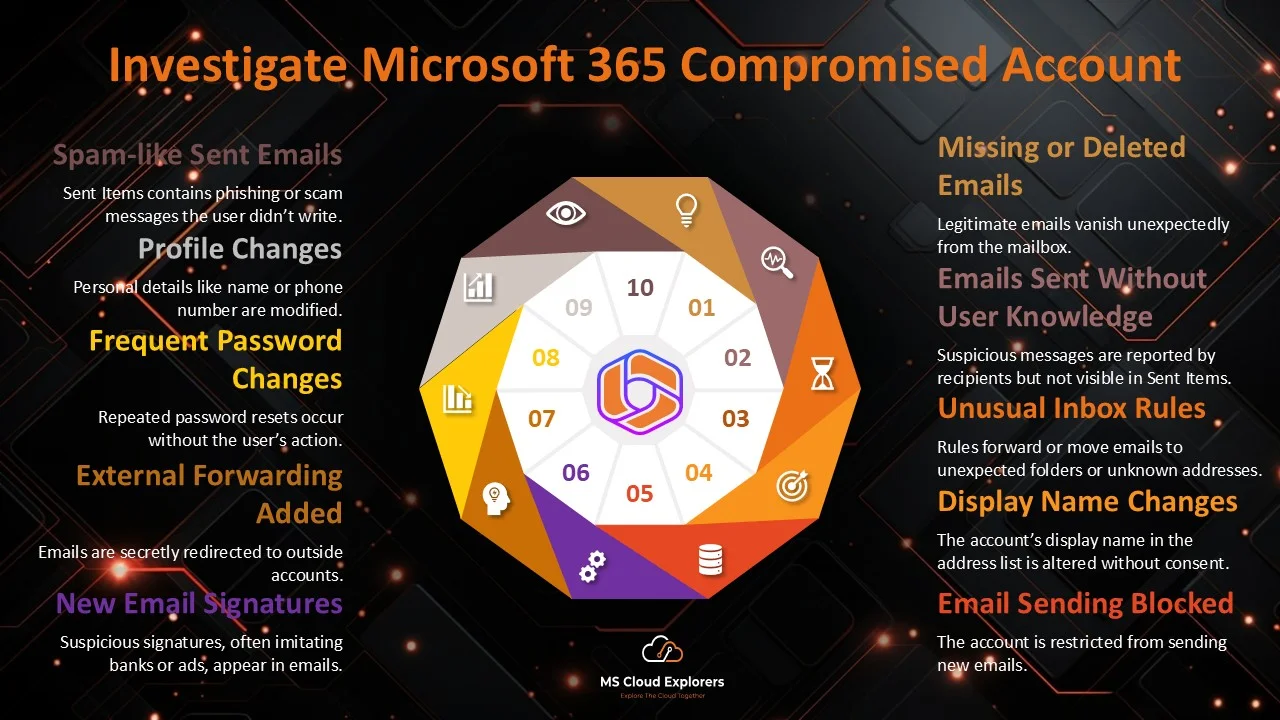
Signs Your Microsoft 365 Account Is Hacked
Common signs of a compromised Microsoft 365 account include:
- Emails missing or deleted
- Unknown inbox rules
- External email forwarding enabled
- Suspicious sign-ins or locations
- Emails sent without user knowledge
Detailed Indicators
- Suspicious Email Behavior
- Emails missing from Inbox
- Messages in Sent Items you didn’t send
- Inbox Rules Manipulation
Attackers hide activity using:
- Move to Junk/Notes folders
- Mark as read
- Auto-delete rules
- External Forwarding Enabled
One of the most dangerous indicators:
- All emails copied to attacker-controlled mailbox
- Unusual Sign-in Activity
- Unknown locations
- Multiple failed logins
- Impossible travel patterns
- User Account Locked or Blocked
Microsoft may temporarily restrict the account due to spam activity
Immediate Containment Checklist (First 15 Minutes)
🚨 Do this immediately
- Reset password from a trusted device
- Revoke all active sessions
- Block sign-in temporarily (if under attack)
- Enable or enforce MFA
- Check forwarding settings
- Remove suspicious inbox rules
✅ Important:
Microsoft recommends disabling compromised accounts temporarily to stop active attacks.
Microsoft 365 Admin Center Test: Run tests to detect compromised accounts. RUN TEST
How to Secure and Restore an Microsoft 365 compromised account recovery (Complete Checklist)
Make sure you complete all the steps — attackers often create multiple persistence points.
Step-by-Step Microsoft 365 compromised account Recovery Process
Even after regaining account access, attackers may have left backdoors. Follow these steps to secure the account and prevent further unauthorized access:
Step 1: Reset the User’s Password
- Create a strong password (uppercase, lowercase, numbers, and special characters).
- Don’t email the new password since attackers may still have mailbox access.
- If the account uses federated identities, reset the password in the on-premises system as well.
- Delete and recreate app passwords. Learn how to manage app passwords.
- Enable Multi-Factor Authentication (MFA) for enhanced security. Set up MFA now.
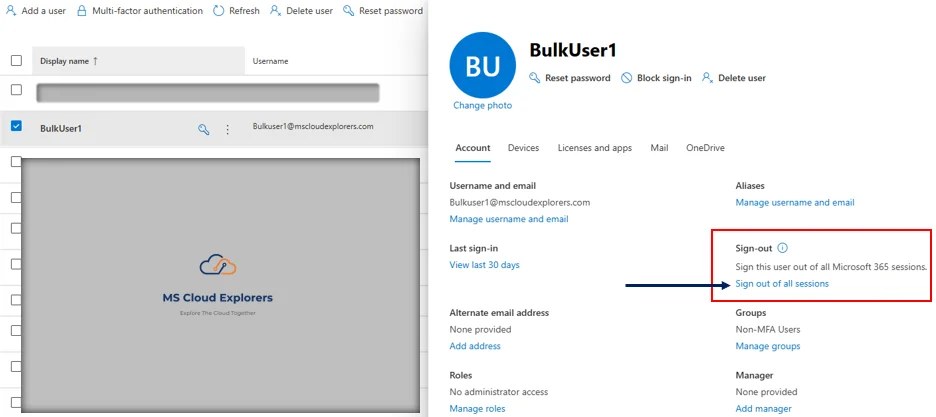
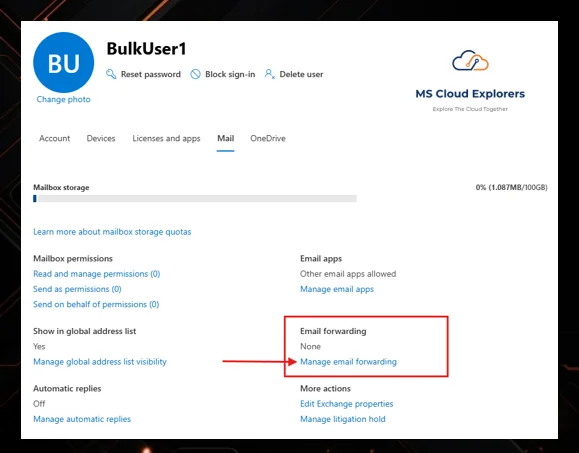
Step 2: Remove Suspicious Forwarding Addresses
- Go to Microsoft 365 Admin Center.
- Navigate to Users > Active Users.
- Select the affected user account and click the Mail tab.
- Under Email Forwarding, check and remove any unknown forwarding addresses.
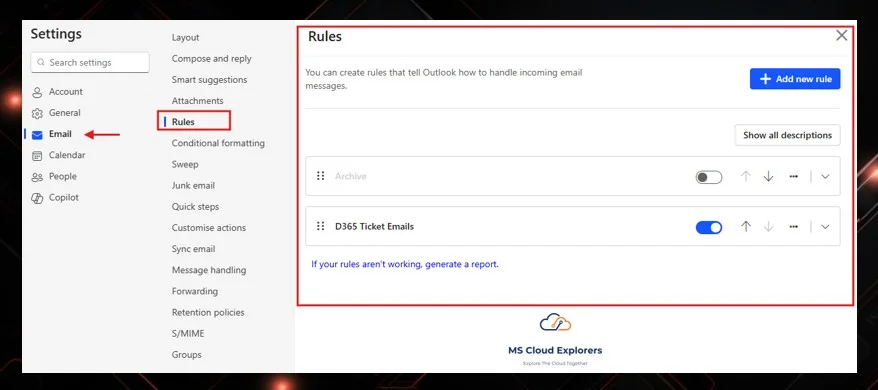
Step 3: Disable Suspicious Inbox Rules
- Sign in to Outlook Web.
- Go to Settings (gear icon) and search for “Inbox rules.”
- Review and delete any suspicious rules redirecting or hiding emails.
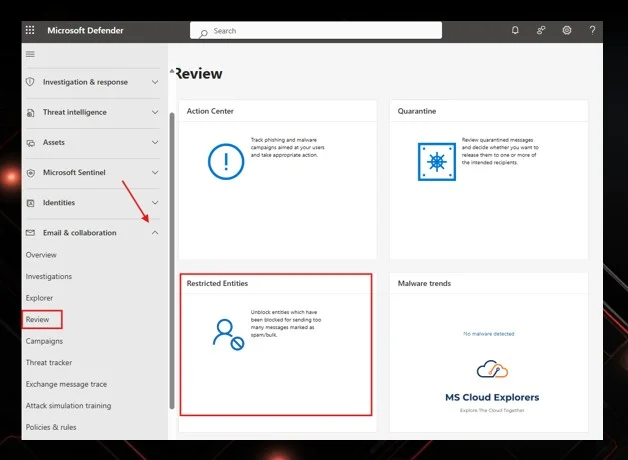
Step 4: Unblock the user account (if restricted)
If the account was sending spam, Microsoft may have blocked it. You can also setup the custom Spam Policy.
Microsoft 365 Defender:
Security → Review → Restricted entities → Unblock
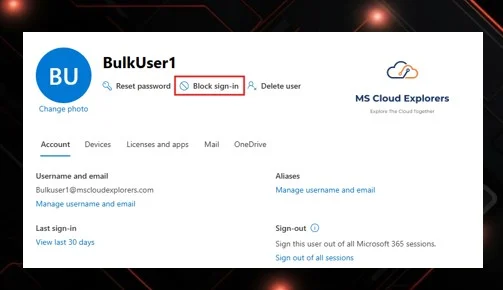
Step 5 (Optional): Block the User from Signing In
-
Useful while investigating or if multiple systems are affected.
-
Users → Select User → Block sign-in
-
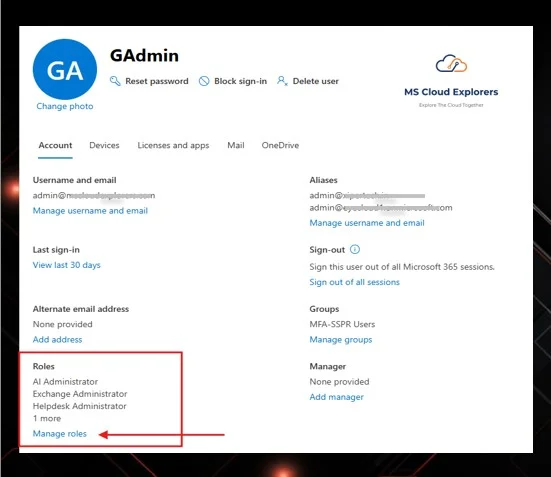
Step 6 (If Admin Account Compromised) Remove Admin Roles
Attackers frequently elevate compromised accounts.
-
Go to Entra ID or Microsoft Admin→ Roles & Administrators
-
Remove any admin privileges
-
Reassign admin access only after the account is fully secured
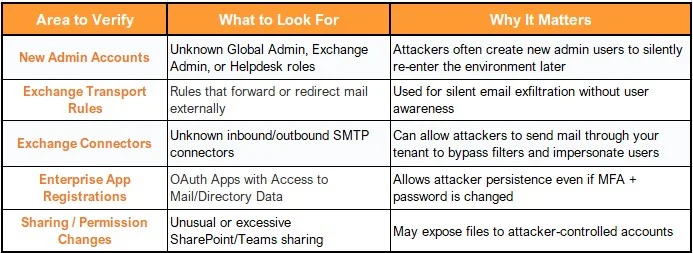
Important Security Tip
When an admin account is compromised, attackers may try to create alternate backdoors inside the environment. Before restoring trust, check the following:
Step 7: Notify Affected Users and Review Sent Items
- Inform contacts if phishing messages were sent
- Identify if any financial fraud attempts occurred
- Document findings for compliance or audit requirements
Step 8: Audit Logs Investigation
Use:
- Microsoft Purview Audit Logs
Check:
- Inbox rule changes
- File downloads
- App consent
- Admin role changes
Step 9: Notify Affected Users
- Warn contacts about phishing emails
- Inform internal teams
- Prevent financial fraud attempts
If you would like to Automate the entire process with the PowerShell, Please checkout the guide Published By Office 365 Reports – Automate Compromised Account.
Common Persistence Techniques (VERY IMPORTANT)
Attackers don’t rely on passwords only.
Top Persistence Methods
| Method | Risk Level | Description |
| Inbox rules | High | Hide attacker activity |
| Forwarding | Critical | Data theft |
| OAuth apps | High | Token-based access |
| Delegates | Medium | Silent access |
| Sessions | High | Bypass password reset |
Best Practices to Prevent Office 365 Compromises
- Use Strong Passwords: Avoid reusing passwords and make them difficult to guess.
- Enable MFA for All Accounts: This adds an extra layer of protection. Learn more about MFA.
- Monitor Account Activity: Regularly review audit and sign-in logs for unusual activities.
- Educate Users: Train employees to recognize phishing scams and avoid sharing credentials.
- Set Up Alerts: Use tools like Microsoft Defender to receive notifications about suspicious activities.
Admin Account Compromise Response
If an admin account is hacked:
Immediate Actions
- Remove admin roles
- Block account
Then:
- Check tenant-wide changes
- Review role assignments
- Check Conditional Access policies
- Review enterprise apps
Conclusion
A compromised Microsoft 365 account is not just an inconvenience—it is a security breach.
Successful recovery depends on:
✅ Removing attacker access
✅ Identifying persistence methods
✅ Investigating impact
✅ Securing identity
✅ Final Advice:
Don’t just fix the account.
Fix the security posture that allowed the compromise.
FAQs
- What should I do first if my account is hacked?
Immediately reset the password and enable MFA. - How can I tell if my Microsoft account is hacked?
You may see unknown sign-ins, missing emails, strange inbox rules, or emails sent without your knowledge. - Can MFA really help prevent hacking?
Yes. MFA significantly reduces the risk of account compromise. - Which logs should I check to investigate the issue?
Check Entra ID sign-in logs and Microsoft 365 audit logs. - How can I avoid future attacks?
Use strong passwords, enable MFA for all users, and monitor sign-in activity regularly.
For further assistance, explore Microsoft’s official security resources or consult your IT administrator
Explore More From MS Cloud Explorers
- Microsoft Zero Trust Assessment: A Step-by-Step Guide for IT Admins
- Microsoft 365 Security Audit: Complete Guide (Checklist, Tools & Best Practices) – 2026
- Top Features of Microsoft Defender for Business That You Need to Know
- Microsoft Defender for Endpoint: Comprehensive Guide
- How to Send Encrypted Email in Outlook: A Step-by-Step Guide
- How to Create and Assign Microsoft Phishing Simulator Training in Microsoft 365
- Microsoft Insider Risk Management: A Complete Guide to Prevent Insider Threats
Enjoyed the article?
We’d love to hear your thoughts—share your comments below!
For more insights, guides, and updates from the Microsoft ecosystem, be sure to subscribe to our newsletter and follow us on LinkedIn. Stay connected and never miss out on the latest tips and news!
Great guide! Super helpful. Quick one — if the hacker changes the recovery email, can I still reset the password from the admin portal?
Recovered an account using your steps — thanks! Should I block sign-ins from other countries now?
After recovery, do I need to reset app passwords or service accounts too?
Yes — if you have another global admin account, you can reset it directly from the admin portal. Just make sure to revoke all sessions and recheck MFA settings. If all admins are locked out, contact Microsoft Support for tenant recovery.
Nice work! Instead of blocking by country, use Conditional Access to require MFA for risky logins. It’s more flexible and travel-friendly.
Yes — definitely rotate anything the user had access to (service accounts, API keys, etc.) and double-check sharing links. Better safe than sorry!