

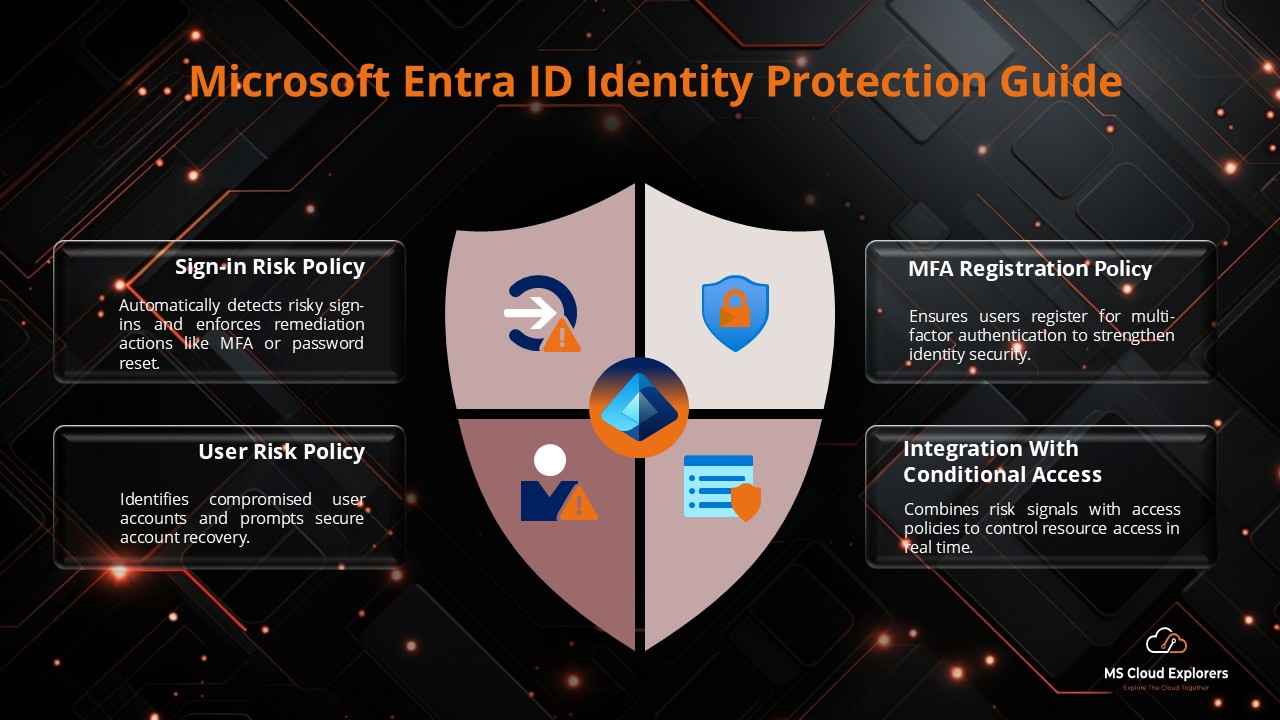
Microsoft Entra ID Identity Protection helps organizations detect, investigate, and remediate identity-based risks before compromised accounts turn into larger security incidents. It uses Microsoft risk signals, machine learning, and risk-based access controls to identify suspicious sign-ins, risky users, leaked credentials, anonymous IP activity, password spray attempts, and other identity-related threats.
This guide explains what Microsoft Entra ID Identity Protection is, what features it includes, what license is required, how to use the Identity Protection dashboard, and how to migrate legacy risk policies to Conditional Access before the October 1, 2026 retirement deadline.
|
Important update for 2026 Legacy risk policies configured directly in Microsoft Entra ID Protection retire on October 1, 2026. Organizations should create equivalent user risk and sign-in risk policies in Microsoft Entra Conditional Access, validate them in report-only mode, turn them on, and then disable the old legacy risk policies. |
What is Microsoft Entra ID Identity Protection?
Microsoft Entra ID Identity Protection is a security capability in Microsoft Entra ID that helps administrators detect identity-based risks, investigate suspicious activity, and automate remediation actions. The core purpose is simple: identify when a user account or sign-in may be compromised and apply the right response before an attacker can gain access to business data.
Identity Protection focuses on identity signals rather than endpoint, email, or network telemetry. It helps answer questions such as: Is this sign-in risky? Is this user likely compromised? Was the account exposed through leaked credentials? Is the sign-in coming from an anonymous IP address, unfamiliar location, or suspicious pattern?
Core capabilities
- Detect identity risks using Microsoft threat intelligence, risk detections, and sign-in behavior analysis.
- Investigate risky users, risky sign-ins, and individual risk detections from the Microsoft Entra admin center.
- Remediate risks manually or automatically by requiring MFA, secure password change, risk remediation, or access blocking.
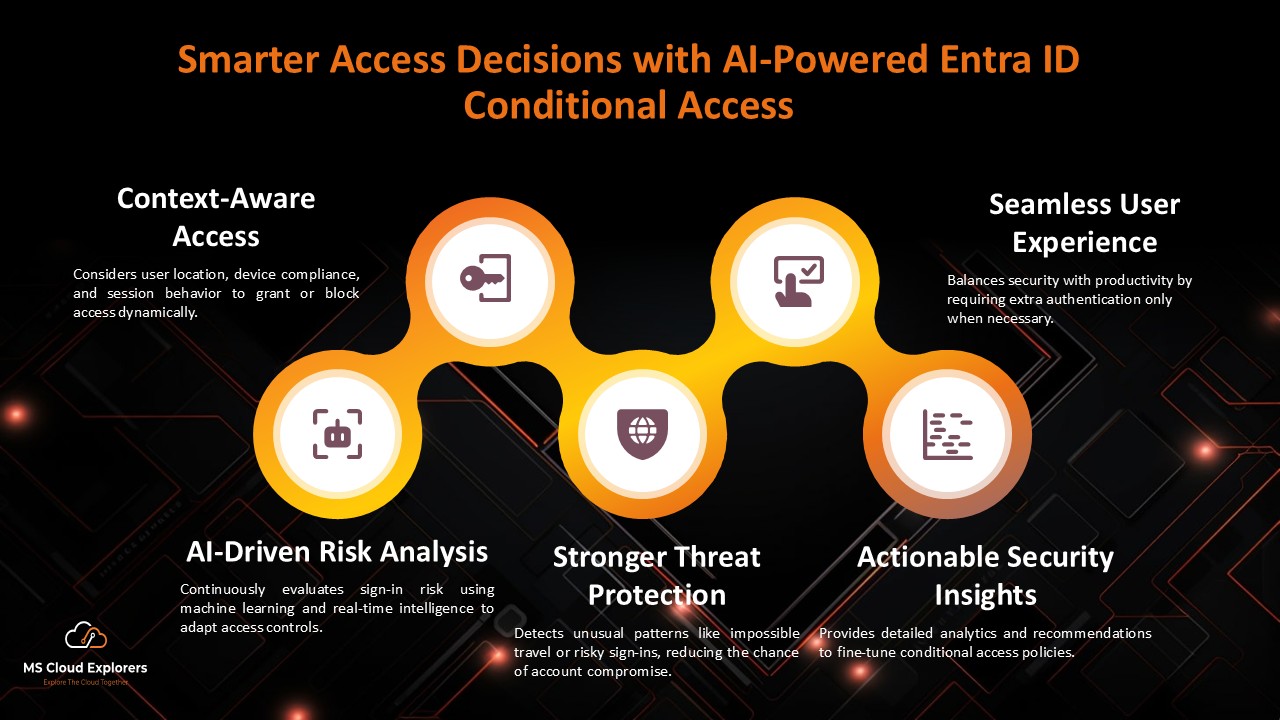
- Use detected risk as a condition in Microsoft Entra Conditional Access policies.
- Export risk data to Microsoft Sentinel, Log Analytics, or another SIEM for deeper investigation and retention.
Why Microsoft Entra ID Identity Protection Matters
Modern attacks often start with identity. Attackers use phishing, password spray, credential stuffing, token replay, anonymous proxy access, and leaked passwords to target cloud accounts. Once a compromised identity is used successfully, attackers may access email, SharePoint data, Teams conversations, Azure resources, or privileged admin portals.
Microsoft Entra ID Identity Protection strengthens a Zero Trust strategy by continuously evaluating sign-in risk and user risk. Instead of trusting a password alone, organizations can require stronger verification, force secure password change, or block access when risk signals indicate suspicious behavior.
Microsoft Entra ID Identity Protection Features
1. Risk detections
Risk detections are the individual events or signals that indicate suspicious activity. Examples include anonymous IP address usage, password spray, leaked credentials, impossible travel, unfamiliar sign-in properties, and other behavior that may indicate compromise.
2. Risky users
A risky user is a user account that Microsoft Entra ID determines may be compromised. User risk is calculated over time and can be affected by one or more risky sign-ins or risk detections. Admins can investigate the user, confirm the account is compromised, confirm the user is safe, dismiss risk, or require remediation.
3. Risky sign-ins
A risky sign-in is a specific authentication attempt that Microsoft Entra ID considers suspicious. Sign-in risk is evaluated during authentication and can trigger Conditional Access controls such as requiring MFA or blocking access.
4. Identity Protection dashboard
The Identity Protection dashboard provides a central place to review risky users, risky sign-ins, risk detections, alerts, and weekly digest settings. This dashboard is useful for daily monitoring, security review, incident investigation, and validating whether risk-based policies are working as expected.
5. Integration with Conditional Access
Microsoft Entra Conditional Access is now the recommended place to enforce risk-based access controls. Instead of relying on legacy risk policies directly under Identity Protection, admins should create Conditional Access policies for user risk and sign-in risk.
Microsoft Entra ID Identity Protection Licensing
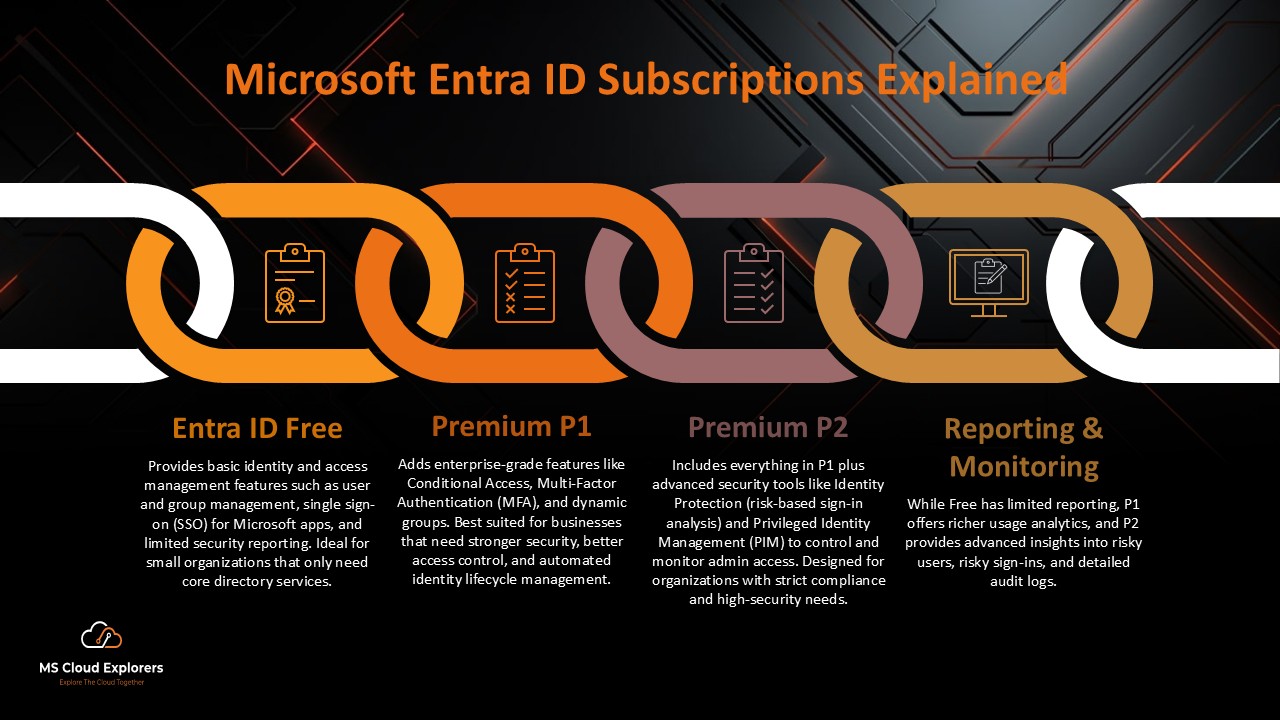
For full Microsoft Entra ID Identity Protection capabilities, organizations need Microsoft Entra ID P2 or Microsoft Entra Suite. Some lower license tiers may show limited risk-related information, but full dashboards, risk policies, risk reports, notifications, and Microsoft Graph risk reporting require the P2-level capability.
|
Capability |
Microsoft Entra ID Free / P1 |
Microsoft Entra ID P2 / Entra Suite |
|
Risk-based Conditional Access policies |
Not available as full ID Protection capability |
Available |
|
Risky users report |
Limited information in some scenarios |
Full access |
|
Risky sign-ins report |
Limited information in some scenarios |
Full access |
|
Risk detections report |
Limited or unavailable depending on tier |
Full access |
|
Users at risk detected alerts |
Not full featured |
Available |
|
Weekly digest notifications |
Not full featured |
Available |
|
Graph API access to risk reports |
Not full featured |
Available |
|
Licensing guidance Plan for Microsoft Entra ID P2, Microsoft Entra Suite, Microsoft 365 E5, EMS E5, or another eligible plan that offers Entra ID P2 features if your objective is to set up risk-based Conditional Access controls, look into risk reports, automate remediation, and utilize complete dashboard capabilities. |
User Risk vs Sign-in Risk
User risk and sign-in risk are related but not the same. Understanding the difference is important because Microsoft recommends creating separate Conditional Access policies for each risk condition.
|
Area |
User Risk |
Sign-in Risk |
|
Meaning |
The probability that a user account is compromised. |
The probability that a specific sign-in attempt is not legitimate. |
|
Scope |
Account-level risk over time. |
Authentication-session-level risk. |
|
Common examples |
Leaked credentials, multiple risky sign-ins, account compromise signals. |
Anonymous IP, unfamiliar sign-in properties, impossible travel, suspicious sign-in pattern. |
|
Recommended response |
Require risk remediation for high user risk. |
Require MFA or strong authentication for medium and high sign-in risk. |
|
Policy design |
Create a dedicated user risk Conditional Access policy. |
Create a dedicated sign-in risk Conditional Access policy. |
|
Microsoft policy design reminder Do not combine user risk and sign-in risk conditions in the same Conditional Access policy. Create separate policies so each risk type can be tested, monitored, and tuned independently. |
Microsoft Entra ID Protection Dashboard Overview
The Identity Protection dashboard helps people in control of security and identities keep an eye on risk across the whole tenant. Use it regularly to identify risky accounts, review sign-in activity, and validate that Conditional Access policies are correctly remediating risky events.
|
Dashboard Area |
Purpose |
Admin Action |
|
Risky users |
Shows users currently or previously detected as risky. |
Investigate the user, reset password, confirm compromised, confirm safe, or dismiss risk. |
|
Risky sign-ins |
Shows sign-in attempts associated with risk. |
Review user, application, IP address, location, device, MFA result, and Conditional Access result. |
|
Risk detections |
Shows individual detected risk events. |
Understand why the risk was triggered and whether it needs remediation. |
|
Notifications |
Includes alerts and weekly digest settings. |
Configure the correct security recipients and review digest emails. |
|
Reports and exports |
Risk data can be exported for investigation and retention. |
Route data to Sentinel, Log Analytics, storage, Event Hubs, or another SIEM if required. |
Important Update: Legacy Risk Policies Retire on October 1, 2026
Microsoft has announced that legacy risk policies configured in Microsoft Entra ID Protection will retire on October 1, 2026. This means organizations should not treat the old User risk policy and Sign-in risk policy screens as the long-term enforcement location. The recommended replacement is Microsoft Entra Conditional Access with risk-based conditions.
This change is important for any tenant that currently uses legacy Identity Protection risk policies. To avoid disruption, create equivalent Conditional Access policies in report-only mode, validate the impact, enable the new policies, and then disable the old legacy policies.
Prerequisites Before Configuring Risk-Based Conditional Access
- Microsoft Entra ID P2, Microsoft Entra Suite, or an eligible plan that includes Entra ID P2 capabilities.
- Conditional Access Administrator role or another role with permission to create and manage Conditional Access policies.
- At least one emergency access or break-glass account excluded from Conditional Access policies.
- MFA registration should be completed for users who may need to self-remediate sign-in risk.
- Password writeback enabled for hybrid users if user risk remediation requires secure password change.
- Security Defaults disabled if your organization will manage access through custom Conditional Access policies.
- A pilot group or report-only validation process before enforcing policies tenant-wide.
How to Create a Sign-in Risk Policy in Conditional Access
Use a sign-in risk policy when you want Microsoft Entra ID to respond to suspicious authentication attempts. A common recommendation is to require multifactor authentication or a strong authentication method when sign-in risk is medium or high.
- Sign in to the Microsoft Entra ID admin Portal.
- Go to Entra ID > Conditional Access.
- Select New policy.
- Name the policy CA-SignInRisk-MediumHigh-RequireMFA.
- Under Users, include All users or a pilot group during testing.
- Under Exclude, exclude emergency access or break-glass accounts. Also review service accounts and noninteractive accounts that should not be targeted by user-based Conditional Access.
- Under Target resources, select All resources.
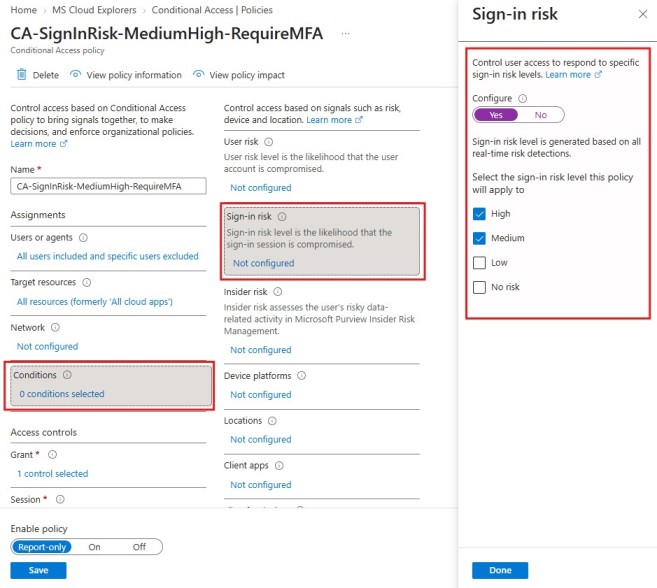
- Under Conditions, select Sign-in risk and set Configure to Yes.
- Select Medium and High risk levels.
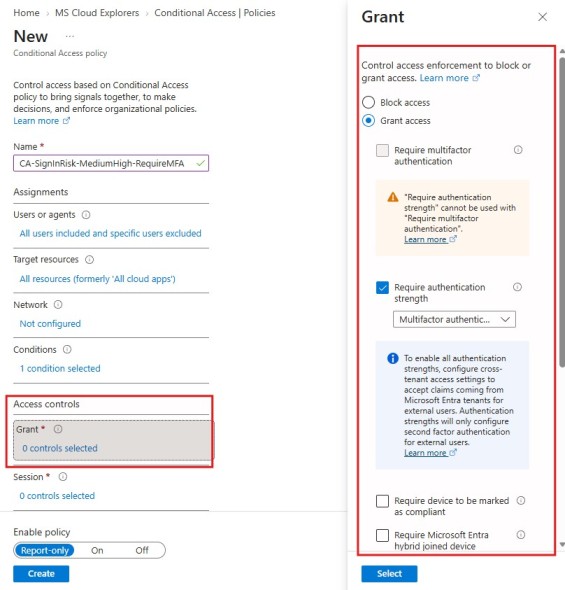
- Under Grant, select Grant access and choose Require authentication strength. Select Multifactor authentication or another approved strength based on your authentication strategy.
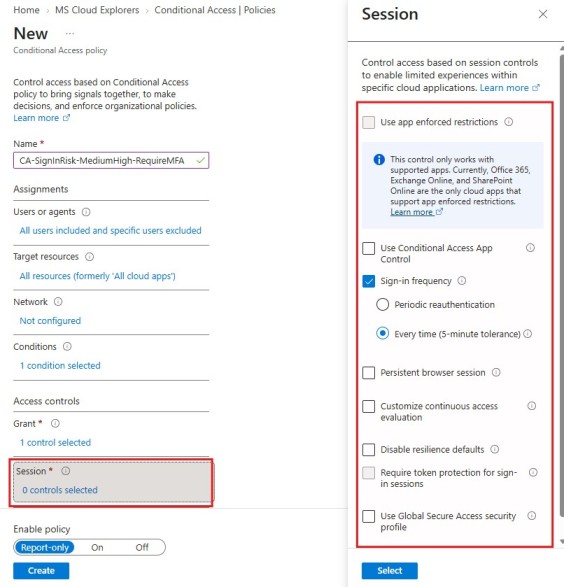
- Under Session, configure Sign-in frequency as Every time.
- Set Enable policy to Report-only first.
- Select Create.
- Review report-only results. After validation, change the policy from Report-only to On.
|
Recommended sign-in risk behavior For medium or high sign-in risk, require MFA or an approved authentication strength. This allows legitimate users to prove their identity while reducing the chance that a suspicious sign-in succeeds. |
How to Create a User Risk Policy in Conditional Access
Use a user risk policy when Microsoft Entra ID determines that an account itself may be compromised. The recommended approach for high user risk is to require risk remediation.
- Sign in to the Microsoft Entra admin center.
- Go to Entra ID > Conditional Access.
- Select New policy.
- Name the policy CA-UserRisk-High-RequireRiskRemediation.
- Under Users, include All users or a pilot group during testing.
- Under Exclude, exclude emergency access or break-glass accounts.
- Under Target resources, select All resources.
- Under Conditions, select User risk and set Configure to Yes.
- Select High, Medium risk level.
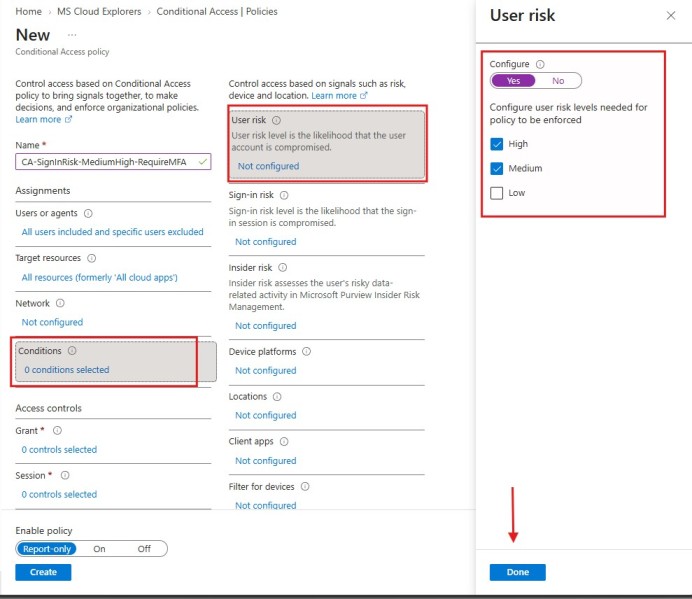
- Under Grant, select Grant access.
- Select Require risk remediation.
- Confirm the automatically applied authentication strength and session controls.
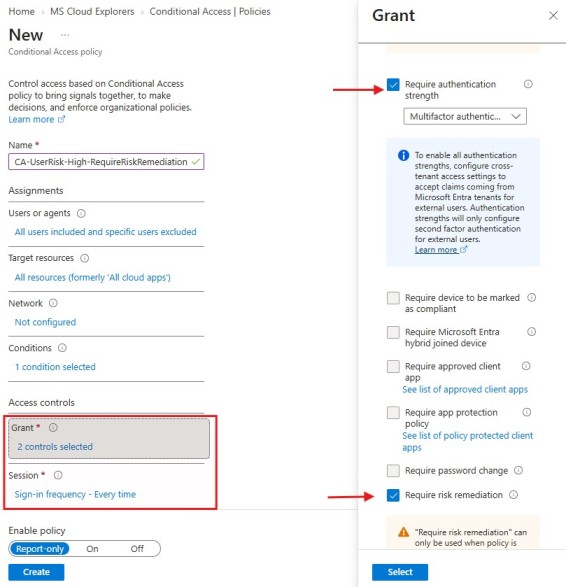
- Set Enable policy to Report-only first.
- Select Create.
- Review report-only results. After validation, change the policy from Report-only to On.
|
Hybrid identity note For hybrid users synced from on-premises Active Directory, secure password change remediation requires password writeback. Without password writeback, affected users may need administrator intervention. |
How to Migrate Legacy Risk Policies to Conditional Access
- Document the current legacy User risk policy and Sign-in risk policy settings from Identity Protection.
- Create equivalent Conditional Access policies for user risk and sign-in risk in report-only mode.
- Validate impacted users, excluded accounts, apps, authentication behavior, and report-only results.
- Use the Conditional Access What If tool to confirm expected policy behavior.
- Move the new Conditional Access policies from Report-only to On.
- Monitor risky users, risky sign-ins, and sign-in logs for any unexpected impact.
- Go back to Identity Protection and disable the old legacy User risk and Sign-in risk policies.
- Document the migration date, policy names, exclusions, and validation results for audit readiness
Microsoft Entra ID Legacy Identity Protection Policies
Sign-in Risk Policies
Create conditions that block access or require MFA based on risk Factor.

User Risk Policies
Apply Automatically force a password reset when user risk hit a threshold.

MFA Registration Policy
Ensure users register for Multi-Factor Authentication before being granted access to sensitive resources.

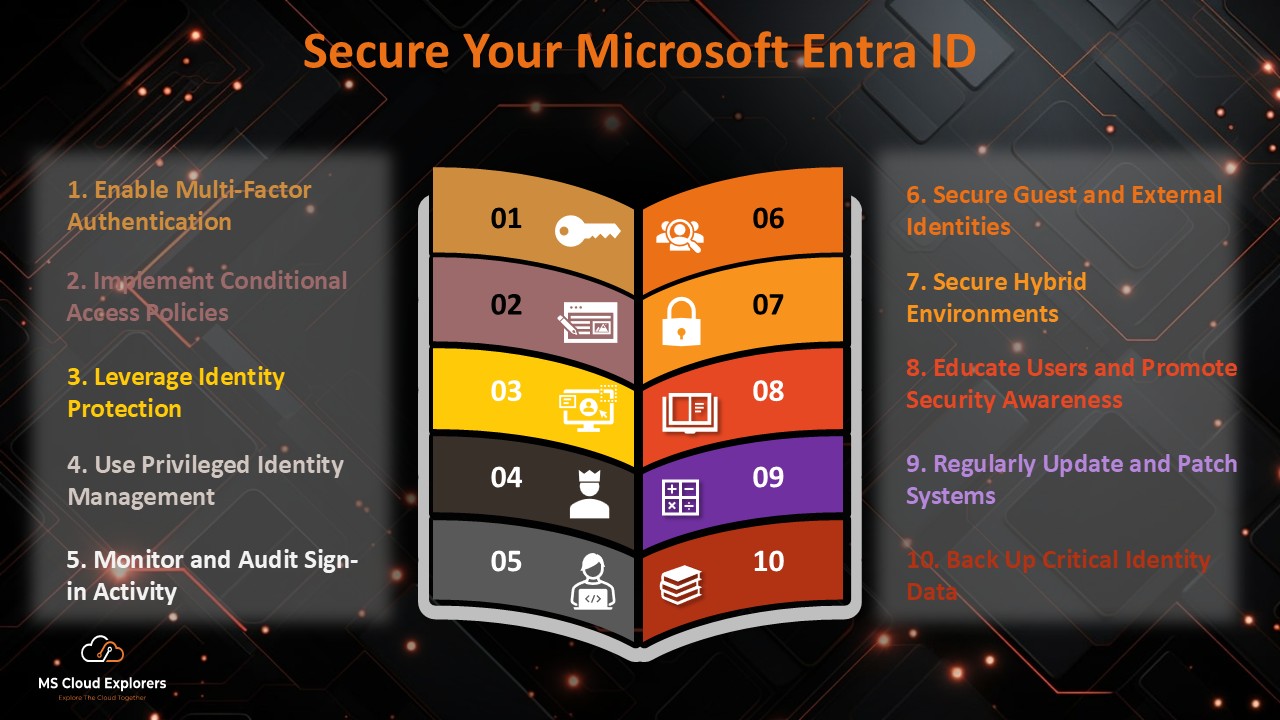
Best Practices for Microsoft Entra ID Identity Protection
- Start with report-only mode before enforcing risk-based Conditional Access policies.
- Exclude emergency access or break-glass accounts from Conditional Access policies and monitor those accounts separately.
- Do not combine user risk and sign-in risk in the same Conditional Access policy.
- Require MFA registration before users need to self-remediate risky sign-ins.
- Enable password writeback for hybrid environments where secure password change is required.
- Use named locations carefully to reduce false positives from trusted corporate networks.
- Review risky users, risky sign-ins, and risk detections regularly instead of relying only on automation.
- Export risk data to Microsoft Sentinel or another SIEM if the organization needs longer retention or correlation with other security signals.
- Use strong authentication methods such as phishing-resistant MFA or passwordless authentication where possible.
- Review policy impact after major business changes, mergers, travel events, or authentication method changes.
Common Troubleshooting Scenarios
|
Scenario |
Possible Cause |
Recommended Action |
|
User is blocked by risk policy |
User is not registered for MFA or cannot complete remediation. |
Verify MFA registration, authentication methods, and whether administrator intervention is required. |
|
Hybrid user cannot change password |
Password writeback is not enabled or not healthy. |
Check Microsoft Entra Connect password writeback configuration and SSPR settings. |
|
Policy does not apply |
User, app, condition, or exclusion is not matching. |
Use Conditional Access What If and review sign-in logs. |
|
Too many false positives |
Risk threshold may be too sensitive or trusted locations are not configured. |
Review risk level selection, named locations, and report-only data before tuning. |
|
Service account impacted |
Interactive service account included in policy scope. |
Exclude approved service accounts or replace legacy service accounts with managed identities where possible. |
|
User risk remains after action |
Risk was dismissed incorrectly or secure remediation did not complete. |
Investigate the risky user timeline and confirm whether the user is safe or compromised. |
Microsoft Entra ID Identity Protection Use Cases
Protecting remote and hybrid workers
Remote and hybrid users often sign in from changing networks, unmanaged devices, and different locations. Identity Protection helps recognize abnormal sign-in patterns and apply additional verification when risk is detected.
Securing administrator and privileged accounts
Administrator accounts should be protected with stronger controls because a compromised admin identity can create major business risk. Use Conditional Access, strong authentication, Privileged Identity Management, and monitoring together for privileged accounts.
Responding to password spray and leaked credentials
If Microsoft detects signs of password spray or leaked credentials, Identity Protection can help identify the affected users and require appropriate remediation. Admins should also review sign-in logs, source IP addresses, user activity, and related alerts.
Improving incident response
During an identity incident, risky users, risky sign-ins, and risk detections can provide a starting point for investigation. Security teams can pivot from a risky sign-in to application, IP address, location, device details, Conditional Access outcome, and related sign-in activity.
Limitations and Considerations
- Identity Protection focuses on identity risk signals. It does not replace endpoint protection, email security, network monitoring, or SIEM correlation.
- Some detections depend on Microsoft signals, sign-in history, and available telemetry. Not every suspicious sign-in will always produce the same risk result.
- False positives can happen when users travel, change devices, use VPN services, or change normal work patterns.
- Full Identity Protection features require Microsoft Entra ID P2 or equivalent licensing.
- Hybrid user self-remediation may require password writeback.
- Risk-based policies should be tested carefully to avoid accidental lockouts.
FAQs
What is Microsoft Entra ID Identity Protection?
Microsoft Entra ID Identity Protection is a Microsoft identity security capability that detects, investigates, and remediates identity-based risks such as risky users, risky sign-ins, leaked credentials, and suspicious sign-in behavior.
What kind of license do I need to use Microsoft Entra ID Identity Protection?
Full Microsoft Entra ID Identity Protection capabilities require Microsoft Entra ID P2, Microsoft Entra Suite, or another eligible plan that includes Entra ID P2 capabilities.
Does Microsoft Entra ID P1 include full Identity Protection?
No. Microsoft Entra ID P1 does not provide the full Microsoft Entra ID Identity Protection feature set. Full risk policies, reports, notifications, and Graph risk reporting require P2-level capability.
What is user risk in Microsoft Entra ID?
User risk is the probability that a user account is compromised. It is calculated from signals such as risky sign-ins, leaked credentials, or other account compromise indicators.
What is sign-in risk in Microsoft Entra ID?
Sign-in risk is the probability that a specific authentication attempt is suspicious or not performed by the legitimate user.
Are legacy Identity Protection risk policies retiring?
Yes. Legacy risk policies configured directly in Microsoft Entra ID Protection retire on October 1, 2026. Organizations should migrate to Conditional Access risk-based policies before that date.
How do I migrate legacy risk policies to Conditional Access?
Create equivalent user risk and sign-in risk Conditional Access policies in report-only mode, validate the results, turn the policies on, then disable the old legacy policies in Identity Protection.
Should user risk and sign-in risk be configured in the same policy?
No. User risk and sign-in risk should be configured in separate Conditional Access policies for better testing, troubleshooting, and policy management.
What happens if users are not registered for MFA?
If a user is required to complete MFA for sign-in risk remediation but has not registered for MFA, the user may be blocked and may need administrator assistance.
Do hybrid users need password writeback for risk remediation?
Yes, if hybrid users are required to complete secure password change as part of user risk remediation, password writeback must be enabled and working.
Can Identity Protection data be exported to Microsoft Sentinel?
Yes. Organizations can export Identity Protection risk data to Log Analytics, Microsoft Sentinel, storage, Event Hubs, or another SIEM for correlation and longer retention.
Is Identity Protection enough by itself?
No. Identity Protection should be used with Conditional Access, strong authentication, Defender products, monitoring, user training, and incident response processes.
Conclusion
Microsoft Entra ID Identity Protection is an essential part of a modern Microsoft cloud security strategy. It helps organizations detect risky users, risky sign-ins, and identity-based threats, then respond automatically through Conditional Access policies.
The most important action for 2026 is to migrate legacy Identity Protection risk policies to Conditional Access before October 1, 2026. Keep the old policy steps as reference only, but make Conditional Access the primary enforcement model for user risk and sign-in risk. With the right licensing, dashboard monitoring, MFA registration, password writeback planning, and report-only testing, organizations can reduce identity risk without creating unnecessary user disruption.
Explore More From MS Cloud Explorers
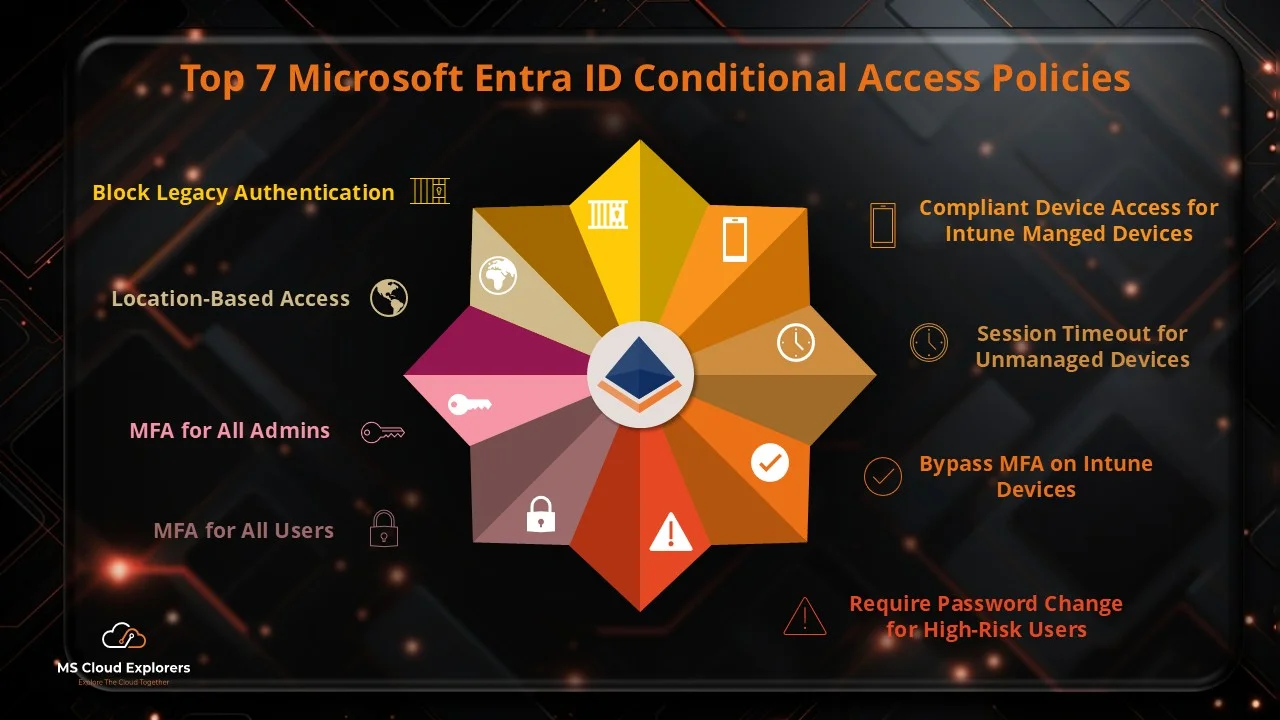
- Top 7 Conditional Access Policies Every Organization Should Implement
- A Complete Guide to Privileged Identity Management in Azure AD (PIM)
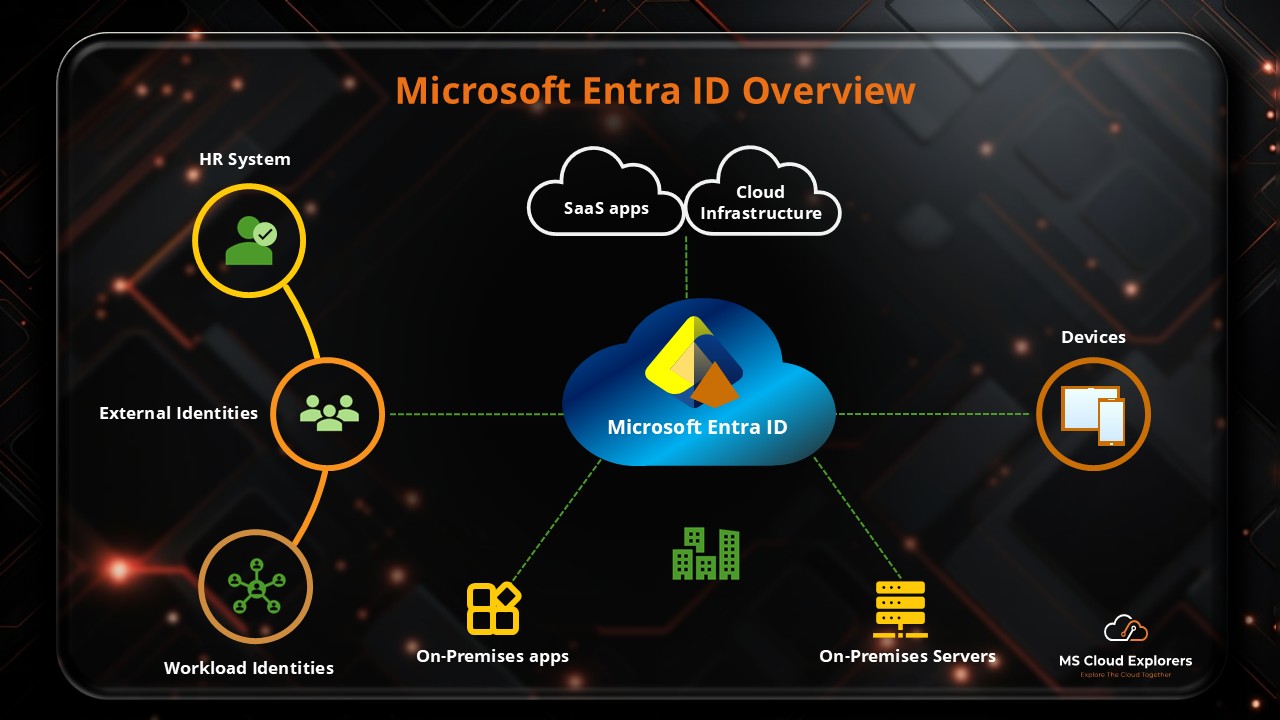
- Microsoft Entra ID: The Gateway to Microsoft’s Identity and Access Management
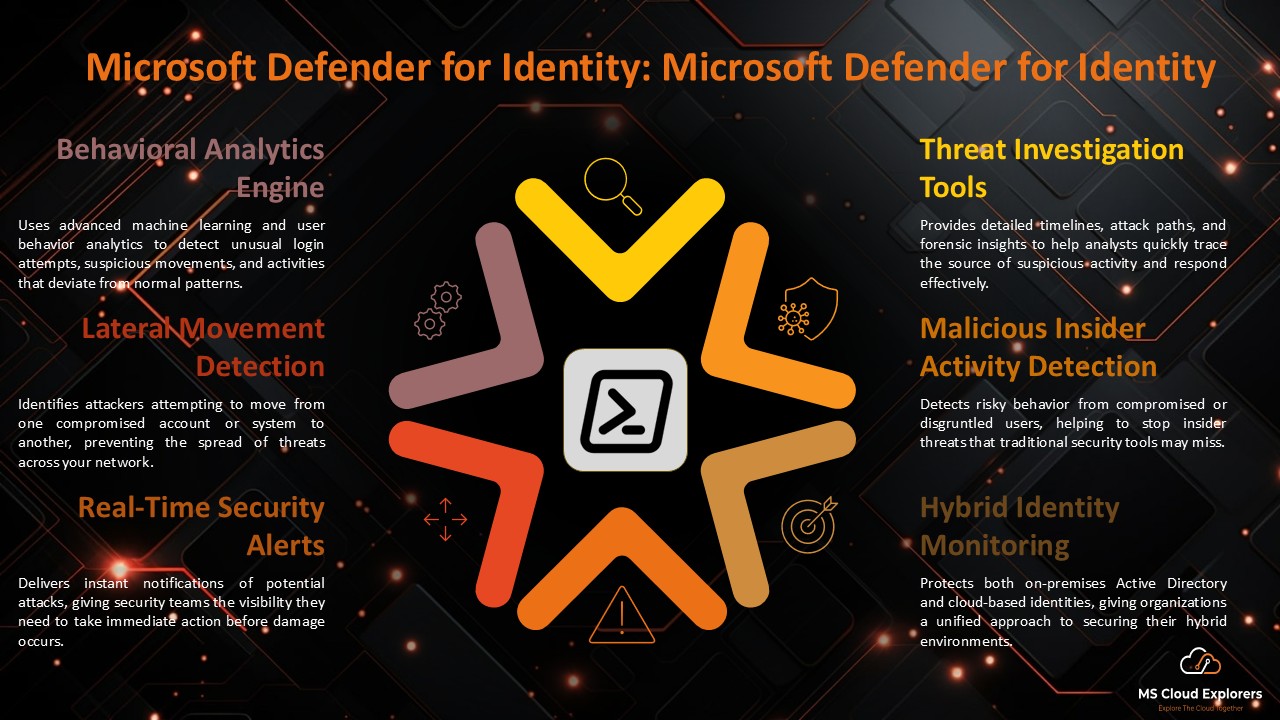
- Microsoft Defender for Identity: Modern Threat Detection and Identity Protection
- Azure AD Free vs. Premium P1 & P2: Which Edition Is Right for Your Business?
References and Further Reading
- Microsoft Learn – What is Microsoft Entra ID Protection
- Microsoft Learn – Configure and enable risk policies
- Microsoft Learn – Microsoft Entra licensing
- Microsoft Learn – Security defaults
- Microsoft Entra pricing
Enjoyed the article?
We’d love to hear your thoughts—share your comments below!
For more insights, guides, and updates from the Microsoft ecosystem, be sure to subscribe to our newsletter and follow us on LinkedIn. Stay connected and never miss out on the latest tips and news!
Excellent deep dive into Entra ID Identity Protection! Your step-by-step setup and explanations of risk policies, alerts, and remediation actions make complex security tools approachable. It’d be even more helpful to include a comparison of Identity Protection features under different licenses (P2 vs P2 with Compliance add‑on) or versus Azure AD Identity Protection. Keep up the amazing content!
Thank you so much for your thoughtful feedback! I’m glad the detailed walkthrough resonated with you. That’s a fantastic suggestion—I’ll update the article with a license comparison section highlighting which Identity Protection capabilities are available under P2 alone vs bundled compliance plans, and clarify how it differs from Azure AD’s version. Your input helps make the guide even more valuable!